

1. Identify the Target S3 Bucket
First, open the Amazon S3 Management Console. Filter your buckets by the prefix “Company1” and locate company1-logs, which stores daily logs used by your development team.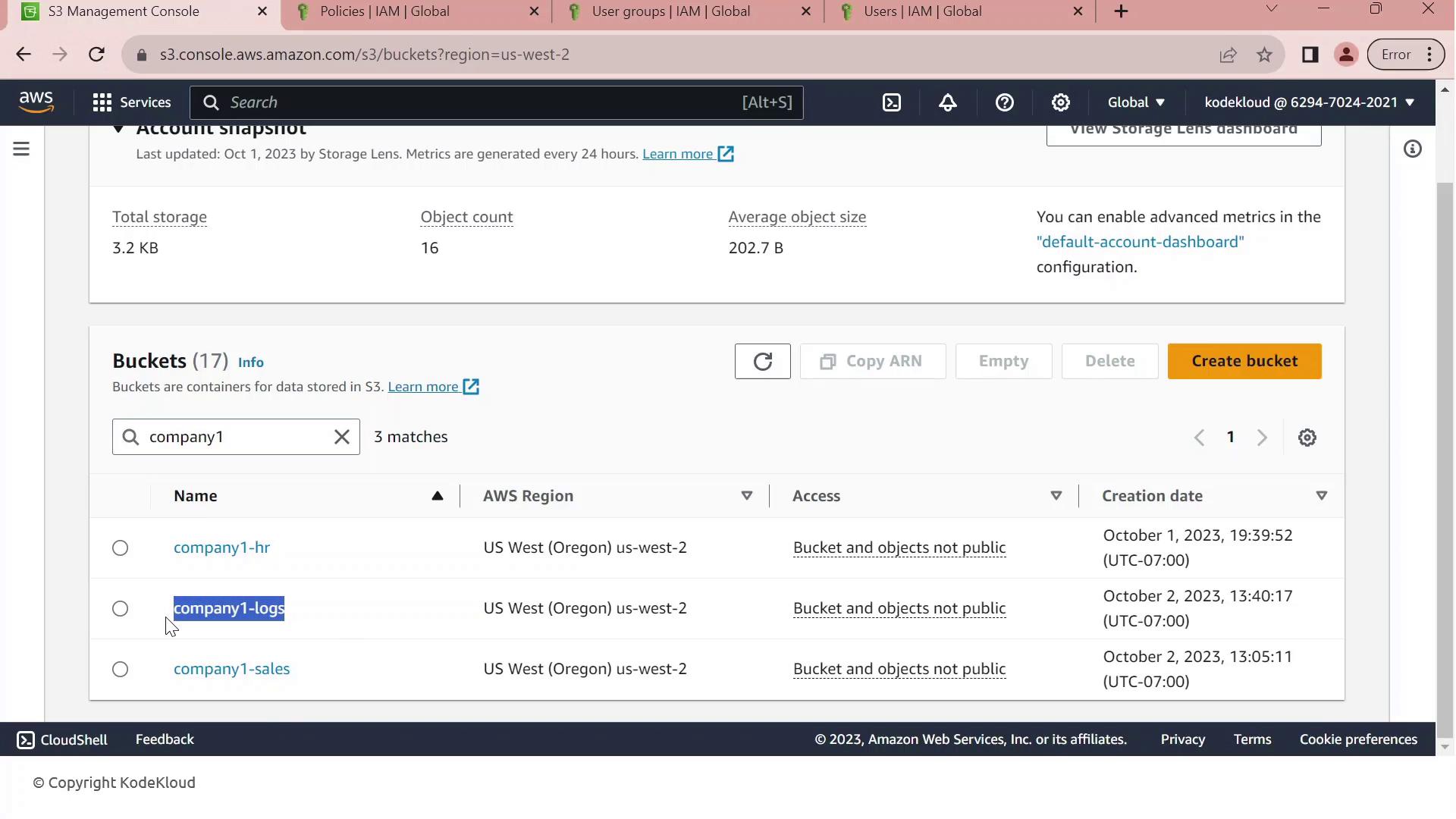
2. Review Customer-Managed Policies
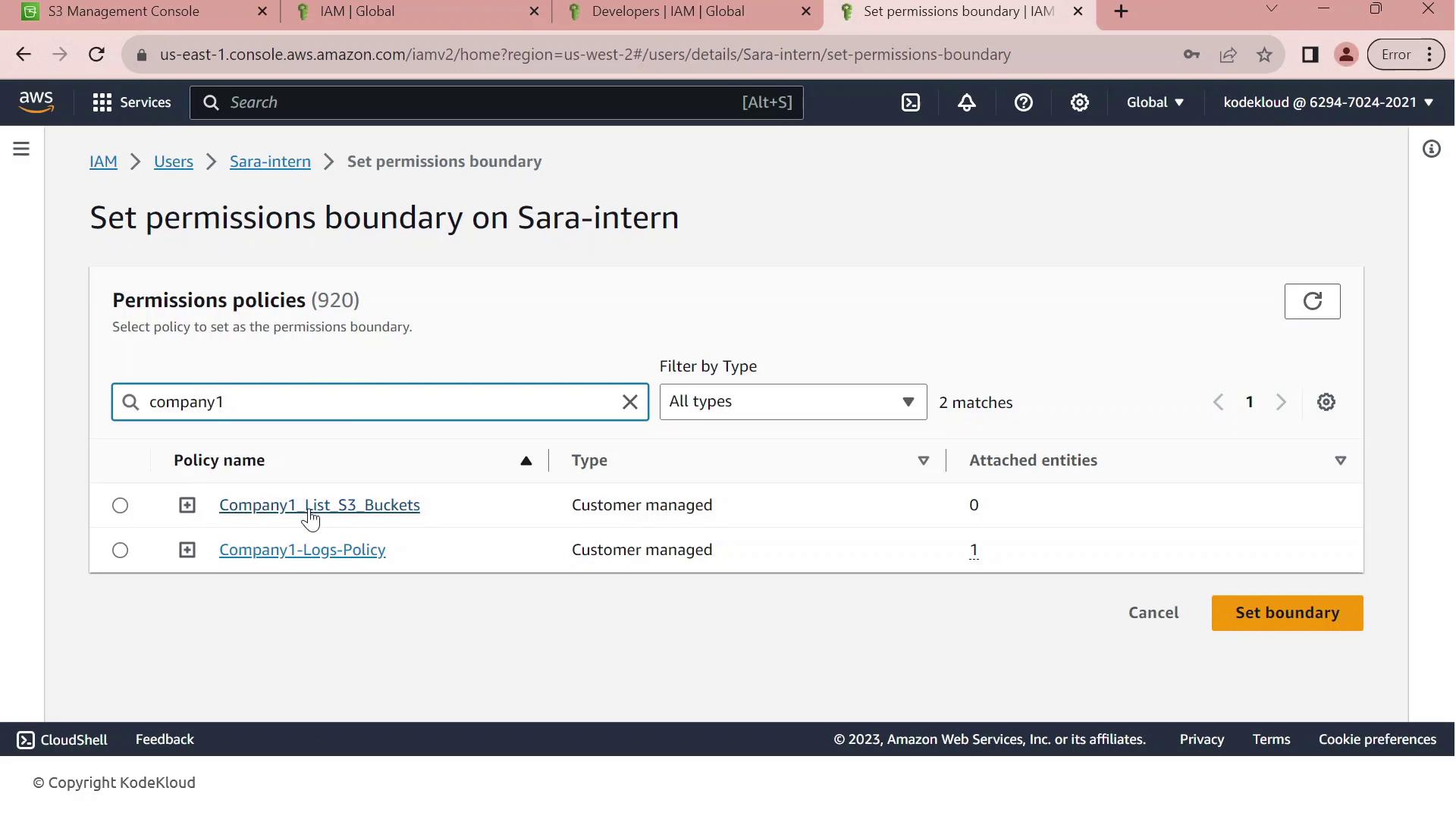
Next, navigate to the IAM console and filter customer-managed policies by “company1.” You should see: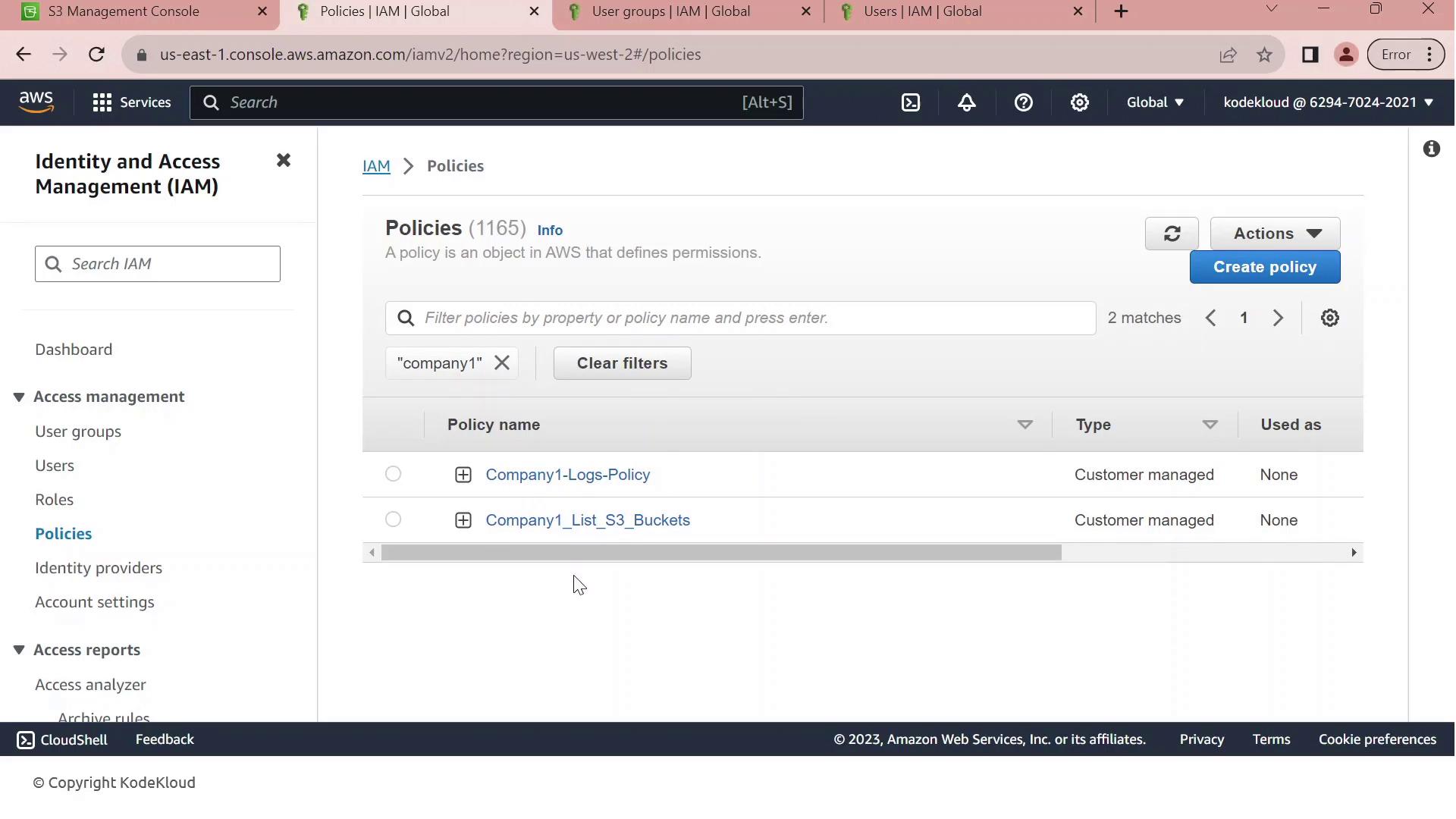
| Policy Name | Purpose | Key Actions |
|---|---|---|
| Company1-Logs-Policy | Full S3 access to company1-logs | s3:ListBucket, s3:GetObject, s3:PutObject, s3:DeleteObject |
| Company1_List_S3_Buckets | Read-only listing of all S3 buckets | s3:ListAllMyBuckets, s3:GetBucketLocation |
3. Inspect the Full-Access Logs Policy
Click on Company1-Logs-Policy to view its JSON document. This policy grants any principal full control over thecompany1-logs bucket.
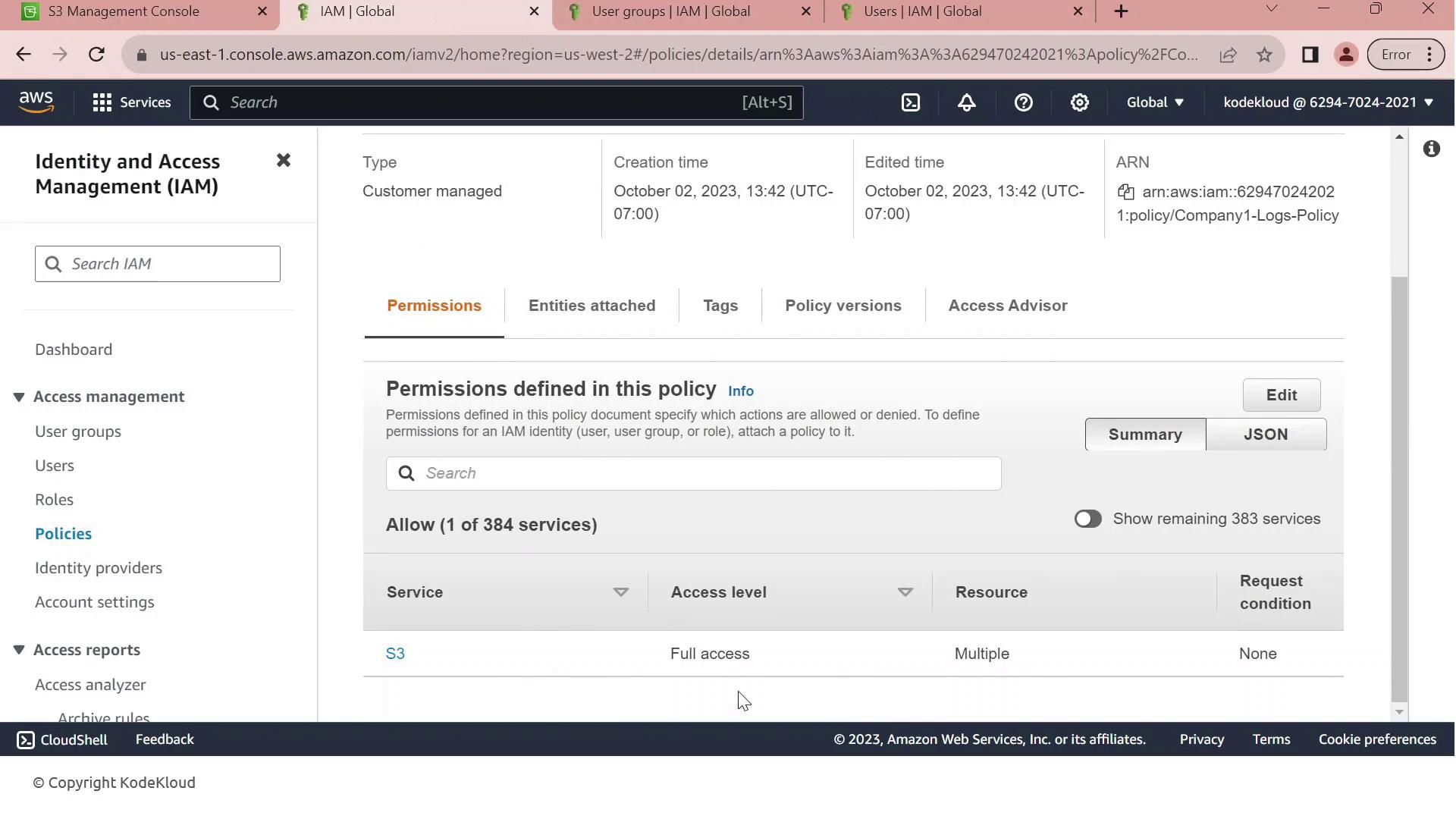
company1-logs.
4. Scenario: Hiring a New Intern
We’ve hired an intern, Sara, but we want to limit her permissions to bucket listing only. Without adjustments, adding her to the Developers group would grant full S3 access.- In the IAM console, click Create User.
- Enter Sara-intern as the username.
- Enable AWS Management Console access, generate a password, and require a reset on first login.
- Add Sara-intern to the Developers group and complete the user creation.
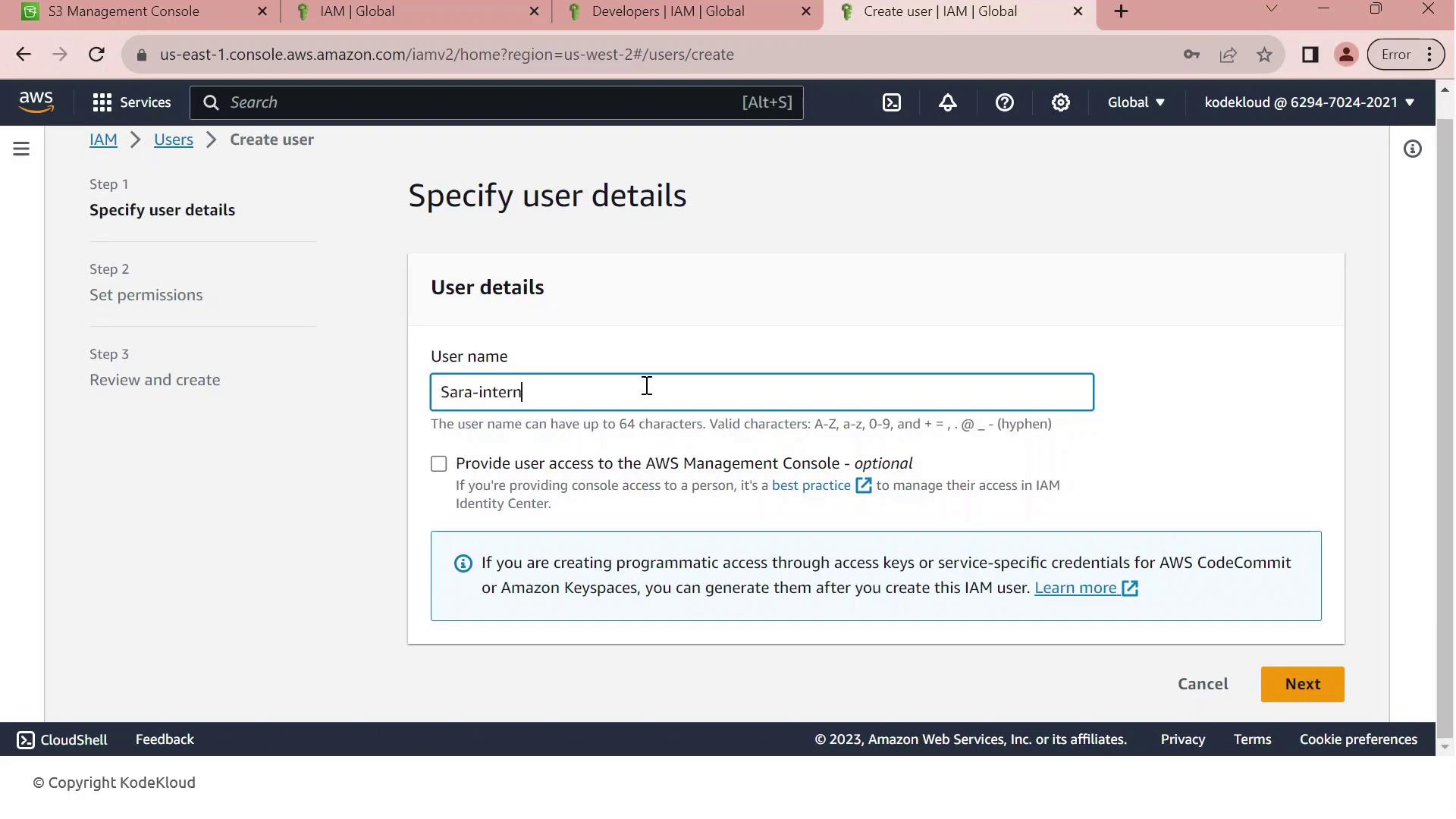
By default, Sara inherits every permission granted to the Developers group. We need a permissions boundary to cap her maximum privileges.
5. Apply the Permissions Boundary
To restrict Sara’s permissions:- Open Sara-intern’s user summary and go to the Permissions tab.
- Click Set permissions boundary.
- Select Company1_List_S3_Buckets and save.
A permissions boundary only defines the maximum rights a user can have. The user’s effective permissions are the intersection of their group policies and the boundary. Always validate by testing in a non-production account.
s3:ListAllMyBuckets) but cannot read, write, or delete any objects. This enforces least privilege for new users.