

- Creating an IAM user with console and programmatic access
- Configuring the AWS CLI on your local machine
- Integrating AWS SDKs within your applications
- Organizing permissions using IAM groups
1. IAM User with Access Keys
To enable both console and programmatic access, create an IAM user (e.g., John) and generate an Access Key ID and Secret Access Key. These credentials allow John to authenticate with AWS services via CLI or SDKs.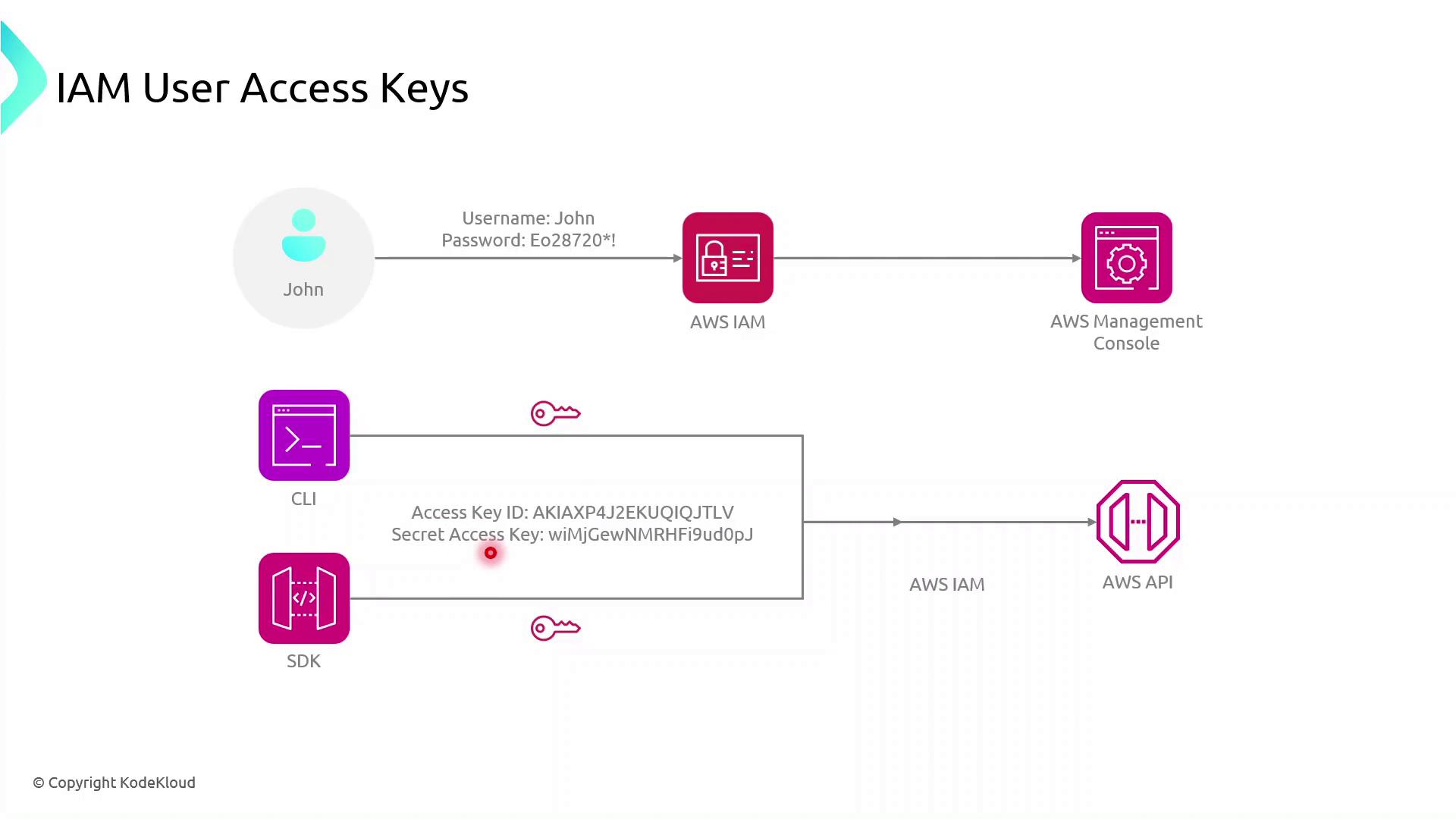
- Execute AWS CLI commands
- Use AWS SDKs in applications to call AWS service APIs
Keep your Access Key ID and Secret Access Key secure. Never commit them to version control or expose them in client-side code.
2. Configuring the AWS CLI
Install the AWS CLI, then run:- AWS Access Key ID
- AWS Secret Access Key
- Default region name (e.g.,
us-east-1) - Default output format (e.g.,
json)
Credentials and configuration are stored in:
~/.aws/credentials~/.aws/config
3. Using AWS SDKs in Applications
AWS SDKs enable you to interact with AWS services programmatically. Below is a high-level flow for a browser-based app using the AWS SDK for JavaScript: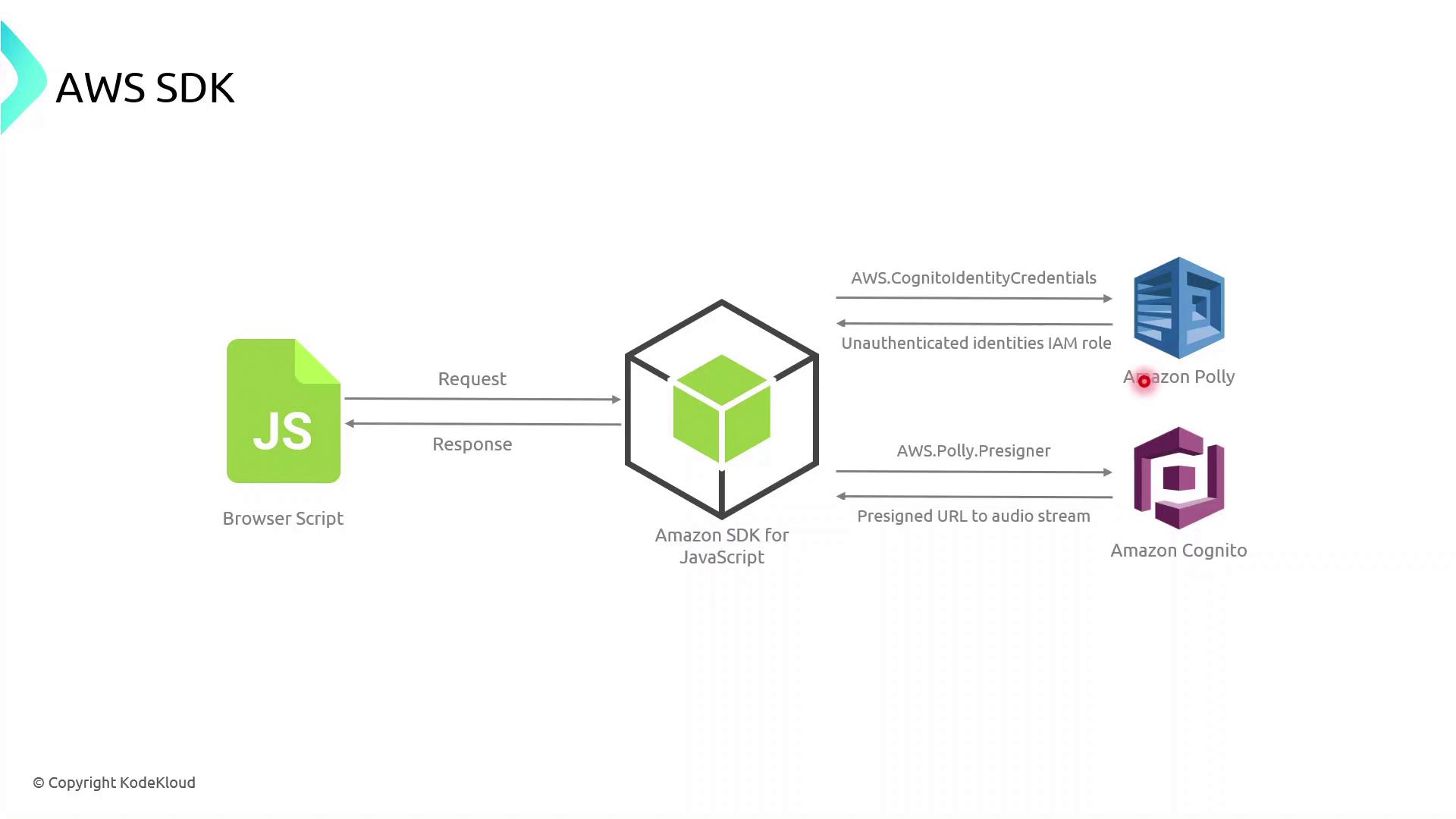
- The browser script initializes the AWS SDK with temporary credentials (often retrieved via Amazon Cognito).
- It calls an AWS service API (for example, Polly’s
SynthesizeSpeech). - AWS processes the request and returns a response, which the application then handles and renders.
Example: AWS SDK for JavaScript (v3)
4. Managing Permissions with IAM Groups
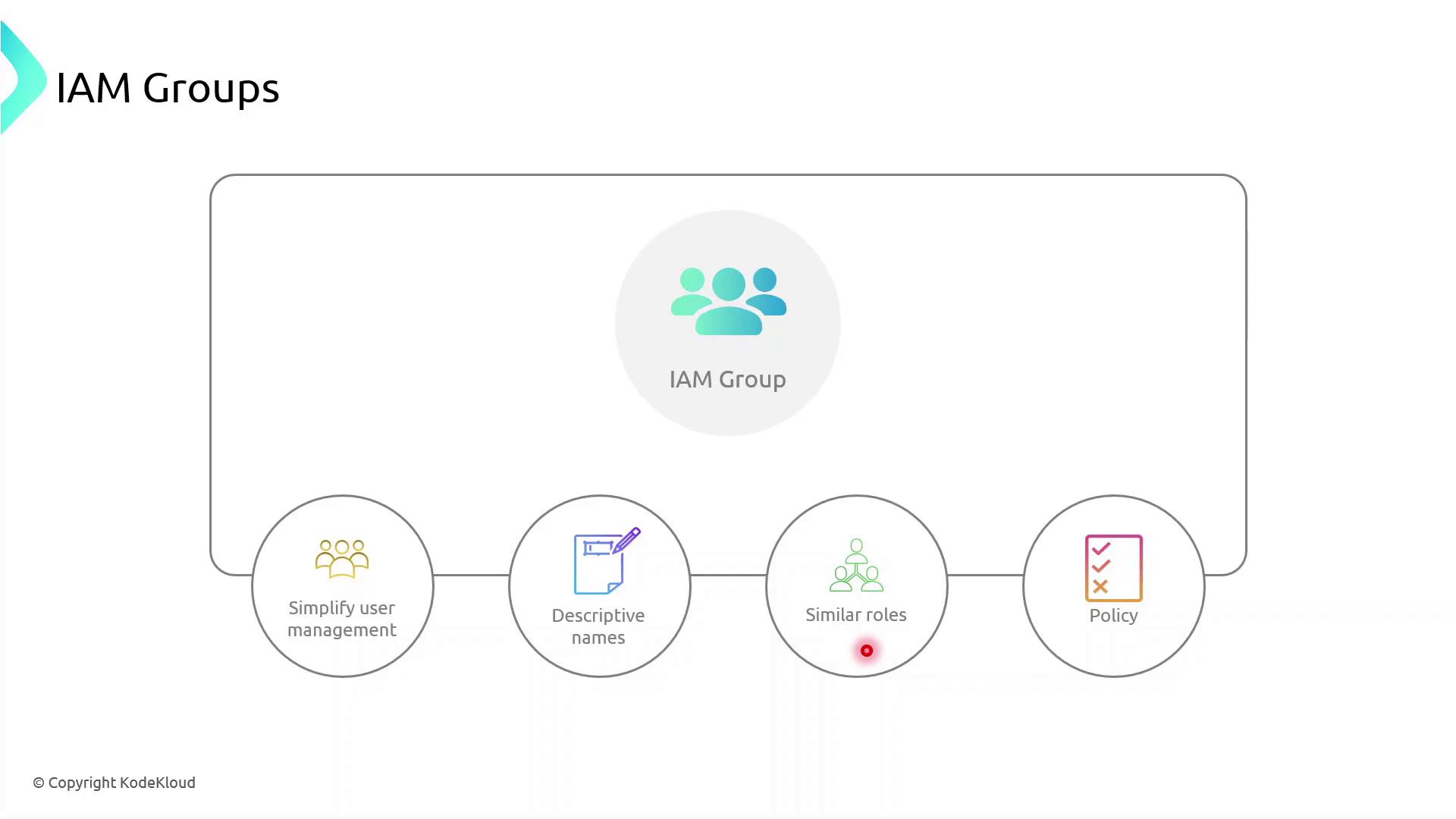
IAM groups simplify permission management by allowing you to assign policies to multiple users at once. Follow these best practices:| Best Practice | Description | Example |
|---|---|---|
| Descriptive Names | Use clear, role-based group names | Developers, DataScientists, Admins |
| Granular Policies | Attach least-privilege policies to groups | AmazonS3ReadOnlyAccess |
| Role Similarity | Group users with similar responsibilities | Marketing, Engineering, Finance |
Demo: Creating an IAM Group
- Sign in to the AWS Management Console and open the IAM console.
- In the navigation pane, choose User groups → Create group.
- Enter a group name (e.g.,
MarketingTeam). - Attach one or more policies to grant required permissions.
- Add existing users (like John) to the group.