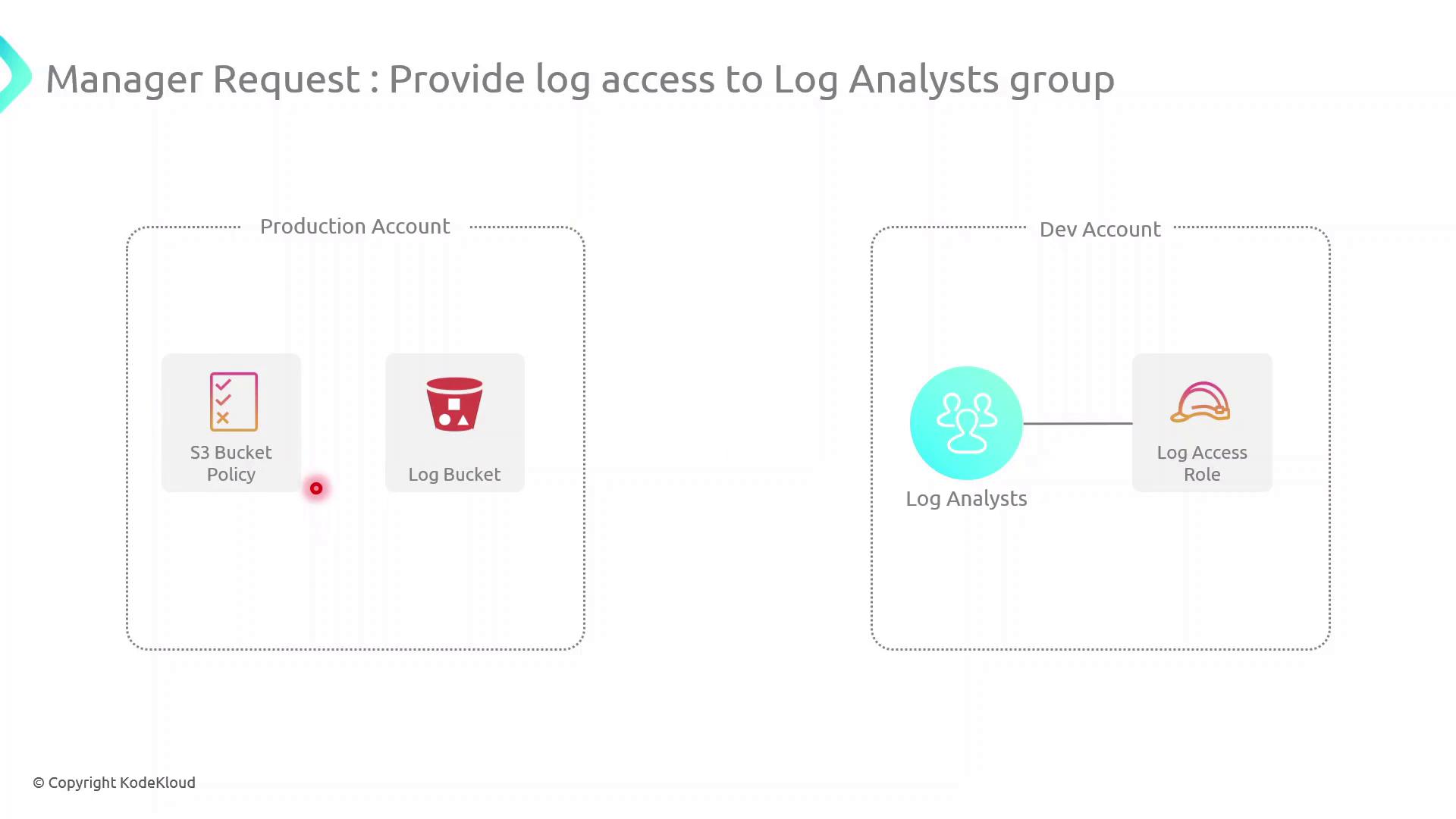
In this guide, we’ll configure cross-account access between a Production AWS account (owns an S3 log bucket) and a Development AWS account (hosts a Log Analysts group). This setup enables secure, temporary access to logs without sharing long-term credentials.
Scenario AWS Account Resource Purpose Production Account S3 bucket (log-bucket) Stores application log files Development Account IAM Group (Log Analysts) Needs permission to list and read log files
Our objective is to let the Log Analysts group assume a role in the Production account to retrieve logs.
High-Level Architecture
Create an IAM Role in the Production Account
Attach an inline S3 policy to that role
Update the S3 Bucket Policy to trust the role
Assume the role from the Development Account and verify access
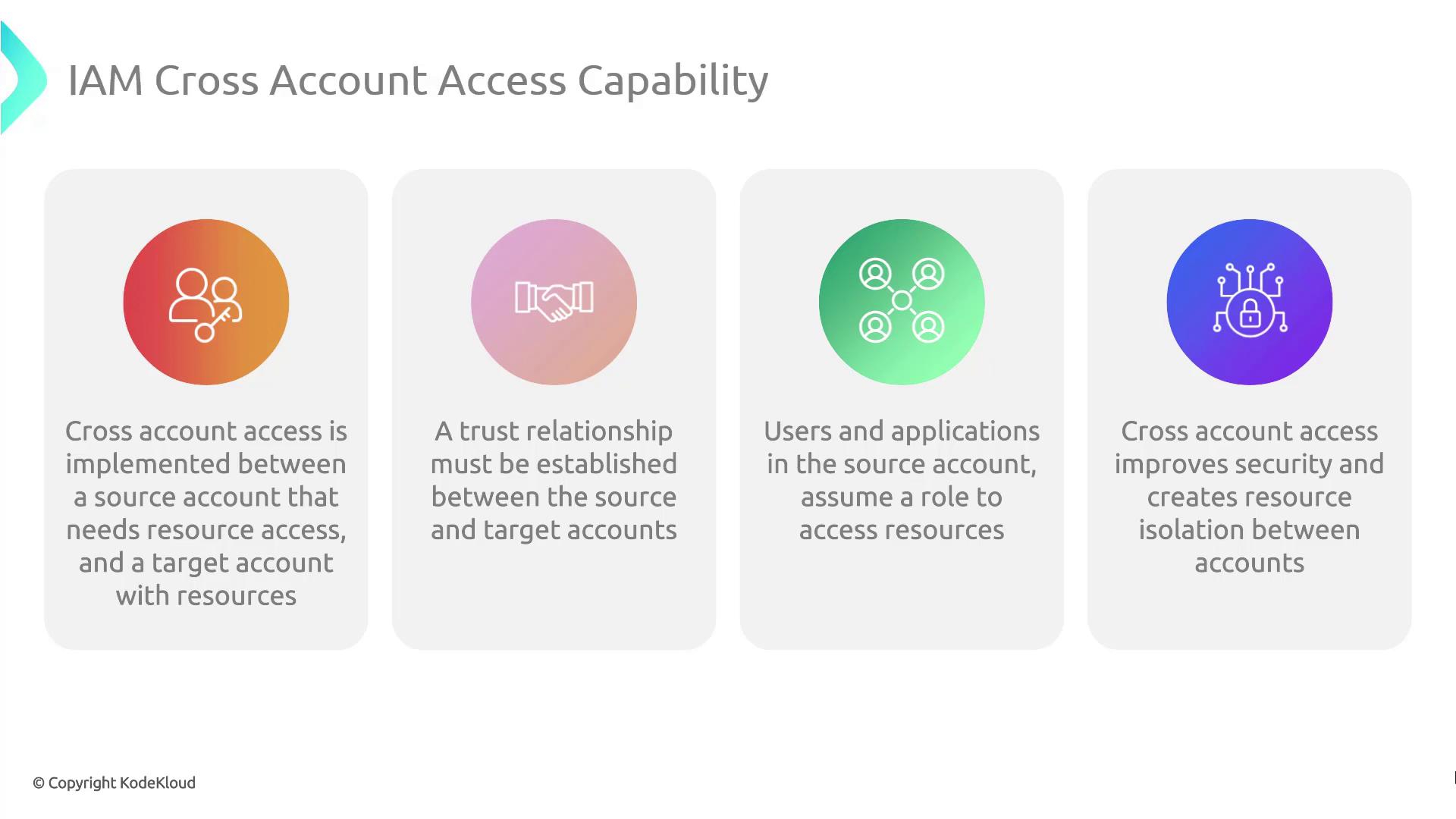
Cross-Account Access Components Component Description Trust Relationship IAM Role trust policy in the Production account allowing Dev account to assume it Role Assumption sts:AssumeRole call from Dev account for temporary credentialsPermissions Boundary Inline policy (or managed) on the role controls S3 access Resource Policy S3 Bucket policy grants the role s3:ListBucket and s3:GetObject
Be explicit in your trust policy to avoid granting unintended access. Restrict Principal to specific IAM roles or account IDs.
Demo Walkthrough Follow these steps to implement and test cross-account S3 access.
1. Create the IAM Role in Production Create a trust policy (trust-policy.json):
{ "Version" : "2012-10-17" , "Statement" : [ { "Effect" : "Allow" , "Principal" : { "AWS" : "arn:aws:iam::DEV_ACCOUNT_ID:root" }, "Action" : "sts:AssumeRole" } ] }
Use the AWS CLI to create the role:
aws iam create-role \
  --role-name DevLogAccessRole \
  --assume-role-policy-document file://trust-policy.json \
  --description "Allows Dev account to access logs" \
  --profile prod-account
2. Attach an Inline S3 Access Policy Define s3-access-policy.json:
{ "Version" : "2012-10-17" , "Statement" : [ { "Effect" : "Allow" , "Action" : [ "s3:ListBucket" , "s3:GetObject" ], "Resource" : [ "arn:aws:s3:::log-bucket" , "arn:aws:s3:::log-bucket/*" ] } ] }
Attach it to the role:
aws iam put-role-policy \
  --role-name DevLogAccessRole \
  --policy-name S3LogAccess \
  --policy-document file://s3-access-policy.json \
  --profile prod-account
3. Update the S3 Bucket Policy Create or edit your bucket policy (bucket-policy.json):
{ "Version" : "2012-10-17" , "Statement" : [ { "Sid" : "AllowDevRoleAccess" , "Effect" : "Allow" , "Principal" : { "AWS" : "arn:aws:iam::PROD_ACCOUNT_ID:role/DevLogAccessRole" }, "Action" : [ "s3:ListBucket" , "s3:GetObject" ], "Resource" : [ "arn:aws:s3:::log-bucket" , "arn:aws:s3:::log-bucket/*" ] } ] }
Apply it:
aws s3api put-bucket-policy \
  --bucket log-bucket \
  --policy file://bucket-policy.json \
  --profile prod-account
Ensure the bucket policy’s Principal matches the exact ARN of the role. Using wildcards may expose your bucket to unintended access.
4. Assume the Role and Verify Access From the Development account, assume the role:
aws sts assume-role \
  --role-arn arn:aws:iam::PROD_ACCOUNT_ID:role/DevLogAccessRole \
  --role-session-name LogAnalysisSession \
  --profile dev-account > assume-role-output.json
Export temporary credentials:
export AWS_ACCESS_KEY_ID = $( jq -r '.Credentials.AccessKeyId' assume-role-output.json ) export AWS_SECRET_ACCESS_KEY = $( jq -r '.Credentials.SecretAccessKey' assume-role-output.json ) export AWS_SESSION_TOKEN = $( jq -r '.Credentials.SessionToken' assume-role-output.json )
List and retrieve logs:
aws s3 ls s3://log-bucket
aws s3 cp s3://log-bucket/example.log .
References