This guide demonstrates configuring alerts and receivers in Alertmanager to send notifications via Slack.
In this guide, we’ll walk you through configuring several alerts and receivers in Alertmanager to receive notifications via Slack. In this demonstration, both Prometheus and Alertmanager are already installed and running.
Likewise, verify that Prometheus is running by executing:
Copy
Ask AI
systemctl status prometheus
The expected output will be similar to:
Copy
Ask AI
prometheus.service - Prometheus Loaded: loaded (/etc/systemd/system/prometheus.service; enabled; vendor preset: enabled) Active: active (running) since Sun 2022-11-27 18:37:37 EST; 1min 18s ago Main PID: 376122 (prometheus) Tasks: 6 (limit: 9457) Memory: 39.4M CPU: 190ms CGroup: /system.slice/prometheus.service └─376122 /usr/local/bin/prometheus --config.file /etc/prometheus/prometheus.yml --storage.tsdb.path /var/lib/prometh
Both Alertmanager and Prometheus can run on the same server for demonstration purposes, although they do not require co-location in production environments.
Begin by creating a rules file in the Prometheus configuration directory. Change to the /etc/prometheus/ directory and create a file called rules.yaml:
Copy
Ask AI
cd /etc/prometheus/sudo touch rules.yaml
Edit the file to define your alert rules. For instance, to create a rule that checks whether a node is down, add the following configuration:
Copy
Ask AI
groups: - name: my-alerts interval: 15s rules: - alert: NodeDown expr: up{job="node"} == 0 for: 2m labels: team: infra env: prod annotations: message: "{{ .Labels.instance }} is currently down"
This rule evaluates the up metric for the job labeled “node” and triggers an alert if it remains at zero for at least two minutes. The labels (team and env) add context to the alert, which can later be utilized in Alertmanager configurations.Additional rules can be defined for other services. For example:
Copy
Ask AI
groups: - name: my-alerts interval: 15s rules: - alert: NodeDown expr: up{job="node"} == 0 for: 0m labels: team: infra env: prod annotations: message: "{{ .Labels.instance }} is currently down" - alert: DatabaseDown expr: up{job="dbl"} == 0 for: 0m labels: team: database env: prod annotations: message: "{{ .Labels.instance }} is currently down" - alert: DatabaseDown-dev expr: up{job="node"} == 0 for: 0m labels: team: database env: dev annotations: message: "{{ .Labels.instance }} is currently down"
After updating the rules.yaml file, restart Prometheus to apply the new configuration:
Copy
Ask AI
sudo systemctl restart prometheus
Then, navigate to the alert section in the Prometheus web interface. Initially, you might see no alerts until Prometheus recognizes the new rules file. Update your prometheus.yml configuration to include the rule_files section:
After saving changes, restart Prometheus again and refresh the browser. When the targets are active, alerts appear in a non-firing (green) state. To test alert triggering, you can stop the corresponding target services. Remember, rules with a for value of zero will fire immediately once the condition is met.
Next, configure Prometheus to forward alerts to Alertmanager. Open the prometheus.yml file and add an alerting section that specifies the Alertmanager target:
After saving your configuration, restart Prometheus:
Copy
Ask AI
sudo vi prometheus.ymlsudo systemctl restart prometheus
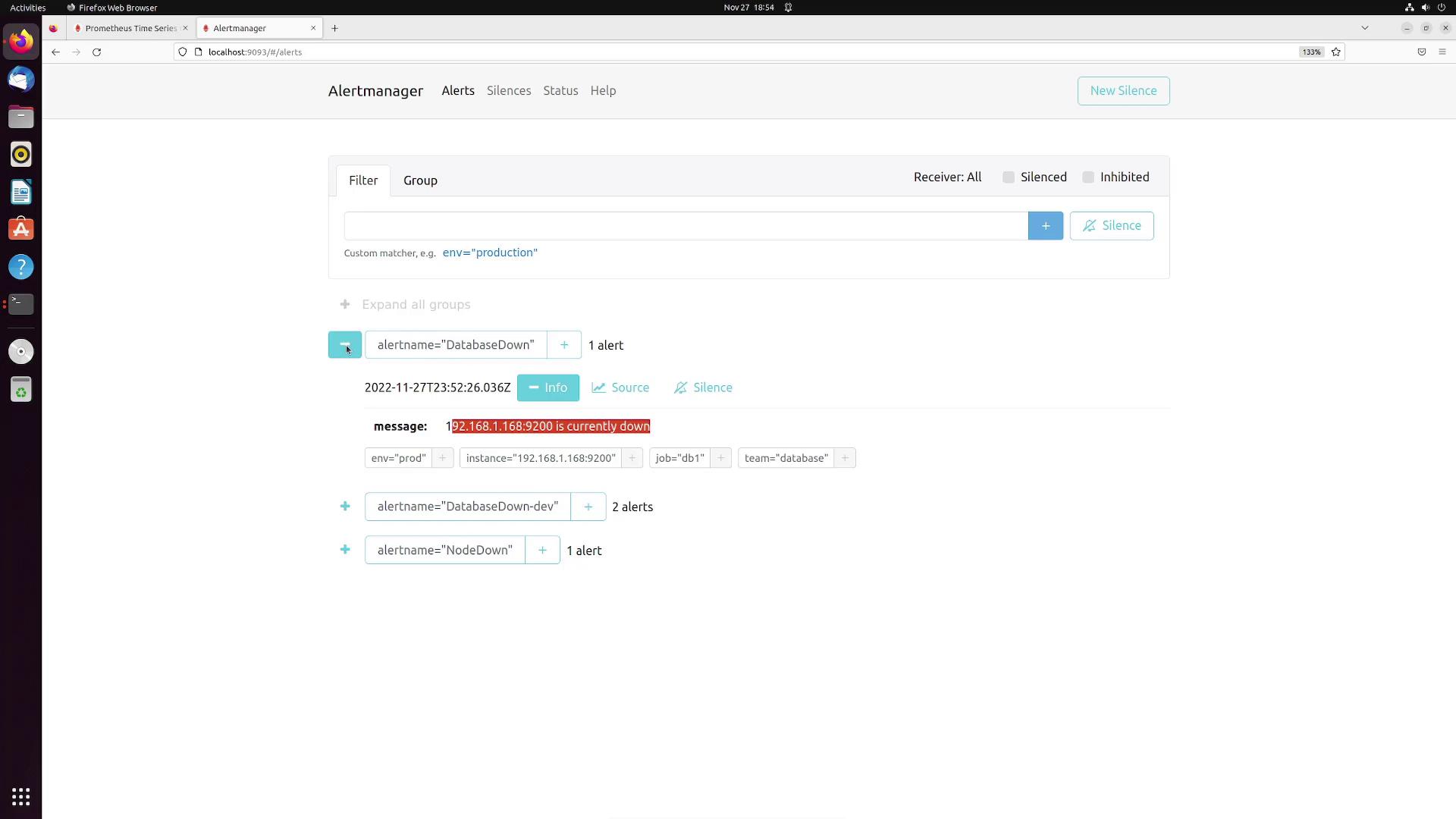
Then, open a browser tab and navigate to Alertmanager at localhost:9093. After a few seconds, you should see alerts such as “DatabaseDown,” “DatabaseDown-dev,” and “NodeDown” displayed with associated labels and annotation messages.For example, the image below shows the Alertmanager interface displaying a “DatabaseDown” alert:
To create more specific notification routes, you can group alerts based on additional labels such as team and env. For example, to route alerts for jobs matching node, db1, or db2 to Slack, update your configuration as follows:
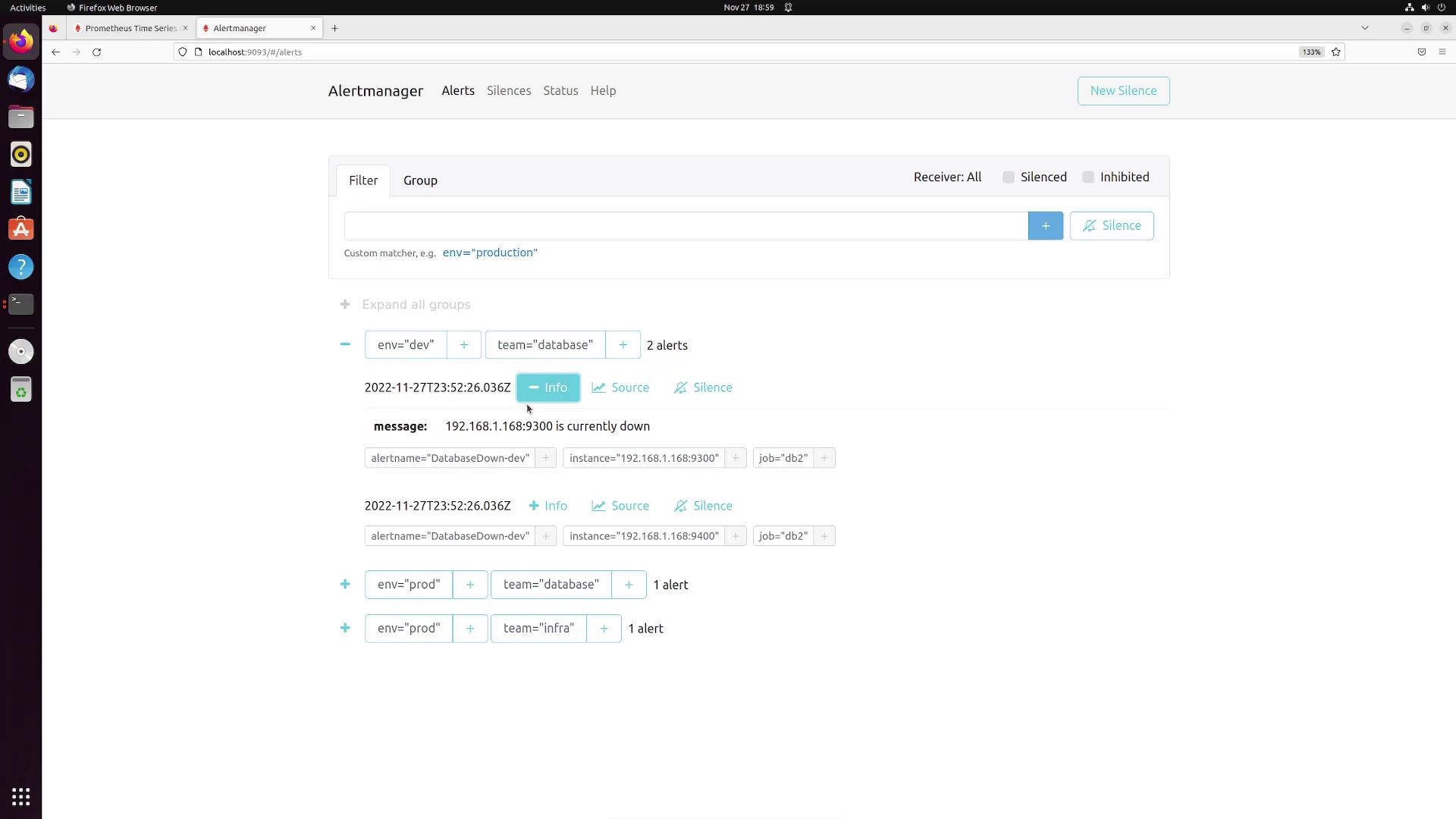
Once Alertmanager’s web interface is refreshed, you should see alerts grouped by their unique team and env label combinations. For instance, you may observe alert groups for:
Environment: prod, Team: database
Environment: prod, Team: infra
Environment: dev, Team: database
The image below illustrates the alert grouping in Alertmanager:
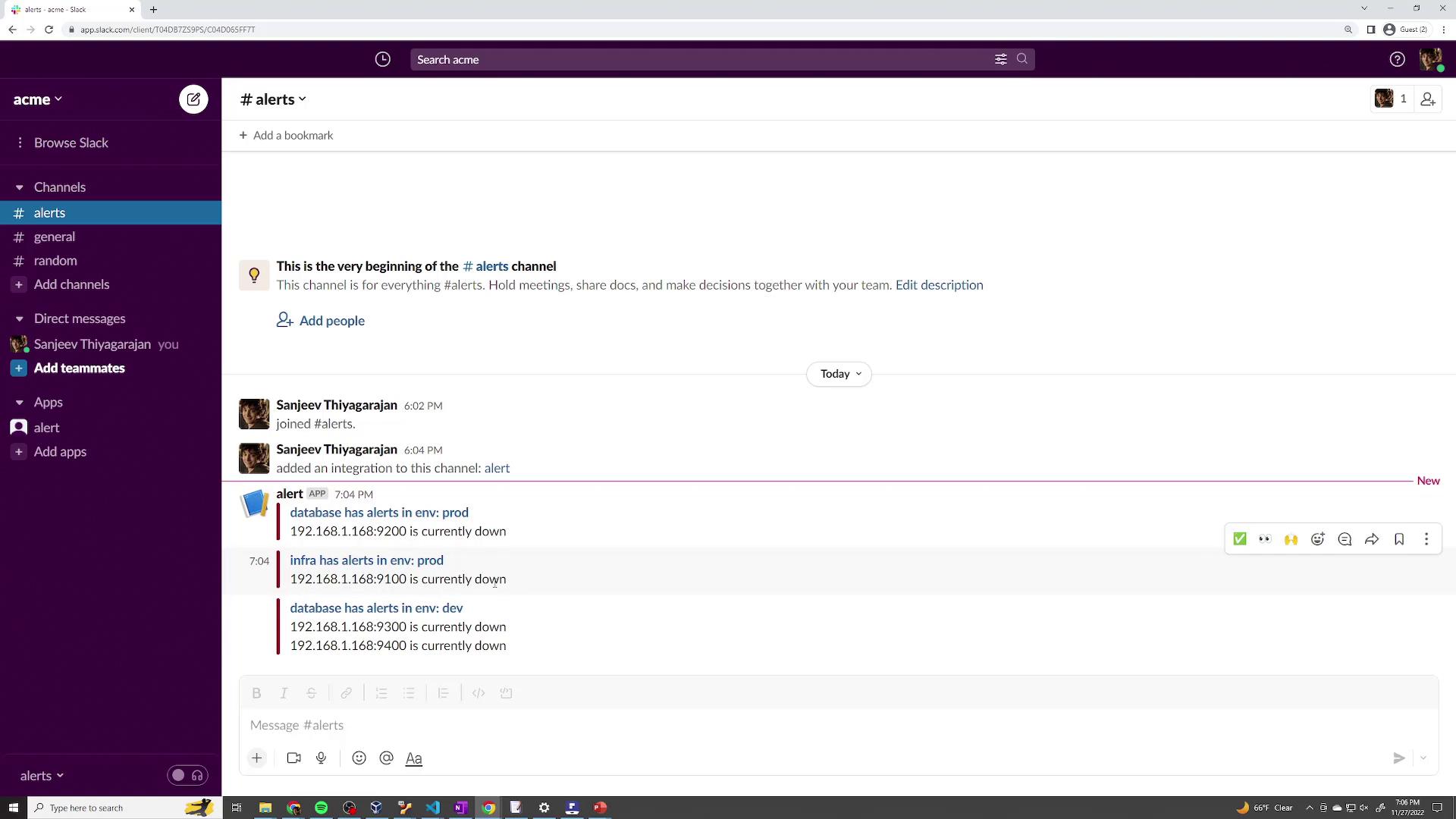
Switch over to your Slack workspace and go to the channel specified (e.g., #alerts). You should see notifications similar to the following:
Copy
Ask AI
database has alerts in env: prod192.168.1.168:9200 is currently downinfra has alerts in env: prod192.168.1.168:9100 is currently downdatabase has alerts in env: dev192.168.1.168:9300 is currently down192.168.1.168:9400 is currently down
The Slack workspace image below demonstrates how these notifications appear:
This article has guided you through configuring Prometheus alert rules, integrating them with Alertmanager, and setting up Slack notifications. The same principles apply when integrating with other services such as PagerDuty or WeChat; you simply need to update the configuration settings accordingly.Happy monitoring!