

curl, end users rely on HTTP ports 80 (HTTP) and 443 (HTTPS) for Nginx, and port 5000 for our Flask application. To safely expose only the necessary ports, we’ll configure UFW (Uncomplicated Firewall) on Ubuntu.
Network Architecture
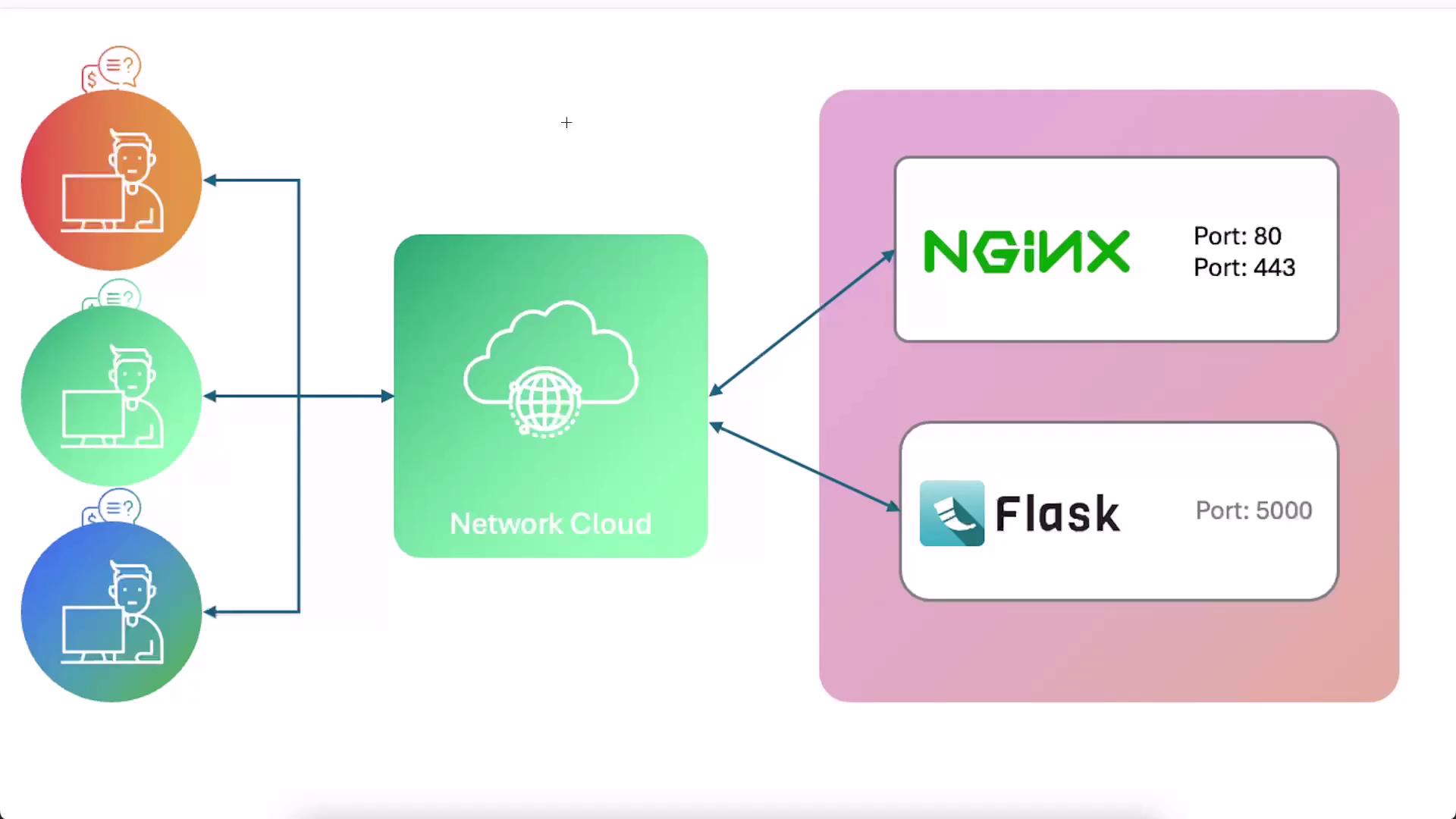
- Nginx on port 80 (HTTP) or 443 (HTTPS with SSL)
- Flask on port 5000
1. Testing Locally via CLI
Before changing any firewall rules, confirm both services are running on the host:2. Viewing and Opening Ports in the Lab UI
In our lab environment, you can also open and view ports using the terminal’s “View Port” option: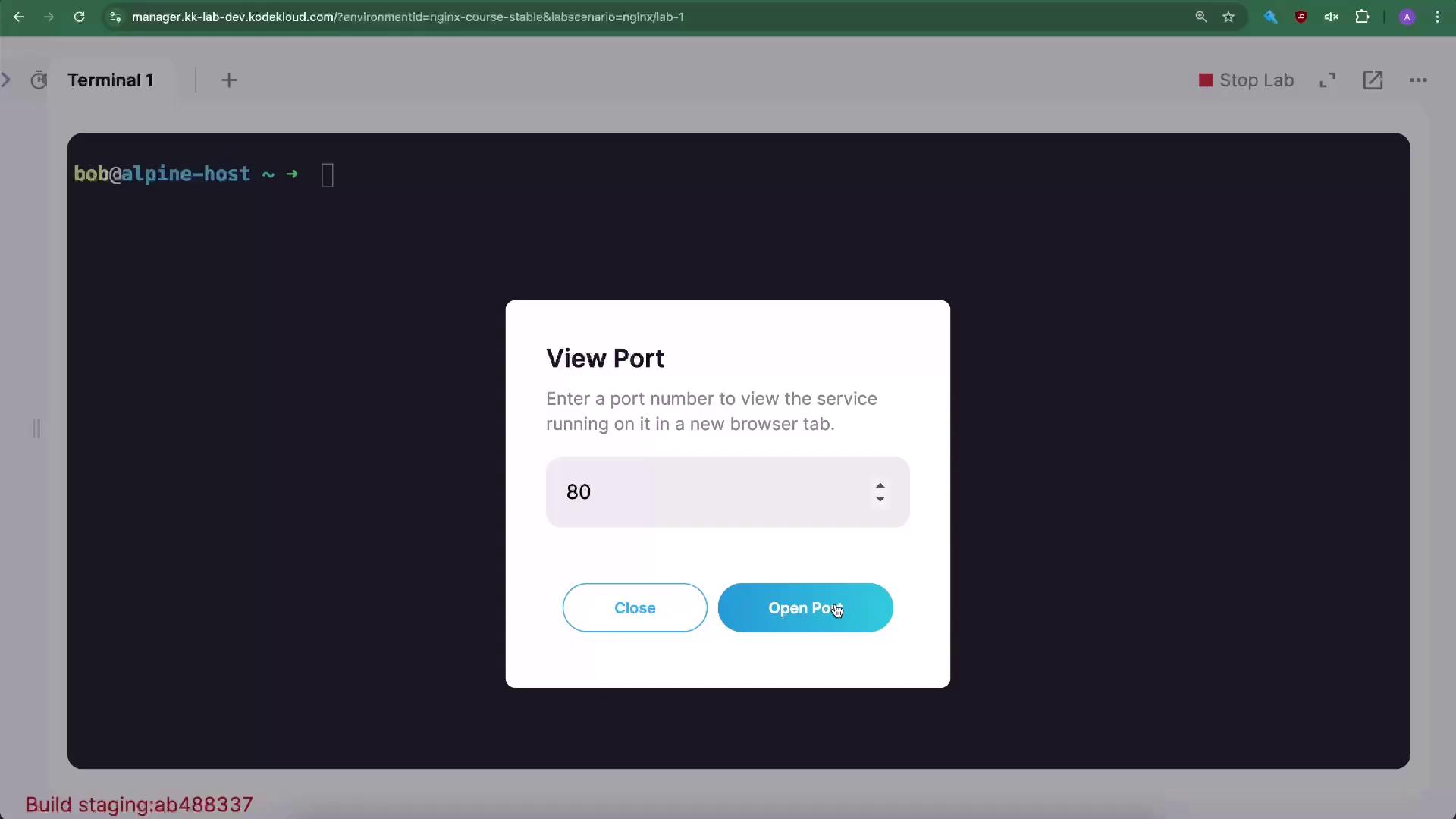
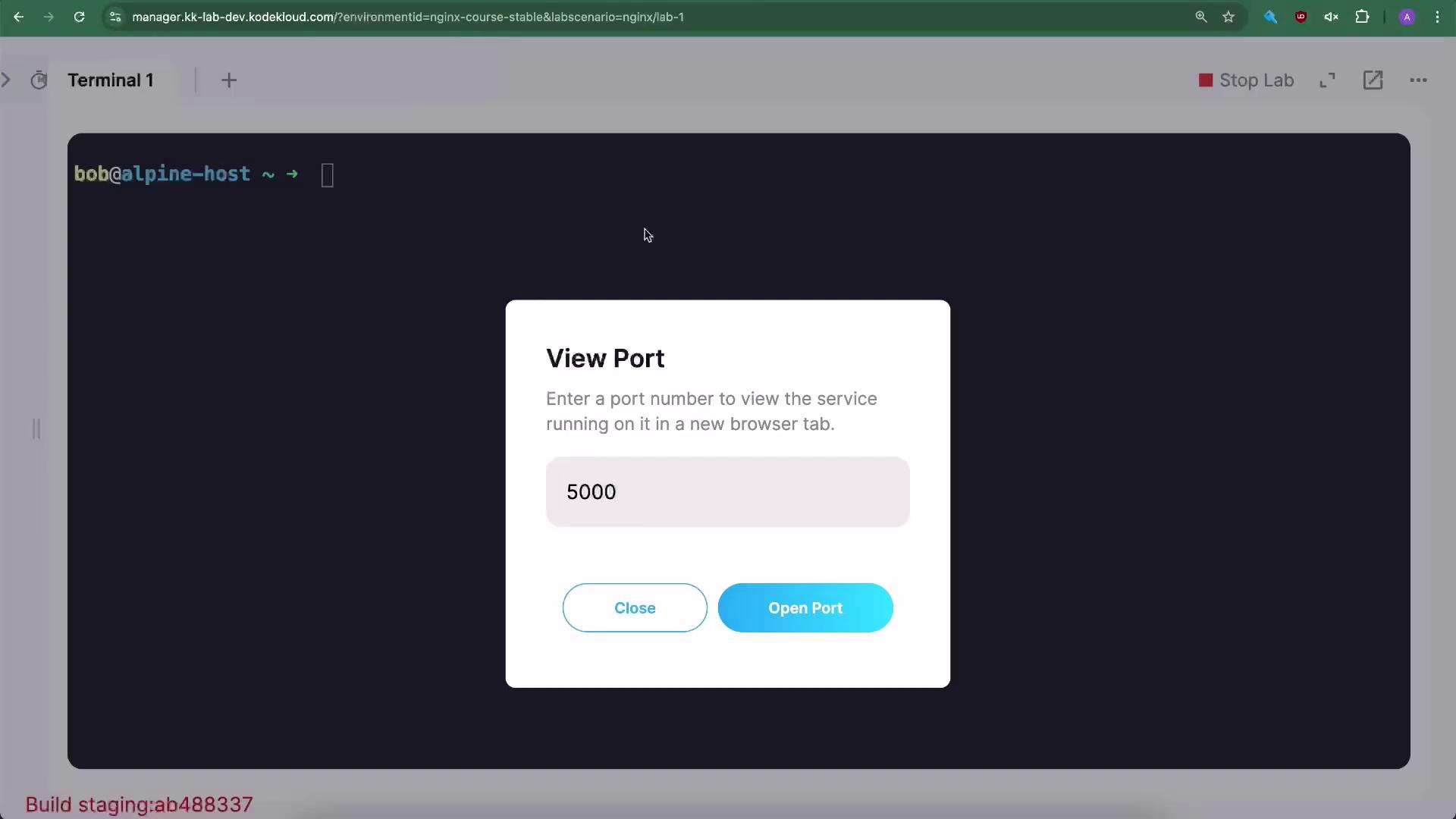
3. Enabling and Configuring UFW
-
Check the UFW status (should be inactive):
- Always allow SSH (port 22) before enabling UFW to avoid locking yourself out
Always allow SSH (port 22) before enabling UFW to avoid locking yourself out.
-
Enable UFW and ensure it starts on boot:
-
Allow HTTP (port 80) over TCP:
-
Verify the active rules:
Expected output:
-
Test browser access:
- Port 80 should now load the Nginx welcome page.
- Port 5000 will be blocked until explicitly allowed.
-
Allow the Flask application port (5000/tcp):
-
Verify again:
Expected output:
4. Browser Testing
Now that ports are correctly configured, verify in a browser: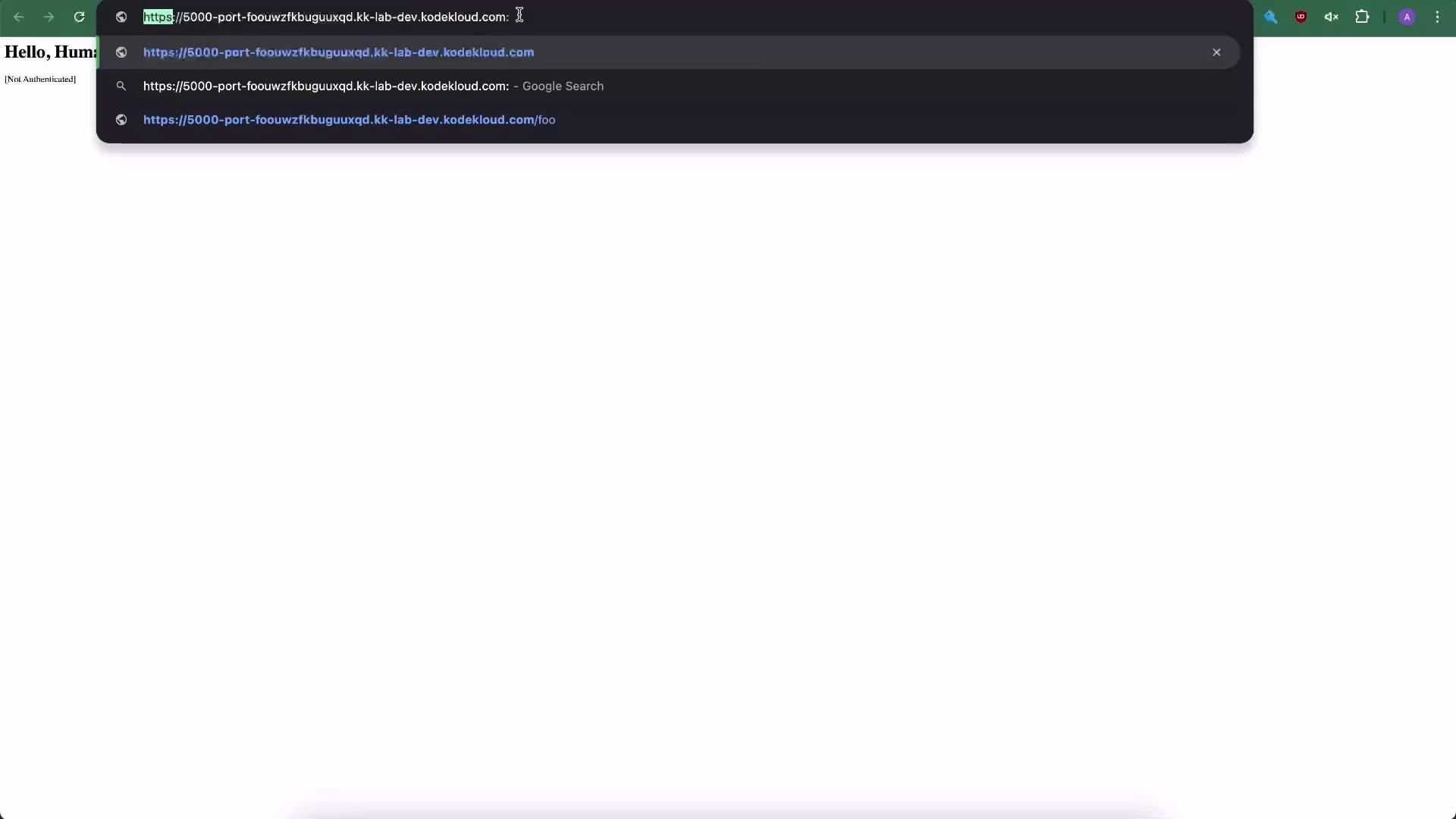
When accessing the Flask app directly, append
:5000 to the URL unless you’re using a reverse proxy.Best Practices
| Port | Protocol | Purpose |
|---|---|---|
| 22/tcp | SSH | Secure shell access (restrict IPs) |
| 80/tcp | HTTP | Public Nginx traffic |
| 443/tcp | HTTPS | Encrypted Nginx traffic |
| 5000/tcp | TCP | Internal Flask application |
- Expose only ports 80 and 443 publicly.
- Use Nginx or another reverse proxy to forward requests to application servers.
- Restrict SSH access to trusted IPs or via VPN.
- Always keep your firewall enabled for maximum security.