

Why Use Groups?
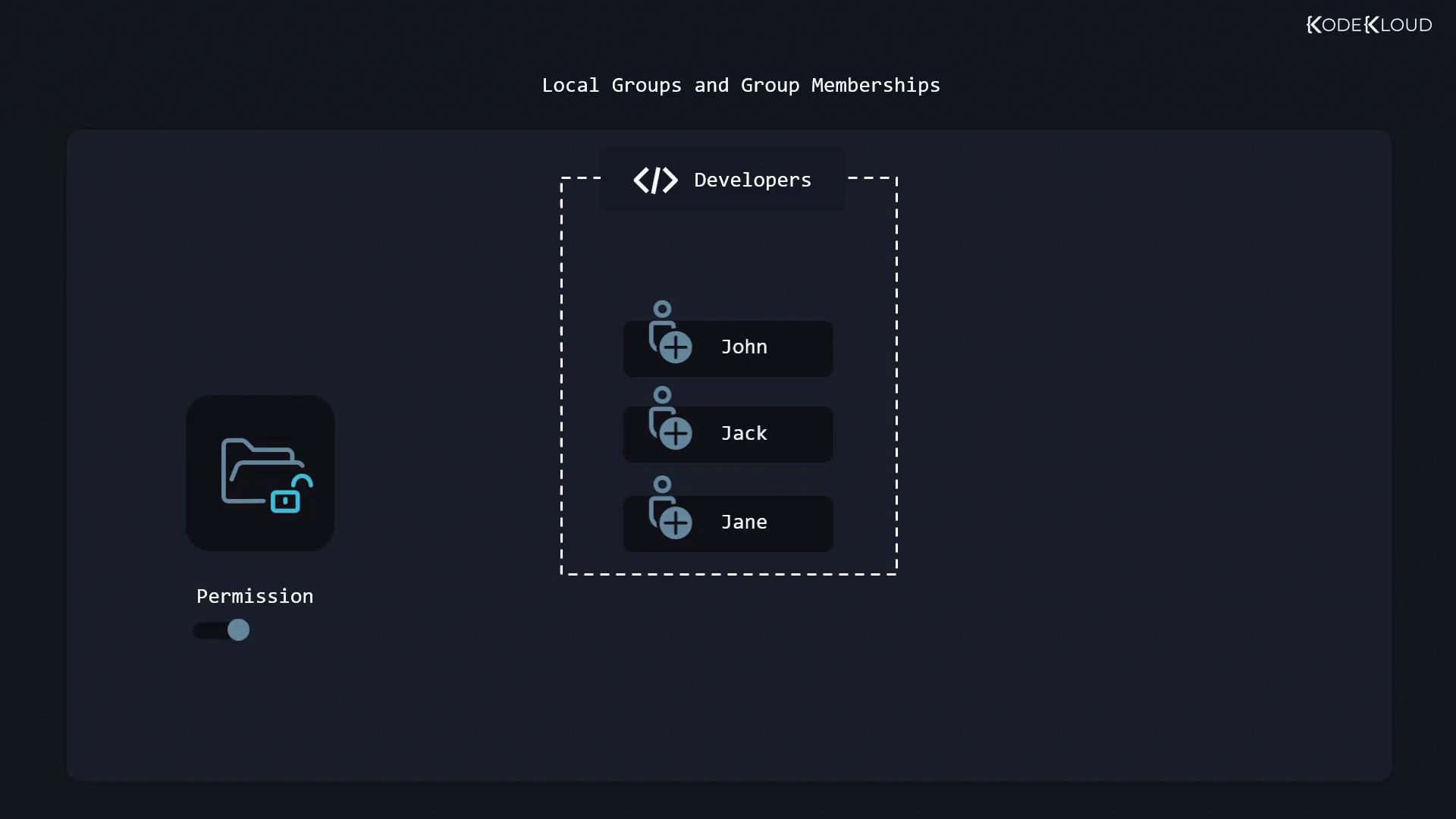
Groups let you grant permissions to multiple users at once. For example, imagine a shared directory for your development team:- Team members: John, Jack, Jane
- Directory:
/srv/dev-project - Required access: read/write
- Create a developers group
- Add John, Jack, and Jane to developers
- Change the directory’s group ownership to developers
- Grant the group read/write rights
- wheel or sudo group → run commands as root
- docker group → manage Docker containers
Each user has one primary group (used when creating files or running processes) and zero or more secondary groups.
Creating a User and a Group
First, ensure you have a user (john) and create the developers group:
Managing Group Memberships
Use thegpasswd tool to add or remove users from secondary groups:
Changing a User’s Primary Group
To switch John’s primary group todevelopers, use usermod with the --gid option:
gpasswd syntax is gpasswd [--add|--delete] username groupusermod syntax is usermod --gid group usernameRenaming and Deleting Groups
Rename a group fromdevelopers to programmers:
If the group is the primary group for any user, Change the user’s primary group first:Then run:
groupdel will fail with:Quick Reference Table
| Command | Description |
|---|---|
sudo useradd <user> | Create a new user |
sudo groupadd <group> | Create a new group |
sudo gpasswd -a <user> <group> | Add a user to a secondary group |
sudo gpasswd -d <user> <group> | Remove a user from a secondary group |
sudo usermod --gid <group> <user> | Change a user’s primary group |
sudo groupmod -n <new> <old> | Rename a group |
sudo groupdel <group> | Delete a group |
groups <user> | List all groups for a user |
Links and References
- Linux User and Group Management
- gpasswd Manual
- usermod Manual
- groupmod Manual
- Kubernetes Documentation