

Soft Links Explained
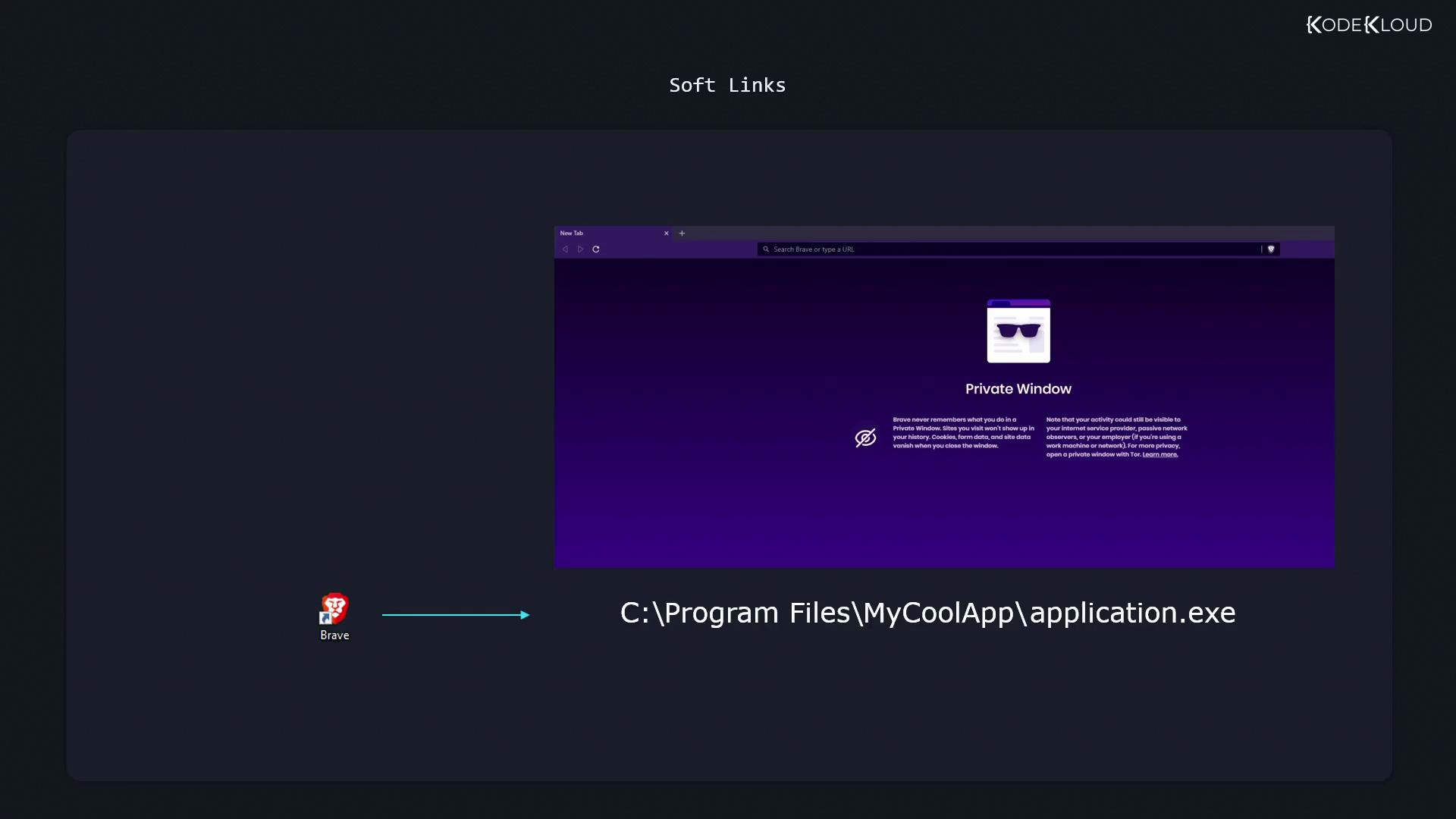
When you install an application on Windows, you often get a desktop shortcut pointing to the actual program inC:\Program Files\MyCoolApp\application.exe. Double-clicking the shortcut launches the app even though its files reside elsewhere. A Linux soft link works the same way: it’s a special file containing the path to another file or directory.
Creating a Symbolic Link
Use theln command with the -s option:
<path_to_target>: the existing file or directory.<path_to_link>: name of the new symlink.
Verifying a Soft Link
List files in long format to see symlinks marked with anl and showing their targets:
readlink:
Permissions on a symlink itself are always shown as
rwxrwxrwx, but access is controlled by the target file’s permissions.Handling Permissions
If the target file is read-only, attempts to modify it via the symlink will fail:Absolute vs. Relative Links
Absolute paths embed the full directory tree, which can break if you move or rename parent directories:Absolute symlinks may become invalid if you relocate or rename directories in the path.
Use relative paths when moving link and target together.
Use relative paths when moving link and target together.
/home/aaron, create a relative link:
Pictures directory and relative_dog_shortcut.jpg together.
Linking Directories
You can create symlinks to directories—or even across filesystems (unlike hard links):Comparing Symbolic and Hard Links
| Feature | Symbolic Link | Hard Link |
|---|---|---|
| Can cross filesystems | Yes | No |
| Links to directories | Yes (with -s) | Typically no (restricted by OS) |
| Indicates broken link | Yes | No (hard link always valid until target deleted) |
| Independent attributes | No (permissions inherited) | Shares same inode and attributes |