When you start any application, Linux creates a process that runs until completion or termination. Understanding how to monitor and control these processes is essential for effective system administration and performance tuning.
Short-Lived vs. Long-Lived Processes Short-Lived Processes Commands like ls spawn a process that exits immediately after running:
$ ls absolute_picture_shortcut all_output.txt archive.zip archive.tar Desktop Documents … $ # Process ends when directory listing is complete
Long-Lived Processes Daemons such as sshd or long-running services remain active until explicitly stopped. To inspect active processes, the ps command is your first stop.
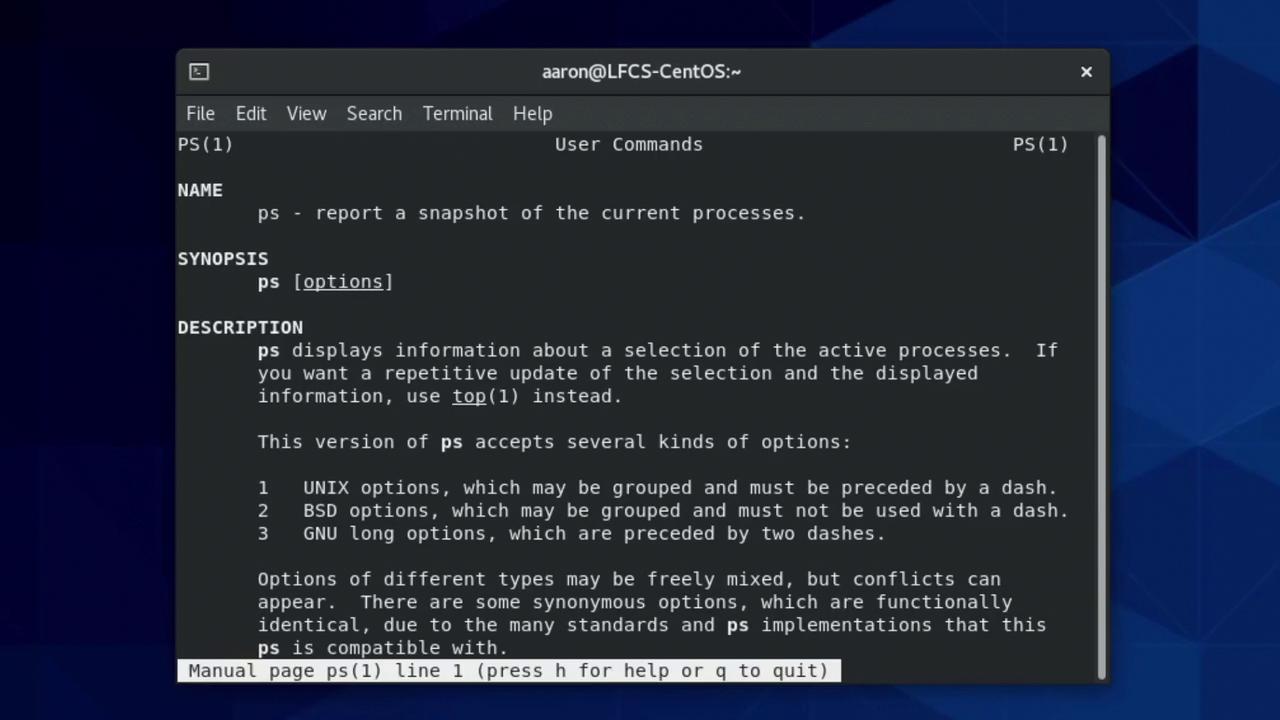
Inspecting Processes with ps ps provides a snapshot of processes. It supports two option syntaxes:Syntax Style Example Description Unix (POSIX) ps -eStandard options prefixed with a dash BSD ps axuOptions without a dash
Use man ps to explore all options and compare Unix vs. BSD syntax.
Common ps Usage
Show processes in the current terminal:
$ ps PID TTY TIME CMD 7726 pts/0 00:00:00 bash 7796 pts/0 00:00:00 ps
List all system processes in user-oriented format:
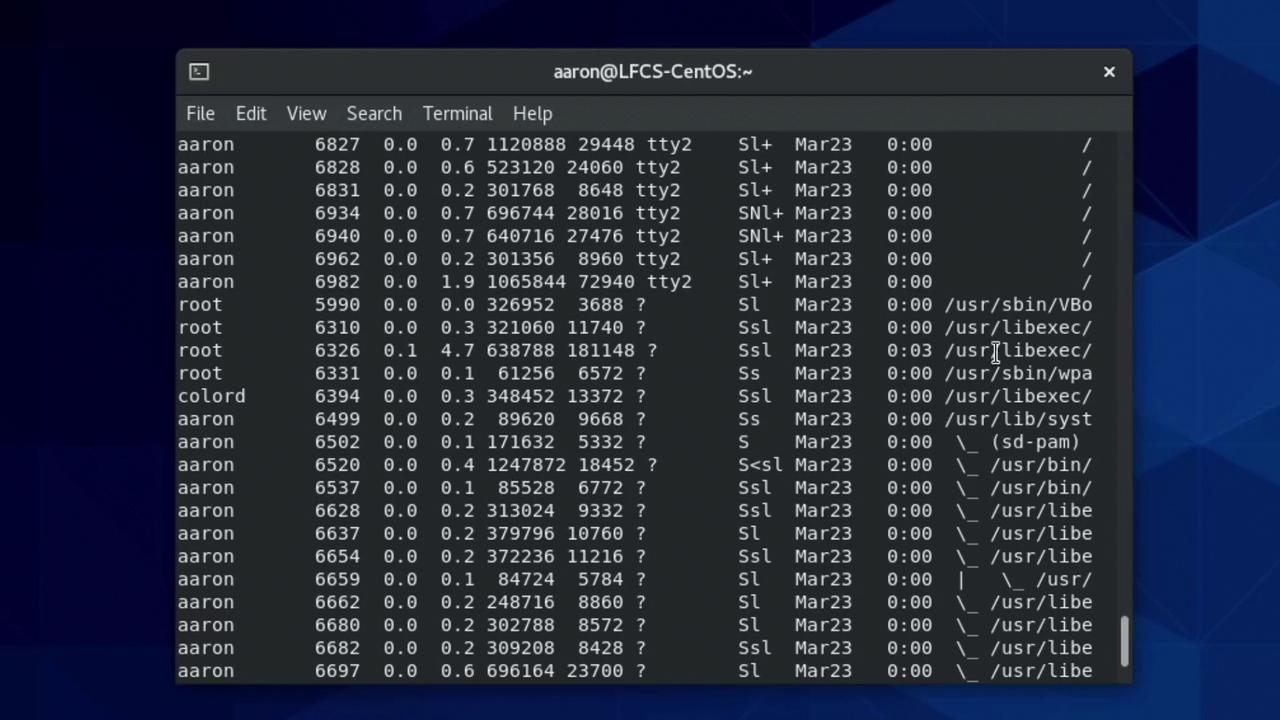
$ ps aux USER PID %CPU %MEM VSZ RSS TTY STAT START TIME COMMAND root 1 0.0 0.3 241296 14000 ? Ss Mar23 0:01 /usr/lib/systemd/systemd aaron 7726 0.0 0.4 3142460 185096 pts/0 S+ 10:00 0:00 gnome-system-monitor …
The mnemonic aux (a: all with terminal, u: user format, x: include daemons) helps recall this combination.
Excerpt from man ps:
To see every process on the system using standard syntax: ps -e ps -ef Using BSD syntax: ps ax ps axu To print a process tree: ps -ejH ps axjf
Real-Time Monitoring with top For continuous updates:
$ top top - 10:15:03 up 1 day, 2:34, 1 user, load average: 0.05, 0.03, 0.01 Tasks: 236 total, 1 running, 235 sleeping %Cpu(s ): 1.2 us, 0.5 sy, 98.3 id MiB Mem : 3731.4 total, 1588.9 free, 915.5 used, 1227.0 buff/cache PID USER PR NI VIRT RES SHR S %CPU %MEM TIME+ COMMAND 6601 aaron 20 0 3142460 185096 104268 S 6.2 4.8 0:06.60 gnome-shell 1 root 20 0 241296 14000 8912 S 0.0 0.4 0:01.26 systemd …
Use Up/Down arrows or Page Up/Page Down to scroll.
Press q to exit.
Filtering Processes Filter Type Command Example By PID ps -p 1 -o pid,tty,stat,time,commandBy User ps -U aaron -uBy Name pgrep -a syslog
$ pgrep -a syslog 1455 /usr/sbin/rsyslogd -n
Adjusting Niceness (Priority) Process priority (nice value) ranges from –20 (highest) to +19 (lowest).
Launch with niceness 11:
View niceness:
$ ps -l F UID PID PPID PRI NI VSZ RSS STAT TTY TIME COMMAND 0 1000 6543 6540 20 11 658840 19268 S+ tty2 0:00 bash
Change niceness of an existing PID:
$ sudo renice 7 6543 6543 (process ID ) old priority 11, new priority 7
Parent/Child Process Trees Display processes as a hierarchy:
Sending Signals Linux signals control process behavior. Common signals include:
Signal Number Default Action SIGHUP 1 Hangup (reload config) SIGINT 2 Interrupt SIGTERM 15 Graceful termination SIGKILL 9 Force kill SIGSTOP 19 Pause SIGCONT 18 Continue
List all signals:
$ kill -l 1 ) SIGHUP 2) SIGINT 3) SIGQUIT 9) SIGKILL 15 ) SIGTERM 18) SIGCONT 19) SIGSTOP
Examples:
# Reload sshd configuration $ sudo kill -SIGHUP < sshd-PI D > # Graceful shutdown $ kill < PI D > # Force kill $ kill -9 < PI D > # Kill by name $ pkill -KILL bash
Killing your login shell (e.g., bash) will close your terminal or SSH session.
Job Control: Background & Foreground
Ctrl+C : InterruptCtrl+Z : Suspend
$ vim /etc/hostname [1]+ Stopped vim /etc/hostname $ fg vim /etc/hostname
Start in background: sleep 300 &
List jobs: jobs
Bring to foreground: fg %1
Send to background: bg %1
Inspecting Open Files with lsof List files held by a process:
$ lsof -p $( pgrep -n bash ) COMMAND PID USER FD TYPE DEVICE SIZE/OFF NODE NAME bash 8401 aaron cwd DIR 253,0 4096 262658 /home/aaron bash 8401 aaron txt REG 253,0 925360 514014 /usr/bin/bash …
View root-owned processes:
Find processes using a specific file:
$ sudo lsof /var/log/messages
Links and References