

- Launch an EC2 instance
- Configure Security Groups to control inbound/outbound traffic
- Demonstrate stateful behavior
- Split and reuse groups for modular access control
- Reference Security Groups in other rules
Launching the EC2 Instance
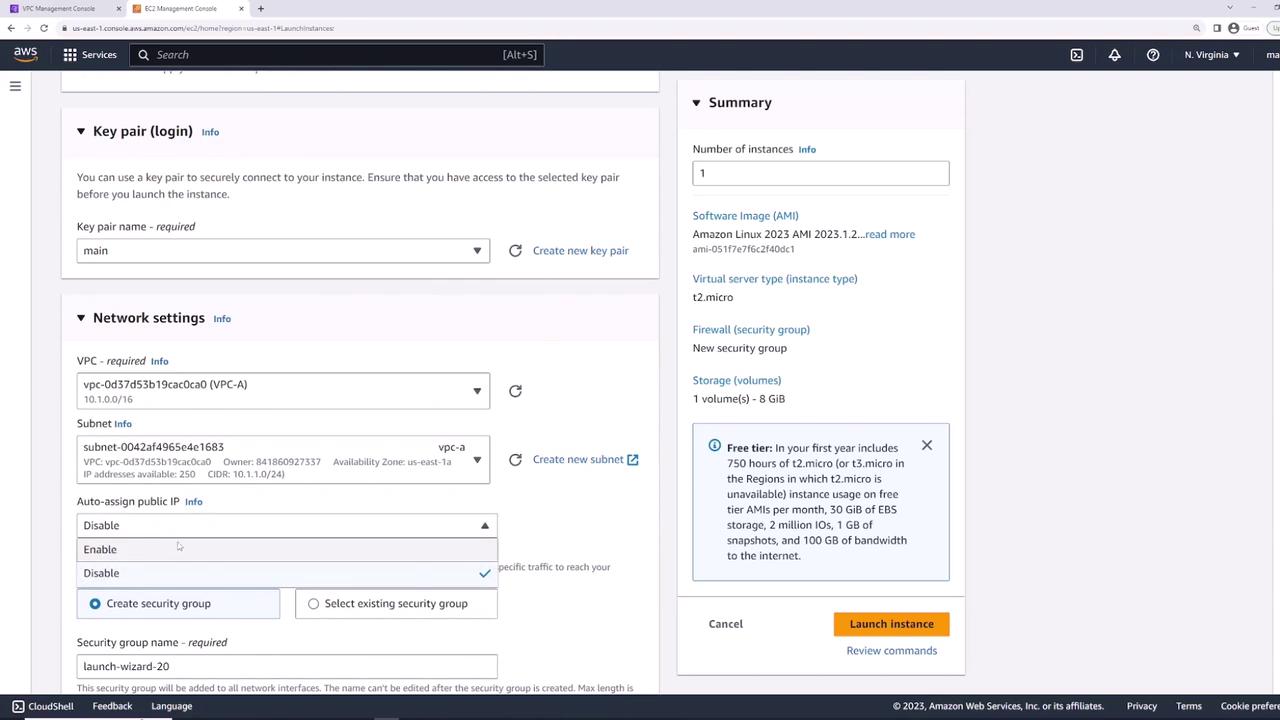
Start by launching an EC2 instance named server-one with the default Amazon Linux 2 AMI.
0.0.0.0/0. You can restrict this later.
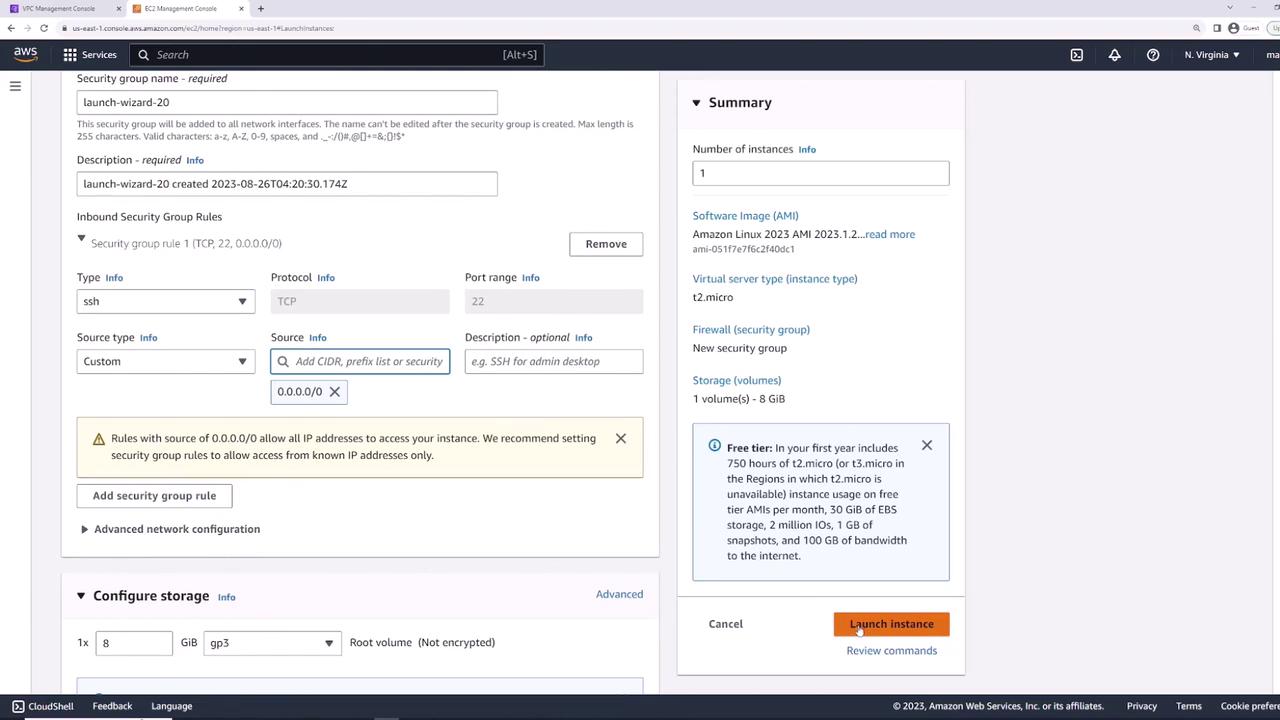
Verifying Initial Connectivity
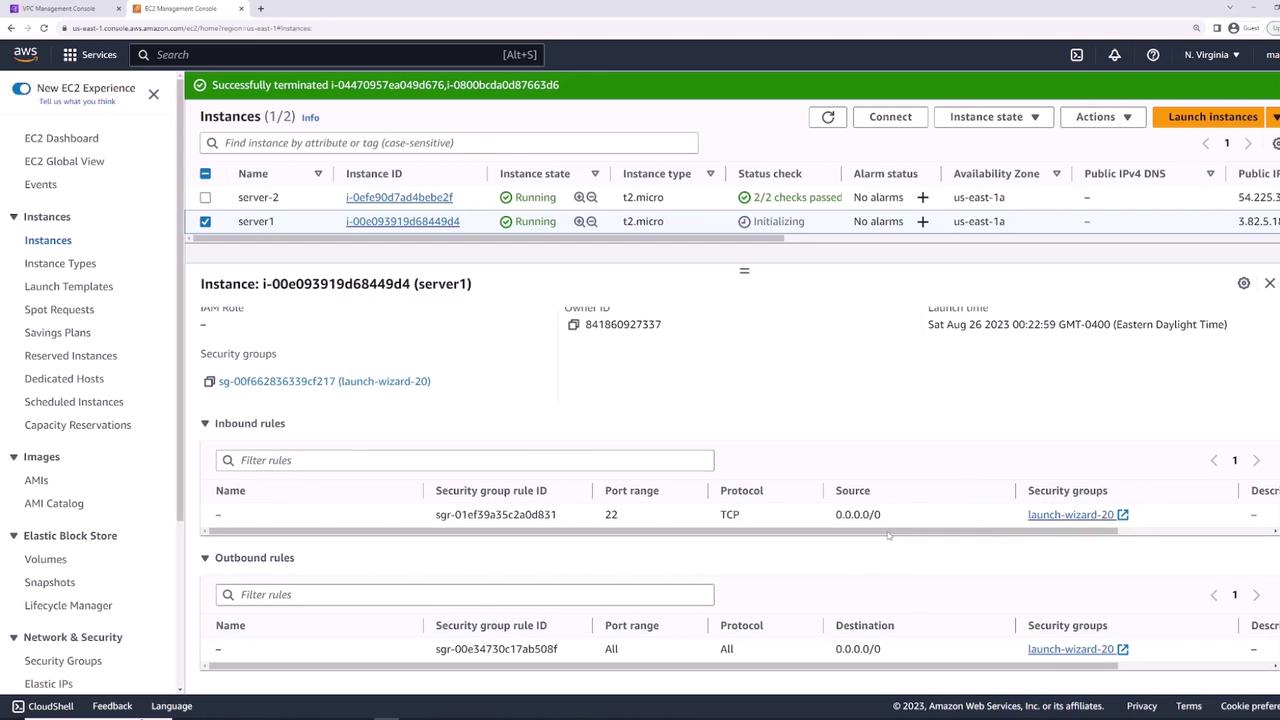
Once server-one is in the running state, select it and open the Security tab. You should see:- Inbound: SSH (TCP 22) from
0.0.0.0/0 - Outbound: All traffic to
0.0.0.0/0
Blocking All Inbound Traffic
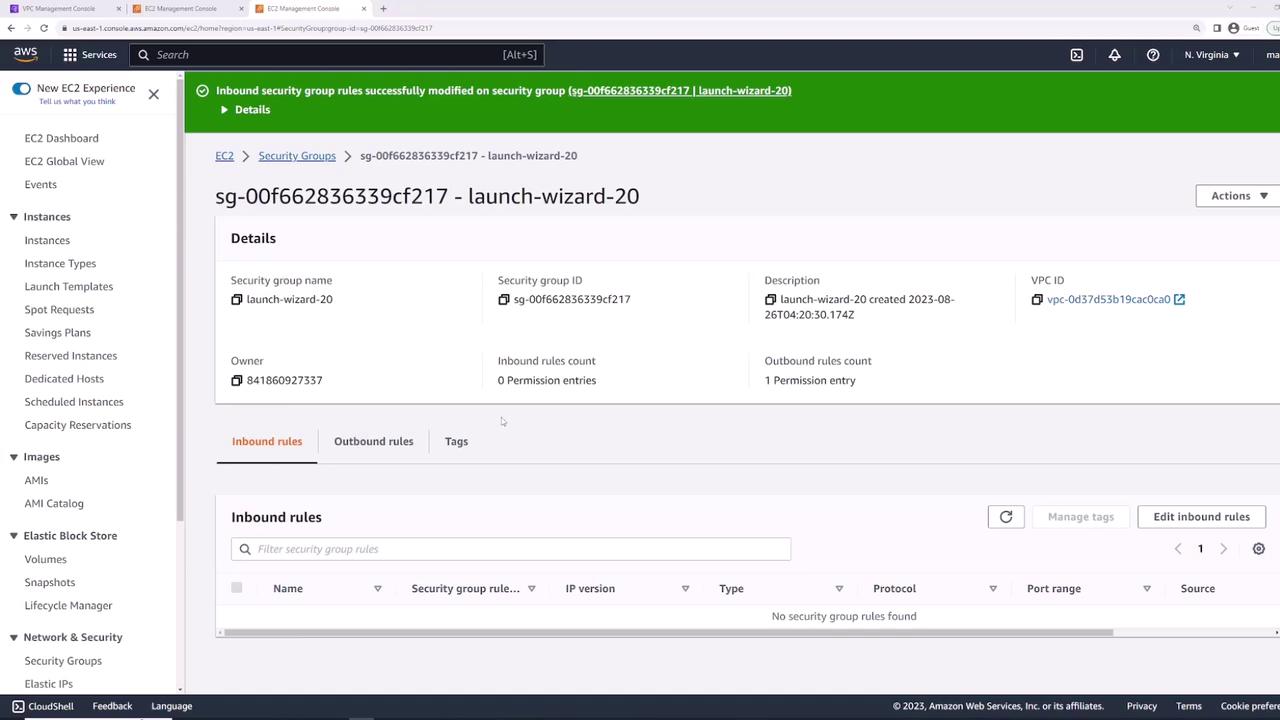
To illustrate rule enforcement, remove SSH access:- Go to Security Groups → select the default group.
- Click Edit inbound rules.
- Delete the SSH (22) rule and Save.

By removing all inbound rules, you will lose SSH access to your instance. Be prepared to re-attach a group that allows SSH.
Creating a Web Server Security Group
Next, create web-server-sg in the same VPC (Description: “Security group for web applications”):- Inbound:
• SSH (TCP 22) from0.0.0.0/0 - Outbound: All traffic to
0.0.0.0/0
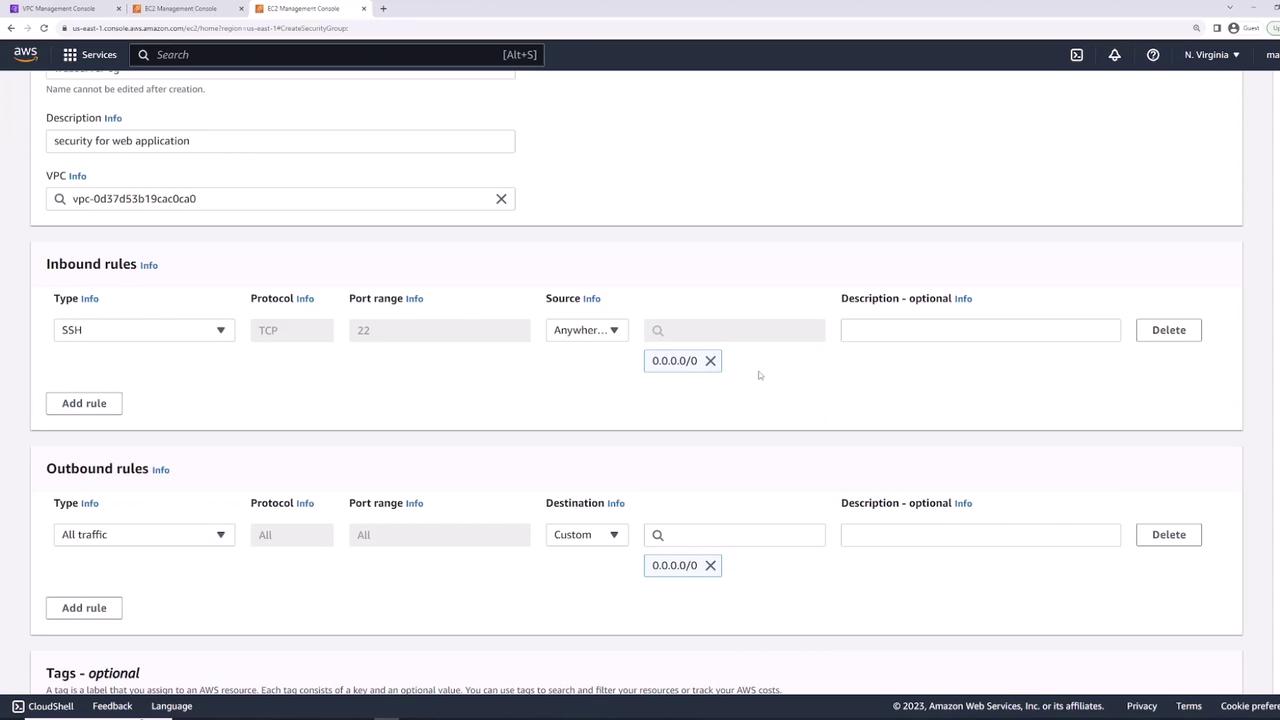
Attaching the Security Group
Attach web-server-sg to server-one:- Select the instance.
- Actions → Security → Change security groups.
- Remove the old group and add web-server-sg.
- Save.
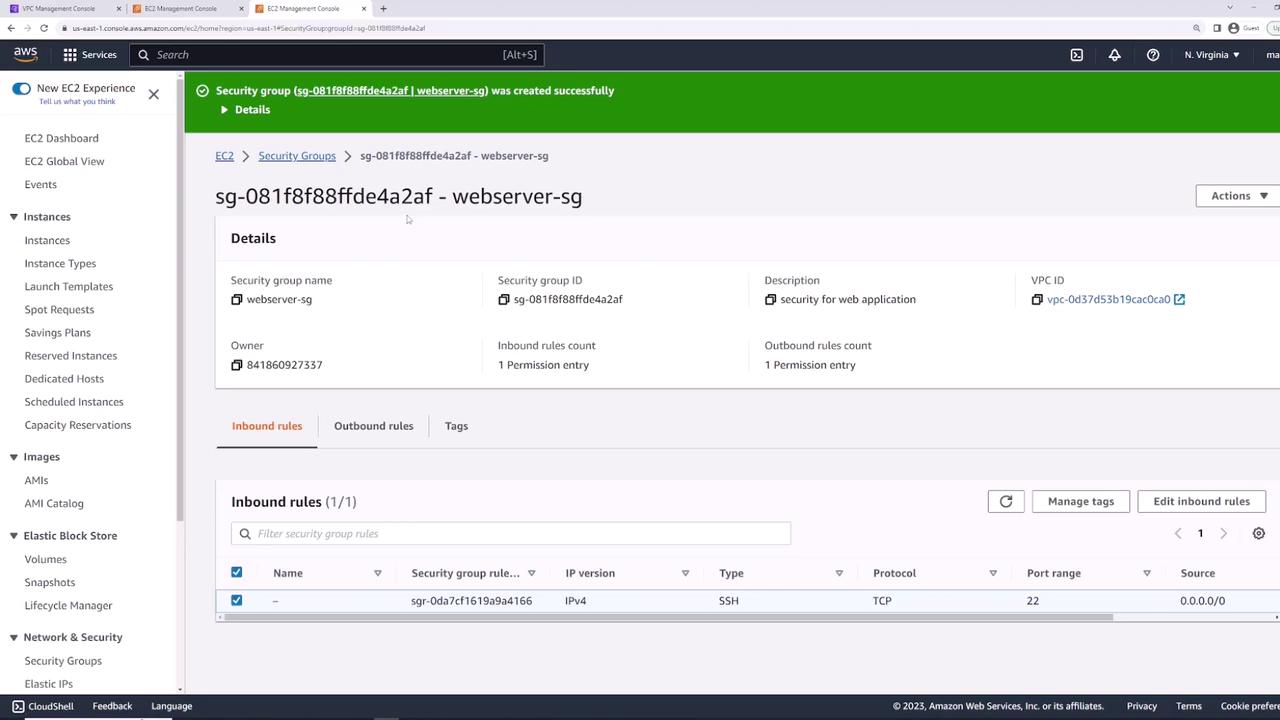

Installing and Testing Nginx
SSH into server-one and run:Allowing HTTP and HTTPS Access
By default, HTTP (80) and HTTPS (443) are blocked. Update web-server-sg:- Edit inbound rules.
- Add:
• HTTP (TCP 80) from0.0.0.0/0
• HTTPS (TCP 443) from0.0.0.0/0 - Save.
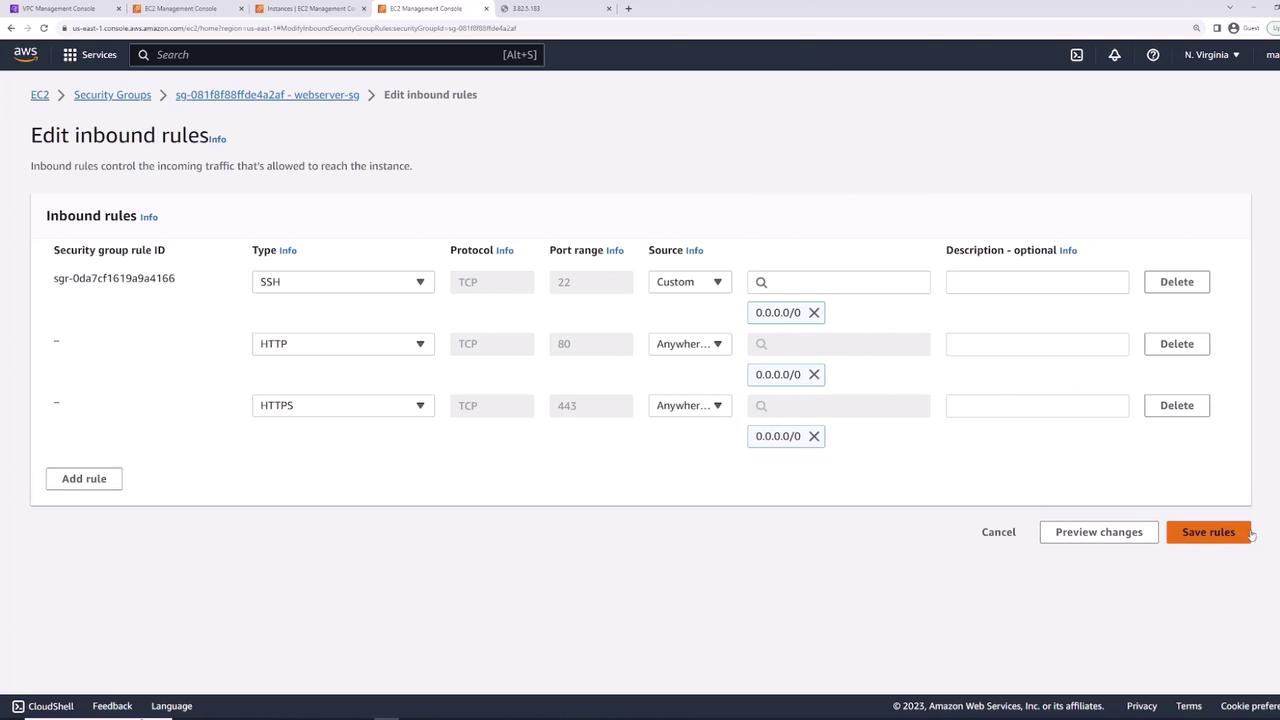
Demonstrating Stateful Behavior
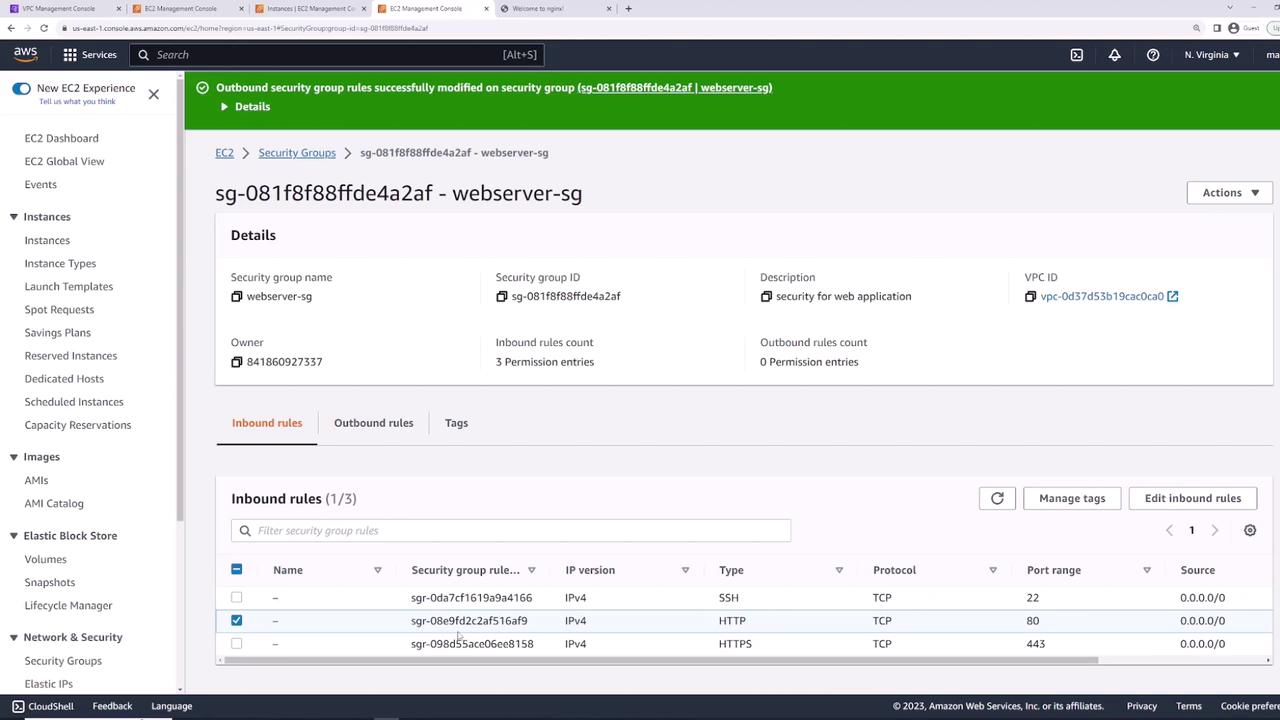
Security Groups are stateful: return traffic is automatically allowed, even if outbound rules are removed.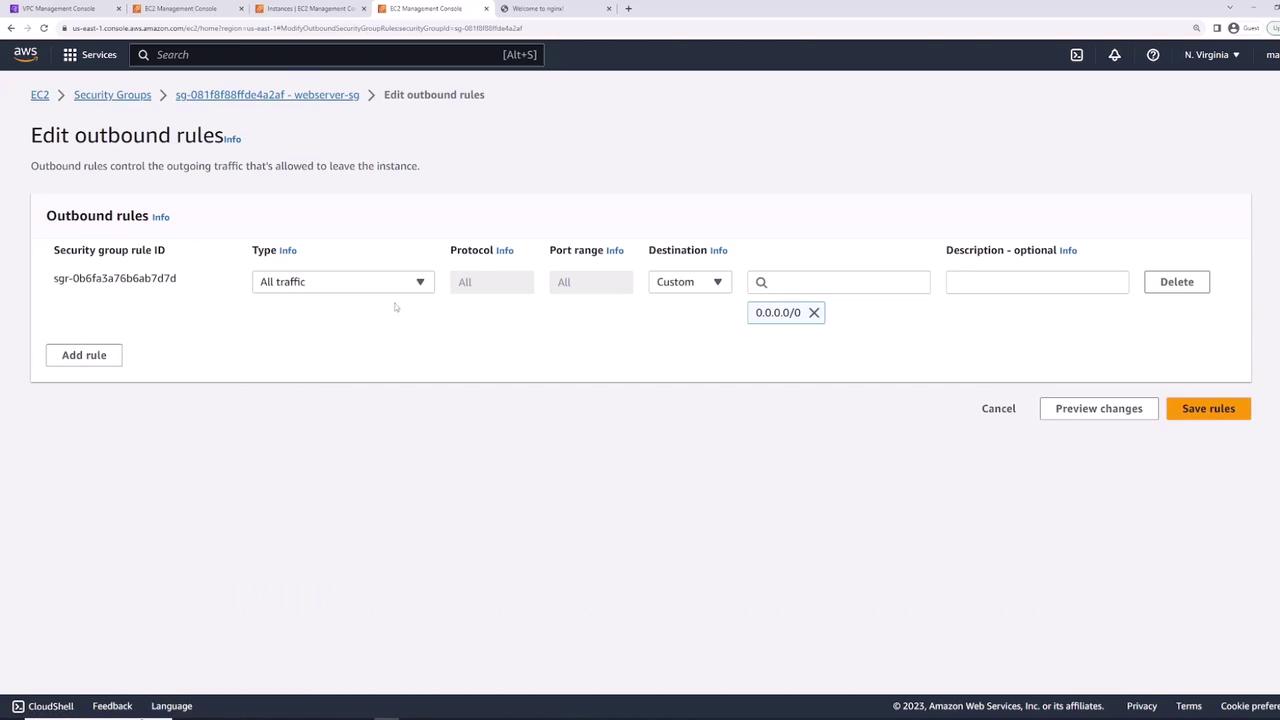
- Remove all outbound rules.
- Refresh the Nginx page in your browser—it still loads.
- From the instance, try an outbound ping:
- Re-add “All traffic” outbound rule and retry:
Splitting Rules into Multiple Security Groups
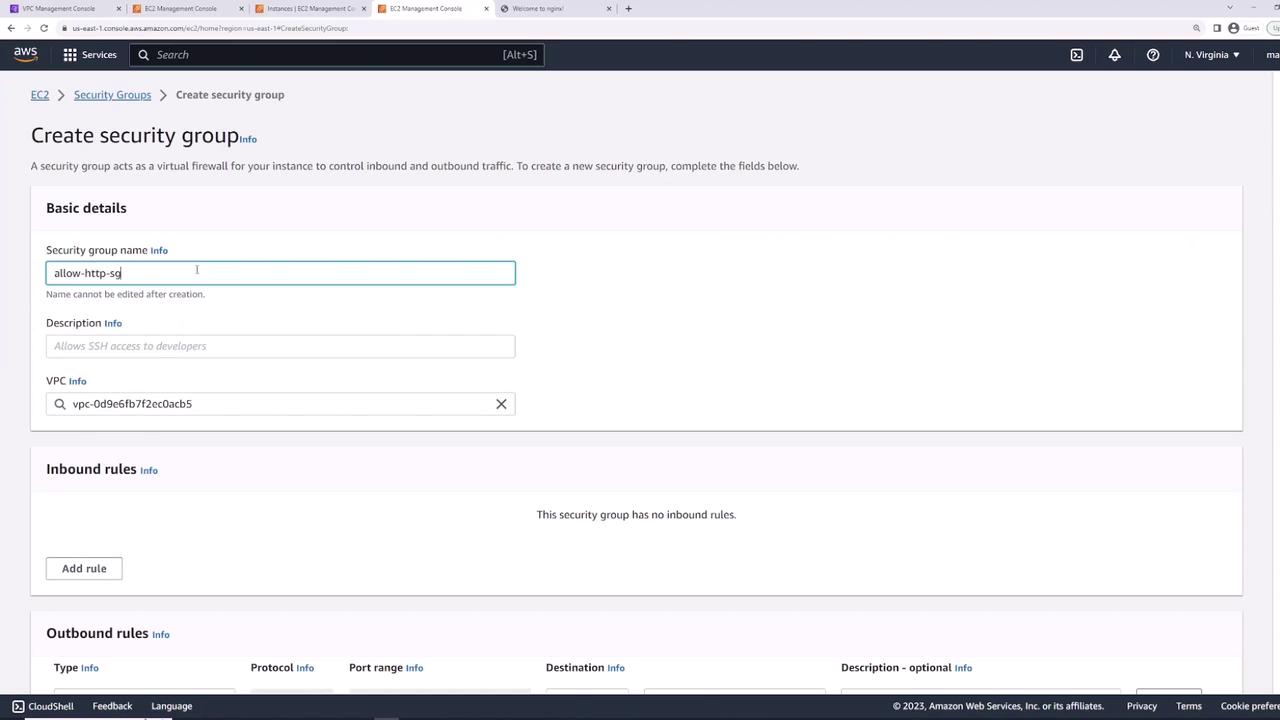
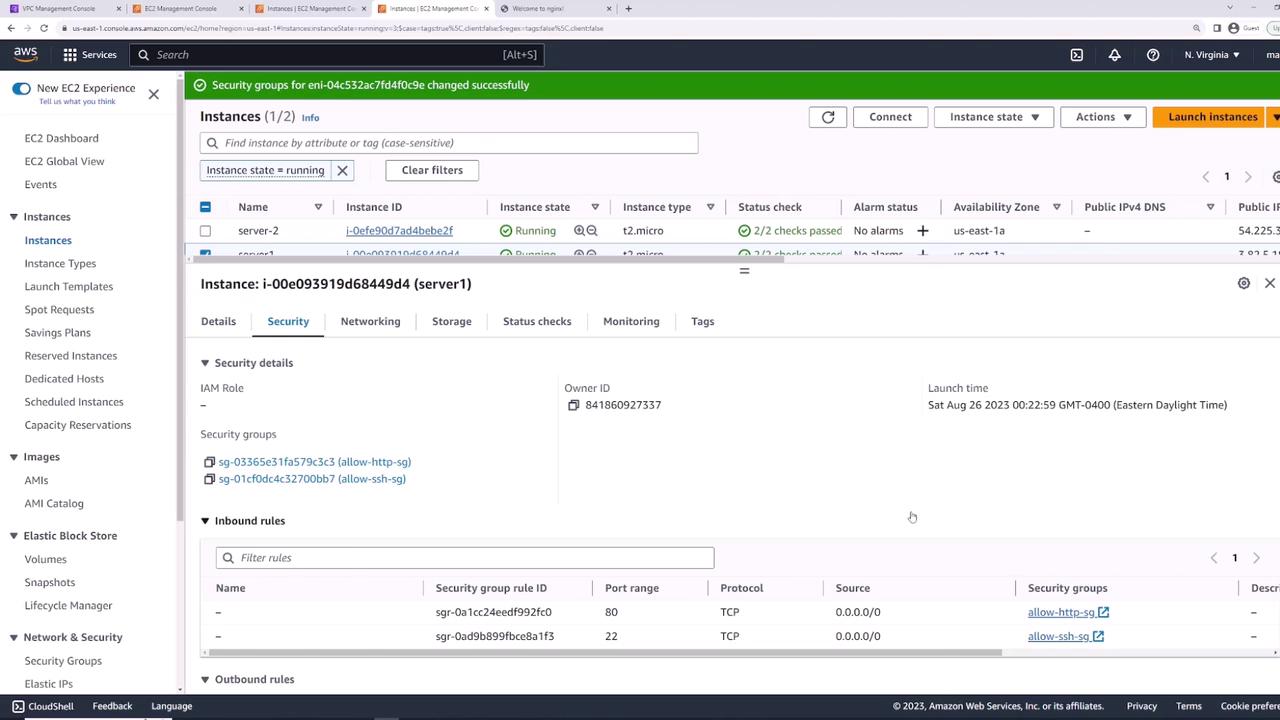
For modularity, create two groups:- allow-ssh-sg
• Inbound: SSH (TCP 22) from0.0.0.0/0 - allow-http-sg
• Inbound: HTTP (TCP 80) from0.0.0.0/0
Reusing Security Groups Across Instances
Apply allow-ssh-sg and allow-http-sg to server-two to grant identical access controls.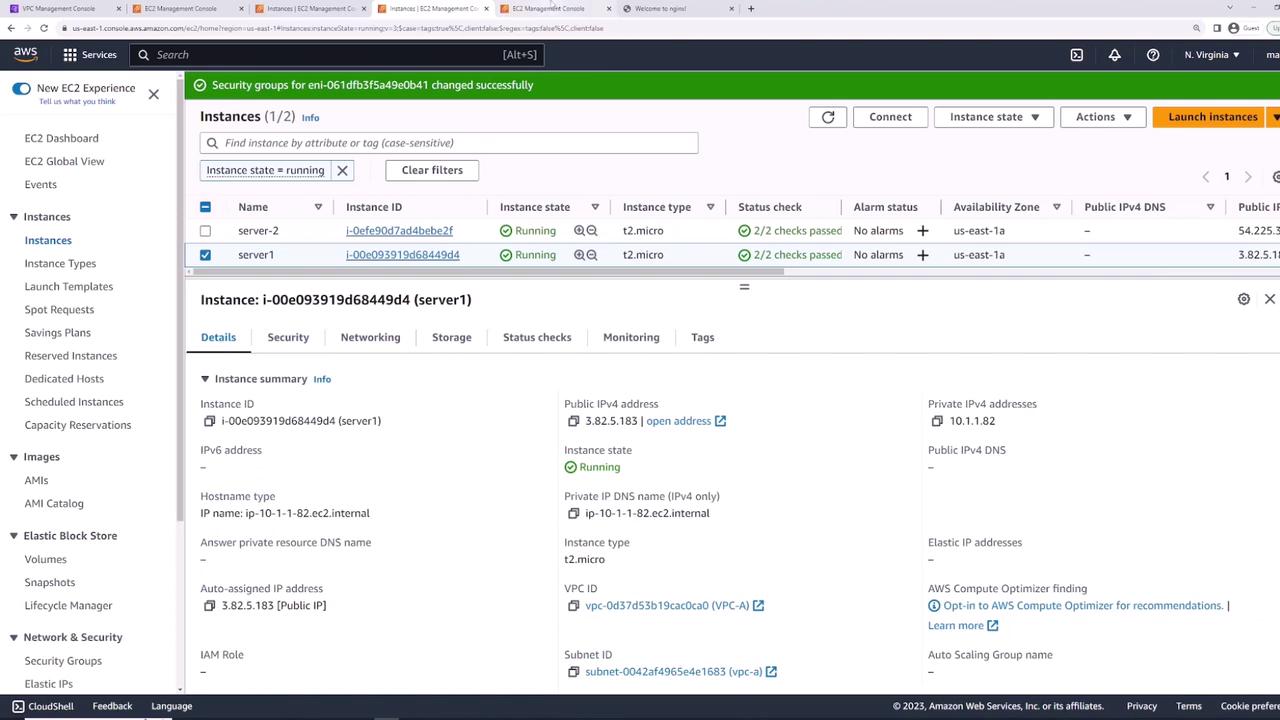
Referencing Security Groups as Rule Sources
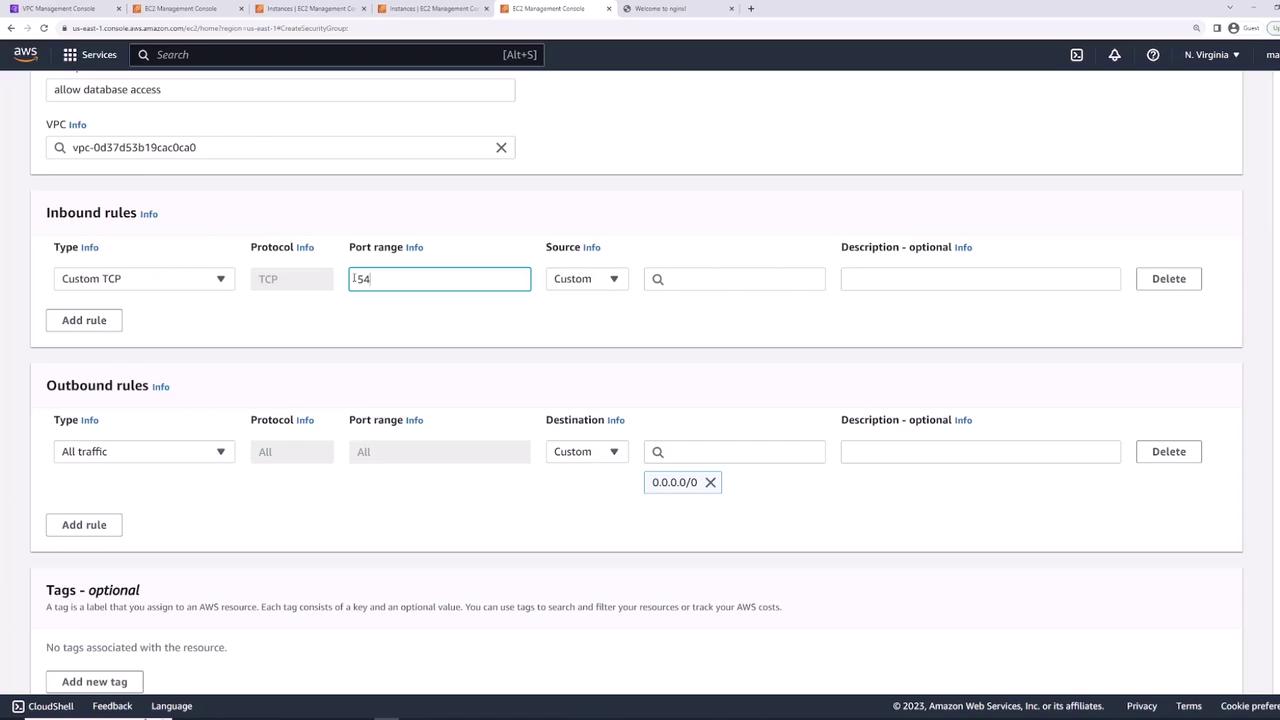
For database connectivity, create db-sg:- Inbound: PostgreSQL (TCP 5432)
• Source: allow-http-sg
Summary of Security Groups
| Security Group | Description | Inbound Rules | Outbound Rules |
|---|---|---|---|
| web-server-sg | Web application servers | SSH (22), HTTP (80), HTTPS (443) | All traffic |
| allow-ssh-sg | Modular SSH access | SSH (22) | All traffic |
| allow-http-sg | Modular HTTP access | HTTP (80) | All traffic |
| db-sg | Database access from web servers | PostgreSQL (5432) from allow-http-sg | All traffic |