

kodekloudapp:v1) built, you can now run and customize it without rebuilding. This guide shows how to:
- Launch the container in detached mode
- Map host ports to container ports
- Edit
appsettings.jsonat runtime - Override settings using environment variables
1. Run the Container
Usedocker run to start your app in detached mode, mapping port 8080 on your host to port 80 in the container and naming it for easy management:
http://localhost:8080
Containers are ephemeral. Any file changes made inside will be lost if the container is removed.
2. Edit Configuration In-Place
ASP.NET Core readsappsettings.json at startup via IConfiguration. You can exec into the running container, modify the JSON file, and immediately see the changes—no image rebuild required.
- Open a shell inside the container:
- Install
vim(the base image is minimal): - Edit the settings file:
- In
vim, update the"Message"property: - Save and exit. Reload http://localhost:8080 in your browser to see the new message.
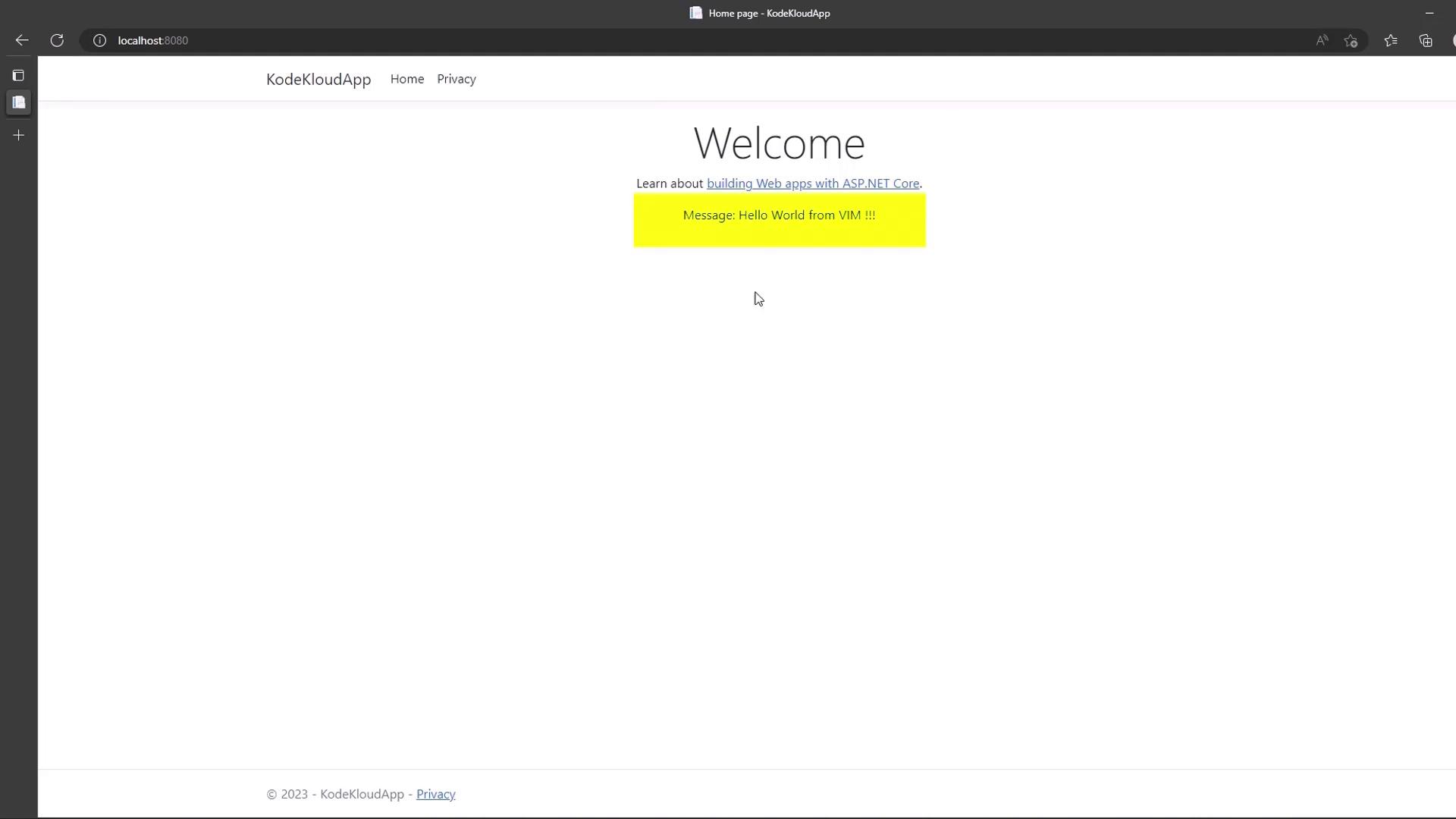
Editing configuration inside a running container is ideal for demos and debugging—but not for production. Prefer mounting configuration files or injecting environment variables instead.
3. Override with Environment Variables
ASP.NET Core’s configuration provider loads environment variables after JSON, allowing overrides without editing files.- Stop and remove the current container:
- Launch a new container with the
Messageenvironment variable: - Refresh http://localhost:8080. The message should read From Env.
4. Cleanup
When you’re done, remove the container:Docker Command Reference
| Command | Purpose |
|---|---|
docker run -d -p … | Start a container in detached mode |
docker exec -it … | Open an interactive shell inside a container |
docker rm -f … | Force remove a running or stopped container |