Welcome to Lab Three! In this session, you’ll learn how to structure Terragrunt configurations for a multi-module AWS deployment. Follow these steps to provision a VPC, EC2 instances, and manage remote state with Terraform and Terragrunt.
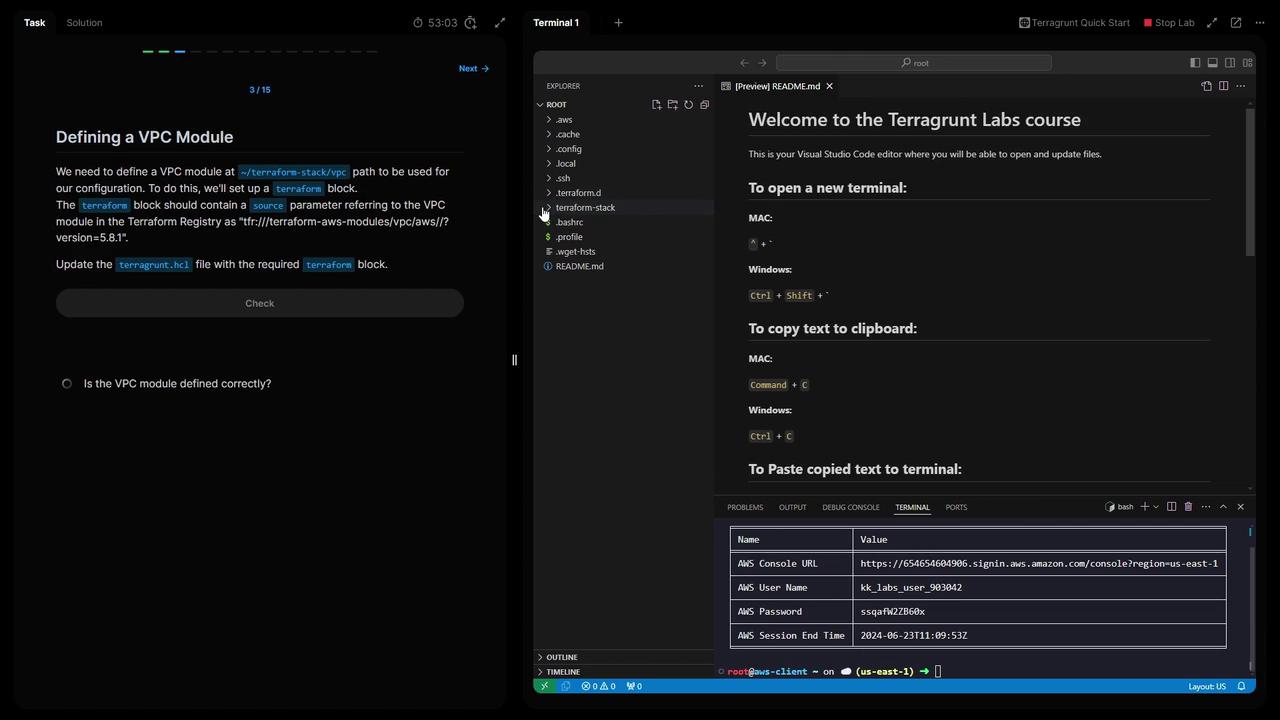
If you ever need to retrieve your AWS credentials during the lesson, run:
You can also open the VS Code IDE in a new browser tab to copy and paste commands.
Module Source Purpose VPC terraform-aws-modules/vpc/aws//?version=5.8.1Create a scalable VPC with public & private subnets EC2 Web terraform-aws-modules/ec2-instance/aws//?version=2.0.0Launch a web server in the public subnet EC2 Database (Your custom module) Deploy a database instance in a private subnet
1. Define the VPC Module Create a Terragrunt configuration under Terraform stack/vpc/terragrunt.hcl:
terraform { source = "terraform-aws-modules/vpc/aws//?version=5.8.1" } inputs = { name = "vpc" cidr = "10.0.0.0/16" azs = [ "us-east-1a" , "us-east-1b" , "us-east-1c" ] public_subnets = [ "10.0.101.0/24" , "10.0.102.0/24" , "10.0.103.0/24" ] private_subnets = [ "10.0.201.0/24" , "10.0.202.0/24" ] enable_nat_gateway = true single_nat_gateway = true }
Save the file and validate the configuration:
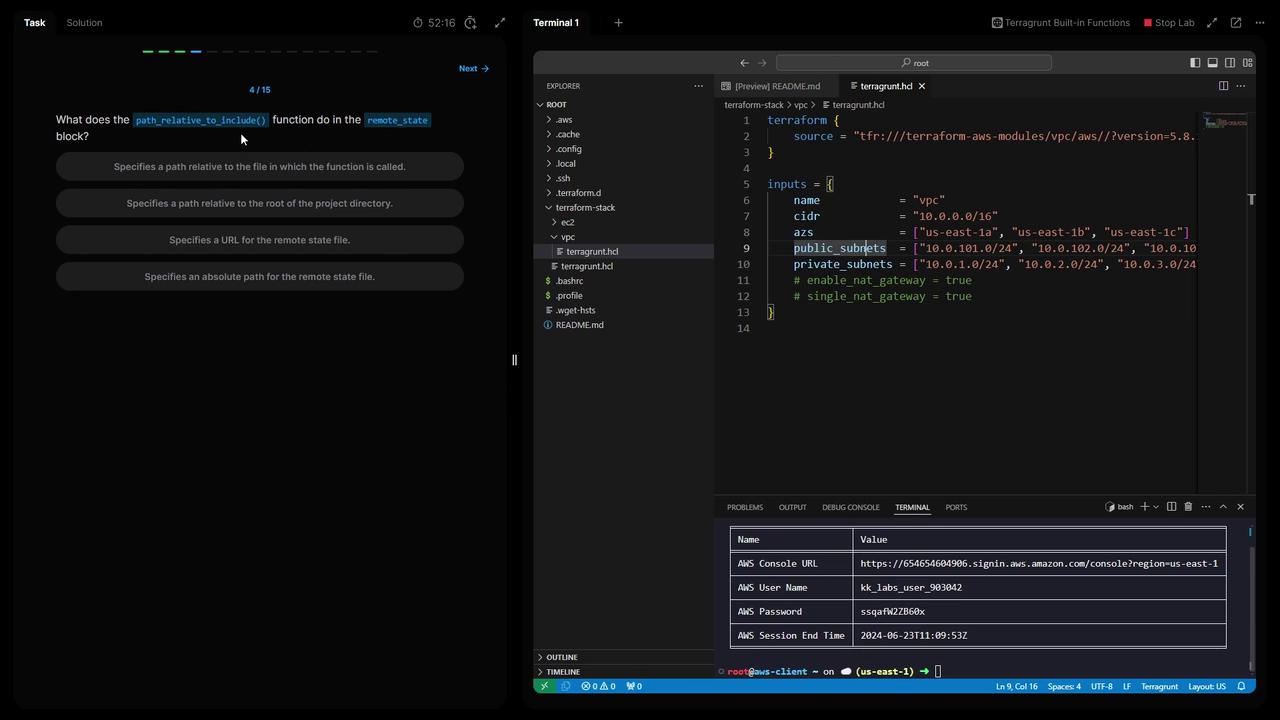
What is path_relative_to_include()?
The path_relative_to_include() function computes the relative path from the current terragrunt.hcl to the included parent. This ensures each module’s state key is unique in S3.
In your root Terraform stack/terragrunt.hcl, add:
remote_state { backend = "s3" config = { encrypt = true bucket = "kk-tf-state-314" key = " ${ path_relative_to_include () } /terraform.tfstate" region = "us-east-1" } generate = { path = "backend.tf" if_exists = "overwrite_terragrunt" } }
List your S3 buckets to find the Terraform state bucket:
aws s3 ls | grep "kk-tf-state-"
Reinitialize Terragrunt and confirm updating the backend:
terragrunt init # Type "yes" when prompted
3. Define Common Locals To DRY out your configuration, define shared values at the root:
locals { project = "kodeloud-labs" ami = "ami-0f2a1bb3c24f7285" instance_type = "t2.micro" }
Validate once more:
Leverage Terragrunt’s generate blocks to auto-create providers.tf and a Terraform version override:
generate "provider" { path = "providers.tf" if_exists = "overwrite_terragrunt" contents = << EOF provider "aws" { region = "us-east-1" } EOF } generate "provider_version" { path = "provider_version_override.tf" if_exists = "overwrite_terragrunt" contents = << EOF terraform { required_providers { aws = { source = "hashicorp/aws" version = "~> 5.0" } } } EOF }
Re-run initialization:
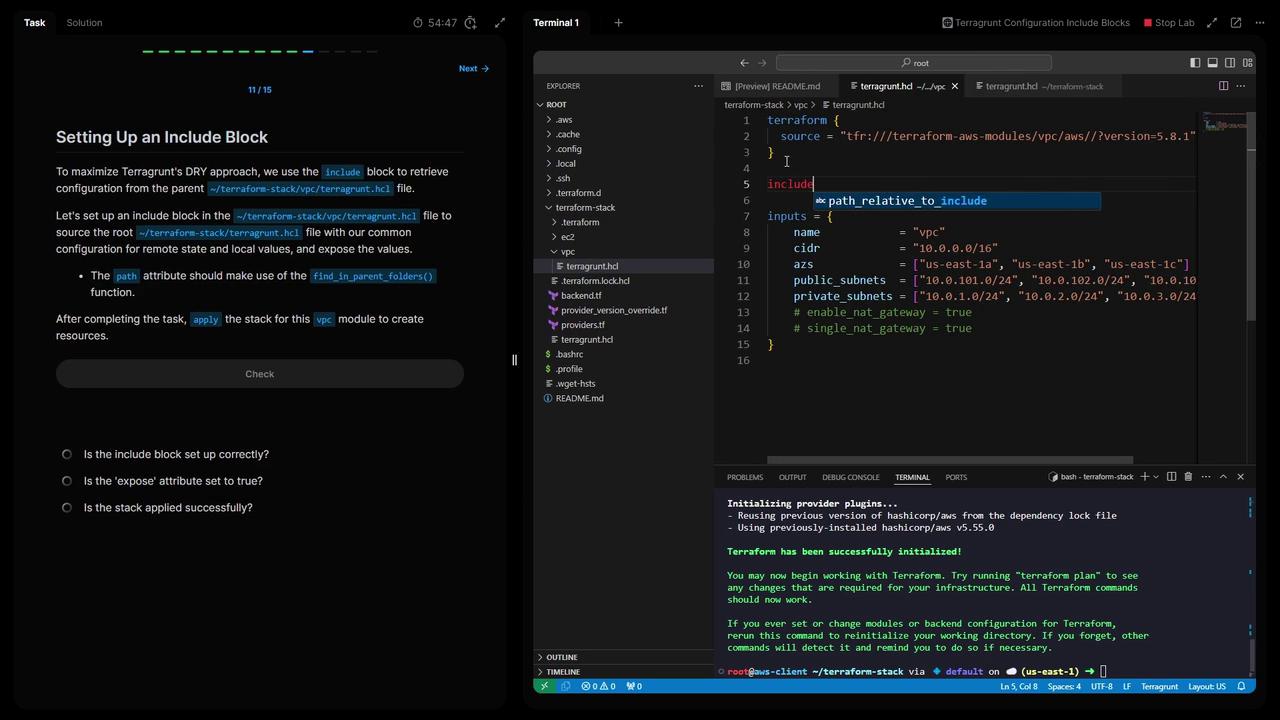
5. Include Root Configuration in the VPC Module In Terraform stack/vpc/terragrunt.hcl, inherit root settings:
terraform { source = "terraform-aws-modules/vpc/aws//?version=5.8.1" } include "root" { path = find_in_parent_folders () expose = true } inputs = { name = "vpc" cidr = "10.0.0.0/16" azs = [ "us-east-1a" , "us-east-1b" , "us-east-1c" ] public_subnets = [ "10.0.101.0/24" , "10.0.102.0/24" , "10.0.103.0/24" ] private_subnets = [ "10.0.201.0/24" , "10.0.202.0/24" ] enable_nat_gateway = true single_nat_gateway = true }
Apply the VPC module:
cd "Terraform stack/vpc" terragrunt init terragrunt apply # Type "yes" to confirm
Verify the new VPC in the AWS Console.
6. Deploy EC2 Web Module with VPC Dependency Create Terraform stack/ec2-web/terragrunt.hcl and reference the VPC outputs:
terraform { source = "terraform-aws-modules/ec2-instance/aws//?version=2.0.0" } include "root" { path = find_in_parent_folders () expose = true } dependency "vpc" { config_path = "../../vpc" } inputs = { name = include.root.locals.project ami = include.root.locals.ami instance_type = include.root.locals.instance_type subnet_id = dependency.vpc.outputs.public_subnets[ 0 ] }
Initialize and apply:
cd "Terraform stack/ec2-web" terragrunt init terragrunt apply # Type "yes" to confirm
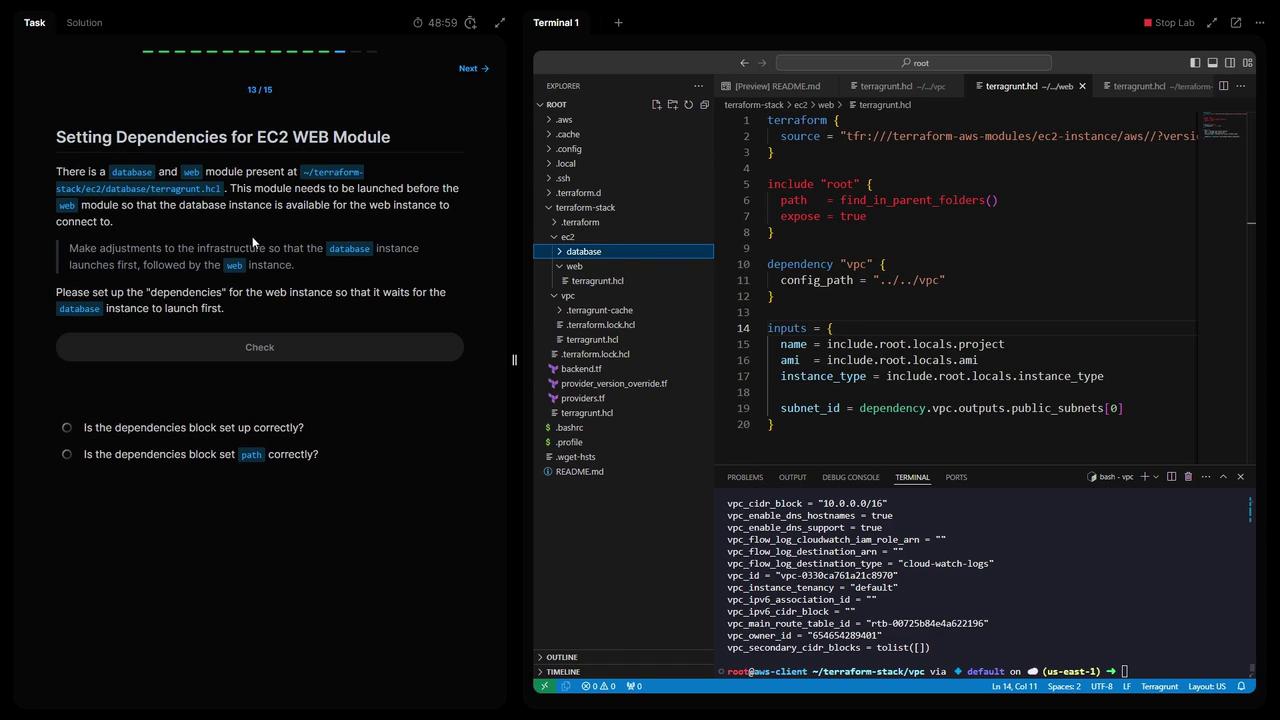
7. Add Database Dependency to the Web Module If you have a database module under Terraform stack/ec2-database, ensure it deploys before the web server:
dependencies { paths = [ "../ec2-database" ] }
Re-run in ec2-web:
terragrunt init terragrunt apply
Terragrunt will sequence: VPC → Database → Web.
8. Deploy All Modules Simultaneously From the root of Terraform stack, run:
This command orchestrates every module in dependency order.
9. Verify Remote State Files in S3 Check that each module has its own state file:
BUCKET = $( aws s3 ls | grep kk-tf-state | awk '{print $3}' | head -n1 ) aws s3 ls "s3:// $BUCKET " --recursive
Expected output:
2024-06-23 09:14:06 180 0/terraform.tfstate 2024-06-23 09:14:06 9575 0/database/terraform.tfstate 2024-06-23 09:14:09 39803 0/web/terraform.tfstate
10. Why Generate at the Root By generating the backend, provider, and Terraform-version files at the project root, you:
Centralize configuration for consistency
Avoid duplication in child modules
Simplify maintenance as your infrastructure grows
Thank you for completing Lab Three! You now have a reusable Terragrunt setup for AWS VPC, EC2, and remote state management. See you in the next lab!