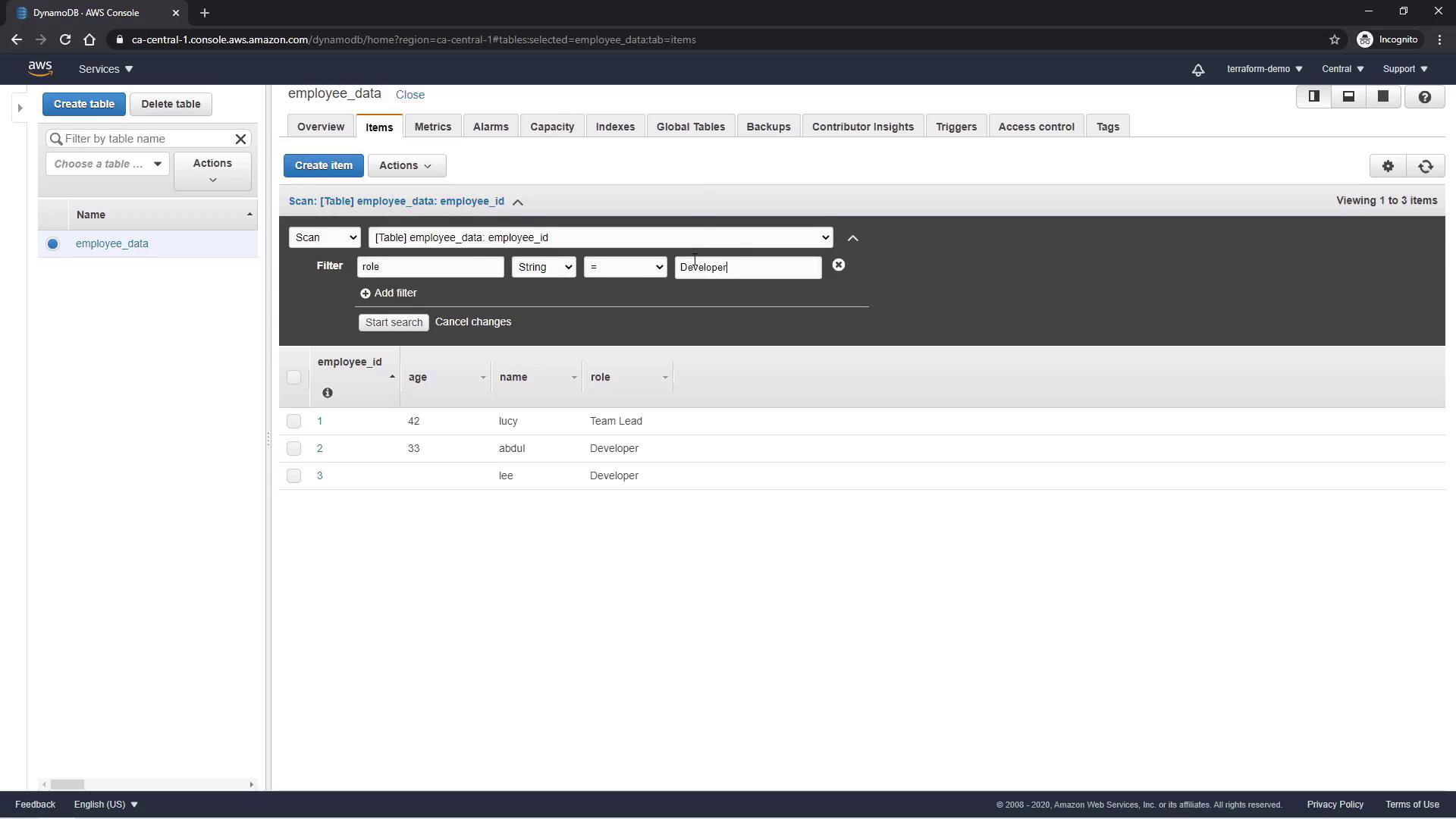
Accessing DynamoDB
- Click on the Services tab in the top left corner.
- Under Databases, select DynamoDB.
- Click the Create Table button.
Creating a Table
To get started, provide a table name to store employee information. In this example, name the table employee_data. Next, specify the primary key (hash key) by using employee_id with the data type set to Number. Leave the other settings at their default values and click the Create button.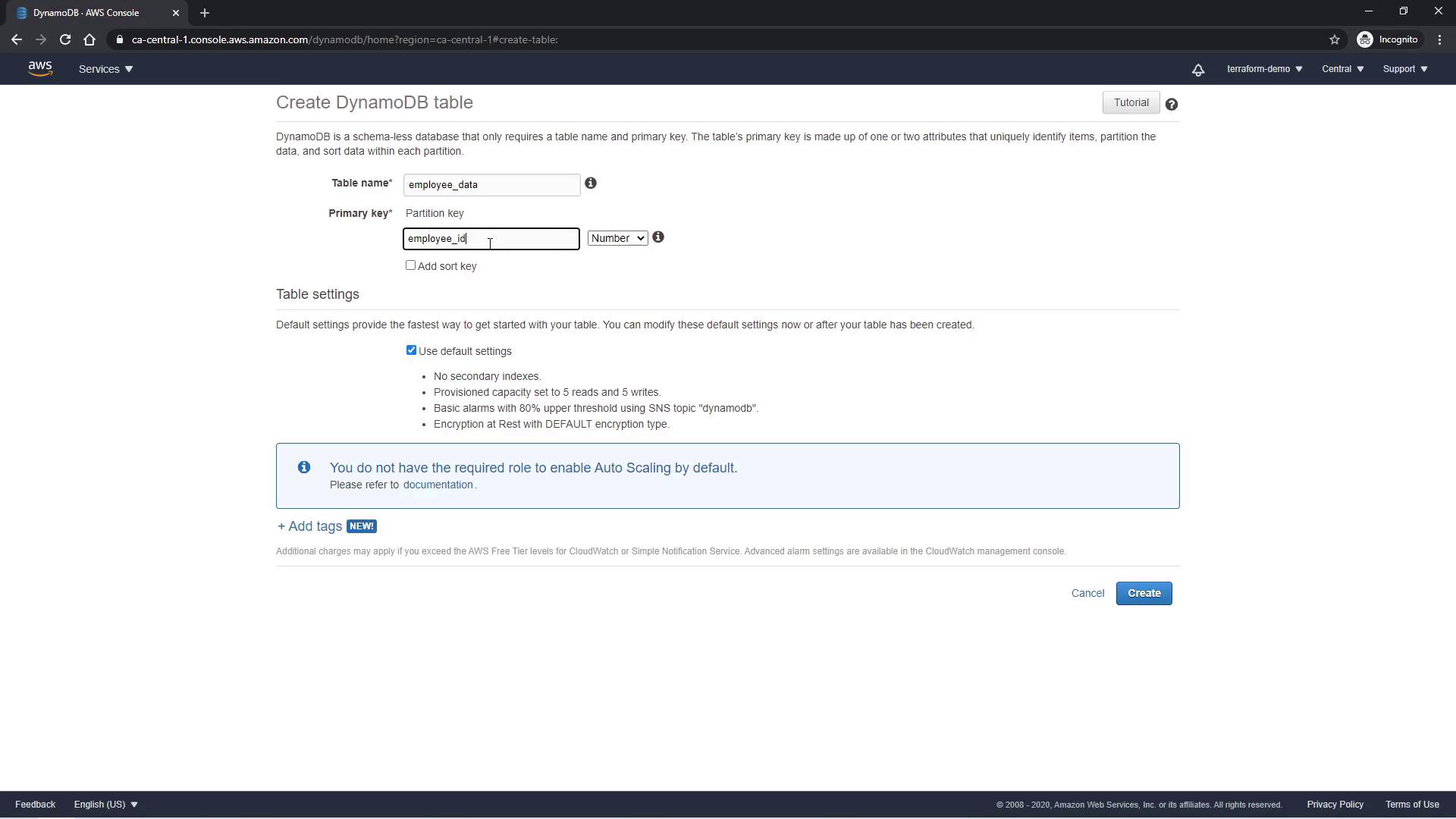
Adding Items
Next, add items to the employee_data table:- Click on the Create Item tab. The employee_id field (the primary key) is already populated.
- Modify the employee_id to
1. - Click the Append button to add additional attributes:
- name (String) for the employee’s name.
- age (Number) for the employee’s age.
- role (String) for the employee’s role.
1 along with the corresponding attributes. Below is a sample JSON representation:
In DynamoDB, only the primary key is required when inserting items; all other attributes are optional. This allows flexibility when modeling your data.
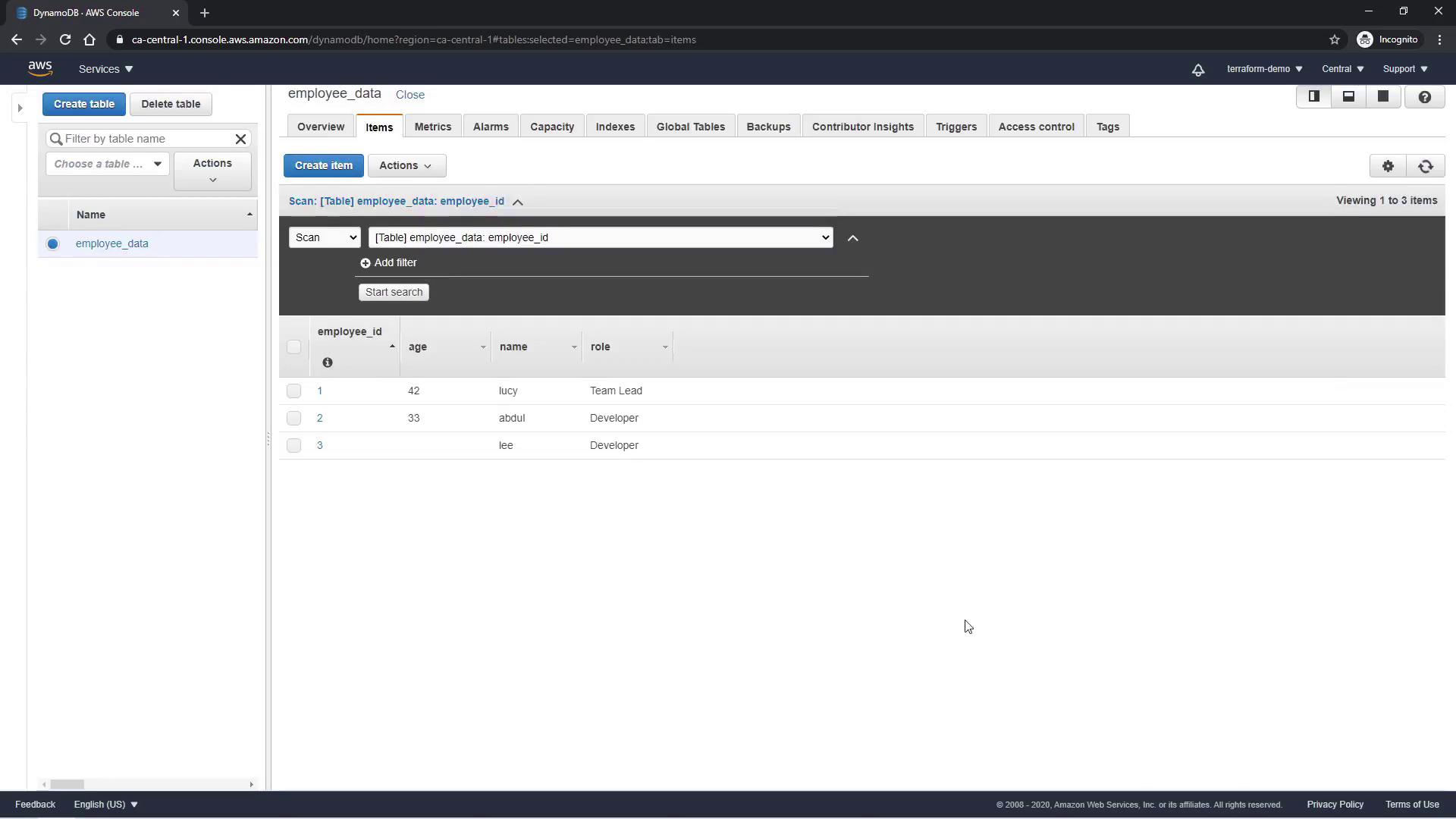
Filtering Items
To easily locate specific items, you can apply filters to the table. For example, to list all employees with the role of “Developer”, apply a filter using the role attribute.