

Before you begin, ensure you have completed the following:
- Created an S3 bucket to store your Terraform state file.
- Set up a DynamoDB table with a primary (hash) key named “lockid” for state locking.
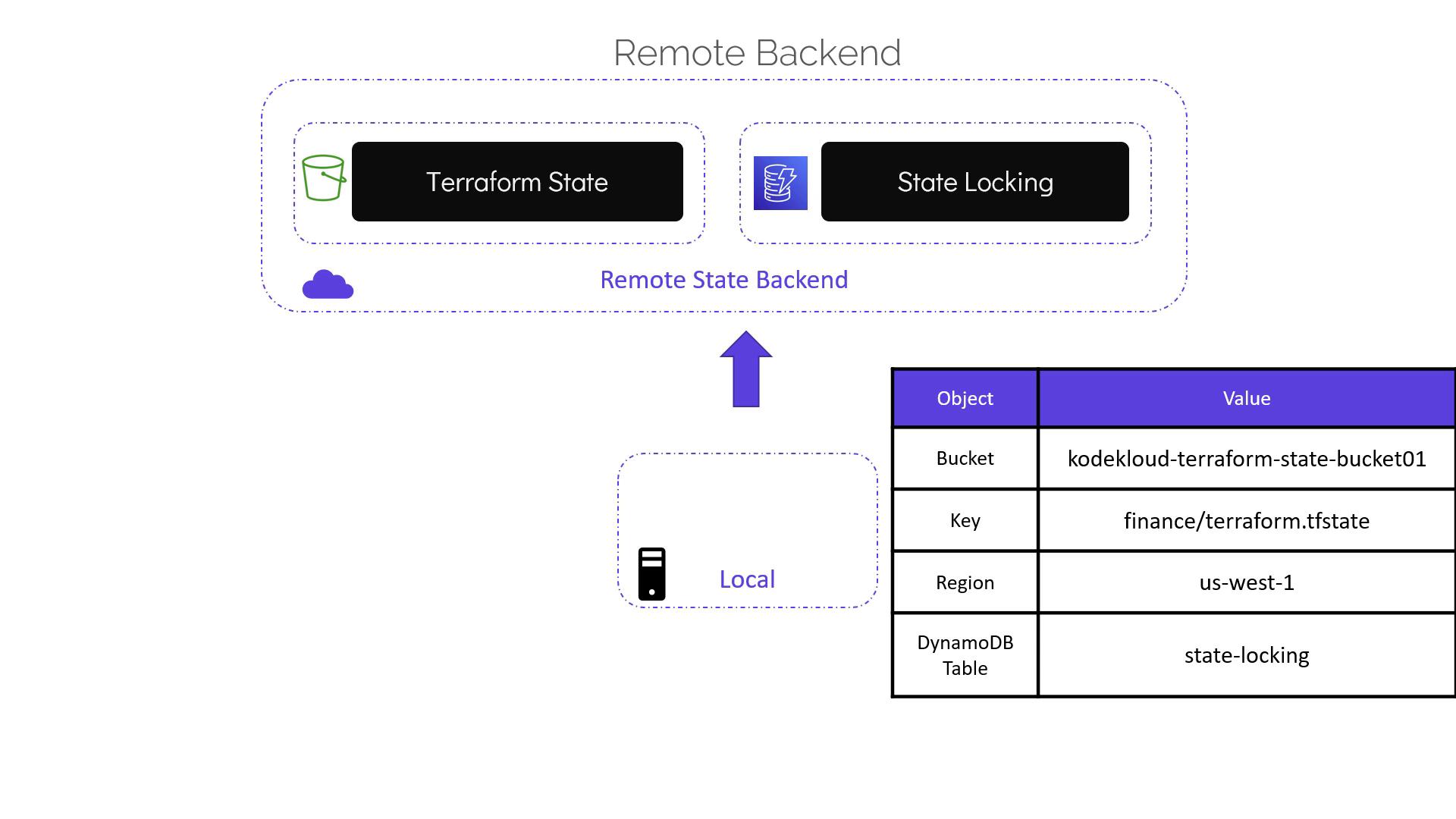
- S3 bucket name.
- S3 key (object path) for the state file.
- AWS region where the bucket is hosted.
- Name of the DynamoDB table.
Configuring Your Terraform Backend
Navigate to your configuration directory. Typically, you might have amain.tf file that creates local resources. When you run terraform apply, Terraform initially generates a local state file (terraform.tfstate).
To switch to a remote backend, add a Terraform block with backend settings. Previously, the Terraform block was used solely to specify the provider version. It now also includes the backend configuration for remote state storage. For example, update your configuration as follows:
Breakdown of the Configuration
- bucket: The name of the S3 bucket where the state file will be stored.
- key: The S3 object path for storing the state file (in this example, under a folder named “finance”).
- region: The AWS region where your S3 bucket is located.
- dynamodb_table: Name of the pre-created DynamoDB table enabling state locking to ensure safe concurrent updates.
It is recommended to separate your backend configuration from your infrastructure code. Consider moving the Terraform block (or at least the backend settings) from
main.tf to a separate file (e.g., terraform.tf) to improve clarity.Initializing the Remote Backend
After reorganizing your files (for example,main.tf for resource definitions and terraform.tf for backend configuration), initialize your Terraform configuration using the command below:
Applying Changes with the Remote Backend
From now on, any terraform operations will update the remote state. When you runterraform plan or terraform apply, Terraform locks the state, retrieves it from the S3 bucket, and releases the lock after the operation completes. An example output during a successful apply operation is as follows: