This article introduces PyTorch tensors, covering their creation, attributes, operations, and GPU utilization for efficient data processing in deep learning.
In this lesson, we explore one of PyTorch’s fundamental concepts: Tensors. Serving as the cornerstone for model building and training, tensors provide an efficient method for storing and processing data in multiple dimensions—from simple scalars to complex multi-dimensional arrays.
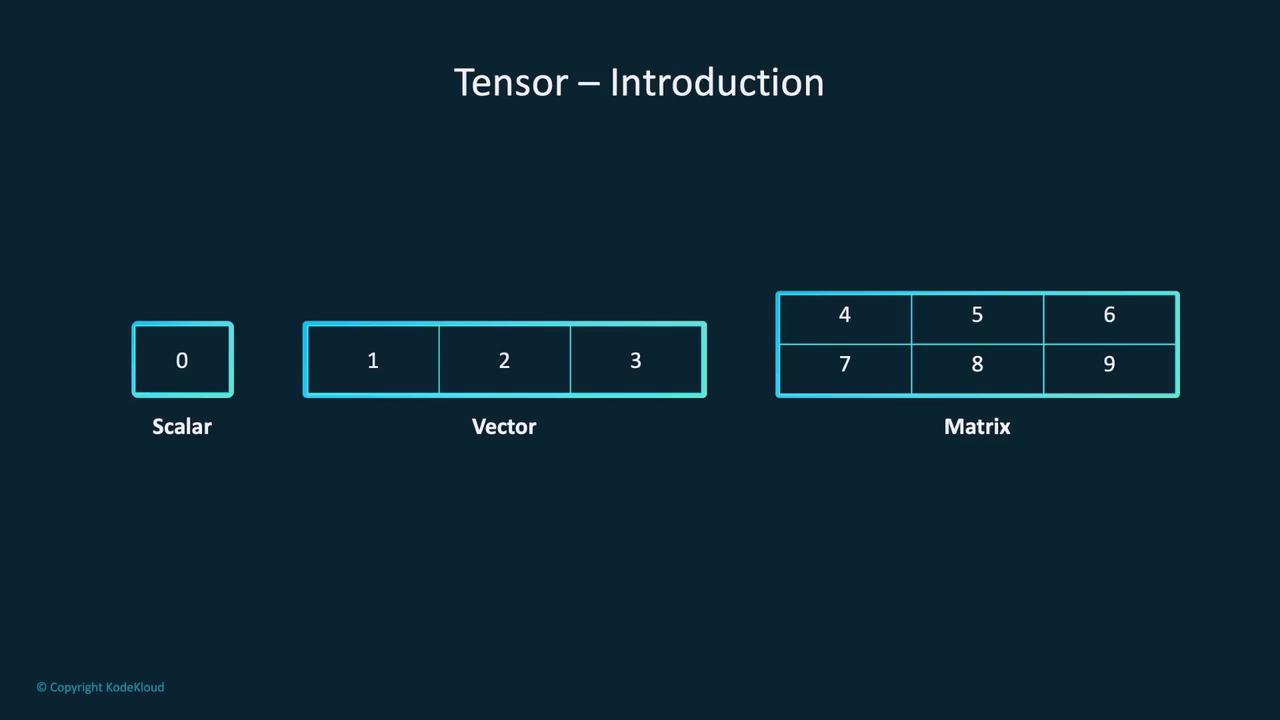
A tensor is a versatile container for data, similar to a list or table, but with enhanced capabilities. It can hold data across several dimensions:
A scalar is the simplest tensor, representing a single number (a zero-dimensional tensor).
A vector is a one-dimensional tensor, akin to a list of numbers.
A matrix is a two-dimensional tensor, organized in rows and columns.
Tensors can also manage more complex data. For example, an image is typically stored as a three-dimensional tensor—with dimensions representing height, width, and color channels. Similarly, video data is commonly stored as a four-dimensional tensor, where the extra dimension corresponds to time.
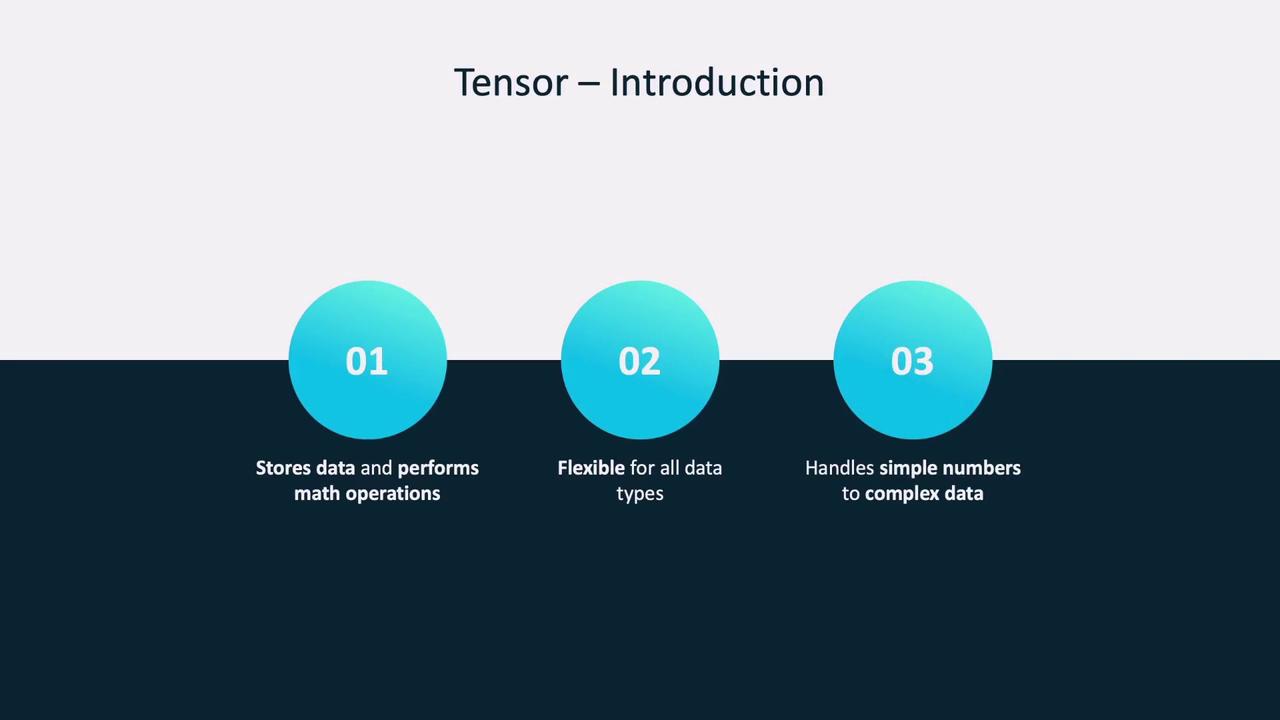
In PyTorch, tensors are not only used to store data but also to perform a wide range of mathematical operations.
Converting images into tensors is a frequent task in machine learning. Typically, the Pillow library is used to open images, and TorchVision—via the transforms.ToTensor() function—converts them into tensors.
After conversion, the image is represented as a 3D tensor with normalized RGB channel values between 0 and 1. To inspect this tensor’s attributes, use:
Copy
Ask AI
print(img_tensor.shape, img_tensor.dtype, img_tensor.device)# Expected Output:# torch.Size([4, 144, 144]) torch.float32 cpu
This output indicates that the image tensor contains 4 channels (possibly RGBA) with dimensions of 144x144 pixels, stored on the CPU.
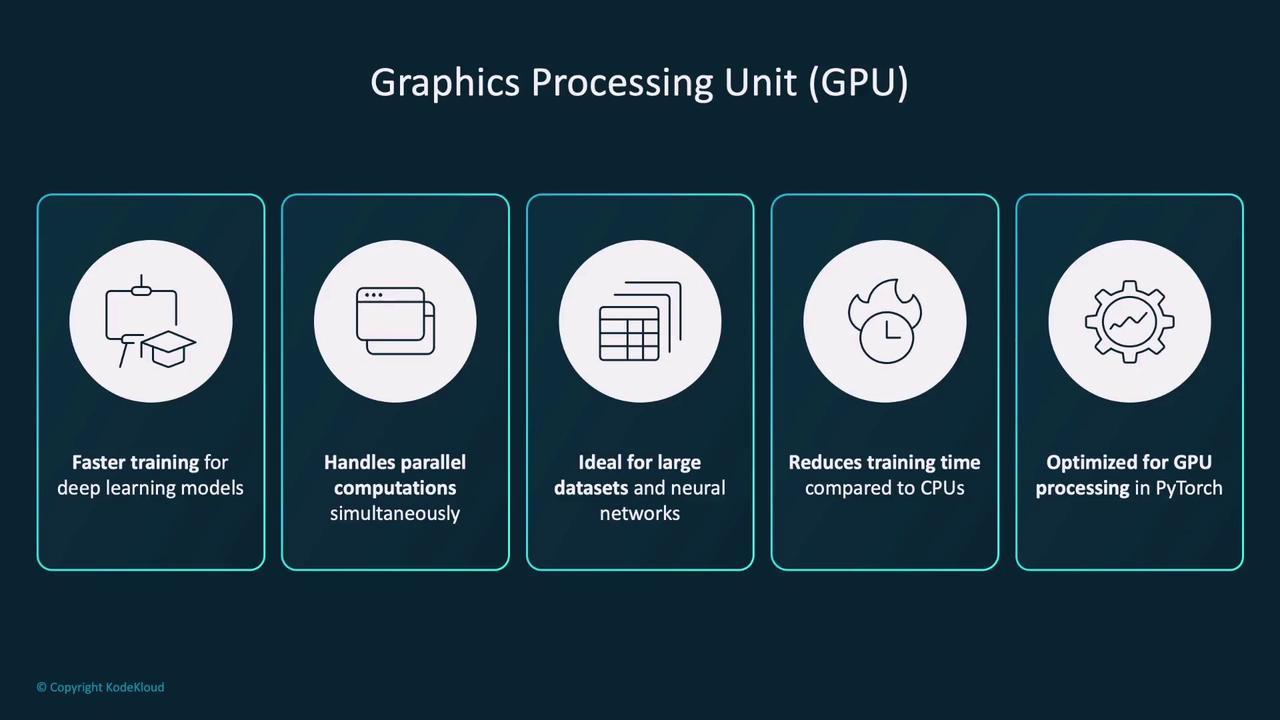
PyTorch’s strong GPU support significantly boosts deep learning performance. GPUs specialize in handling parallel computations, making them ideal for the heavy matrix operations found in deep learning.
PyTorch utilizes NVIDIA’s CUDA (Compute Unified Device Architecture) to enable GPUs to handle tasks beyond rendering graphics, such as scientific computations and model training.
Check for GPU availability and move tensors as follows:
Copy
Ask AI
# Check if GPU is availableif torch.cuda.is_available(): print("GPU is available")else: print("GPU is not available")
To move a tensor to a GPU:
Copy
Ask AI
# Check tensor device before and after moving to GPUprint(tensor.device) # Expected Output: cpu# Move tensor to GPUtensor = tensor.to('cuda')print(tensor.device) # Expected Output: cuda
For portability, dynamically select the device:
Copy
Ask AI
# Select device based on GPU availabilitydevice = 'cuda' if torch.cuda.is_available() else 'cpu'# Create tensor on the selected devicetensor = torch.tensor([1, 2, 3], device=device)print(tensor.device)
Using dynamic device selection ensures that your code runs efficiently on both GPUs and CPUs.
This lesson established a strong foundation for understanding and working with PyTorch tensors. We covered how to create tensors, utilize their powerful operations, convert images to tensors, and leverage GPU acceleration for performance gains. In the upcoming demo, we will further explore these concepts on our development machine.Happy coding!