This article explores strategies for backing up Jenkins instances, including file system snapshots, backup plugins, and custom shell scripts.
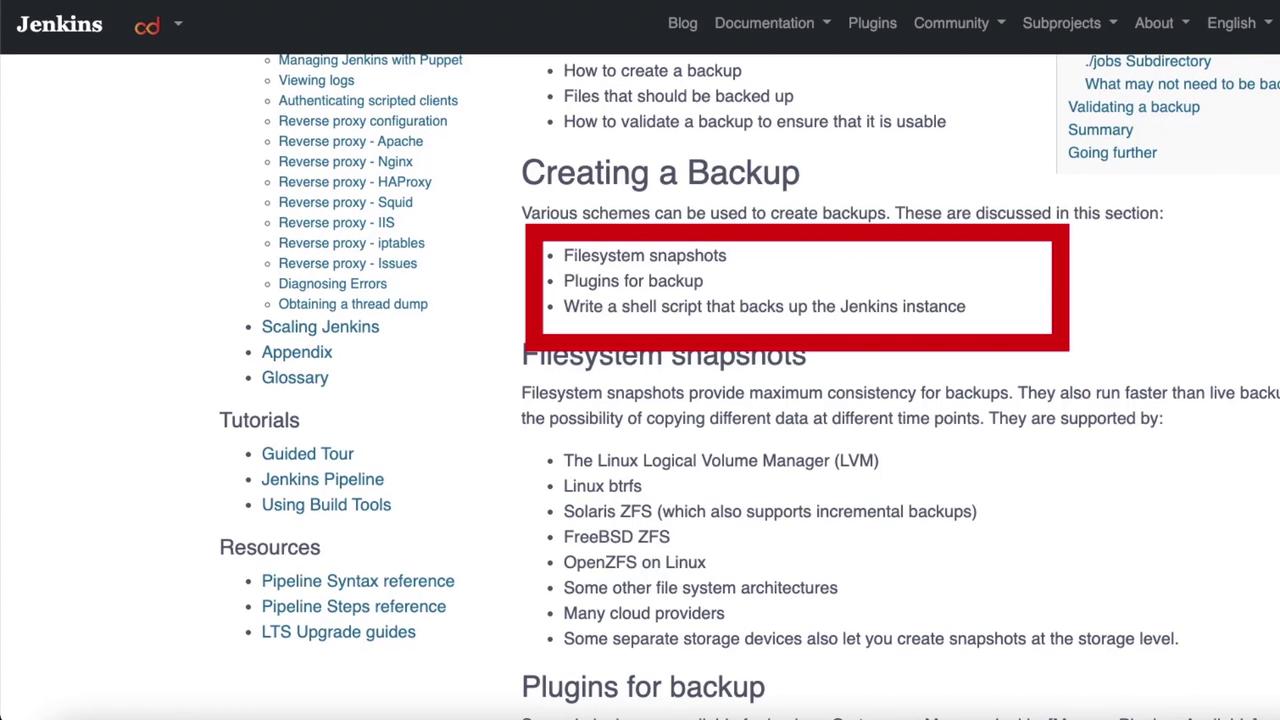
In this article, we explore various strategies for backing up your Jenkins instance. Since Jenkins does not include a dedicated backup solution, it’s essential to choose an approach that aligns with your operational requirements—whether it’s through file system snapshots, backup plugins, or custom shell scripts.
One method is to use file system snapshots. Although snapshots can provide daily or incremental protection, they are not true backups and should not be relied upon as a long-term solution.
Another option is to leverage backup plugins. Git-backed for flexibility, Jenkins supports a wide variety of plugins to extend its functionality. Alternatively, you might consider crafting a shell script to automate your backup process.
Both plugin-based and script-based backups offer unique benefits. Choose the approach that best suits your environment and backup objectives.
Below is an excerpt from a custom Jenkins backup shell script available on GitHub:
While this script is a valuable resource for those who prefer custom solutions, utilizing a backup plugin often provides a more integrated and streamlined experience.
To set up a Jenkins backup plugin, follow these steps:
Log in to the Jenkins portal.
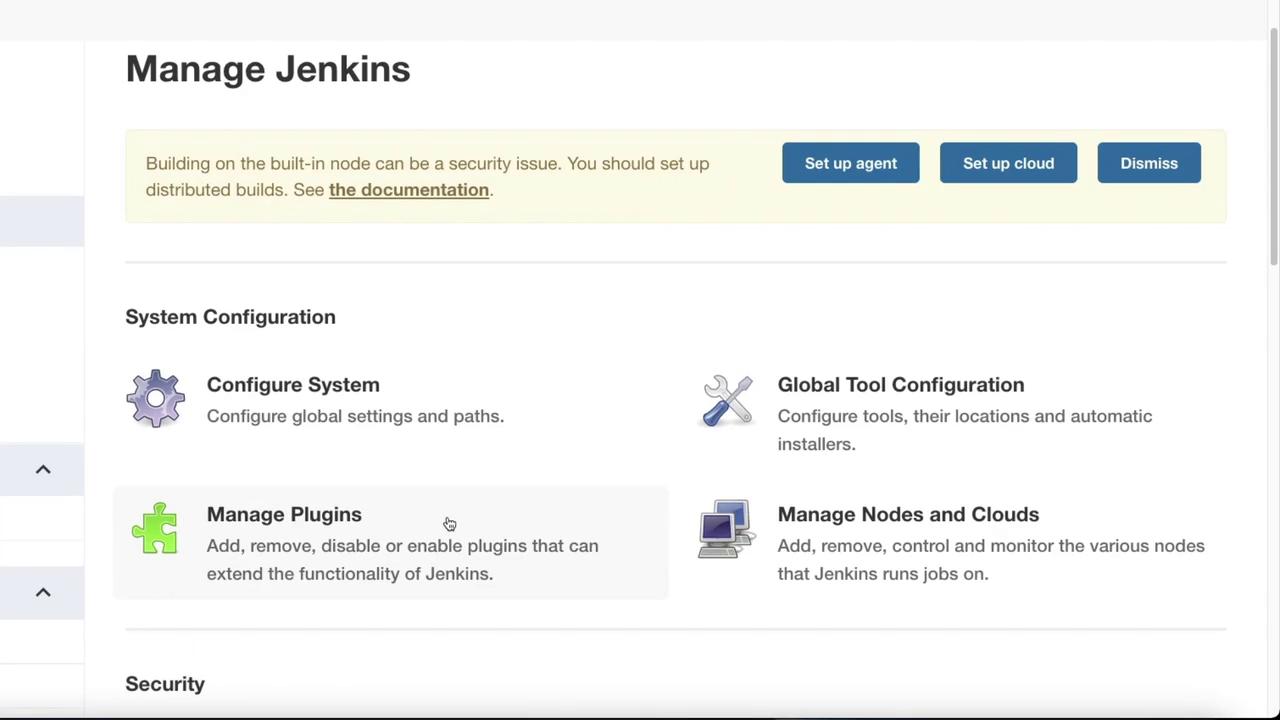
Click on Manage Jenkins.
Select Manage Plugins.
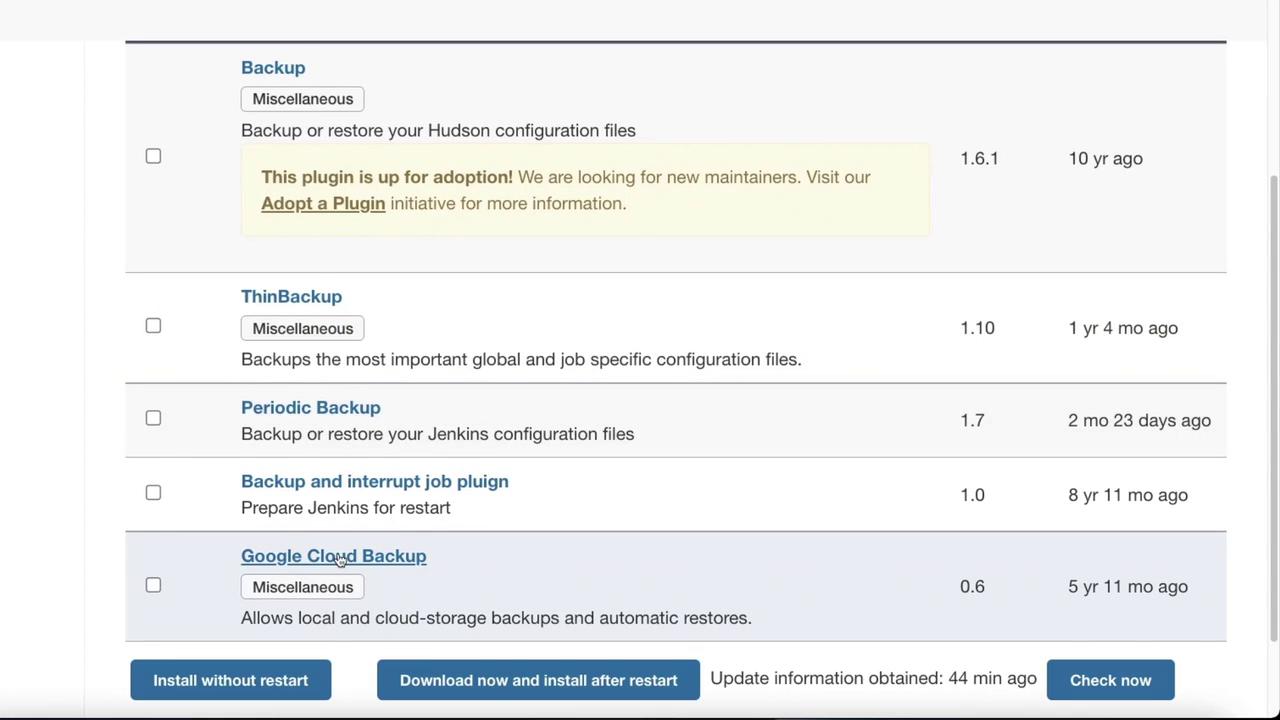
Next, navigate to the Available tab and search for “Backup”. While the Thin Backup plugin is widely used, you might also consider alternatives like the Google Cloud Backup plugin.
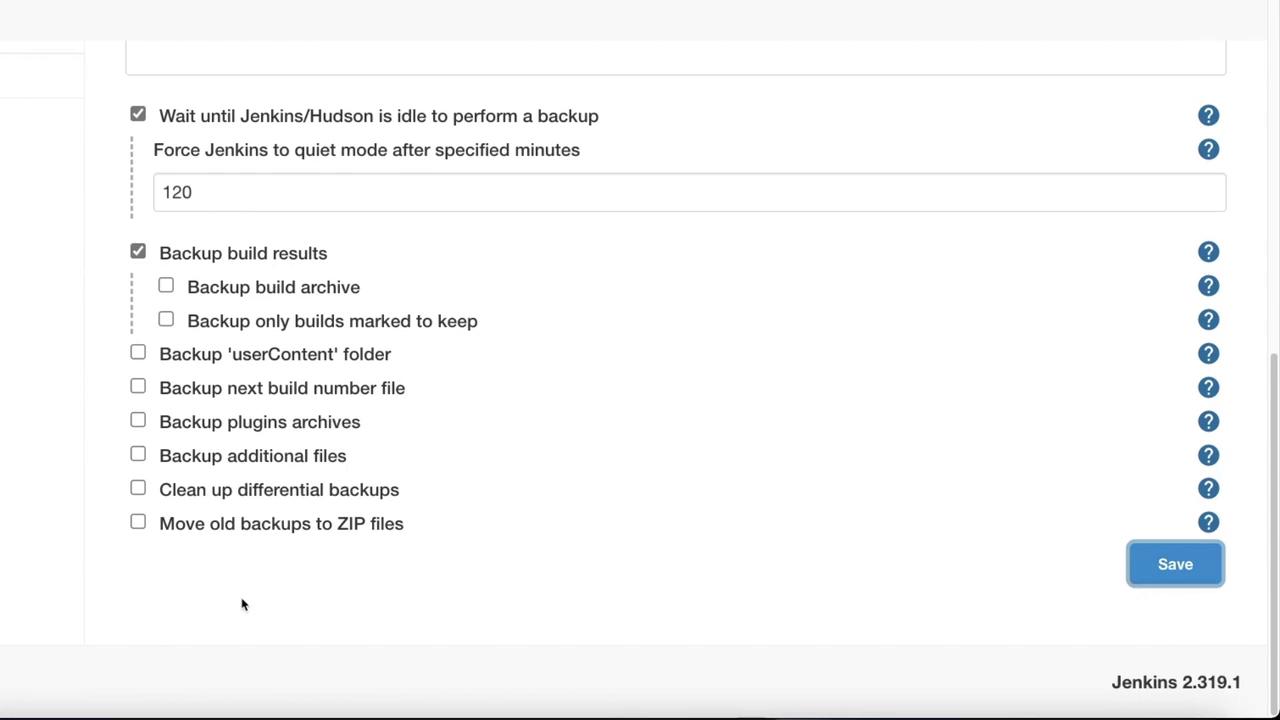
After selecting Thin Backup, click Install Without Restart. Once installation is complete, return to Manage Jenkins and locate the Thin Backup section.Within Thin Backup, you can configure settings to back up global configurations as well as job-specific settings. Key configuration options include:
Backup Directory: Set the directory where backups will be stored (ensure Jenkins has write access).
Backup Schedules: Define schedules for differential and full backups.
Number of Backup Sets: Specify how many backup sets to retain.
Files Excluded: List files to be ignored during the backup.
Backup Scope: Choose which files are to be included in the backup.
A valid backup directory is critical. If no backup directory is configured correctly, the backup process will fail.
After adjusting the settings, click Backup Now. If the backup directory is not correctly specified, you will need to configure a proper directory before retrying.
Once logged in, create and verify a backup directory with these commands:
Copy
Ask AI
mike@jenkins01:~$ pwd/home/mikemike@jenkins01:~$ mkdir jenkinsbackupmike@jenkins01:~$ cd jenkinsbackup/mike@jenkins01:~/jenkinsbackup$ pwd/home/mike/jenkinsbackup
If the directory exists but lacks the required permissions, adjust them—temporarily, you might set permissive permissions for testing:
Copy
Ask AI
mike@jenkins01:~$ chmod 777 jenkinsbackup/
Avoid using 777 permissions in production environments. Always adjust permissions in accordance with your organization’s security policies.
Once the directory is properly configured, return to Jenkins and click Backup Now. Verify the backup file by checking your backup directory once the process completes.
This article has provided a detailed overview of various backup strategies for Jenkins. Whether you opt for a plugin-based solution or a custom shell script, ensuring that your backup method aligns with your operational and security requirements is paramount.For further details on Jenkins and its capabilities, visit the Jenkins Documentation. Happy backing up!