

Creating a Pipeline
Begin by creating a new pipeline. For example, name the pipeline “git test” and select the Pipeline option. After clicking OK and scrolling down, choose one of the sample pipelines like “GitHub plus Maven”. Pay special attention to the commands within the pipeline stage, particularly around line 13 and line 16:git and sh represent keywords provided by plugins that integrate external tools such as Git and Maven into your pipeline.
Explicitly Declaring Tools
You can also explicitly declare the tools used in your pipeline to improve clarity. Consider the following example:git step clones a repository while the sh step runs a shell command to execute Maven.
Managing Plugins in Jenkins
To understand how these plugins work, navigate to Jenkins and go to Manage Jenkins → Manage Plugins.The Jenkins dashboard offers various options, including managing the system, configuring plugins, security, and nodes. The build queue may appear empty if no builds are scheduled.
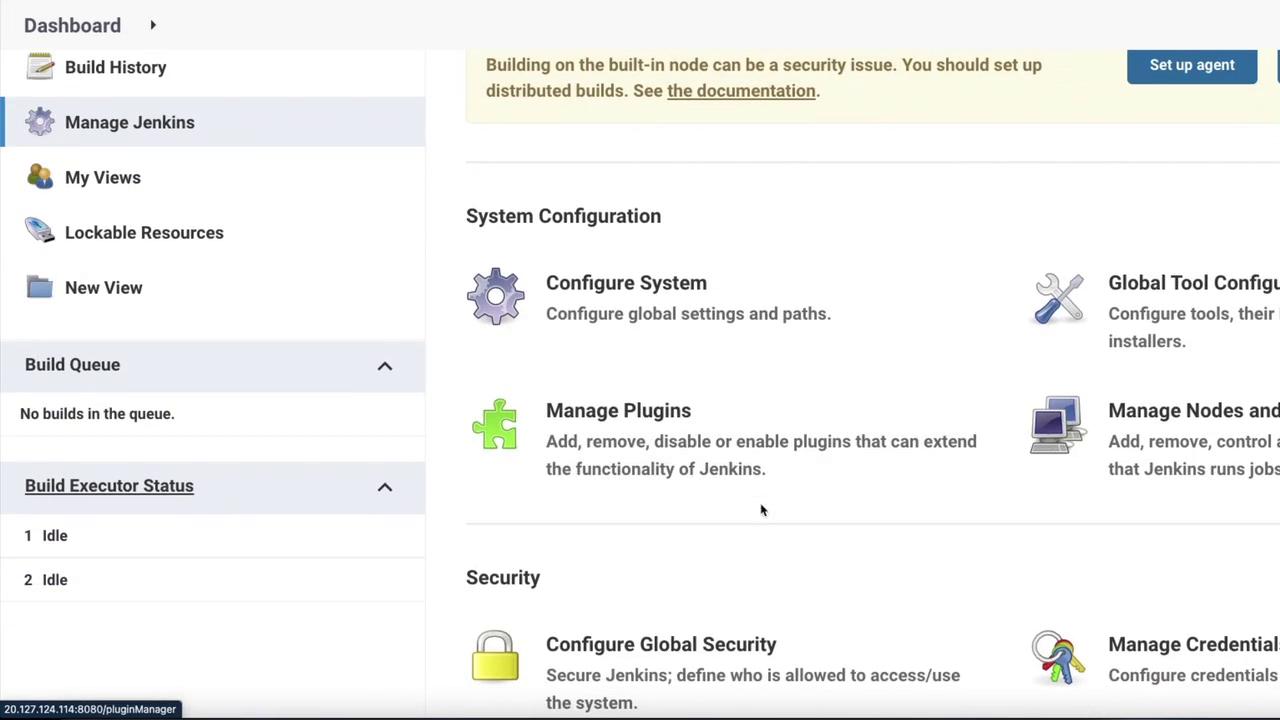
git keyword for repository cloning.
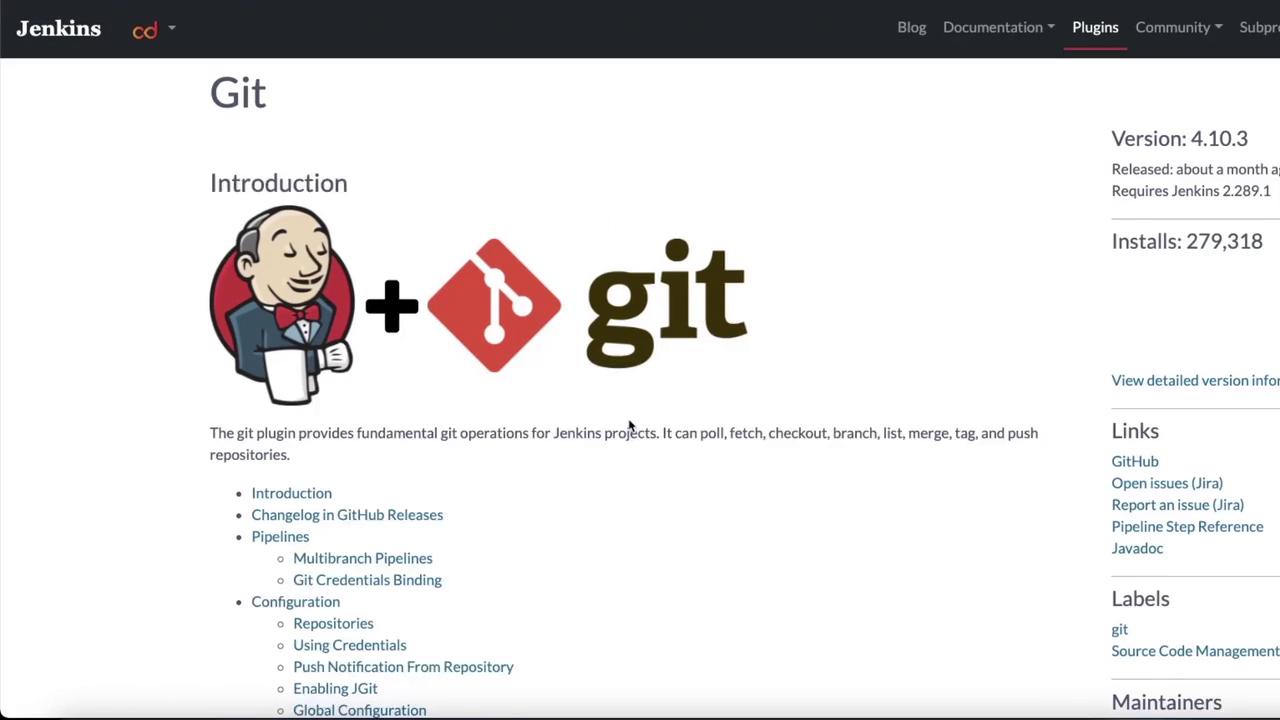
Checkout Example Using the Git Plugin
The Git plugin simplifies repository cloning. The following code snippet demonstrates a checkout step using the Git plugin with both default options and customizable settings:Creating a Pipeline with Additional Plugins
To illustrate further plugin integration, create another pipeline that utilizes additional plugins like JUnit for processing test results. Go to Jenkins, create a new item, select Pipeline, and name it (for example, “sh-test”). Choose a Scripted Pipeline and include the following script:Refer to the plugin documentation for detailed behavior and configuration options to fully leverage these tools in your pipelines.
Conclusion
Keywords likegit, sh, and junit within your pipeline scripts represent functionalities provided by the respective plugins. These plugins are installed during the basic Jenkins setup or can be added later through the plugin manager. Regular practice and exploration of these plugins will help solidify your understanding of Jenkins pipeline steps and plugin integrations.
Happy automating!