This article demonstrates creating, testing, and configuring a simple AWS Lambda function using the AWS Lambda console.
In this article, we will demonstrate how to work with AWS Lambda by creating, testing, and configuring a simple Lambda function. This guide walks you through each step using the AWS Lambda console, ensuring that even beginners can follow along.
Begin by searching for “Lambda” in the AWS console. Once located, click the Create Function button to start building your new Lambda function. You will see several options:
Author from scratch: Provides a basic “Hello World” function.
Use a blueprint: Offers sample code and pre-configurations.
Use a container image: Supports containerized applications.
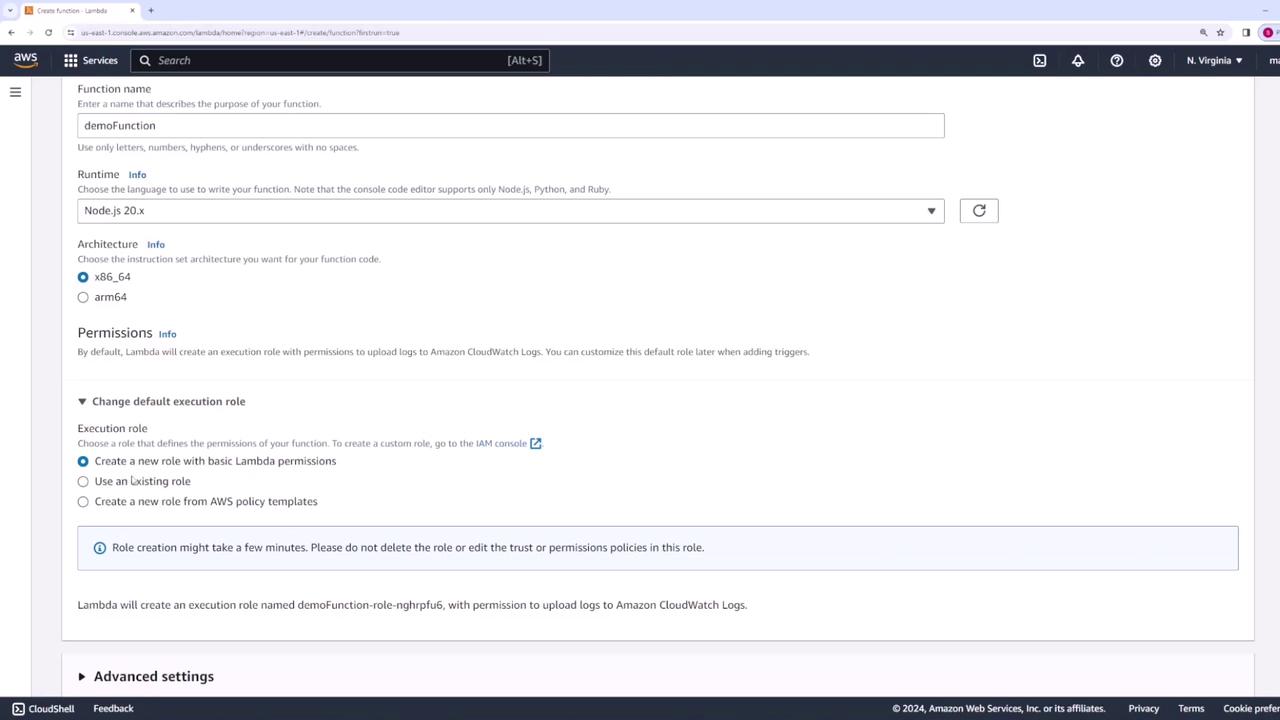
For our demo, choose Author from scratch. Name your function (for example, “demo function”) and select your runtime. AWS Lambda supports multiple runtimes (such as Python 3.12, Ruby 3.3, Node.js 16, 18, or 20.x). We will use Node.js 20.x in this example and keep the default architecture setting (x86_64).When setting up permissions, AWS Lambda will automatically create a new role with the necessary permissions. Alternatively, if you have an existing role, you can select that one instead. For this demo, we will create a new role for our function.
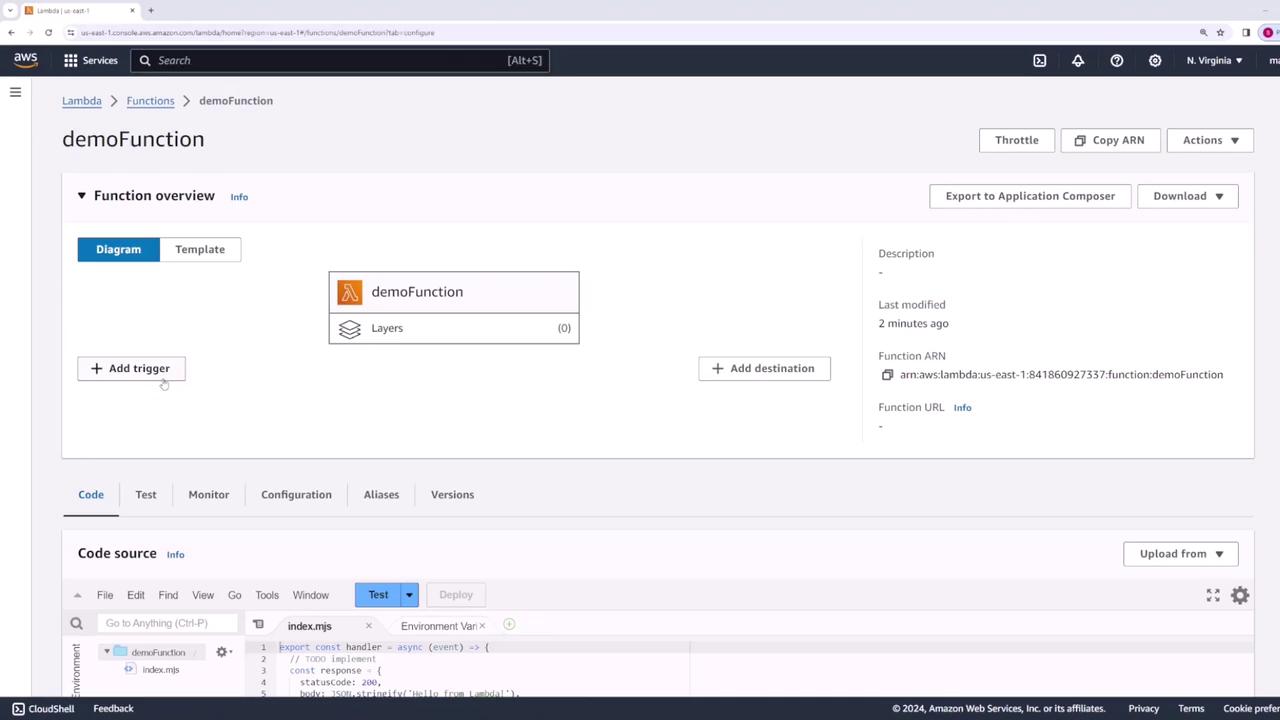
If desired, you can also create a new role using a policy template. For now, leave all advanced settings as default and click Create function.Once created, selecting the function from the AWS Lambda console displays an overview of its configuration—including the function name (“demo function”) and any associated triggers.
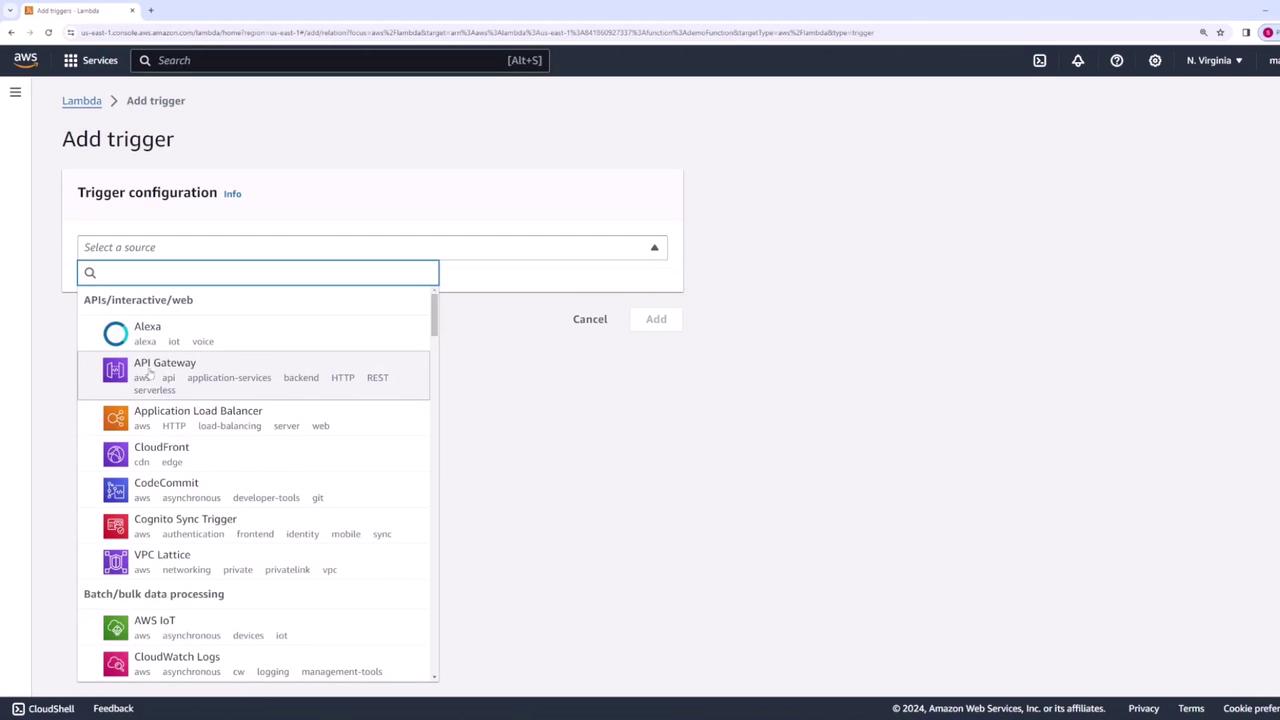
Triggers instruct AWS Lambda when to run your function. For example, you can configure API Gateway, a load balancer, or other integrations to trigger the function upon receiving a request.
For this demonstration, we will not add triggers or destinations. Instead, scroll down to the Code section where you will see a file (typically named index.js for Node.js projects) containing your function code.Below is the sample code for our function:
Copy
Ask AI
exports.handler = async (event) => { // Log the incoming event for debugging purposes console.log(event); return 'Hello from Lambda!';};
In production scenarios, the event object can provide details like the request body, query parameters, or path parameters—information you might need to handle accordingly.
After saving the test event, select it from the dropdown menu and click Test. The function will execute, returning a response similar to the following:
The expected output should display a status code of 200 and a response message “Hello from Lambda!”. You can also inspect the function logs to view detailed execution information:
Copy
Ask AI
{ "statusCode": 200, "body": "Hello from Lambda!"}
And sample log entries might look like:
Copy
Ask AI
START RequestId: c8887250-1fca-418a-afeb-eabd46370461 Version: $LATESTEND RequestId: c8887250-1fca-418a-afeb-eabd46370461 Duration: 11.35 ms Billed Duration: 12 ms Memory Size: 128 MB Max Memory Used: 64 MB Init Duration: 135.03 msREPORT RequestId: c8887250-1fca-418a-afeb-eabd46370461
If you modify your function to include more detailed event information, be sure to deploy the changes. For instance, updating the function as follows:
Copy
Ask AI
export const handler = async (event) => { // Log the event to gain more insights during testing console.log(event); const response = { statusCode: 200, body: JSON.stringify('Hello from Lambda!'), event: event, }; return response;};
After redeploying, run the test again. The logs might now display additional details:
Copy
Ask AI
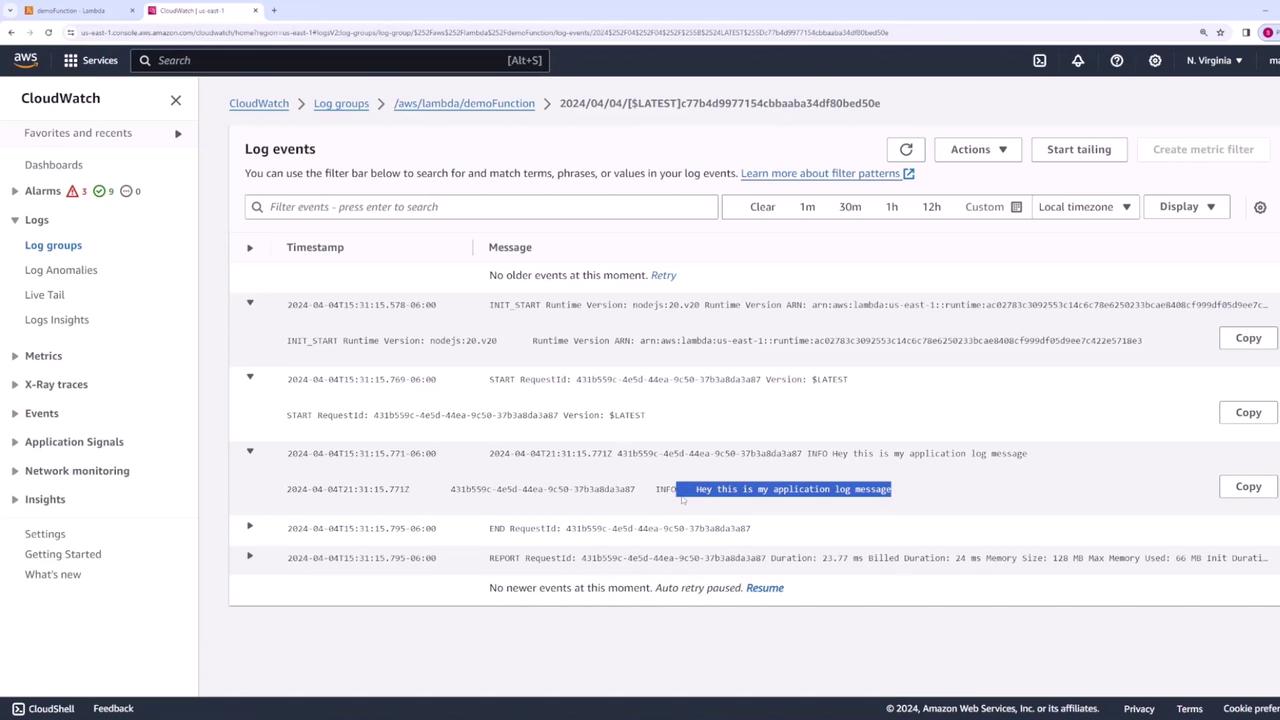
START RequestId: 431b559c-4e5d-44ea-9c50-37b3ada3a87 Version: $LATESTINFO Hey this is my application log messageEND RequestId: 431b559c-4e5d-44ea-9c50-37b3ada3a87REPORT RequestId: 431b559c-4e5d-44ea-9c50-37b3ada3a87 Duration: 21.77 ms Billed Duration: 24 ms Memory Size: 128 MB Max Memory Used: 66 MB Init Duration: 190.14 ms
Any modifications in your code must be deployed; otherwise, the test run will not reflect the latest changes.
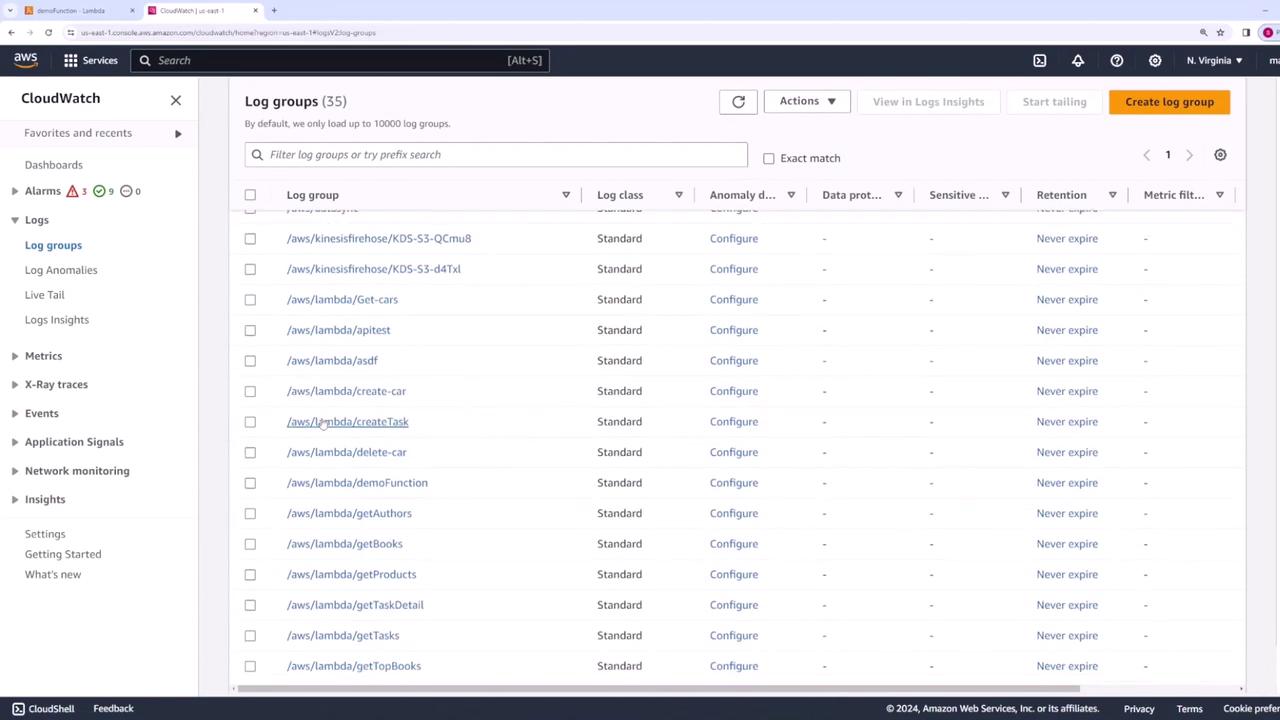
After your Lambda function runs, you can monitor its behavior through CloudWatch Logs, which provide additional diagnostic details such as request IDs and execution durations.
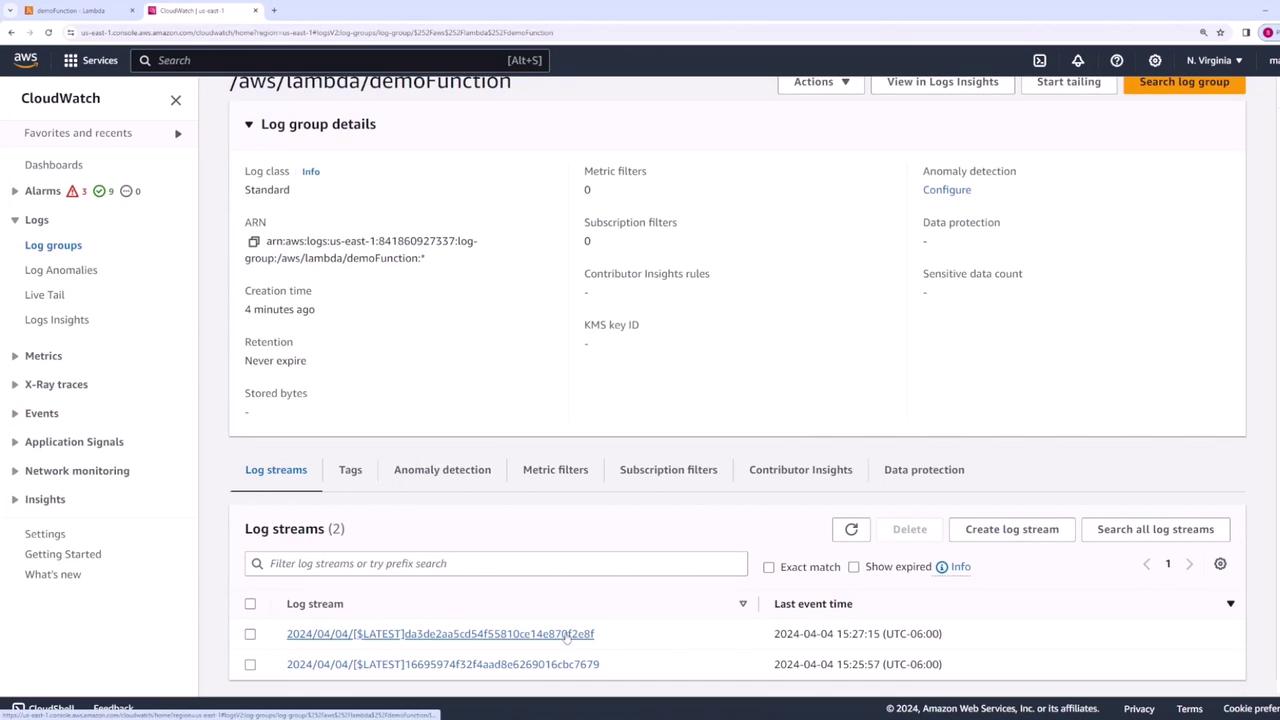
Click on the view CloudWatch logs link in your Lambda function interface to navigate to the relevant log group.
Within the log group, select the latest log stream to review detailed logs.
Your log entries may appear as follows:
Copy
Ask AI
INIT_START Runtime Version: nodejs:20.x v20 Runtime Version ARN: arn:aws:lambda:us-east-1:runtime:...START RequestId: 58749655-829d-44b1-a81b-170d6e8bd848 Version: $LATESTEND RequestId: 58749655-829d-44b1-a81b-170d6e8bd848REPORT RequestId: 58749655-829d-44b1-a81b-170d6e8bd848 Duration: 7.45 ms Billed Duration: 8 ms Memory Size: 128 MB Max Memory Used: 64 MB Init Duration: ...START RequestId: fbe8c084-5d86-43b7-b746-de6e8DEFd9ff Version: $LATESTREPORT RequestId: fbe8c084-5d86-43b7-b746-de6e8DEFd9ff Duration: 160.68 ms Billed Duration: 161 ms Memory Size: 128 MB Max Memory Used: 65 MB
Within the Configuration section of your Lambda function, you can adjust several settings:
Memory Allocation: Default is 128 MB.
Ephemeral Storage
Timeout Duration: The default is 3 seconds (can be increased up to 15 minutes).
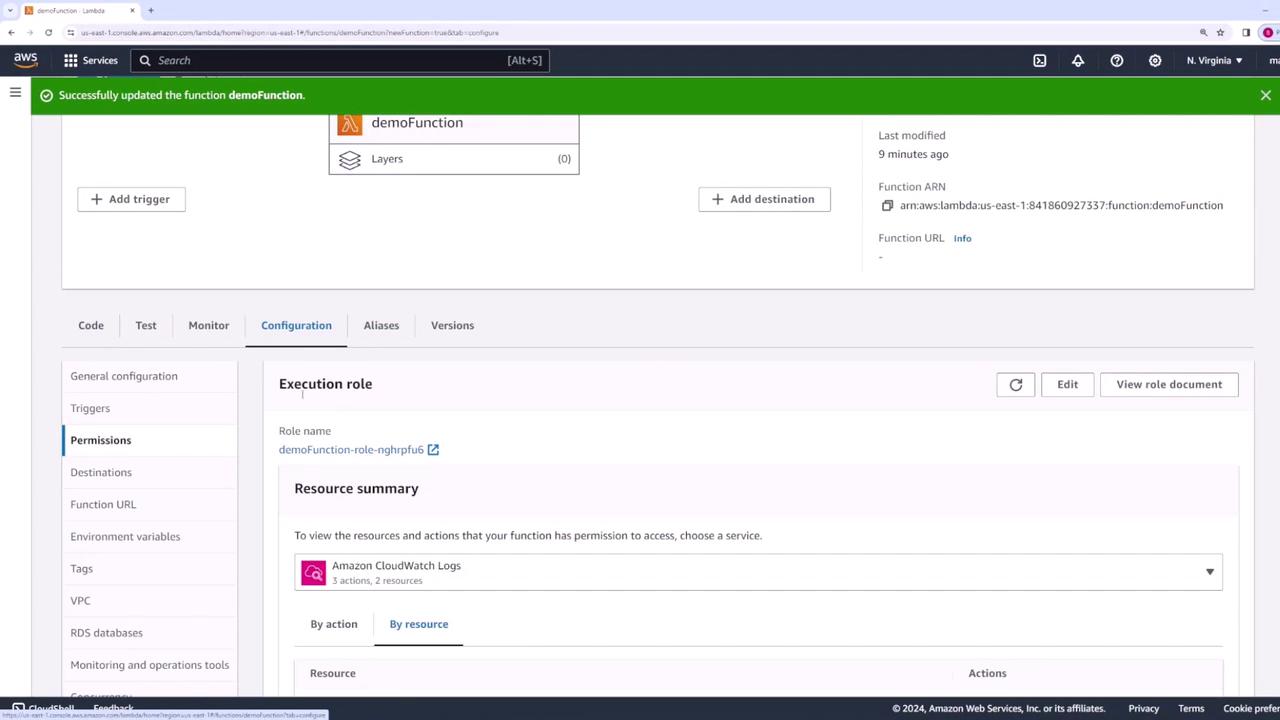
Execution Role: Determines the permissions your function has.
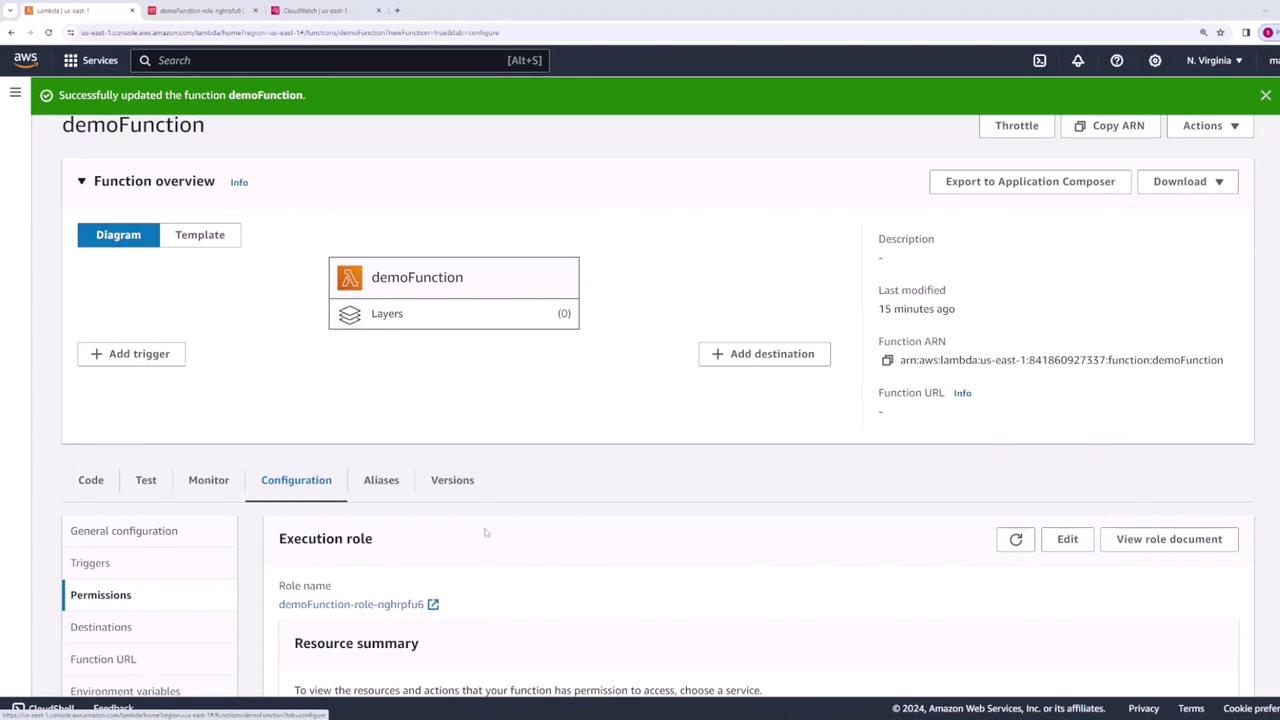
If you need to change the execution role (the IAM role assigned to the function), do so from this configuration page.
Adjusting these parameters allows you to better match your application’s resource needs. For example, if your Lambda function must interact with other AWS services like S3, update the IAM policy to grant the necessary permissions. Below is an example policy that AWS might automatically create to allow logging to CloudWatch:
After testing and verifying your Lambda function, it’s a good practice to remove any resources you no longer need, preventing unnecessary charges. To delete the Lambda function:
This guide has demonstrated how to create, test, and configure an AWS Lambda function, along with viewing execution logs in CloudWatch and managing permissions. Following these steps makes it simple to develop and deploy Lambda functions for scalable web applications.For further reading, check out: