This article explores advanced features of Kiali for managing and monitoring Istio service mesh using the Bookinfo application.
In this article, we explore various advanced features of Kiali using a modern configuration on the Bookinfo application. Kiali not only provides observability but also assists in configuring, updating, and validating your Istio service mesh. We will guide you through modifying fault injection settings, analyzing traffic flow, and reviewing Istio configurations to ensure your service mesh operates smoothly.
Ensure your Bookinfo app is deployed and your Kiali and Istio environments are correctly configured before following these steps.
To begin, we lower the fault injection delay percentage to 10%. This adjustment reduces error occurrences while still allowing a controlled amount of traffic flow. Apply the following VirtualService configuration:
Start with the Overview section in Kiali to get a high-level summary of your mesh—displaying workloads, services, and their health, mTLS status, or namespace labels. For this demo, we only have the “default” and “Istio system” namespaces. Use the namespace filtering options to view health details for apps, workloads, and services.
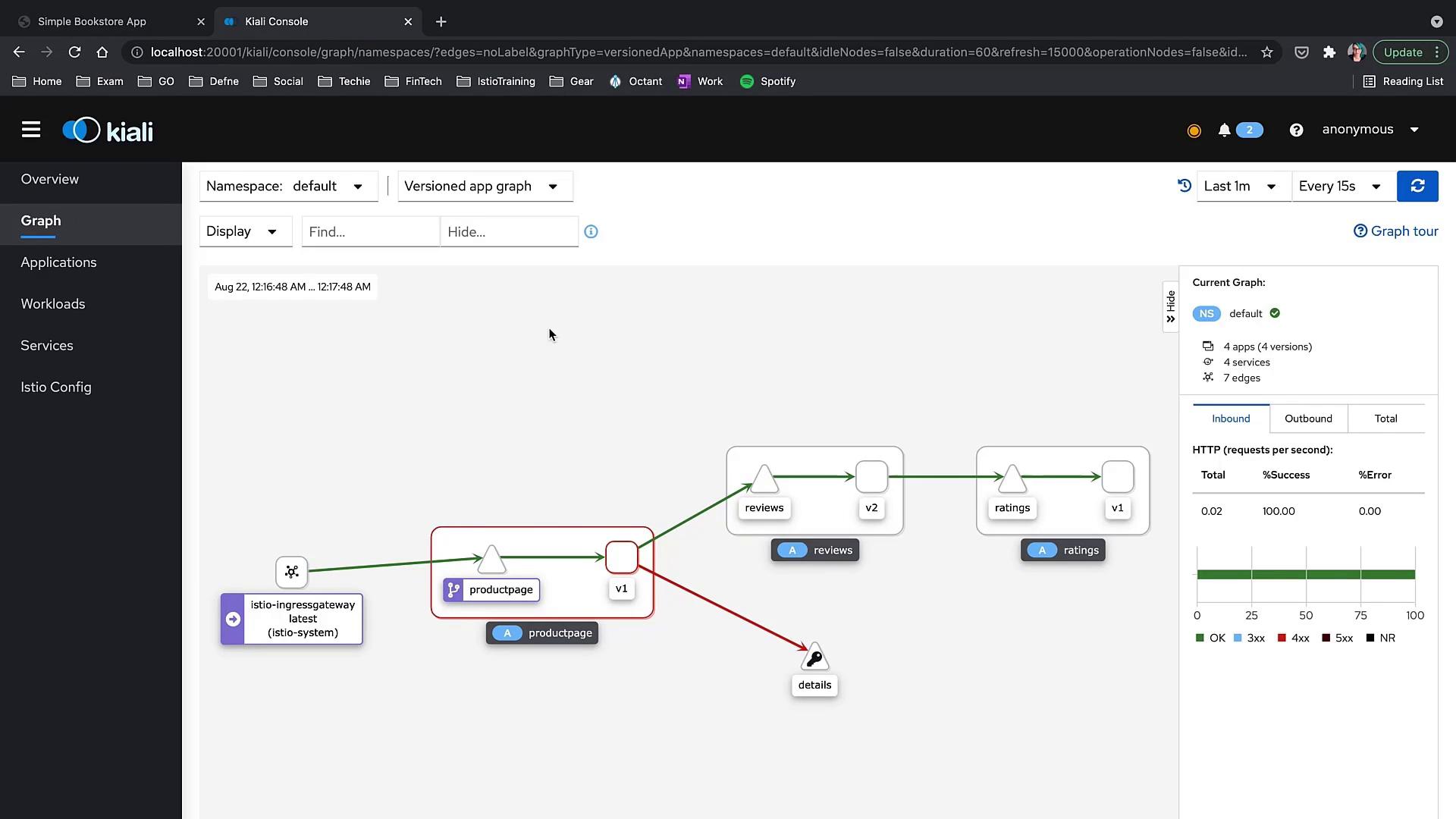
After observing the initial behavior, remove the fault injection rule. As you apply the update, you’ll notice red error indicators disappearing and the details service transitioning to a green status.Apply the updated VirtualService configuration without the fault injection delay:
Next, pause the traffic animation and simulate an issue by deleting the review service. Run the following command:
Copy
Ask AI
kubectl get serv
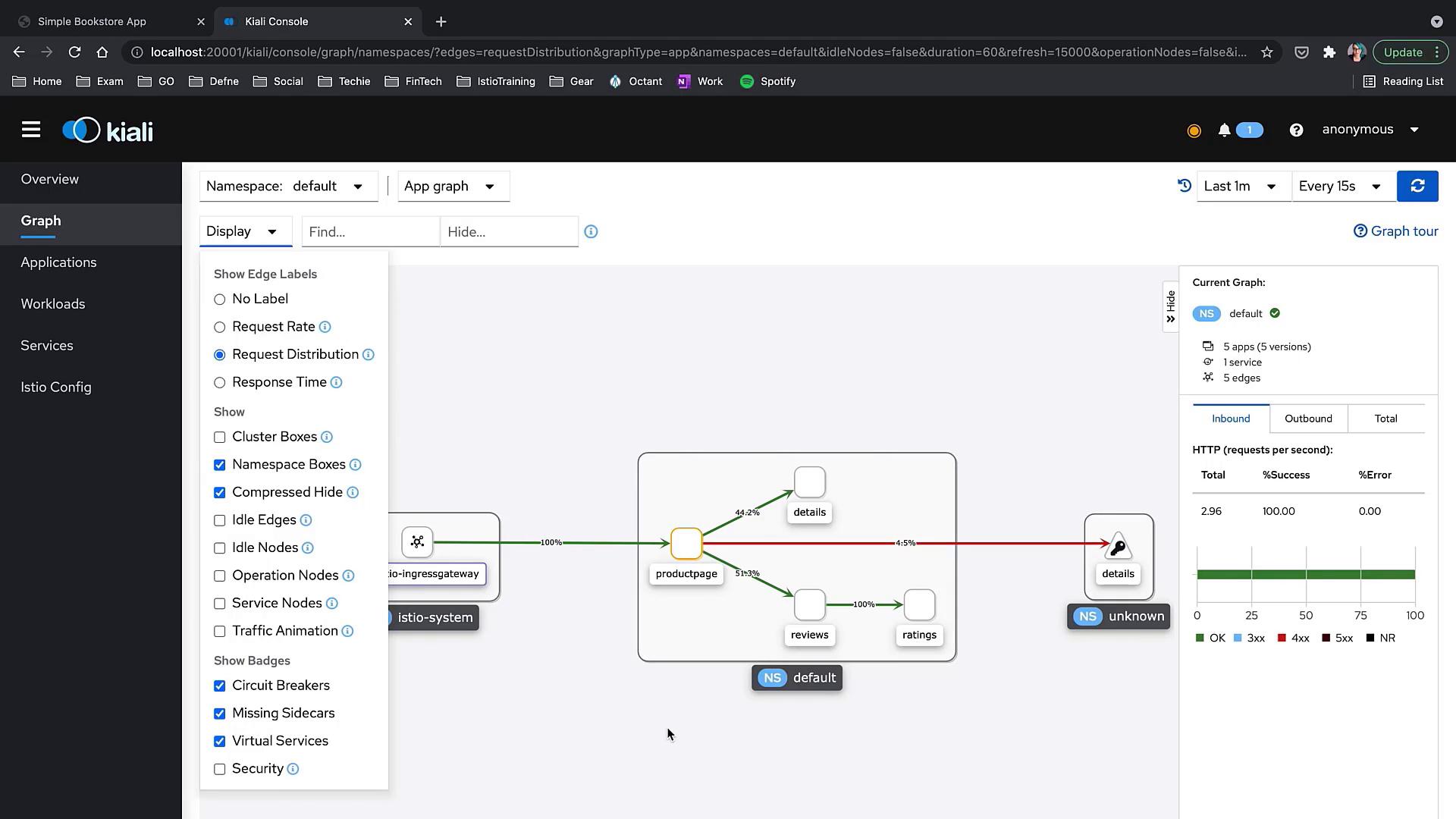
Within seconds, the graph updates to reflect the disruption. Notice the reviews service stopping traffic. After reapplying sample YAMLs, normal functioning resumes.Pay attention to the small watch icon in the interface—this indicates replay mode. Replay mode lets you view the graph’s transformation over time at customizable speeds, making it easier to identify and troubleshoot transient issues.Double-clicking a service node (e.g., “reviews”) brings you to a detailed view of that service, including tabs for Traffic, Inbound Metrics, and Traces.
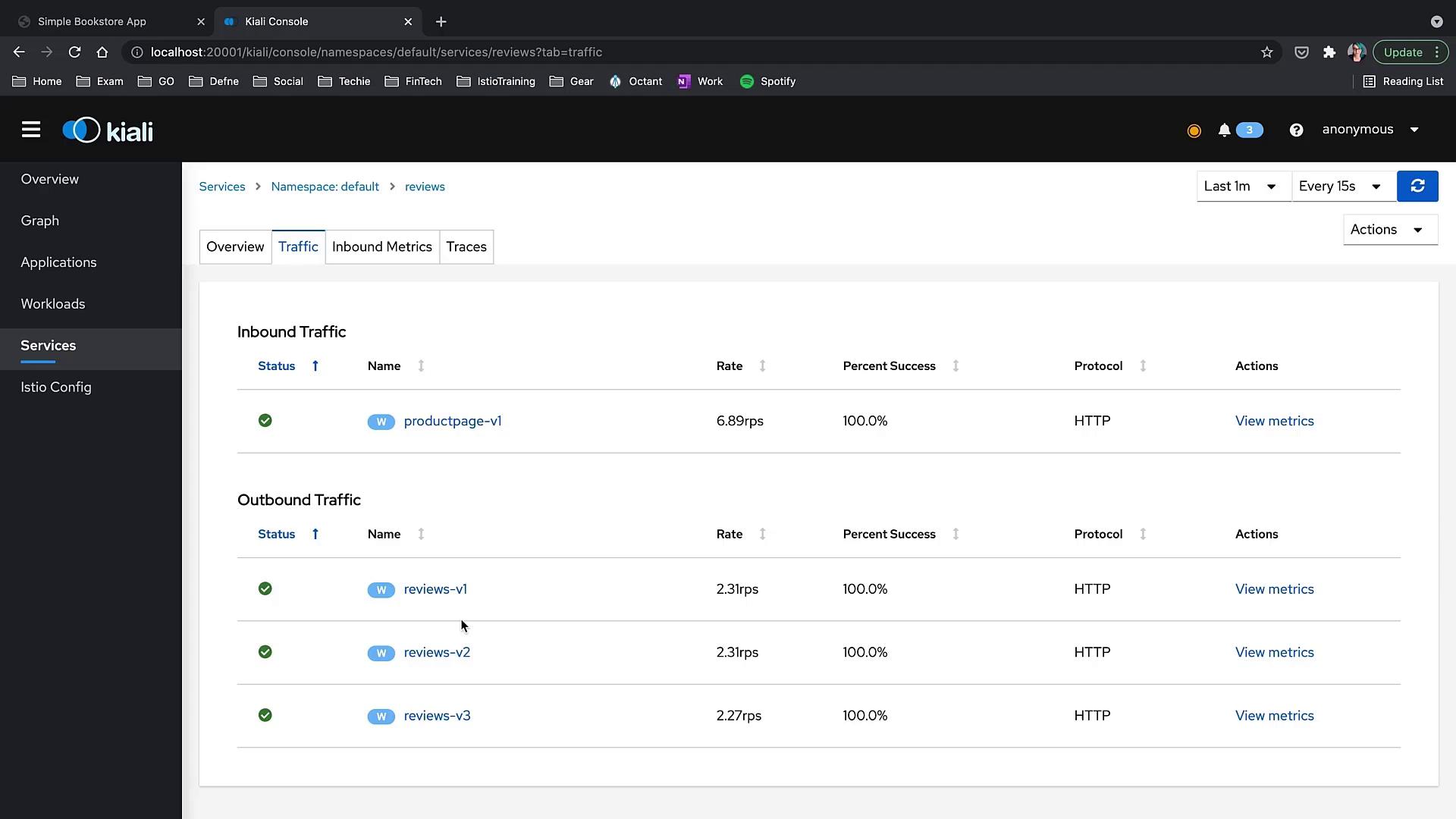
In the Traffic tab, you can evaluate both inbound and outbound traffic details, including data on rate, success percentage, protocol, and links to detailed metrics. Here is an example of the reviews service traffic metrics interface:
The interface also allows you to filter logs by Istio proxy and application container, monitor inbound metrics (like request volume, duration, throughput, and size), and view TCP metrics when available. Outbound metrics and traces are displayed similarly, with visual indicators for healthy (green) and problematic (red) statuses.
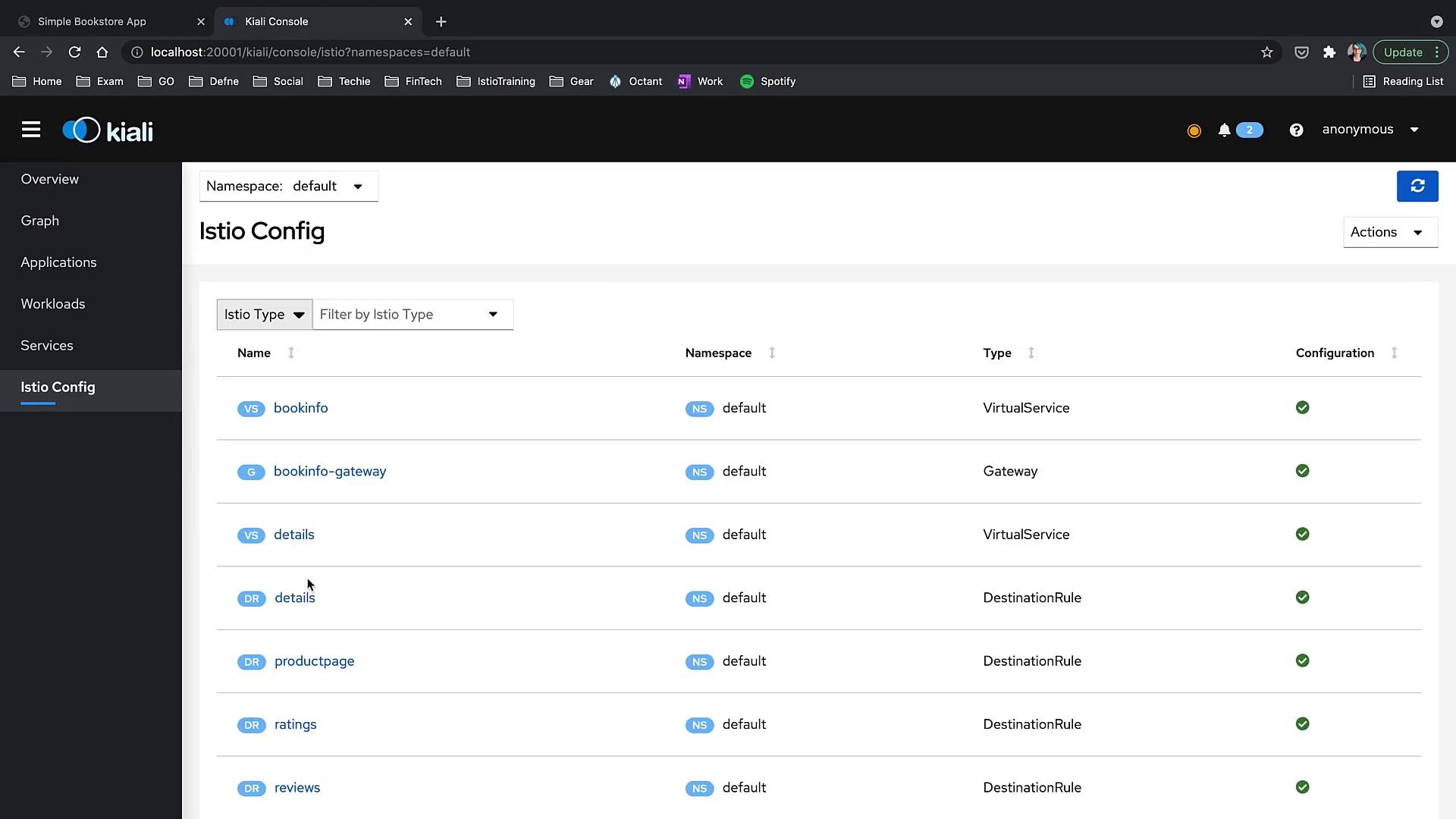
Kiali’s Istio Config section simplifies the management and validation of Istio objects. It enhances your workflow with features that go beyond basic YAML application via kubectl. You can quickly filter and navigate through Istio configuration objects such as Virtual Services and Gateways.Additionally, Kiali provides wizards to help you create configurations without editing raw YAML. For example, here is a sample DestinationRule for the reviews service:
Kiali provides a powerful graphical and configuration toolset to manage and monitor your Istio service mesh. By using its detailed views, real-time metrics, and configuration wizards, you can quickly identify and resolve issues within your mesh. For additional information and further learning, visit Kiali’s Official Website.Explore all the interesting features of Kiali and enhance your observability and management of your service mesh today!