This guide explains how to install Kiali for visualizing your service mesh along with its add-ons like Grafana, Jaeger, and Prometheus.
In this guide, you’ll learn how to install Kiali to visualize your service mesh. By following the steps below, you’ll set up Kiali along with its associated add-ons, including Grafana, Jaeger, and Prometheus.
After installation, it’s important to confirm that the Kiali deployment has rolled out successfully. Use your deployment file to verify the status with the following command:
Once the installation and verification steps are complete, start the Kiali dashboard. Executing the launch command will automatically open your web browser to the dashboard’s overview page. You should notice the following elements:
The address bar indicates that the dashboard is served on port 20001.
The left menu provides several options for visualizing your service mesh.
A filter option in the top left lets you adjust the displayed data.
Controls on the far right allow filtering by time intervals and adjusting the data refresh rate.
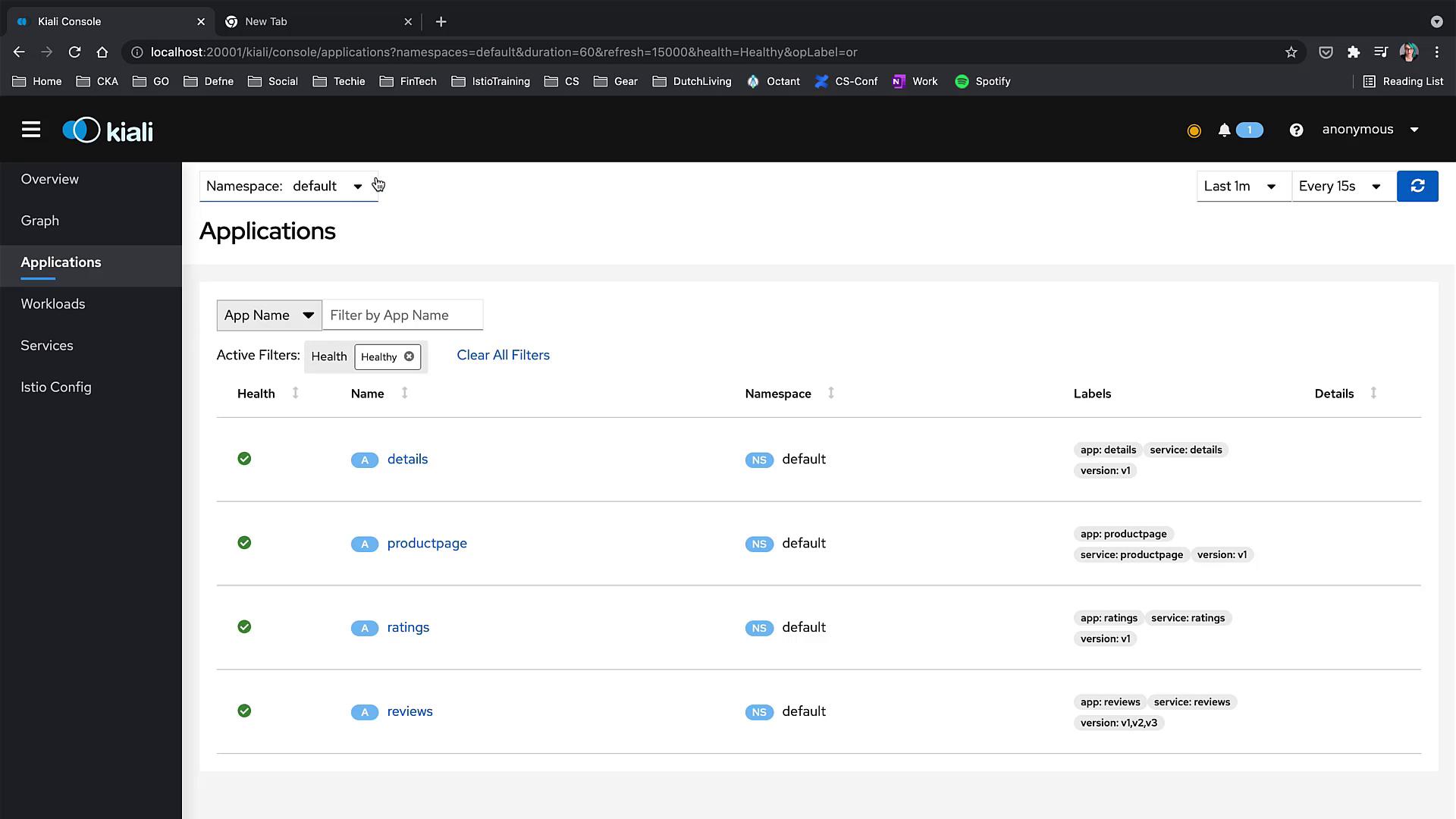
After launching the dashboard, you’ll see all the namespaces in your service mesh. Clicking the number next to the applications takes you to the applications page, which is also accessible from the left menu. In this view, you’ll find the four Bookinfo applications and have the option to switch namespaces for more details.
Navigate to the “Workloads” section from the menu to view all deployments listed as workloads. Each workload is displayed as healthy with labels indicating its application name and version.
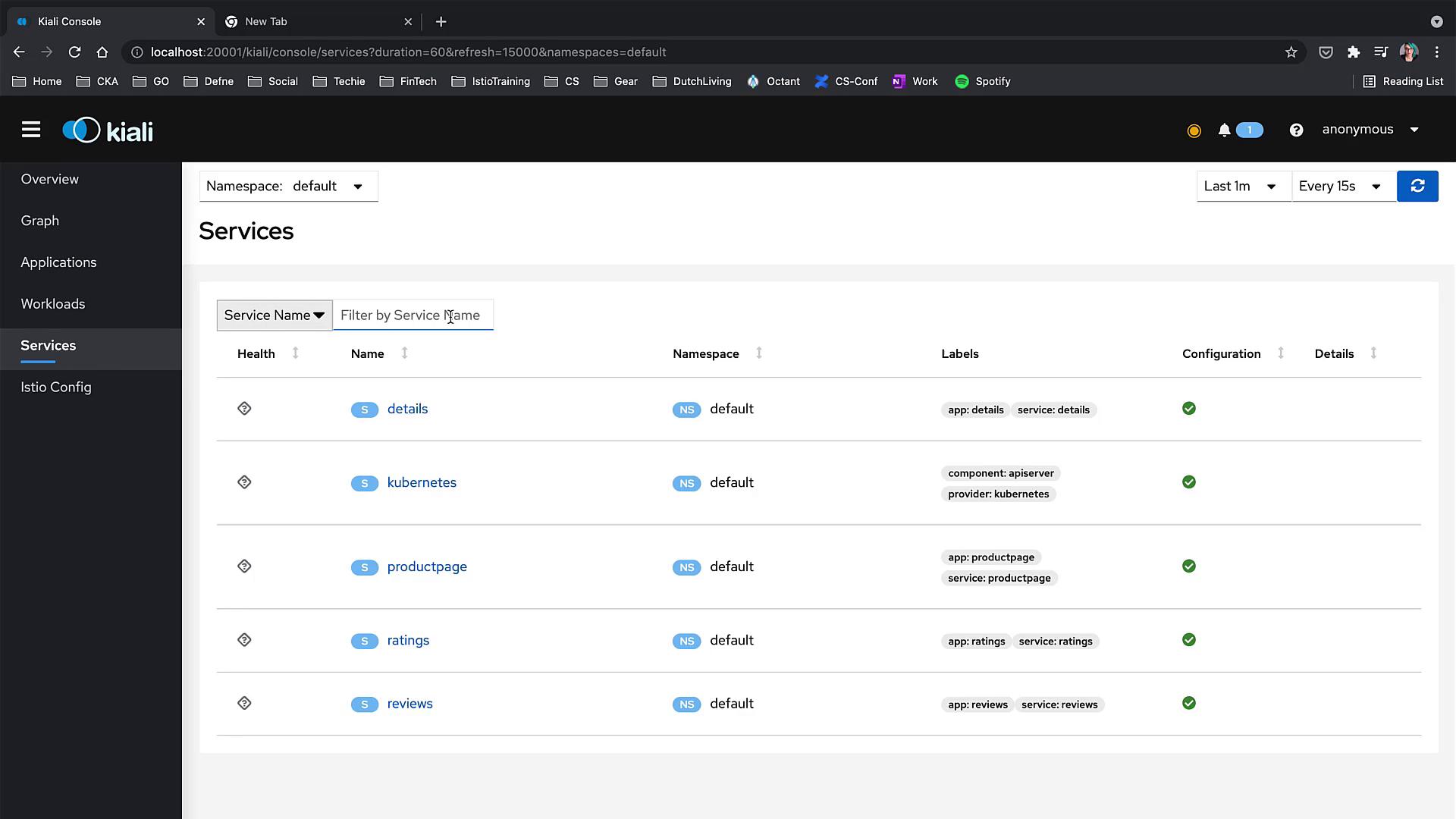
Next, check the “Services” section. Initially, no services might be displayed, which is normal as the Service Mesh applications and objects may take some time to load. After a short wait, the services will appear.When you access the “Istio Config” menu, you might notice that no configurations are shown. This indicates that there are currently no Istio configurations for the selected namespace.
Finally, the Graph section of the Kiali dashboard is one of the most dynamic tools available. Initially, the graph may appear empty if there is no traffic flowing through the mesh. To visualize traffic, generate some load within your service mesh. Once active, the graph will dynamically display the connections and communications among services.
By following these steps, you can effectively install Kiali on your cluster and take advantage of its robust monitoring and visualization capabilities for your service mesh.