

Installing on Windows
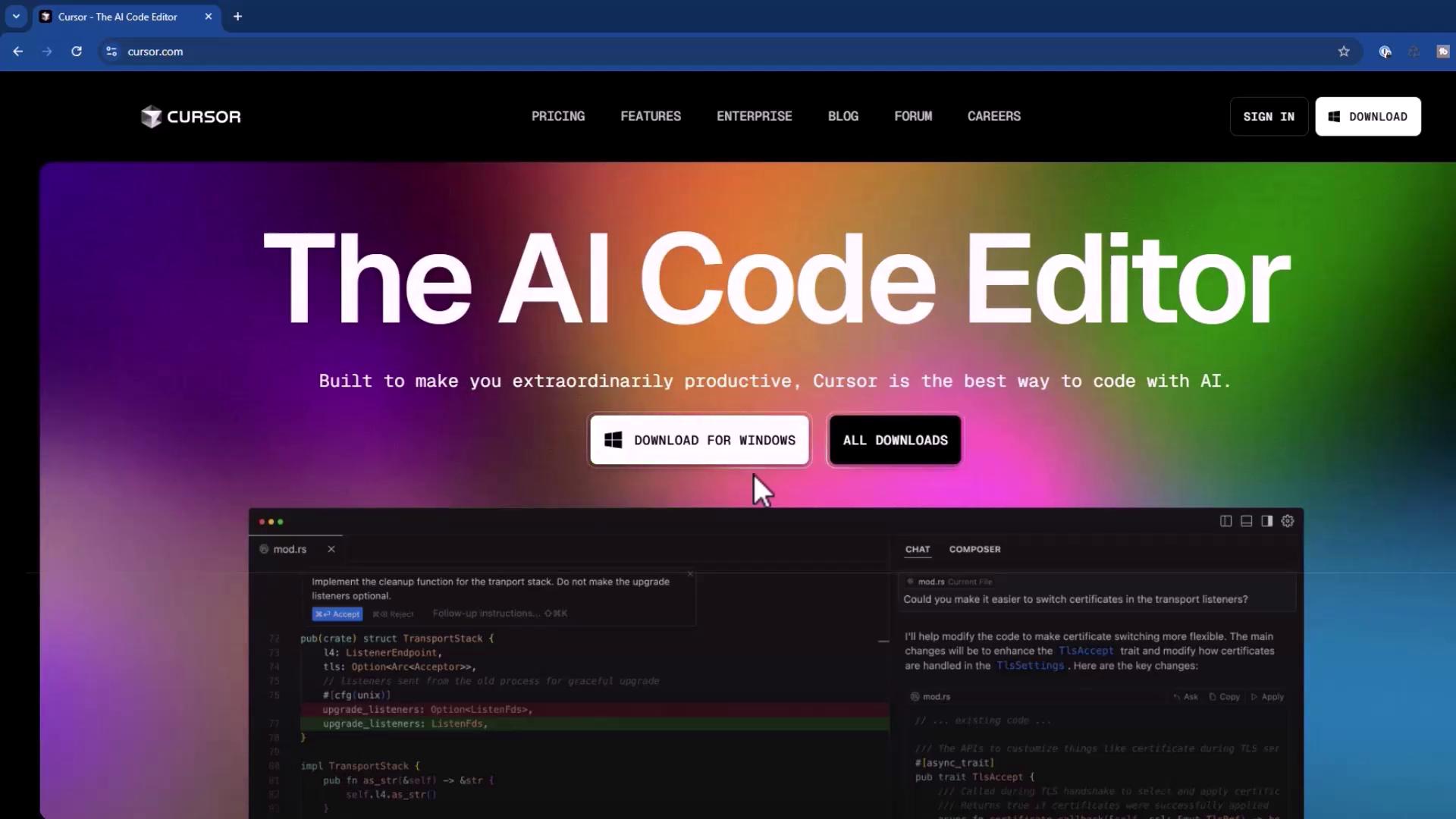
- Download the Windows installer from cursor.com.
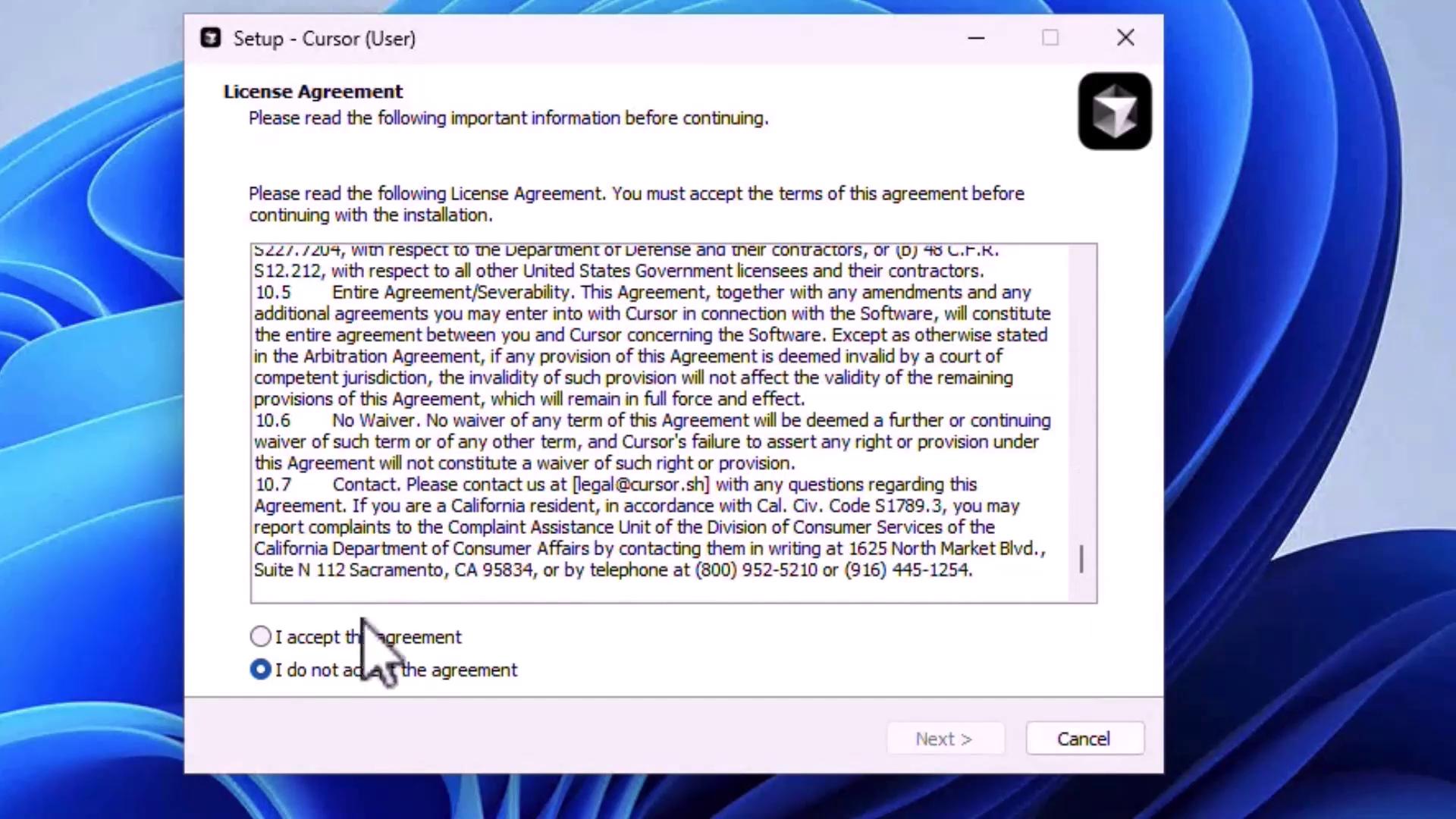
- Run the installer and accept the license agreement to proceed.
-
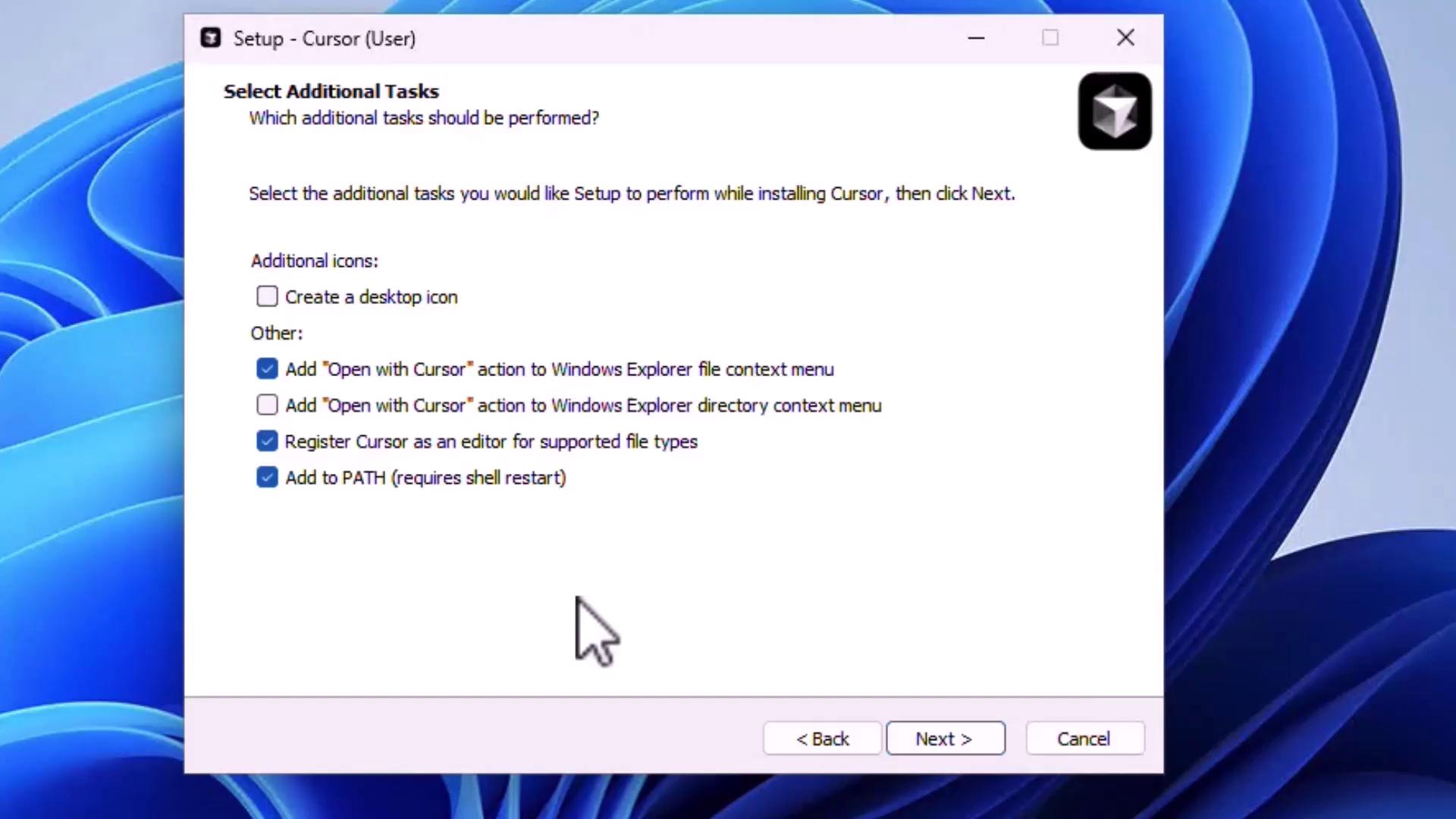
Select any additional tasks, such as:
- Creating a desktop icon
- Adding an “Open with Cursor” context menu
- Registering Cursor as the default editor
- Adding Cursor to the system
PATH
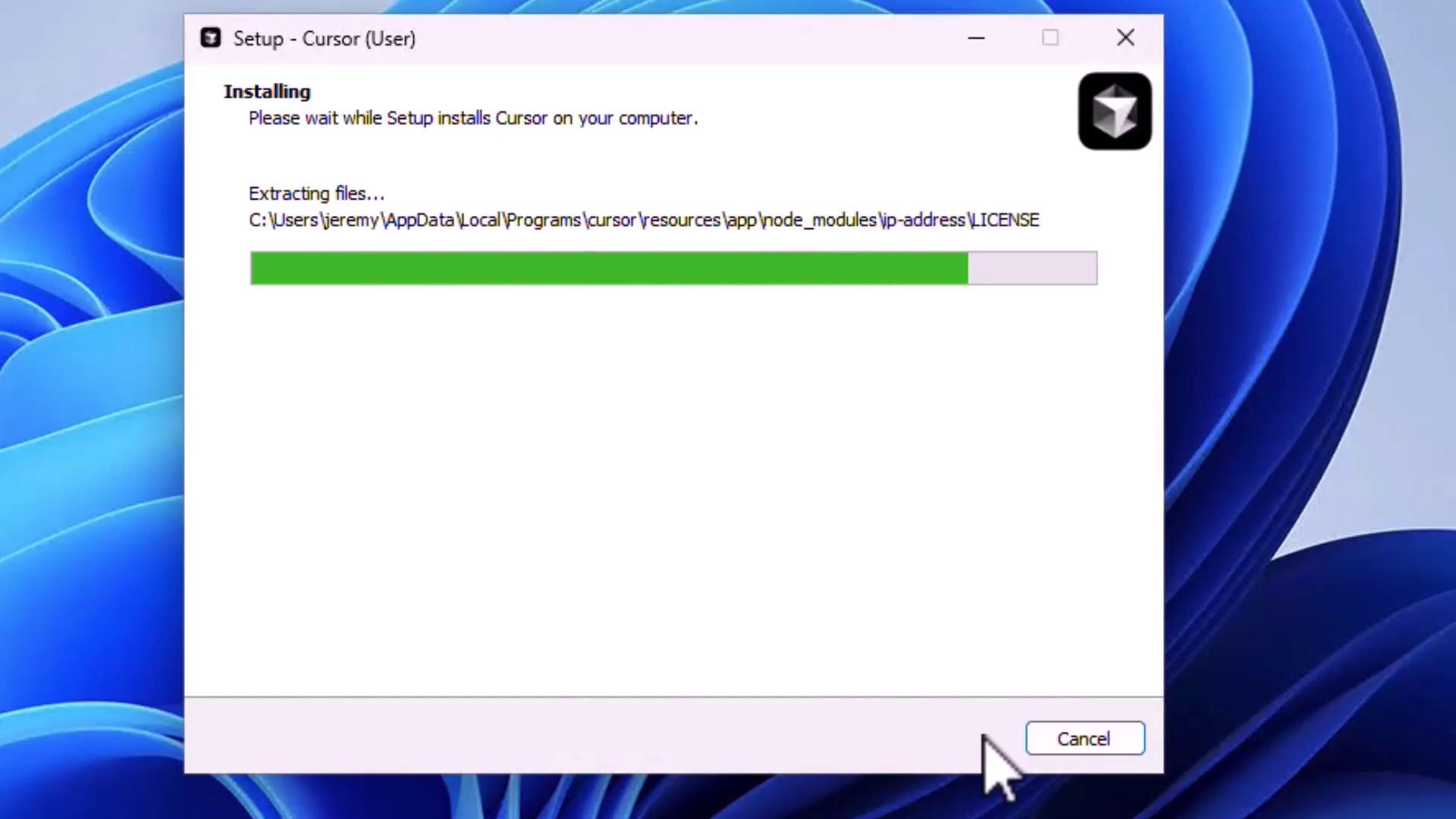
- Wait for installation to complete, then click Finish to launch Cursor.
- On first launch, sign in with your preferred account.
- Once authenticated, you’ll see the main dashboard where you can:
- Open an existing project
- Clone a repository
- Connect via SSH
Installing on macOS
- Download the macOS .dmg from cursor.com.
- Double-click to mount and drag the Cursor icon into Applications.
- (Optional) Add Cursor to your Dock for quick access.
- Open Cursor; macOS will prompt you to confirm launching an app downloaded from the internet.
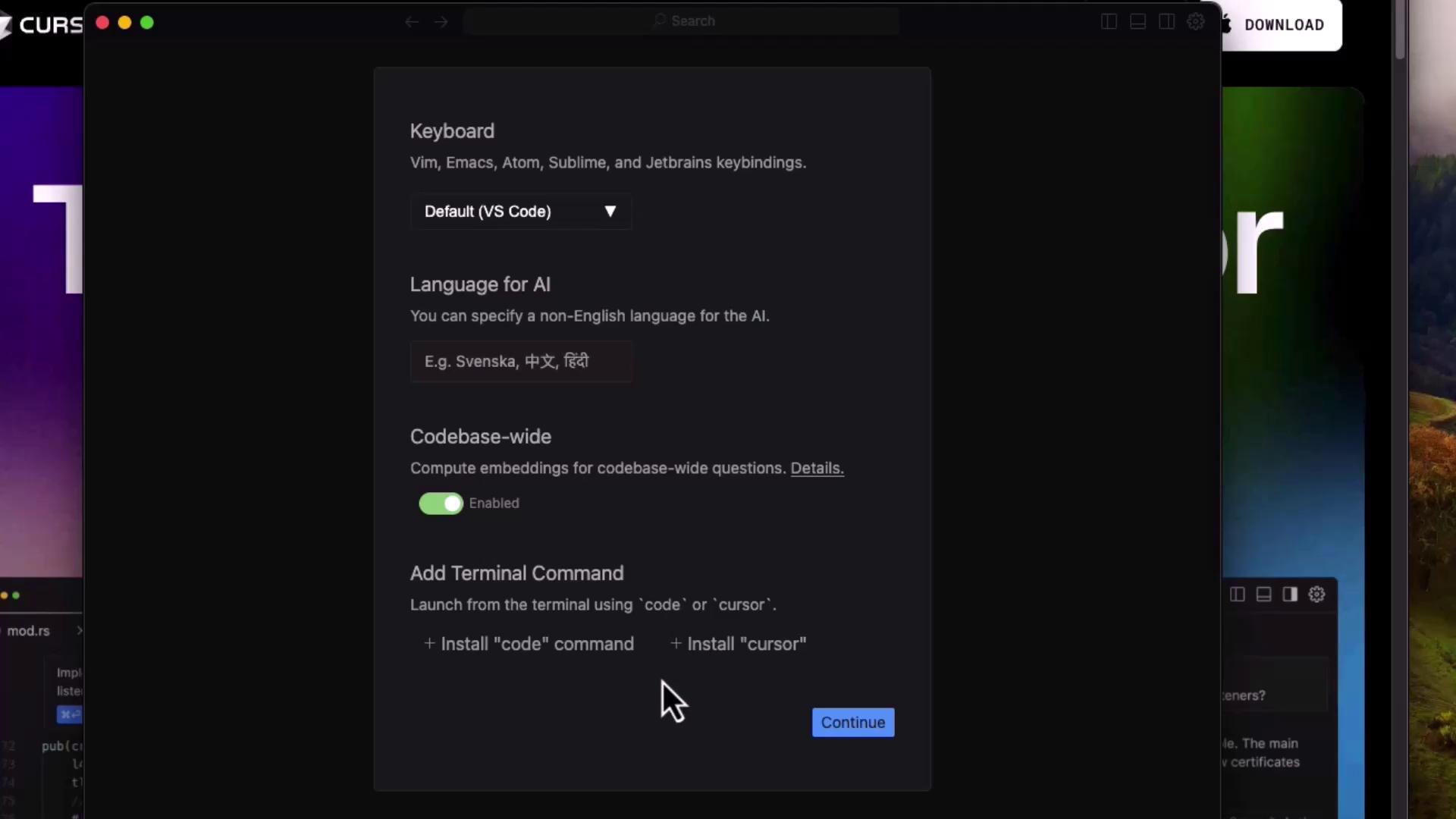
- Configure initial settings:
- Keyboard shortcuts
- AI language preferences
- Codebase-wide indexing
- Install the
cursorshell command for terminal access
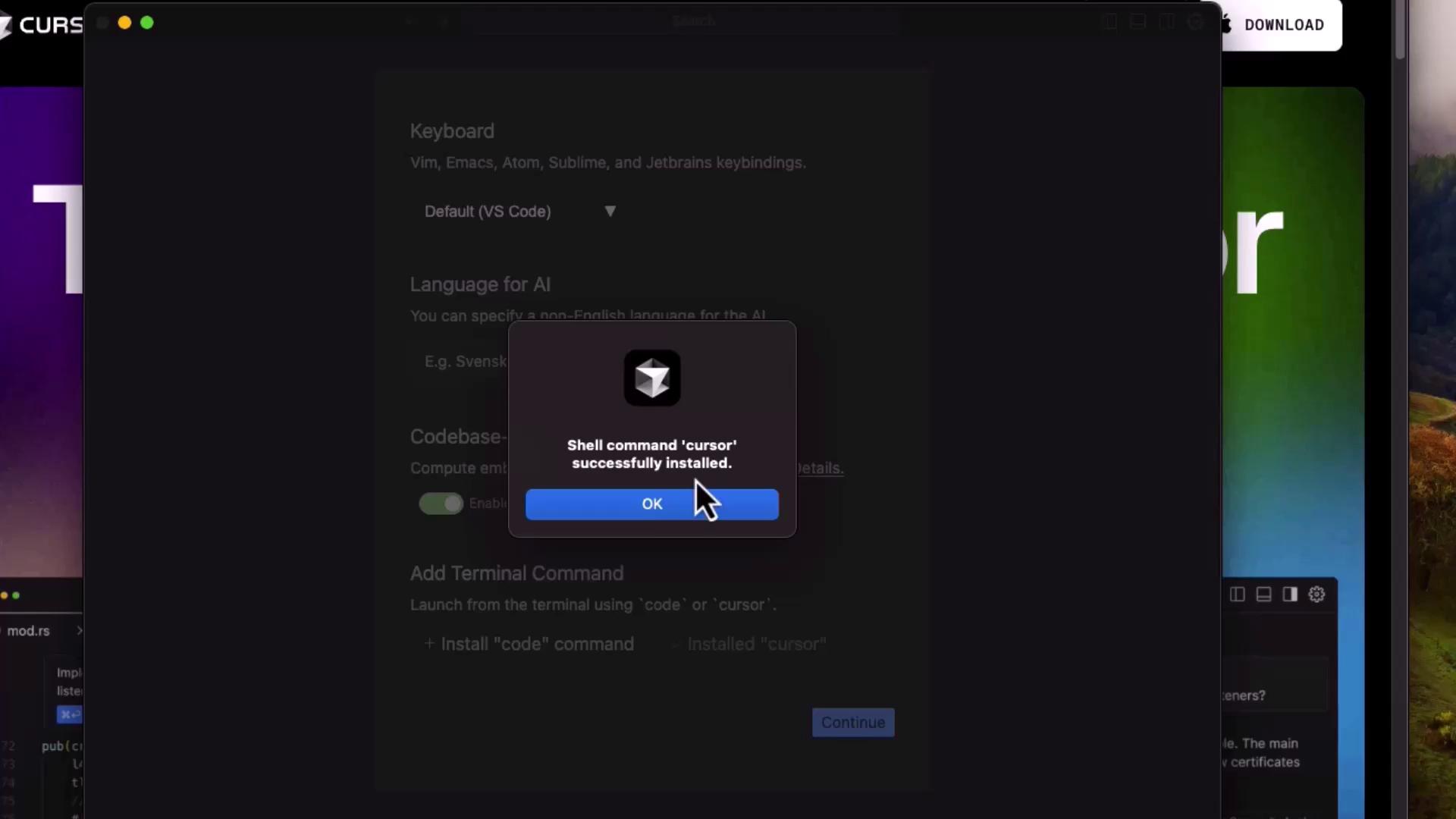
- After installing the shell command, you’ll see a confirmation popup.
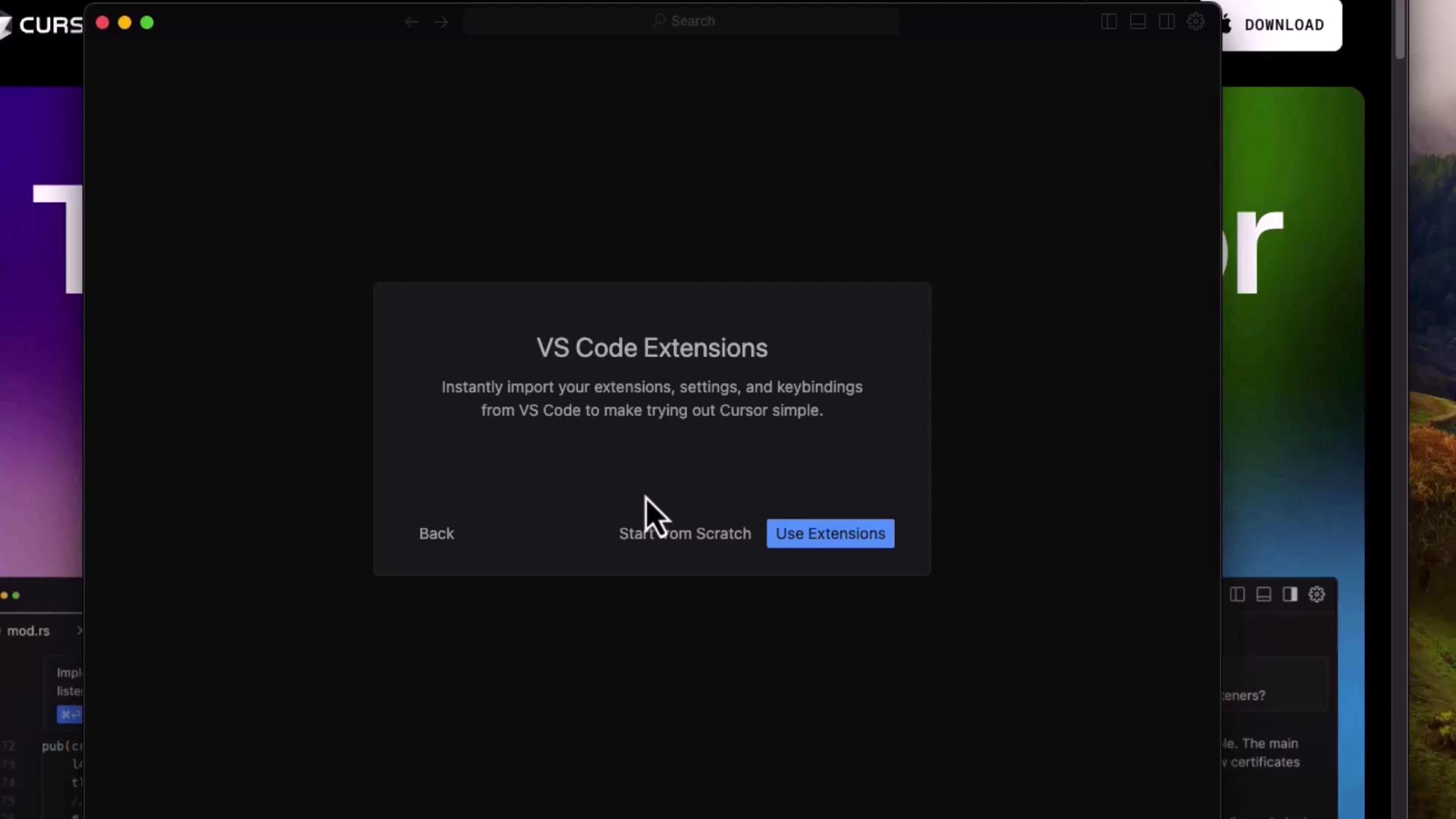
- Choose whether to import your existing VS Code extensions, settings, & keybindings or start fresh.
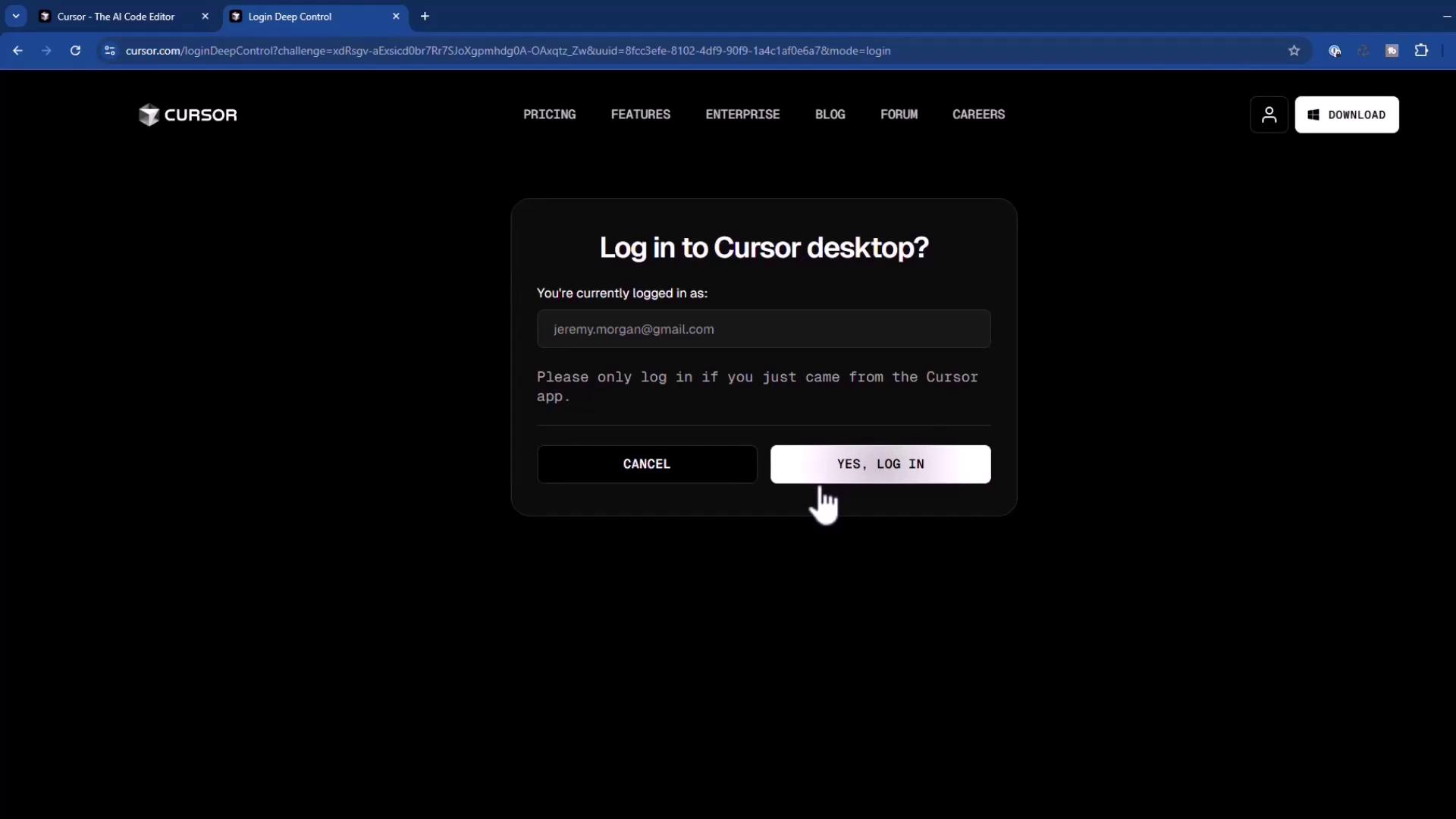
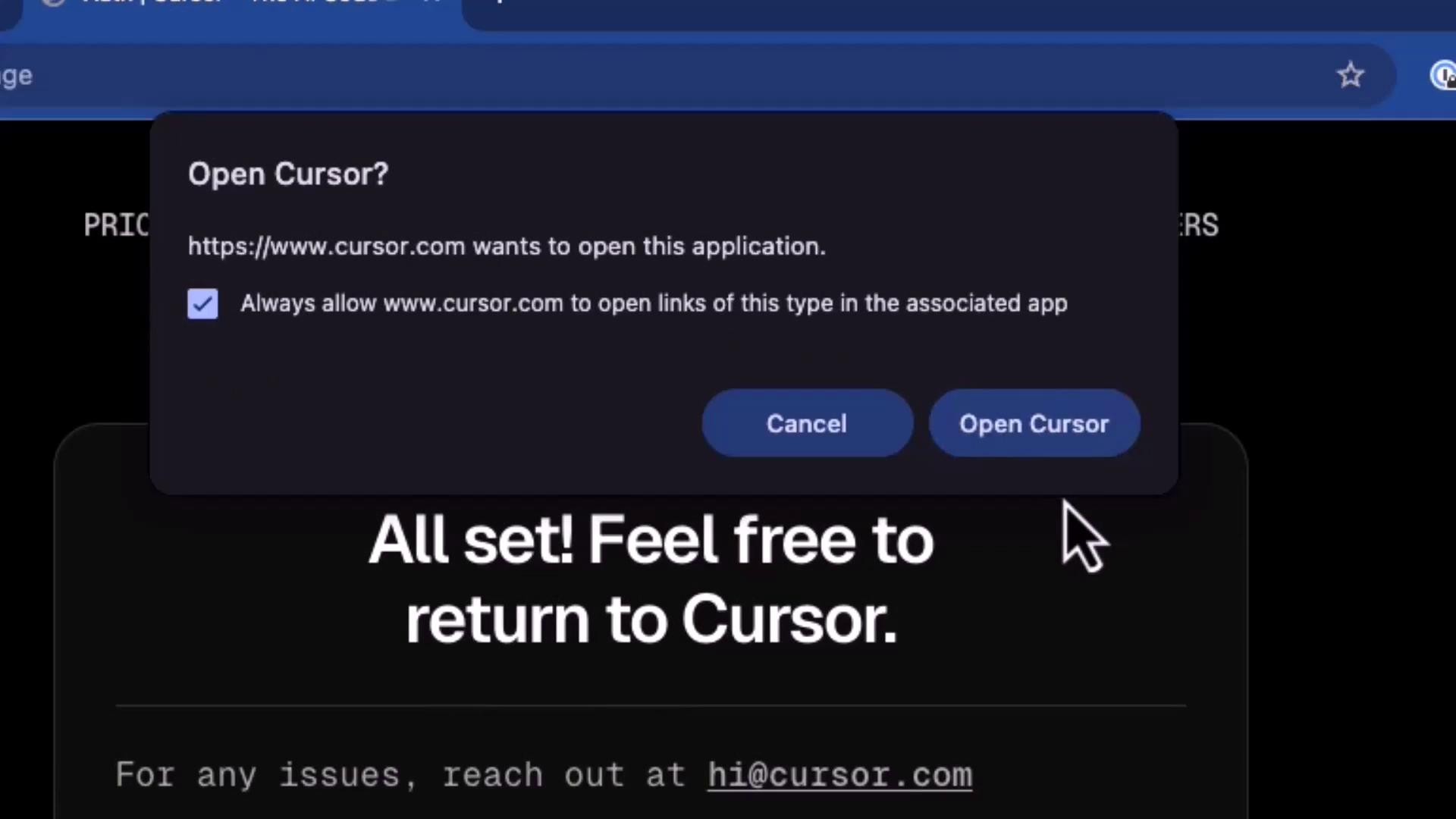
- Sign in via your browser and allow the system prompt to open Cursor.
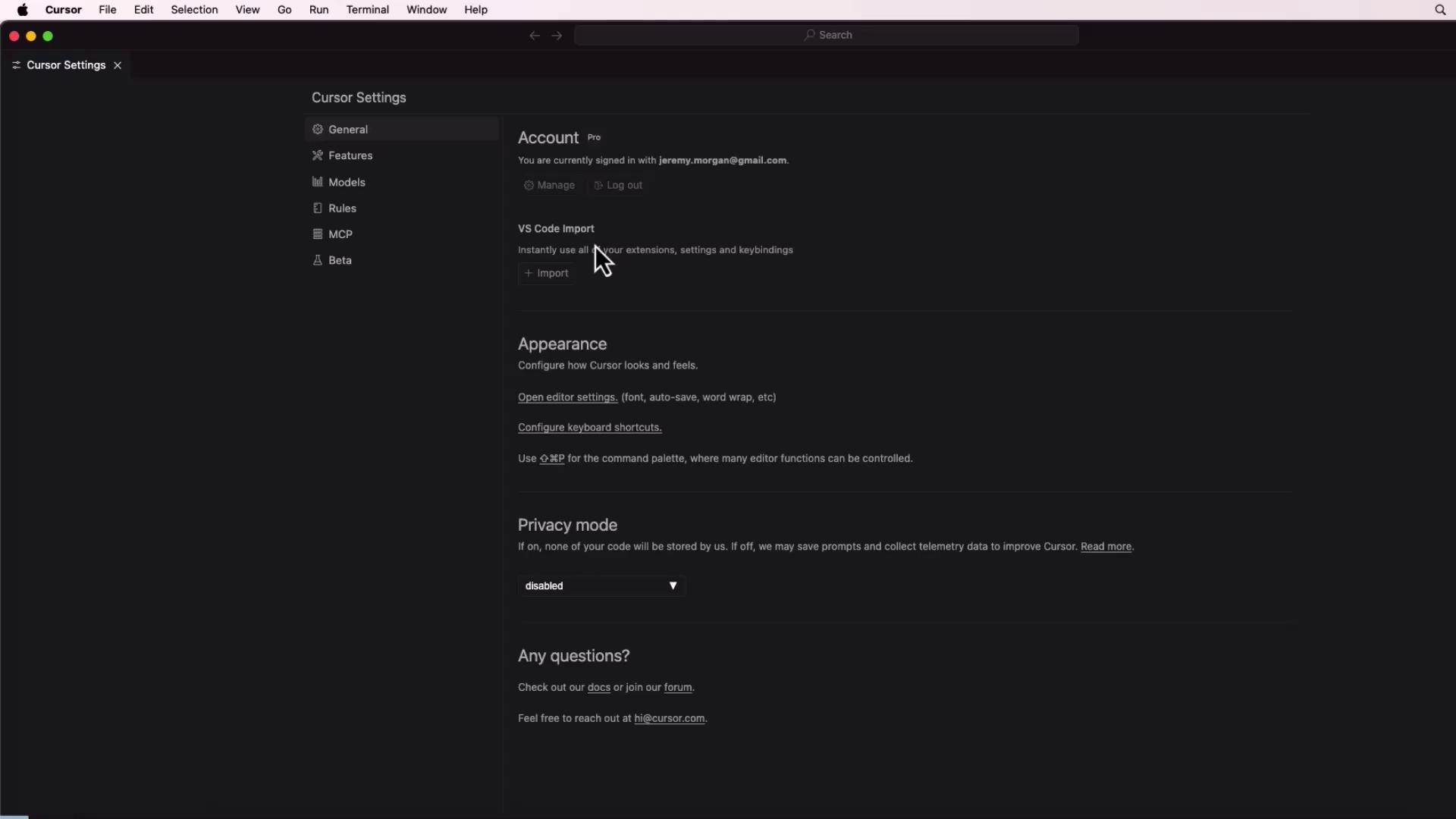
- After logging in, customize your theme, account, and privacy settings on the main interface.
Installing on Linux
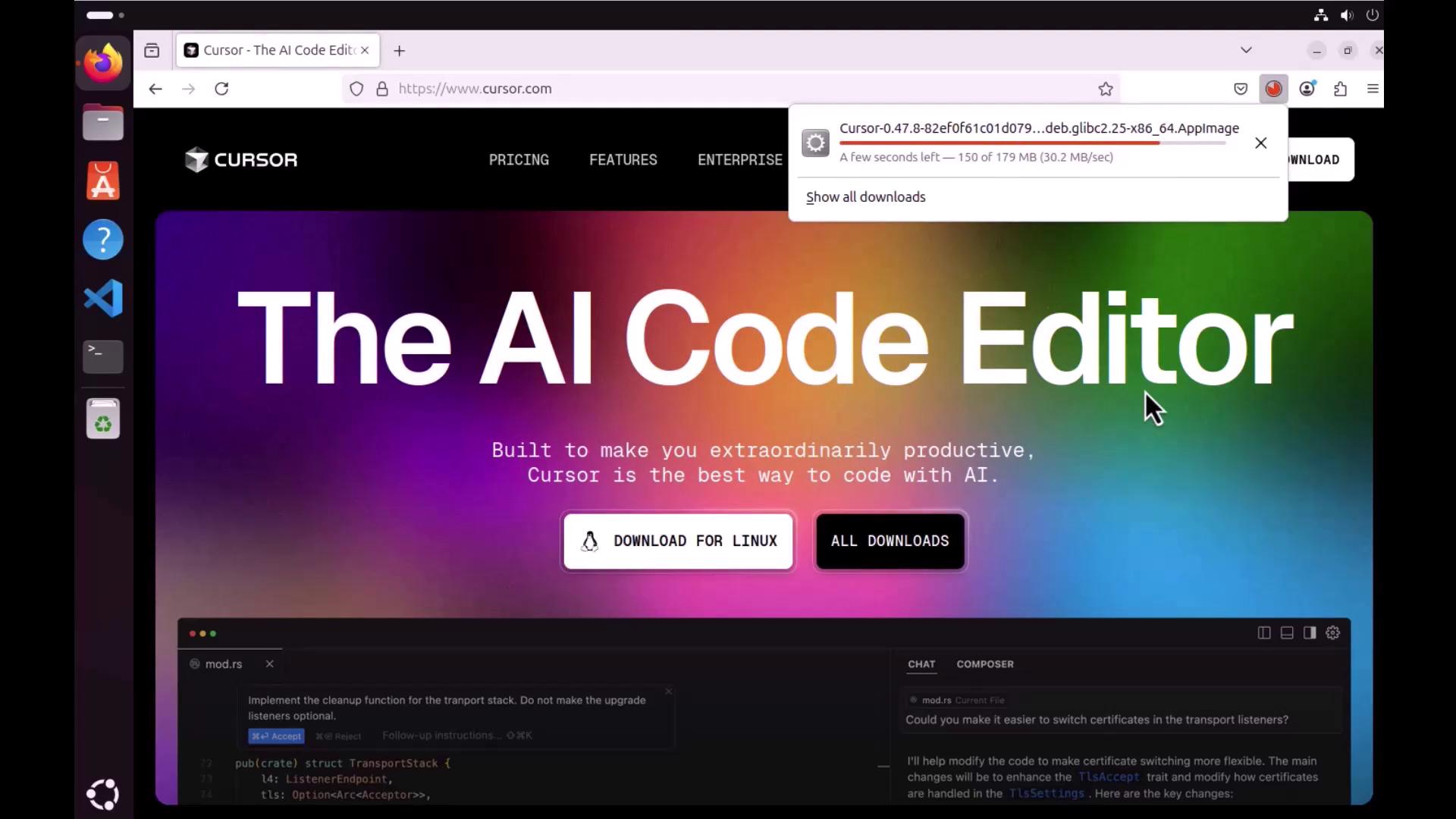
Cursor is distributed as an AppImage on Linux platforms (e.g., Ubuntu).- Download the AppImage from cursor.com and place it in your Downloads or Apps directory.
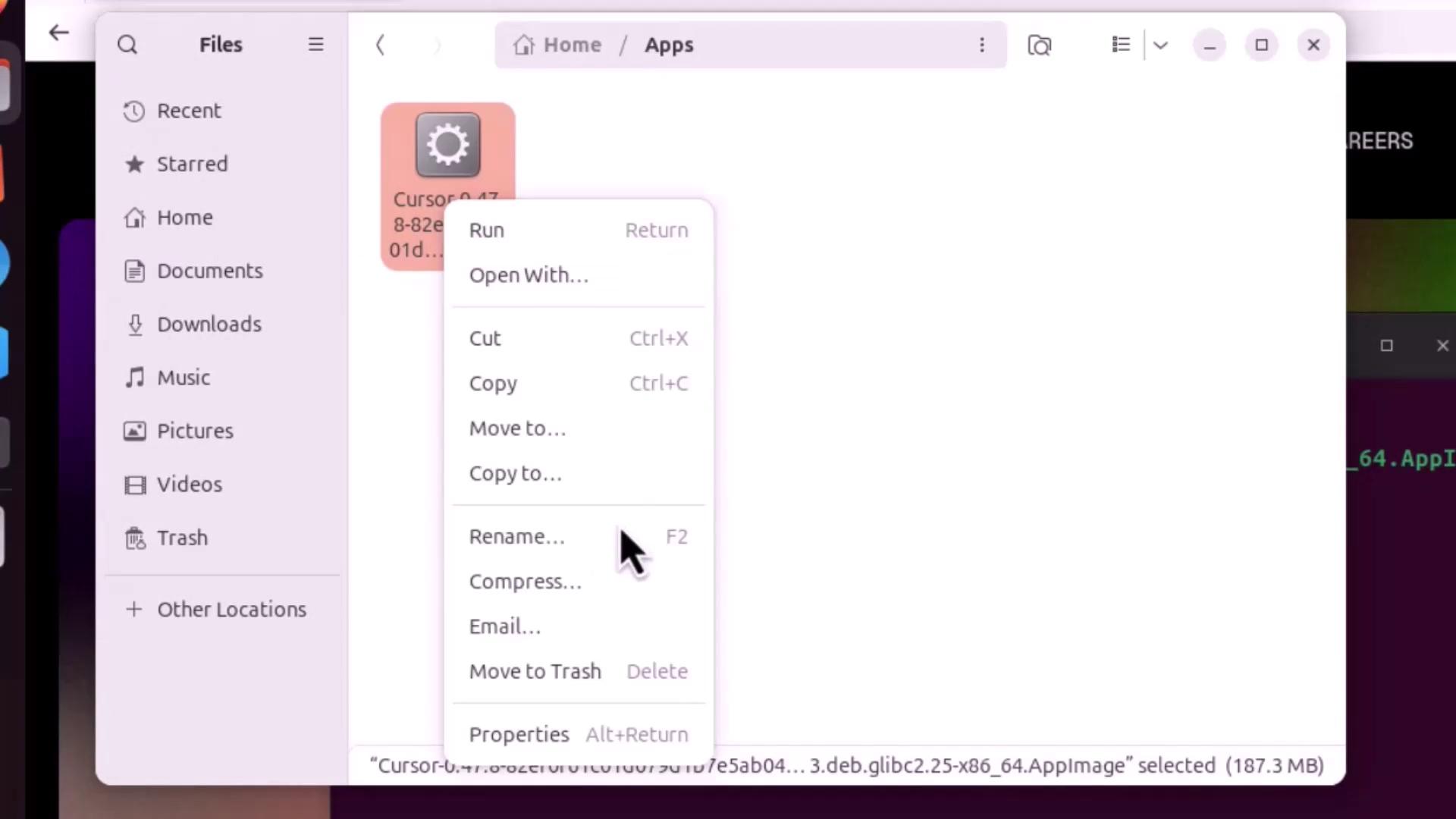
- Make the AppImage executable:
- Graphical: Right-click → Properties → Permissions → Tick Allow executing file as program
- Terminal:
If you encounter an error about
libfuse.so.2, install FUSE before launching:- On first launch, configure your preferences and import VS Code extensions just like on macOS.
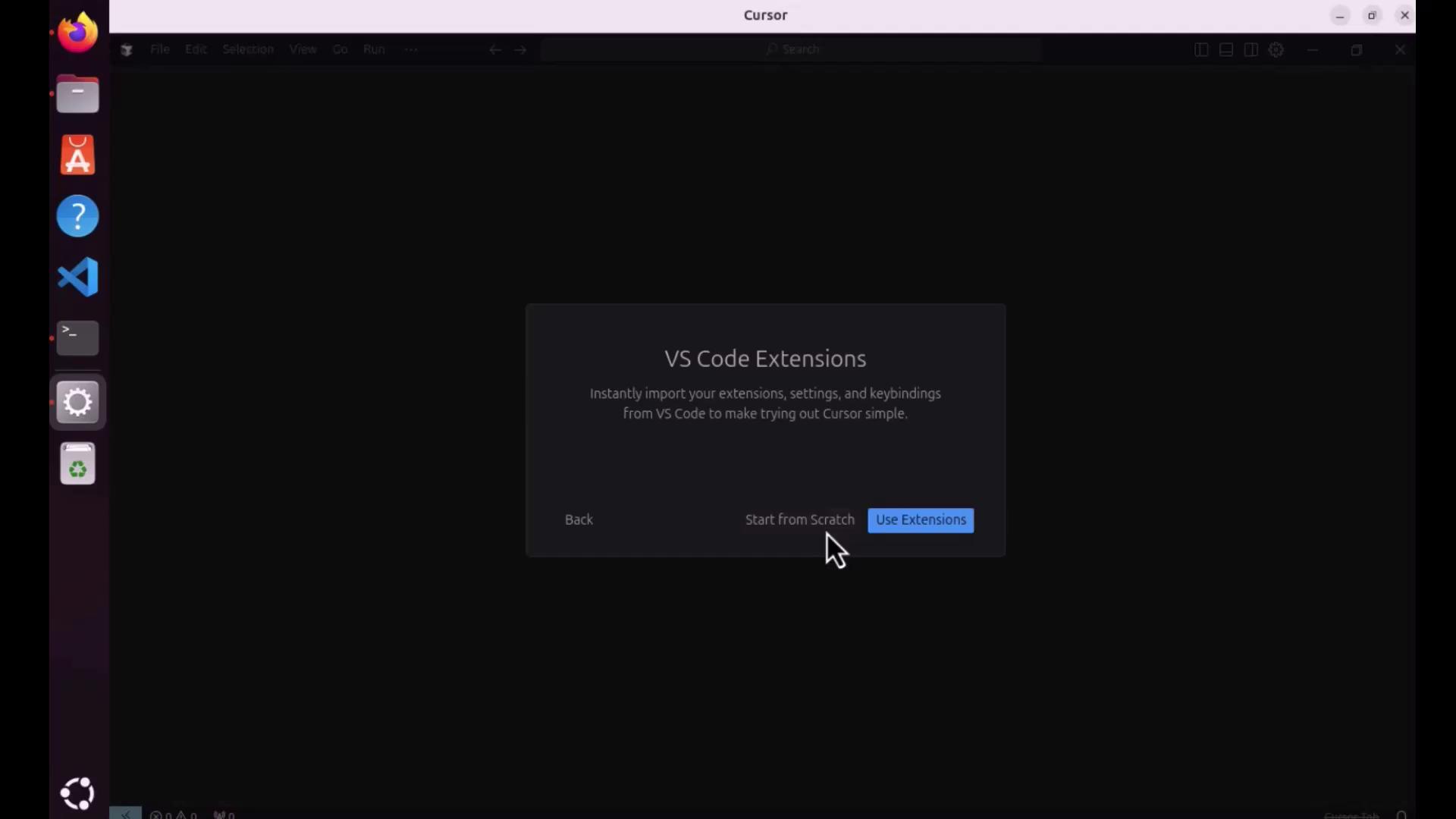
- Sign in to your Cursor account to sync settings and projects.
Quickstart: Verify Your Setup
Cursor’s integrated terminal adapts to each OS:- Windows: PowerShell, Command Prompt, or WSL
- macOS: Z shell (zsh)
- Linux: Bash