

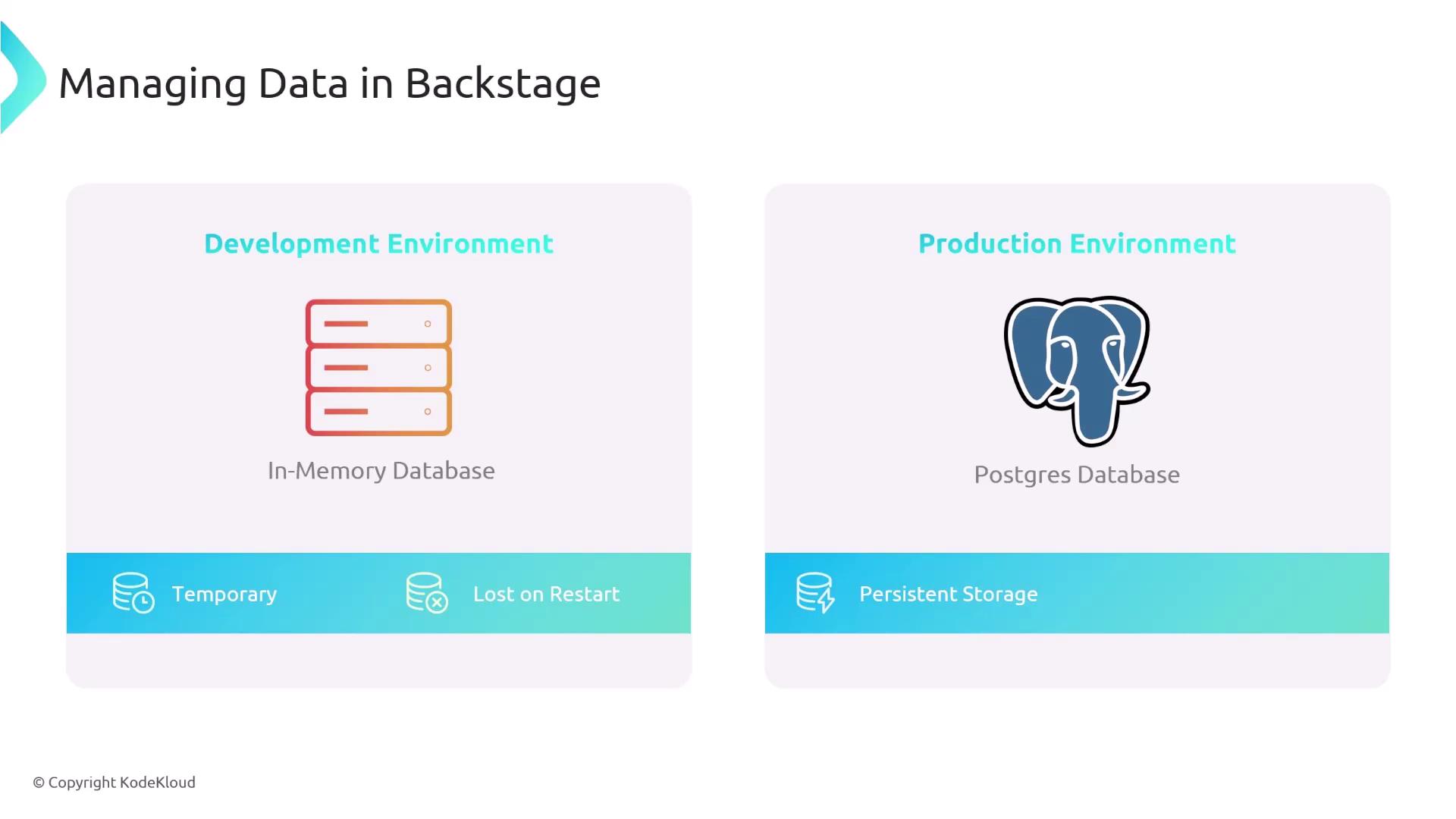
If you continue using the default in-memory database in production, all of your tracked applications and metadata will be lost whenever the Backstage instance restarts.
1. Provision a PostgreSQL Instance
You can provision PostgreSQL in several environments:| Environment | Description | Example Command |
|---|---|---|
| Local (Docker) | Run a container on your machine | docker run -d --name backstage-pg -e POSTGRES_PASSWORD=secret -p 5432:5432 postgres:13 |
| AWS RDS | Managed PostgreSQL in AWS | Create via AWS Console or aws rds create-db-instance ... |
| GCP Cloud SQL | Google-managed SQL service | Provision with Cloud Console or gcloud sql instances create ... |
| Azure Database for PostgreSQL | Azure-managed service | Provision via Azure Portal or az postgres flexible-server create ... |
- Host
- Port (default: 5432)
- Database name
- Username
- Password
2. Configure app-config.yaml
Update your Backstage configuration to use the PostgreSQL client. In app-config.yaml, replace the in-memory settings under backend.database with your PostgreSQL credentials:
host: Hostname or IP address of the PostgreSQL serverport: TCP port (default5432)user: Database user with read/write permissionspassword: Password for the specified userdatabase: Name of the target PostgreSQL database
Using environment variables keeps sensitive data out of your config file and allows you to manage credentials securely with tools like Vault.