

Accessing the S3 Console
- Sign in to the AWS Management Console and search for S3.
- Depending on your account state, you’ll see one of two views:
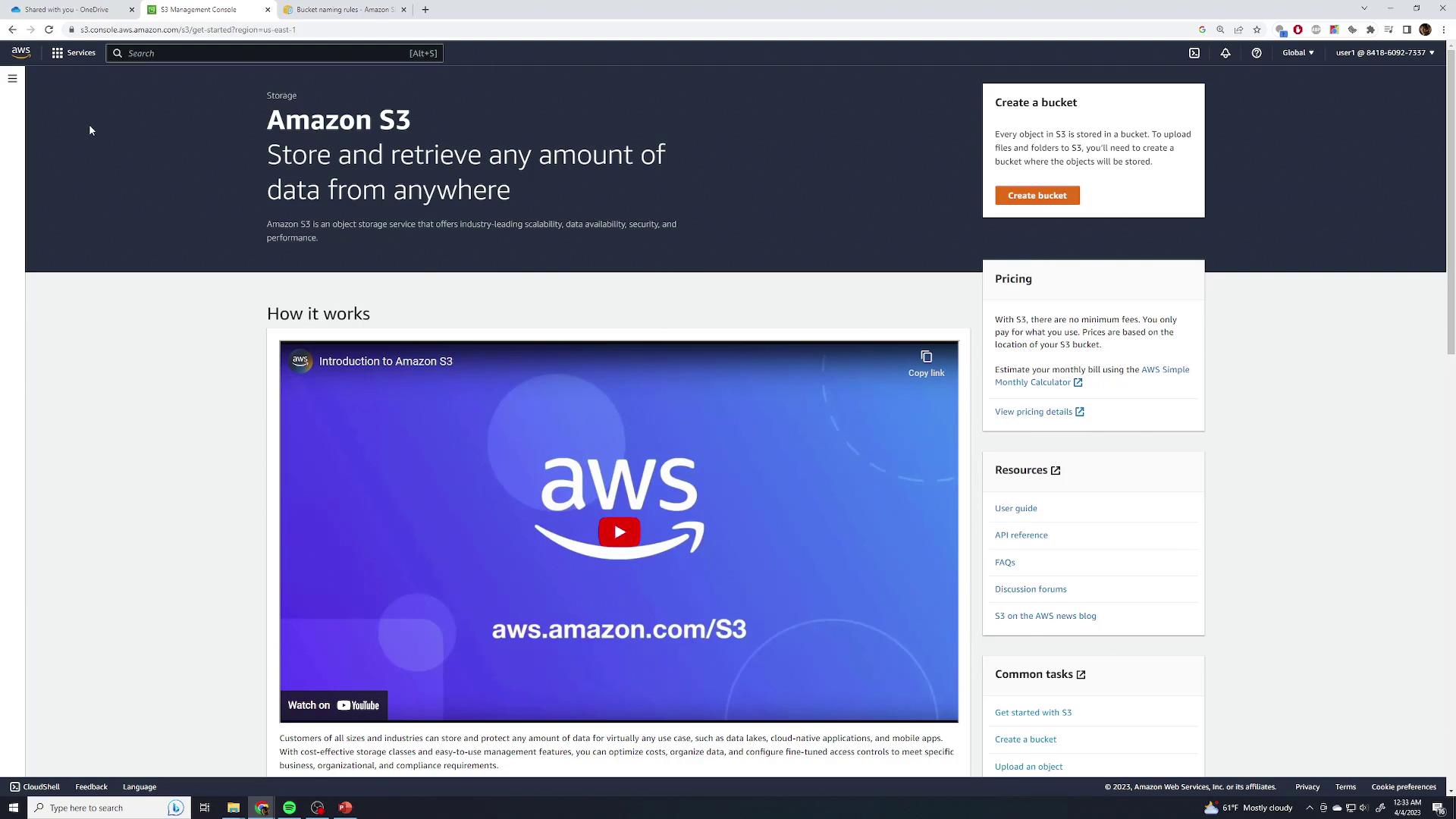
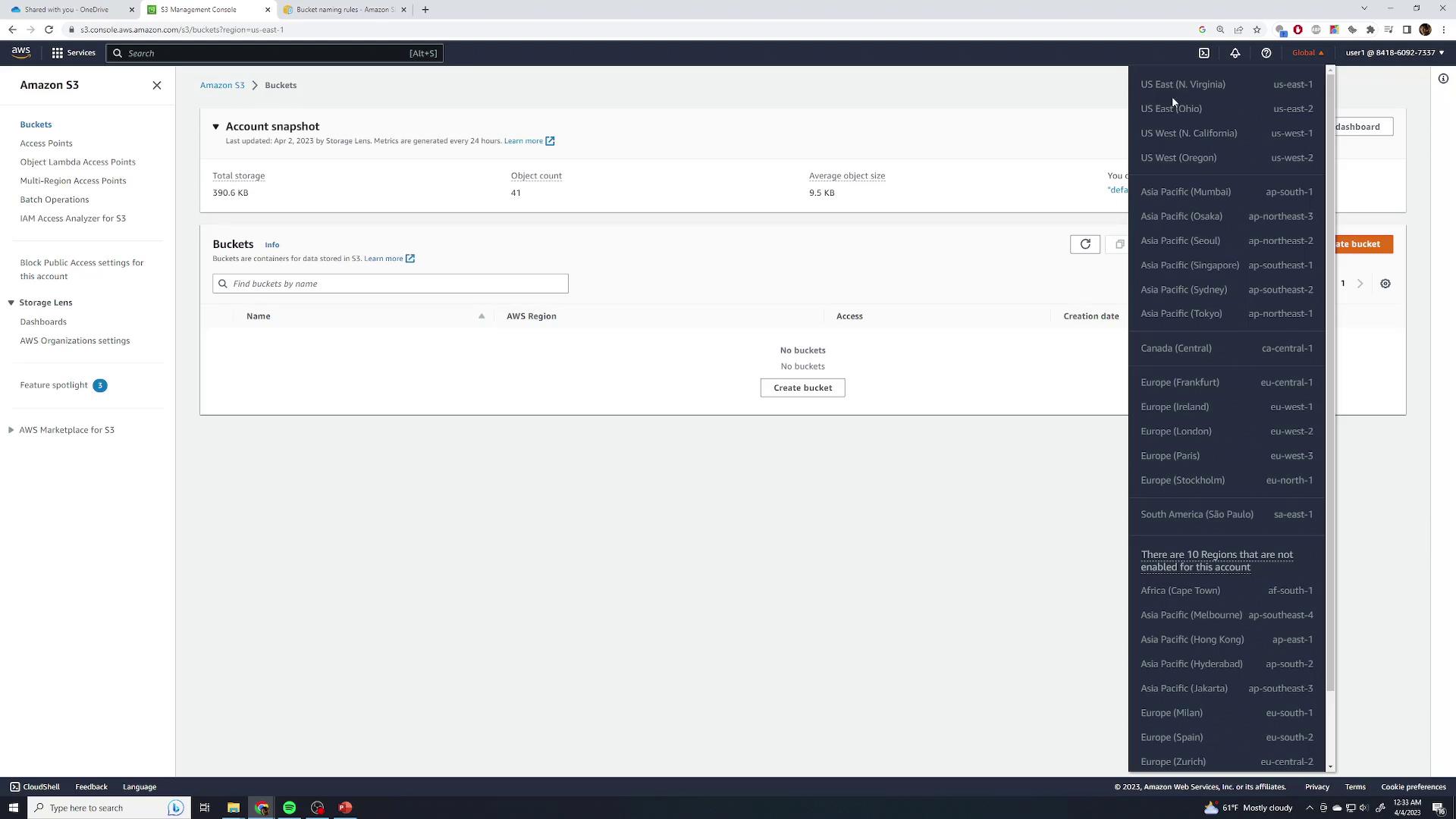
Amazon S3 uses a global namespace. The top‐left region selector is always Global and displays buckets from all regions. You pick a region only when creating a new bucket.
Creating a Bucket
- Click Create bucket.
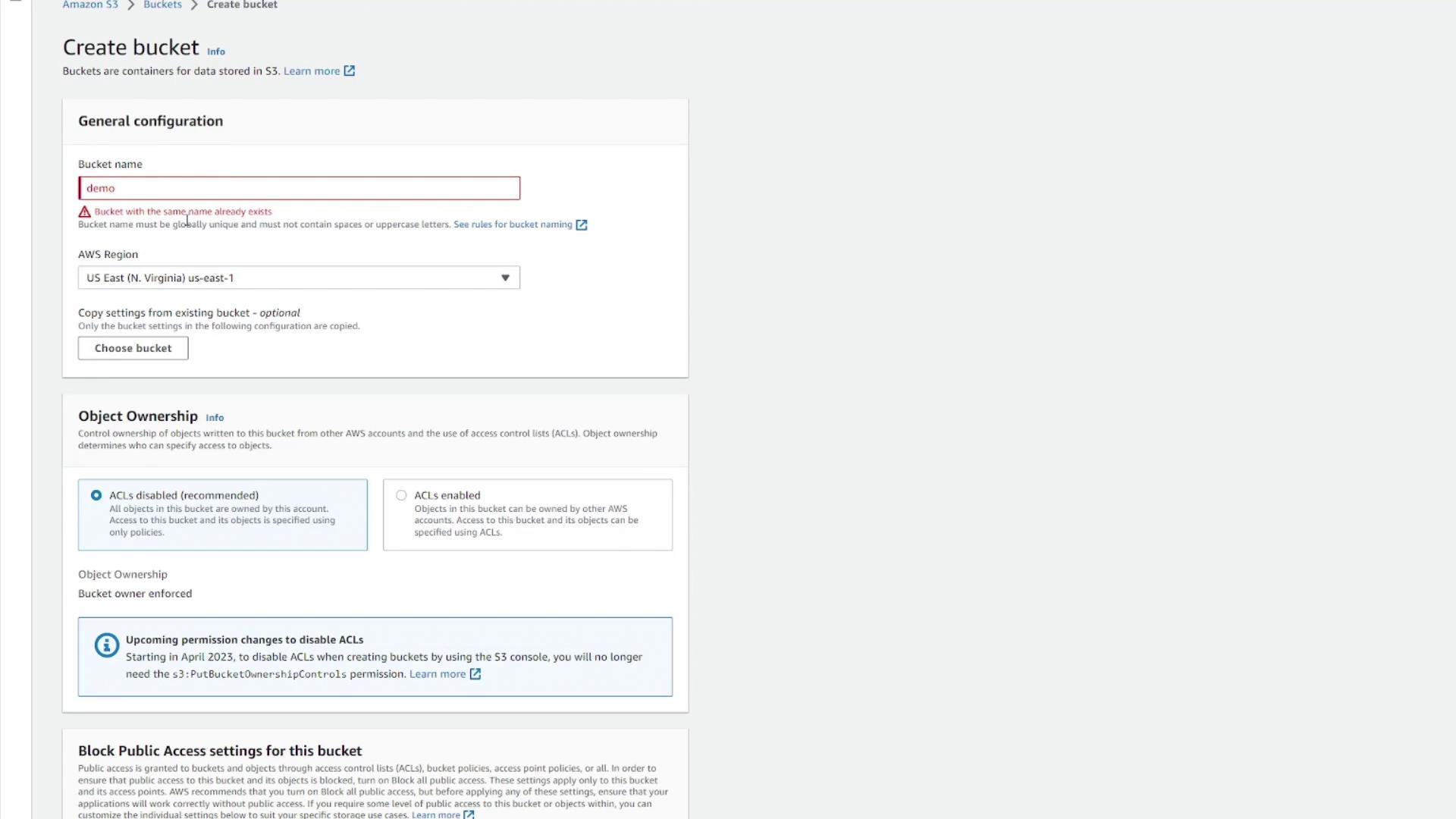
- Enter a globally unique name. If your choice is taken (e.g.,
demo), you’ll see an error:
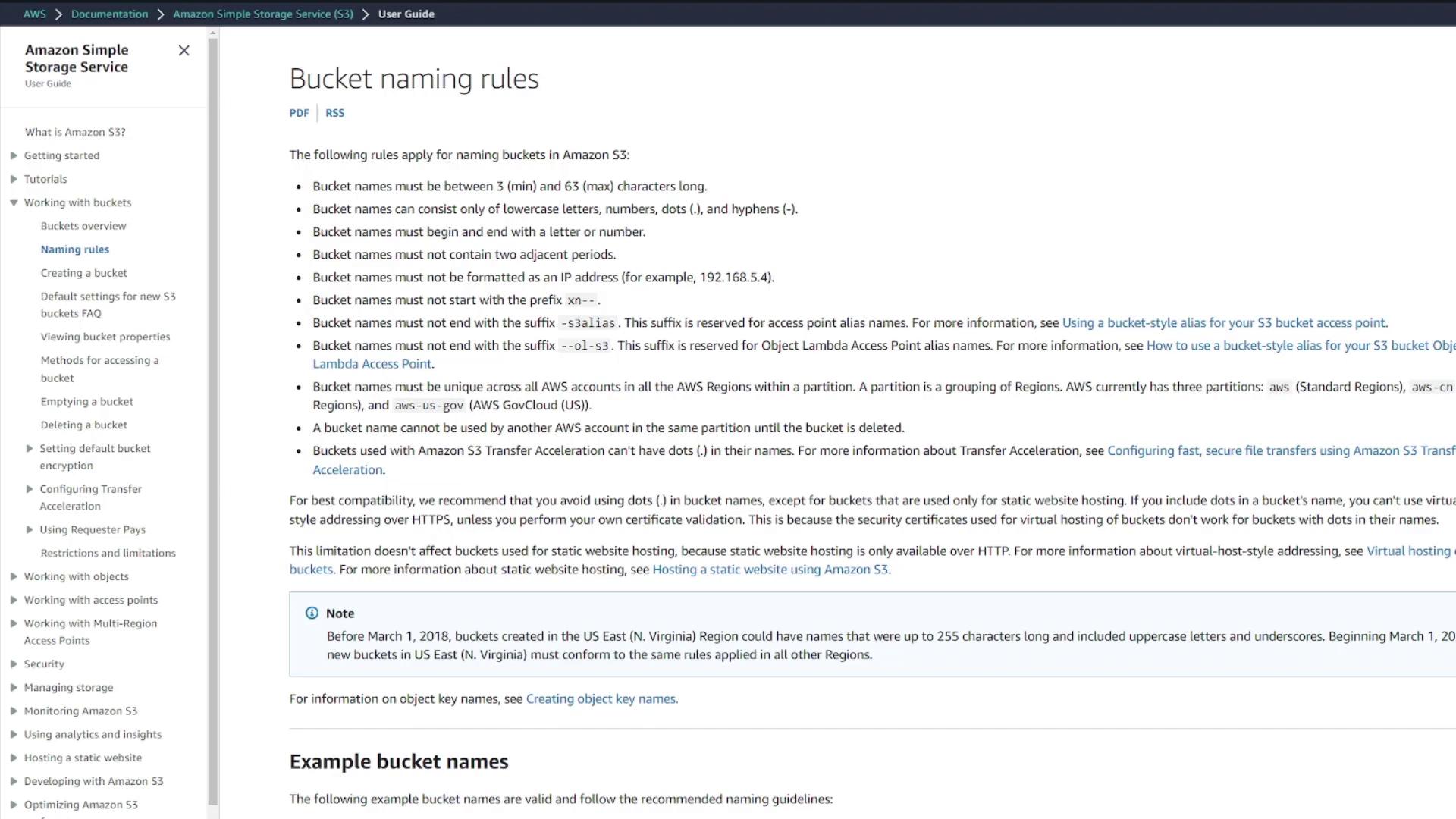
For bucket naming rules (character limits, allowed characters, and examples), see the Bucket Naming Rules.
- Choose a unique name (for example,
kodekloud-demo-123):
- Select the target region (e.g., US East (N. Virginia) us-east-1).
- Configure features or leave defaults:
- Object ownership & ACLs
- Block public access
- Versioning & encryption
- Tags & advanced settings
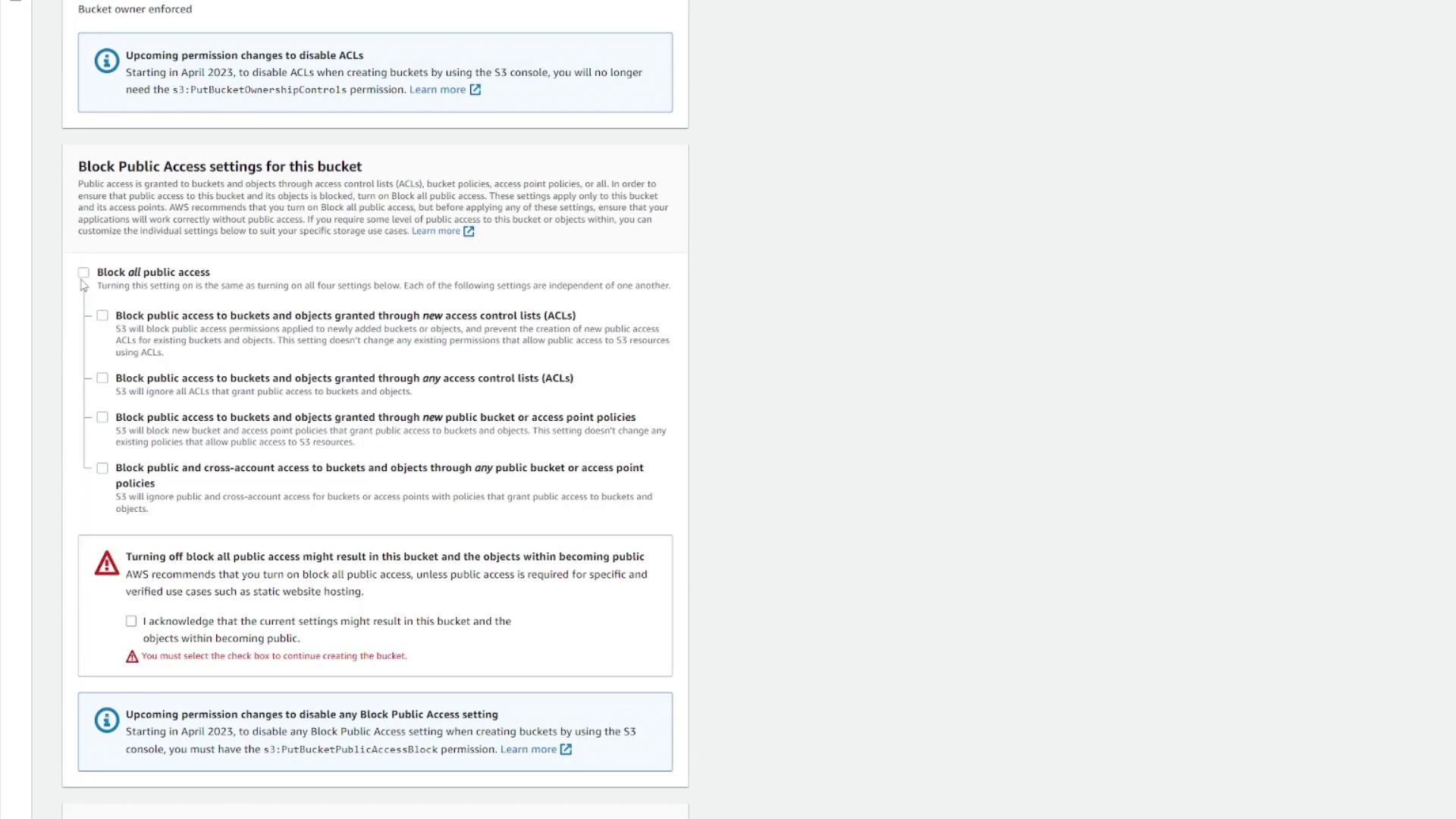
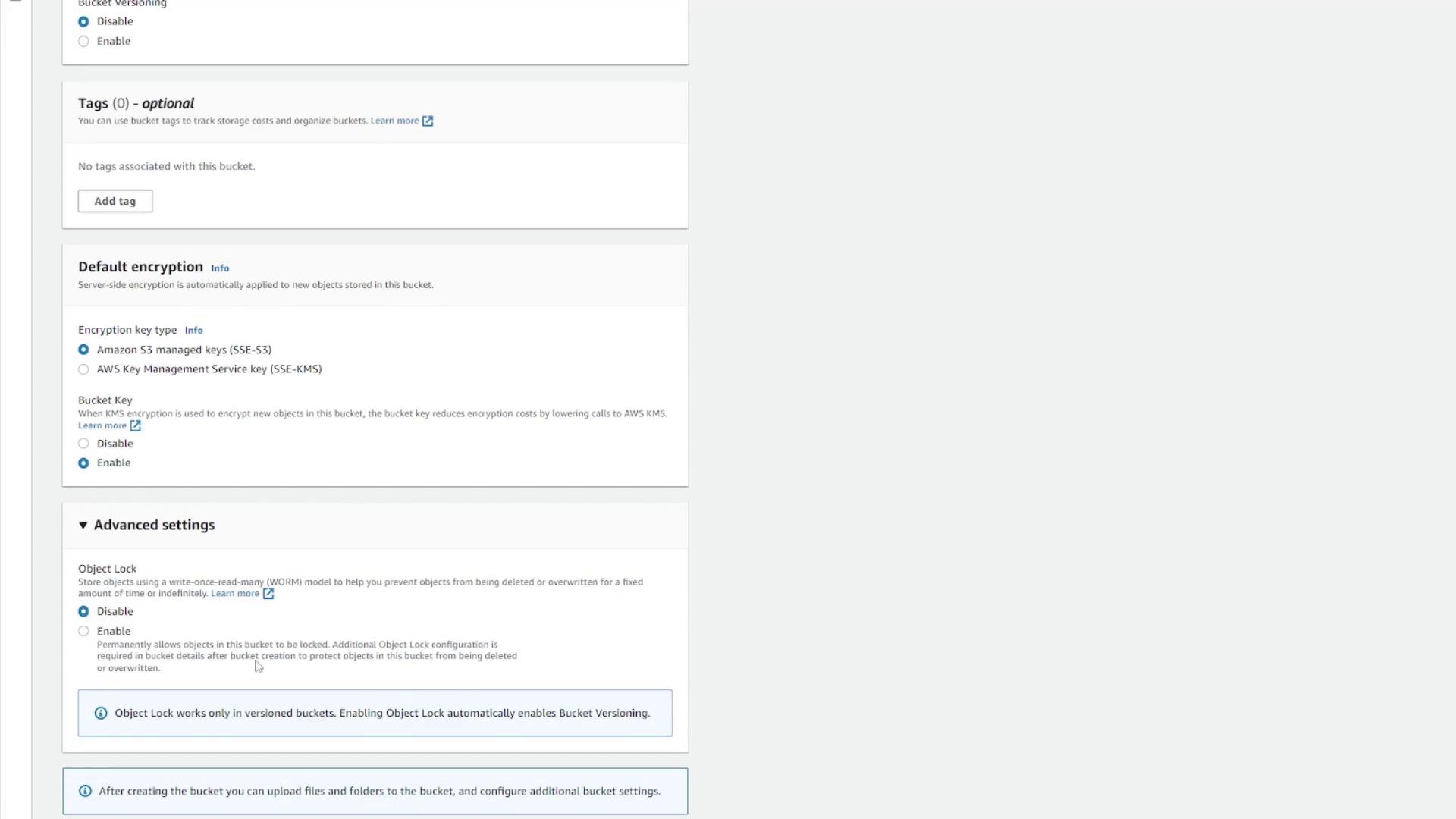
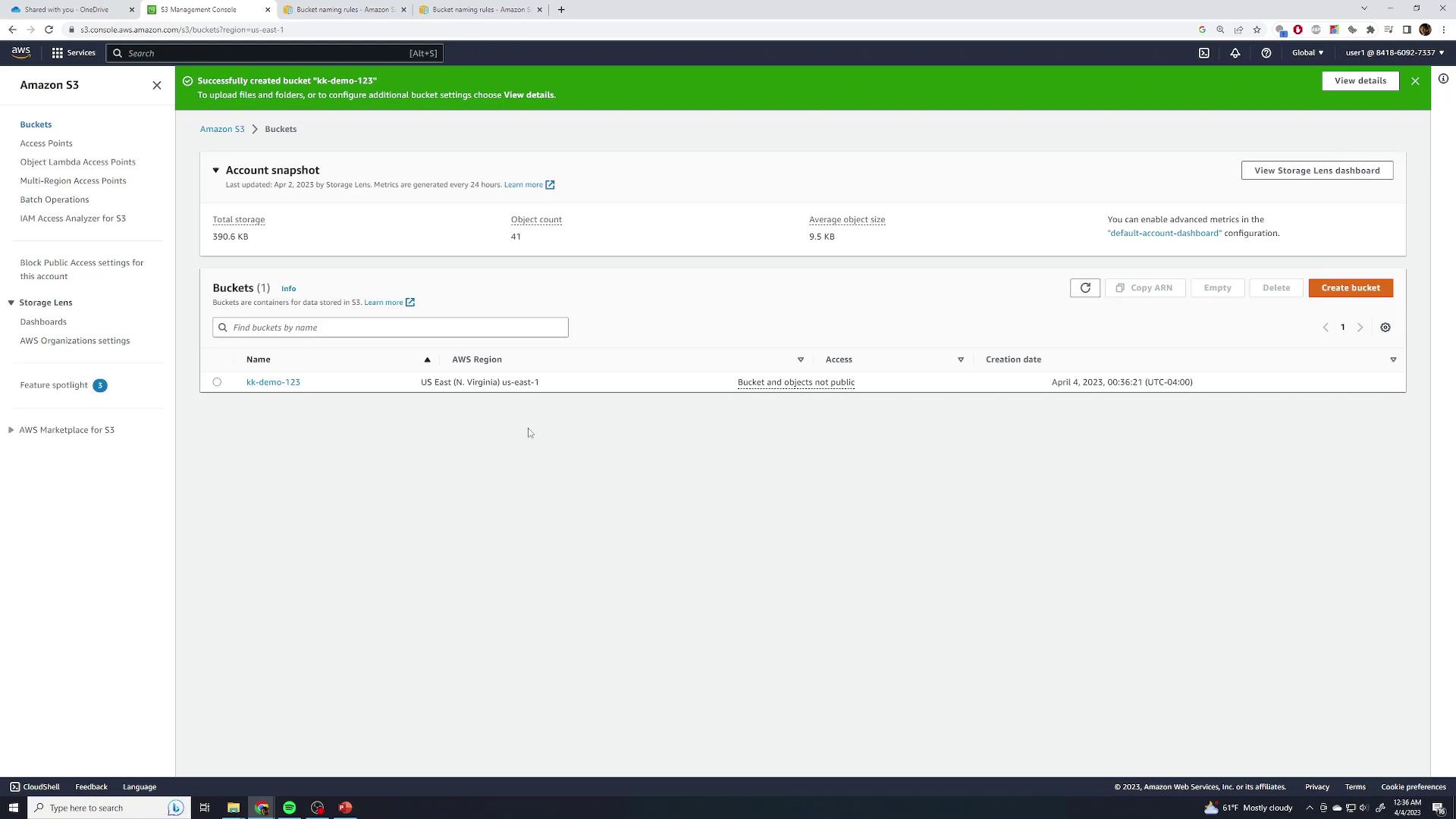
- Click Create bucket. You’ll see your new bucket in the list:
Exploring Bucket Details
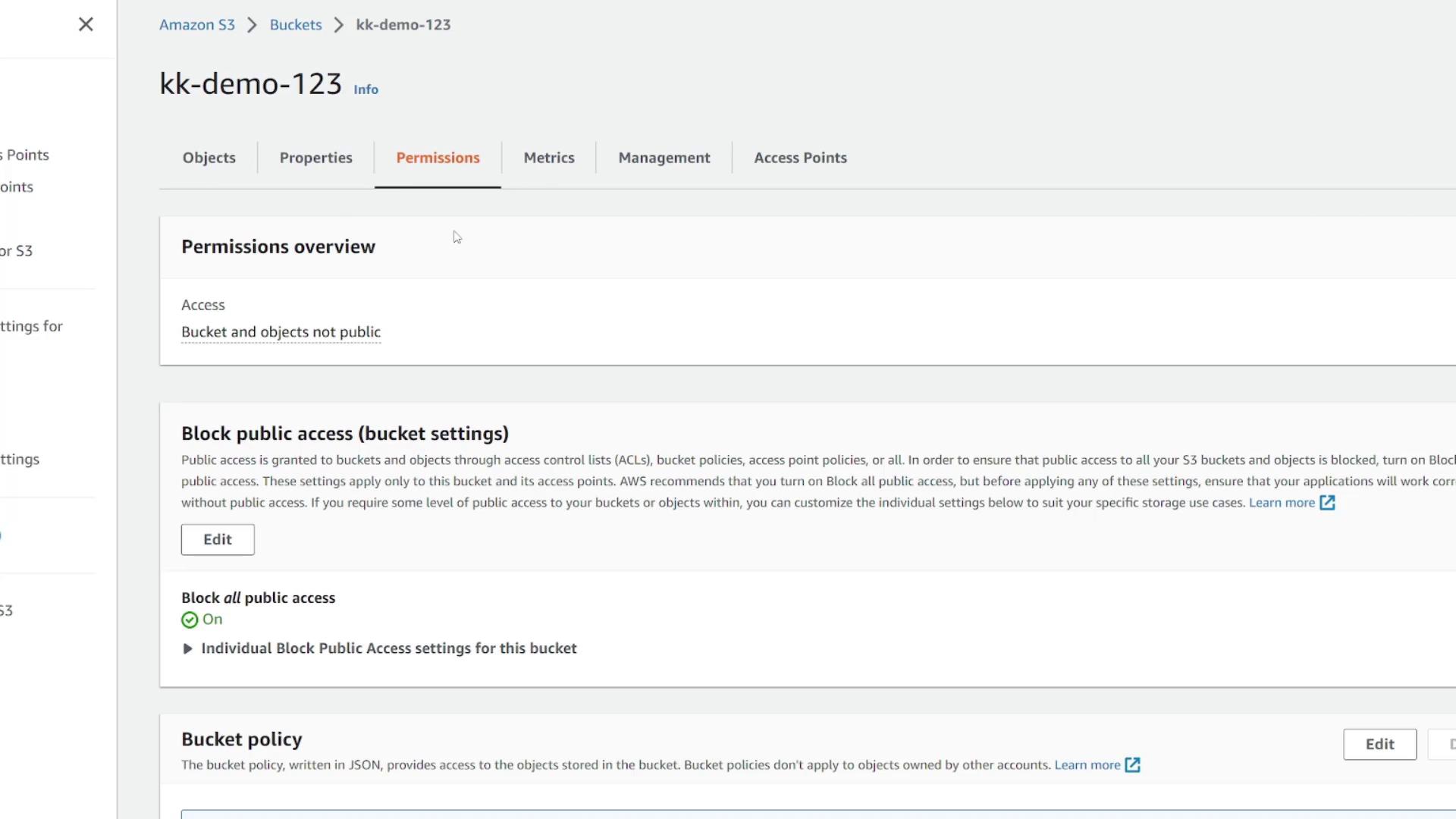
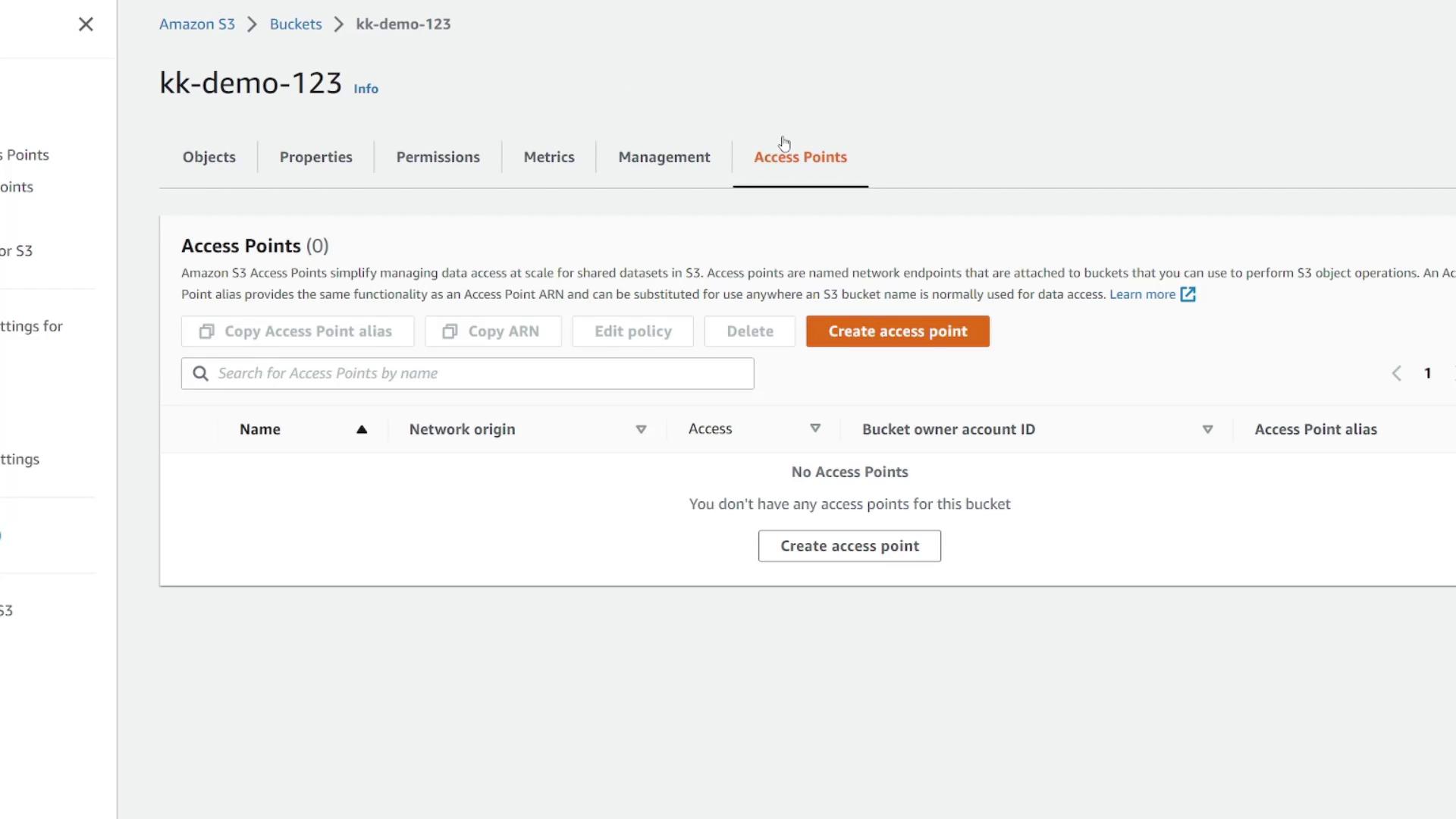
Click your bucket’s name to open its overview. You’ll find tabs for Objects, Properties, Permissions, Metrics, and Management.| Feature | Description |
|---|---|
| Region & ARN | Shows the bucket’s region and Amazon Resource Name. |
| Creation Date | Timestamp when the bucket was created. |
| Versioning | Indicates if object versioning is enabled or disabled. |
| Encryption | Default server-side encryption (SSE) settings for new objects. |
| Other Options | Logging, CloudTrail, events, transfer acceleration, object lock, requester pays, and website hosting. |
Uploading Objects
- Go to the Objects tab and click Upload.
- Drag and drop files or use Add files. For example, upload
pexels-julio-nery-1687147.jpg(2.7 MB JPEG):
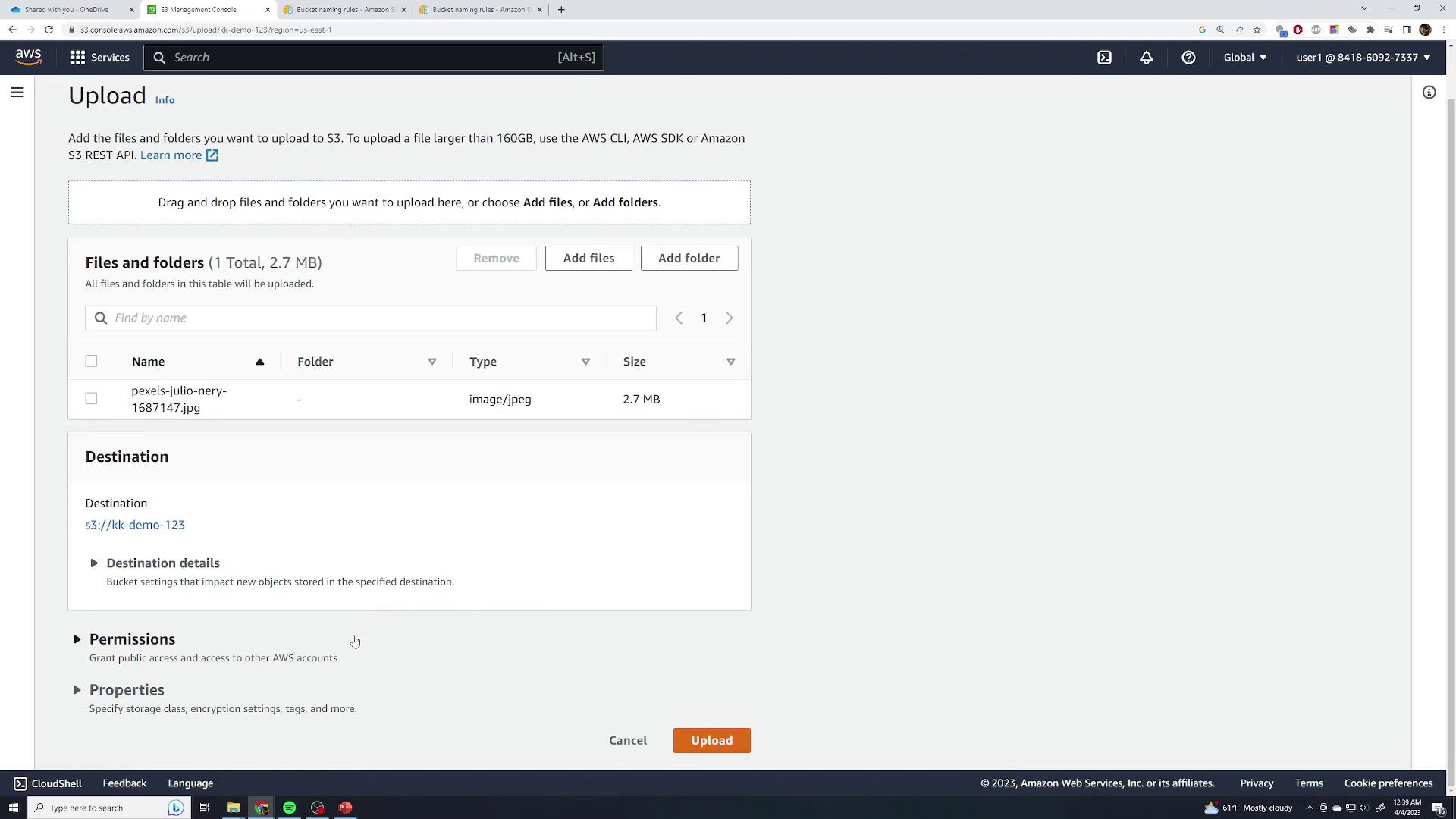
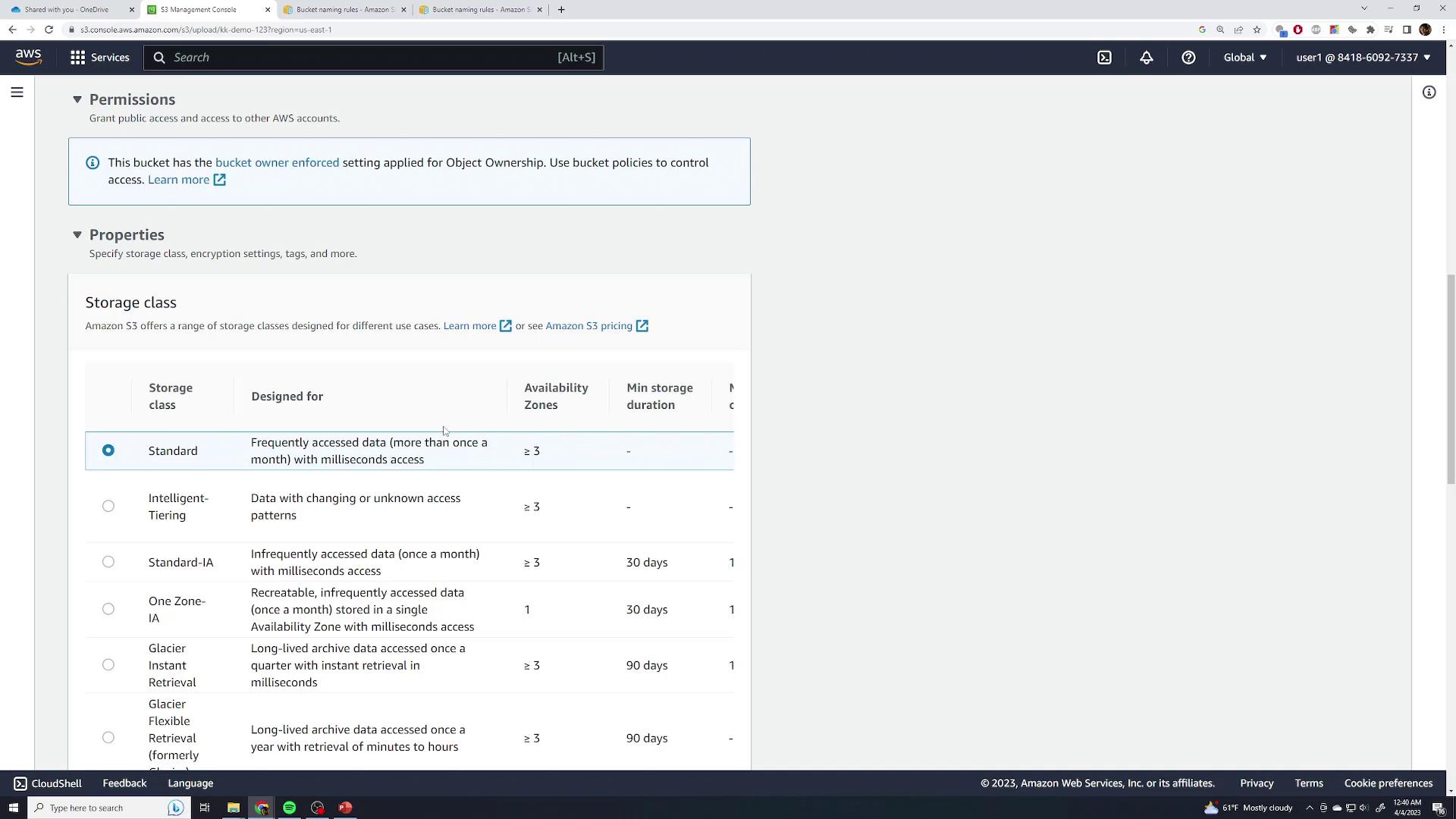
- Accept defaults for permissions, storage class (Standard), and skip advanced settings.
- Click Upload and wait for completion:
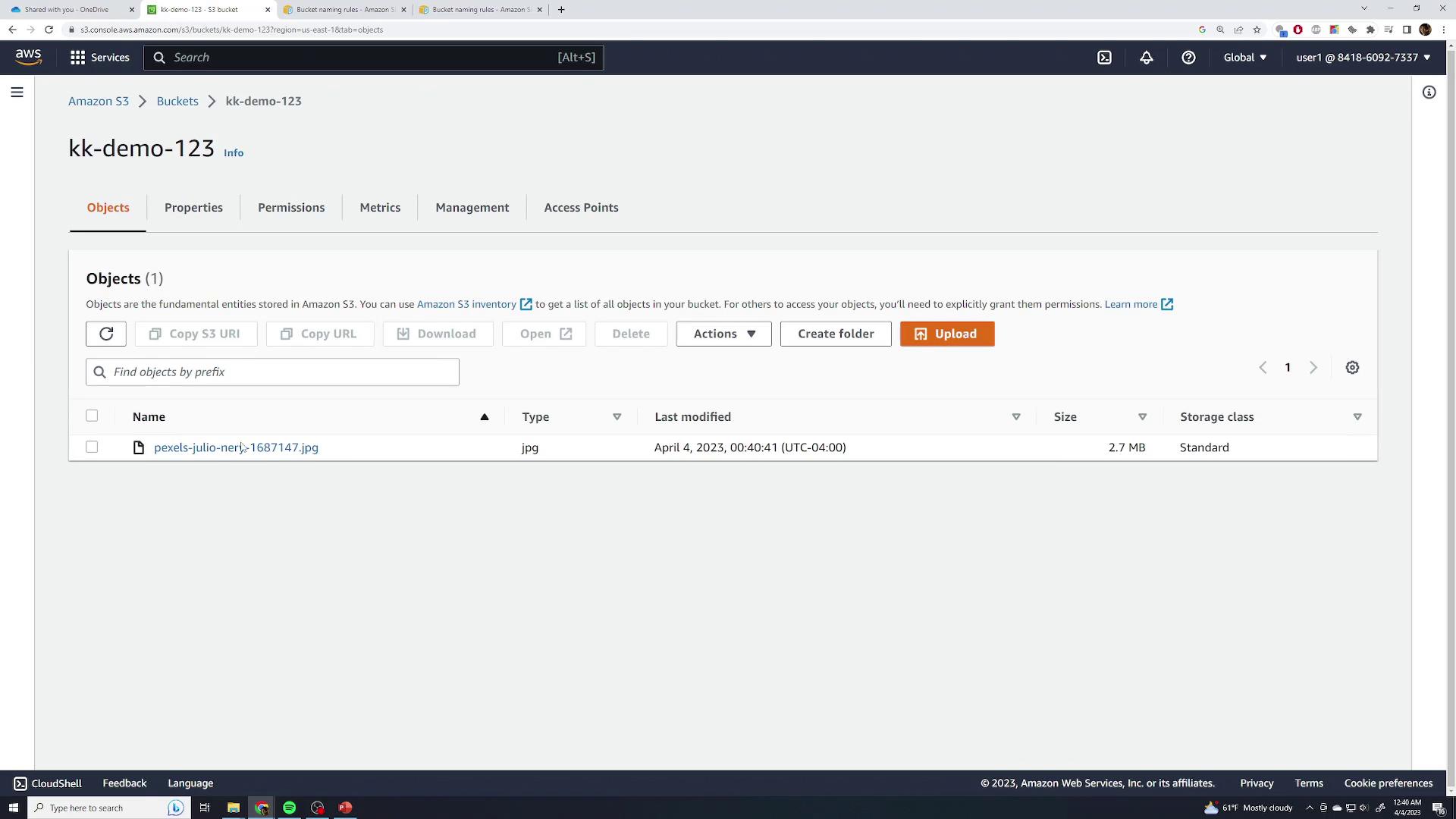
- After closing the dialog, you’ll see your file listed:
Object Details
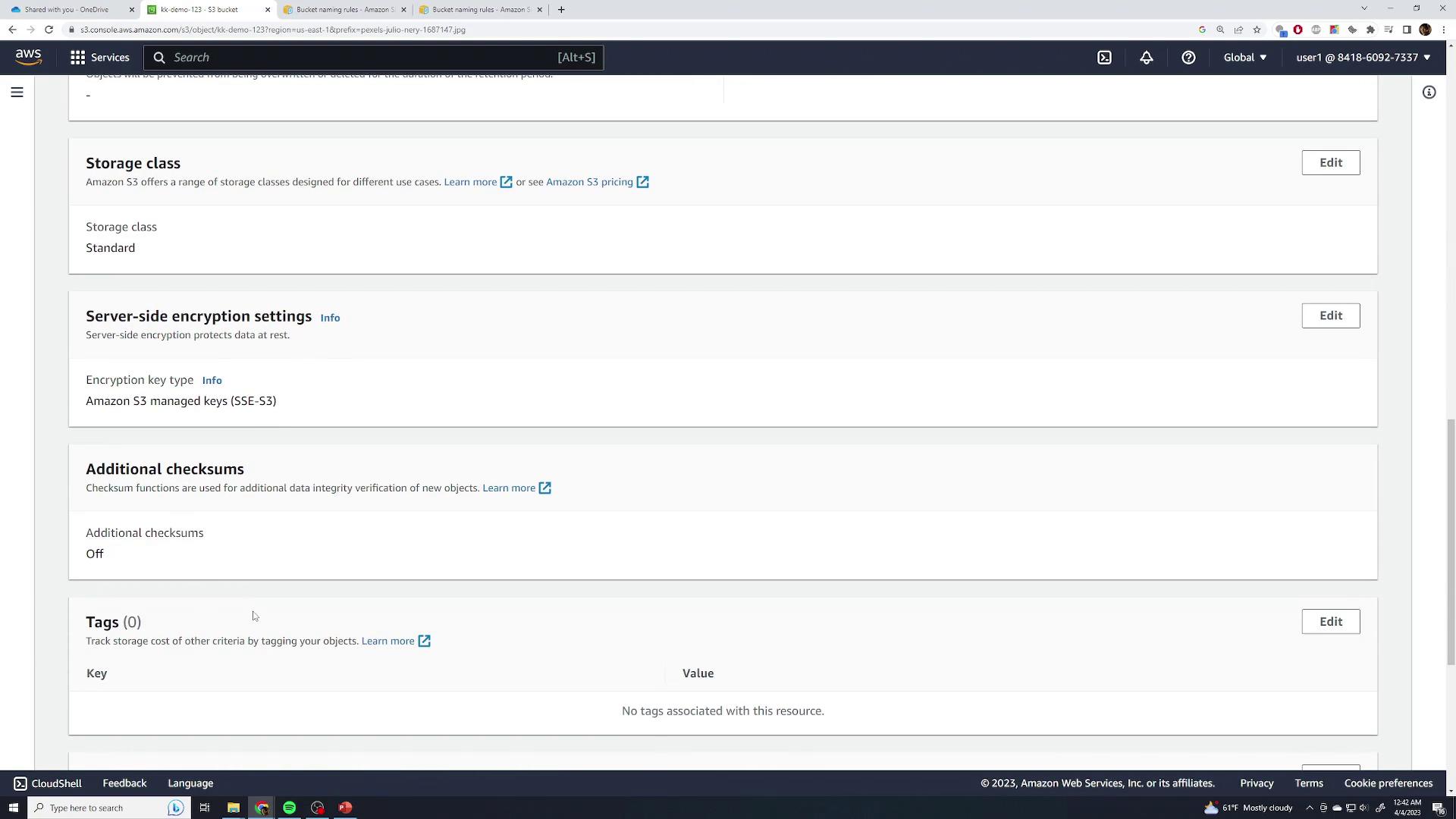
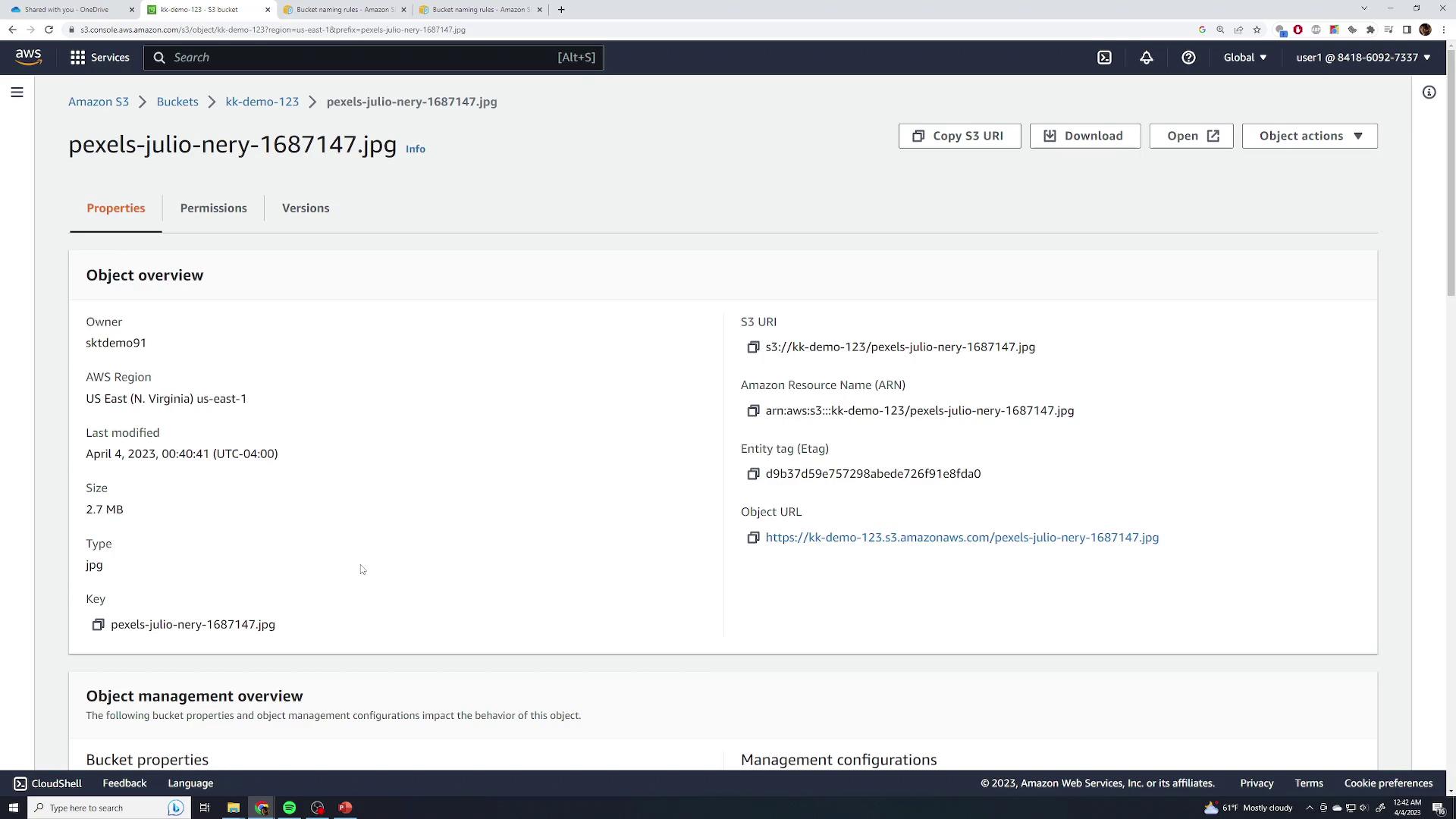
Click the object name to inspect:- Size, last modified, and region
- Object URI and ARN
- ETag, object URL
- Per-object settings: storage class, SSE, checksums, tags, and locks
Accessing Objects
Attempting to GET the object URL anonymously returns:By default, both buckets and objects are private. Use the Open button in the console (with your AWS credentials) to view private files, or adjust permissions for public access.
Organizing Objects with Folders
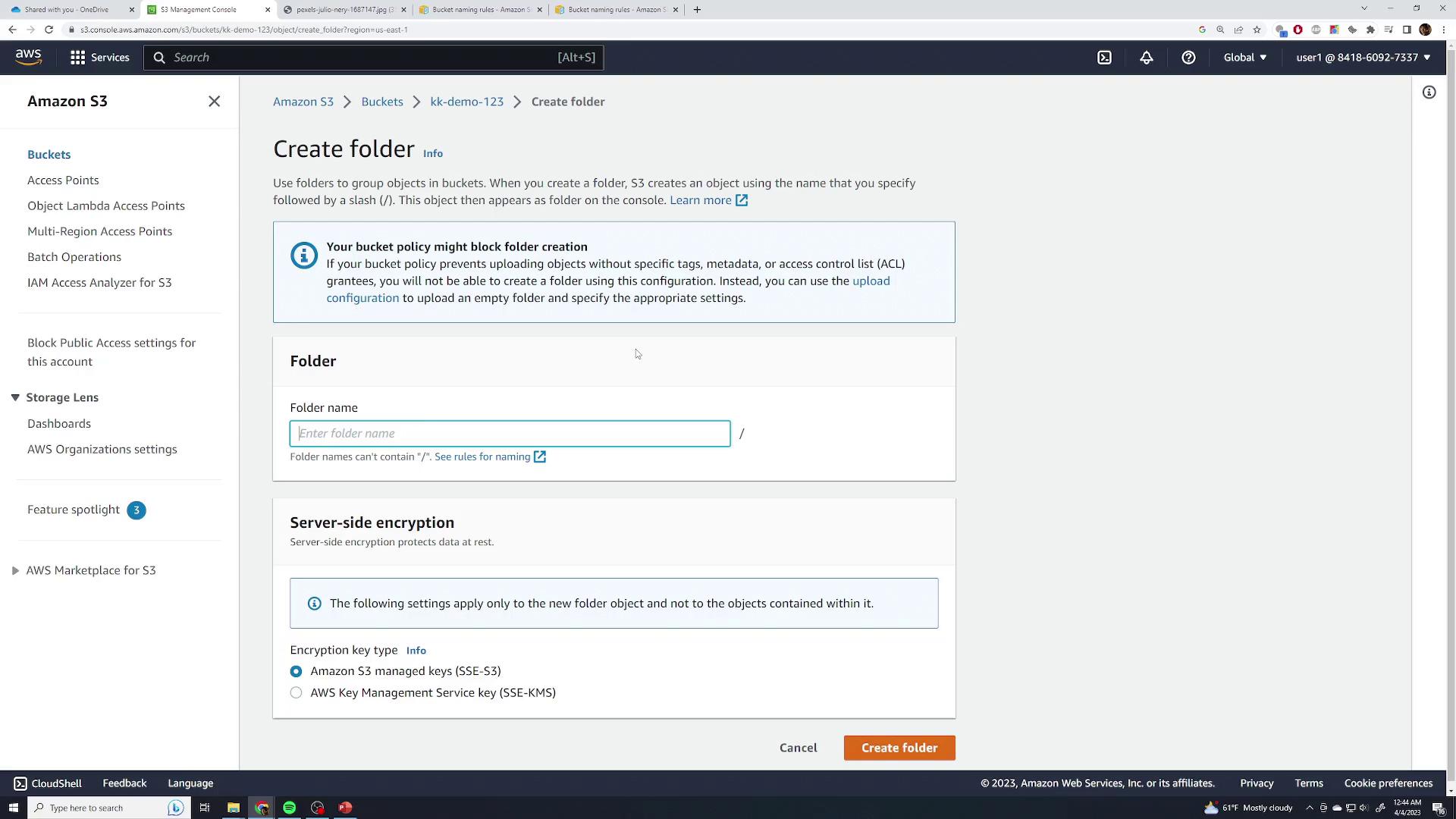
Although S3 has a flat key-value structure, the console lets you simulate folders:- Click Create folder, enter a name (e.g.,
food), and confirm:
- Open the folder and upload images (burger, pizza, sandwich, steak):
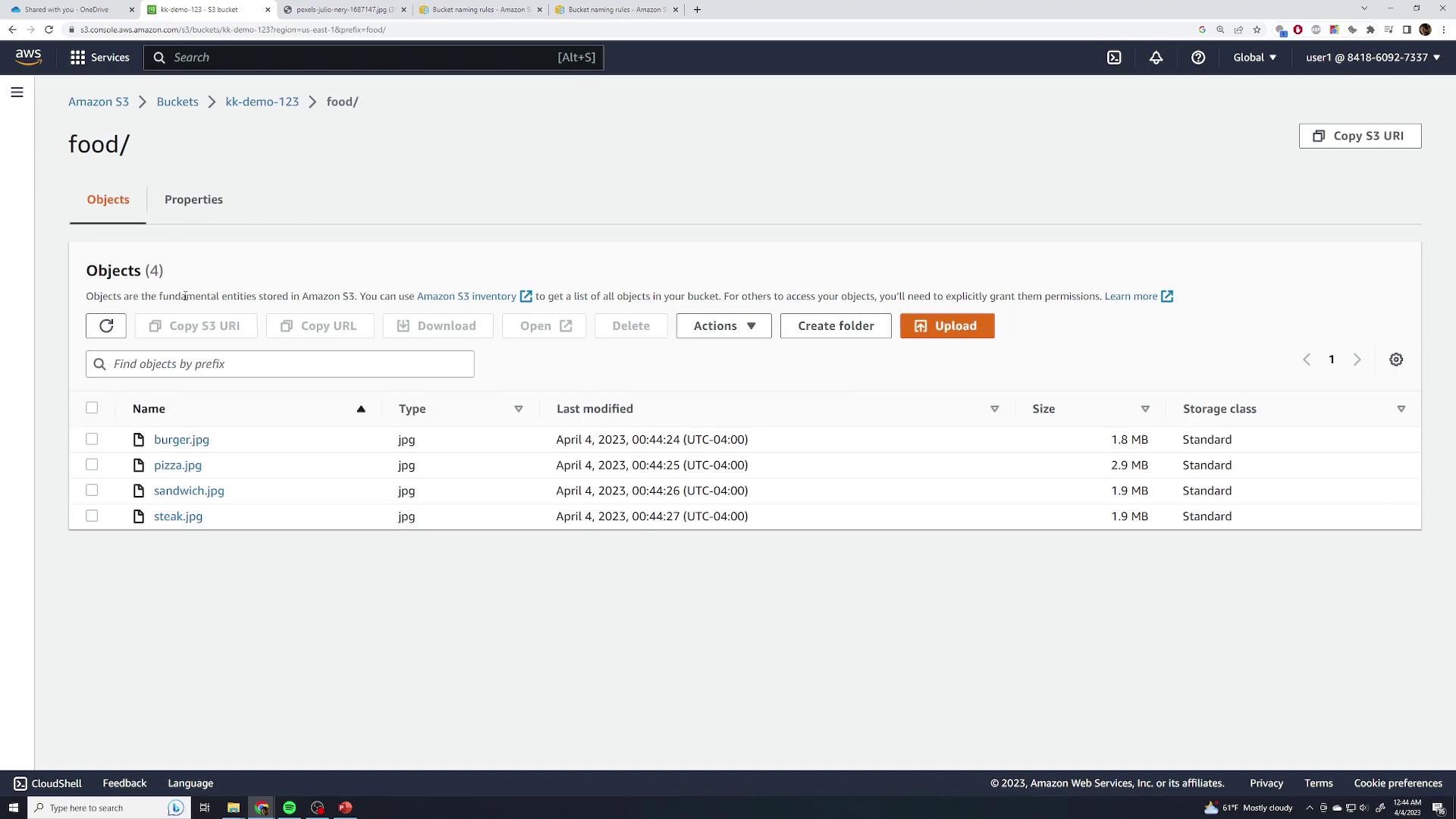
food/. Permissions and access behave identically to root-level objects.
Deleting Objects
- Select the object(s) you want to remove.
- Click Delete, type permanently delete, and confirm:
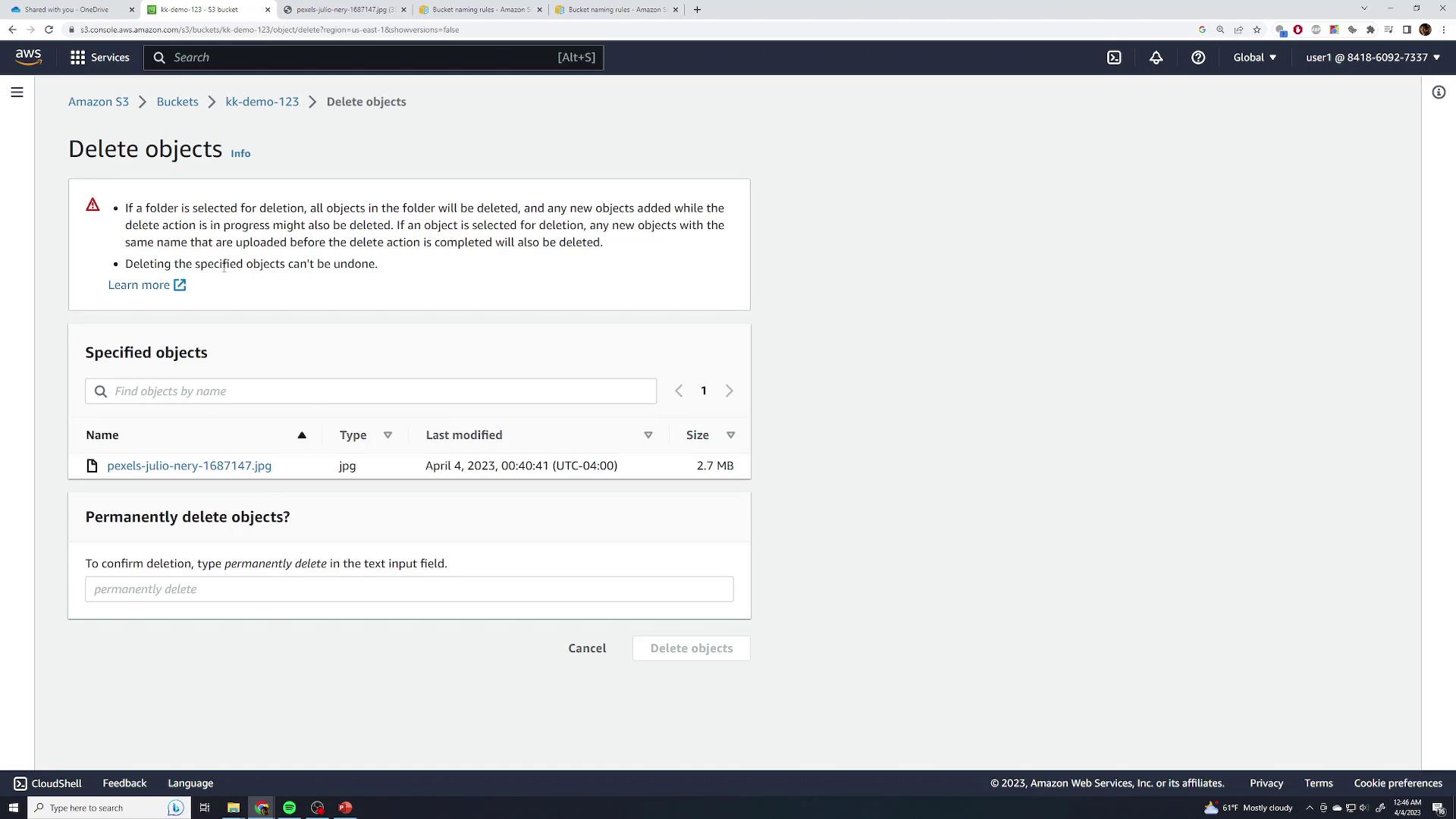
Without versioning enabled, deletion is permanent and cannot be undone.
Moving Objects
S3 doesn’t support a native “move” operation. Instead, you rename an object by copying it to a new key prefix:- Create a new folder (e.g.,
test) under your bucket:

- Select Actions > Move, set the destination key (e.g.,
food/test/steak.jpg), or browse and apply. The object is effectively renamed under the new prefix.
Deleting the Bucket
To delete an S3 bucket, it must be empty:- Attempting to delete a non-empty bucket shows an error:
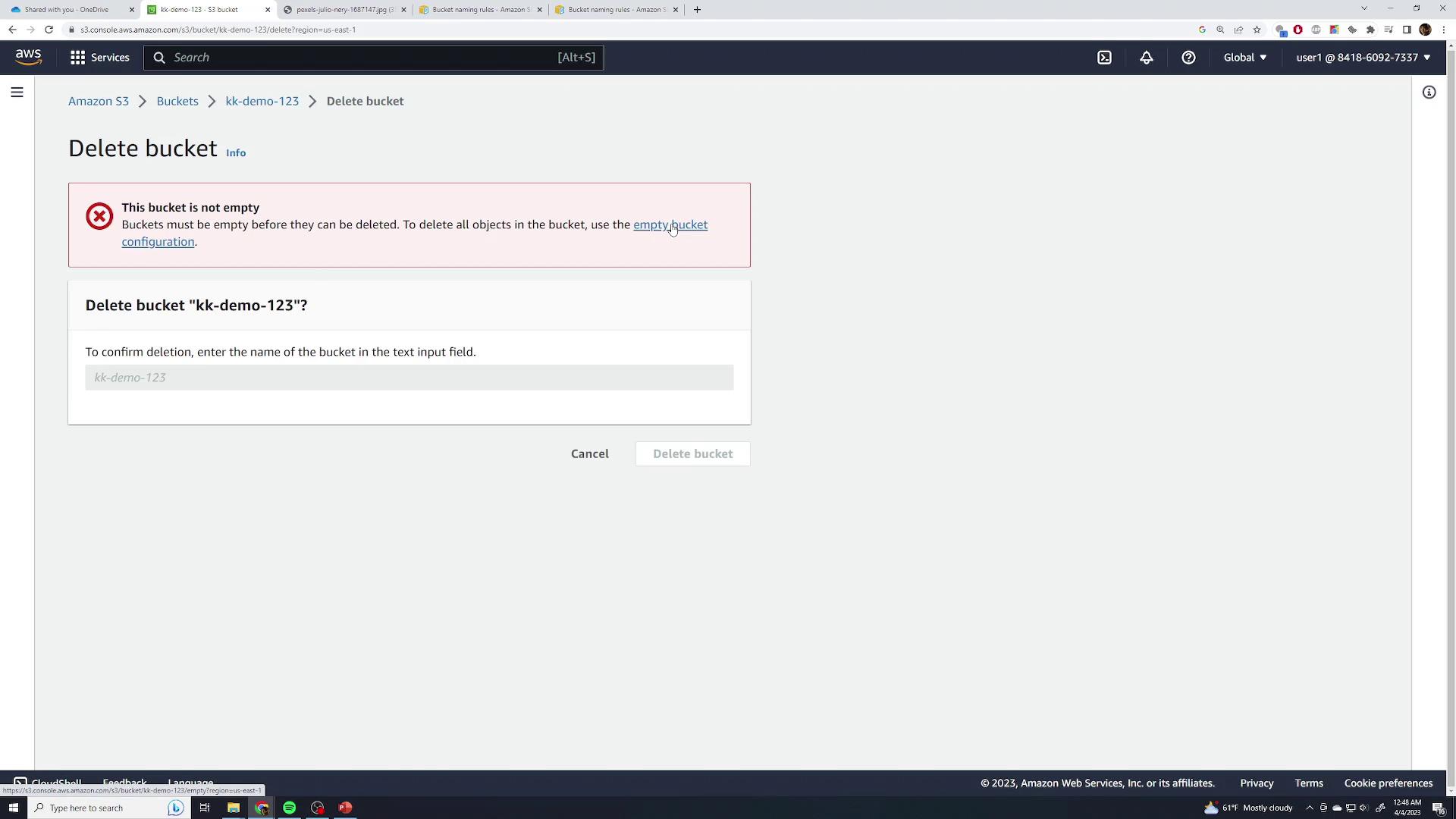
- Click Empty, type permanently delete, and confirm to clear contents.
- Finally, select Delete bucket, enter the bucket name, and confirm.