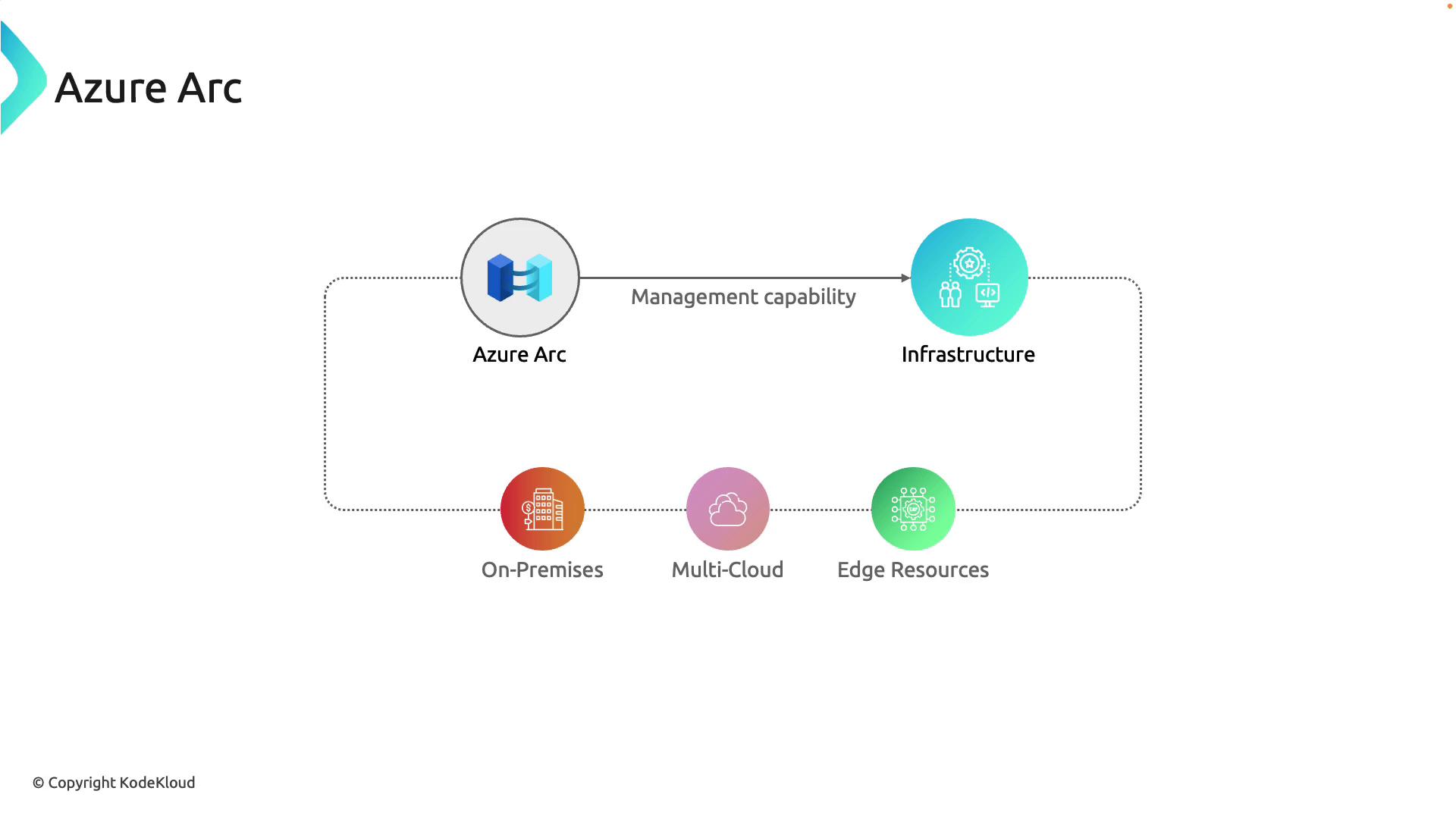
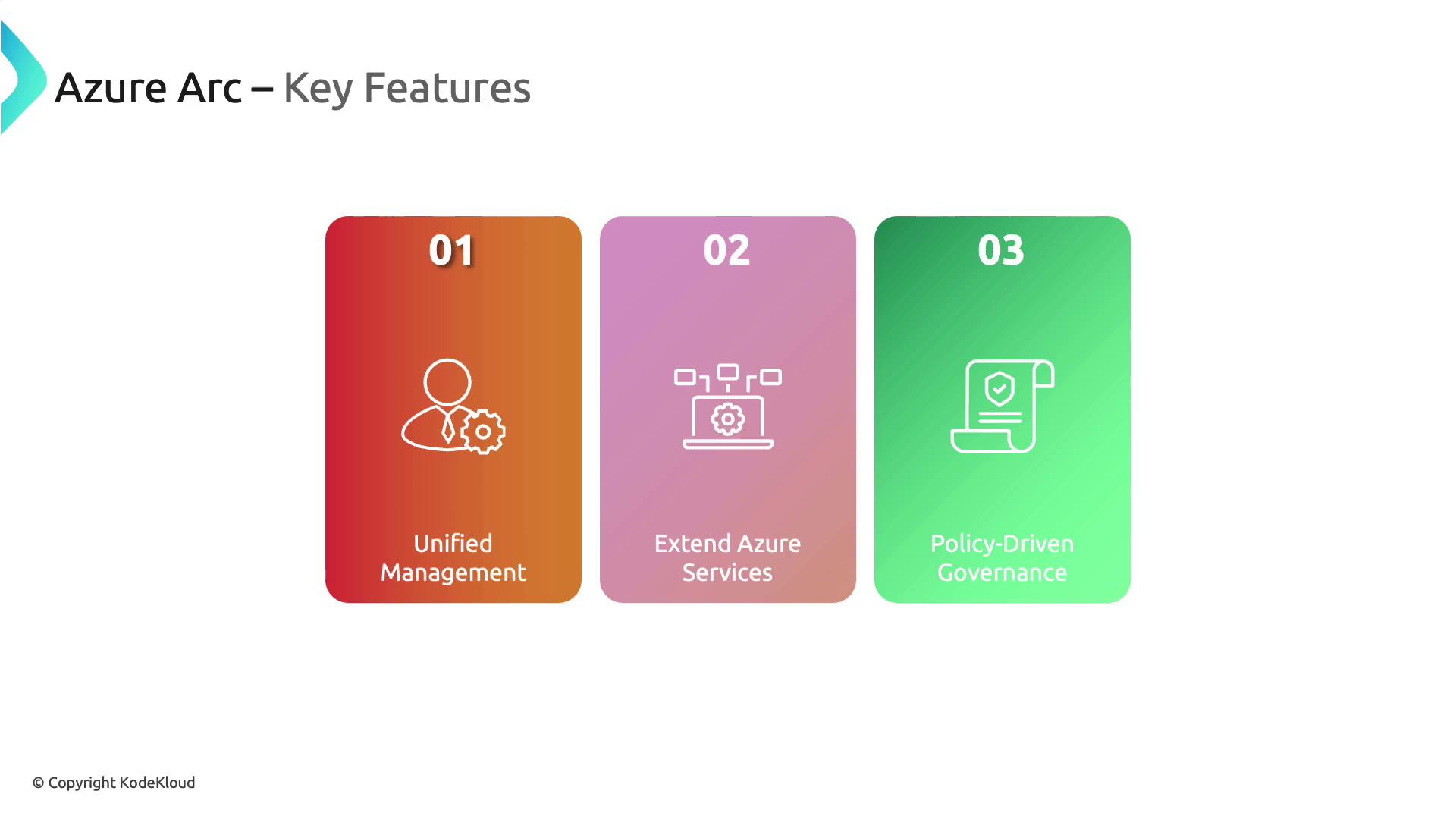
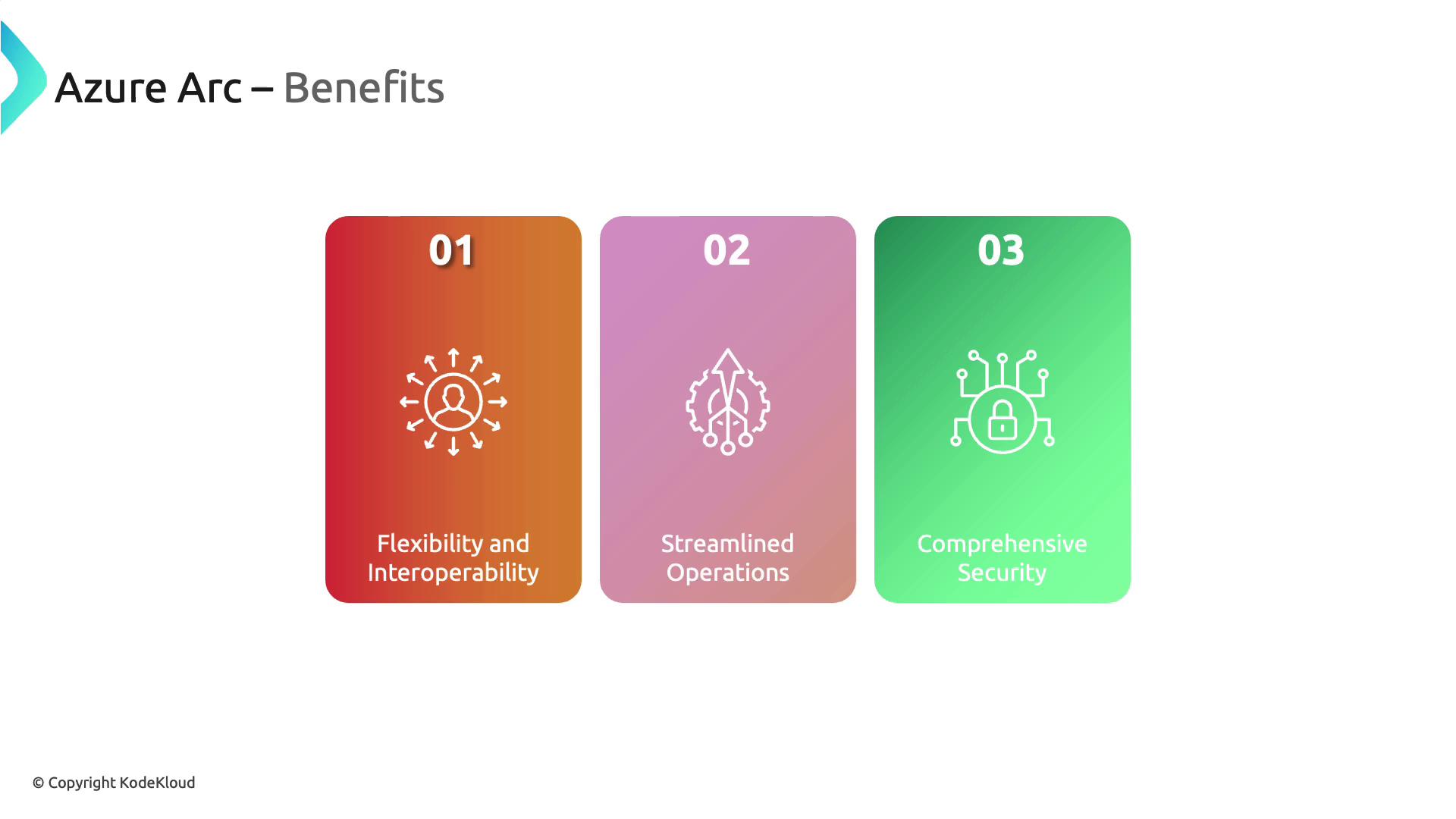
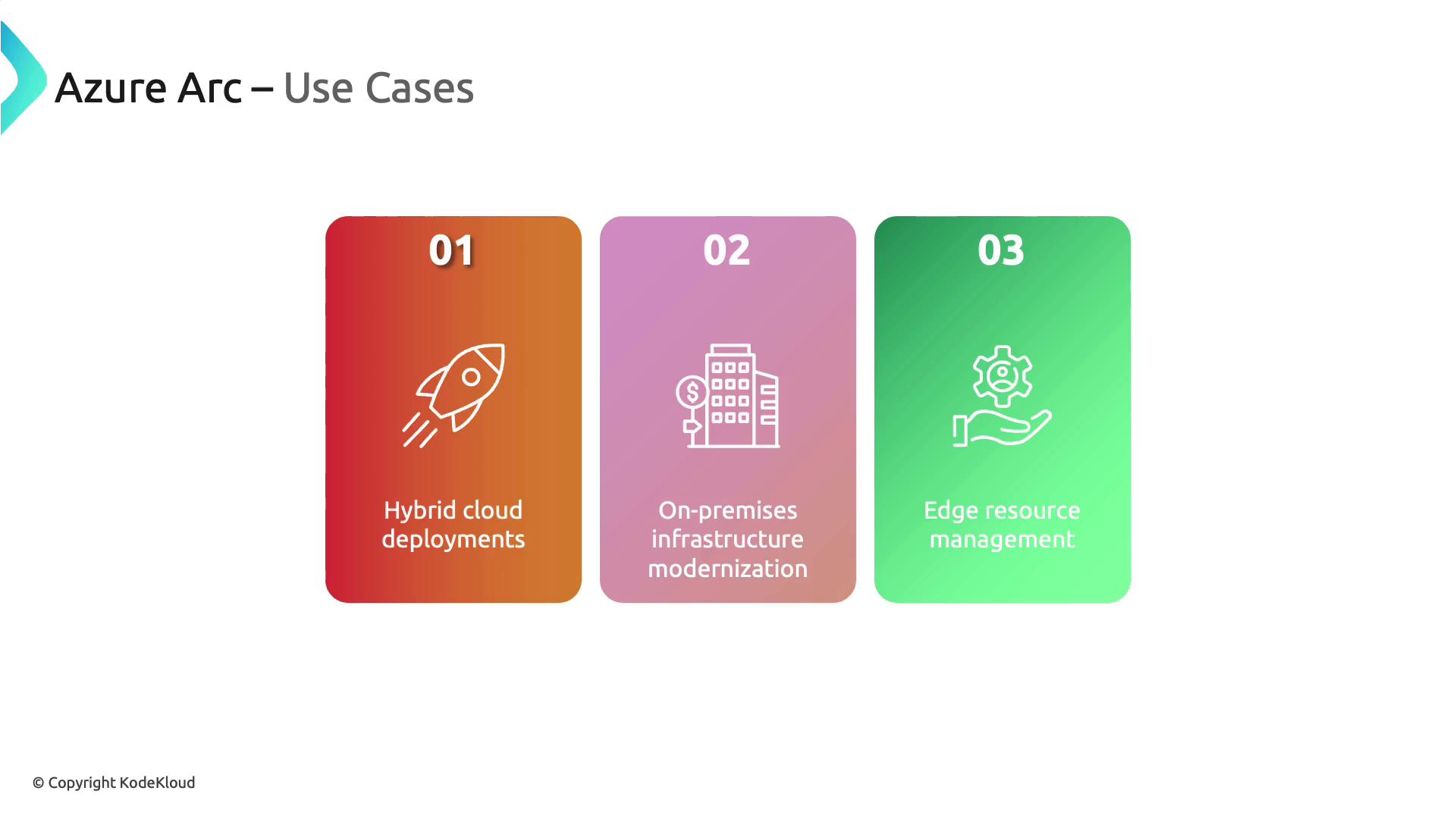
Azure Arc extends Azure management capabilities to any infrastructure, enabling centralized control of resources across on-premises, multi-cloud, and edge environments.
Azure Arc extends Azure’s powerful management capabilities to any infrastructure, whether on-premises, multi-cloud, or edge. With Azure Arc, organizations like Bella Innovation can manage servers across different environments directly from the Azure Portal, ensuring centralized control regardless of where your resources reside.All connected resources become visible within the Azure Portal, and you can manage them using the Portal, PowerShell, or CLI. This is made possible by the Connected Machine Agent, which is installed on each machine to facilitate communication with Azure Arc.
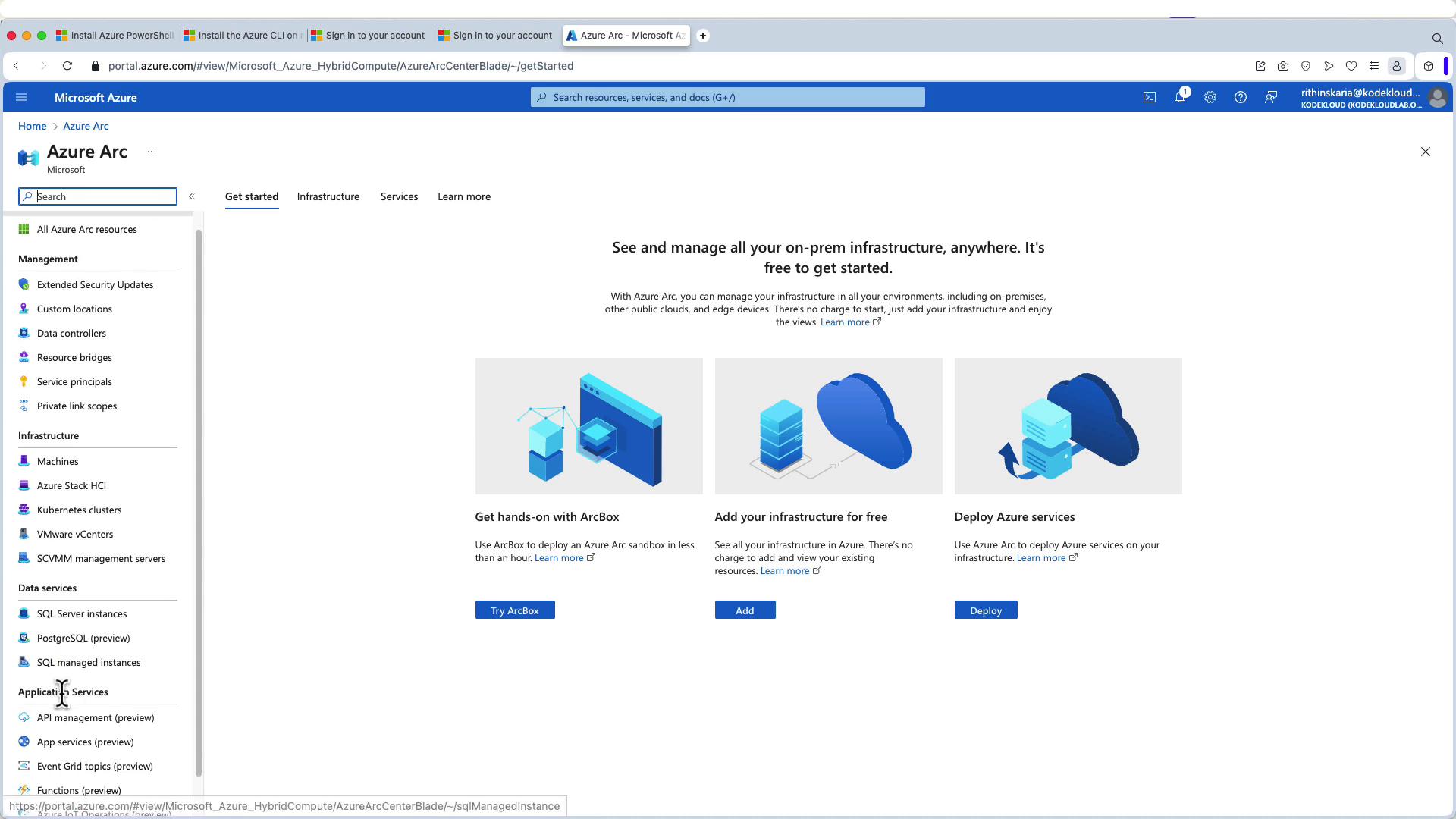
Log in to the Azure Portal and navigate to the Azure Arc section. Azure Arc supports not only servers but also solutions such as Azure Stack HCI, Kubernetes clusters, VMware environments, and data services like SQL Server Managed Instances.
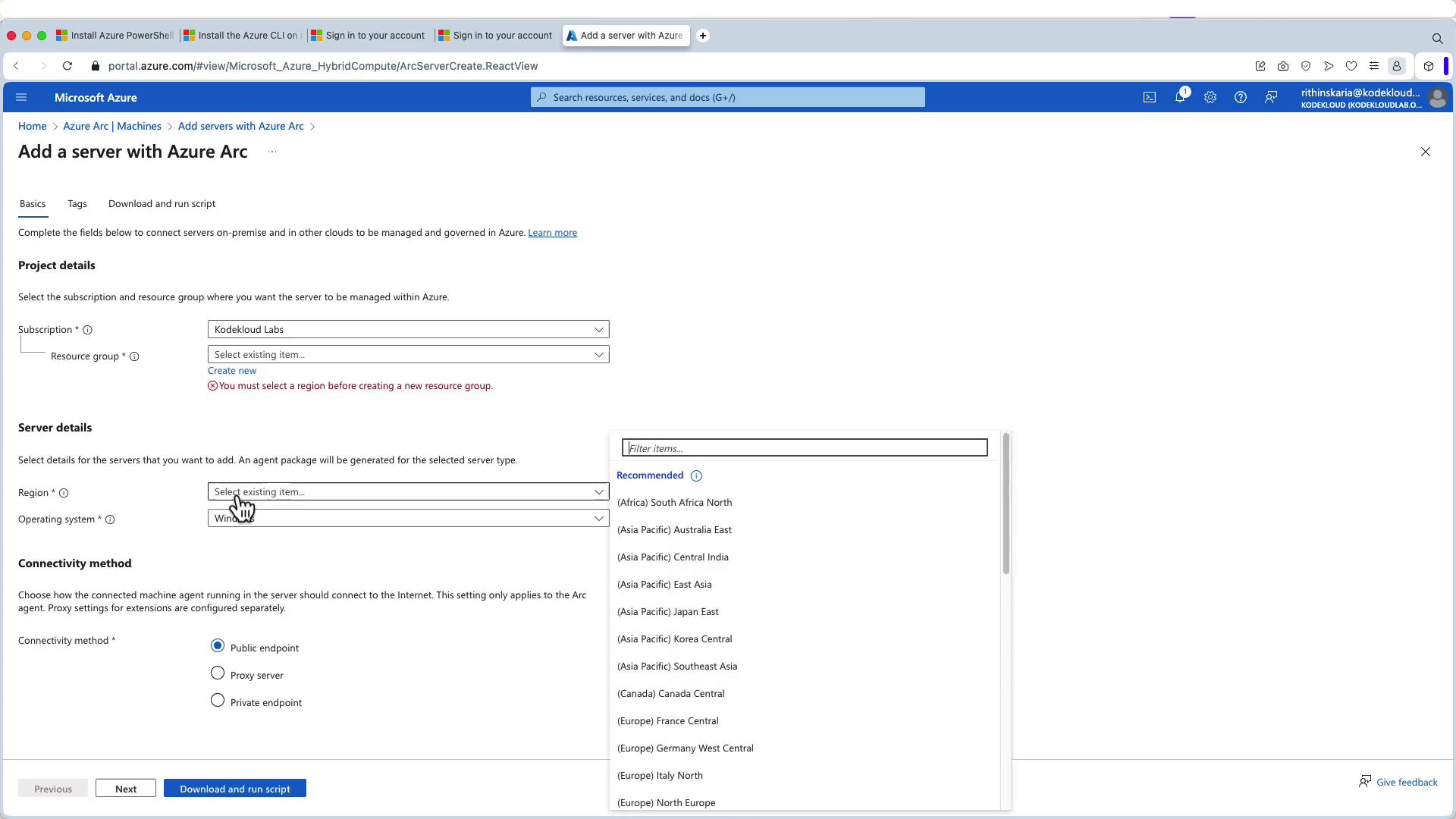
Click on “Add” or “Create” and select “Add a machine.” While you can onboard multiple servers at once, this demonstration focuses on a single Windows server.
Step 4: Generate and Download the Onboarding Script
After configuring the server details, click to generate and download the PowerShell script. This script installs the Connected Machine Agent and connects the server to Azure Arc.Below is an example PowerShell script:
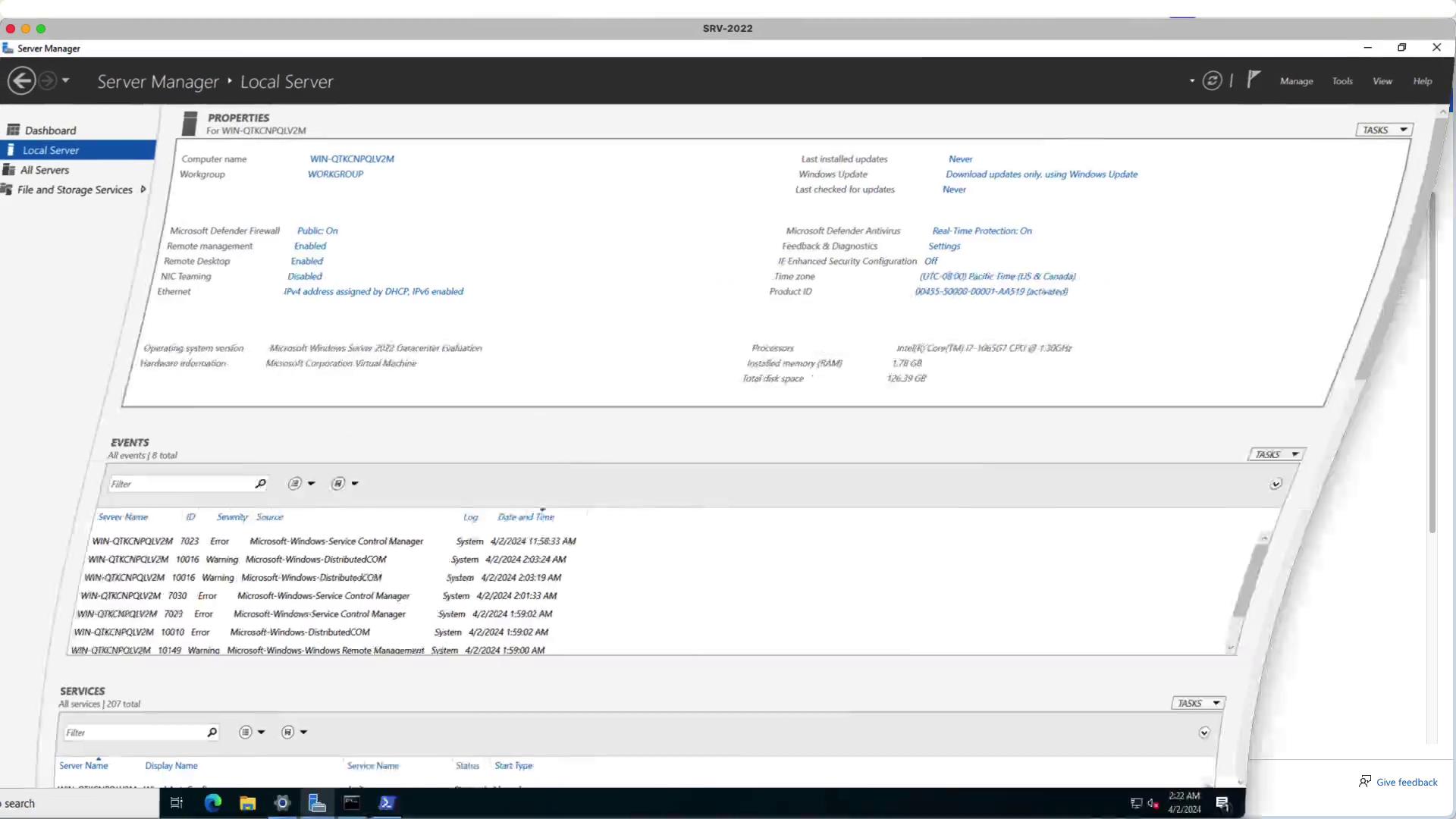
Download this script, transfer it to your Windows server (via Remote Desktop or another method), and execute it to install the Connected Machine Agent.
When you run the script, it will install the Azure Connected Machine Agent and prompt you to sign in via a pop-up browser:
The script begins installation and provides verbose logs similar to:
Copy
Ask AI
VERBOSE: Installing Azure Connected Machine AgentVERBOSE: PowerShell version: 5.1.20348.558VERBOSE: .NET Framework version: 4.8.4161VERBOSE: checking if this is an Azure virtual machineVERBOSE: Error The operation has timed out. checking if we are in AzureVERBOSE: Downloading agent package from https://aka.ms/AzureConnectedMachineAgent to C:\Users\ADMINI~1\AppData\Local\Temp\AzureConnectedMachineAgent.msiVERBOSE: Installing agent package
Complete the sign-in when prompted. After authentication, the script continues:
Copy
Ask AI
VERBOSE: Installing Azure Connected Machine AgentVERBOSE: Total Physical Memory: 1826 MBVERBOSE: .NET Framework version: 4.8.4161VERBOSE: Checking if this is an Azure virtual machineVERBOSE: Error The operation has timed out. checking if we are in AzureVERBOSE: Installing agent packageVERBOSE: Downloading agent package from https://aka.ms/Temp/AzureConnectedMachineAgent.msiINFO: Connecting machine to Azure... This might take a few minutes.INFO: Testing connectivity to endpoints that are needed to connect to Azure...INFO: Please login using the pop-up browser to authenticate.20%30%INFO: Creating resource in Azure.../subscription/1b228746-75fd-46ed-8a6b-6a906d6d6d3a/resourceGroups/ps-demo/providers/Microsoft.HybridCompute/machines/WI-N-QTKCNPLV2M
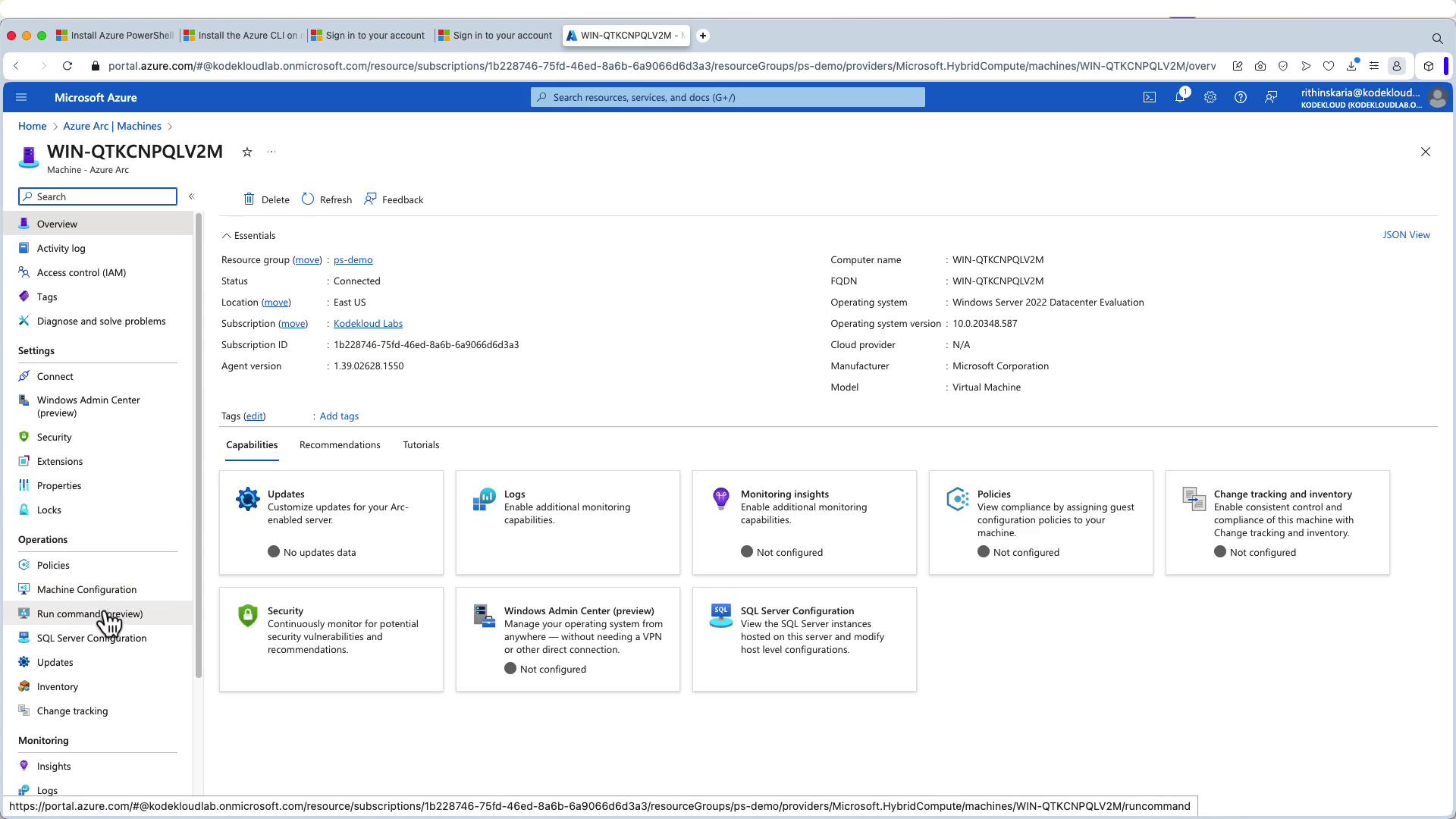
Once the script finishes, your Windows Server is successfully onboarded to Azure Arc.
Return to the Azure Portal and navigate back to the Azure Arc section. Confirm that your server appears with its hostname and details. You can now manage policies, run commands, and view logs just like any Azure resource—even if the server resides on-premises.
By onboarding your Windows Server to Azure Arc, you extend Azure’s robust management, security, and compliance capabilities to your on-premises resources, simplifying hybrid and multi-cloud operations.
This demonstration highlights how Azure Arc empowers you to extend cloud management capabilities to on-premises environments. With Azure Arc, you can apply policies, perform updates, and monitor performance from a single management platform.Next, we will explore Azure Resource Manager and its advanced infrastructure management features.