

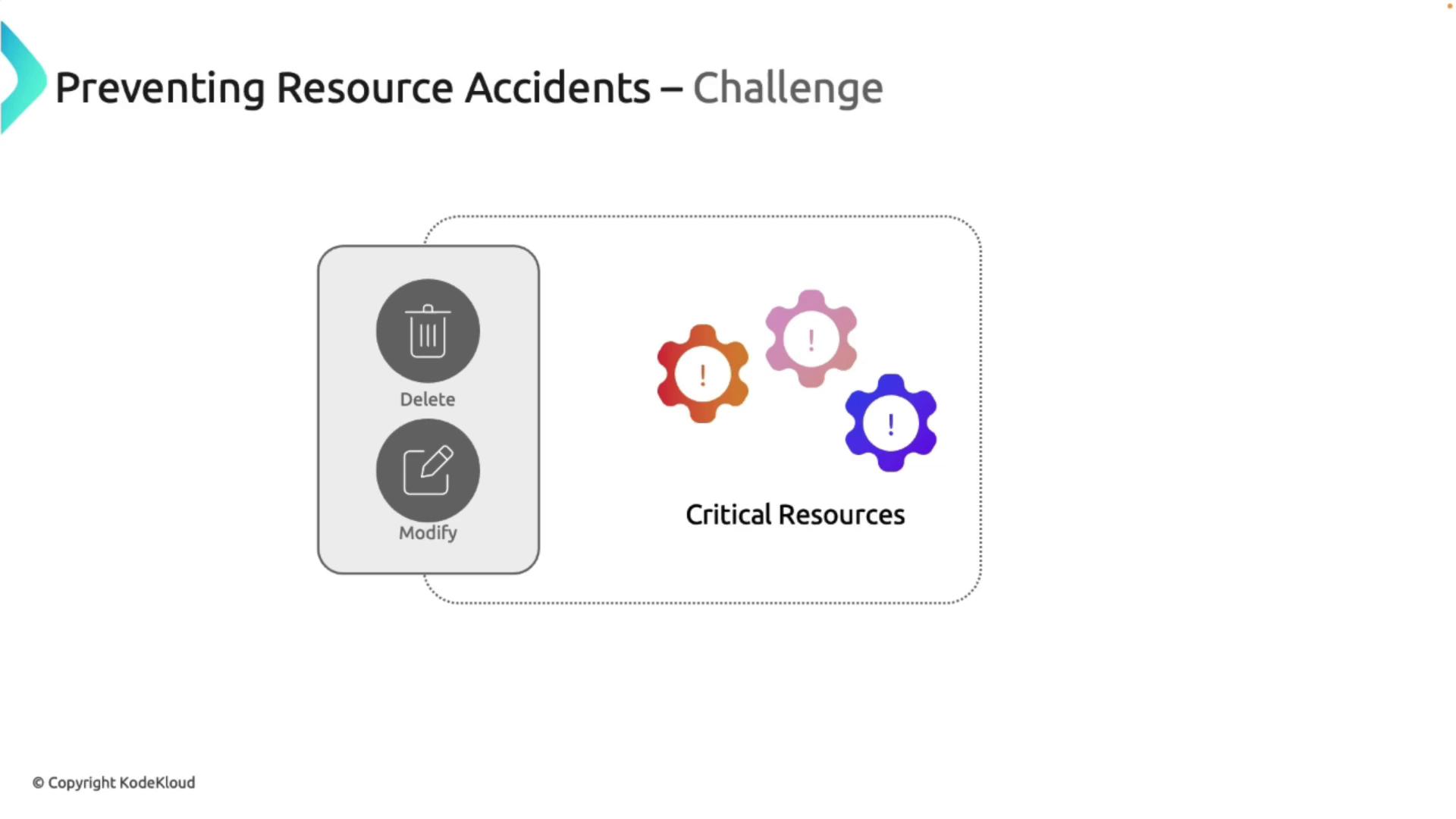
Types of Resource Locks
Azure provides two types of resource locks:-
Read-Only Lock
This lock restricts any modifications by allowing only viewing access. Think of it as a museum exhibit—you can inspect details such as replication settings, files, or containers, but you cannot make any changes. -
Delete Lock
This lock allows modifications while preventing the deletion of a resource. For instance, if you apply a Delete lock to a virtual machine, you can still perform actions like starting, stopping, or resizing the VM, but deleting it is blocked.
Key Features of Resource Locks
-
Scope of Application:
Resource locks can be applied broadly across an entire subscription or narrowly to a specific resource. This flexibility is similar to setting up a security system for an entire building or just a single room. -
Flexible Control:
Choose between a Read-Only lock and a Delete lock based on your specific security requirements.
Benefits of Using Resource Locks
Resource locks provide several advantages:-
Protection Against Accidental Actions:
They help prevent unintended changes, reducing the risk of human error. -
Customizable Security:
Lock configurations can be tailored to meet your operational needs, ensuring a secure environment. -
Enhanced Governance:
Resource locks contribute to improved compliance and governance by establishing an extra layer of control over resource modifications.
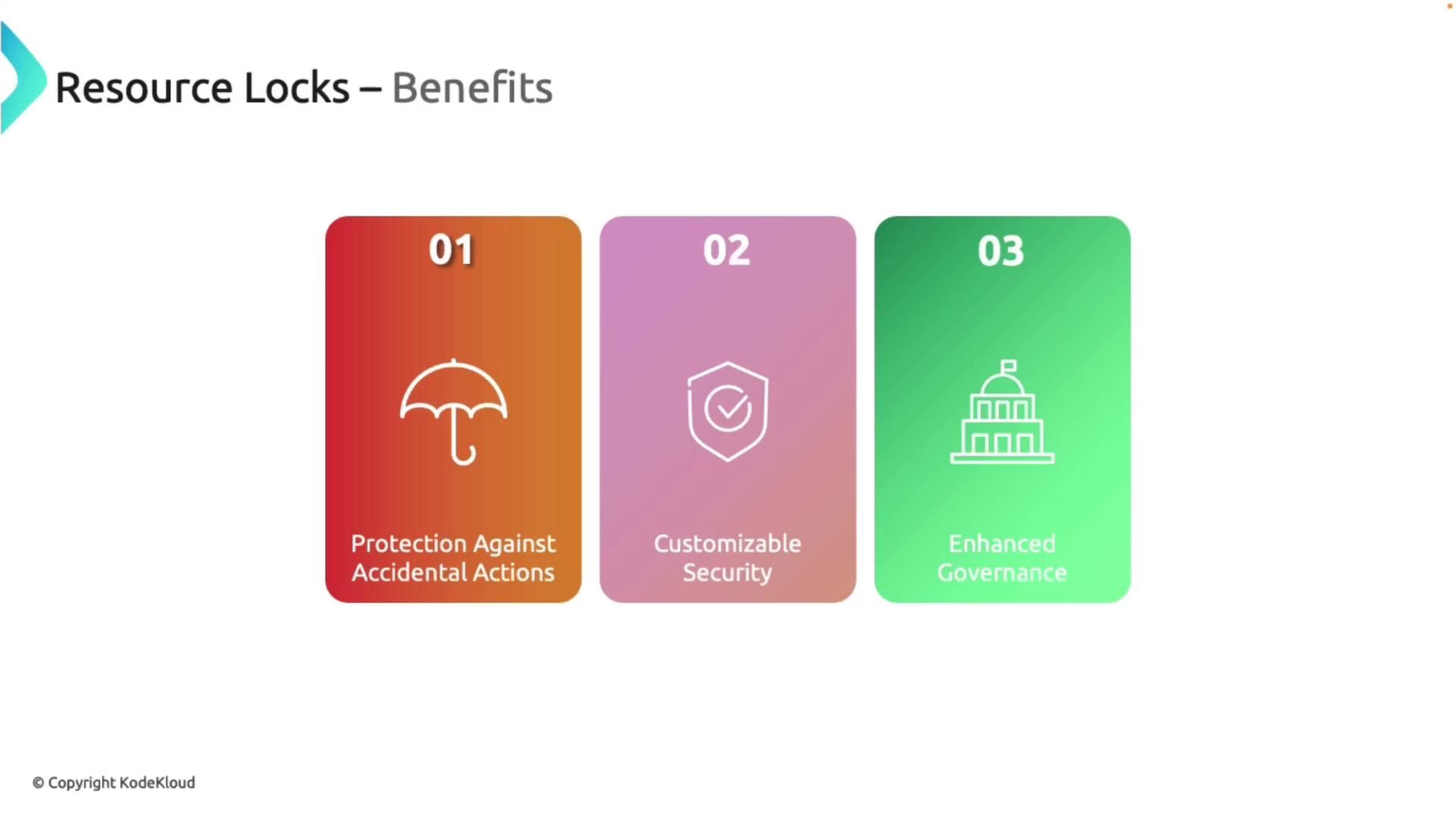
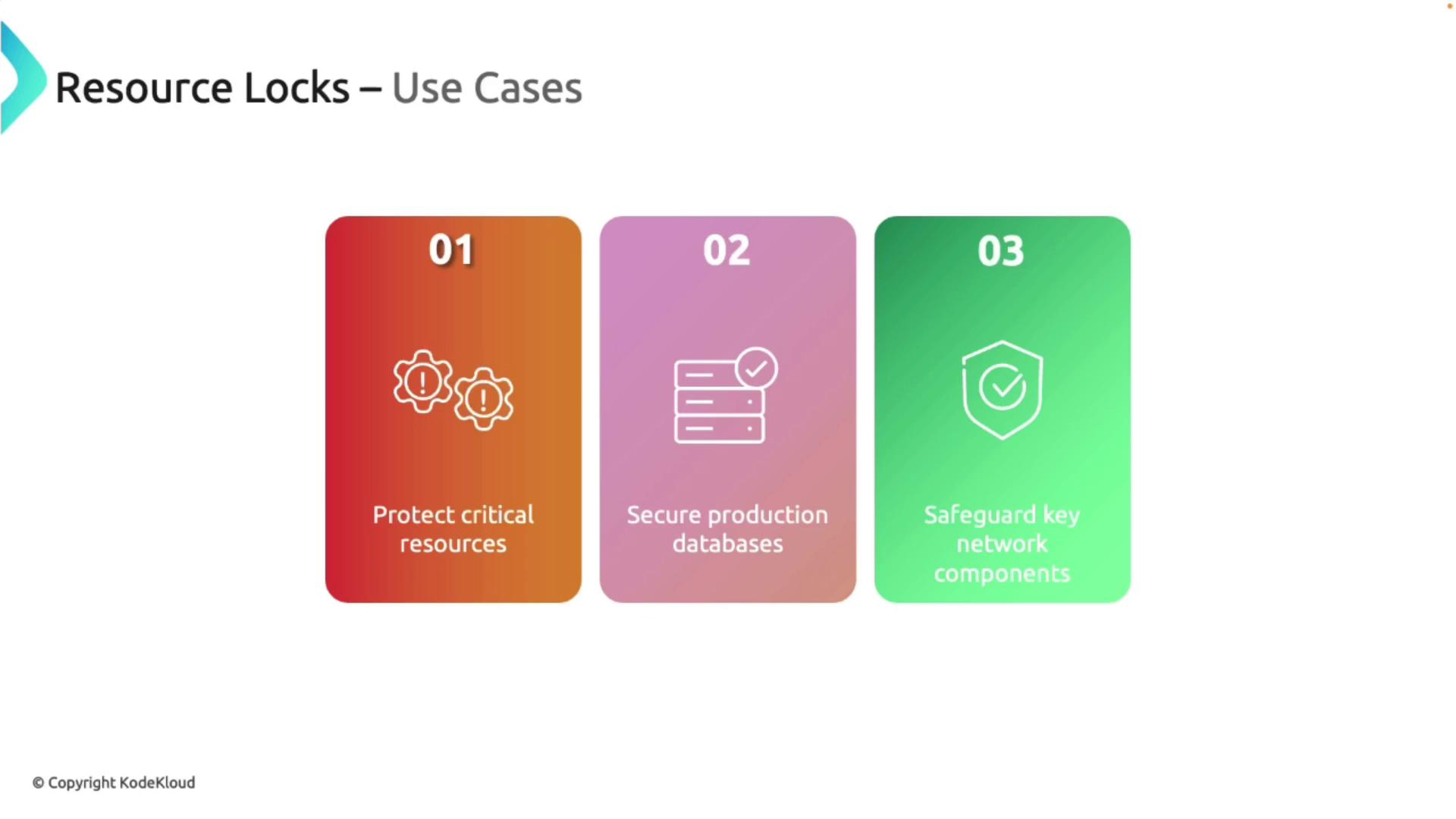
Use Cases for Resource Locks
Resource locks are particularly useful for protecting high-value assets, such as:- Production databases
- Key networking components
- Essential services
Managing Resource Locks in the Azure Portal
Managing resource locks via the Azure Portal is straightforward. Follow these steps to implement and oversee locks on your resources:-
Navigating the Locks:
Sign in to the Azure Portal, navigate to your subscription, and search for “locks.” Locks set at the subscription level are inherited by all resource groups and underlying resources. -
Applying a Lock to a Resource Group:
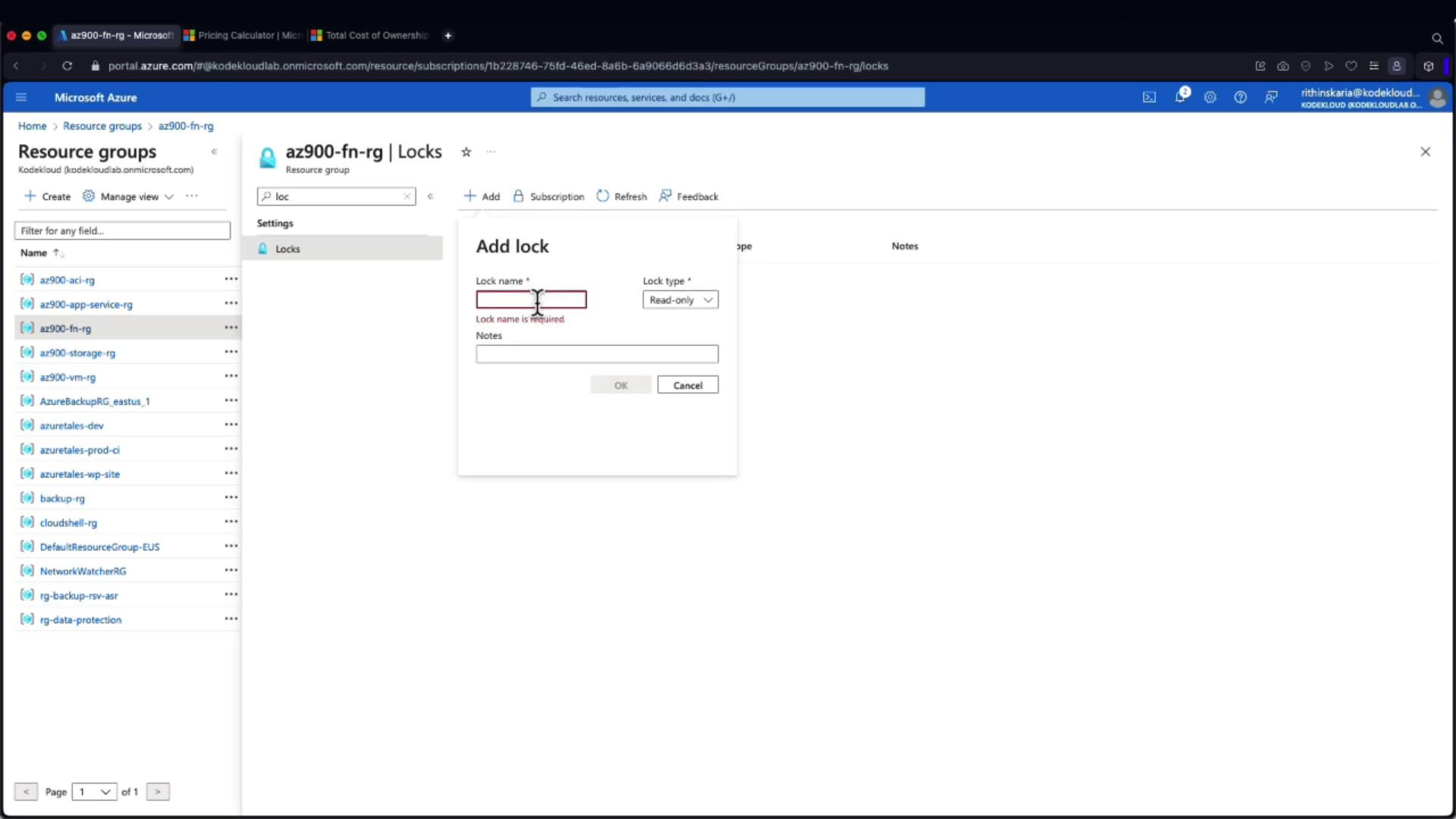
Within a specific resource group, search for “lock” and add a new lock. For instance, you might name the lock “dnd” (do not delete) and then confirm by clicking OK.
- Effect of Locks on Resources:
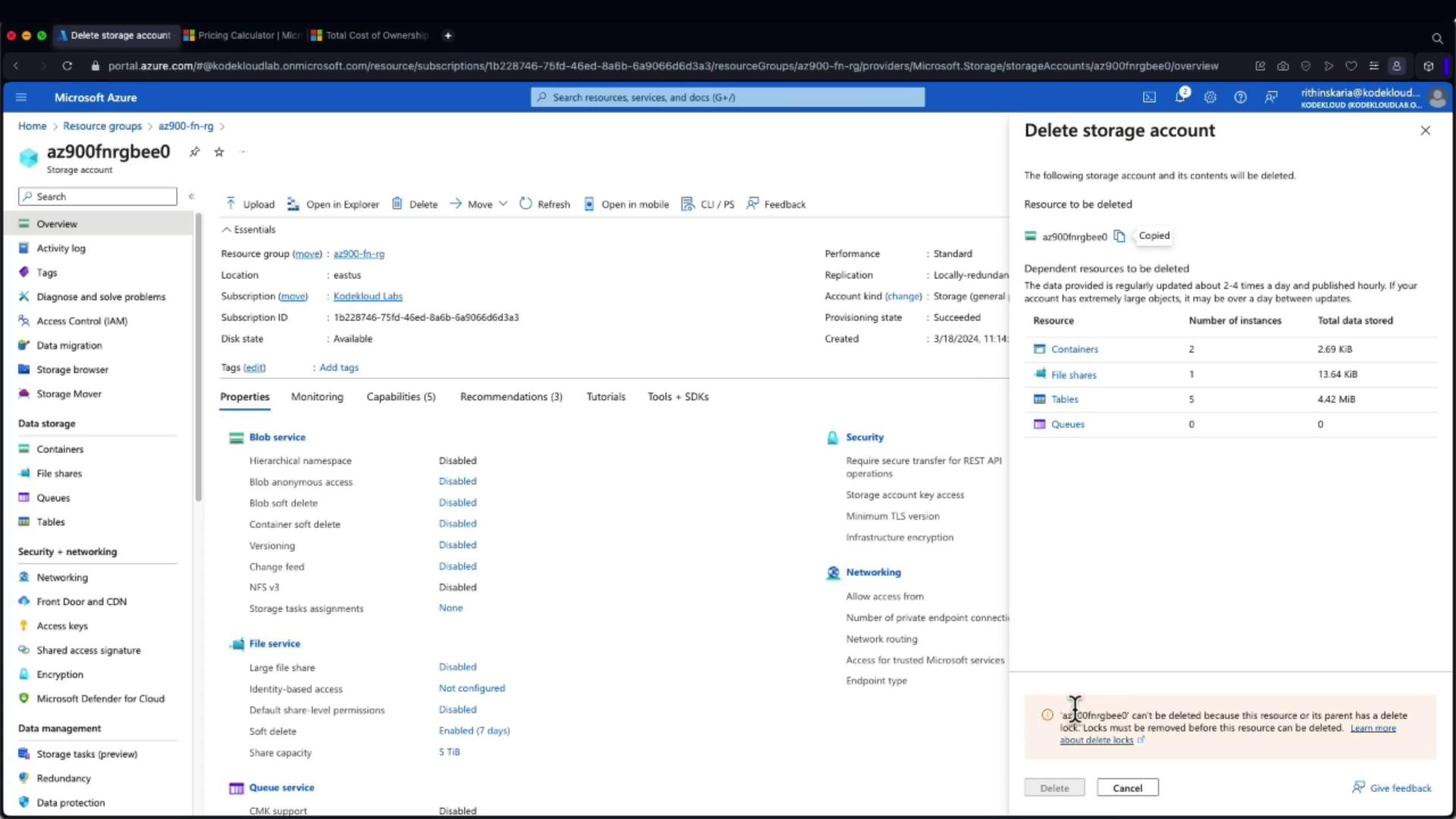
When a lock is applied to a resource group, attempts to delete any resource within that group (such as a storage account) will be blocked. An error message will inform you that the deletion is prevented by the active Delete lock.
- Understanding Inheritance and Overrides:
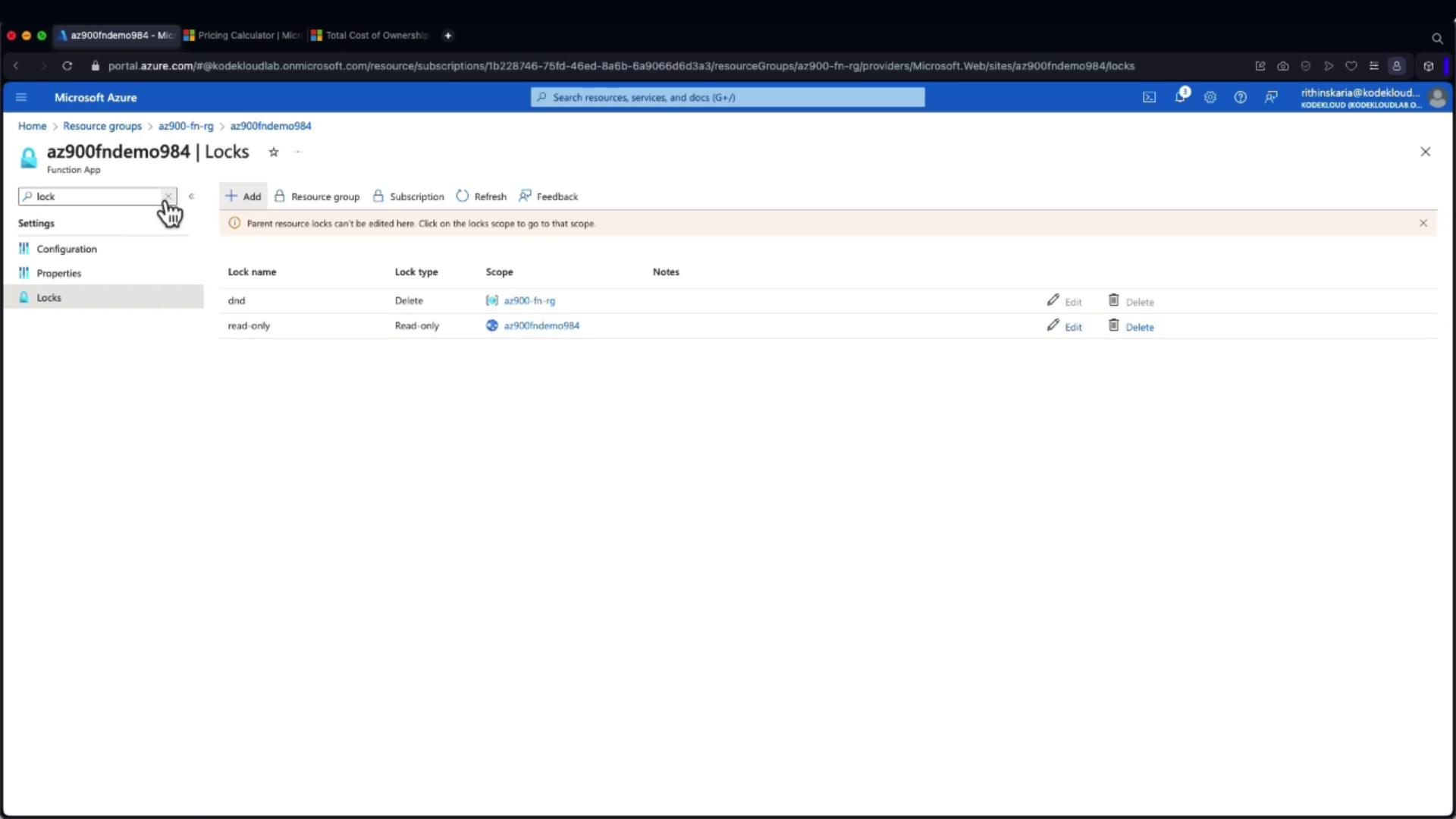
Locks applied at the resource group level are automatically inherited by all resources within that group. However, additional locks can be set on individual resources. For example, adding a Read-Only lock at the resource level will override other operations, such as restarting the resource.
- Removing Locks:
To remove a lock, return to the “locks” section. If a lock is inherited from a parent scope (like a resource group), you will need to remove it from that parent level rather than individually on the resource.
When managing resource locks, always verify the scope from which the lock originates to avoid unintentional exposure of critical resources.