Learn to clone VMs, set up an Ansible controller and targets, and test connectivity using Ansible in this comprehensive lesson.
In this lesson, you will learn how to clone virtual machines, set up an Ansible controller and target machines, and test connectivity using Ansible. The process includes powering off the original VM, creating linked clones, renaming hosts, installing Ansible, and verifying communication between nodes.
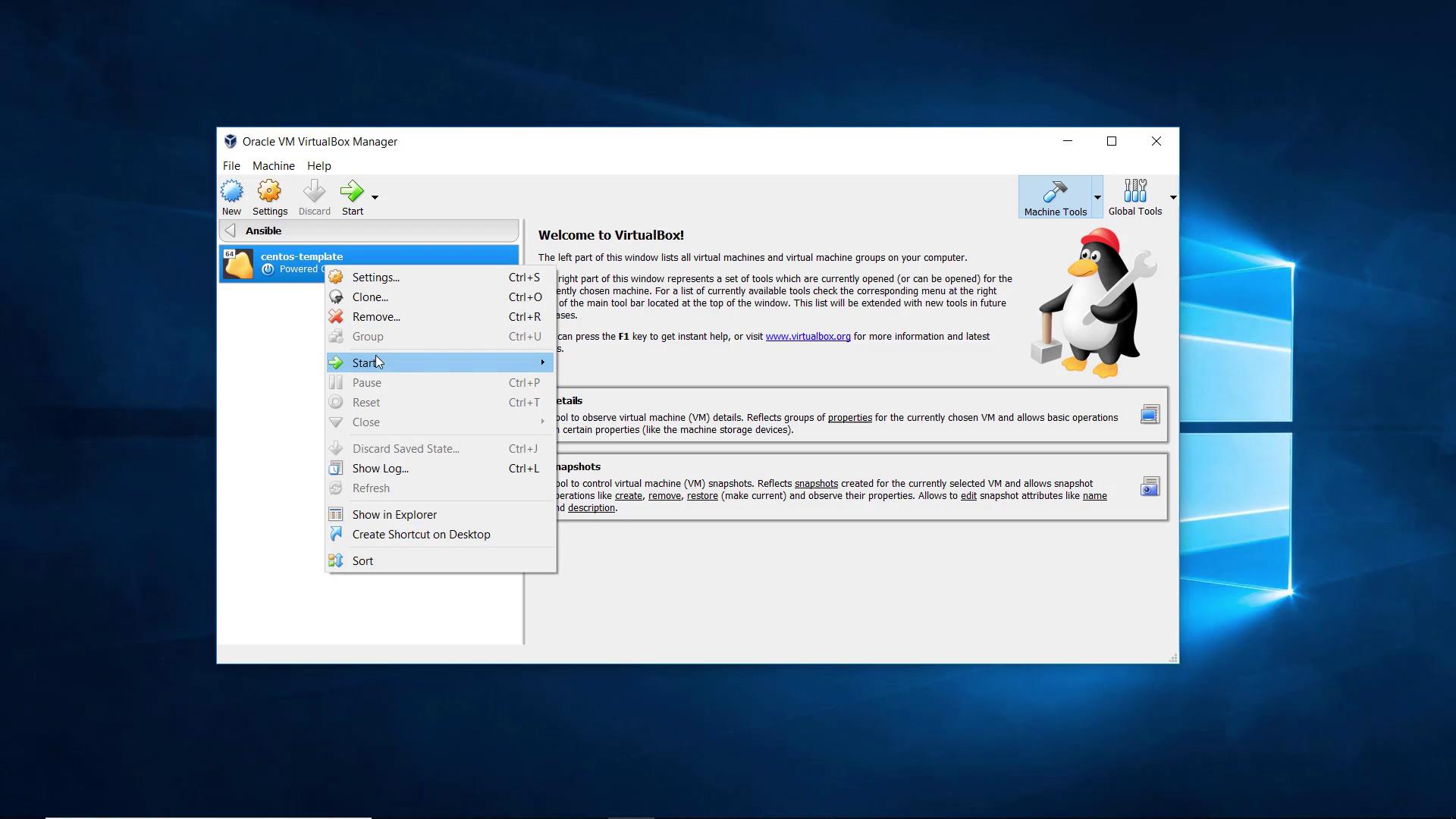
First, power off your virtual machine. Right-click on the VM (in this example, a “centos-template”) and select Clone.
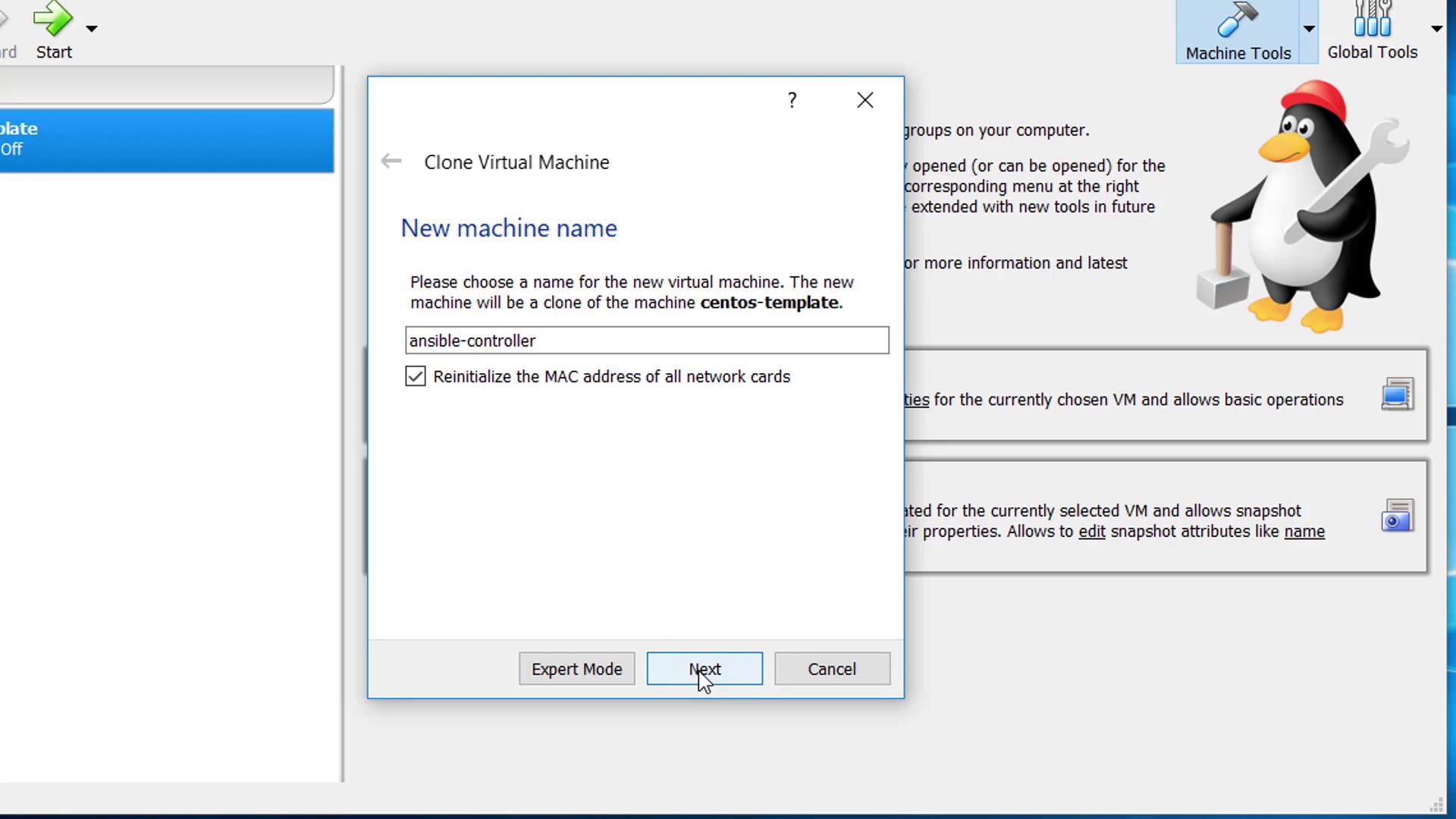
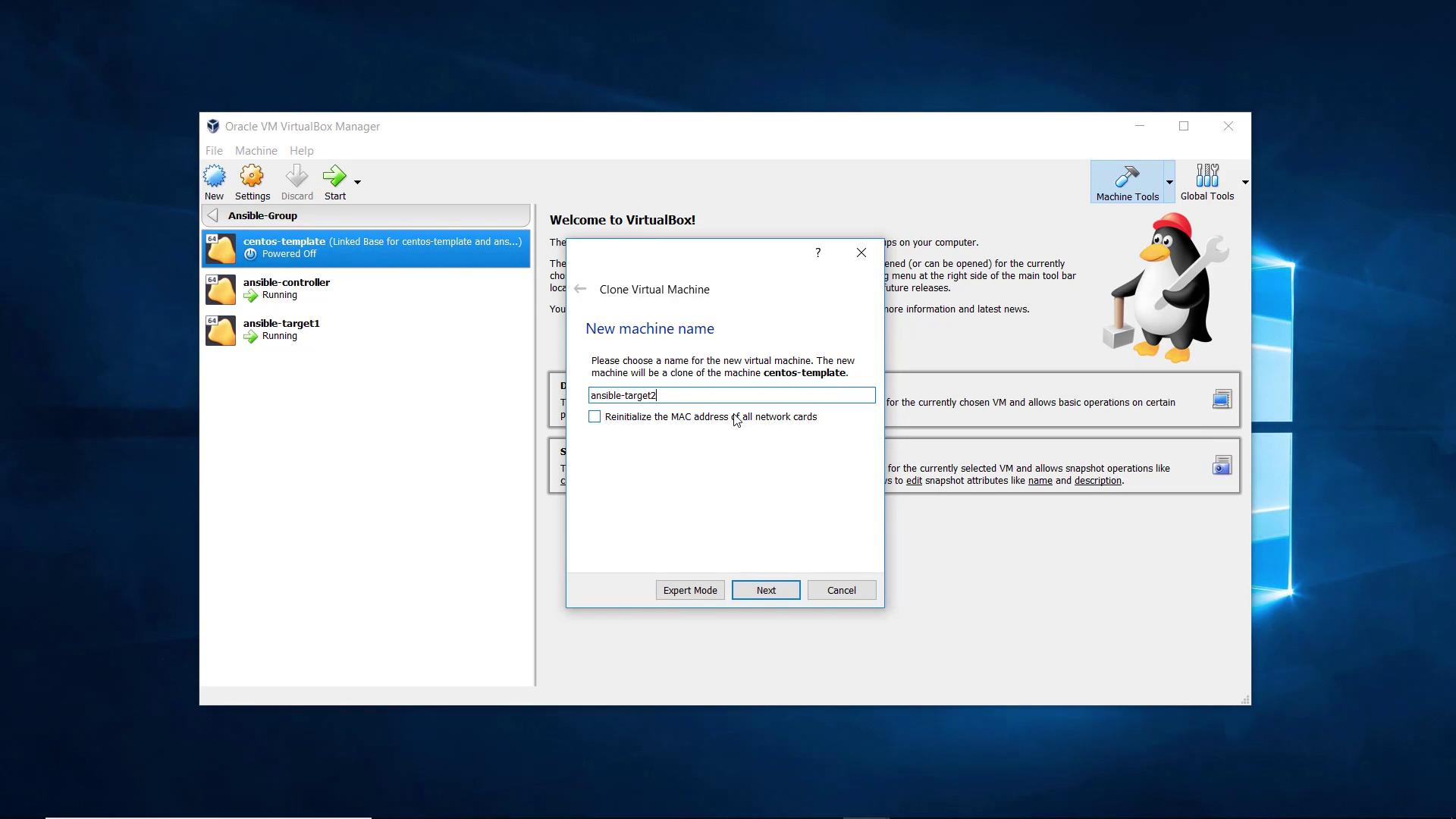
In the clone creation wizard, you will be prompted to provide a name for the new VM. Name the first clone Ansible controller. Ensure you check the reset MAC address option so that each virtual machine receives a unique MAC address.
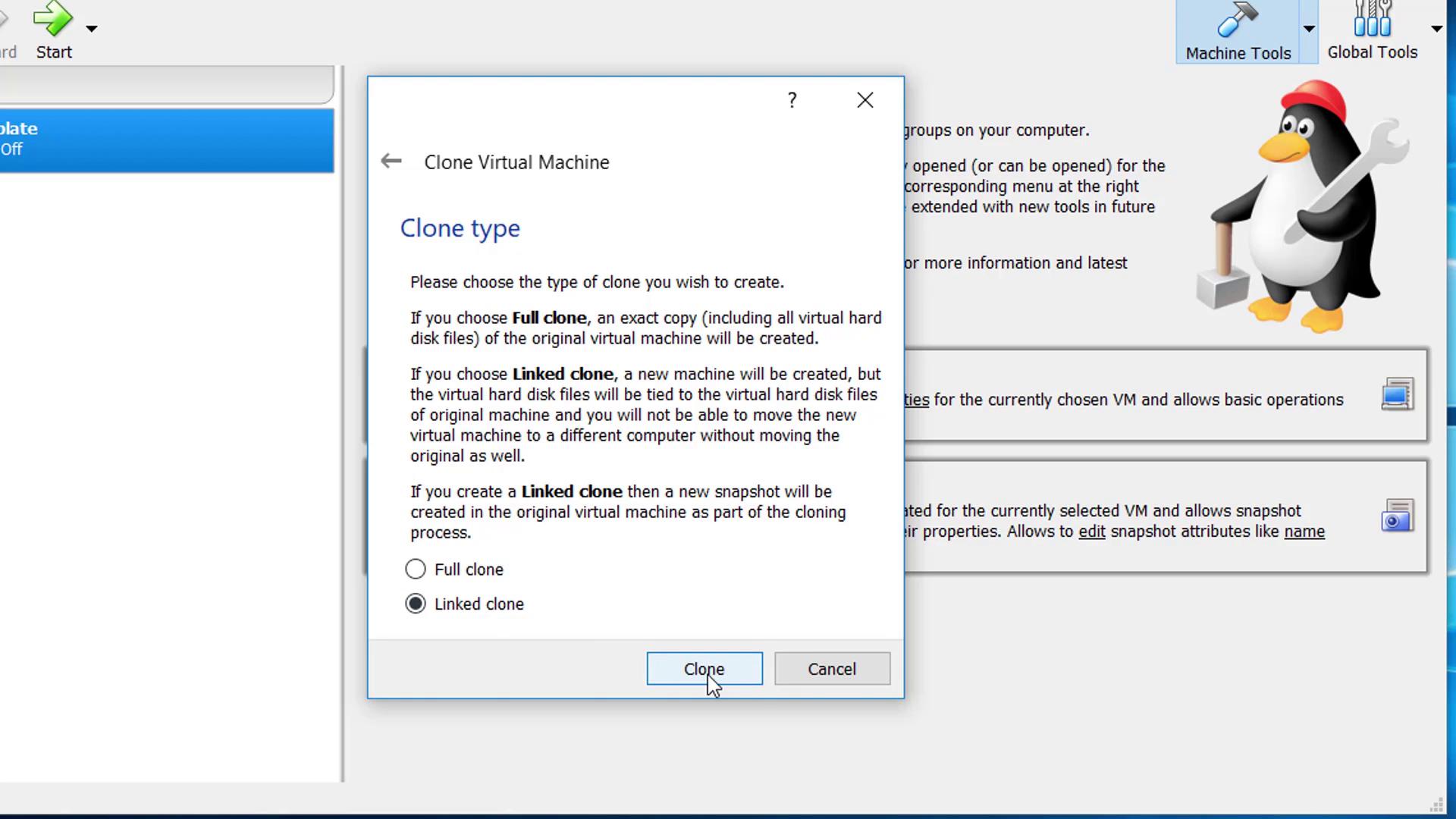
In the next step, select the linked clone option. A linked clone conserves disk space by referencing the original disk image instead of duplicating it entirely.
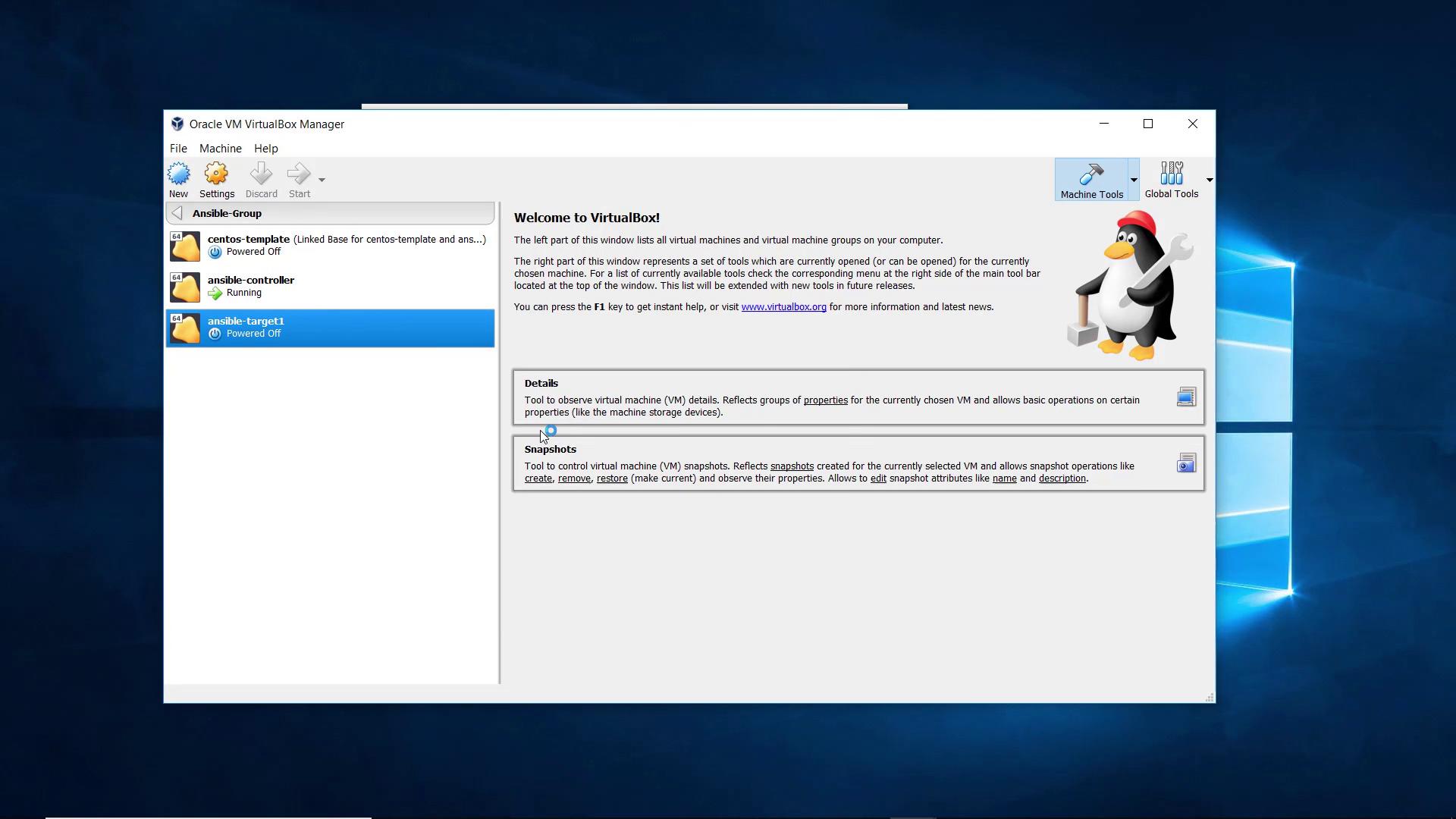
Click Clone to create the Ansible controller. Repeat the same steps to clone another machine for the Ansible target, naming it Ansible-target1, checking the reset MAC address option, and opting for a linked clone.After cloning, you will have three VMs:
A template (centos-template)
Ansible controller
Ansible-target1
Power on both the Ansible controller and the Ansible target.
2. Establishing SSH Sessions and Checking IP Addresses
Once the virtual machines are powered on, log into the operating system using the OSBox password. Open a terminal and run the following command to check the IP address:
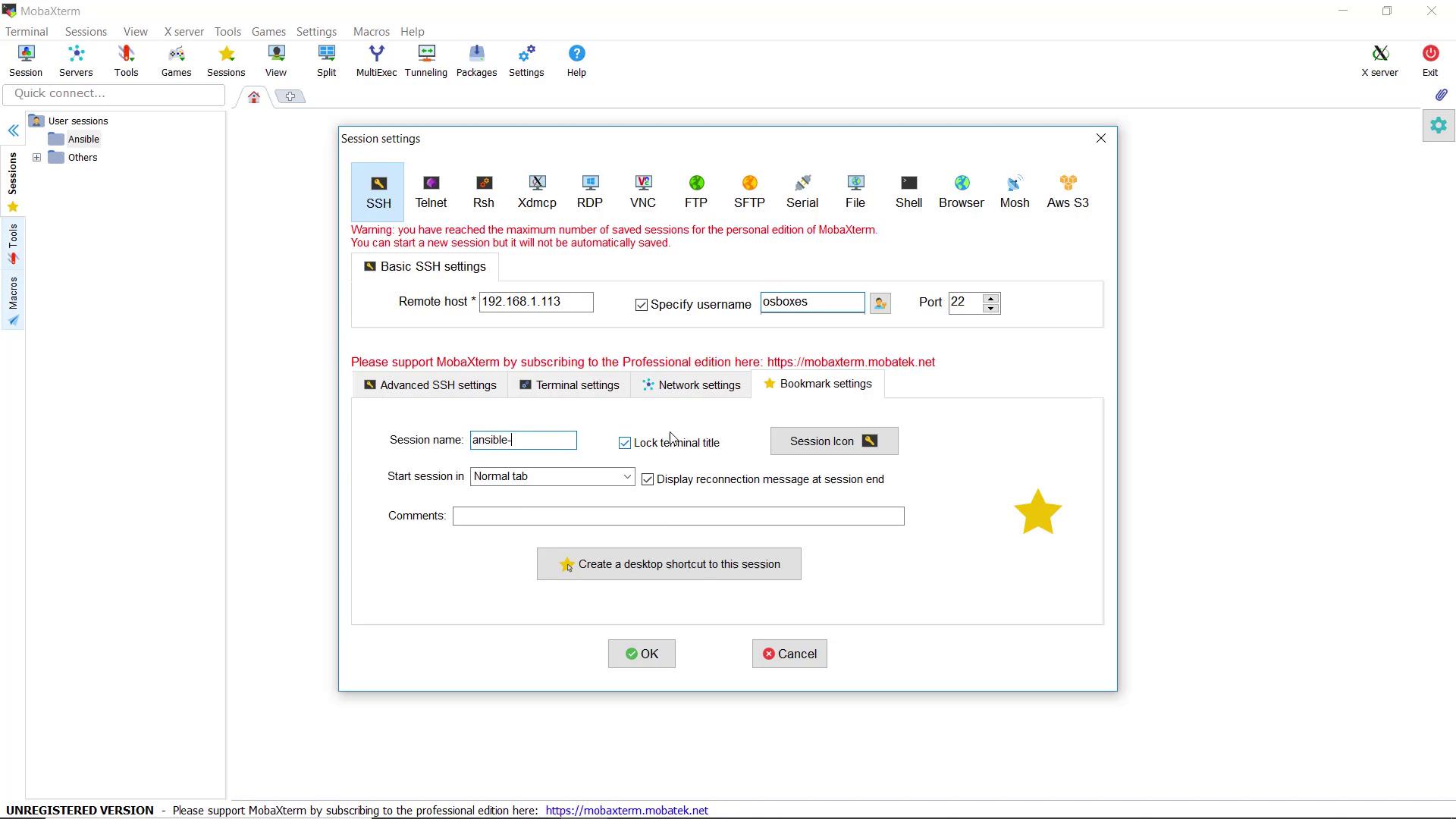
For easier management, establish an SSH session to the Ansible controller using its IP address (for example, 192.168.1.113) with the username osboxes. Name this session Ansible-controller.
Similarly, set up an SSH session for the Ansible target (e.g., at IP 192.168.1.114) and name it Ansible-target1. Upon logging in, you might see:
Copy
Ask AI
Last login: Sat May 26 04:13:56 2018[osboxes@osboxes ~]$
By default, both the controller and target machines are named OSBoxes. Update the hostnames to clearly define their roles. For the controller, modify the /etc/hostname file by replacing “OSBoxes” with Ansible-controller:
Copy
Ask AI
[osboxes@osboxes ~]$ sudo vi /etc/hostname[sudo] password for osboxes:[osboxes@osboxes ~]$
Next, update the /etc/hosts file to reflect the new hostname. Replace the default entries:
with your desired hostname information while keeping the localhost entries intact.
After saving the changes, restart the system to apply the new hostname. Repeat these steps on the target machine (for example, renaming it to target) and verify the changes in your SSH sessions.
With the hostnames correctly set, install Ansible on the Ansible controller. Follow the official Ansible installation instructions for CentOS using yum. Execute the command in your terminal. During installation, you may be prompted to confirm the import of the GPG key and other related messages. A sample output is shown below:
5. Testing Connectivity Between Controller and Target
First, manually verify SSH connectivity from the Ansible controller to the target machine. For example, SSH into the target server at 192.168.1.114:
Copy
Ask AI
[osboxes@ansiblecontroller ~]$ ssh 192.168.1.114The authenticity of host '192.168.1.114 (192.168.1.114)' can't be established.ECDSA key fingerprint is SHA256:7s4hRBL0E0qffgA/2J/p2QH0mJTY/qHInXJ802LE.ECDSA key fingerprint is MD5:84:26:6d:a0:87:34:cf:17:f8:8f:1b:6b:7e:ba.Are you sure you want to continue connecting (yes/no)?
Type yes, provide the password, and then exit.Next, create a test project to use Ansible’s ping module. Inside the Ansible controller, create a folder named test-project and an inventory file for your target:
To further validate the setup, create another clone from the template for a second target machine.
After cloning, power on the new target and check its IP address. For example, if the new IP is 192.168.1.115, your output from ifconfig might look like:
Establish an SSH session to this new target (naming it Ansible-target2) and update its hostname similarly to the previous steps. Then, update your inventory file in the test-project directory to include both targets:
Copy
Ask AI
[osboxes@ansiblecontroller test-project]$ vi inventory.txt
Change the inventory file to include both targets:
[osboxes@ansiblecontroller test-project]$ ansible target1 -m ping -i inventory.txttarget1 | SUCCESS => { "changed": false, "ping": "pong"}[osboxes@ansiblecontroller test-project]$ ansible target2 -m ping -i inventory.txttarget2 | FAILED! => { "msg": "Using a SSH password instead of a key is not possible because Host Key checking is enabled and sshpass does not support this. Please add this host's fingerprint to your known_hosts file to manage this host."}
To resolve the error for target two, you can either manually SSH into target two to accept its fingerprint or disable host key checking in the Ansible configuration by setting host_key_checking = False in /etc/ansible/ansible.cfg. (Note: Disabling host key checking is not recommended for production environments.)
After resolving the host key issue, run the ping test again:
Ansible has been successfully installed and configured on the Ansible controller, and communication has been established with both target machines. This lesson covered the entire process—from cloning VMs and renaming hosts to installing Ansible and performing connectivity tests using the ping module.In production environments, it is highly recommended to use SSH key-based authentication instead of passwords for better security.Thank you, and that concludes this demo.