

Prerequisites
- Terraform CLI installed (v1.0+ recommended)
- Terraform Cloud account with access to the
Mastering-Terraform-CIorganization - An existing Terraform workspace named
devops-aws-myapp-dev
Ensure you have Workspace Admin privileges in Terraform Cloud to manage locks.
1. Configure the Remote Backend
Update your Terraform configuration to use Terraform Cloud as the remote backend:2. Authenticate and Initialize
- Log in to Terraform Cloud:
- Clone the sample repo and initialize:
3. Run Terraform Plan & Apply
When you executeterraform plan or terraform apply, Terraform Cloud:
- Queues the run
- Automatically locks the workspace during execution
- Prevents other runs until the lock is released
4. Understanding Lock Types
| Lock Type | Trigger | Description |
|---|---|---|
| Automatic Lock | plan / apply operations | Terraform Cloud locks the workspace during runs automatically. |
| Manual Lock | User action in UI | Administrators can prevent new runs until they unlock. |
5. Manually Locking a Workspace
You can manually lock your workspace to halt any new runs:- In Terraform Cloud UI, go to Workspaces > devops-aws-myapp-dev.
- Click Lock workspace.
Queued runs remain in the Pending state until the lock is released. Ensure this doesn’t block critical deployments.
6. Unlocking the Workspace
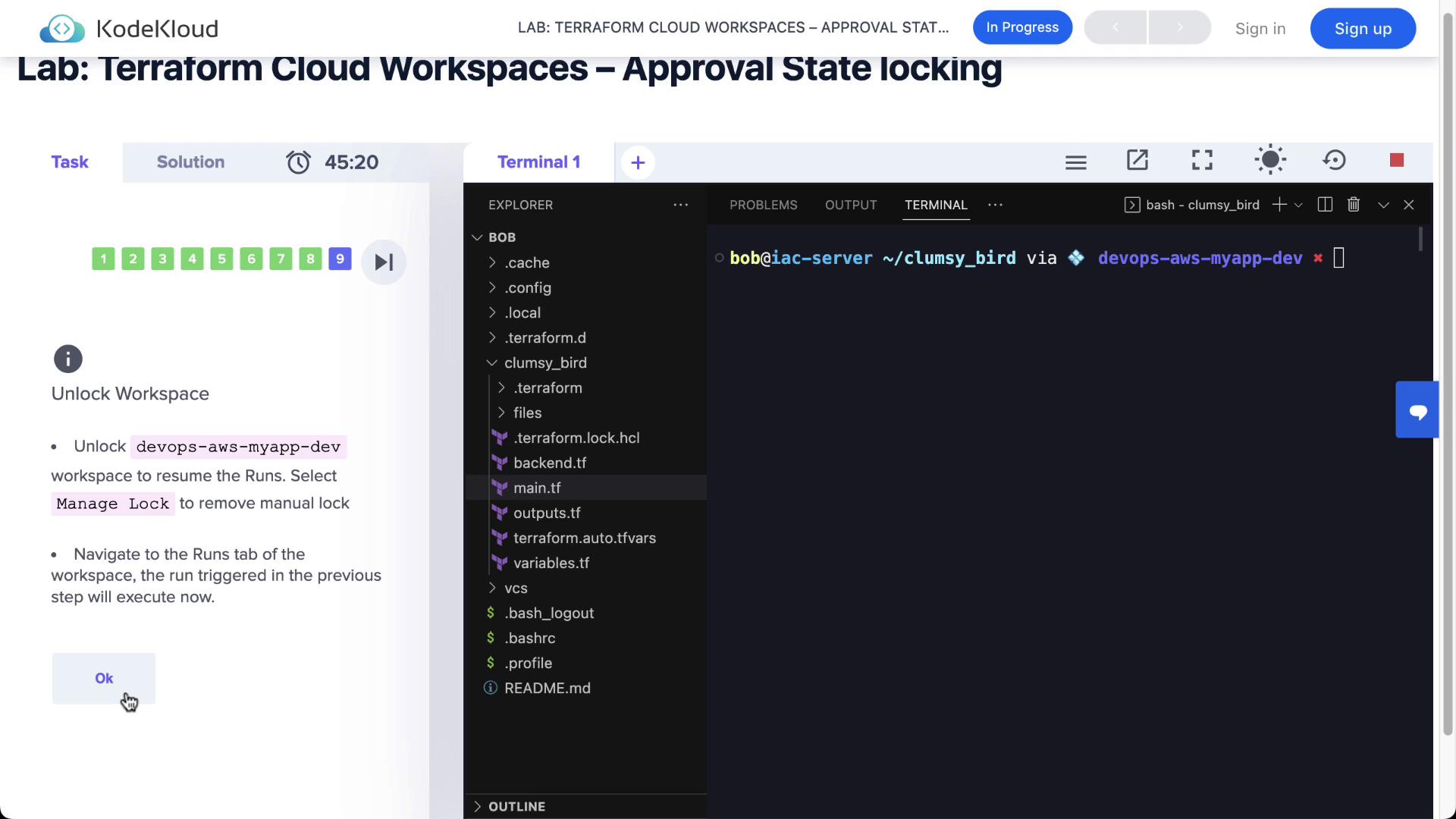
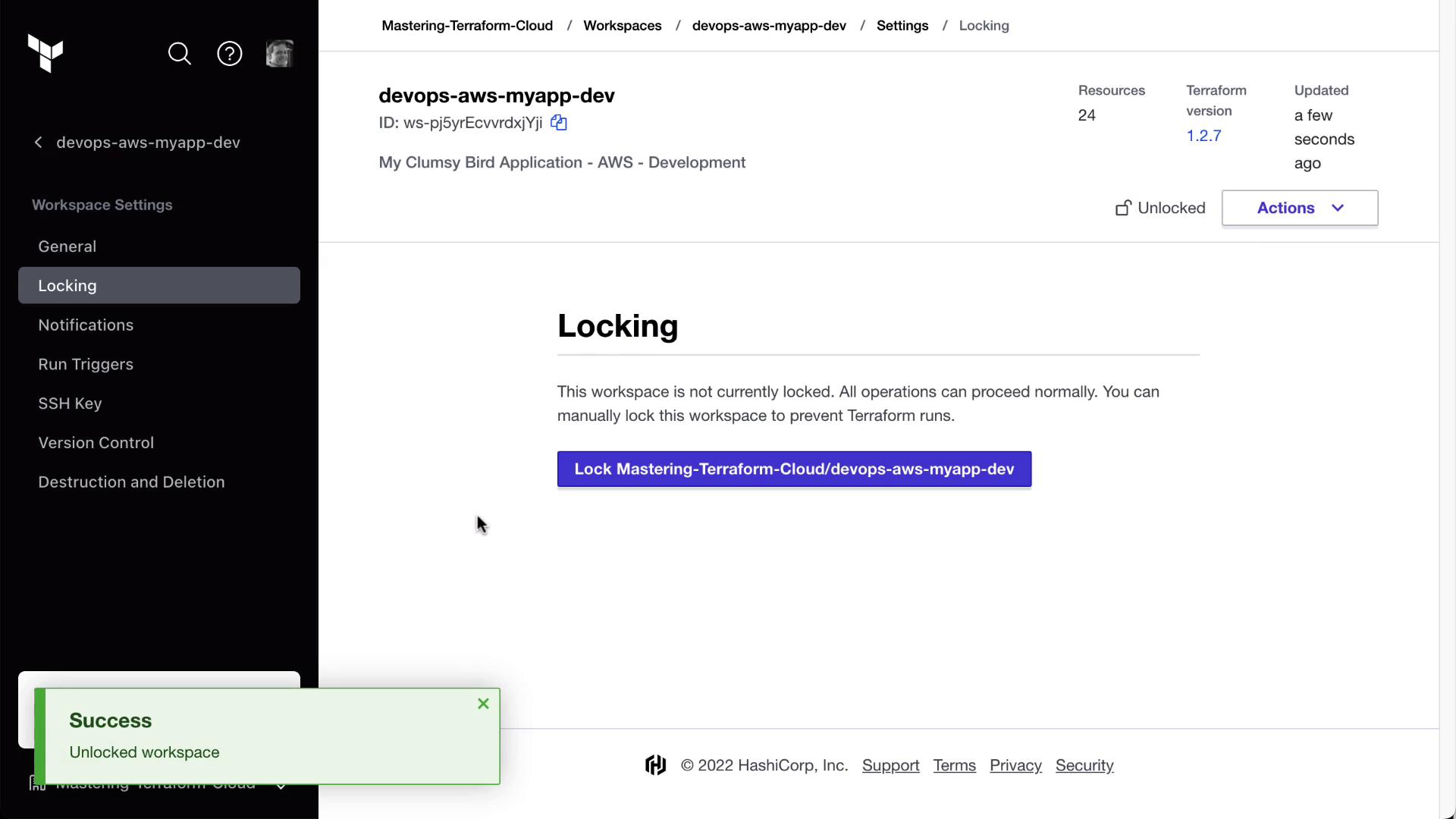
Once you’re ready to proceed:- Navigate to Manage lock in the workspace settings.
- Click Unlock.
Next Steps
- Automate approvals with Run Tasks
- Explore Sentinel Policies to enforce compliance
- Integrate with VCS for pull request workflows