

Step 1: Enable Workspace Notifications
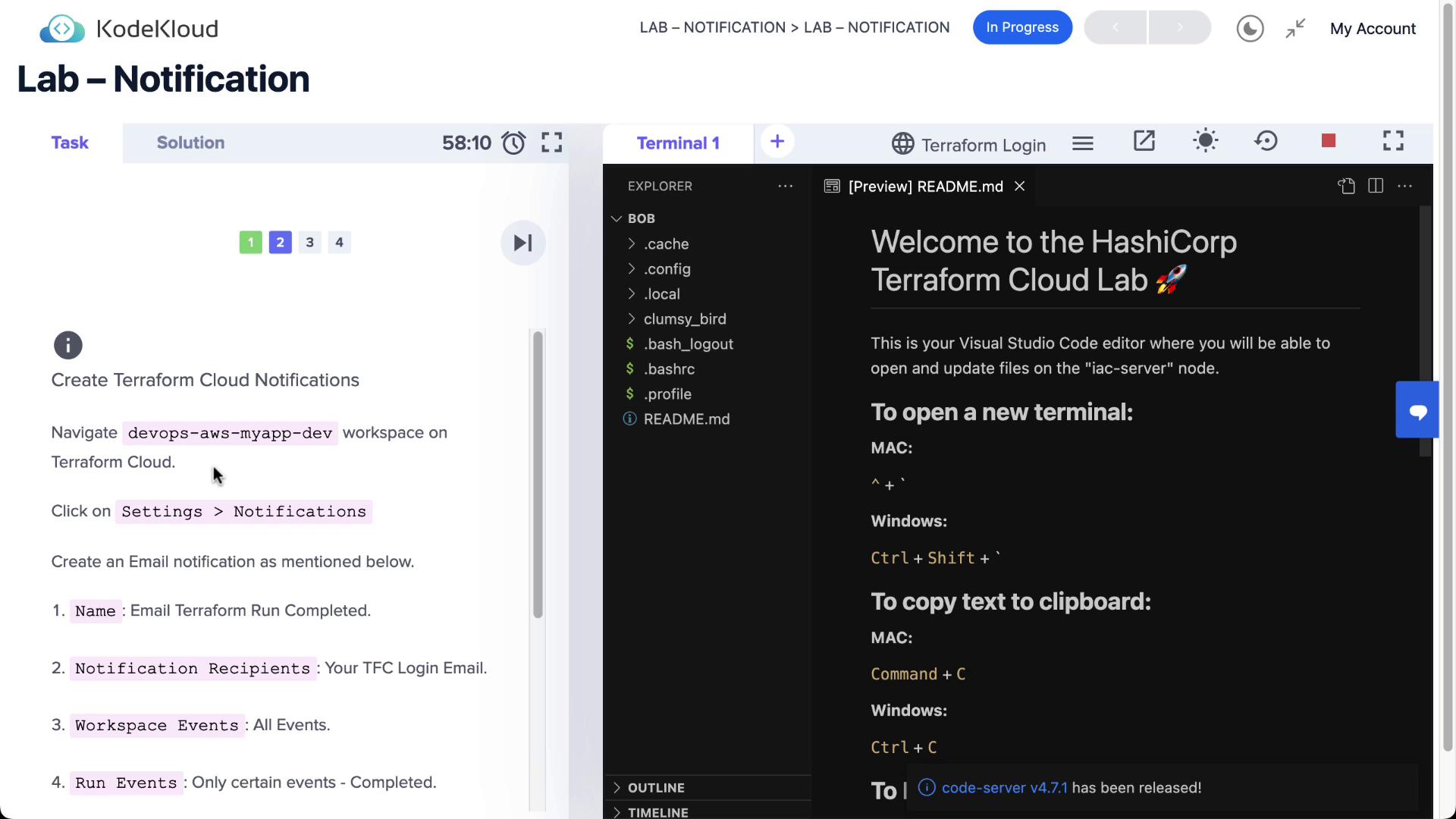
- Log in to Terraform Cloud and select the DevOps AWS MyApp Dev workspace.
- Navigate to Settings > Notifications.

Step 2: Create an Email Notification
Terraform Cloud supports four notification destinations:- Slack
- Microsoft Teams
- Generic Webhook
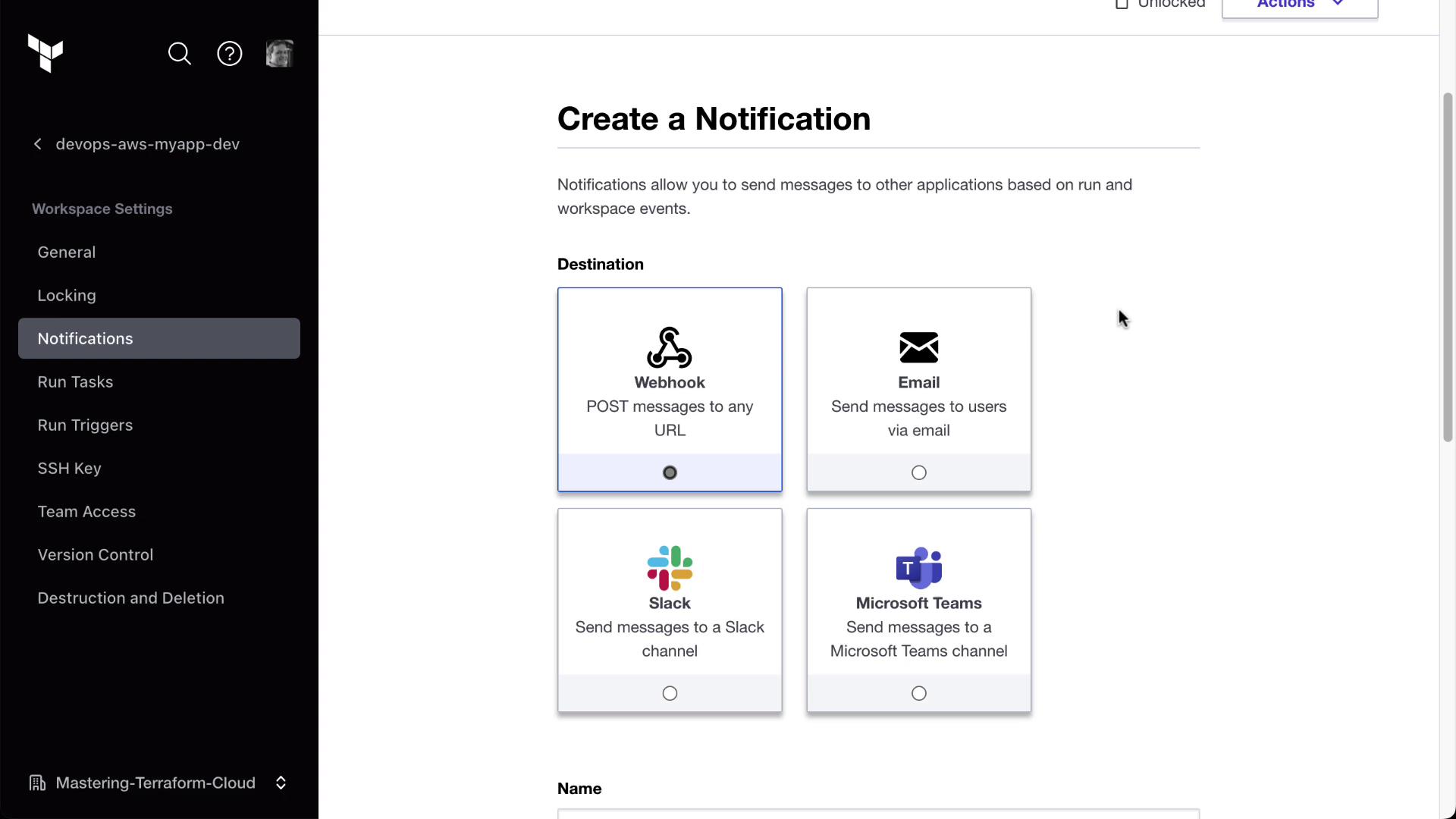
2.1 Configure Email Settings
- Select Email as the destination.
- Enter Terraform run completed as the notification name.
- From Recipient, choose your Terraform Cloud login email.
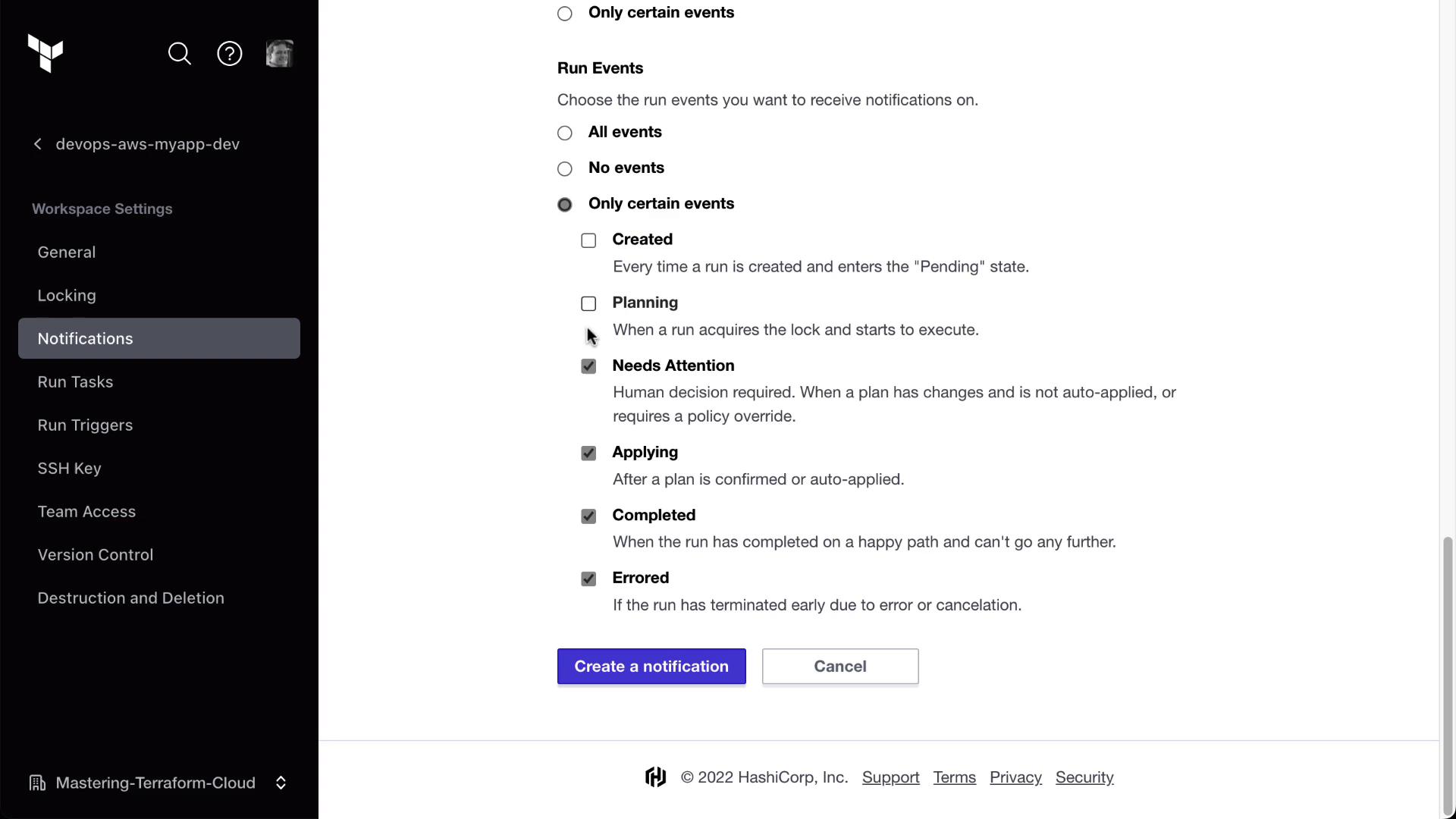
- Under Events, uncheck All events, then select only Completed.
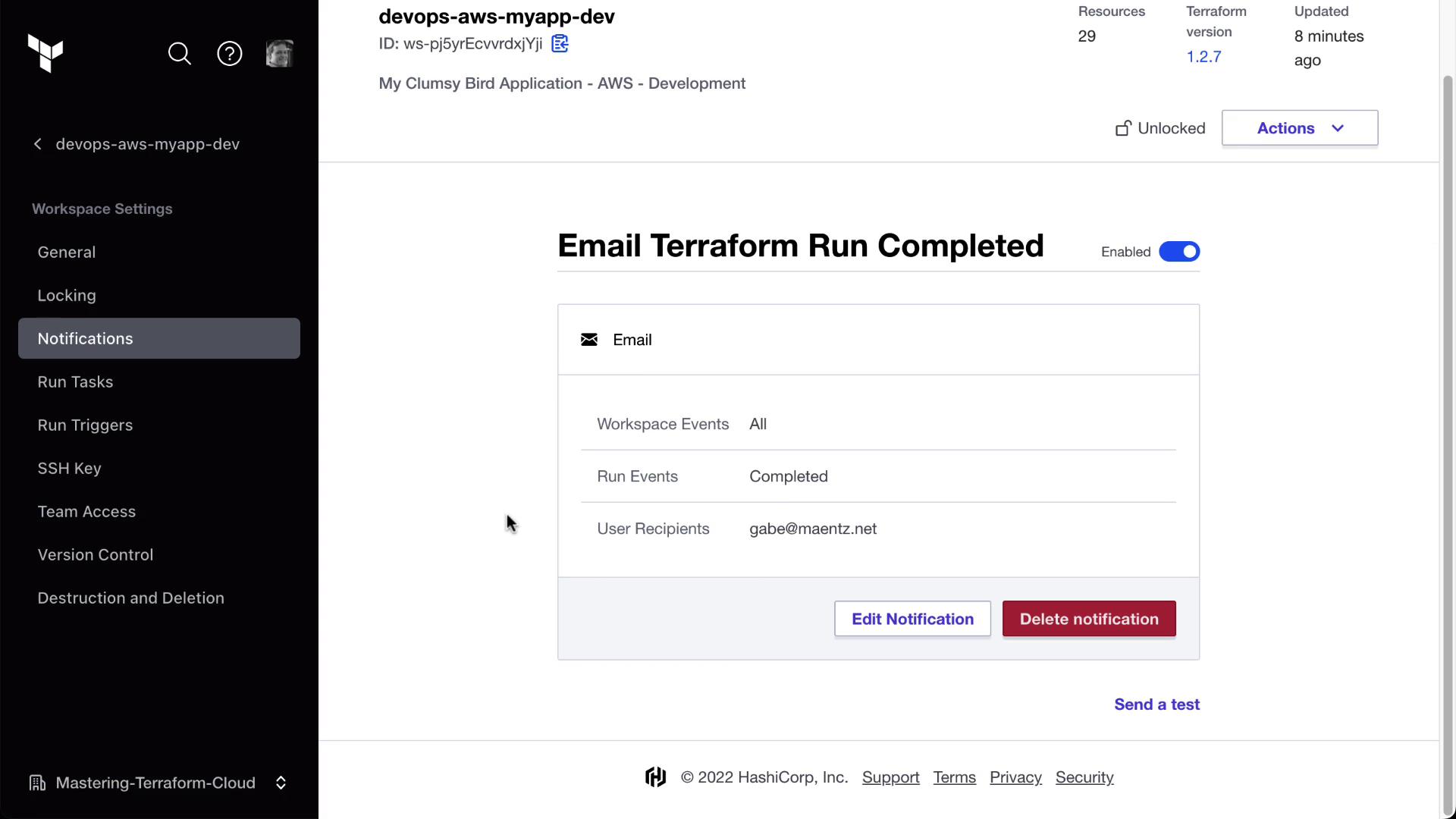
Use the Send test link next to any notification to verify delivery before you rely on real run events.
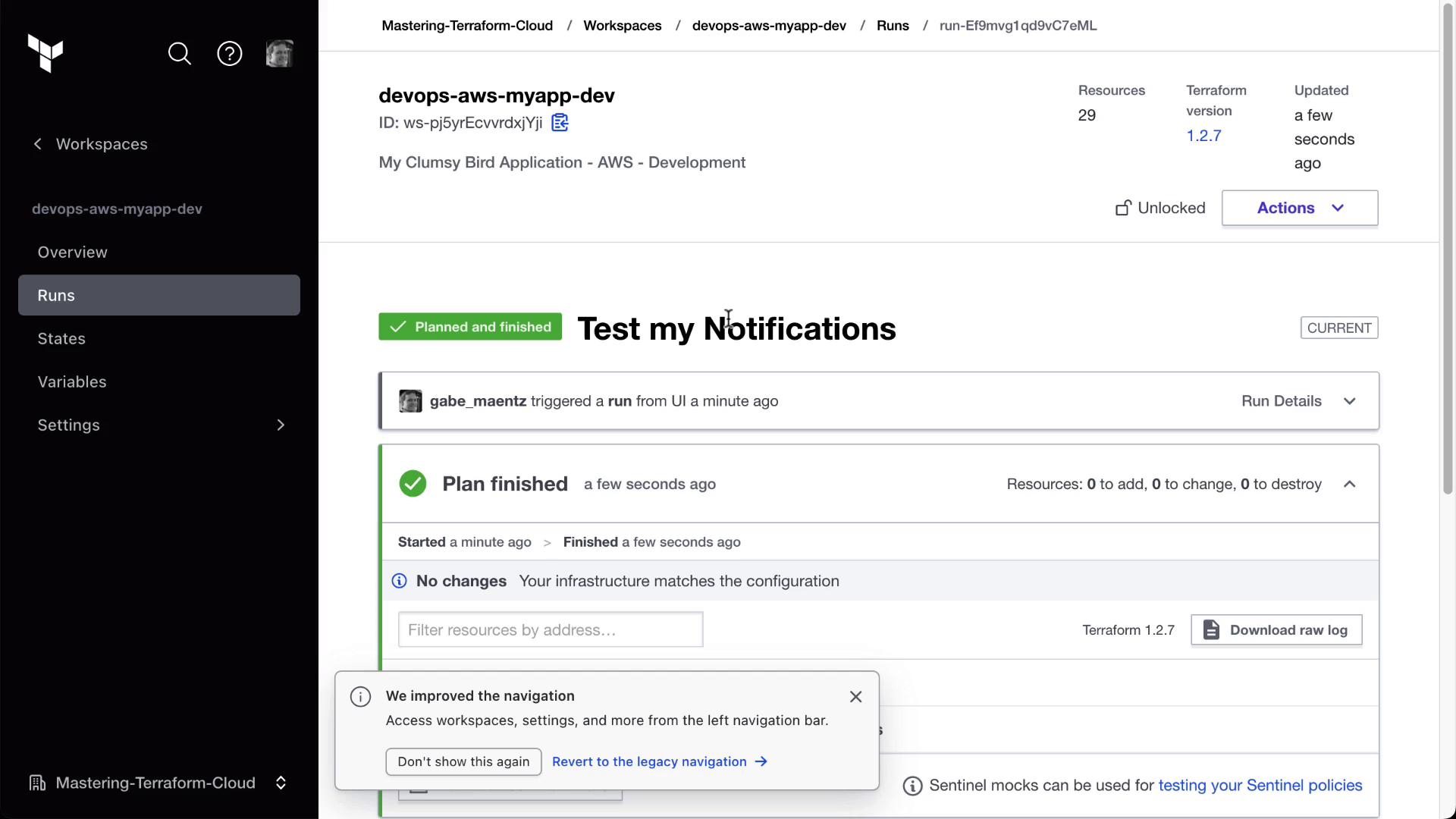
Step 3: Test and Trigger a Terraform Run
- Click Send test on your email notification.
- Check your inbox for a message titled Terraform run completed—it should include workspace details and a test-run ID.
Additional Notification Destinations
You can extend alerts to other platforms:| Destination | Description | Setup Method |
|---|---|---|
| Direct inbox alerts for run lifecycle events | Workspace UI > Notifications | |
| Slack | Post events to any channel via incoming webhook | Provide Slack Webhook URL |
| Microsoft Teams | Send updates into a Teams channel connector | Configure Teams incoming webhook |
| Generic Webhook | Forward payloads to custom HTTP endpoints | Enter target URL and authentication |
Ensure your webhook endpoints are publicly reachable, and secure them with authentication or IP allowlists to prevent unauthorized requests.