

- Upgrade your Terraform Cloud plan to Team & Governance
- Create and configure teams (
org_admins,app_developers,managers) - Invite users and assign them to the correct teams
- Grant workspace permissions across development, staging, and production
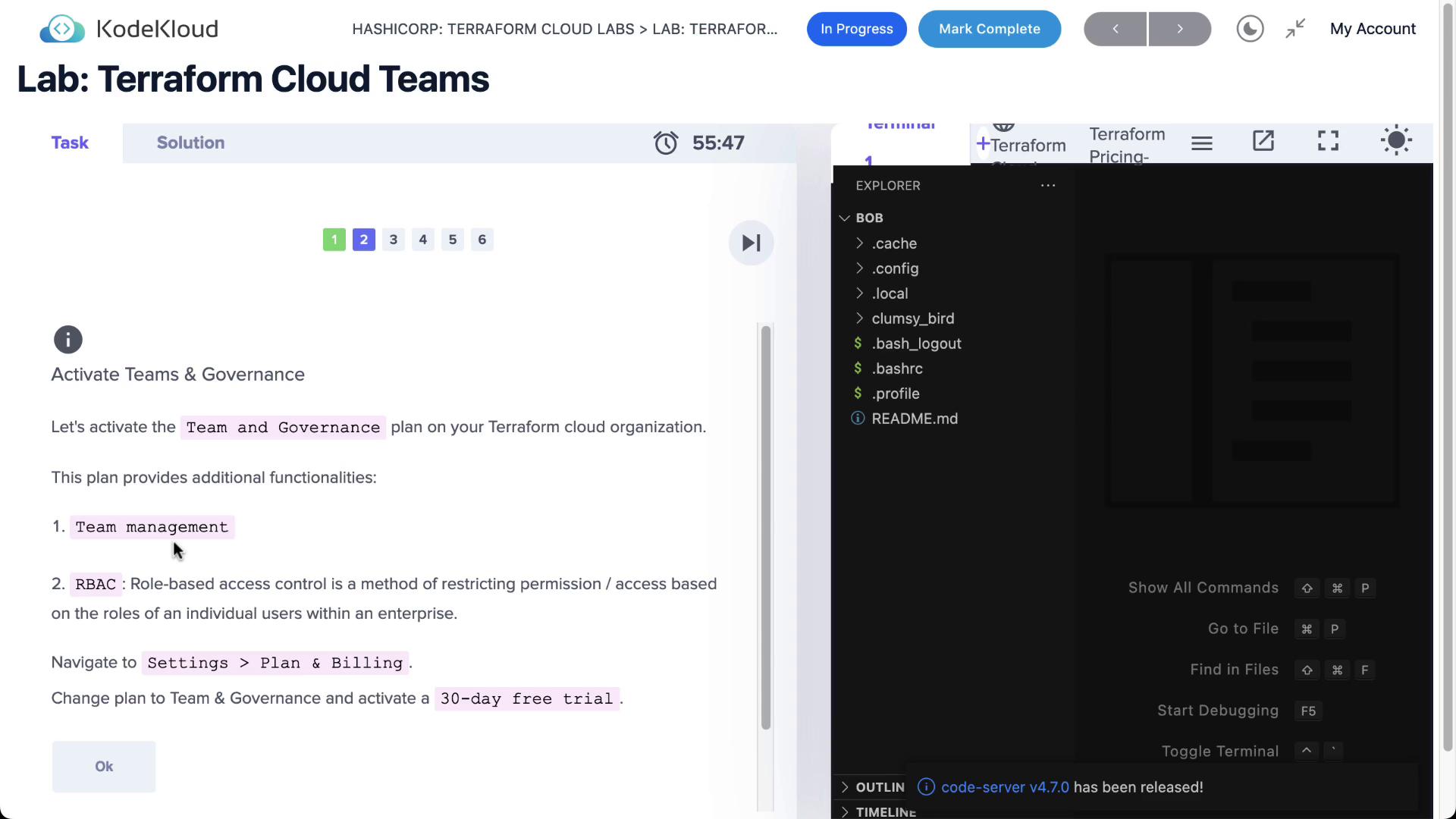
1. Upgrade to Team & Governance Plan
Terraform Cloud’s free tier does not support teams. To enable Teams & Governance features:- Go to your Terraform Cloud organization.
- Navigate to Organization Settings > Plan & billing.
- Select Team & Governance and click Start free trial.
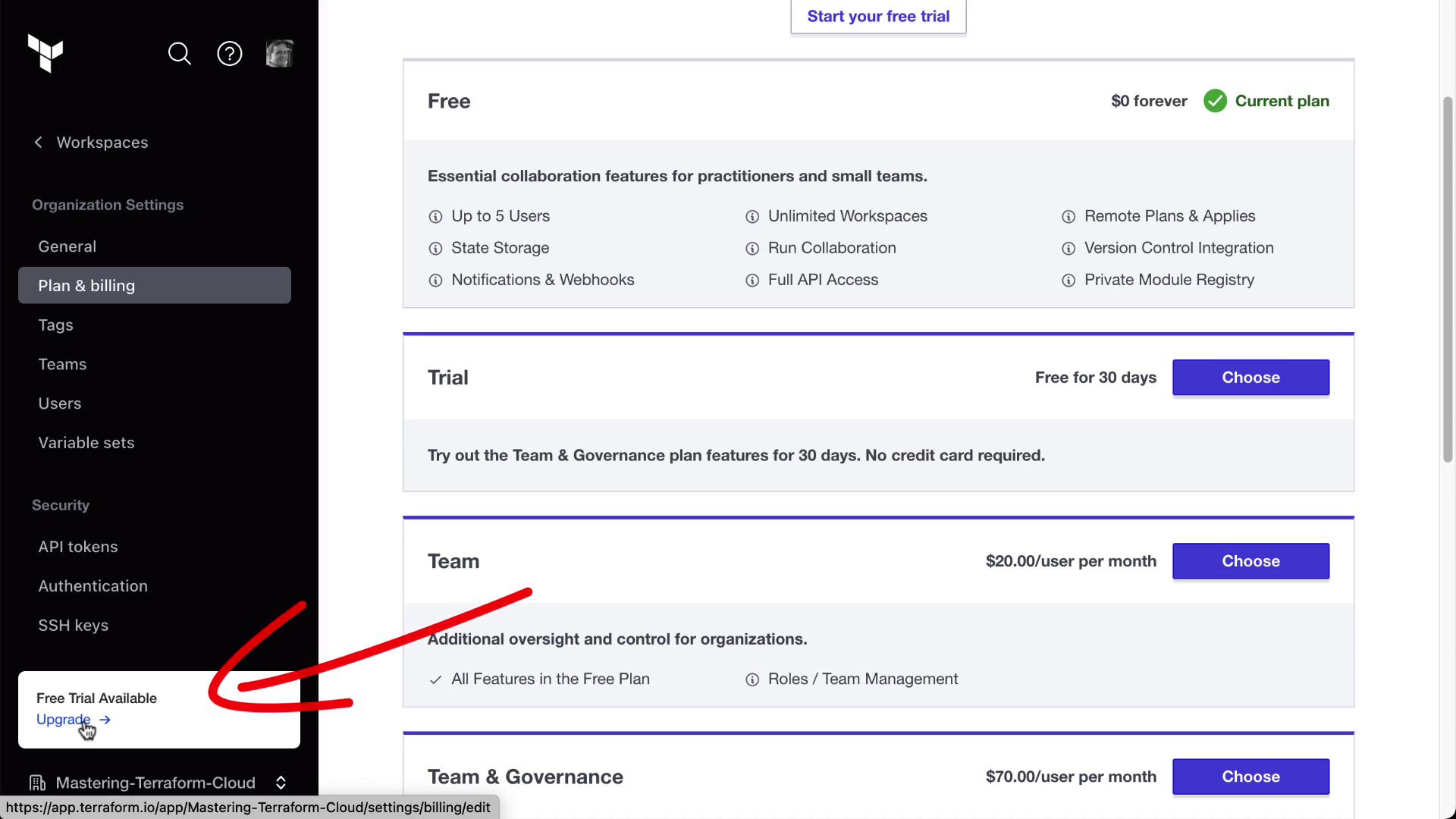
HashiCorp offers a 30-day trial for Team & Governance. Once activated, you can create and manage teams under Organization Settings > Teams.
2. Create Your Teams
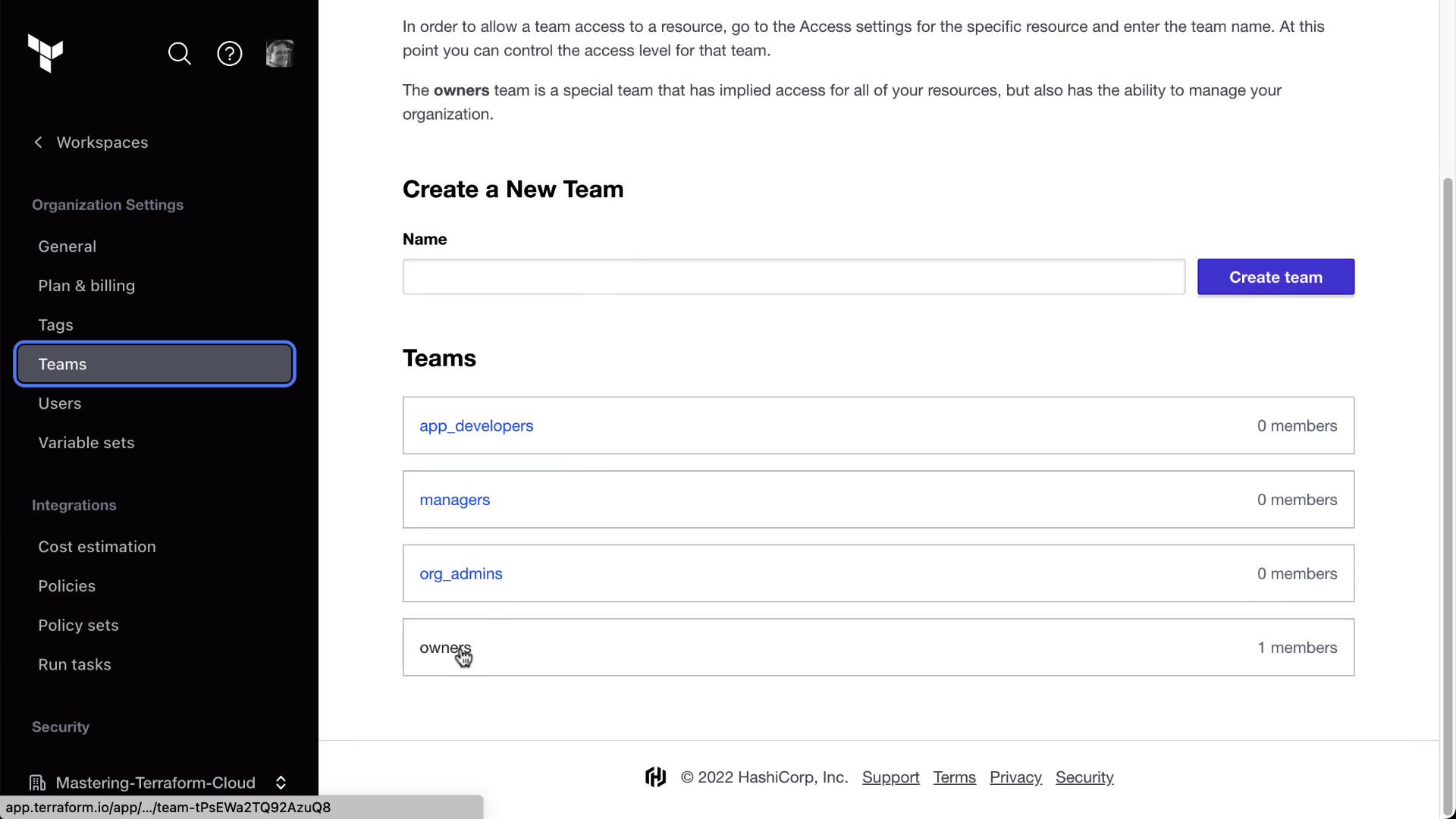
Terraform Cloud ships with a default owners team. We’ll add three more:| Team | Org-Level Access | Purpose |
|---|---|---|
| org_admins | Full (policies, workspaces, VCS, SSO, billing) | Organization administrators |
| app_developers | None | Application development |
| managers | None | Oversight and read-only review |
Steps to Add Teams
- In Terraform Cloud, go to Organization Settings > Teams.
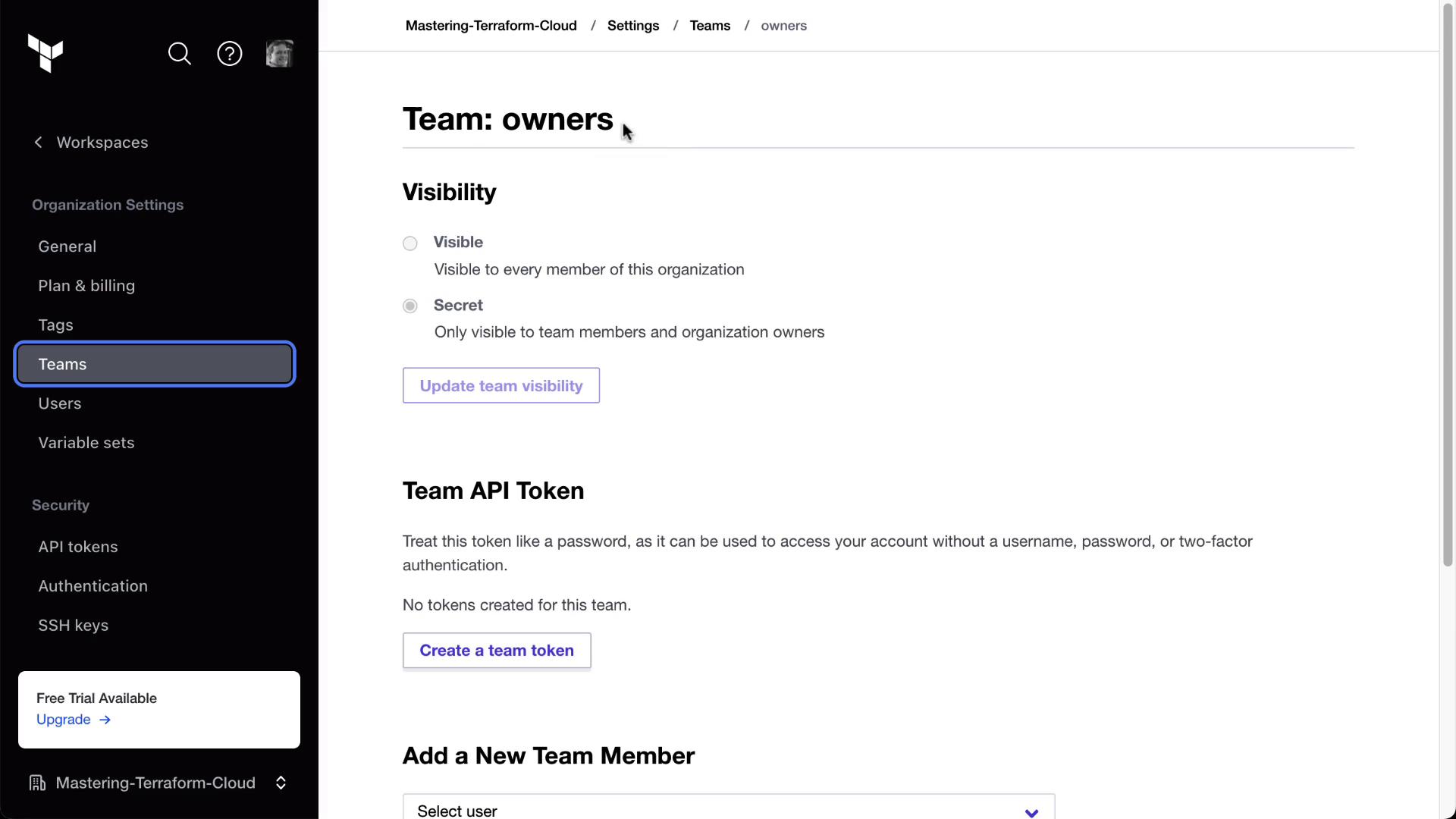
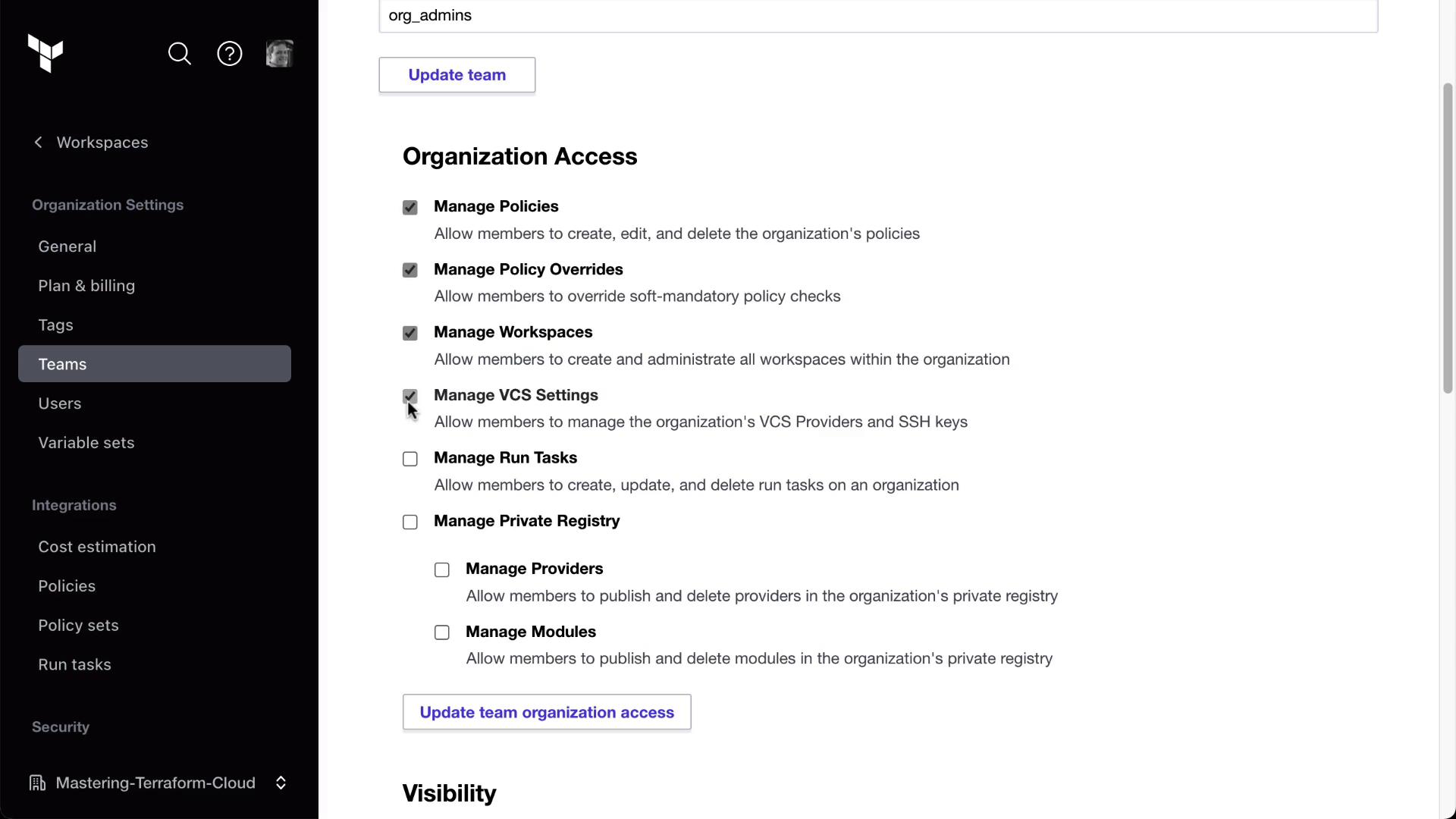
- Click New Team, name it org_admins, and grant the permissions shown here:
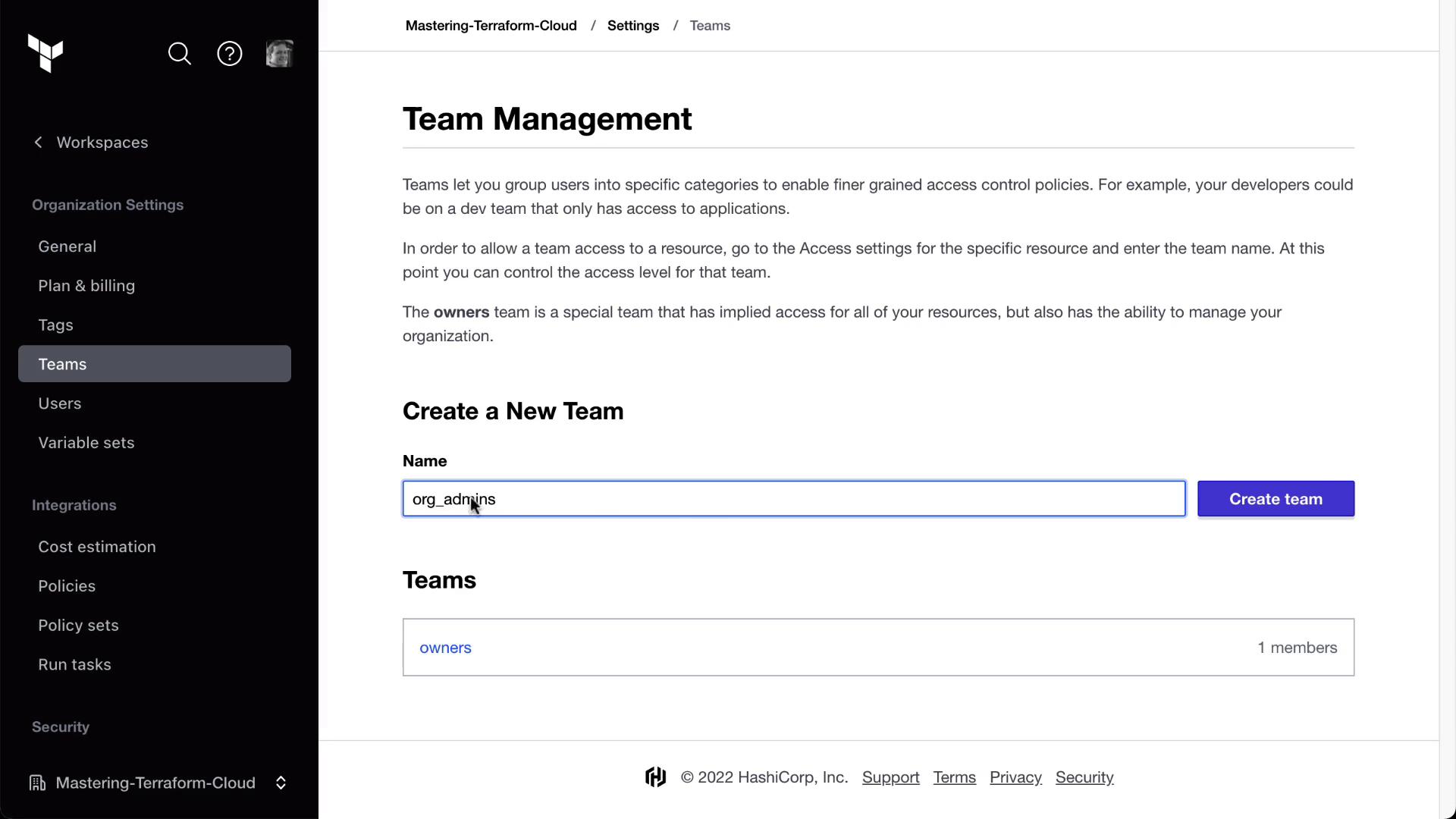
- Under Organization Access, enable all checkboxes for policies, workspaces, VCS, SSO, and billing:
- Repeat to create:
- app_developers (no org-level access)
- managers (no org-level access)
3. Invite Users
Add teammates by sending invites via email:- Go to Organization Settings > Users and click Invite users.
- Enter the email (e.g.,
[email protected]) and assign the app_developers team.
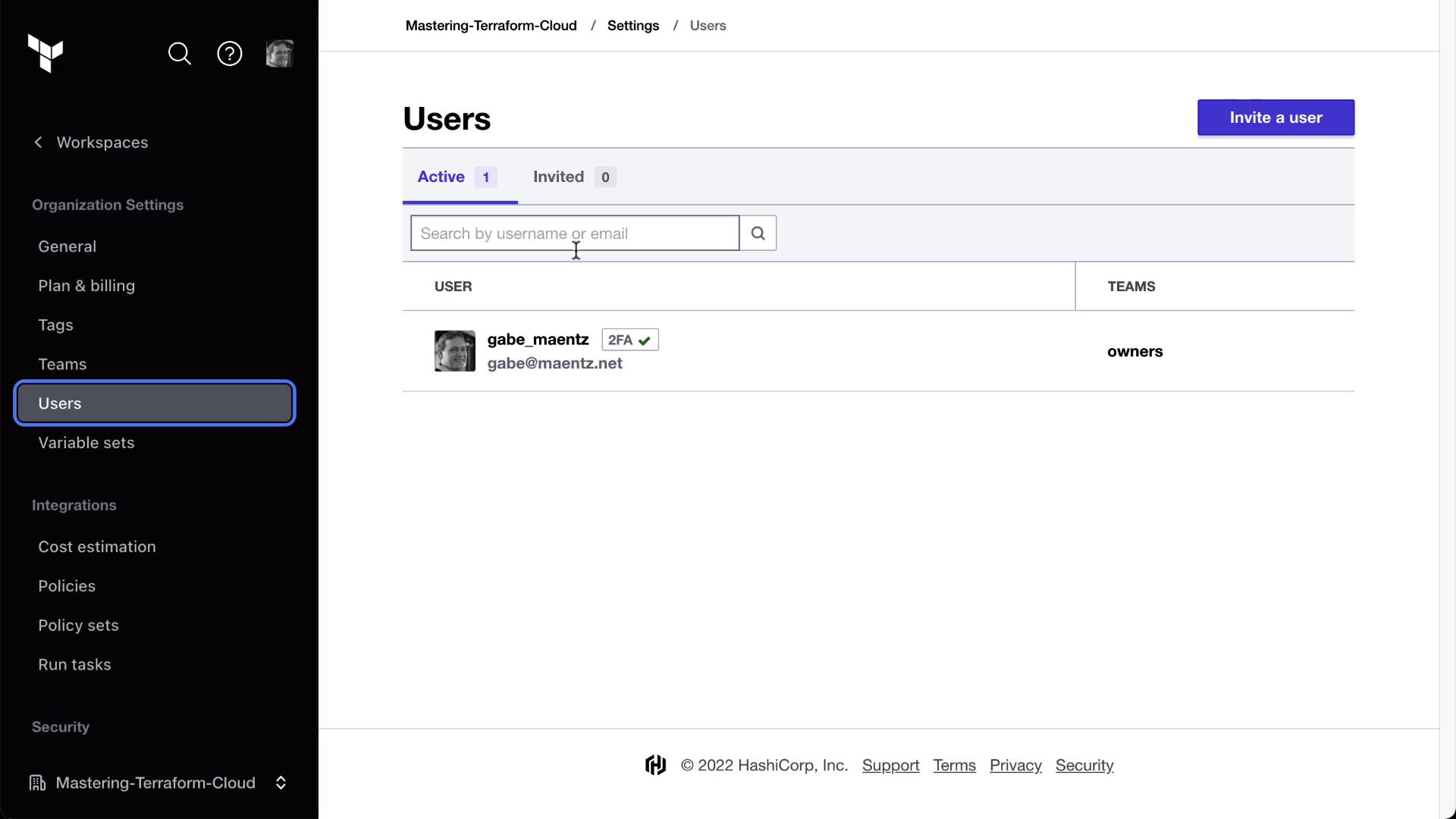
- After Bryan accepts the email invitation, he’ll select your organization:
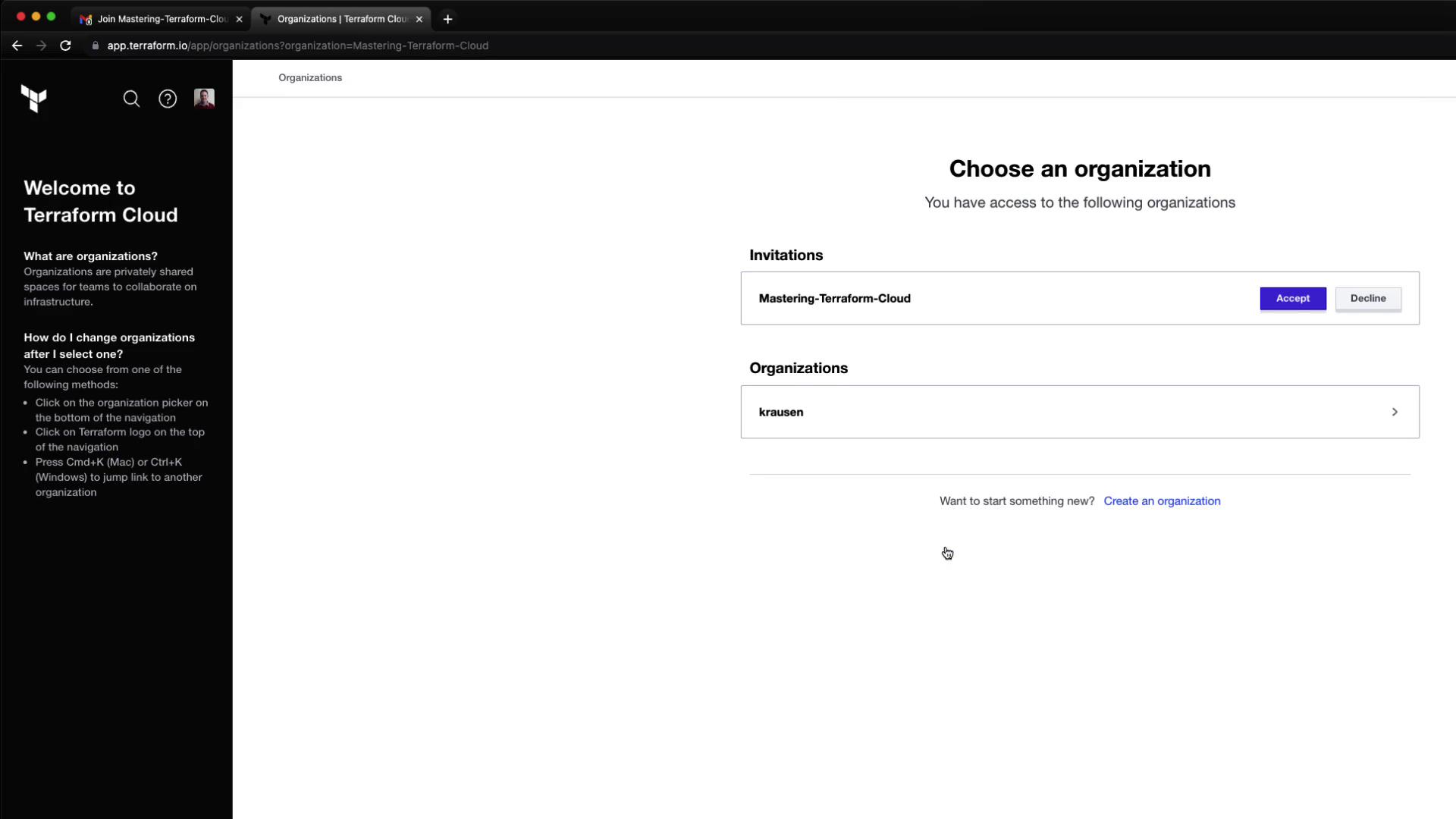
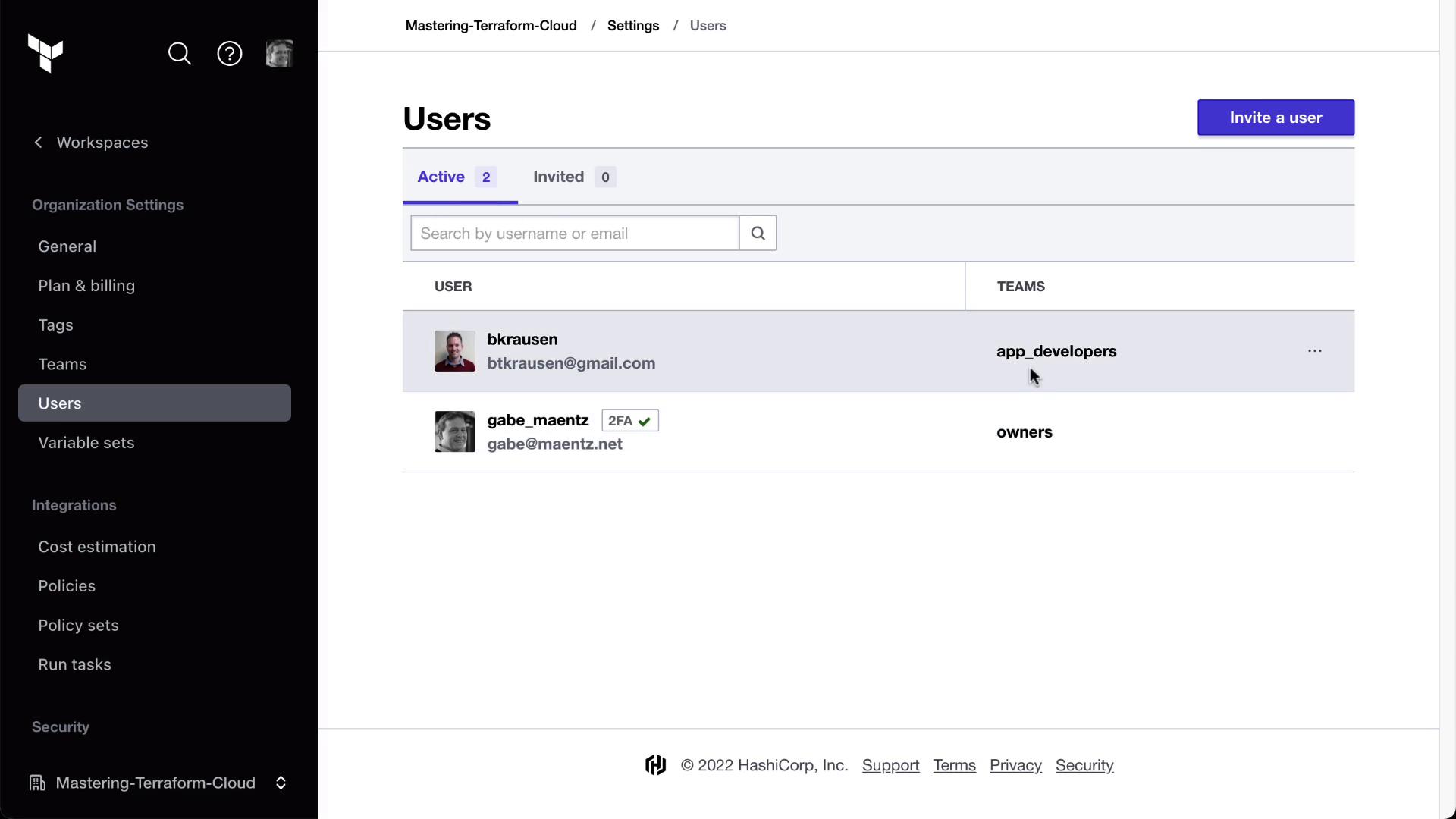
- Confirm his membership under Users:
4. Configure Workspace Permissions
We’ll set up three workspaces—MyAppDev, MyAppStaging, and MyAppProd—with different roles for each team.4.1. Development Workspace
- Open MyAppDev > Settings > Team Access.
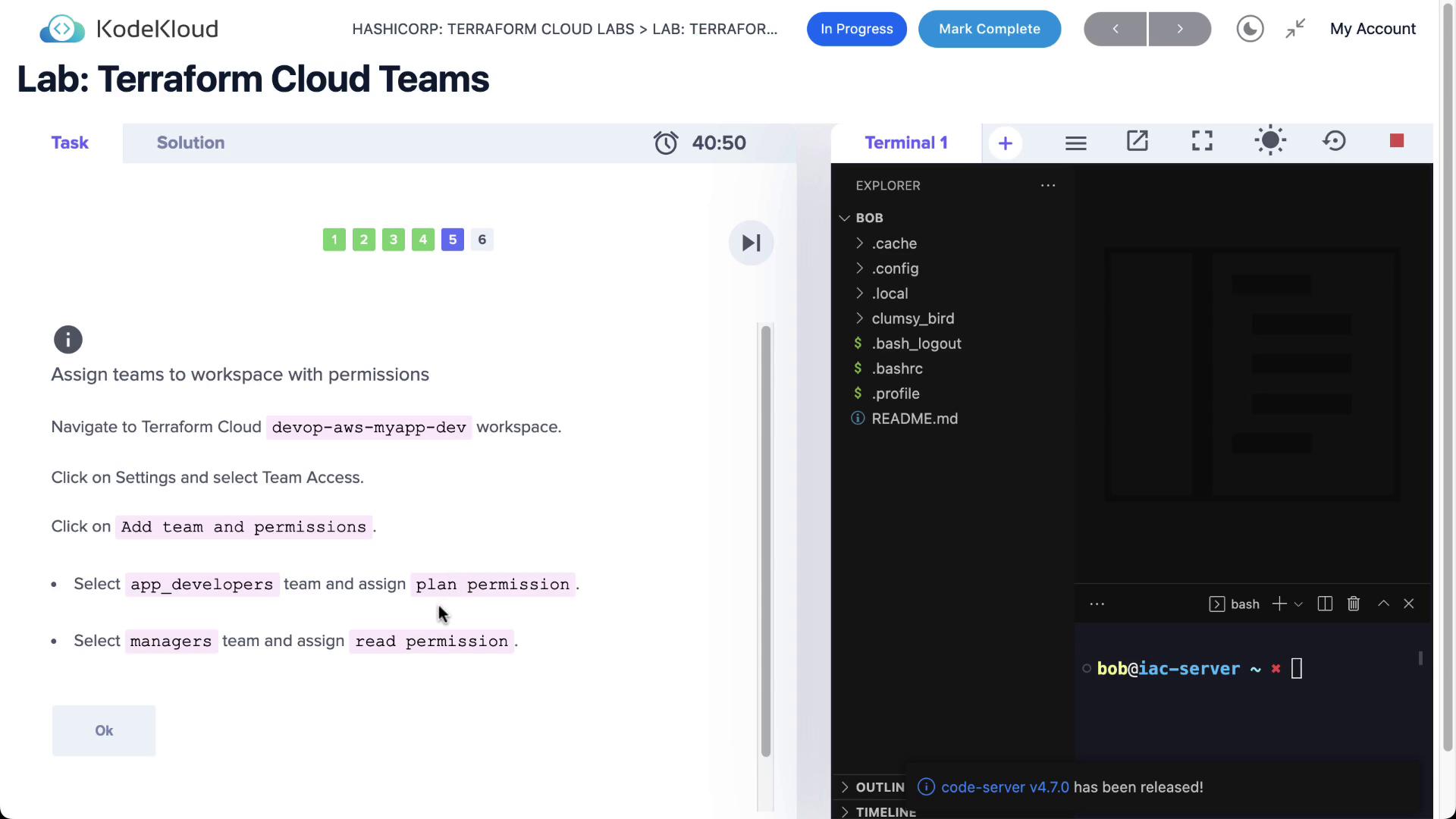
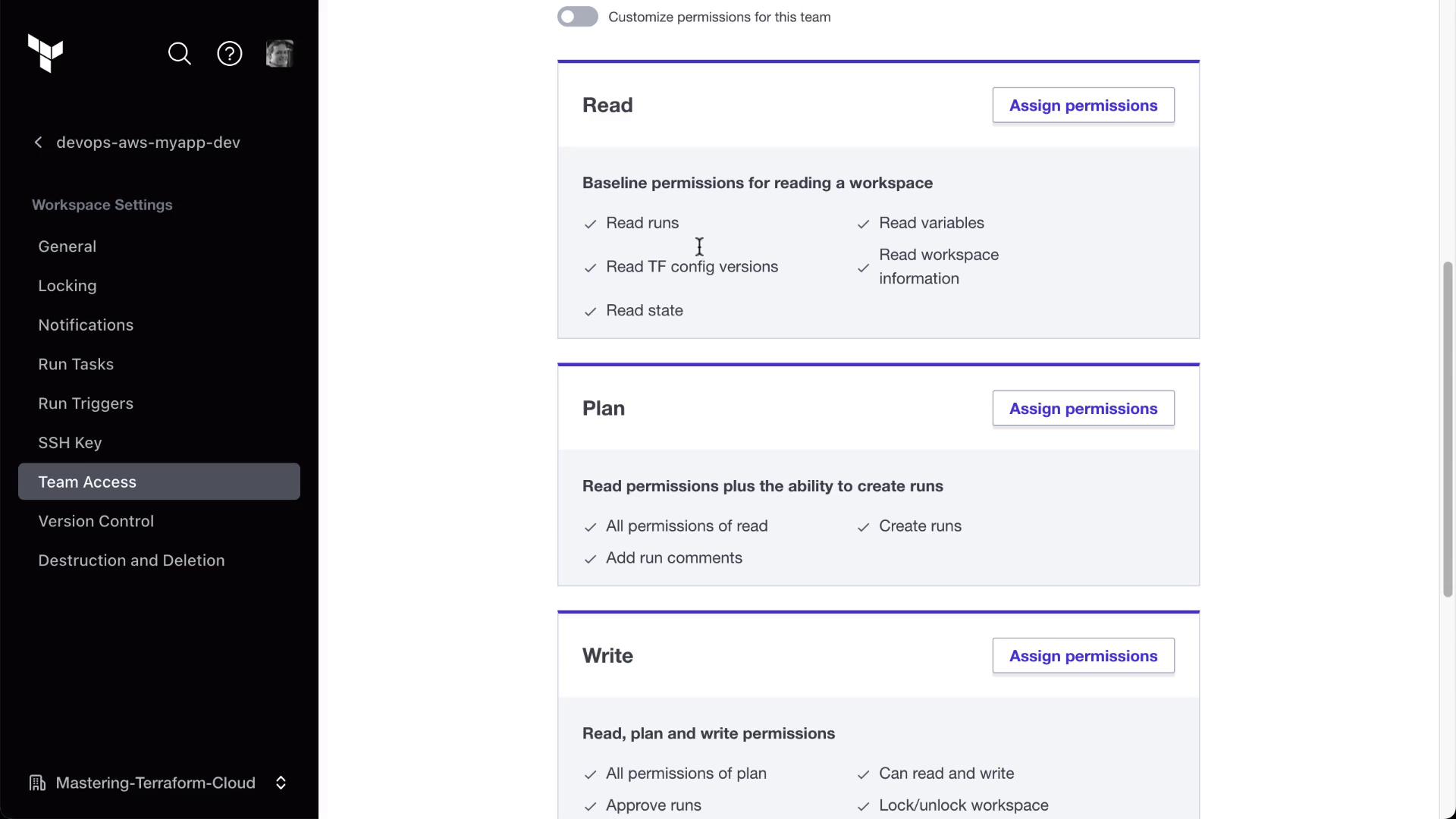
- Assign:
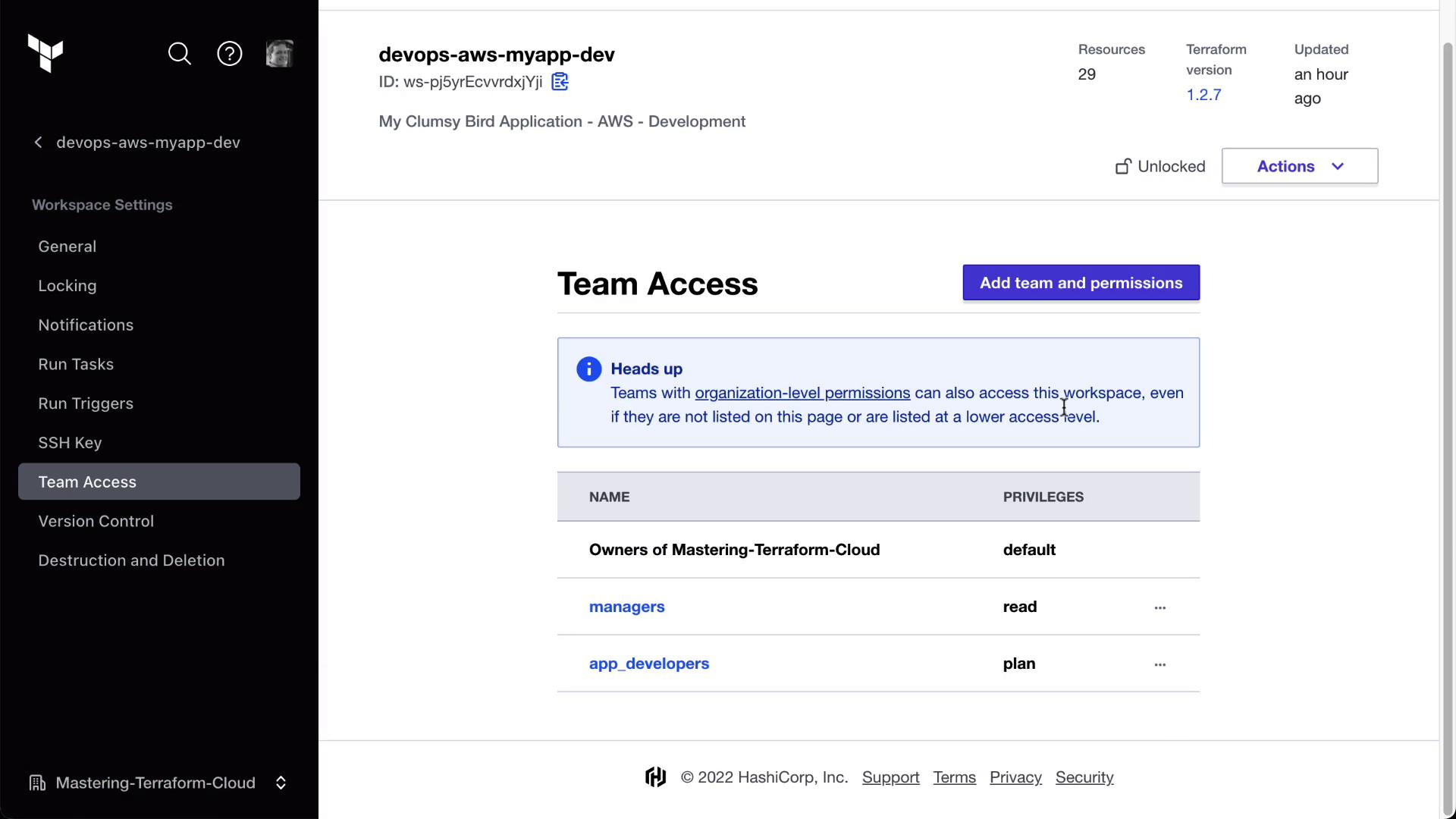
- app_developers: plan (read + run)
- managers: read
- Verify both teams appear with the correct roles:
4.2. Staging Workspace
Repeat the same steps for MyAppStaging:- app_developers: plan
- managers: read
4.3. Production Workspace
For MyAppProd, assign read-only access to both teams:- app_developers: read
- managers: read
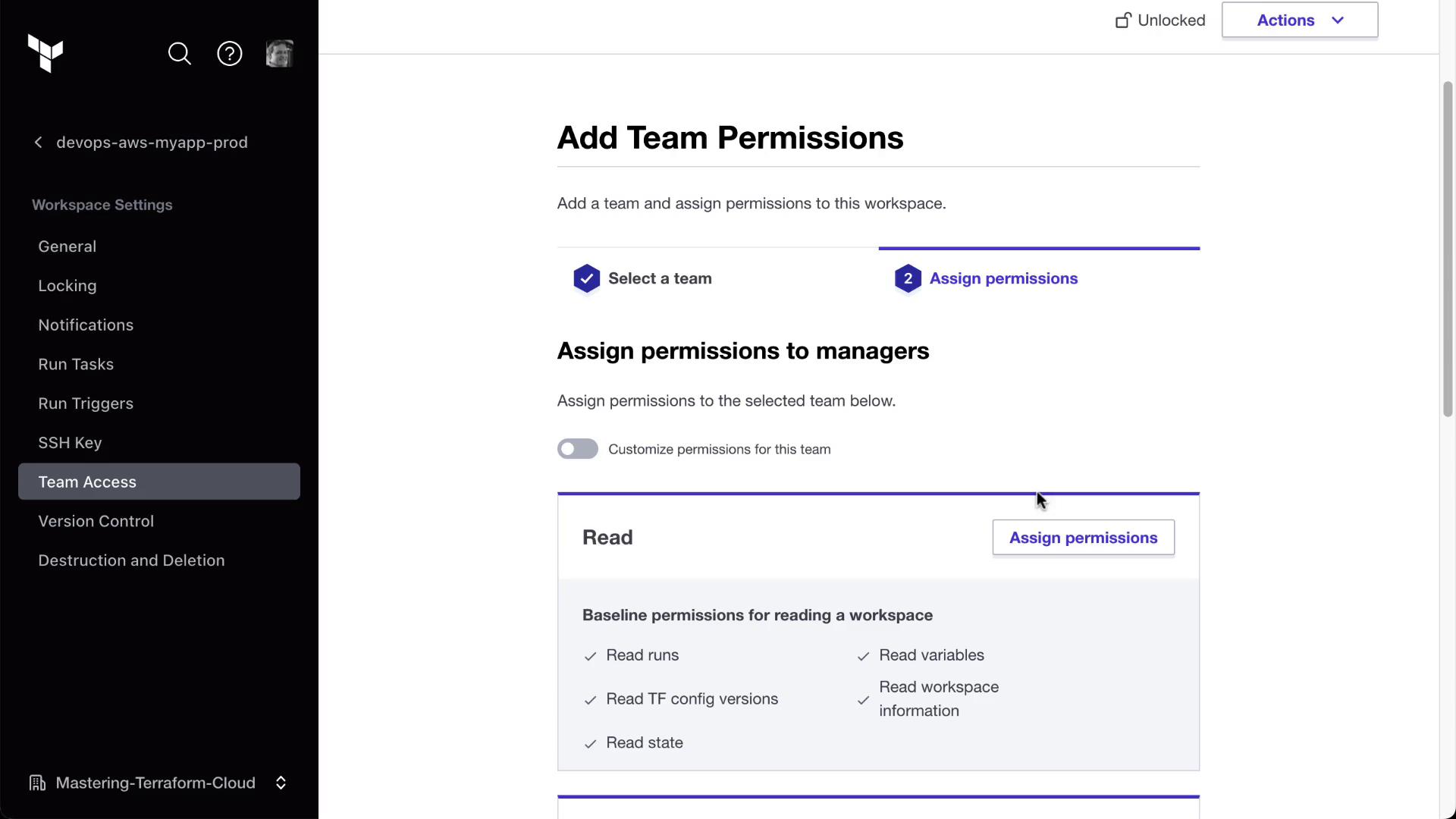
- Confirm on the Team Access page:
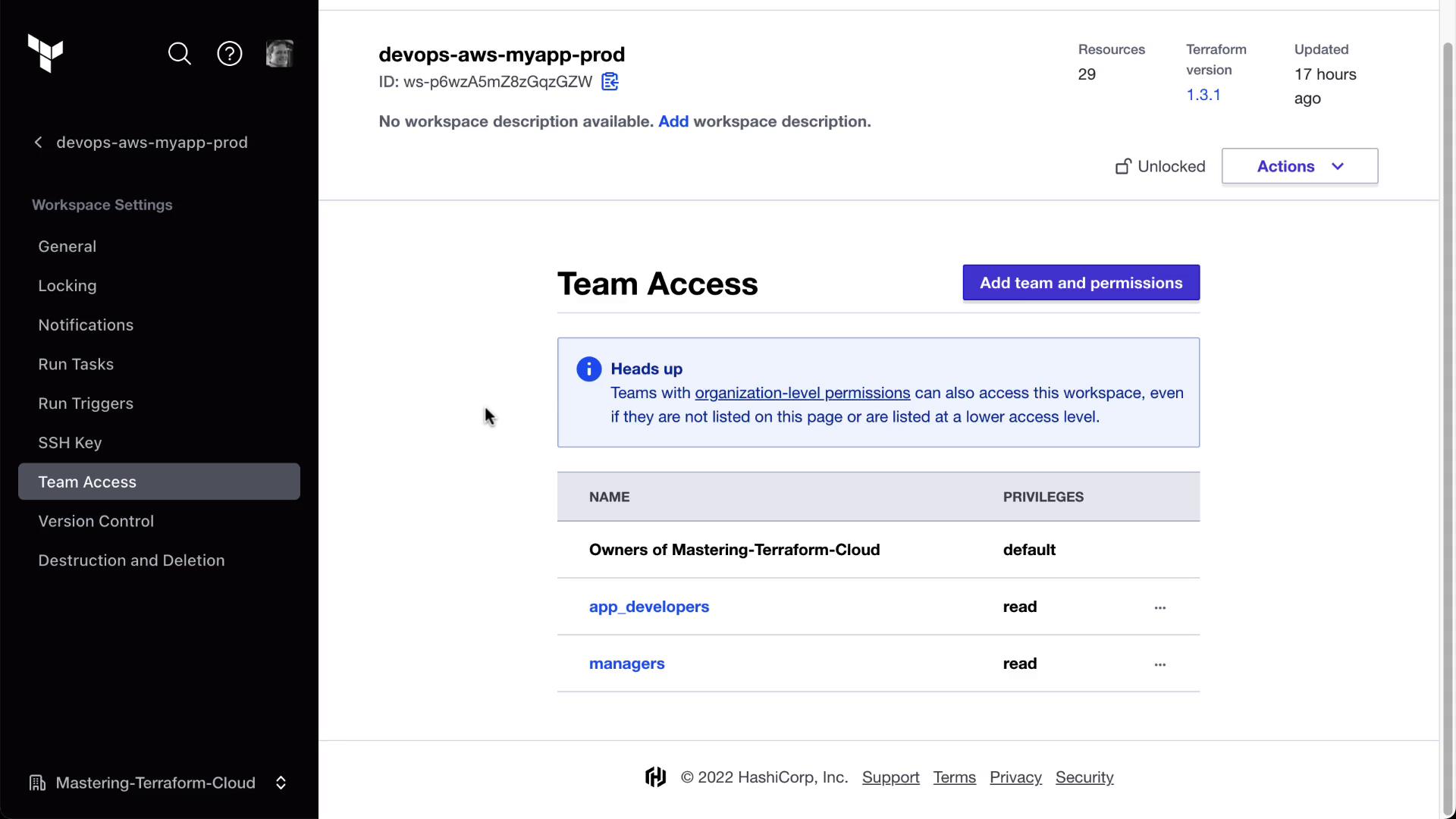
Workspace Permissions Overview
| Workspace | app_developers | managers |
|---|---|---|
| Development | plan | read |
| Staging | plan | read |
| Production | read | read |
Ensure you save permissions after each change. Unsaved changes will not apply to runs.
5. Verify as a Team Member
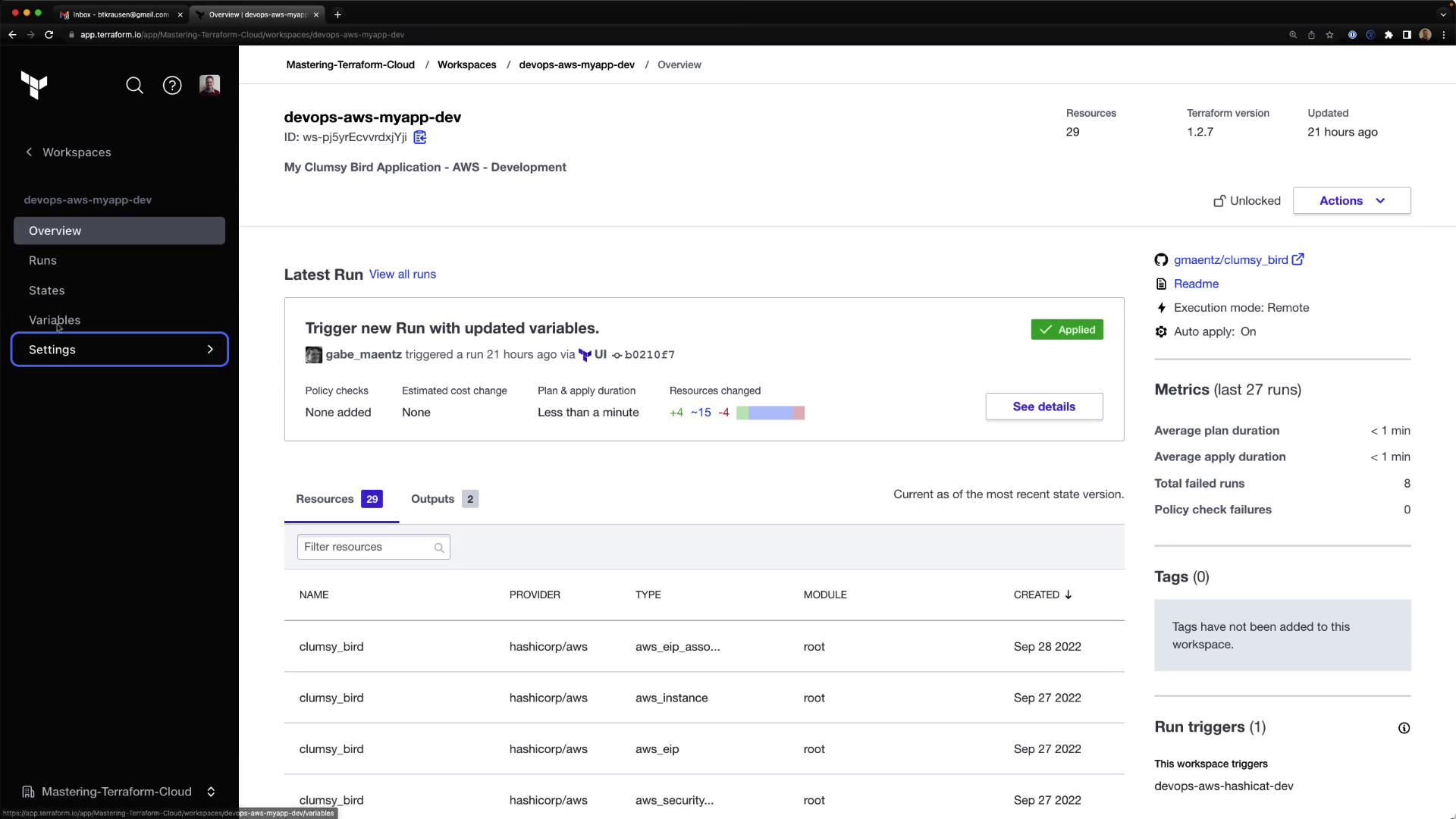
When Bryan logs in:- MyAppDev: he can view state, variables, settings, and queue new plans.
- MyAppStaging: same plan/run capabilities.
- MyAppProd: only read access—no Queue plan or settings controls.
Summary
In this lab, you have:- Upgraded to the Team & Governance plan
- Created
org_admins,app_developers, andmanagersteams - Invited users and assigned them to the correct teams
- Set workspace-level permissions for development, staging, and production