This guide explains how to use the ArgoCD Vault Plugin to fetch secrets from HashiCorp Vault and generate Kubernetes manifest files.
This guide demonstrates how the ArgoCD Vault Plugin connects with HashiCorp Vault to fetch secrets and generate Kubernetes manifest files by replacing placeholders with actual secret data.
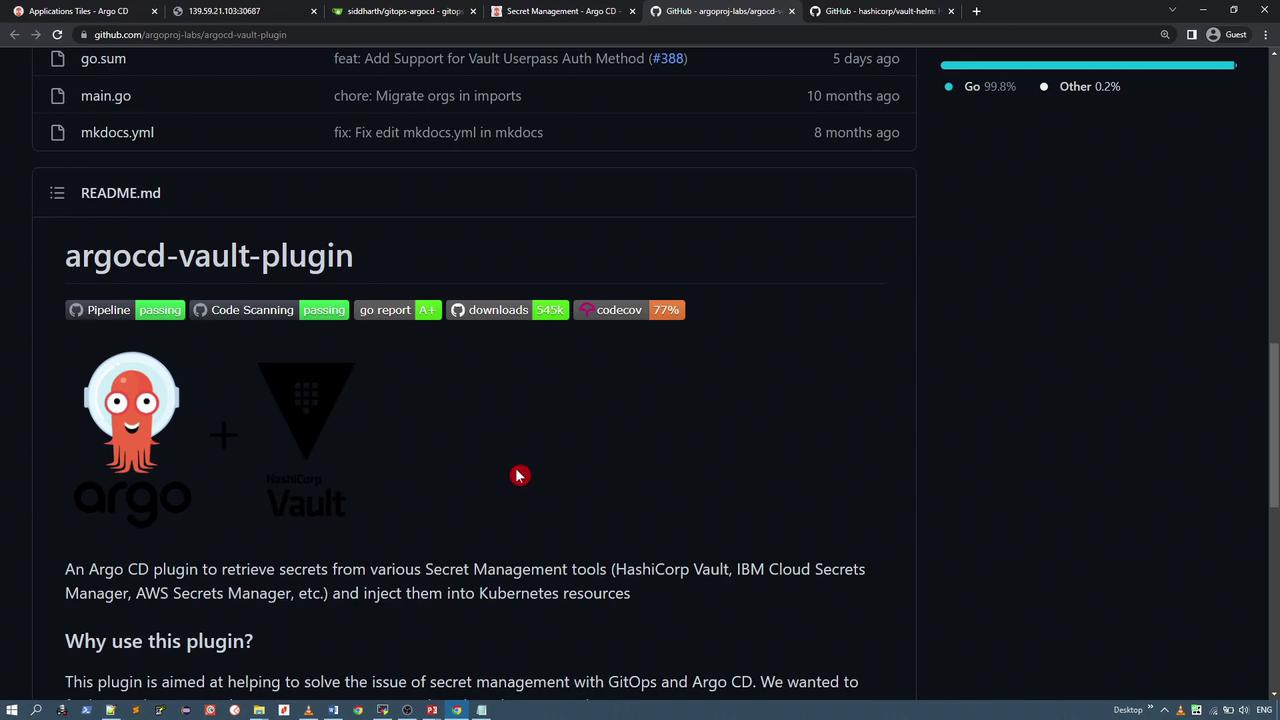
The ArgoCD Vault Plugin is a Git repository tool that retrieves secrets from various secret management systems, including HashiCorp Vault, IBM Cloud Secret Manager, and AWS Secret Manager. In this demo, we will focus on integrating with HashiCorp Vault.
To get started, you need to deploy a Vault instance where you can add and later retrieve secrets. For this demo, we will deploy Vault using the HashiCorp Vault Helm chart and manage the deployment via ArgoCD.
helm repo add hashicorp https://helm.releases.hashicorp.com# "hashicorp" has been added to your repositories
Install Vault:
Copy
Ask AI
helm install vault hashicorp/vault
Create an ArgoCD application for the Vault Helm chart. For this example, we deploy version 0.16.0 into the namespace “vault-demo.” Modify the Vault configuration to disable data storage by setting server.datastore.enabled to false and change the UI service type to NodePort to access the Vault UI through a browser.For instance, your Vault configuration snippet might resemble:
After the Vault application is deployed, check the “vault-demo” namespace to verify the running resources:
Copy
Ask AI
# List all resources in the vault-demo namespacekubectl -n vault-demo get all# Example output:# NAME READY STATUS RESTARTS AGE# pod/vault-app-0 0/1 Running 0 54s# pod/vault-app-agent-injector-6947cc4648-wd9dt 1/1 Running 0 54s## NAME TYPE CLUSTER-IP EXTERNAL-IP PORT(S) AGE# service/vault-app ClusterIP 10.110.125.148 <none> 8200/TCP,8201/TCP 54s# service/vault-app-agent-injector-svc ClusterIP 10.104.23.127 <none> 443/TCP 54s# service/vault-app-internal ClusterIP None <none> 8200/TCP,8201/TCP 54s## NAME READY UP-TO-DATE AVAILABLE AGE# deployment.apps/vault-app-agent-injector 1/1 1 1 54s## NAME DESIRED CURRENT READY AGE# replicaset.apps/vault-app-agent-injector-6947cc4648 1 1 1 54s## NAME READY AGE# statefulset.apps/vault-app 0/1 54s
If the Vault service does not reflect the NodePort settings, update the service manifest manually as described above. Once updated, you can access the Vault UI using the assigned NodePort (e.g., port 31986).
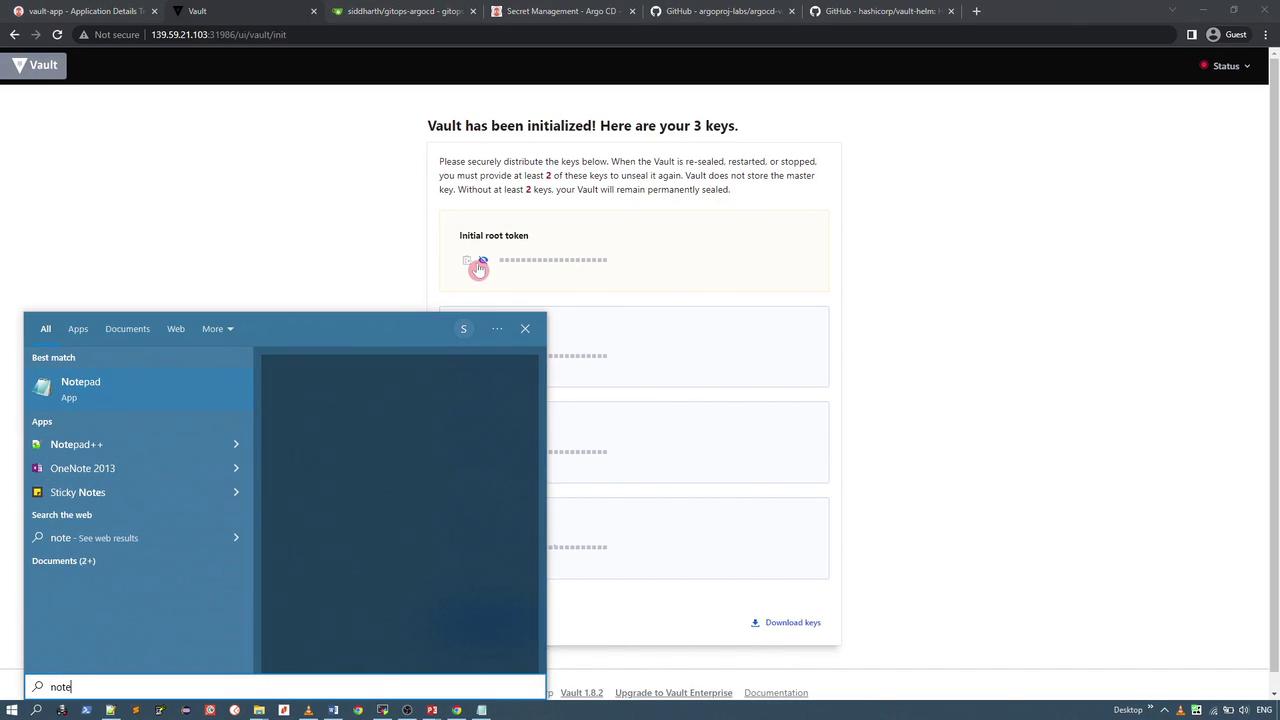
Next, initialize Vault via the UI. When initializing, choose three key shares with a threshold of at least two keys required to unseal. Save the initial root token and unseal keys securely.
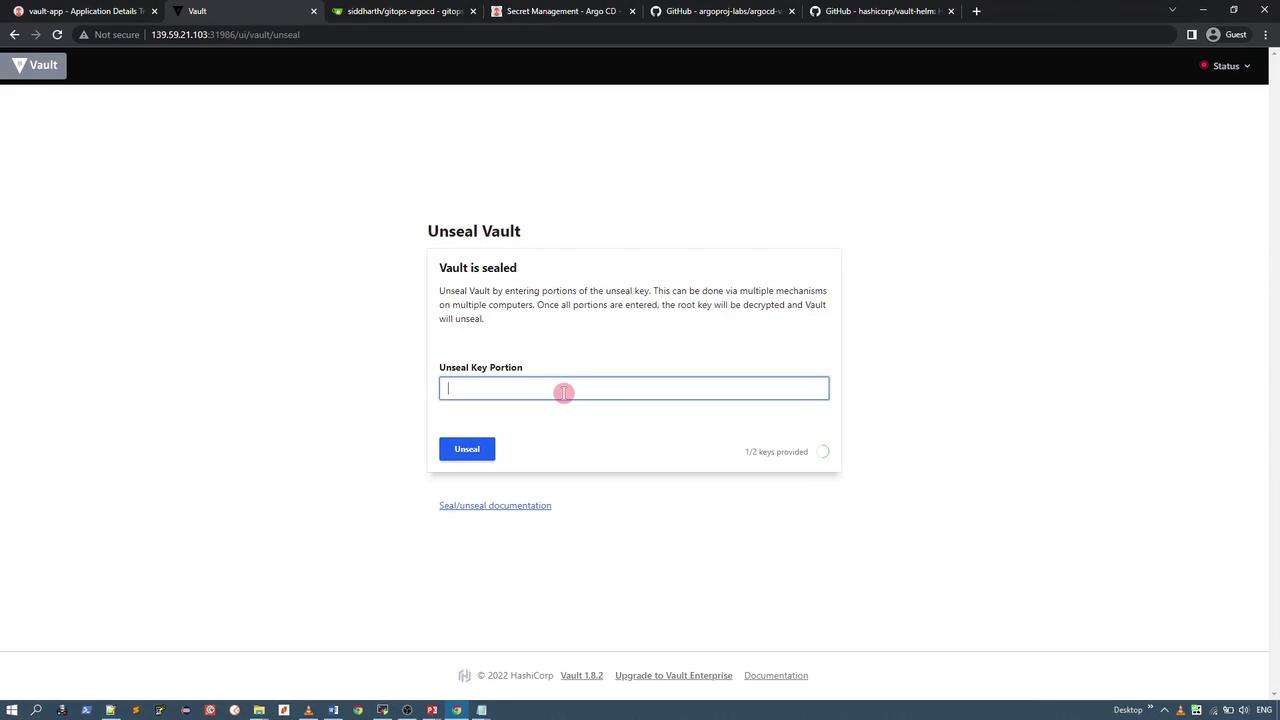
Unseal Vault by entering two of the keys in the UI:
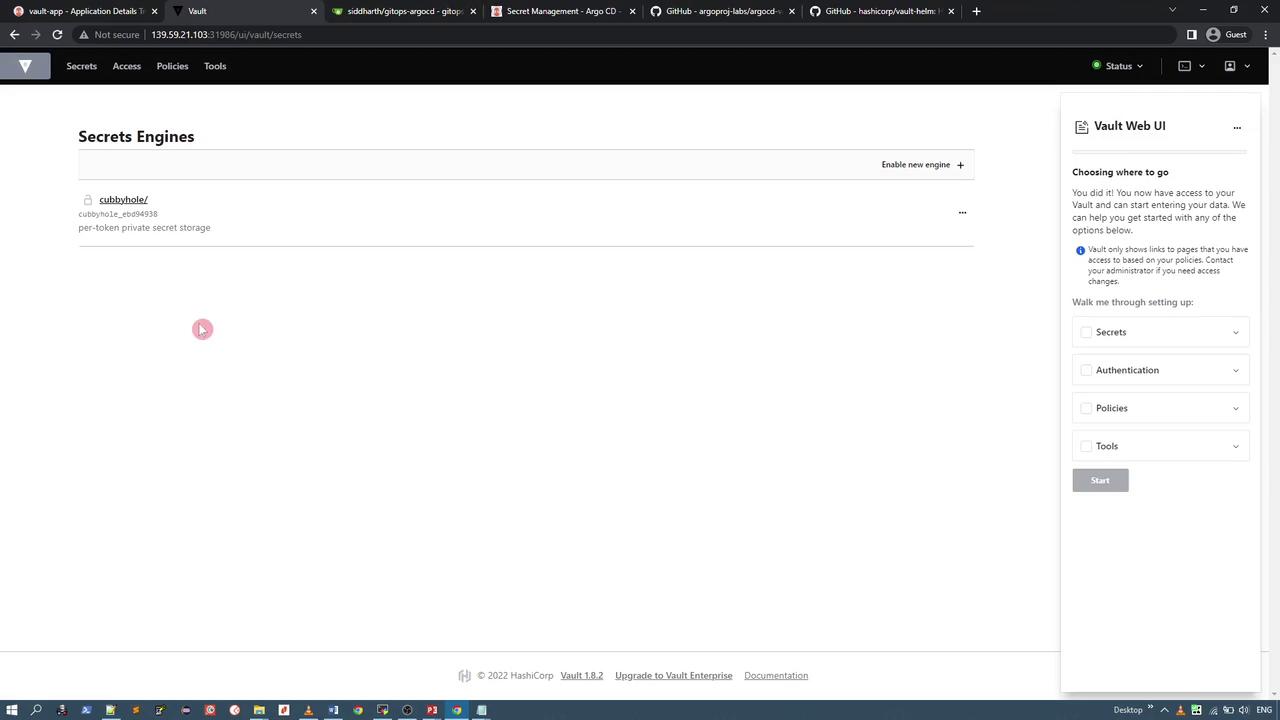
Finally, log in using the default token authentication—the root token saved earlier. By default, only the “cubbyhole” secret engine is enabled.
To automatically retrieve secrets, define a Kubernetes Secret manifest with an annotation that instructs the plugin where to fetch the Vault data. For example, if your secret is stored at credentials/app, your manifest should be configured like this:
The plugin replaces each placeholder (the values between < and >) with the actual secret data from Vault and outputs a valid manifest, encoding values in Base64 if necessary.
The plugin supports commands such as generate, completion, and help. The generate command is used to replace placeholder values in your secret manifest with actual data from Vault.
Make sure to adjust the VAULT_ADDR and VAULT_TOKEN to match your Vault instance. The AVP_TYPE should be set to vault and AVP_AUTH_TYPE to token for this demo setup.
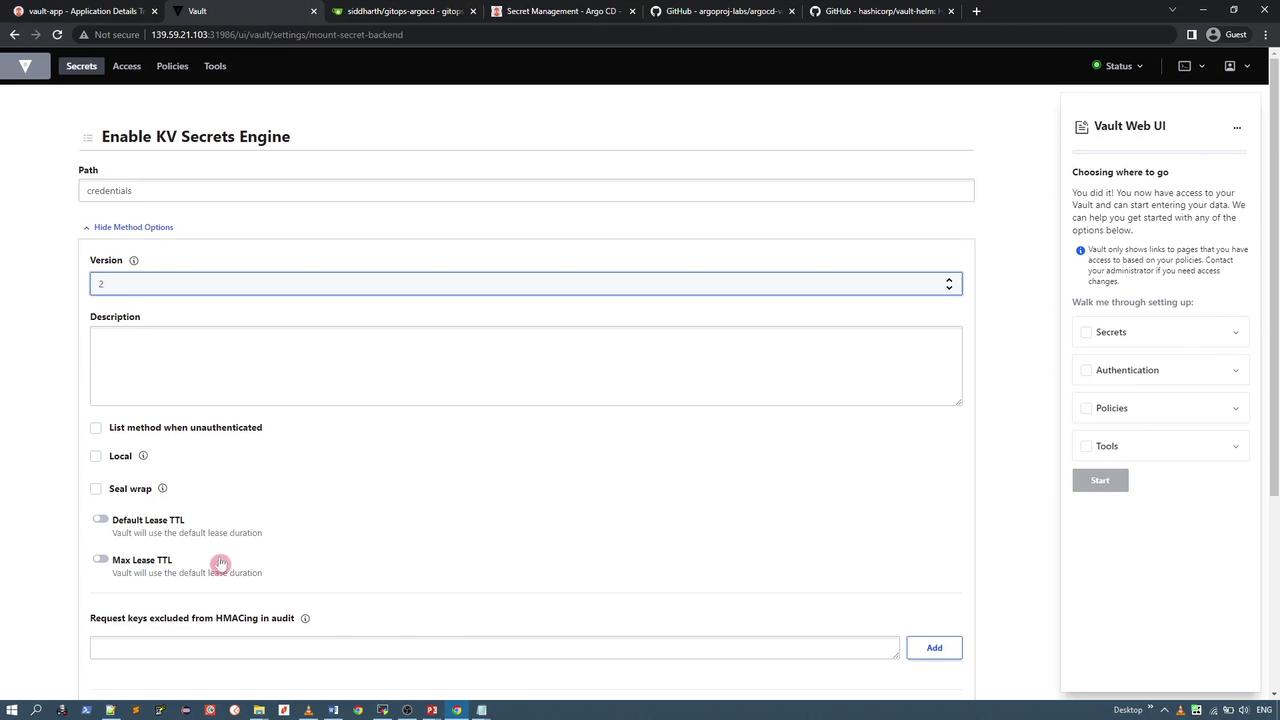
In this guide, we covered the deployment of HashiCorp Vault using Helm, enabling a key-value secret engine, and storing application credentials. We then demonstrated how to use the ArgoCD Vault Plugin locally to generate a Kubernetes Secret manifest populated with secrets from Vault. In the next demo, you will learn how to configure ArgoCD to automatically generate these manifests when an application is created.Thank you for following along.