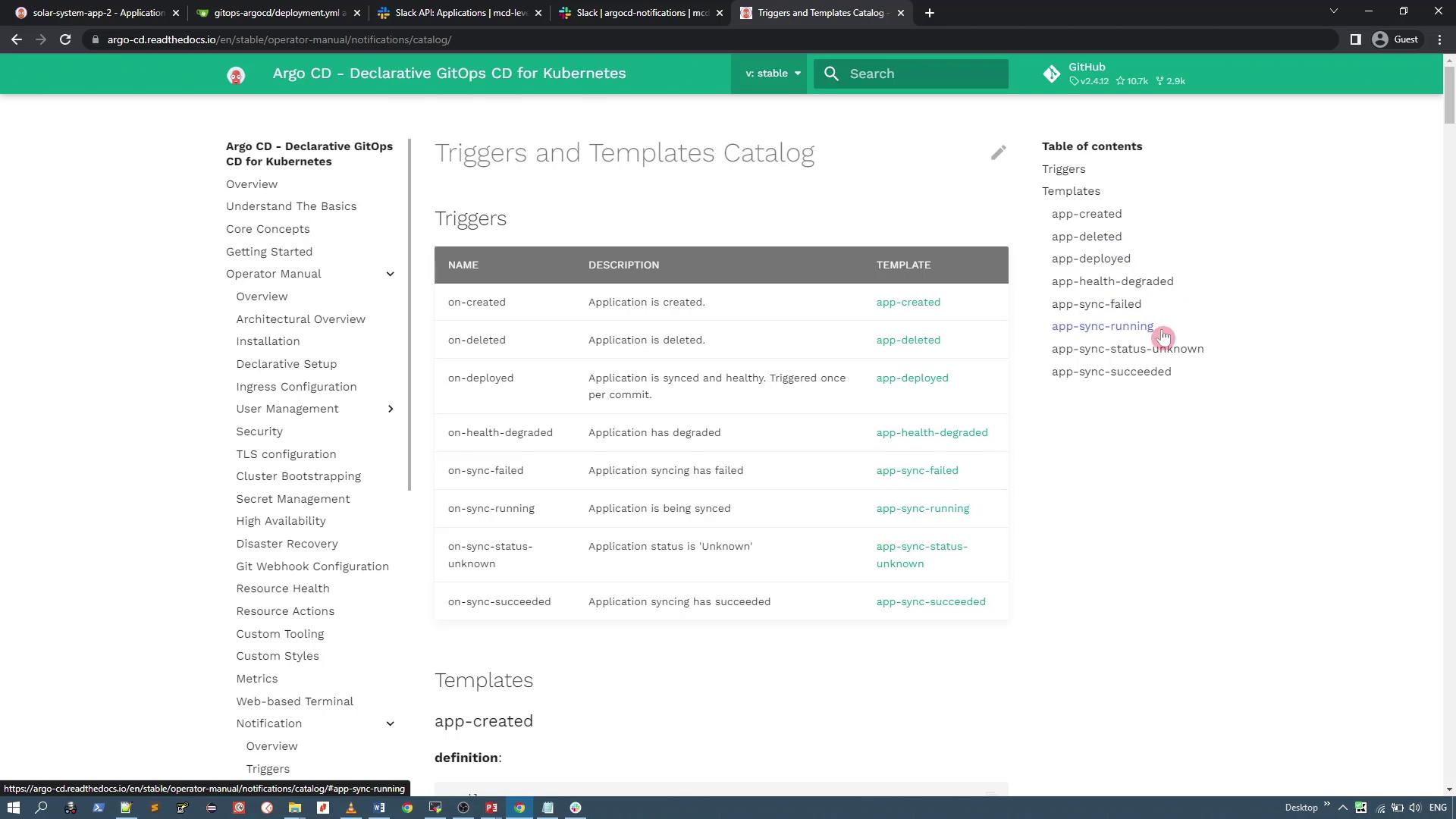
1. Creating a Slack Application
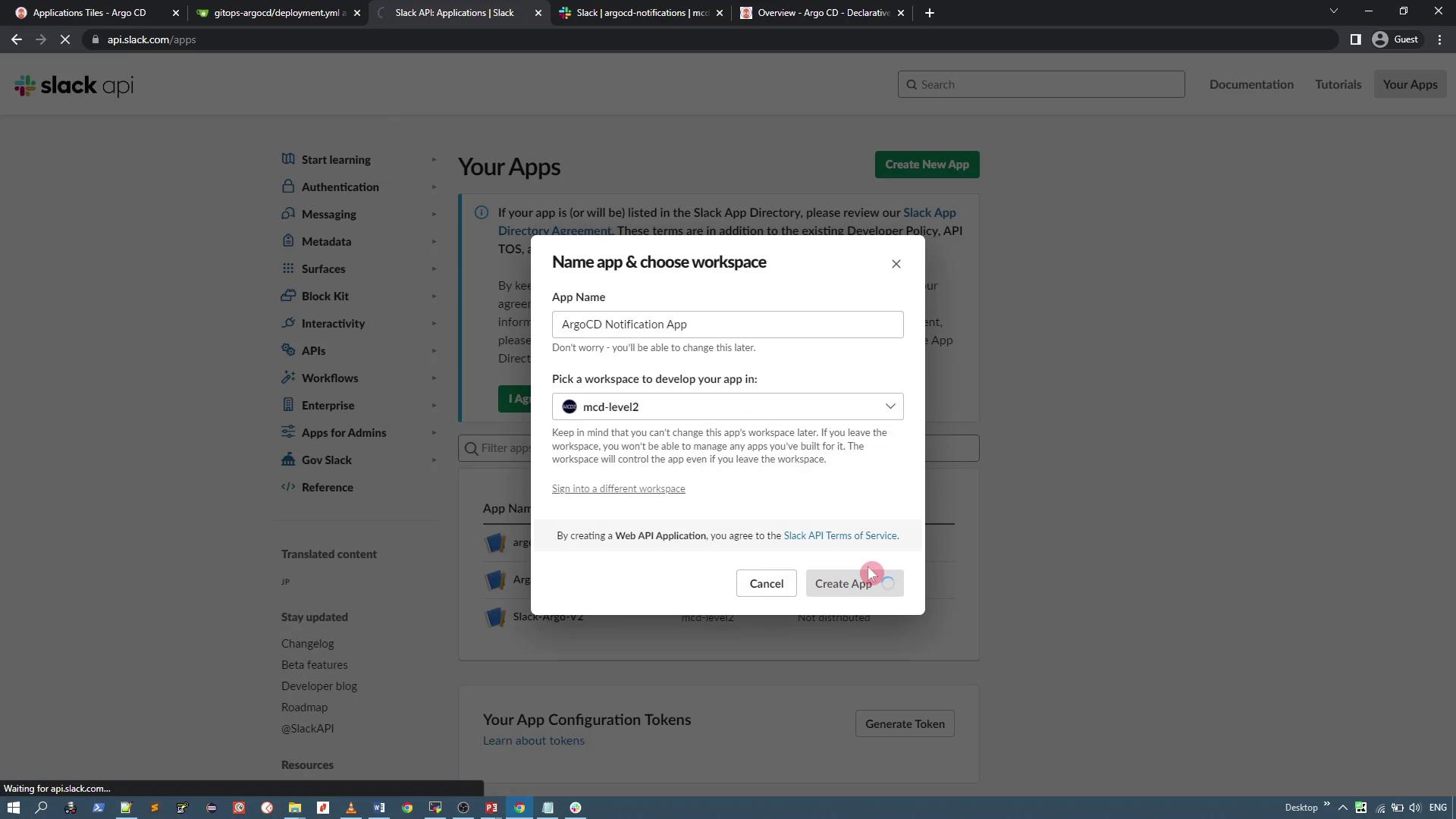
To send notifications through Slack, start by creating a Slack application. You will need an active Slack workspace. Follow these steps:- Navigate to the Slack Apps page and click on Create New App from scratch.
- Provide a name for your app (e.g., Agostini Notification App) and select your desired workspace (e.g., MCD level 2).
- Once the app is created, click on it to open its settings.
2. Configuring OAuth Permissions
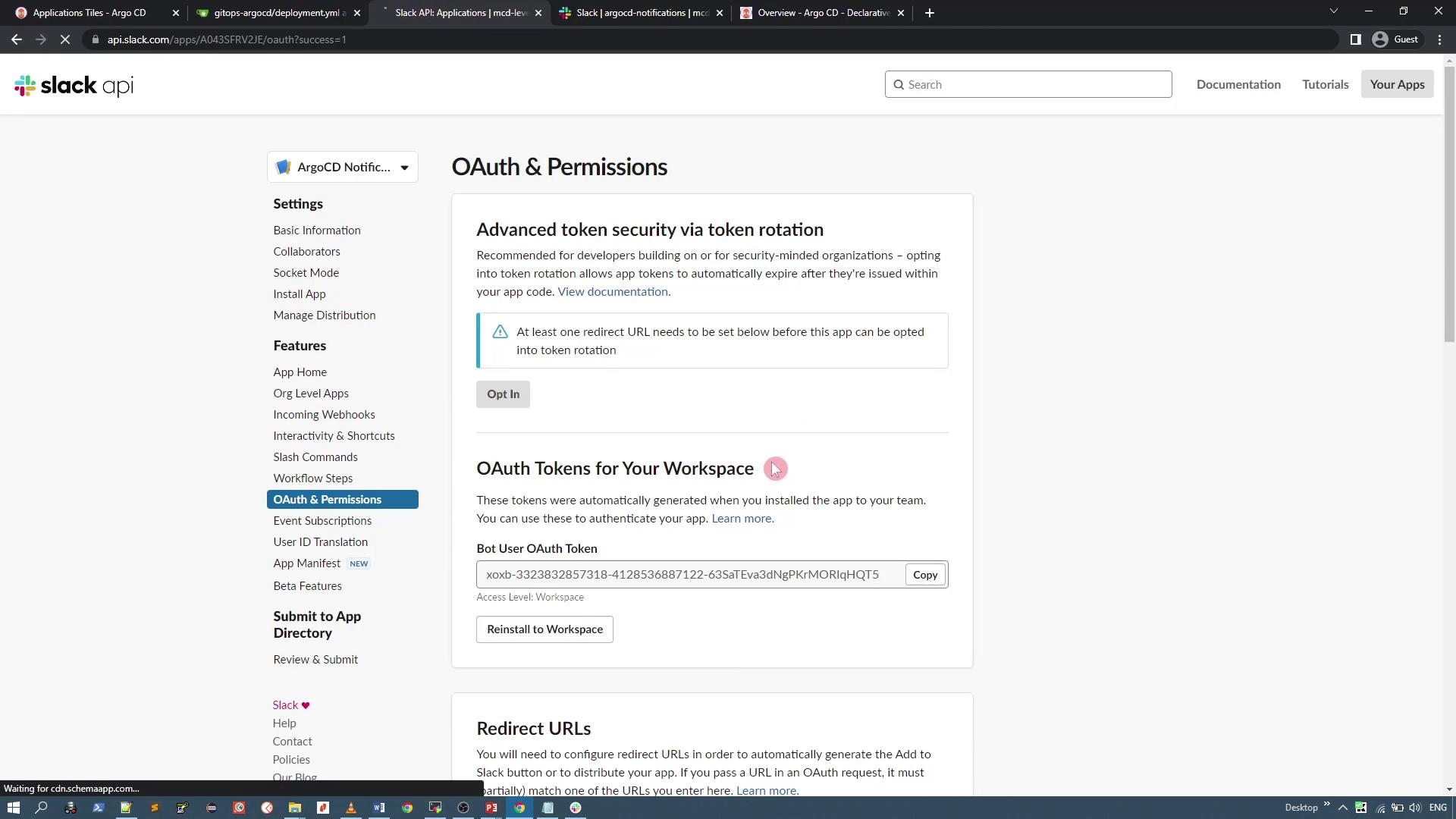
After creating the app, configure the OAuth scopes to allow ArgoCD to send messages. Complete the following steps:- Within your app settings, scroll down to OAuth & Permissions.
- Under the scopes section, add the following OAuth scopes:
chat:writechat:write.custom
- Click Install to Workspace (or Allow if prompted). This installs the app to your workspace and generates an OAuth token. Make sure to copy this token as it will be needed later.
3. Configuring the ArgoCD Notifications Secret
Next, add the OAuth token to the ArgoCD notifications secret. This allows the notifications controller to access the token and send Slack messages.-
Locate the ArgoCD notifications deployment with the following command:
You should see an output similar to:
-
Edit the
argocd-notifications-secretto include your Slack token as plaintext data:Save the secret and verify that the Slack token is added. (Note: When retrieved, the token will be Base64-encoded.) -
(Optional) To add additional credentials, such as email credentials, use a similar approach. For example:
4. Configuring the Notifications ConfigMap
Now, configure the ArgoCD notifications ConfigMap to define the Slack service, triggers, and message templates. This ConfigMap specifies when notifications should be sent and what content they should include.-
Edit the ConfigMap
argocd-notifications-cmin theargocdnamespace to define the Slack service configuration: -
Add a trigger and its corresponding template. For example, configure a trigger to send a notification when an application is synchronized:
5. Annotating Applications or Projects for Notifications
To enable notifications on specific applications or projects, add the appropriate annotations. This allows you to control which applications send notifications upon synchronization. To have all applications under the default project send a Slack notification when synchronized, update the default AppProject as shown below:6. Testing the Notifications
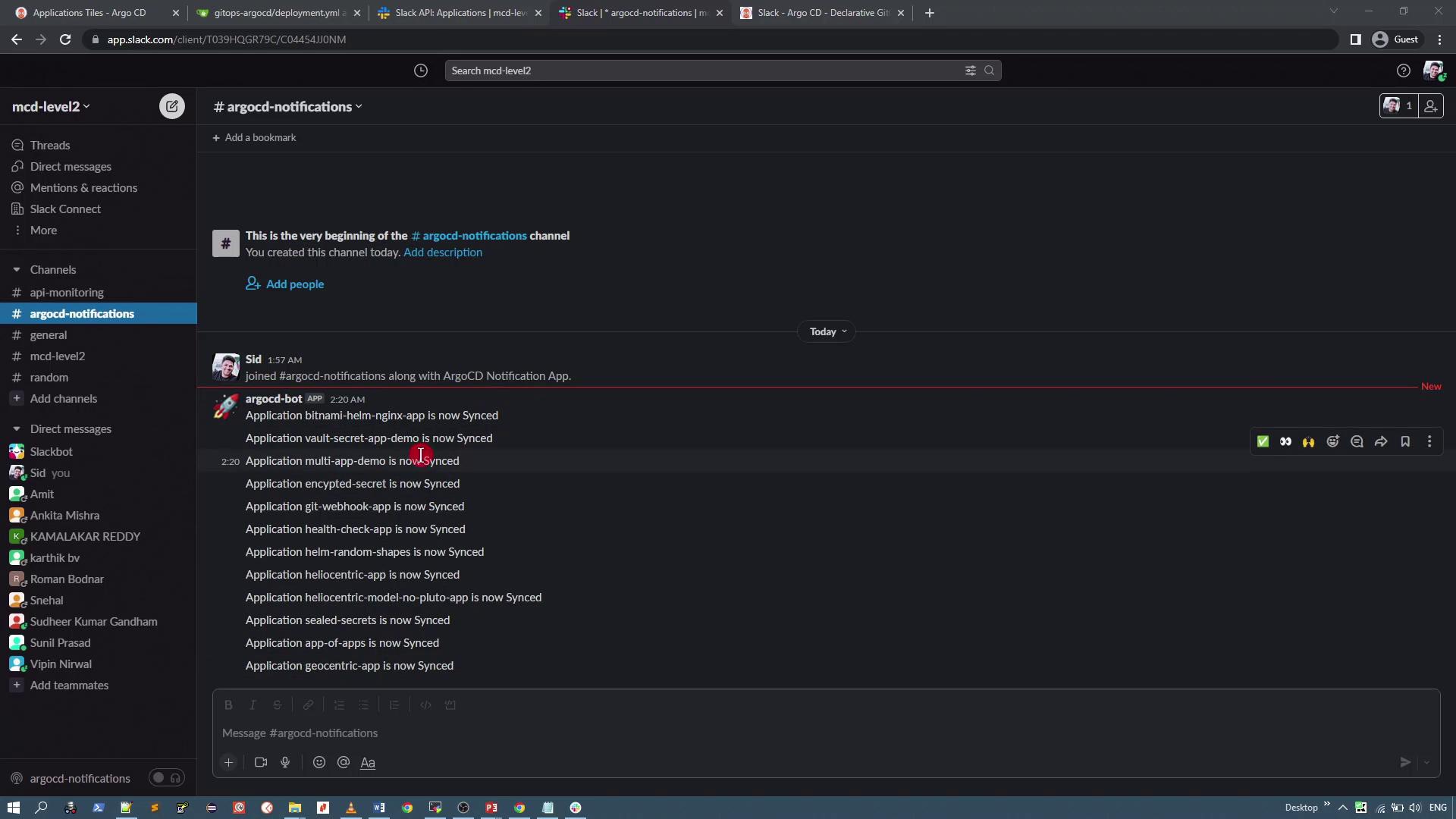
Once all changes are applied, you can test the configuration by synchronizing an application and verifying the notifications in Slack.- Synchronize an application using the ArgoCD UI; its status should change to Synced.
- Verify that the notification is sent to your designated Slack channel.
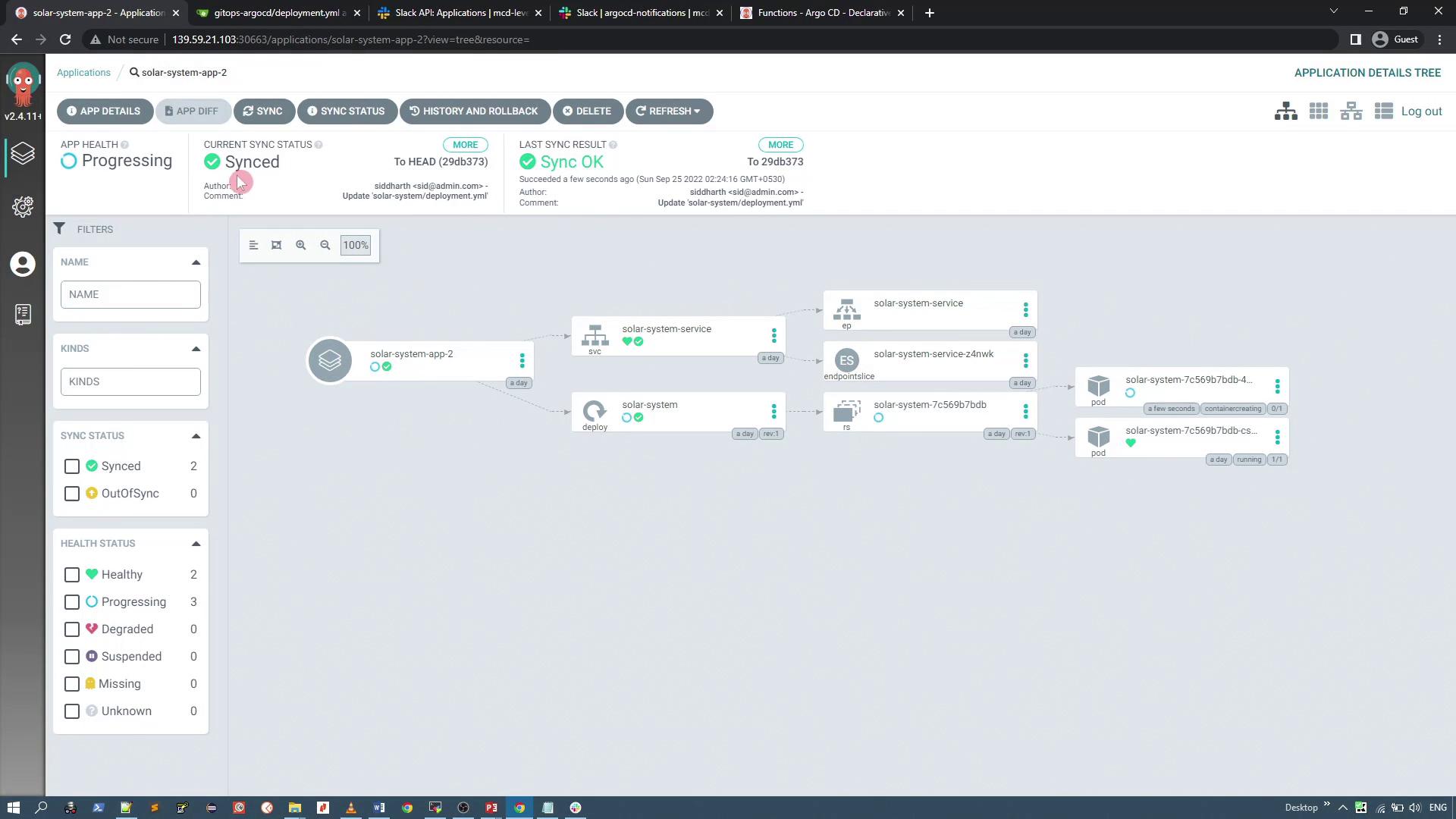
- Check the Slack channel (e.g., argocd-notifications) to view the detailed message with attachments showing sync status, repository details, revision info, commit author, commit message, and commit date.
7. Expanding Notification Templates
The basic configuration provided above can be extended to include more detailed notifications. For instance, you can add multiple triggers and templates covering scenarios such as “Health Degraded,” “Sync Failed,” or “Status Unknown.” Below is an example of an expanded template including additional details like commit information: