

Prerequisites
- A GitHub account (sign in or sign up at GitHub.com)
- Git installed locally (https://git-scm.com)
Step 1: Access GitHub
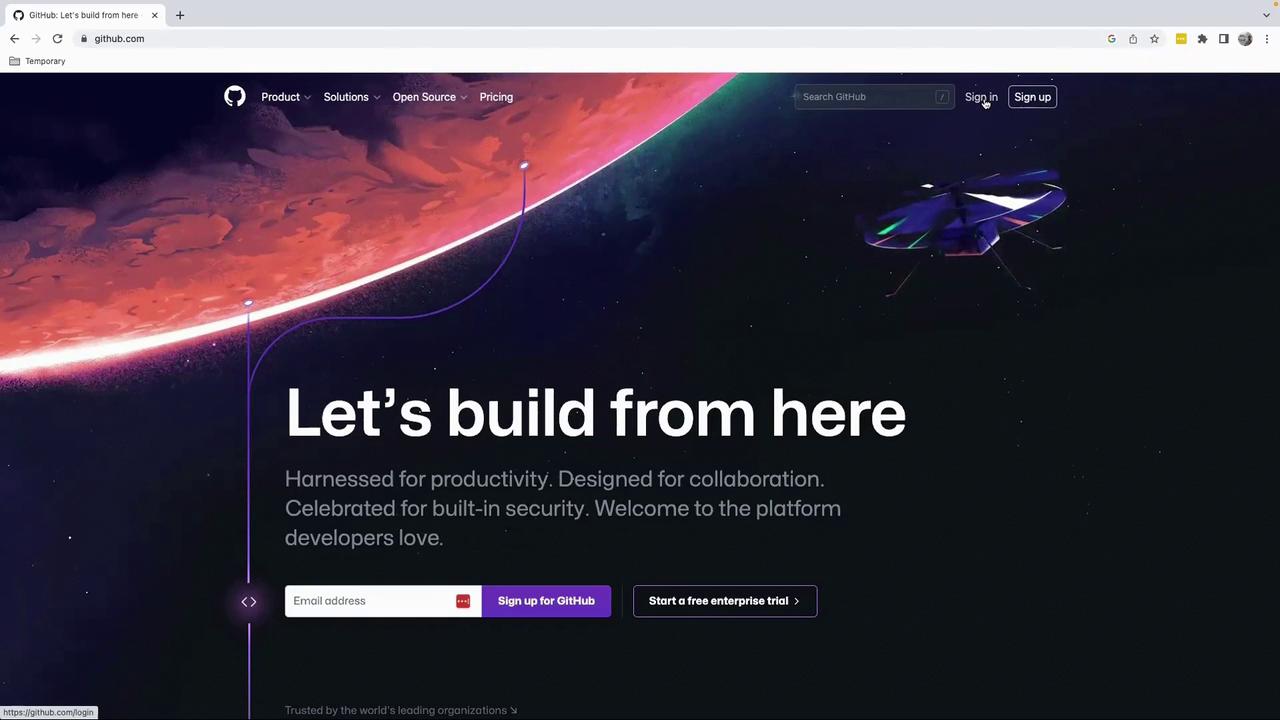
- Open your browser and navigate to https://github.com
- Click Sign in to log in, or Sign up to register.
If you have Two-Factor Authentication enabled, create a personal access token before signing in.
Step 2: Sign In or Sign Up
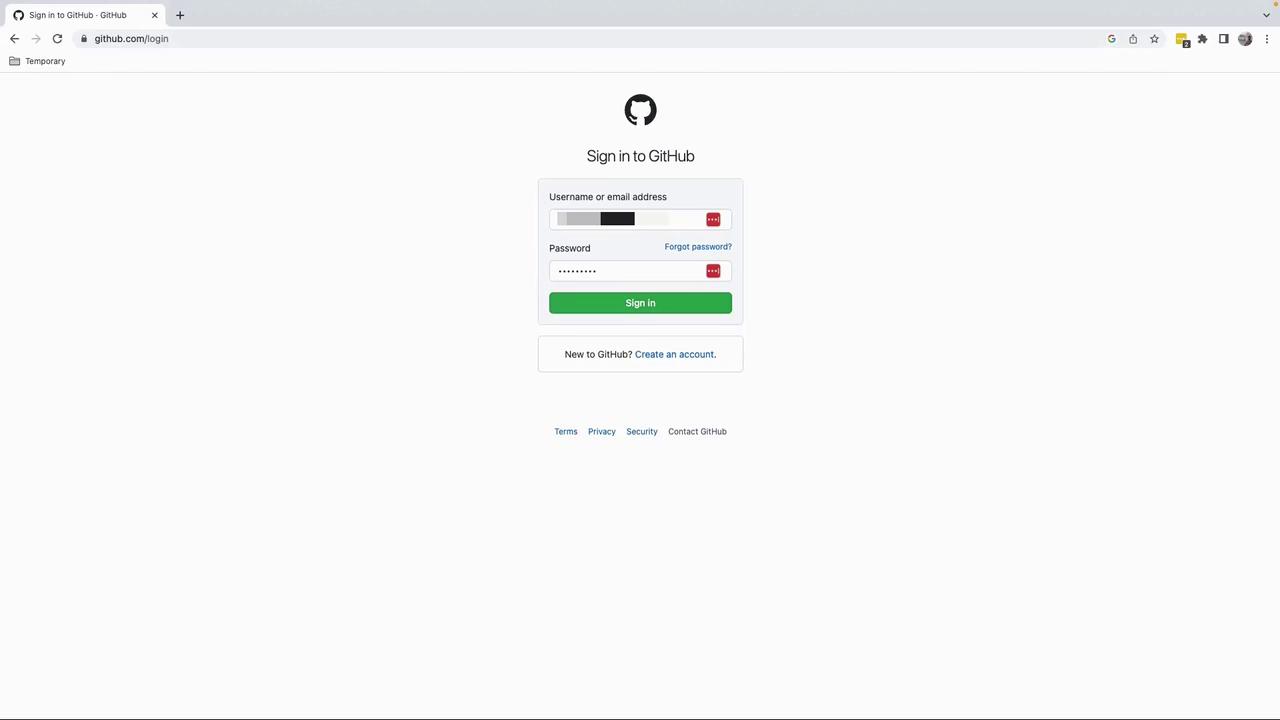
- Enter your username (or email) and password.
- Click Sign in.
- If you don’t have an account yet, select Sign up and follow the registration flow.
Step 3: Create a New Repository
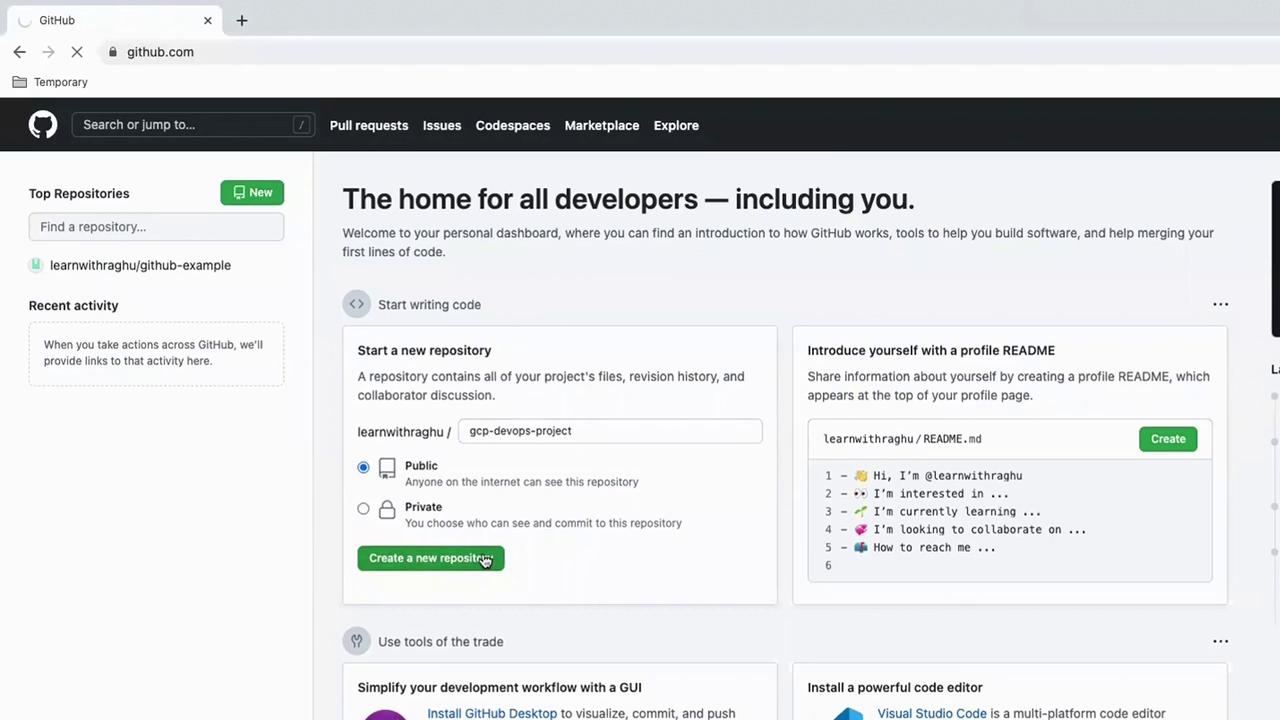
- From your dashboard, click Create a new repository.
- Configure the repository settings:
| Visibility | Description | When to Use |
|---|---|---|
| Private | Only you and collaborators can view it | Company code, internal projects |
| Public | Anyone can view and clone it | Tutorials, demos, open-source projects |
- For this tutorial, choose Public.
- Name the repository gcp-devops-project.
- Click Create repository.
Step 4: Initialize Locally & Push
Run these commands in your terminal to initialize, commit, and push to GitHub:Always verify your remote URL with
git remote -v to avoid pushing to the wrong repository.Congratulations! Your gcp-devops-project repository is now live on GitHub. In the next lesson, we’ll explore branching strategies and collaboration workflows.