

Accessing the Pub/Sub Interface
After logging into your GCP console and confirming you are in the desired project, follow these steps to access the Pub/Sub interface:- Enter “Pub/Sub” in the search bar and select it.
- If prompted to enable the API, proceed with the activation (this demo assumes the API is already enabled).
- Topics: Temporary storage or streams where incoming data is held.
- Subscriptions: Connect to a topic to read the data and allow for further processing by other applications.
- Snapshots: Create backups of your topic.
- Schemas: (Not covered in this lesson) Define the structure for your messages.
Creating a Pub/Sub Topic
Follow these steps to create a Pub/Sub topic that will serve as your data pipeline:- Click on Create Topic.
- Provide a unique topic name (e.g., “data-ingestion”).
- Ensure the option “Add a default subscription” is selected.
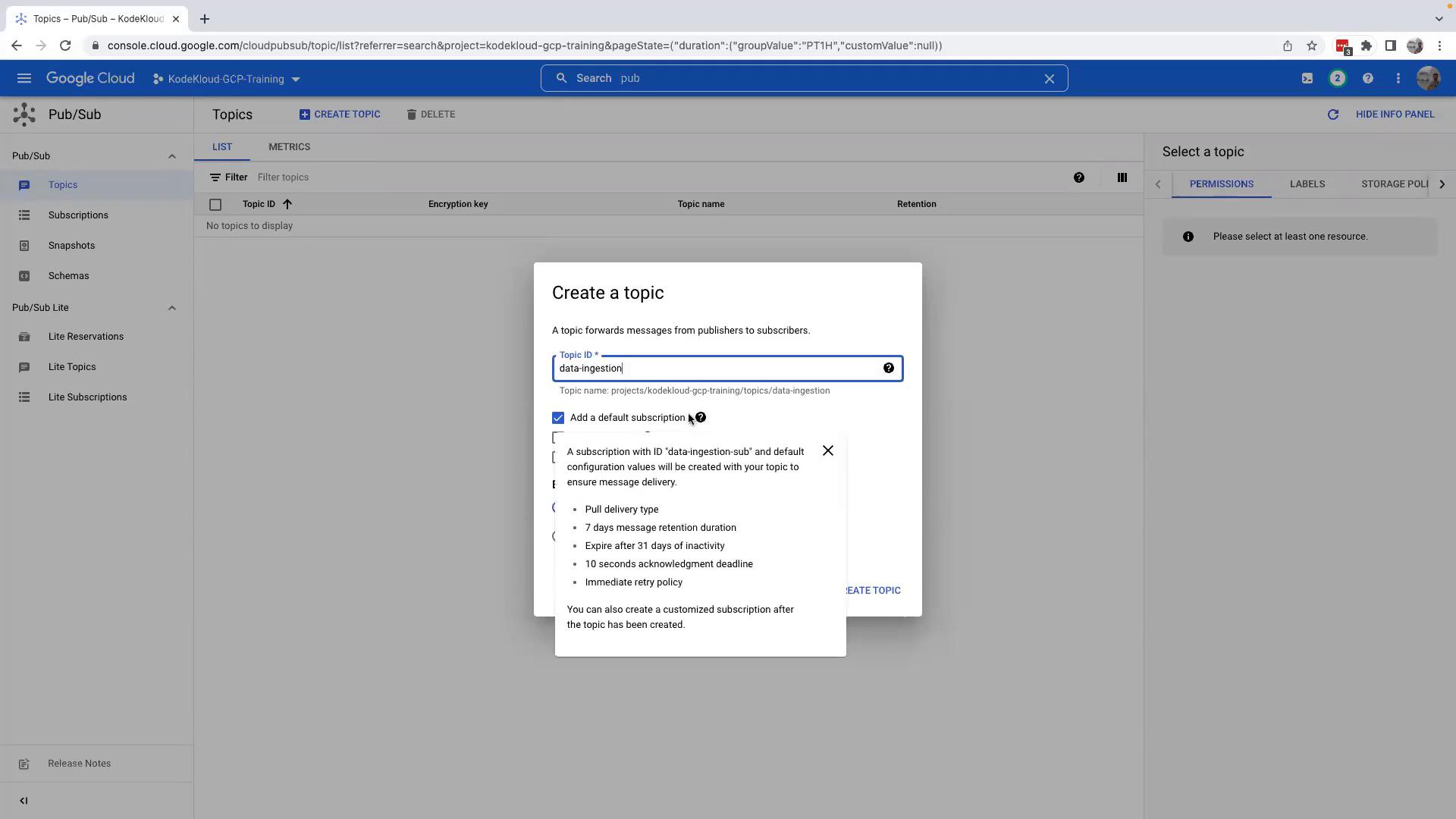
Exploring Topic Details and Subscriptions
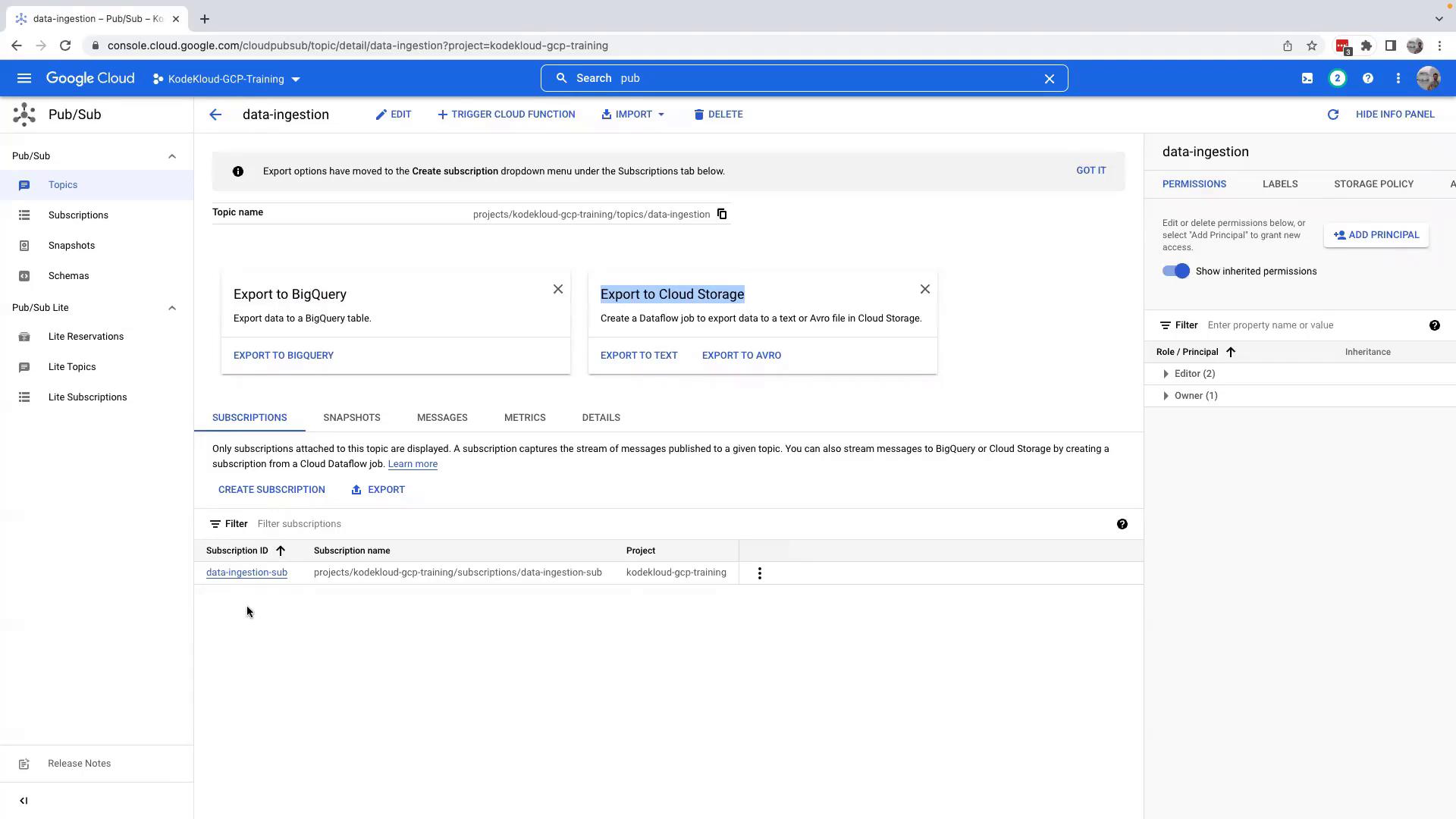
After creating the topic, click on it to view detailed settings and options:- The topic details page provides insights on sending data to BigQuery or Cloud Storage.
- The default subscription is clearly visible and is configured to pull data from the topic.
Publishing Messages to Your Topic
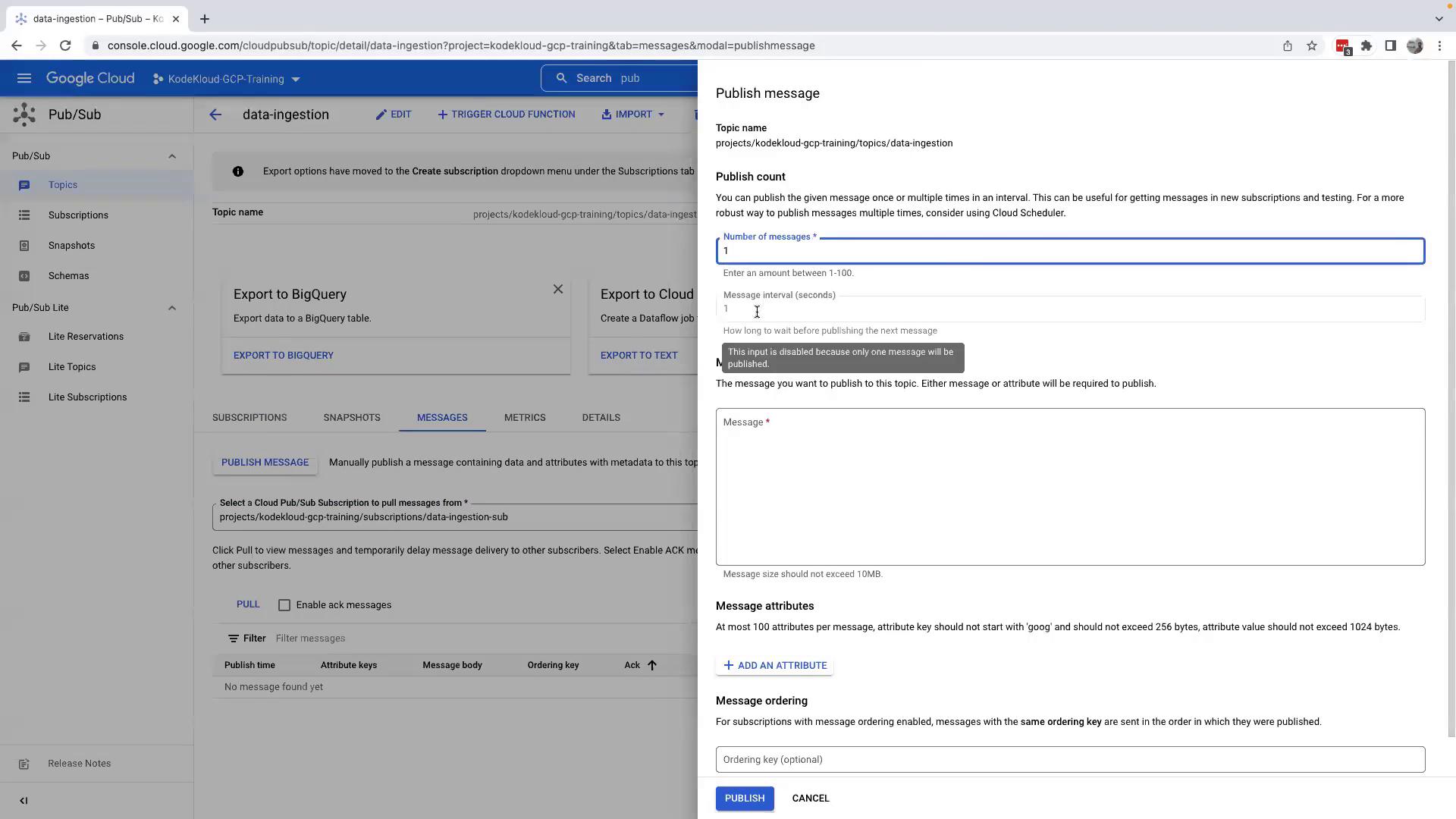
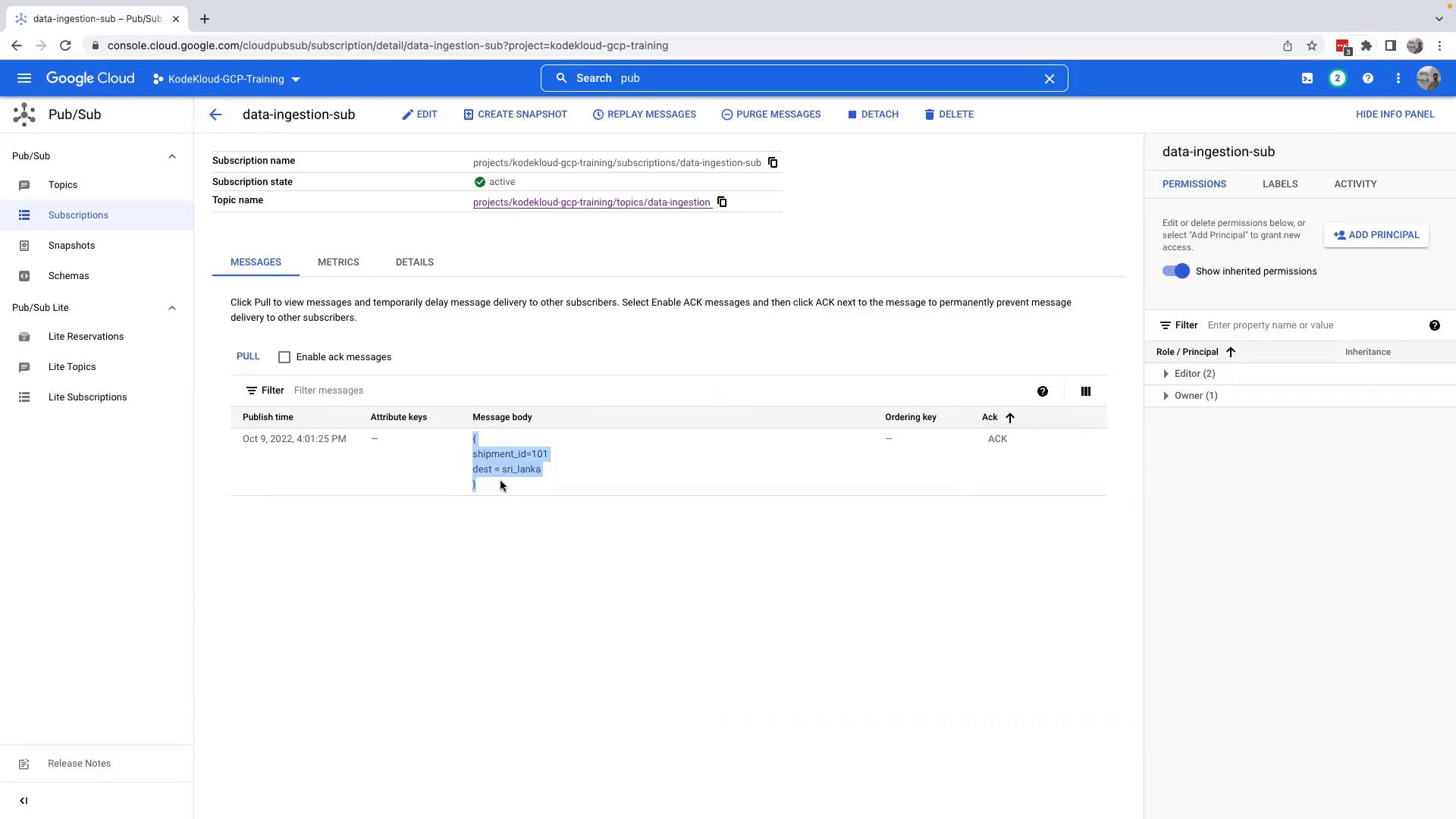
To demonstrate publishing, follow these steps to push messages and validate the subscription retrieval:- Return to your topic and click on Messages.
- Initiate message publishing by selecting the appropriate subscription.
- Enter your message using JSON format.
Understanding Data Ingestion and Retention Options
Pub/Sub is designed for real-time data streaming and offers flexible data ingestion capabilities:- Data can be exported directly to BigQuery for instant analytics.
- If the data requires further processing (e.g., cleansing or computation), it can first be transferred to Cloud Storage, then loaded into BigQuery.
Remember: A Pub/Sub topic is optimized for streaming real-time data rather than serving as a permanent data repository. Ensure that data is either consumed by a subscription or exported to long-term storage.
Configuring and Editing Subscriptions
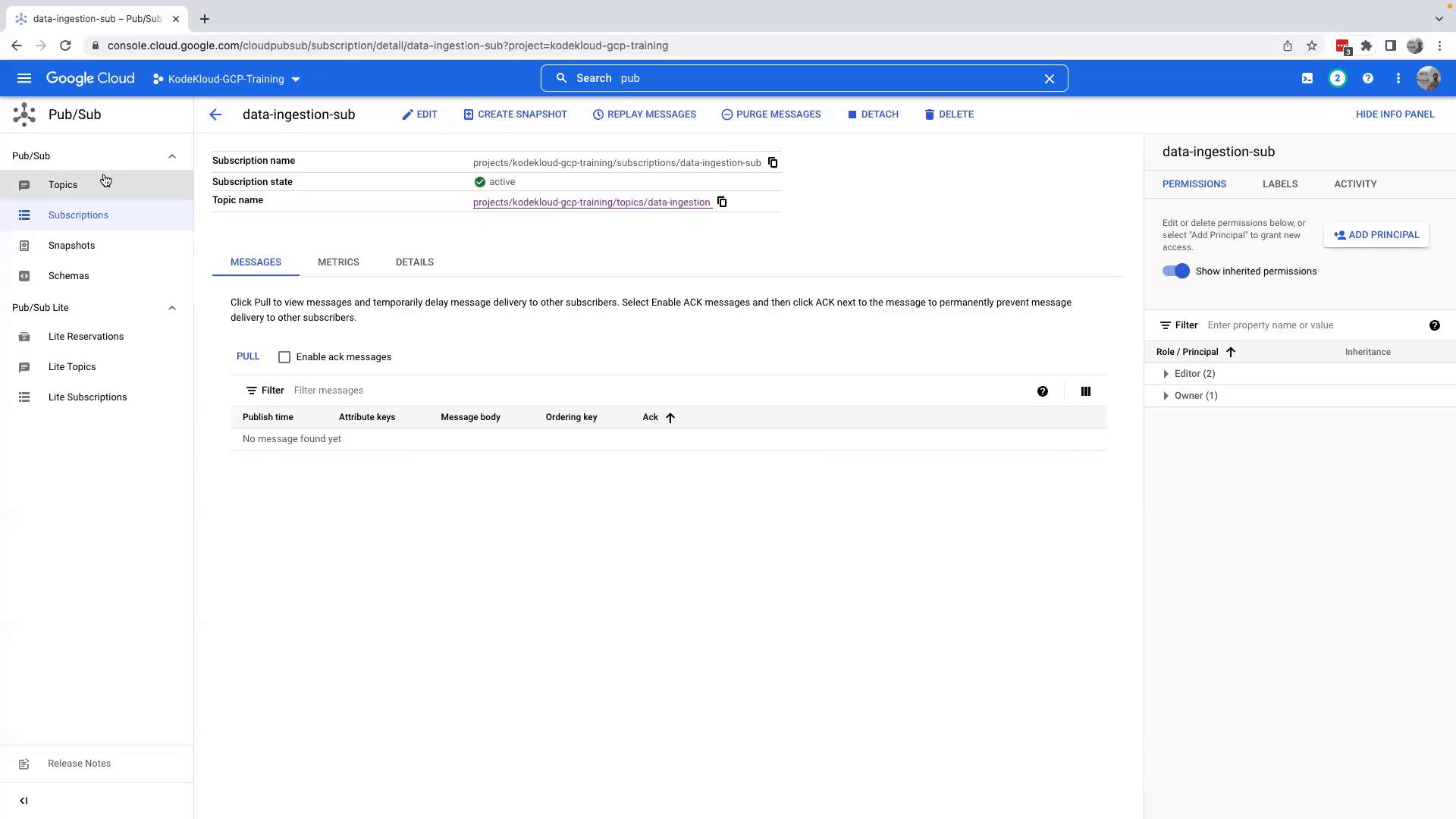
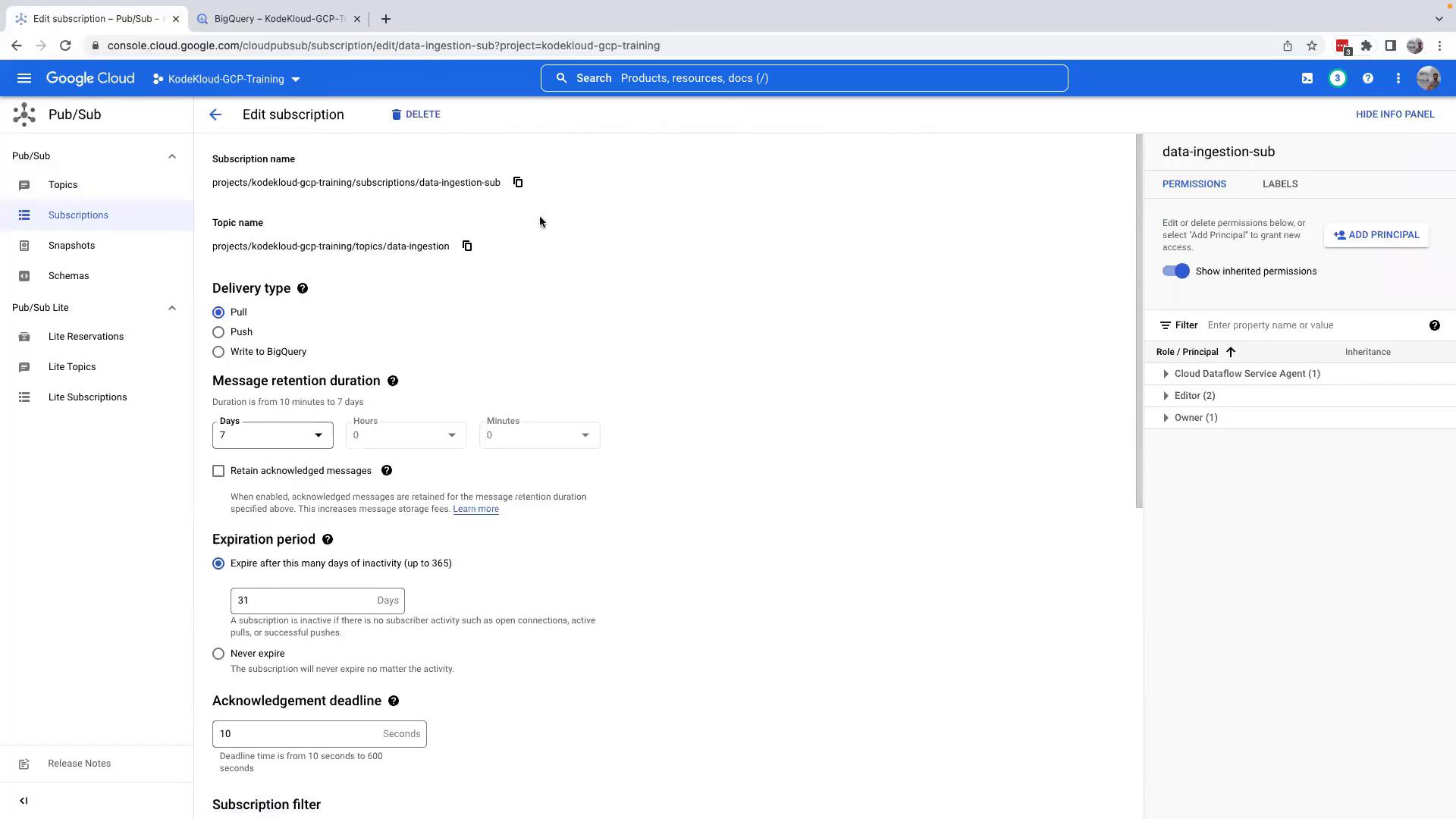
To optimize how your data is processed, you can modify the configuration settings for your subscriptions. To do this:- Navigate to the Subscriptions section.
- Click on Edit for the subscription you want to modify.
- Directly streaming data export to BigQuery (ensure that your BigQuery datasets and tables are set up in advance).
- Adjusting message retention settings.
- Changing delivery options for real-time analytics.
Cleaning Up Resources
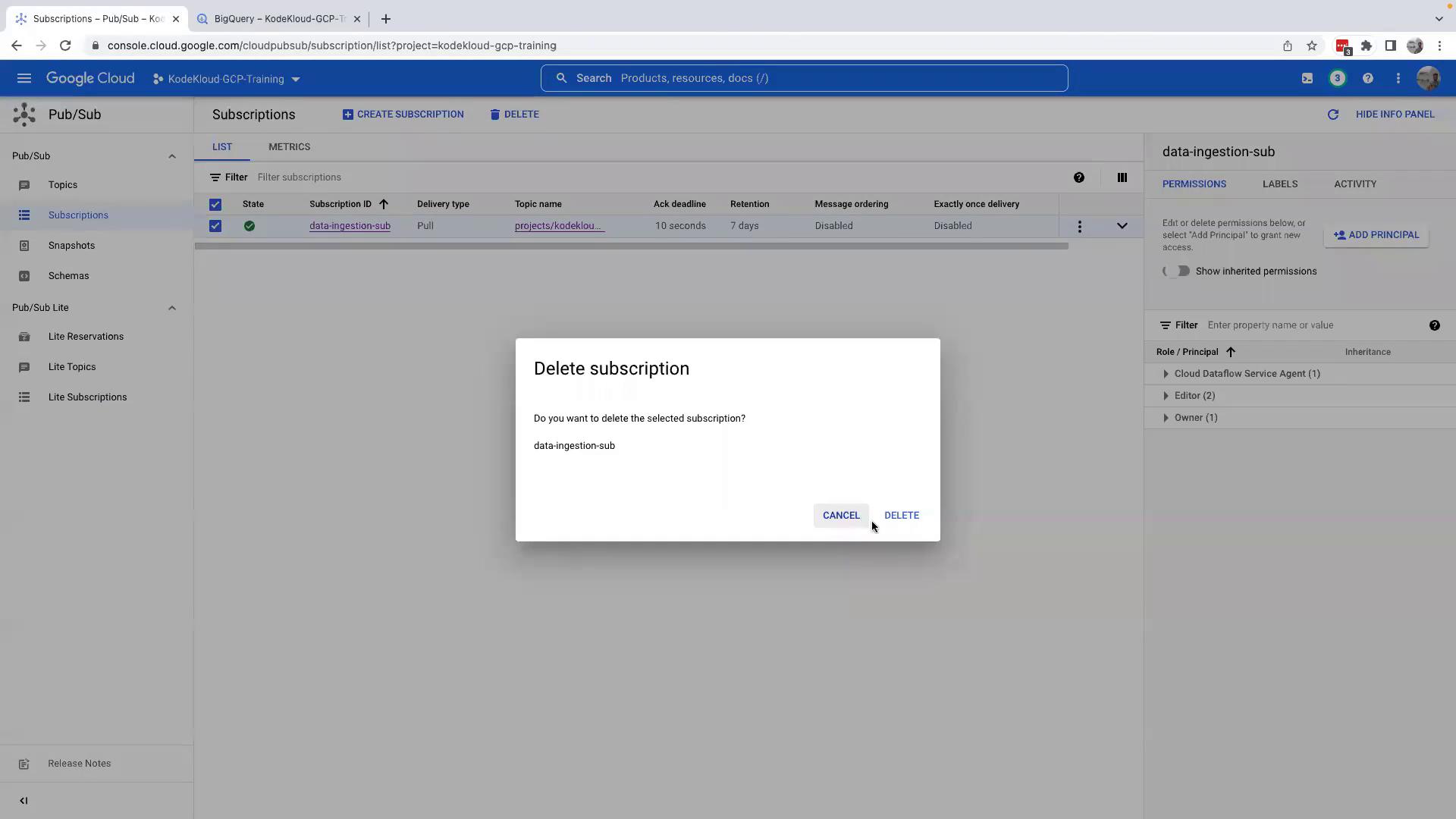
Before proceeding to further lessons—where integration with Cloud Storage and BigQuery is explored—it’s essential to clean up the resources created during this demo. To do so:- Navigate back to the topic.
- Delete the subscription by clicking on the Delete button.
- Finally, delete the topic.
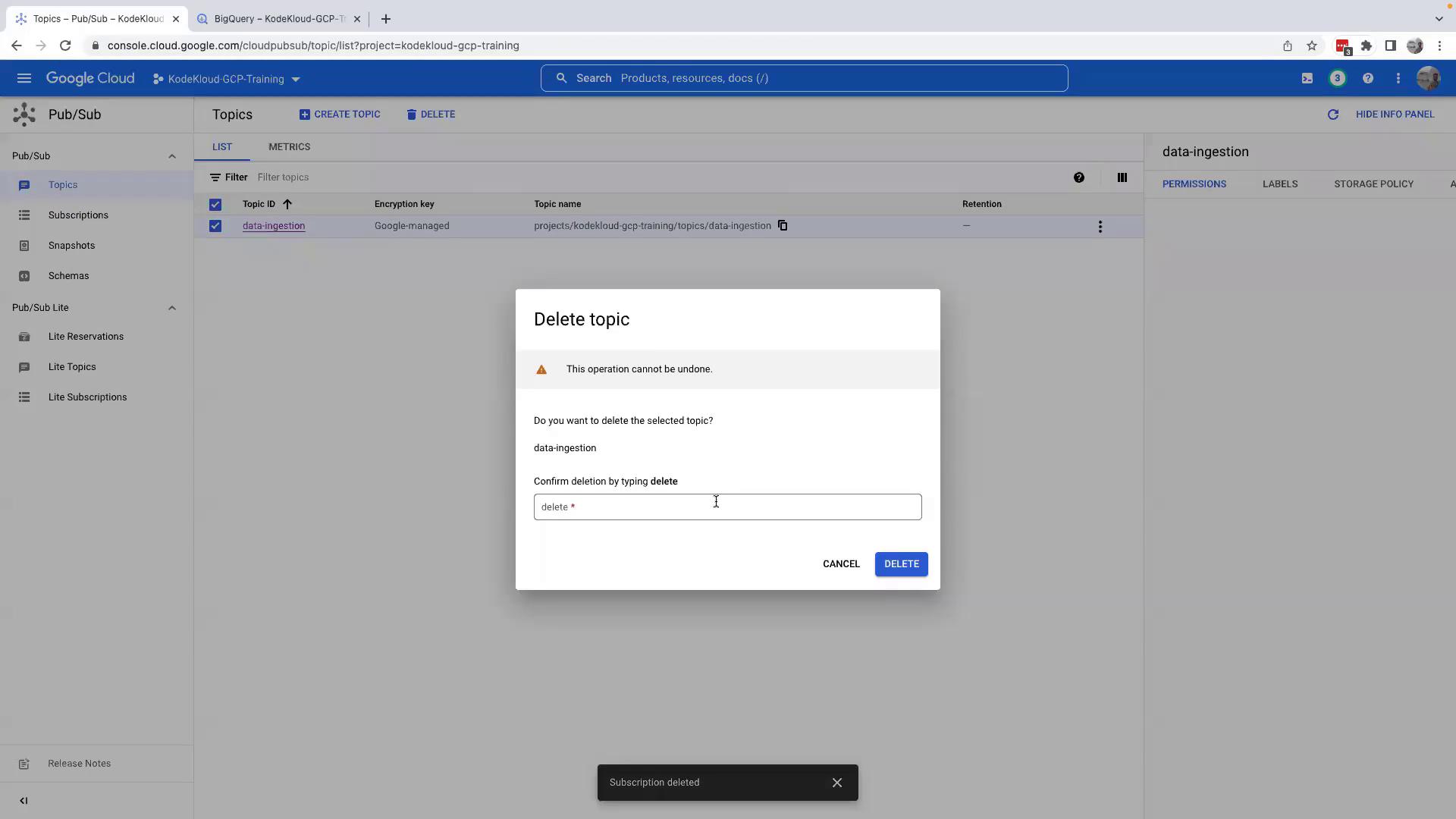
Deleting topics and subscriptions is irreversible. Make sure to export or backup necessary data before performing deletion.