Step 1: Download VirtualBox
Begin by visiting the VirtualBox website. On the download page, you will find links for different operating systems. Since you are using Windows, click the Windows link to download the VirtualBox installer.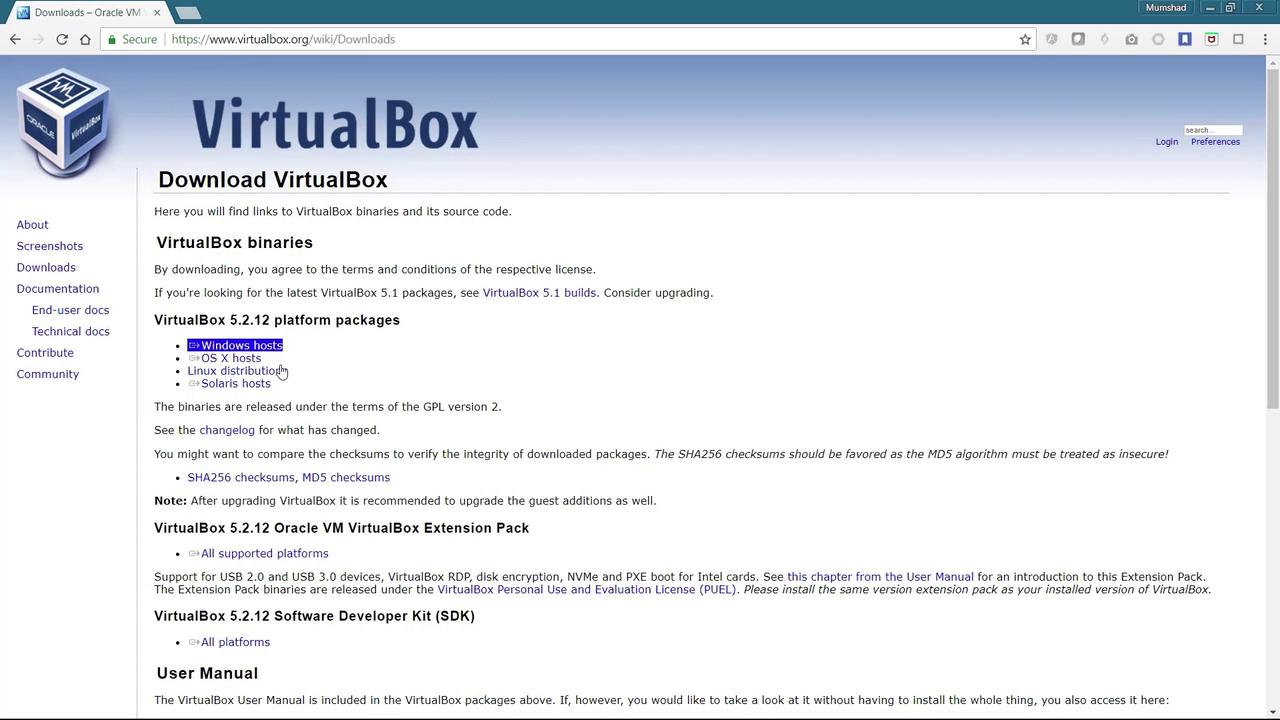
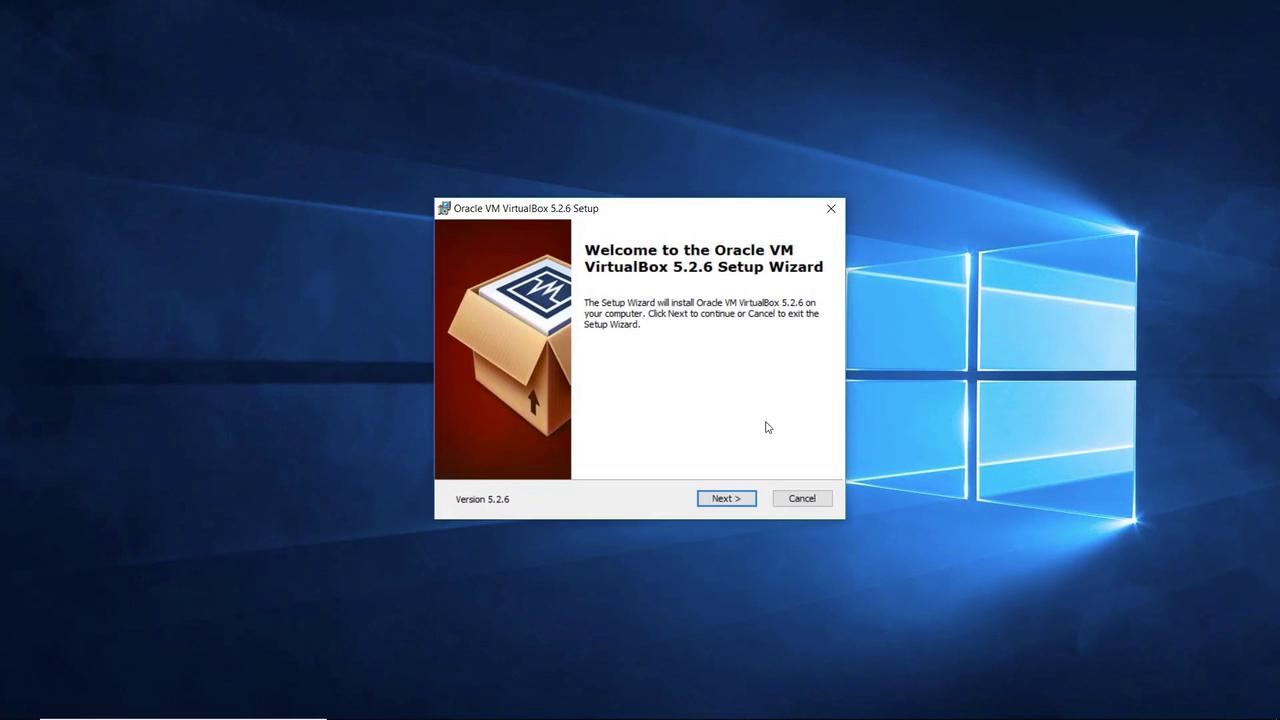
Step 2: Launch VirtualBox and Set Up a Virtual Machine
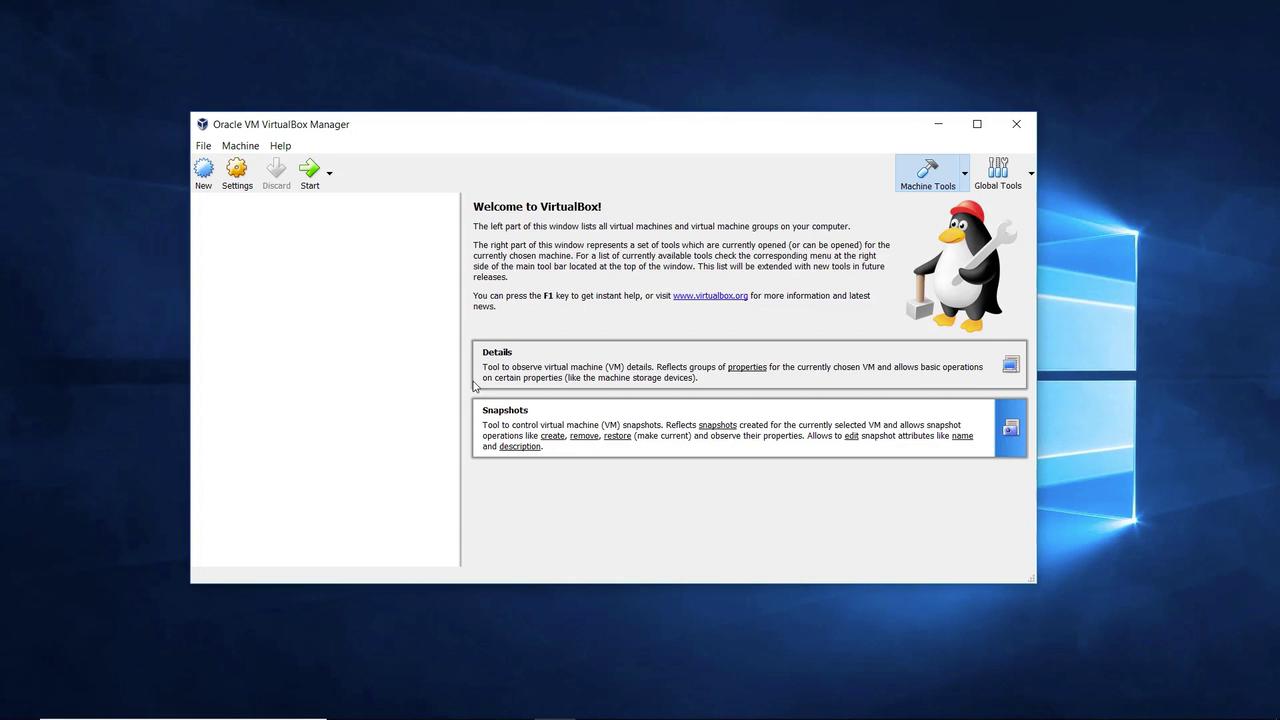
Launch the Oracle VM VirtualBox interface. Your interface should resemble the screenshot shown below. Now you’re ready to deploy virtual machines. You have two options:- Create a new machine, attach a CD drive with an operating system installer, and follow the standard installation process.
- Use pre-configured operating system images available online for a seamless setup.
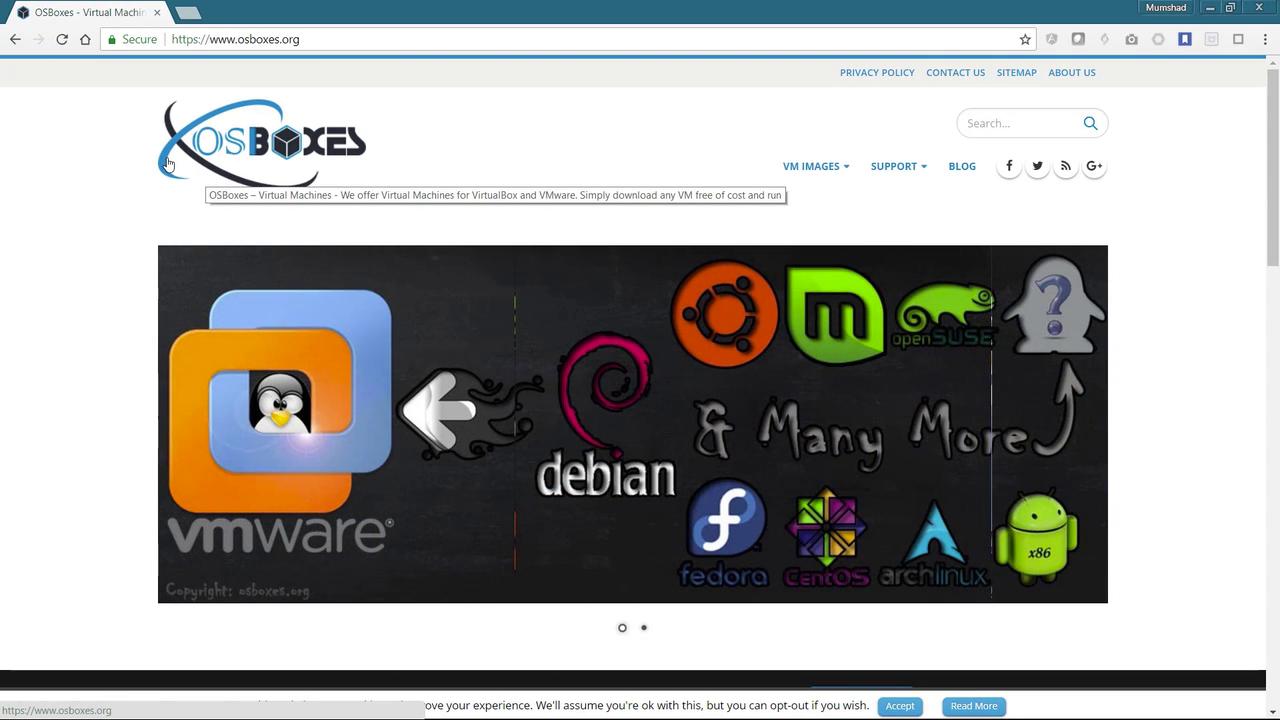
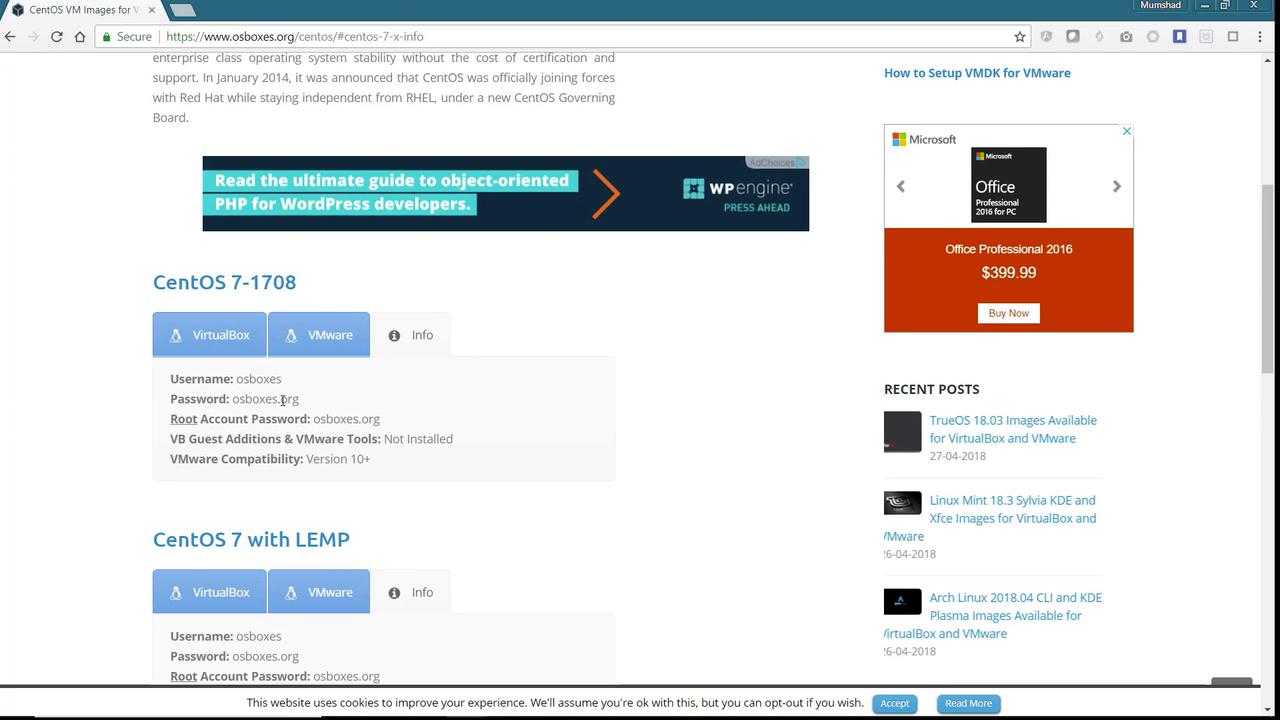
Step 3: Download and Prepare the CentOS Image
For this lesson, we’ll use CentOS. Click on the CentOS option to navigate to its downloads page and choose the VirtualBox image for CentOS 7. Be sure to select the 64-bit version.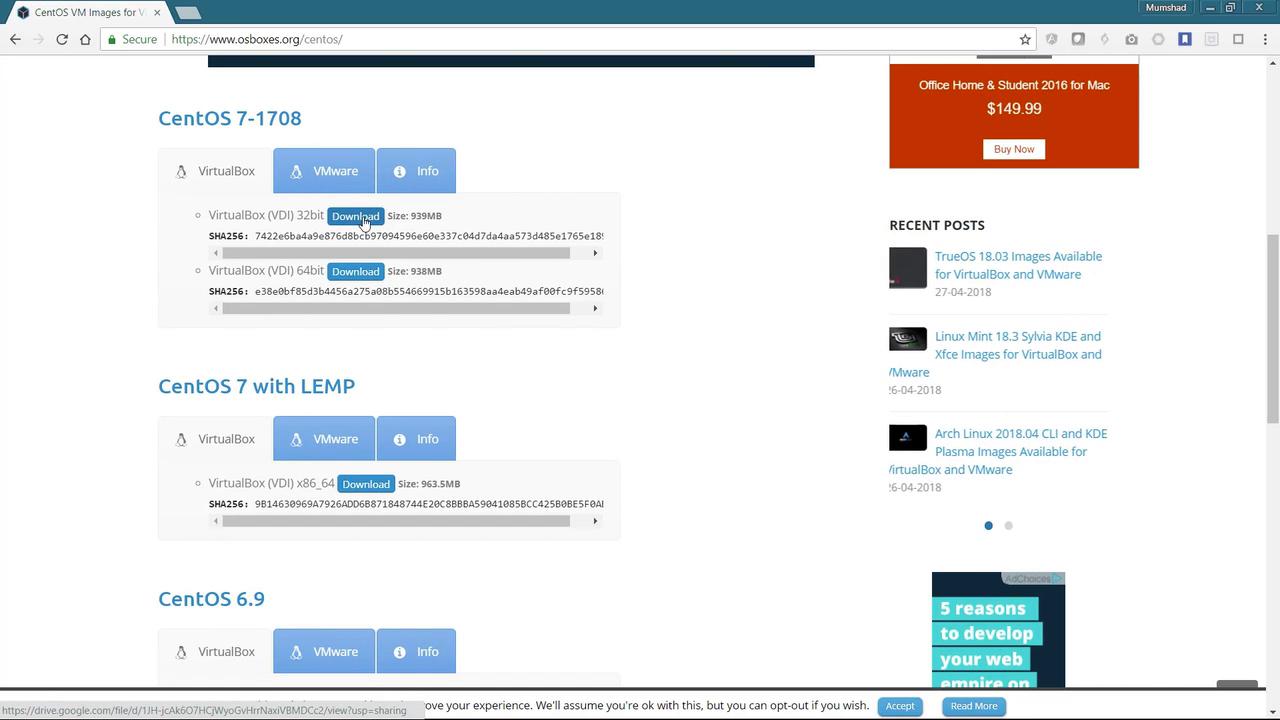
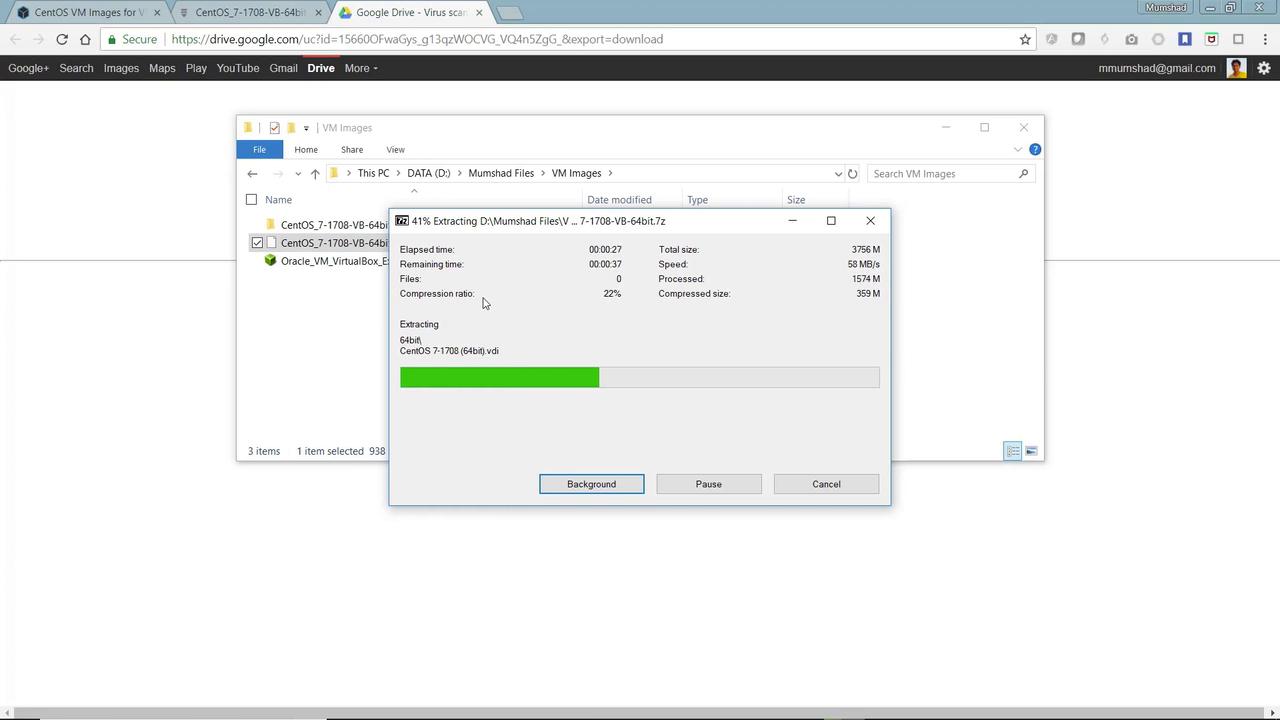
Step 4: Create a New Virtual Machine
Return to the Oracle VM VirtualBox interface and click on “New” to create a virtual machine. Name the machine “CentOS-template” as it will serve as a template for multiple deployments later. When asked for the operating system type, select “Linux.” Since “CentOS” might not be listed explicitly, choose “Other Linux” and ensure you pick the 64-bit version.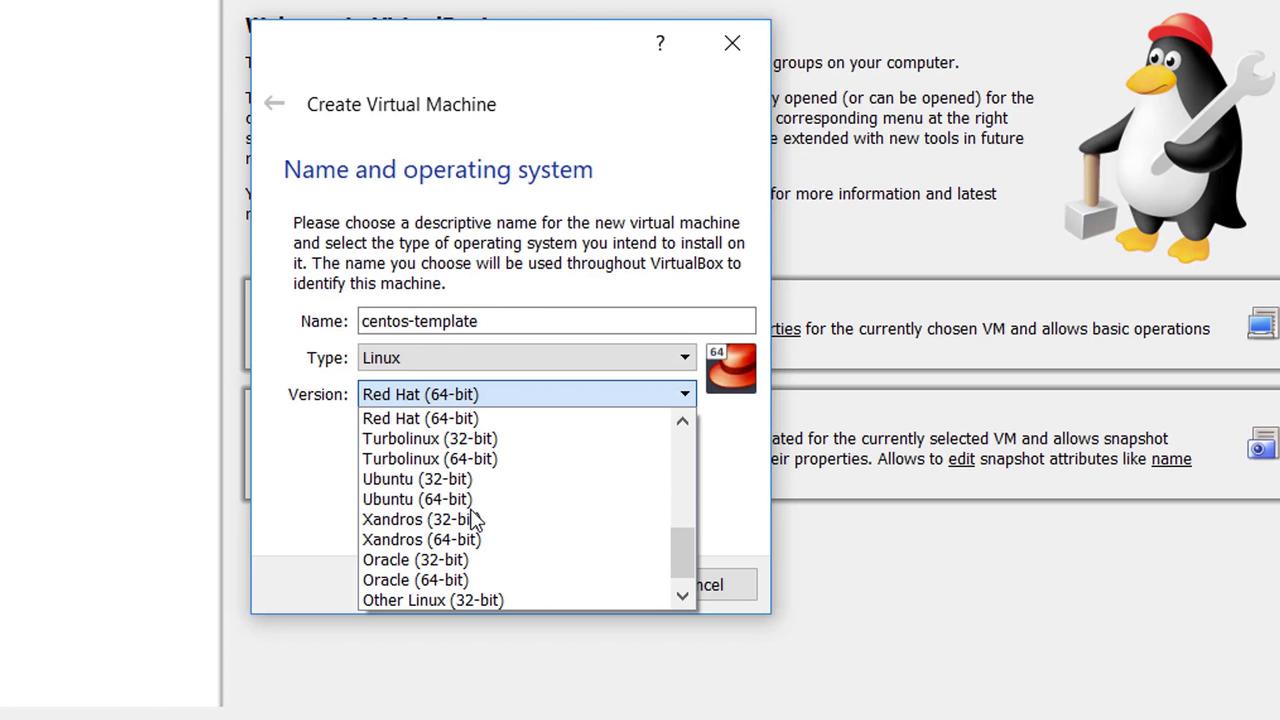
If you don’t see any 64-bit options in the drop-down, it may be because virtualization technology is disabled in your BIOS. Reboot your computer and access the BIOS settings to enable an option like “Virtualization Technology” under Advanced Settings.
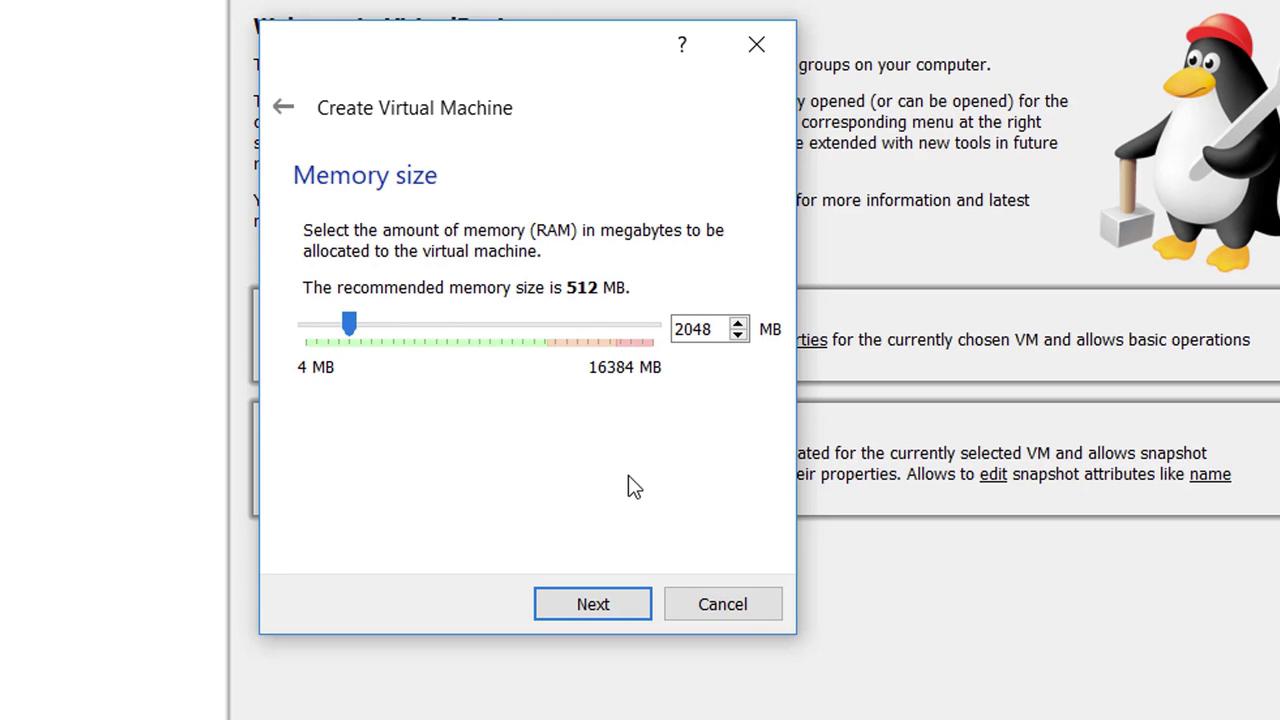
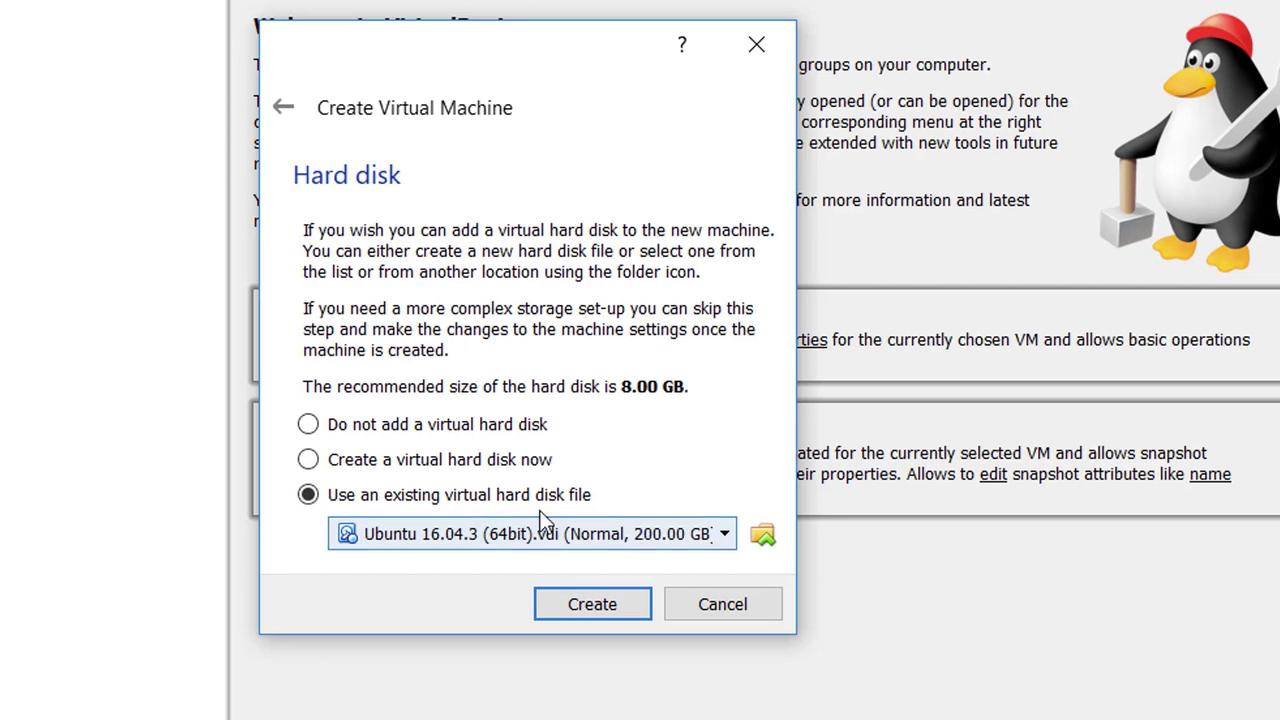
Step 5: Configure Additional Virtual Machine Settings
Before powering on the virtual machine template, adjust a couple of configurations:- Open the Settings menu.
- Go to the “System” tab and increase the number of CPUs to 2.
- Navigate to the “Networking” section and change Adapter 1 to “Bridged Adapter.” This setting enables the virtual machine to receive an IP address and connect to the internet, facilitating downloads and other dependency installations.
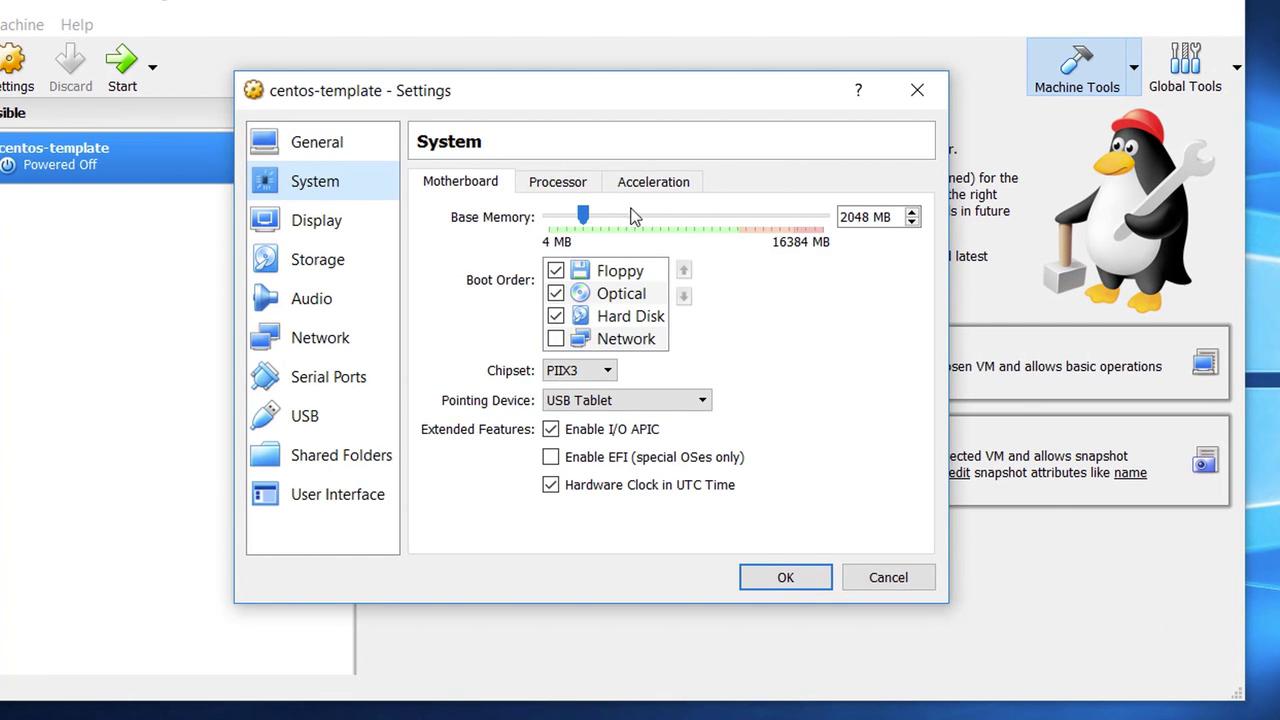
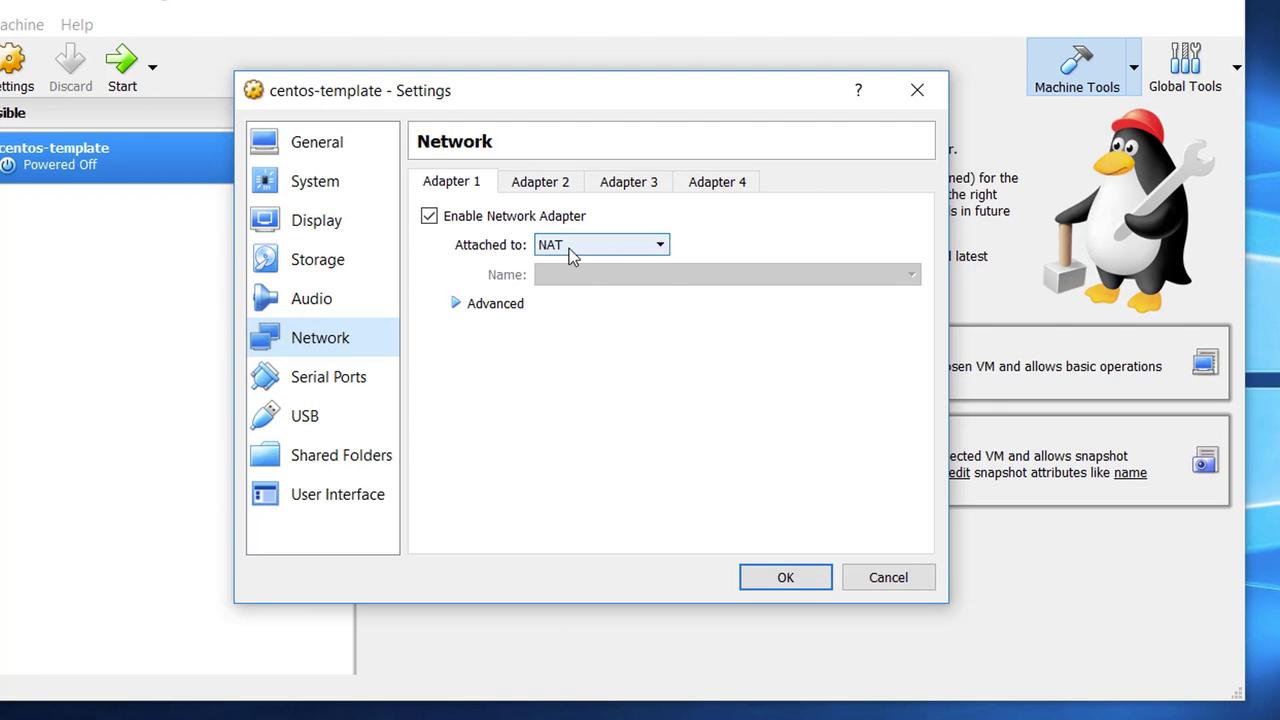
Step 6: Power On and Log Into CentOS
Power on the virtual machine. When you are presented with the login prompt, use the default credentials provided by osboxes.org:- Username: osboxes
- Password: osboxes