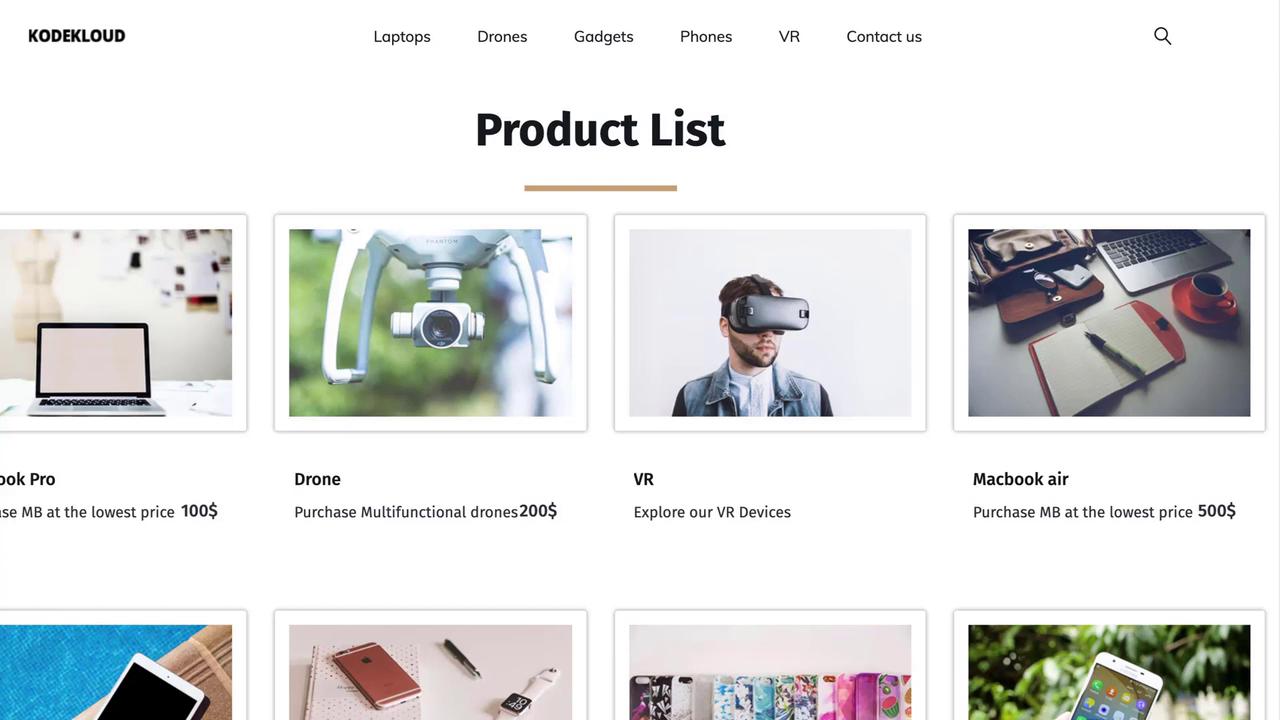
This tutorial explains deploying the KodeKloud e-commerce website using a LAMP stack with detailed setup instructions and configurations.
This tutorial explains how to deploy the KodeKloud e-commerce website, a fictional online store for electronic devices, using a LAMP stack (Linux, Apache, MariaDB, PHP). For this lab, we use MariaDB—a community alternative to MySQL—with identical procedures whether you choose MariaDB or MySQL.
The sections below detail setting up the lab environment, installing required components, and configuring the system properly.
Install the MariaDB server, adjust the configuration, and configure firewall rules for SQL access. Although the configuration file (/etc/my.cnf) is similar to that of MySQL, you can use the MySQL client to interact with MariaDB.
Copy
Ask AI
sudo yum install mariadb-serversudo vi /etc/my.cnf # Configure the file with the correct port settings if neededsudo service mariadb startsudo systemctl enable mariadbsudo firewall-cmd --permanent --zone=public --add-port=3306/tcpsudo firewall-cmd --reload
After starting MariaDB, use the MySQL command-line interface to create the database, user, and load the inventory data:
Copy
Ask AI
mysqlMariaDB > CREATE DATABASE ecomdb;MariaDB > CREATE USER 'ecomuser'@'localhost' IDENTIFIED BY 'ecompassword';MariaDB > GRANT ALL PRIVILEGES ON *.* TO 'ecomuser'@'localhost';MariaDB > FLUSH PRIVILEGES;mysql < db-load-script.sql
Be sure to adjust port settings or other configuration parameters in /etc/my.cnf as needed for your environment.
Install Apache, PHP, and Git. Then, configure Apache to serve PHP by prioritizing index.php over index.html and open port 80 for external traffic:
Copy
Ask AI
sudo yum install -y httpd php php-mysqlsudo firewall-cmd --permanent --zone=public --add-port=80/tcpsudo firewall-cmd --reloadsudo vi /etc/httpd/conf/httpd.conf # Modify DirectoryIndex to prioritize index.phpsudo service httpd startsudo systemctl enable httpdsudo yum install -y gitgit clone https://github.com/<application>.git /var/www/html/# Update index.php with the correct database address, database name, and credentialscurl http://localhost
This configuration deploys the entire stack on a single node. In multi-node environments, the database and web server reside on separate machines, requiring additional connectivity configuration.
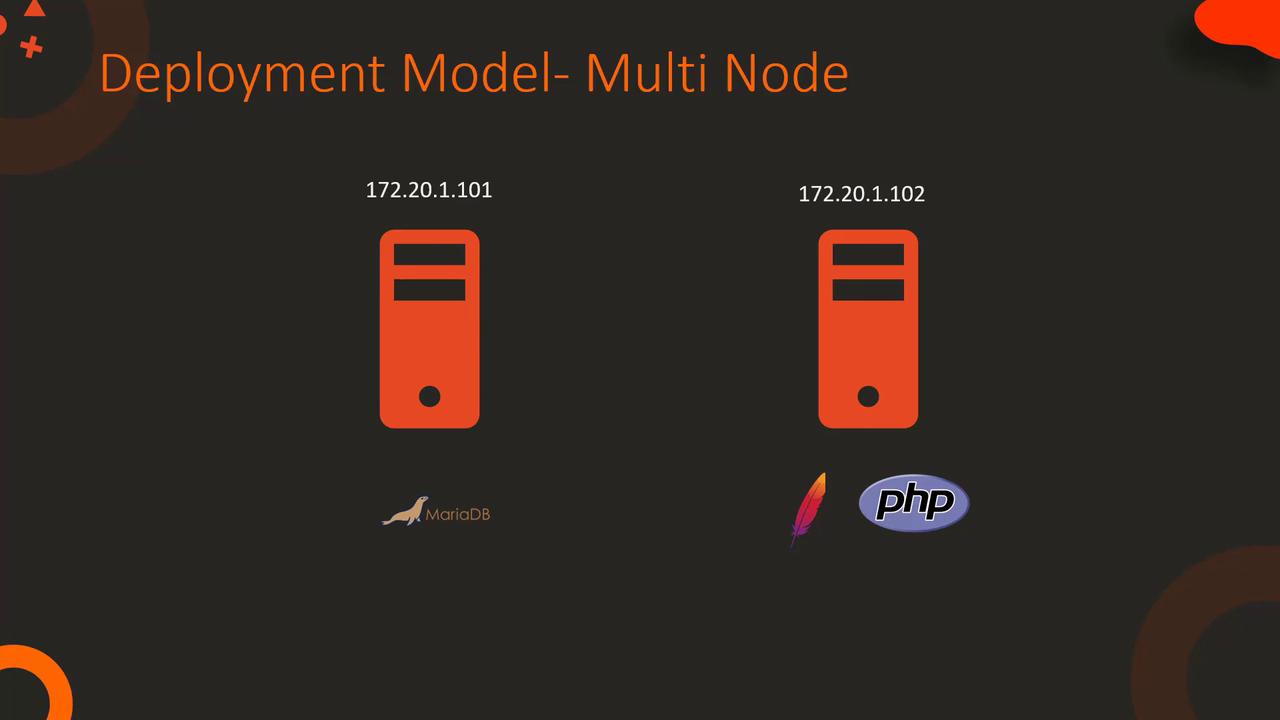
For multi-node deployments, host the database server and web server on different nodes. Ensure that the web server’s index.php is updated with the correct database server IP, and update database user permissions for remote access. The diagram below illustrates this multi-node setup:
Update the database user to allow access from the web server’s IP address:
Copy
Ask AI
mysqlMariaDB > CREATE DATABASE ecomdb;MariaDB > CREATE USER 'ecomuser'@'172.20.1.102' IDENTIFIED BY 'ecompassword';MariaDB > GRANT ALL PRIVILEGES ON *.* TO 'ecomuser'@'172.20.1.102';MariaDB > FLUSH PRIVILEGES;
Modify the PHP connection settings accordingly:
Copy
Ask AI
$link = mysqli_connect('172.20.1.101', 'ecomuser', 'ecompassword');if ($link) { $res = mysqli_query($link, "SELECT * FROM products;"); while ($row = mysqli_fetch_assoc($res)) { // Process each product record }}
Always ensure that user permissions and access control settings are securely configured when allowing remote connections.
Code Explanation: HTML/PHP for Displaying Products
The index.php file is responsible for connecting to the MariaDB database and retrieving product data for display on the website. Below is a snippet demonstrating the database connection and data retrieval process:
This snippet establishes a secure connection to the database and retrieves product records to display on the front end. Modify the host, credentials, and database names as necessary to match your environment.
The example below reiterates how the PHP code connects to the database and retrieves product records, reinforcing the concepts discussed:
Copy
Ask AI
$link = mysqli_connect('172.20.1.101', 'ecomuser', 'ecompassword', 'ecomdb');if ($link) { $res = mysqli_query($link, "SELECT * FROM products;"); while ($row = mysqli_fetch_assoc($res)) { // Your code here to process and display each product }}
After reviewing this demo, proceed to the project labs to set up your environment and apply your new skills.This guide provided a complete walkthrough for deploying a LAMP stack application for the KodeKloud e-commerce website, covering both single-node and multi-node configurations. Enjoy setting up your lab environment and exploring the project!