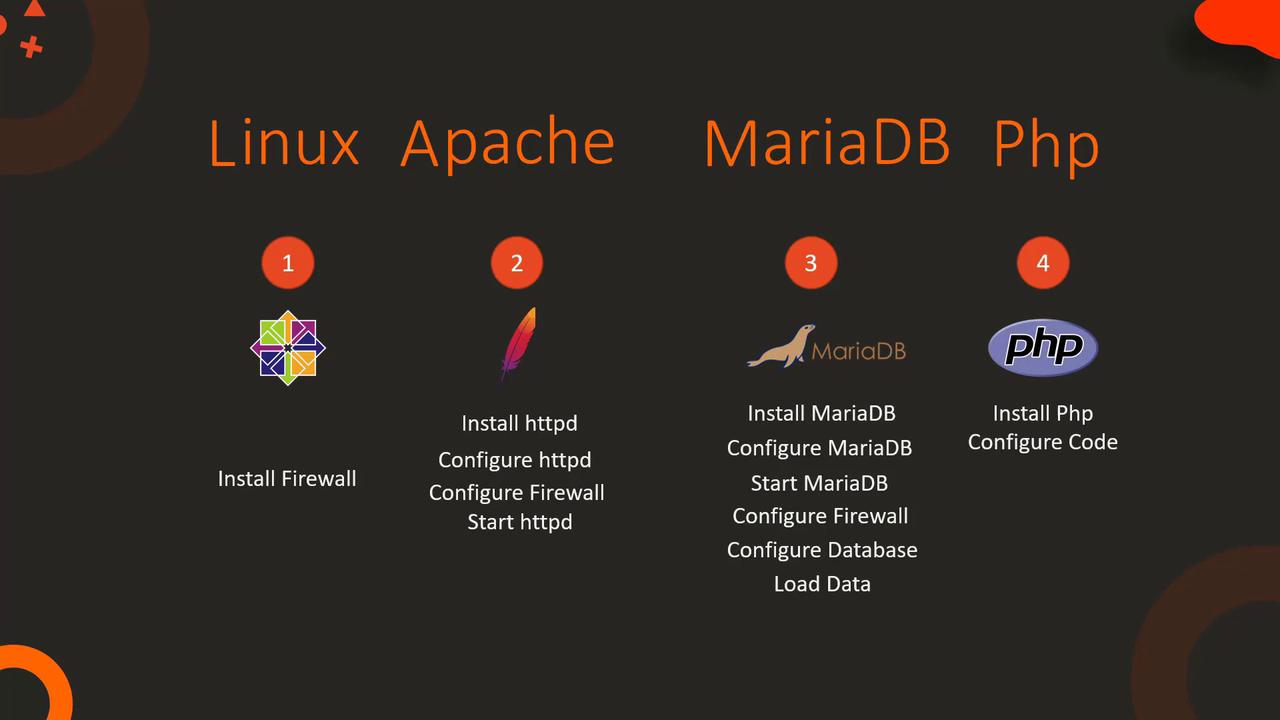
This guide covers the deployment and configuration of the KodeKloud eCommerce Application using a LAMP stack on a CentOS machine.
In this guide, we will walk through the deployment and configuration of the KodeKloud eCommerce Application—a fictional online store specializing in electronic devices. The application leverages a LAMP stack (Linux, Apache, MariaDB, PHP) on a CentOS machine. While the application is built around MySQL, our labs use MariaDB, a community fork of MySQL. You can substitute MySQL in your own environment if preferred.
Before installing application components, ensure all system prerequisites are met. Begin by setting up the firewall and configuring the MariaDB database:
Install and start the firewalld service.
Install and configure MariaDB by editing the /etc/my.cnf file for the correct port settings.
Start and enable the MariaDB service.
Add firewall rules to allow SQL access on port 3306.
Configure the database by creating the necessary user and database, then import inventory data.
Install Apache, PHP packages, and optionally Git to download the application code.
Below is the complete sequence of commands:
Copy
Ask AI
$ sudo yum install firewalld$ sudo service firewalld start$ sudo systemctl enable firewalld$ sudo yum install mariadb-server$ sudo vi /etc/my.cnf # Configure the file with the correct port settings$ sudo service mariadb start$ sudo systemctl enable mariadb$ sudo firewall-cmd --permanent --zone=public --add-port=3306/tcp$ sudo firewall-cmd --reload# Configure the database$ mysqlMariaDB > CREATE DATABASE ecomdb;MariaDB > CREATE USER 'ecomuser'@'localhost' IDENTIFIED BY 'ecompassword';MariaDB > GRANT ALL PRIVILEGES ON *.* TO 'ecomuser'@'localhost';MariaDB > FLUSH PRIVILEGES;# Load inventory data$ mysql < db-load-script.sql
Ensure that the /etc/my.cnf file is correctly updated with the appropriate port settings before starting MariaDB.
Next, configure Apache and PHP. This step involves the installation of necessary packages, updating Apache’s configuration to prioritize index.php, adjusting firewall rules for HTTP traffic, and cloning the application code from Git.
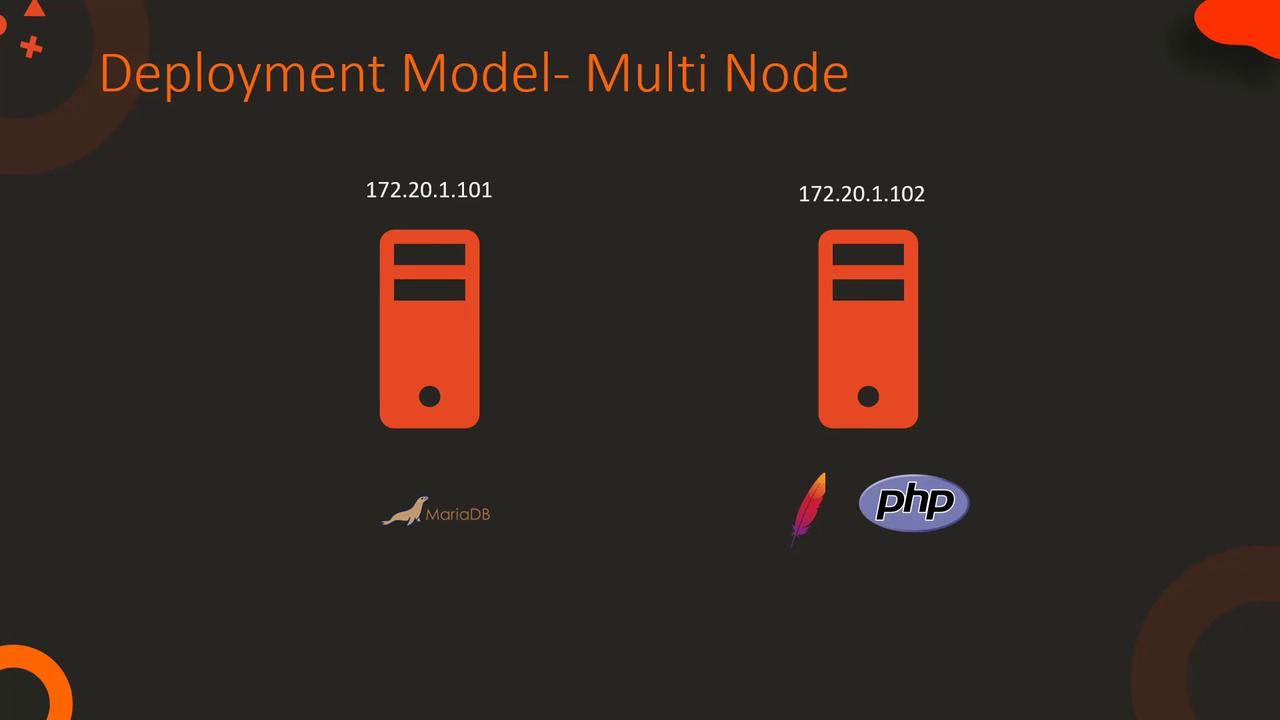
In a multi-node deployment scenario, the database and web server are hosted on separate nodes. The fundamental configuration steps remain the same, with an emphasis on connectivity settings. For example, when configuring the database, specify the web server’s IP address for user access. Similarly, update the index.php file on the web server with the database server’s IP address.
Execute the following commands to set up the database for a multi-node environment:
Copy
Ask AI
$ mysqlMariaDB > CREATE DATABASE ecomdb;MariaDB > CREATE USER 'ecomuser'@'172.20.1.102' IDENTIFIED BY 'ecompassword';MariaDB > GRANT ALL PRIVILEGES ON *.* TO 'ecomuser'@'172.20.1.102';MariaDB > FLUSH PRIVILEGES;
A crucial component of the application is the index.php file, which is responsible for establishing the database connection and rendering product information. In the following example, the connection to the MariaDB database is set up using the IP address, database name, user ID, and password:
Copy
Ask AI
$link = mysqli_connect('172.20.1.101', 'ecomuser', 'ecompassword', 'ecomdb');if ($link) { $res = mysqli_query($link, "SELECT * FROM products;"); while ($row = mysqli_fetch_assoc($res)) { // Your code to display product information }}
For a live demonstration of product details rendering on the webpage, consider the expanded PHP snippet below:
After reviewing this setup and demonstration, proceed to your project labs to apply these configurations. Begin by setting up your project environment and ensure that each component operates correctly. This detailed guide has covered both single-node and multi-node deployment scenarios to match a range of real-world architectures.For further reading, consider exploring the following resources: