

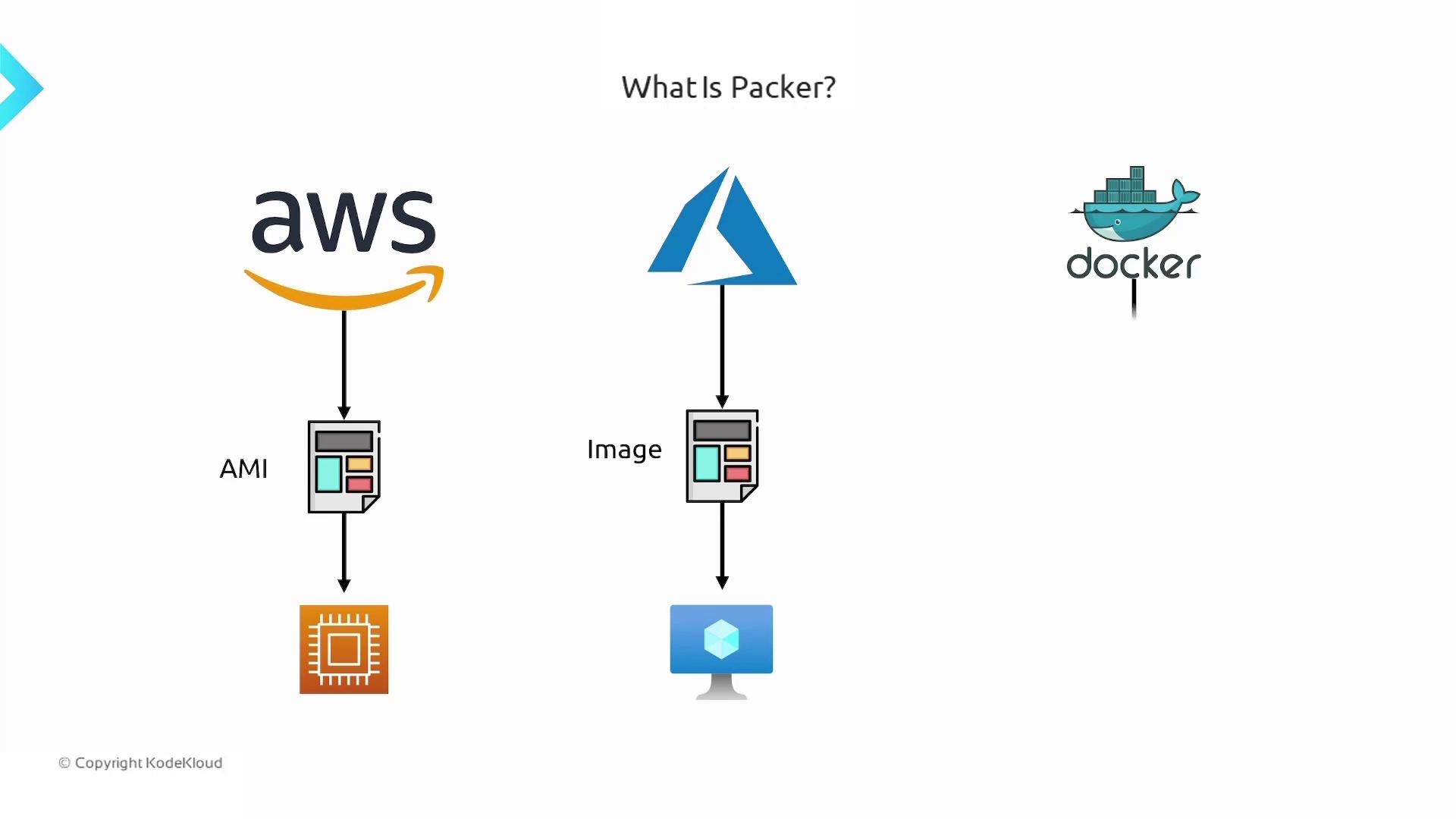
Key Benefits of Packer
- Consistency: Build identical images every time.
- Speed: Automate provisioning and eliminate manual steps.
- Portability: Use a single HCL template across multiple cloud and container platforms.
- Scalability: Integrate into CI/CD pipelines for fully automated image builds.
Before you begin, ensure you have the latest Packer CLI installed and your cloud provider credentials configured (
AWS_ACCESS_KEY_ID, AWS_SECRET_ACCESS_KEY, etc.).Packer Configuration Components
A typical Packer template consists of three primary sections:| Component | Purpose | Example |
|---|---|---|
| Builders | Defines the target platform and base image (e.g., AWS AMI, Azure Managed Image, Docker). | source "amazon-ebs" "ubuntu" { ... } |
| Provisioners | Runs scripts or commands to install dependencies, copy code, and configure services. | provisioner "shell" { inline = ["sudo apt install nginx"] } |
| Post-Processors | Optional steps to compress artifacts, upload images to registries, or tag images. | post-processor "docker-tag" { ... } |
Example: Building an Ubuntu AMI with Nginx
Below is a simple HCL template (template.pkr.hcl) that launches an EC2 instance from an Ubuntu AMI, installs Nginx, clones application code, and then creates a new AMI.
Build Commands
Run these commands in your project directory:How Packer Executes Builds
Packer processes your template in three sequential stages:| Stage | Description |
|---|---|
| Builder | Launches a temporary VM or container from the specified base image (e.g., spins up an EC2). |
| Provisioner | Customizes the instance: installs packages, copies code, configures services, and runs scripts. |
| Post-Processor | Packages the instance into a final image (AMI, VHD, Docker image), uploads or tags artifacts. |