This guide demonstrates how to collect logs from a Node.js application using Promtail and visualize them in Grafana.
In this guide, we will demonstrate how to collect logs generated by a Node.js application running on two nodes. We will configure Promtail to gather these logs and forward them to a Loki server for visualization in Grafana.
Start by opening separate terminal sessions for node-1 and node-2. Connect to the nodes using your preferred method. For example, you might use the following command:
Copy
Ask AI
vagrant s
After connecting, rename your terminal tabs to easily distinguish between node-1 and node-2.When you connect to node-1, you should see output similar to this:
Copy
Ask AI
Usage of /: 6.8% of 38.70GBMemory usage: 31%Swap usage: 0%Processes: 125Users logged in: 1IPv4 address for docker0: 172.17.0.1IPv4 address for enp0s3: 10.0.2.15IPv4 address for enp0s8: 192.168.1.31IPv6 address for enp0s8: 2603:6080:e01:898a::1973IPv6 address for enp0s8: 2603:6080:e01:898a:a00:27ff:fec2:a5d* Strictly confined Kubernetes makes edge and IoT secure. Learn how MicroK8s just raised the bar for easy, resilient and secure K8s cluster deployment. https://ubuntu.com/engage/secure-kubernetes-at-the-edgeExpanded Security Maintenance for Applications is not enabled.0 updates can be applied immediately.Enable ESM Apps to receive additional future security updates.See https://ubuntu.com/esm or run: sudo pro statusNew release '22.04.2 LTS' available.Run 'do-release-upgrade' to upgrade to it.Last login: Tue Jul 18 05:39:30 2023 from 10.0.2.2vagrant@node-1:~$
On node-1, navigate to the application directory where your Node.js application is running. The application writes its logs to a file called app.log, located in the same directory as index.js.
Copy
Ask AI
vagrant@node-1:~$ cd app/vagrant@node-1:~/app$ lsapp.log index.js node_modules package-lock.json package.jsonvagrant@node-1:~/app$
To inspect the log file, you can use the cat or tail command:
Copy
Ask AI
vagrant@node-1:~/app$ cat app.log
The same file structure exists on node-2, and its logs can be inspected similarly. New log entries should be created every few seconds.
This output confirms that the application is emitting logs. Promtail will collect these logs and forward them to the Loki server for further analysis in Grafana.
Before updating Promtail’s configuration, stop the running Promtail instance on node-1 by pressing Ctrl-C. Then, review the current Promtail configuration file:
Since your Node.js application writes logs in its directory (for example, /home/vagrant/app/app.log), add a new scrape job for these logs. Update the configuration as shown below:
Ensure the startup logs display no errors. Look for messages indicating that Promtail is reloading the configuration and listening on the designated HTTP and gRPC ports.
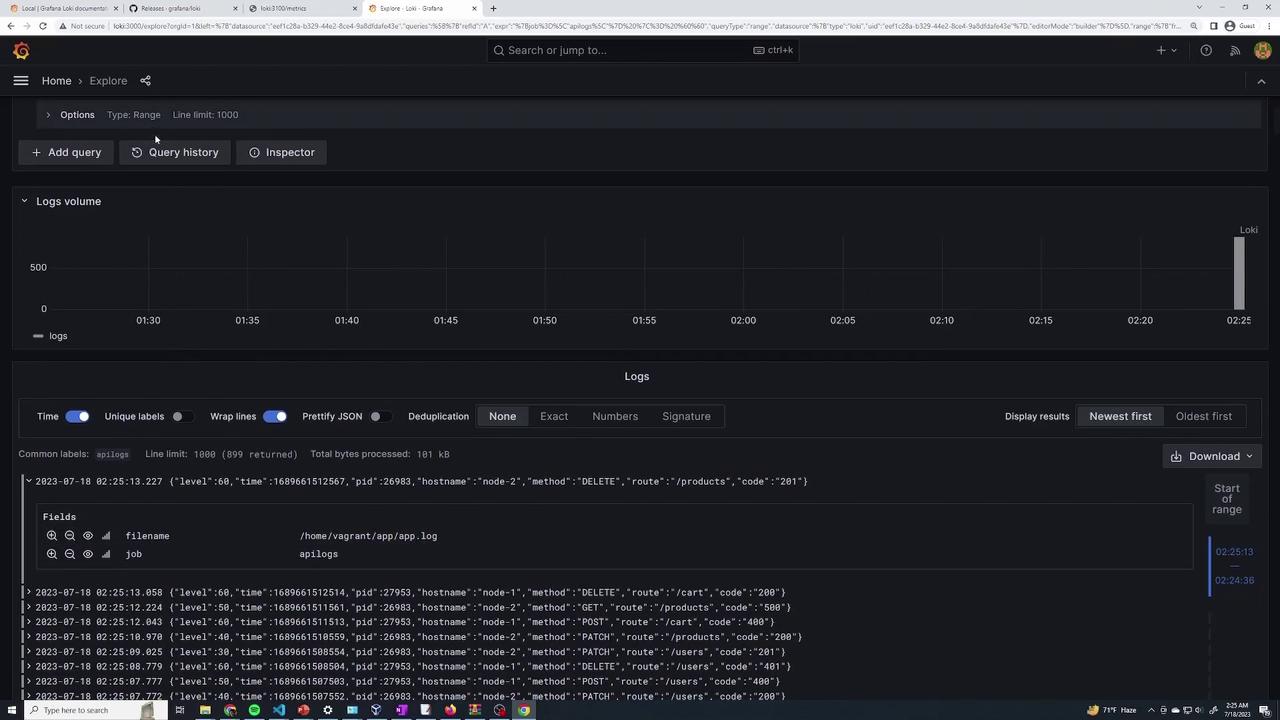
After Promtail is running on both nodes, access your Grafana instance and open the Explore interface. To filter the API logs, run the following query:
Copy
Ask AI
{job="apilogs"} |= ""
This query displays logs from your API application along with metadata such as hostname, HTTP method, request route, and status code. For a more specific search, you can use:
Grafana’s Explore interface provides filtering options and dropdowns to refine your queries based on specific log fields. The detailed log entries and visual summaries make it easier to identify issues and monitor your application logs effectively.
By following these steps, you have successfully configured Promtail on multiple nodes to collect log files from both system directories and your application directory. This setup makes monitoring and troubleshooting your API logs through Grafana an efficient process.