In this tutorial, you’ll learn how to provision a VPC-native Google Kubernetes Engine (GKE) cluster with IP aliasing and manage its secondary IP ranges. We’ll walk through:
StepDescription
1Set your Compute Zone
2Create a custom VPC
3Add a regional subnet
4Launch an IP-alias (VPC-native) GKE cluster
5Verify the secondary IP ranges
6Clean up all resources

1. Set the Compute Zone

Configure your default compute zone to us-west1-a (or your preferred region).
gcloud config set compute/zone us-west1-a

2. Create a Custom VPC

Create a VPC in custom subnet mode so you can define your own IP ranges.
gcloud compute networks create gke-deep-dive-vpc \
  --subnet-mode=custom
In the Google Cloud Console, navigate to VPC network → VPC networks. You should see gke-deep-dive-vpc listed, but no subnets yet.

3. Add a Regional Subnet

Define a subnet in us-west1 with a /24 CIDR block.
gcloud compute networks subnets create gke-deep-dive-subnet \
  --network=gke-deep-dive-vpc \
  --range=10.10.0.0/24 \
  --region=us-west1
VPC networks are global, whereas subnets are regional. Choose the region that best suits your workload.
Refresh VPC networks → Subnets in the Console to confirm the gke-deep-dive-subnet (10.10.0.0/24) appears under your VPC.

4. Launch an IP-Alias (VPC-native) GKE Cluster

Use IP aliasing to allocate two secondary IP ranges—one for Pods and one for Services.
gcloud container clusters create gke-dive-vpc-native \
  --zone=us-west1-a \
  --num-nodes=1 \
  --disk-type=pd-standard \
  --disk-size=10 \
  --enable-ip-alias \
  --network=gke-deep-dive-vpc \
  --subnetwork=gke-deep-dive-subnet \
  --cluster-secondary-range-name=pods-range \
  --services-secondary-range-name=services-range \
  --cluster-ipv4-cidr=/21 \
  --services-ipv4-cidr=/21
FlagPurpose
--enable-ip-aliasEnable VPC-native IP aliasing
--cluster-secondary-range-nameName for the Pods’ secondary IP range
--services-secondary-range-nameName for the Services’ secondary IP range
/21 CIDRAllocates a block with ~2048 IPs for each range
Cluster provisioning can take several minutes.

5. Verify Secondary Ranges

Console View

In the Cloud Console, open VPC networks → Subnets and select gke-deep-dive-subnet. You should see two new secondary IP ranges:
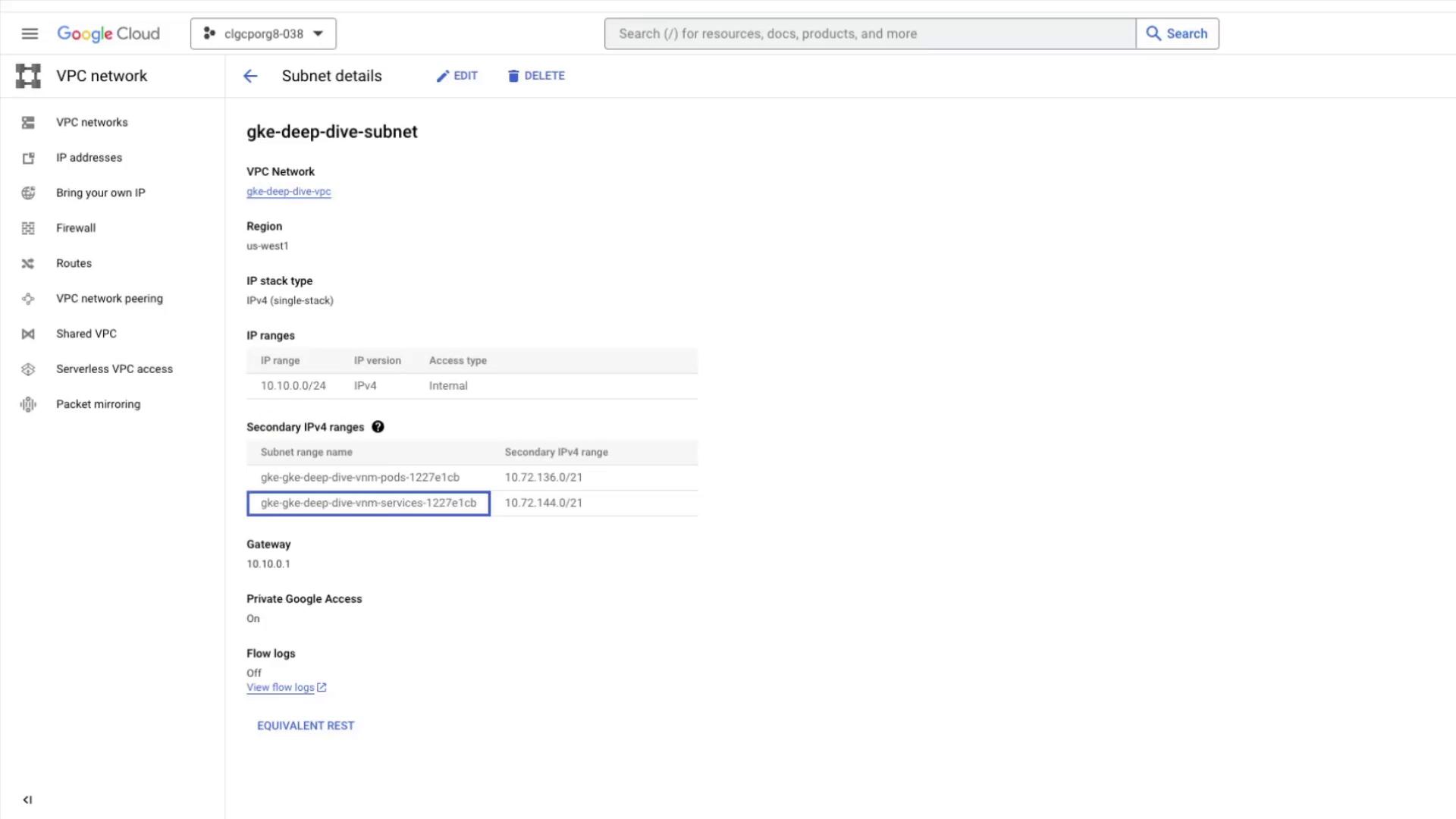
The image shows a Google Cloud Platform interface displaying details of a VPC subnet named "gke-deep-dive-subnet," including its IP ranges, region, and other network settings.

CLI Verification

Describe the cluster’s IP allocation policy:
gcloud container clusters describe gke-dive-vpc-native \
  --zone=us-west1-a \
  --format="yaml(ipAllocationPolicy)"
Look for these fields in the output:
  • clusterIpv4Cidr
  • servicesIpv4Cidr
  • clusterSecondaryRangeName
  • servicesSecondaryRangeName

6. Clean Up Resources

Delete the GKE Cluster

gcloud container clusters delete gke-dive-vpc-native \
  --zone=us-west1-a --quiet
Secondary ranges are automatically detached from gke-deep-dive-subnet upon cluster deletion.

Remove Subnet and VPC
gcloud compute networks subnets delete gke-deep-dive-subnet \
  --region=us-west1 --quiet

gcloud compute networks delete gke-deep-dive-vpc --quiet
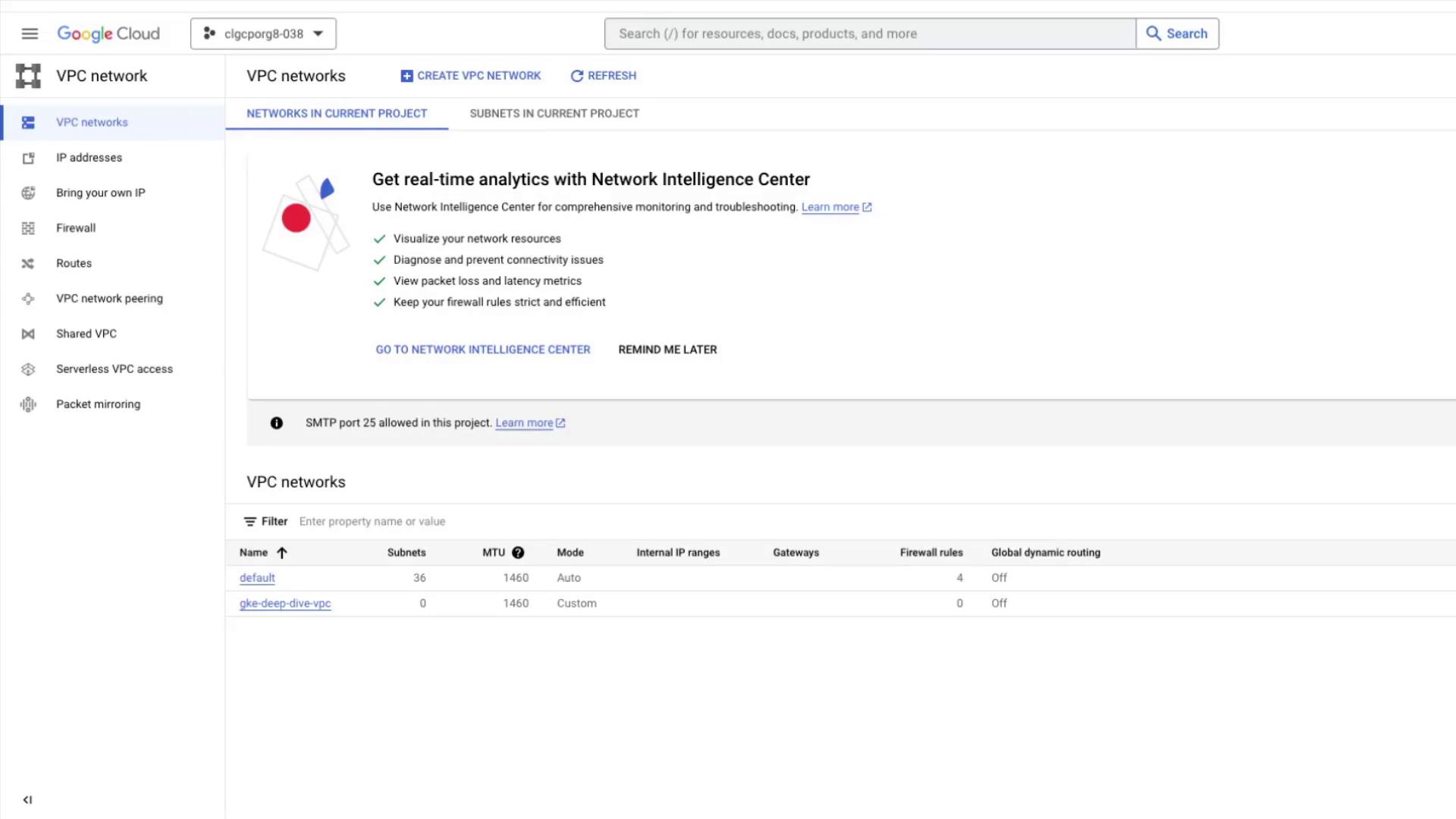
Back in the Console, verify that only the default VPC remains:
The image shows a Google Cloud Platform interface for managing VPC networks, displaying options for network analytics and a list of existing VPC networks with details like subnets and firewall rules.
Resource deletion is irreversible. Ensure no critical workloads are running before you clean up.