This article demonstrates how to initialize a Git repository and manage file states using Git commands.
Welcome to this practical demonstration that complements the lecture content. In this guide, you will learn about the different states a file can have in your Git working directory and how to transition files between these states using Git commands.We start by creating a new file named story_one.txt in an existing Git repository within the story_blog directory. This file will include sample content to illustrate the process.Below is an example of initializing a Git repository and verifying its structure:
Copy
Ask AI
sarah ()$ pwd/Users/sarah/story-blogsarah ()$ git initInitialized empty Git repository in /Users/sarah/story-blog/.gitsarah (master)$ ls -altotal 0drwxr-xr-x 3 sarah staff 96 Aug 14 08:35 .drwxr-xr-x 8 sarah staff 256 Aug 14 08:35 ..drwxr-xr-x 9 sarah staff 288 Aug 14 08:35 .gitsarah (master)$
When a new file is created for the first time, Git considers it “untracked.” Once you decide the file is ready to be permanently saved (committed), you add it to the staging area. For instance, after creating a file named story1.txt with some content, check its status:
Copy
Ask AI
sarah (master)$ echo "line1" > story1.txtsarah (master)$ git statusOn branch masterNo commits yetUntracked files: (use "git add <file>..." to include in what will be committed) story1.txtnothing added to commit but untracked files present (use "git add" to track)sarah (master)$ git add story1.txtsarah (master)$ git statusOn branch masterNo commits yetChanges to be committed: (use "git rm --cached <file>..." to unstage) new file: story1.txtsarah (master)$
At this stage, the file is in the staging area. Before proceeding with a commit, ensure that Git is configured with your username and email. This information will be recorded as the author for the commit:
After entering your commit message in the default text editor, Git creates the commit. The output will look similar to this:
Copy
Ask AI
sarah (master)$ git commit[master (root-commit) 7427b86] Added first story 1 file changed, 1 insertion(+) create mode 100644 story1.txtsarah (master)$
A commit saves a snapshot of your file’s current state in the .git folder. This snapshot allows you to safely restore previous versions of the file even if modifications or corruption occur later.After a successful commit, your working area will be clean:
Copy
Ask AI
sarah (master)$ git statusOn branch masternothing to commit, working tree cleansarah (master)$
If you modify a file after committing, its state changes to modified (unstaged). For example, let’s add a new line to story1.txt:
Copy
Ask AI
sarah (master)$ cat story1.txtline1sarah (master)$ echo "line2" >> story1.txtsarah (master)$ cat story1.txtline1line2sarah (master)$ git statusOn branch masterChanges not staged for commit: (use "git add <file>..." to update what will be committed) (use "git restore <file>..." to discard changes in working directory) modified: story1.txtno changes added to commit (use "git add" and/or "git commit -a")sarah (master)$
If the changes are unintentional, restore the file to its previously staged version:
Copy
Ask AI
sarah (master)$ git restore story1.txtsarah (master)$ cat story1.txtline1
When you intentionally update the file, add it to the staging area, then commit the changes. You can include the commit message directly using the -m flag:
Copy
Ask AI
sarah (master)$ echo "line2" >> story1.txtsarah (master)$ cat story1.txtline1line2sarah (master)$ git statusOn branch masterChanges not staged for commit: (use "git add <file>..." to update what will be committed) (use "git restore <file>..." to discard changes in working directory) modified: story1.txtno changes added to commit (use "git add" and/or "git commit -a")sarah (master)$ git add story1.txtsarah (master)$ git commit -m "Updated first story"[master c1efc4b] Updated first story 1 file changed, 1 insertion(+)sarah (master)$
With this commit, Git archives the current version of the file, preserving its history for future reference.
Consider a scenario where you update story1.txt and create a new file named story2.txt:
Copy
Ask AI
sarah (master)$ git statusOn branch masternothing to commit, working tree cleansarah (master)$ echo "line3" >> story1.txtsarah (master)$ echo "line1" > story2.txtsarah (master)$ git statusOn branch masterChanges not staged for commit: (use "git add <file>..." to update what will be committed) (use "git restore <file>..." to discard changes in working directory) modified: story1.txtUntracked files: (use "git add <file>..." to include in what will be committed) story2.txtno changes added to commit (use "git add" and/or "git commit -a")sarah (master)$
If both changes are related, you can stage them together:
Copy
Ask AI
sarah (master)$ git add .sarah (master)$ git statusOn branch masterChanges to be committed: (use "git restore --staged <file>..." to unstage) modified: story1.txt new file: story2.txtsarah (master)$ git commit -m "Added second story and updated first story"[master 8f19f2a] Added second story and updated first story 2 files changed, 2 insertions(+) create mode 100644 story2.txtsarah (master)$ git statusOn branch masternothing to commit, working tree clean
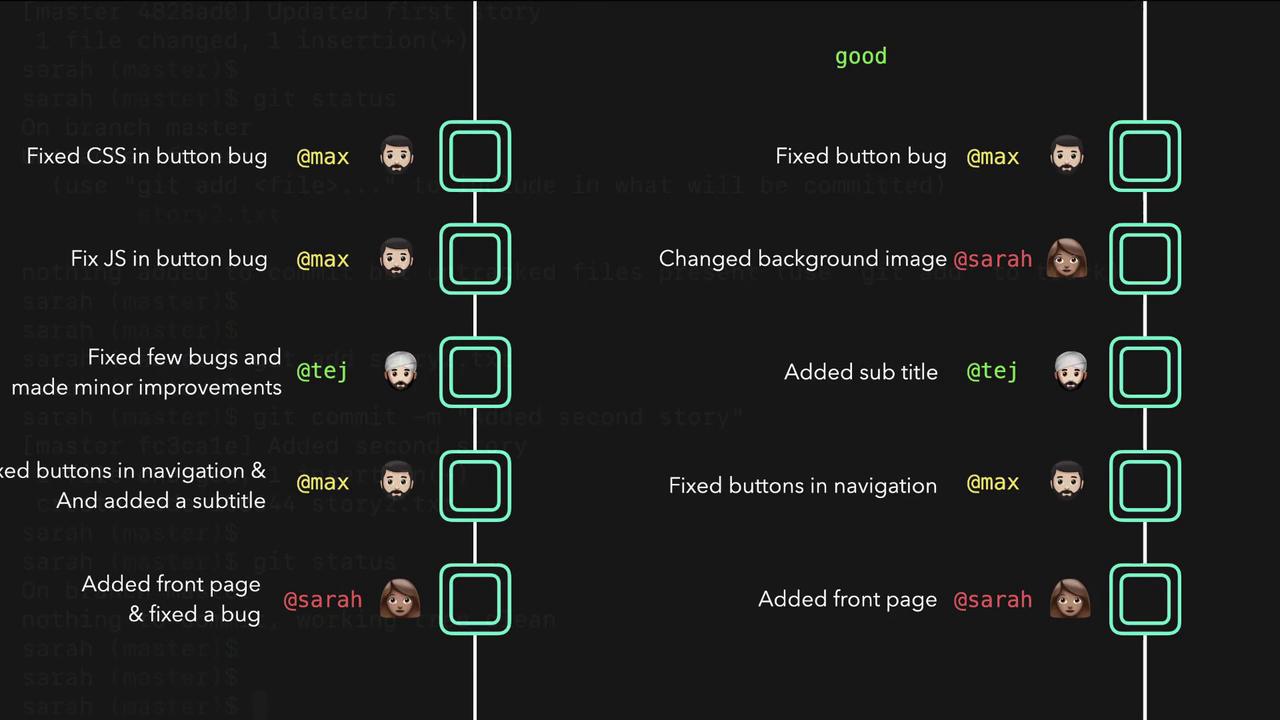
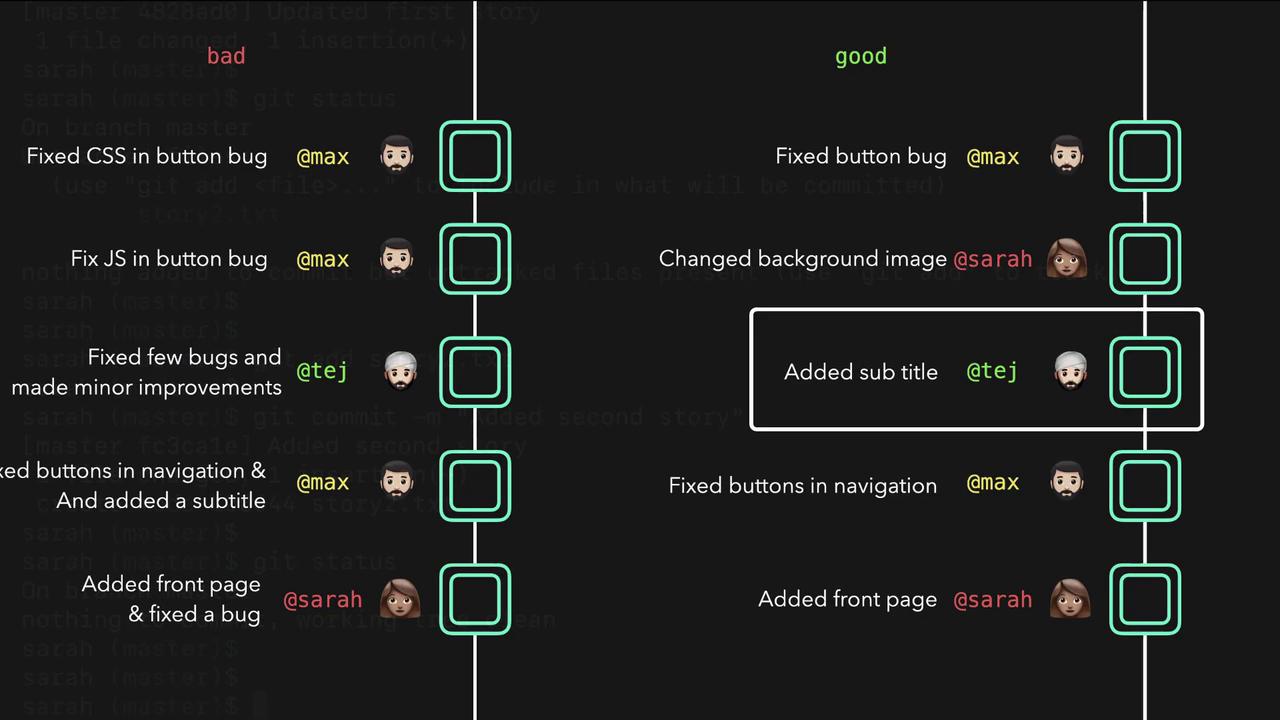
It is best practice to commit unrelated changes separately. Keeping commits atomic makes it easier to understand your project’s history and revert changes as necessary. For example, if one commit contains both a front page addition and an unrelated bug fix, it can be difficult to isolate one change without affecting the other.
The following diagram illustrates the contrast between good and bad commit practices:
A good commit history keeps each commit focused on a single change. In contrast, mixing unrelated changes into a single commit creates confusion. The diagram below further compares “bad” and “good” Git commit messages:
sarah (master)$ cat story1.txtline1line2line3sarah (master)$ echo "line4" >> story1.txtsarah (master)$ cat story1.txtline1line2line3line4sarah (master)$ git statusOn branch masterChanges not staged for commit: (use "git add <file>..." to update what will be committed) (use "git restore <file>..." to discard changes in working directory) modified: story1.txtno changes added to commit (use "git add" and/or "git commit -a")
If you accidentally overwrite its contents after staging, Git will indicate that the file is both staged and modified:
Copy
Ask AI
sarah (master)$ echo "sdfsdfsdfs" > story1.txtsarah (master)$ cat story1.txtsdfsdfsdfssarah (master)$ git statusOn branch masterChanges to be committed: (use "git restore --staged <file>..." to unstage) modified: story1.txtChanges not staged for commit: (use "git add <file>..." to update what will be committed) (use "git restore <file>..." to discard changes in working directory) modified: story1.txt
Since Git retains the staged version, you can restore it with:
Copy
Ask AI
sarah (master)$ git restore story1.txtsarah (master)$ cat story1.txtline1line2line3line4
Now consider a scenario with two files in different modification states. Suppose story1.txt is staged while story2.txt is modified:
Copy
Ask AI
sarah (master)$ echo "line2" >> story2.txtsarah (master)$ cat story2.txtline1line2sarah (master)$ git statusOn branch masterChanges to be committed: (use "git restore --staged <file>..." to unstage) modified: story1.txtChanges not staged for commit: (use "git add <file>..." to update what will be committed) (use "git restore <file>..." to discard changes in working directory) modified: story2.txt
To commit story2.txt separately without including the staged changes from story1.txt, first remove story1.txt from the staging area:
Copy
Ask AI
sarah (master)$ git restore --staged story1.txtsarah (master)$ git statusOn branch masterChanges not staged for commit: (use "git add <file>..." to update what will be committed) modified: story1.txt modified: story2.txtno changes added to commit (use "git add" and/or "git commit -a")
Then add and commit story2.txt:
Copy
Ask AI
sarah (master)$ git add story2.txtsarah (master)$ git commit -m "Updated second story"[master eb3fa8c] Updated second story 1 file changed, 1 insertion(+)sarah (master)$
At this point, story1.txt remains modified and can be committed later with its own commit message.
Sometimes you may have personal files that should not be tracked by Git, such as a file named notes.txt for your personal ideas:
Copy
Ask AI
sarah (master)$ echo "My story ideas" > notes.txtsarah (master)$ git statusOn branch masterChanges not staged for commit: modified: story1.txtUntracked files: notes.txtno changes added to commit (use "git add" and/or "git commit -a")
If you stage all changes with git add ., notes.txt will also be staged along with story1.txt:
Copy
Ask AI
sarah (master)$ git add .sarah (master)$ git statusOn branch masterChanges to be committed: (use "git restore --staged <file>..." to unstage) new file: notes.txt modified: story1.txt
Since notes.txt is a personal file that you do not want to commit, remove it from the staging area using the cached option:
Copy
Ask AI
sarah (master)$ git rm notes.txterror: the following file has changes staged in the index: notes.txt use --cached to keep the file, or -f to force removal)sarah (master)$ git rm --cached notes.txtrm 'notes.txt'sarah (master)$ lsnotes.txt story1.txt story2.txtsarah (master)$ git statusOn branch masterChanges to be committed: (use "git restore --staged <file>..." to unstage) modified: story1.txtUntracked files: (use "git add <file>..." to include in what will be committed) notes.txtsarah (master)$
To permanently prevent accidental staging of personal or sensitive files like notes.txt, add the filename to your .gitignore file:
Add notes.txt to your .gitignore:
Copy
Ask AI
sarah (master)$ echo "notes.txt" >> .gitignoresarah (master)$ cat .gitignorenotes.txtsarah (master)$ git statusOn branch masterChanges to be committed: (use "git restore --staged <file>..." to unstage) modified: story1.txtUntracked files: (use "git add <file>..." to include in what will be committed) .gitignoresarah (master)$
Including a .gitignore file in your repository is a best practice—it clearly communicates to your team which files or directories (such as logs, caches, or build artifacts) should be ignored by Git.