This article provides a comprehensive guide for troubleshooting DNS issues, covering common problems and systematic diagnostic steps.
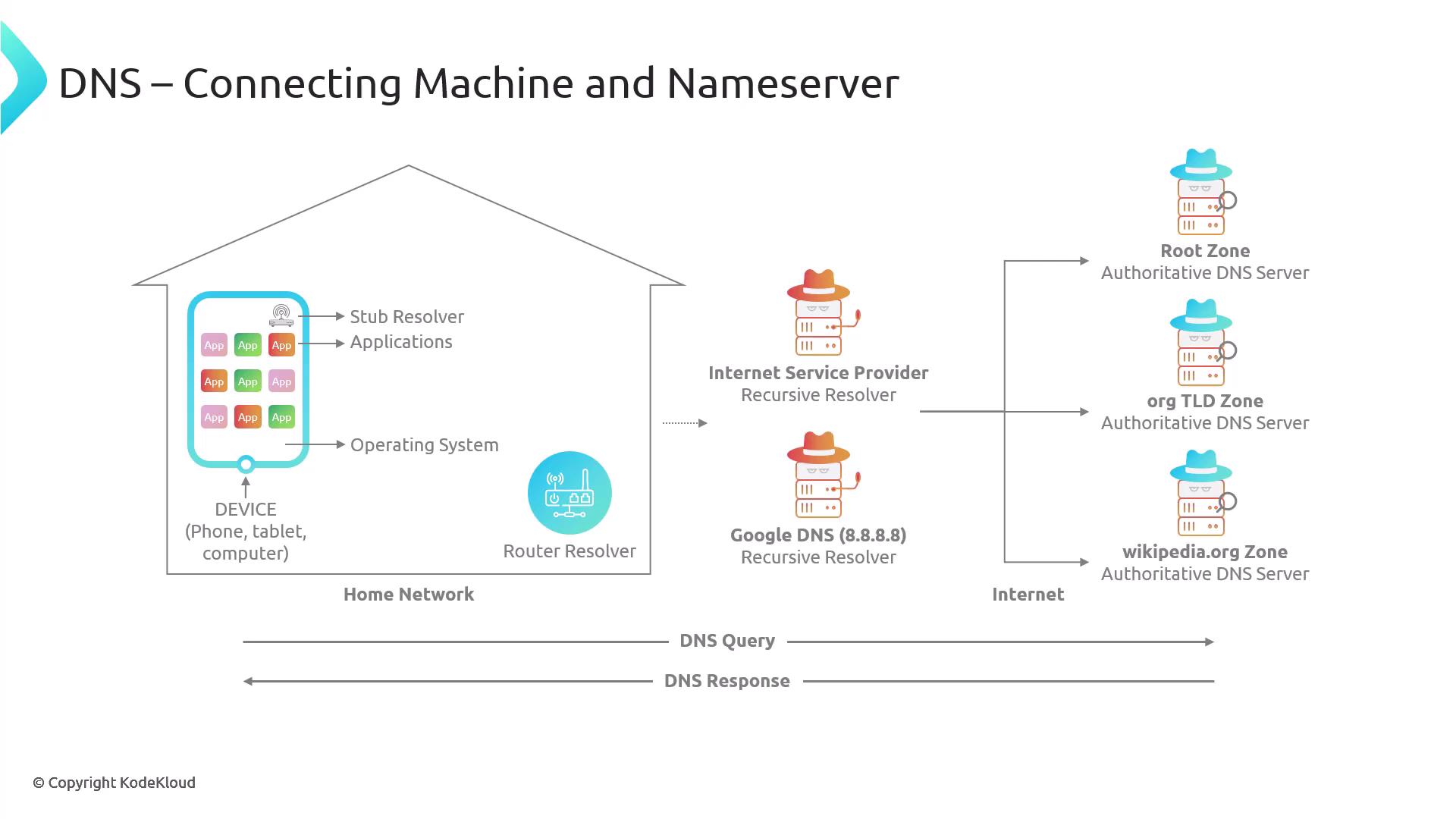
Troubleshooting DNS can be challenging because it involves multiple systems interacting—from your local machine to the authoritative nameserver—and handling the response on its way back. Understanding the complete flow is essential for diagnosing and resolving issues.
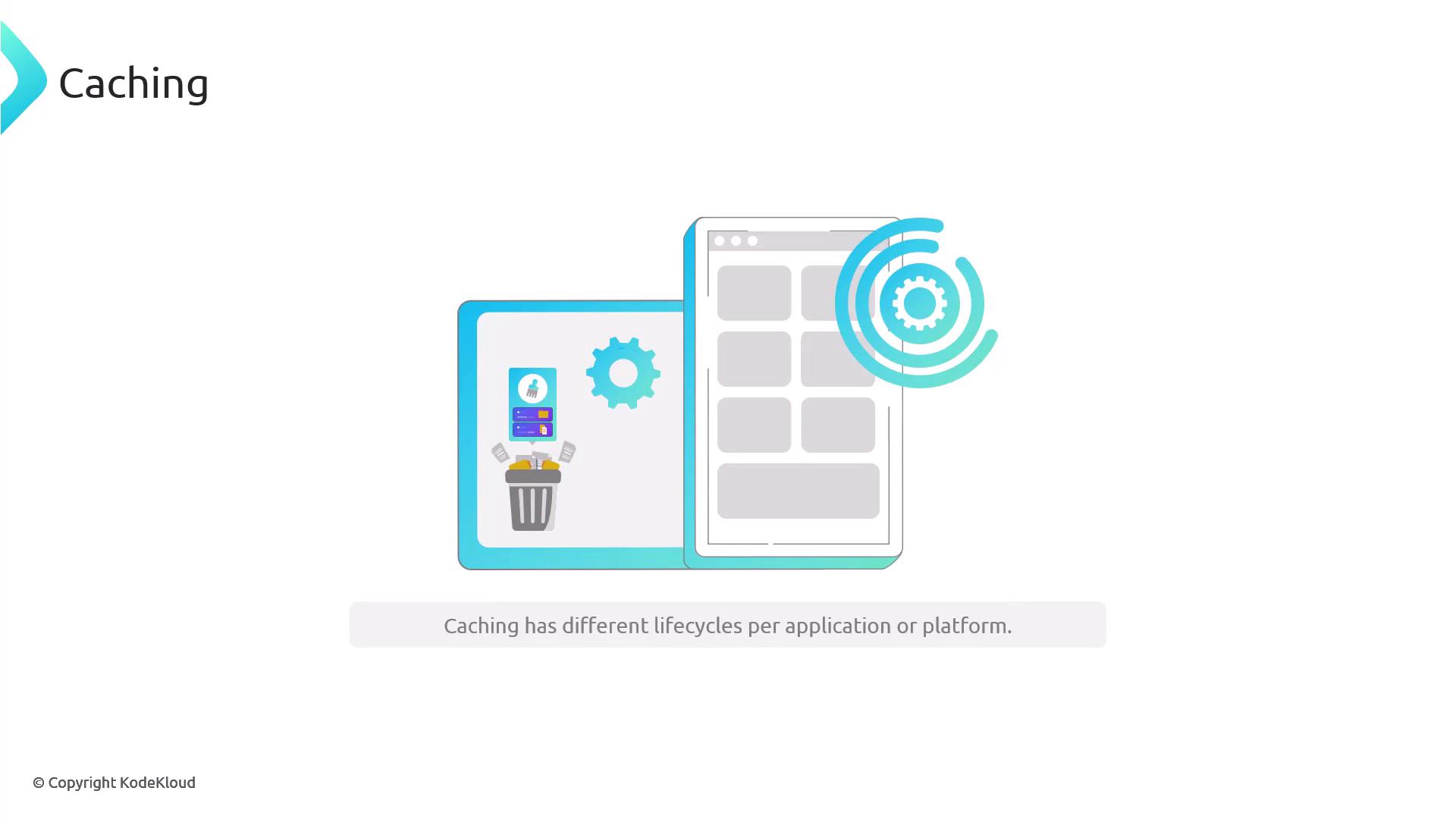
Different applications and platforms may implement distinct caching lifecycles. For example, you might execute a DNS command that correctly resolves a domain name:
Yet, if your browser does not show the expected result, it could be because the operating system caches DNS records for a specified period while the browser uses a separate caching duration.Below is an example using the dig command to query DNS records:
Copy
Ask AI
$ dig example.com; <<>> DiG 9.18.28-0ubuntu0.24.04.1-Ubuntu <<>> example.com;; global options: +cmd;; Got answer:;; ->>HEADER<<- opcode: QUERY, status: NOERROR, id: 39669;; flags: qr rd ra; QUERY: 1, ANSWER: 6, AUTHORITY: 0, ADDITIONAL: 1;; OPT PSEUDOSECTION:; EDNS: version: 0, flags:; udp: 512;; QUESTION SECTION:;example.com. IN A;; ANSWER SECTION:example.com. 103 IN A 96.7.128.175example.com. 103 IN A 96.7.128.198example.com. 103 IN A 23.192.228.80example.com. 103 IN A 23.192.228.84example.com. 103 IN A 23.215.0.136example.com. 103 IN A 23.215.0.138;; Query time: 30 msec;; SERVER: 10.255.255.254#53(10.255.255.254) (UDP);; WHEN: Wed Jan 15 20:10:51 CST 2025;; MSG SIZE rcvd: 136
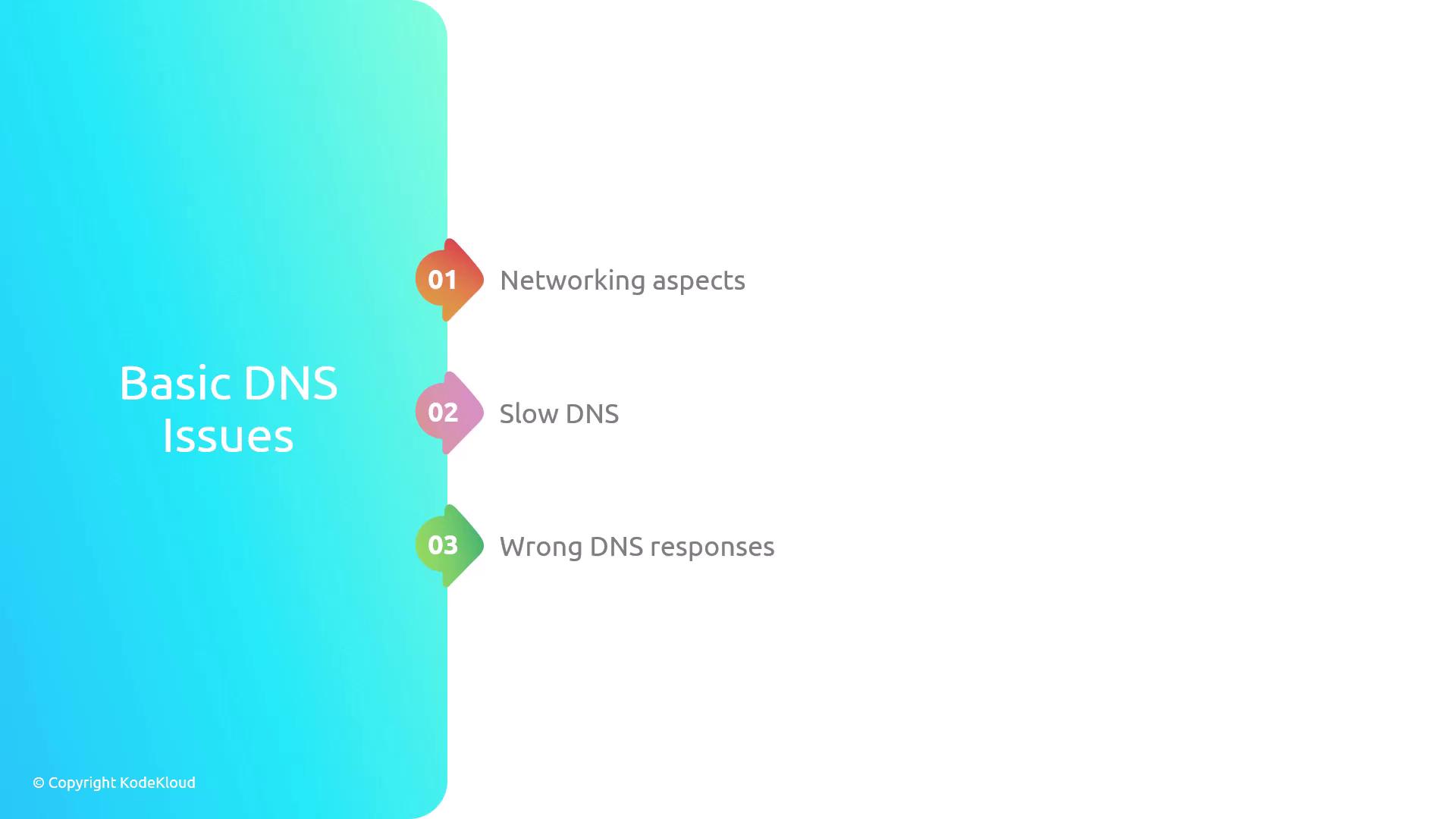
The difference in caching durations between the operating system and the browser can lead to inconsistencies. Below is a quick overview of common DNS issues and initial troubleshooting guidelines:
Communication Issues: Systems may be unable to communicate due to network problems.
Slow DNS: Overloaded resolvers or nameservers can result in slow response times.
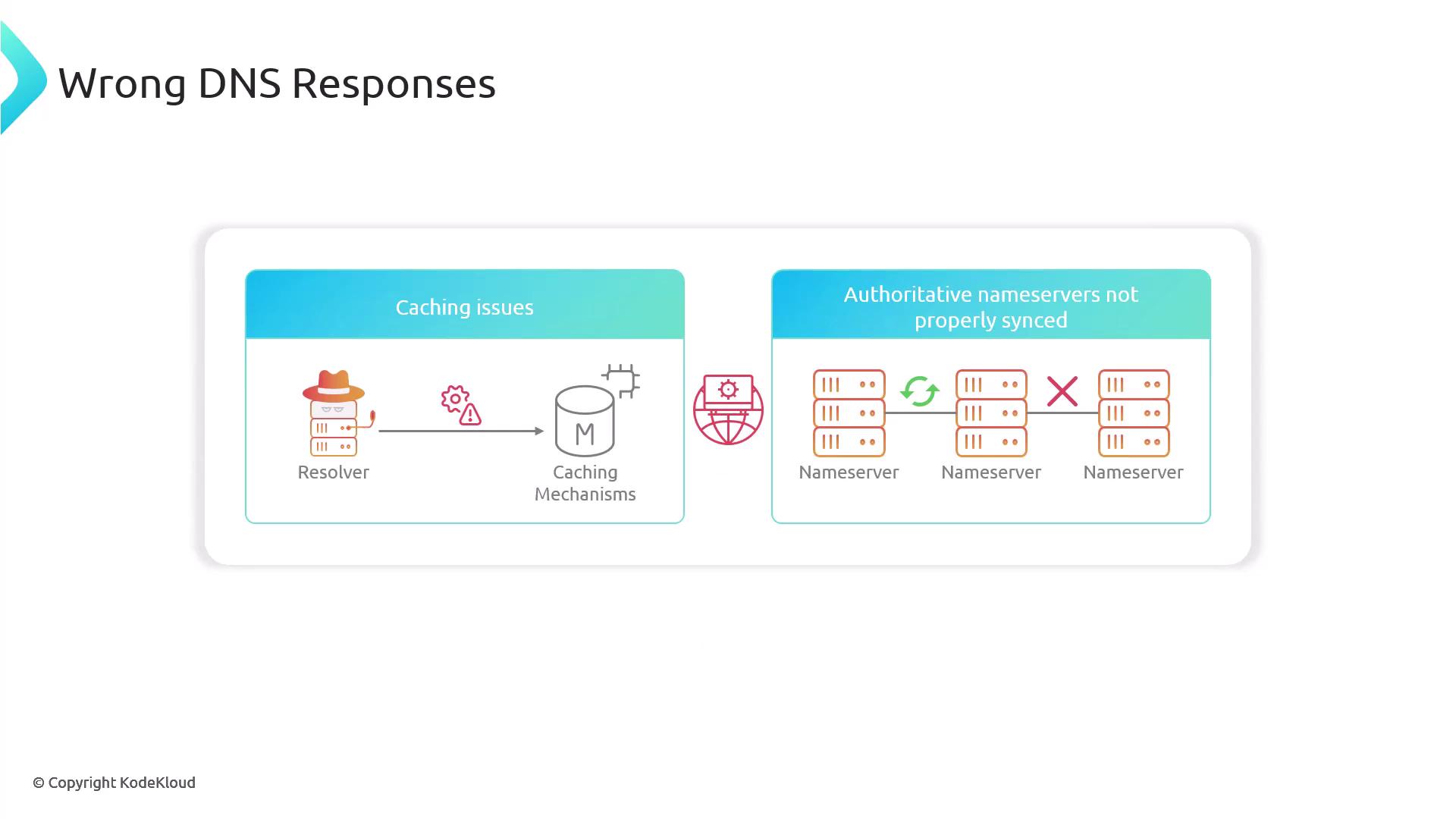
Incorrect DNS Responses: Outdated cache records or unsynchronized authoritative nameservers can return wrong responses.
Let’s break down each category and review the appropriate troubleshooting steps.
When encountering networking-related DNS problems, begin by checking basic connectivity. Verify that your network interface is configured correctly and determine whether the problem stems from DNS specific issues or overall internet connectivity.First, test connectivity by pinging a reliable public DNS server:
Copy
Ask AI
$ ping 8.8.8.8Pinging 8.8.8.8 [8.8.8.8] with 32 bytes of data:Reply from 8.8.8.8: bytes=32 time=42ms TTL=116Reply from 8.8.8.8: bytes=32 time=43ms TTL=116Reply from 8.8.8.8: bytes=32 time=40ms TTL=116Reply from 8.8.8.8: bytes=32 time=41ms TTL=116Ping statistics for 8.8.8.8: Packets: Sent = 4, Received = 4, Lost = 0 (0% loss),Approximate round trip times in milli-seconds: Minimum = 40ms, Maximum = 43ms, Average = 41ms
Next, inspect if firewall rules or restrictions are blocking port 53 (UDP or TCP). Use Telnet to verify connectivity:
Copy
Ask AI
$ telnet dns-server 53Trying 24.77.125.34...Connected to 24.77.125.34.Escape character is '^]'.^]
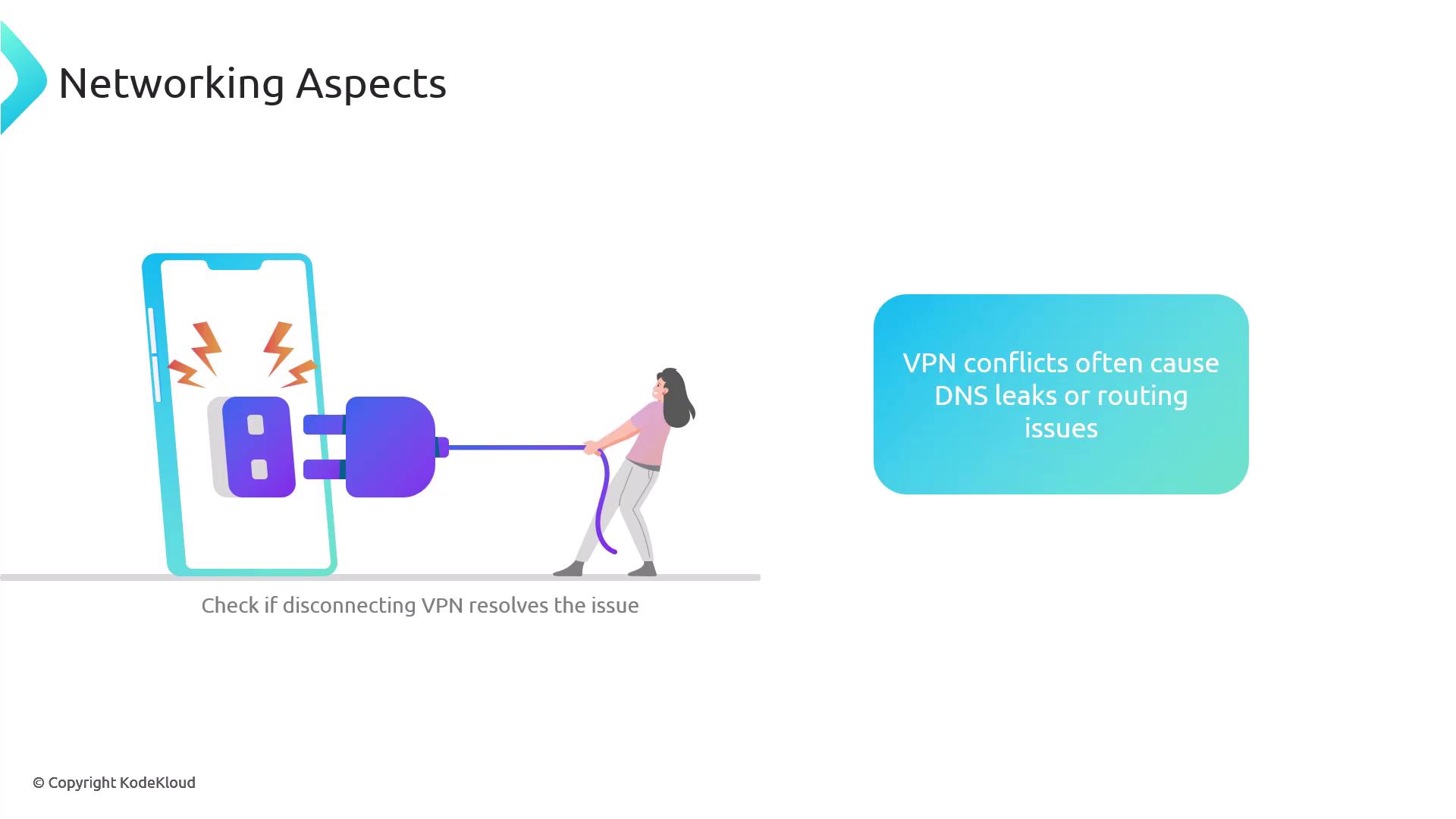
VPN configurations can lead to DNS issues by introducing conflicts in network routing. Disconnect from the VPN to test if it affects DNS behavior.
Slow DNS responses generally indicate that a server in the resolution chain is overloaded or responding slowly. This may be noticeable when new websites take longer than usual to load. To diagnose slow DNS responses, use the dig command with the +trace option. This command steps through the entire DNS resolution process, exposing the time taken at each phase:
Copy
Ask AI
$ dig +trace example.com
You can also combine the time command with dig to benchmark the resolver’s speed directly. The following example queries Google’s DNS server:
Copy
Ask AI
$ time dig @8.8.8.8 example.com; <<>> DiG 9.10.6 <<>> @8.8.8.8 example.com; (1 server found);; global options: +cmd;; Got answer:;; ->>HEADER<<- opcode: QUERY, status: NOERROR, id: 17093;; flags: qr rd ra ad; QUERY: 1, ANSWER: 6, AUTHORITY: 0, ADDITIONAL: 1;; OPT PSEUDSECTION:; EDNS: version: 0, flags: udp: 512;; QUESTION SECTION:;example.com. IN A;; ANSWER SECTION:example.com. 231 IN A 23.192.228.84example.com. 231 IN A 23.215.0.136example.com. 231 IN A 96.7.128.175example.com. 231 IN A 96.7.128.198example.com. 231 IN A 23.192.228.80example.com. 231 IN A 23.215.0.138;; Query time: 35 msec;; SERVER: 8.8.8.8#53(8.8.8.8);; WHEN: Fri Jan 31 15:27:45 CST 2025;; MSG SIZE rcvd: 136dig @8.8.8.8 example.com 0.00s user 0.01s system 22% cpu 0.052 total
Numerous online tools are available that can benchmark the performance of various DNS resolvers.
Incorrect or inconsistent DNS responses often stem from caching complications or unsynchronized authoritative nameservers. This is a common and challenging DNS issue to diagnose.
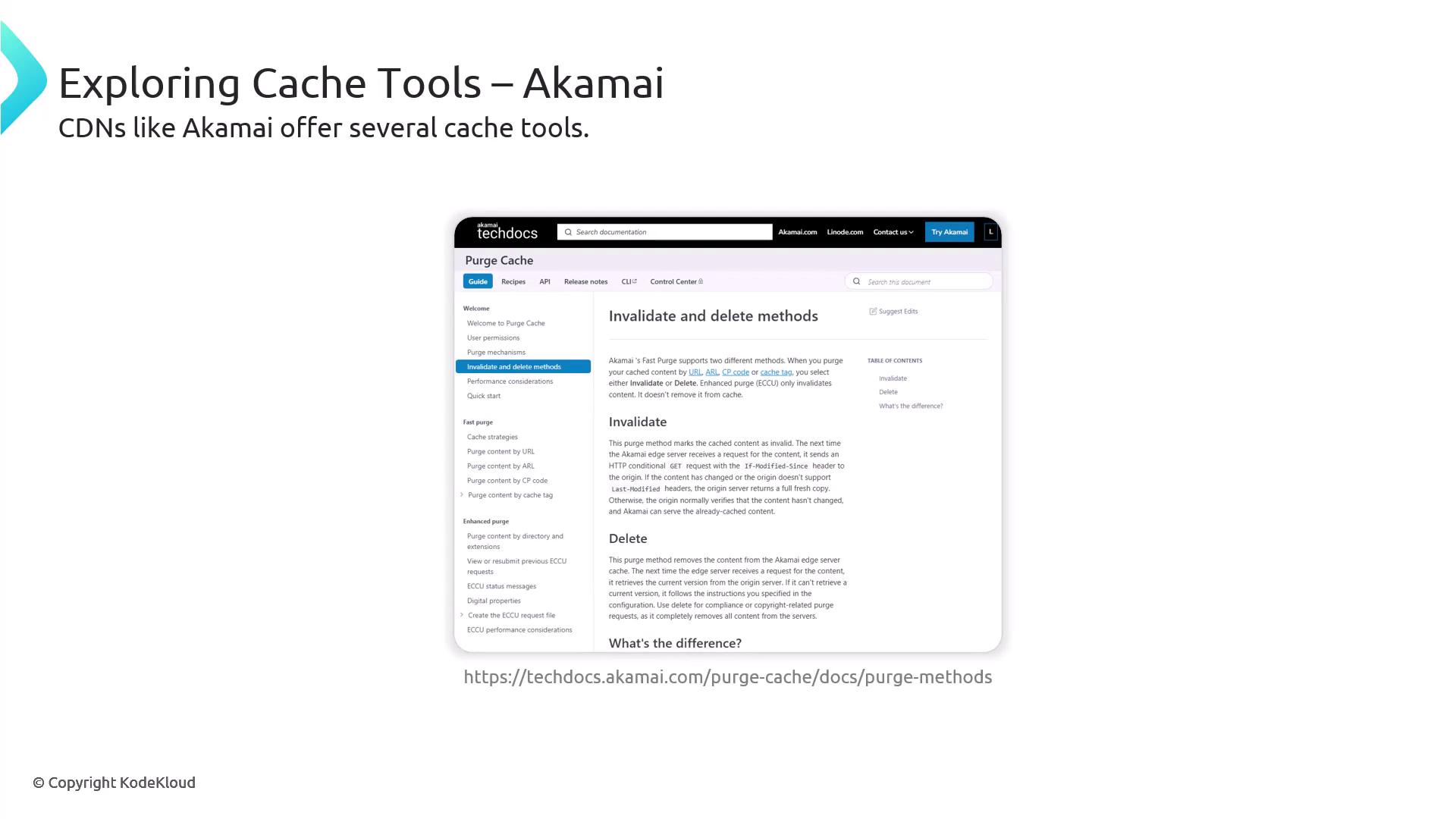
Ruijan Paul, an engineer highly regarded for his DNS learning resources, suggests an outward-in approach when diagnosing caching issues. Start from external components, such as public resolvers, and work inward. Even if you clear your local operating system’s cache, stale records may persist if upstream caches continue to provide outdated data.Many public resolvers offer web tools for clearing the DNS cache. For example, major content delivery network providers like Akamai provide mechanisms to invalidate or remove cached entries.
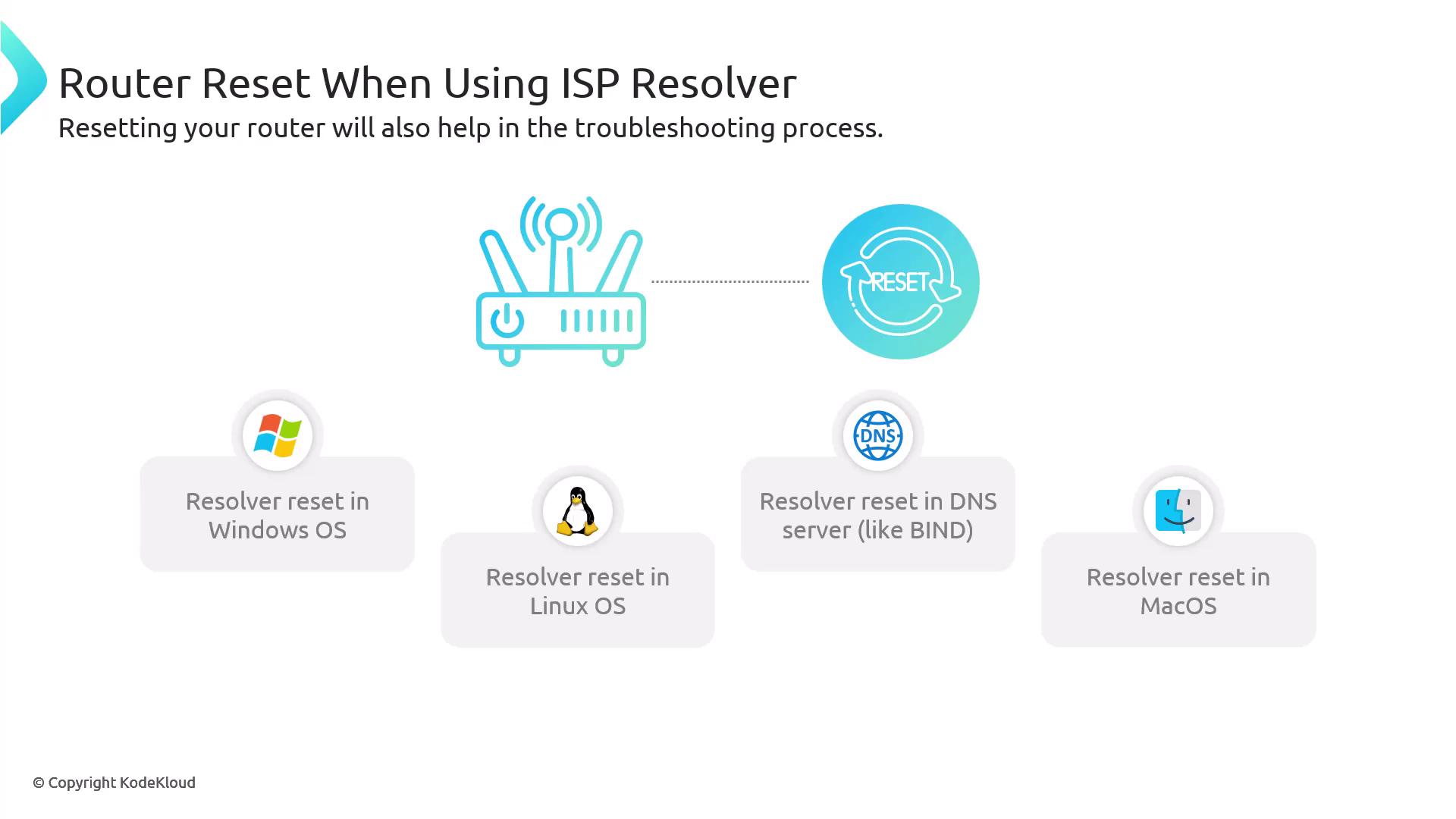
If your system uses an ISP’s resolver, clearing caches on public resolvers like Cloudflare or Google may not produce any changes. In these cases, rebooting or resetting your router might help clear some cached records.
For Windows users, you can clear and view the DNS cache as well as release and renew your IP configuration using the following commands:
Copy
Ask AI
# Clear DNS cache$ ipconfig /flushdns# Display DNS cache$ ipconfig /displaydns# Release and renew IP (includes DNS refresh)$ ipconfig /release$ ipconfig /renew
Modern Linux distributions typically use systemd-resolved for DNS caching. If you are operating your own DNS server using BIND, the following commands help manage the service:
Copy
Ask AI
$ sudo systemctl start named$ sudo systemctl stop named$ sudo systemctl restart named$ sudo systemctl status named
For managing BIND9 without restarting the service, use the rndc tool:
Commands to clear the DNS cache on macOS vary depending on the version:
Copy
Ask AI
# For modern macOS (Ventura and higher):$ sudo dscacheutil -flushcache; sudo killall -HUP mDNSResponder# For older macOS versions (Monterey, Big Sur, or Catalina):$ sudo killall -HUP mDNSResponder; sudo dscacheutil -flushcache# For very old macOS versions (pre-Catalina):$ sudo discoveryutil mdnsflushcache
If you suspect that DNS responses are incorrect or inconsistent due to caching issues or unsynchronized authoritative nameservers, query the nameservers directly to compare their responses. Use the following commands with dig or nslookup:
Copy
Ask AI
# Query specific nameservers using dig$ dig @ns1.example.com domain.com$ dig @ns2.example.com domain.com# Alternatively, using nslookup$ nslookup domain.com ns1.example.com$ nslookup domain.com ns2.example.com
If the responses differ, it might indicate a zone transfer or synchronization issue. To further diagnose such discrepancies, check the SOA serial numbers from the authoritative nameservers:
Copy
Ask AI
$ dig @ns1.example.com domain.com SOA...;; ANSWER SECTION:domain.com. 3600 IN SOA ns1.example.com. hostmaster.example.com. 2023010101 3600 1800 1209600 86400...$ dig @ns2.example.com domain.com SOA...;; ANSWER SECTION:domain.com. 3600 IN SOA ns2.example.com. hostmaster.example.com. 2023010102 3600 1800 1209600 86400...
A mismatch in SOA serial numbers confirms a synchronization issue between the nameservers.By following these structured troubleshooting steps—from network connectivity assessments to operating system and application-level checks—you can systematically identify and resolve many common DNS issues. This approach not only helps in isolating the problem but also ensures that corrective actions are efficiently implemented.