

1. Connect and Browse Tables
- Open SSMS and connect to your Azure SQL Database instance.
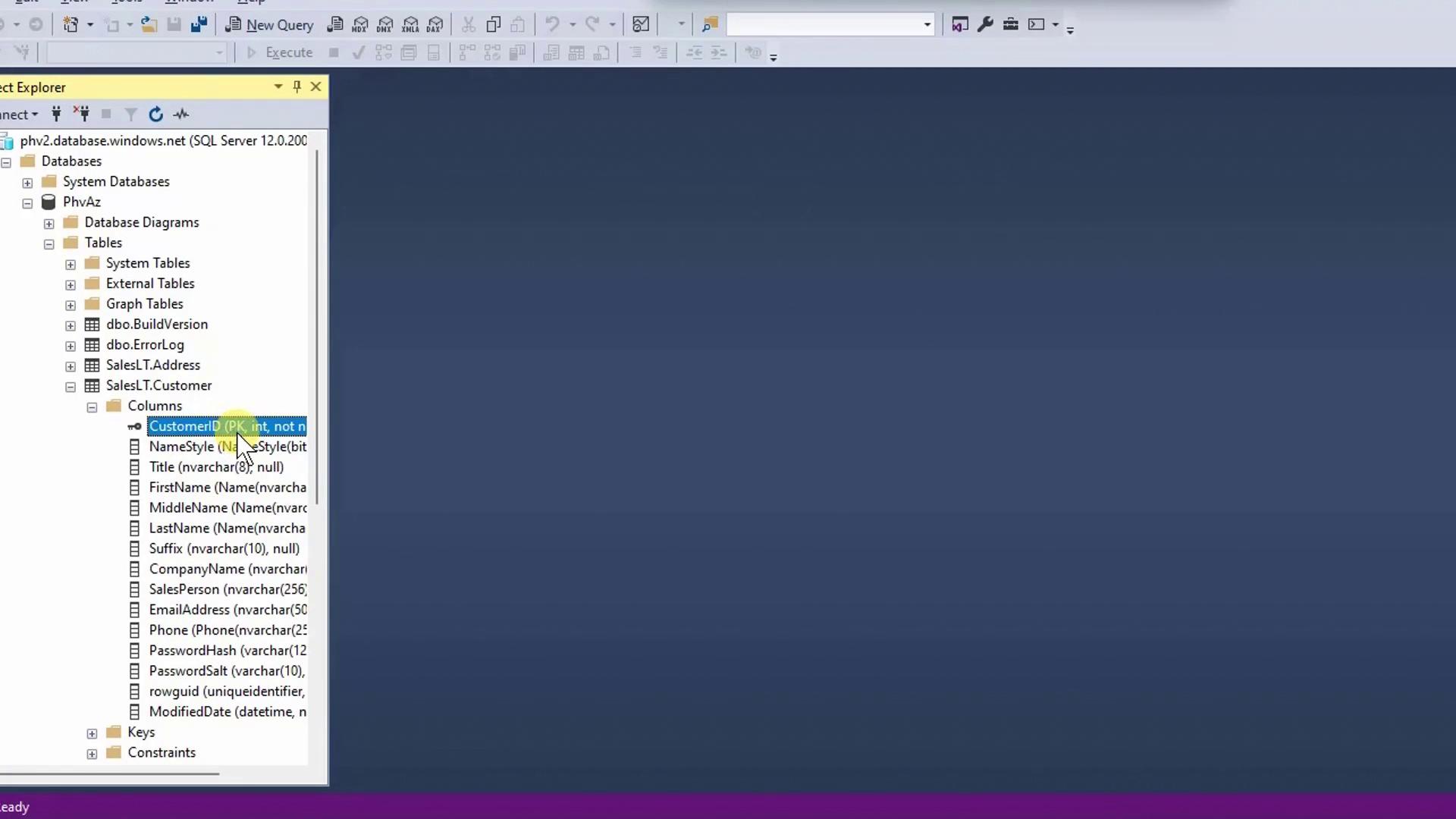
- In Object Explorer, expand Databases → YourDatabase → Tables.
- Locate SalesLT.Customer and expand it to view columns and keys.
| Entity | Description | Key Columns |
|---|---|---|
| Customer | Customer profiles | CustomerID (PK) |
| SalesOrderHeader | Order summaries | SalesOrderID (PK), CustomerID (FK) |
| SalesOrderDetail | Line items per order | SalesOrderDetailID (PK), ProductID (FK) |
| Product | Product catalog | ProductID (PK) |
| Address | Address directory | AddressID (PK) |
You can use Azure Data Studio for most tasks, but SSMS provides automated database diagrams for clearer relationship mapping.
2. Query Sample Orders
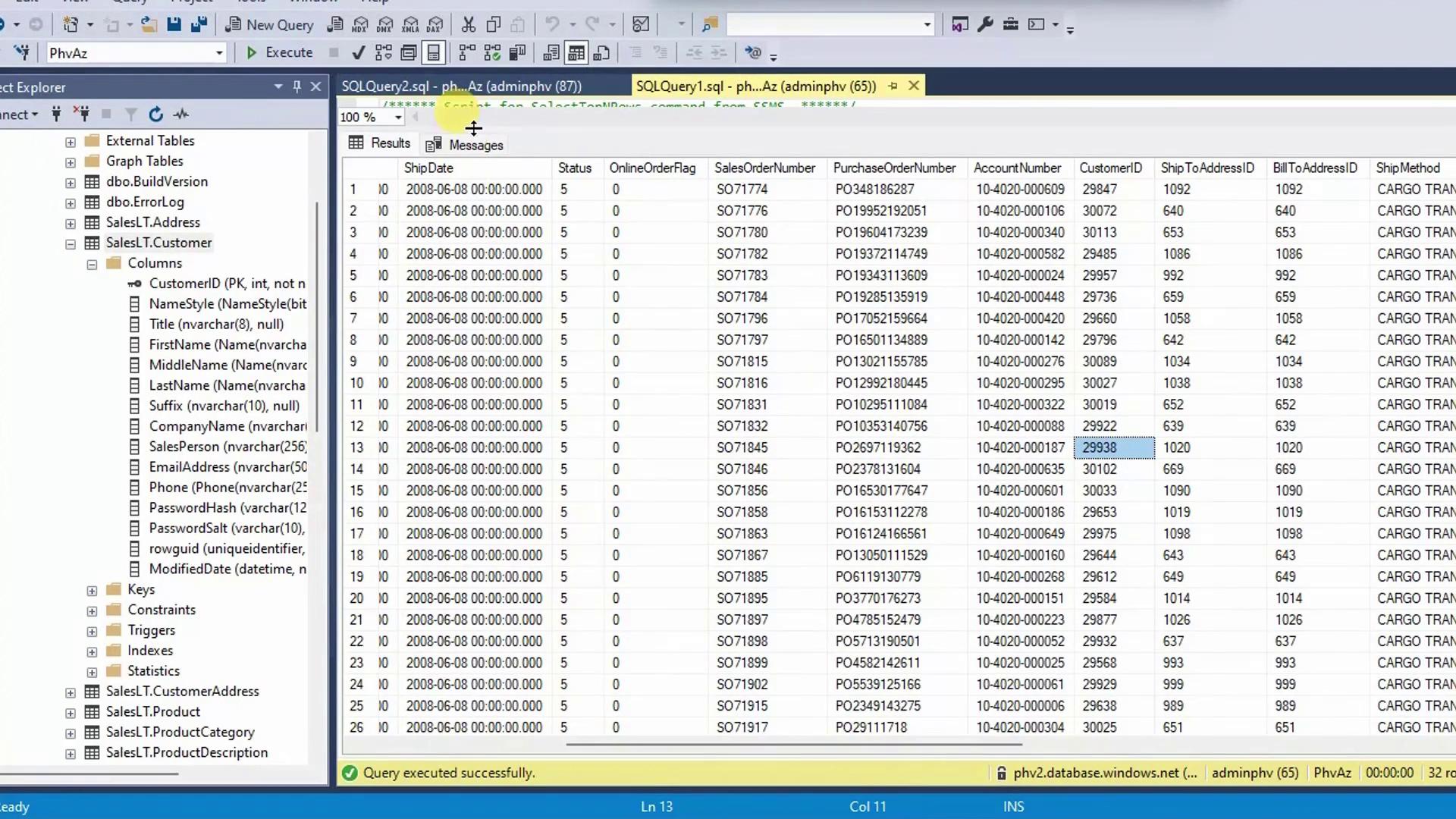
Right-click SalesLT.SalesOrderHeader → Select Top 1,000 Rows. SSMS generates and runs:CustomerID values:
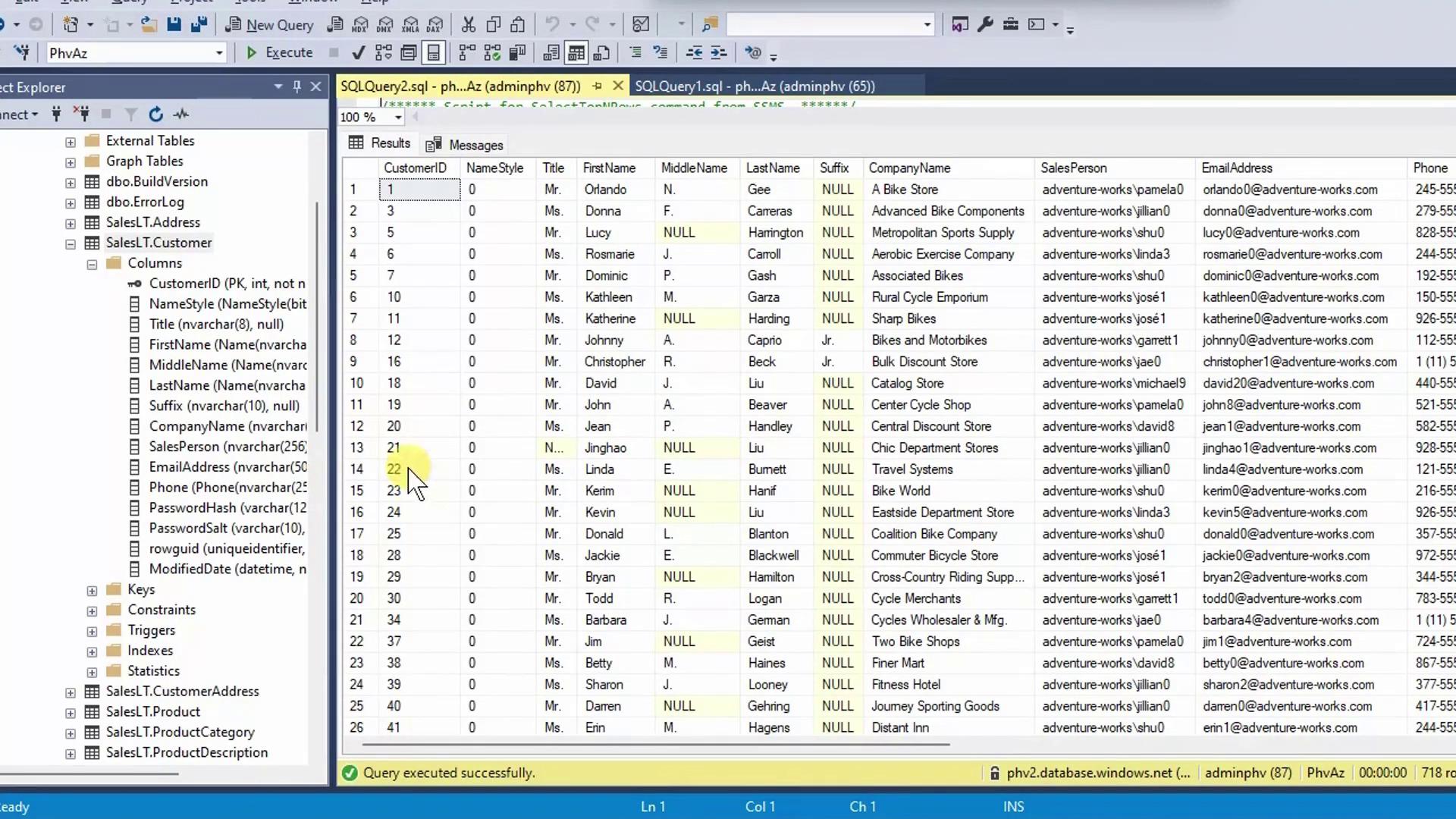
CustomerID matches by querying the customer table:
Avoid retrieving extremely large datasets without filters in production. Use
WHERE clauses or TOP to limit results and protect performance.3. Joining Tables via FK–PK
Instead of manual lookups, join SalesOrderHeader and Customer onCustomerID:
4. Visualizing Relationships with a Database Diagram
In SSMS Object Explorer, right-click Database Diagrams → New Database Diagram. Add the relevant tables to auto-generate this schema view: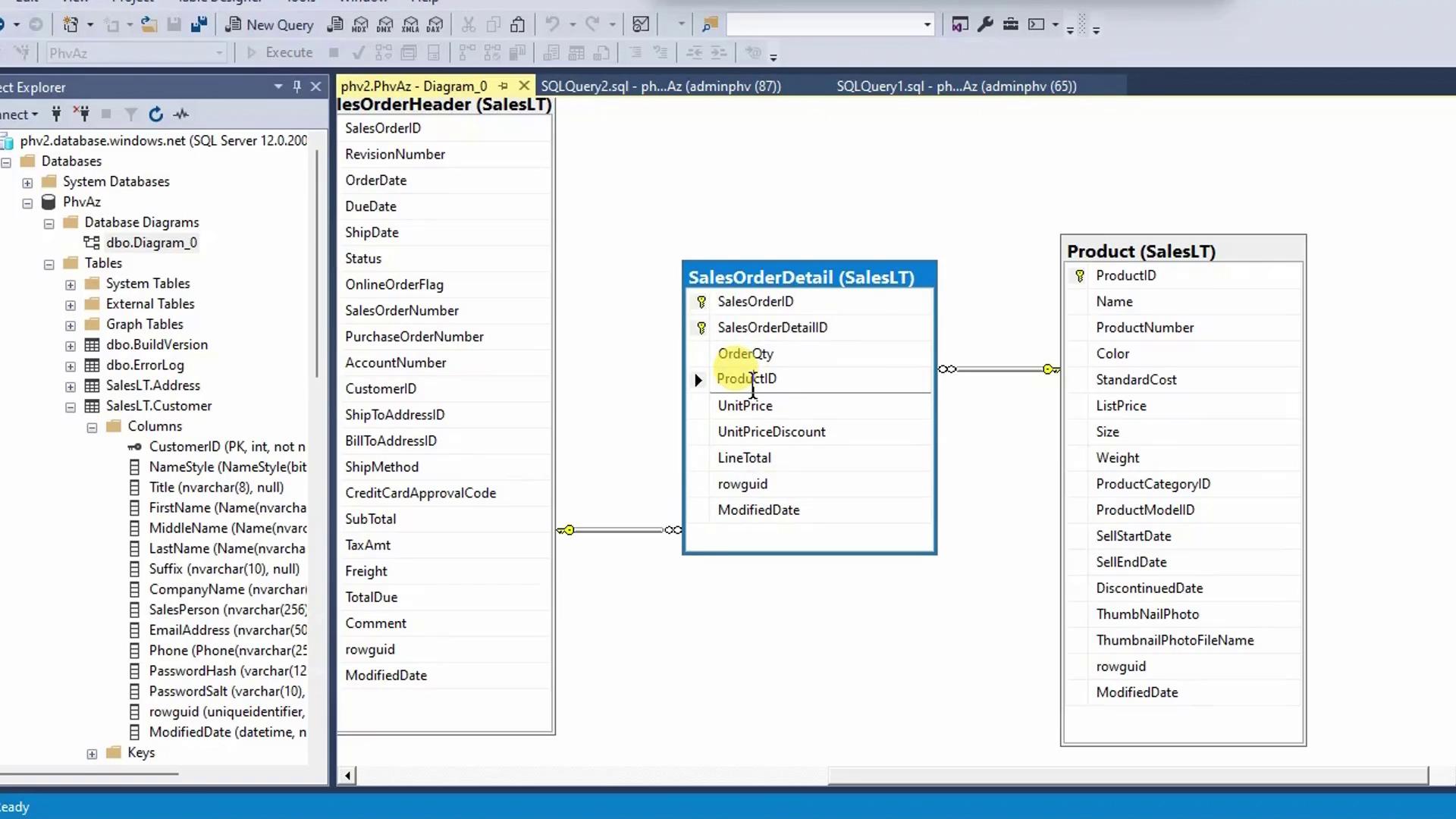
- SalesLT.Customer → SalesLT.CustomerAddress → SalesLT.Address
(Supports billing, shipping, and contact addresses per customer) - SalesLT.SalesOrderHeader → SalesLT.Address
(ShipToAddressID,BillToAddressID) - SalesLT.SalesOrderHeader → SalesLT.SalesOrderDetail → SalesLT.Product
5. Benefits of Normalized Design
Normalization with clear FK–PK constraints:- Eliminates redundant data across tables
- Ensures consistent, reliable updates
- Streamlines data maintenance
- Enables efficient, focused queries