

- Create a Synapse workspace with Data Lake Storage Gen2
- Configure security, encryption, and networking
- Review and deploy the workspace
- Explore the resources in Synapse Studio
1. Creating a Synapse Workspace
- Sign in to the Azure portal and search for Azure Synapse Analytics.
- On the overview page, click + Create.
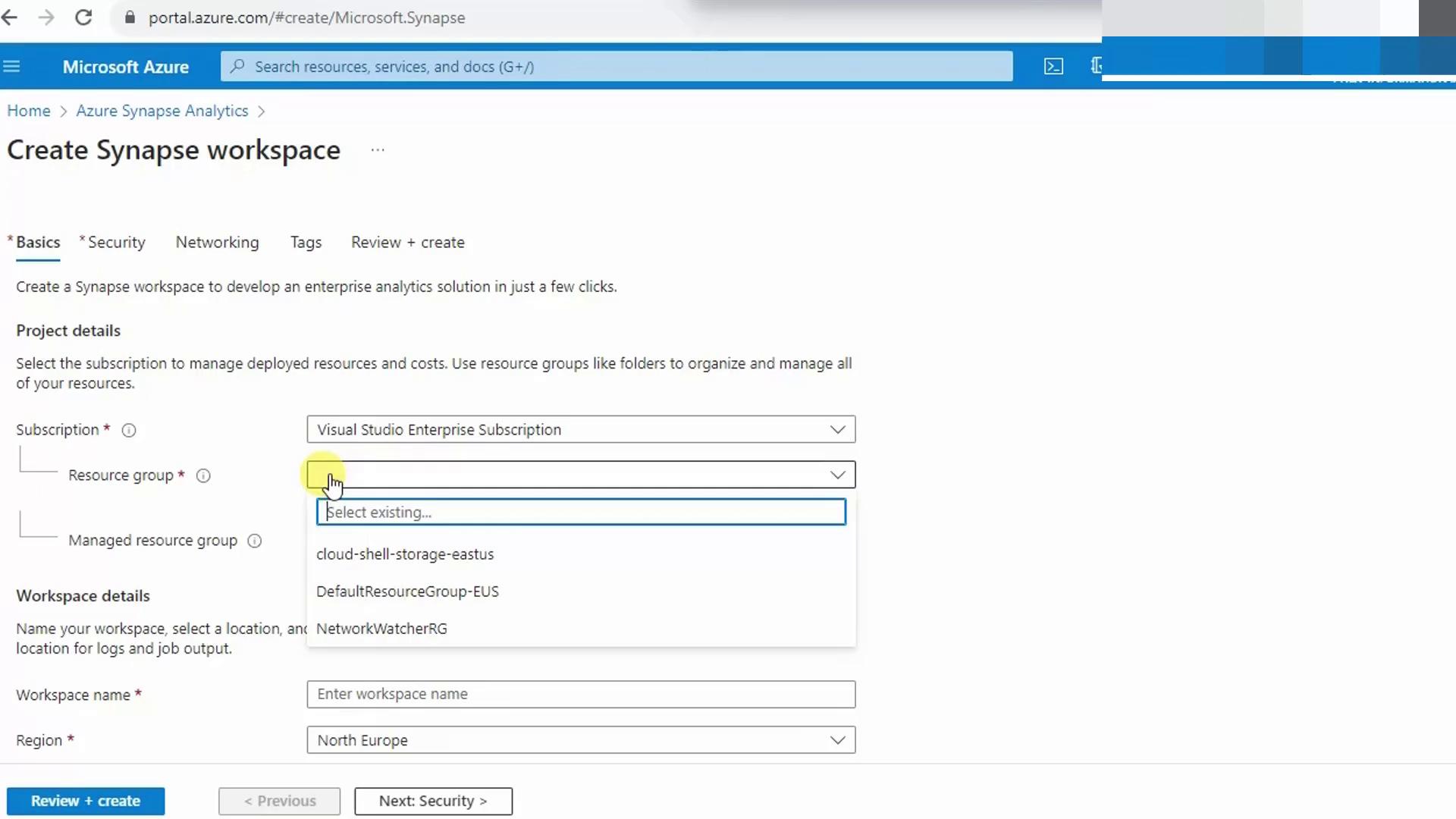
- Under Basics, choose your subscription and an existing resource group.
- The workspace resource itself will live here.
- Supporting services (storage, Data Factory) are placed in a managed resource group. You may name it or let Azure auto-generate one.
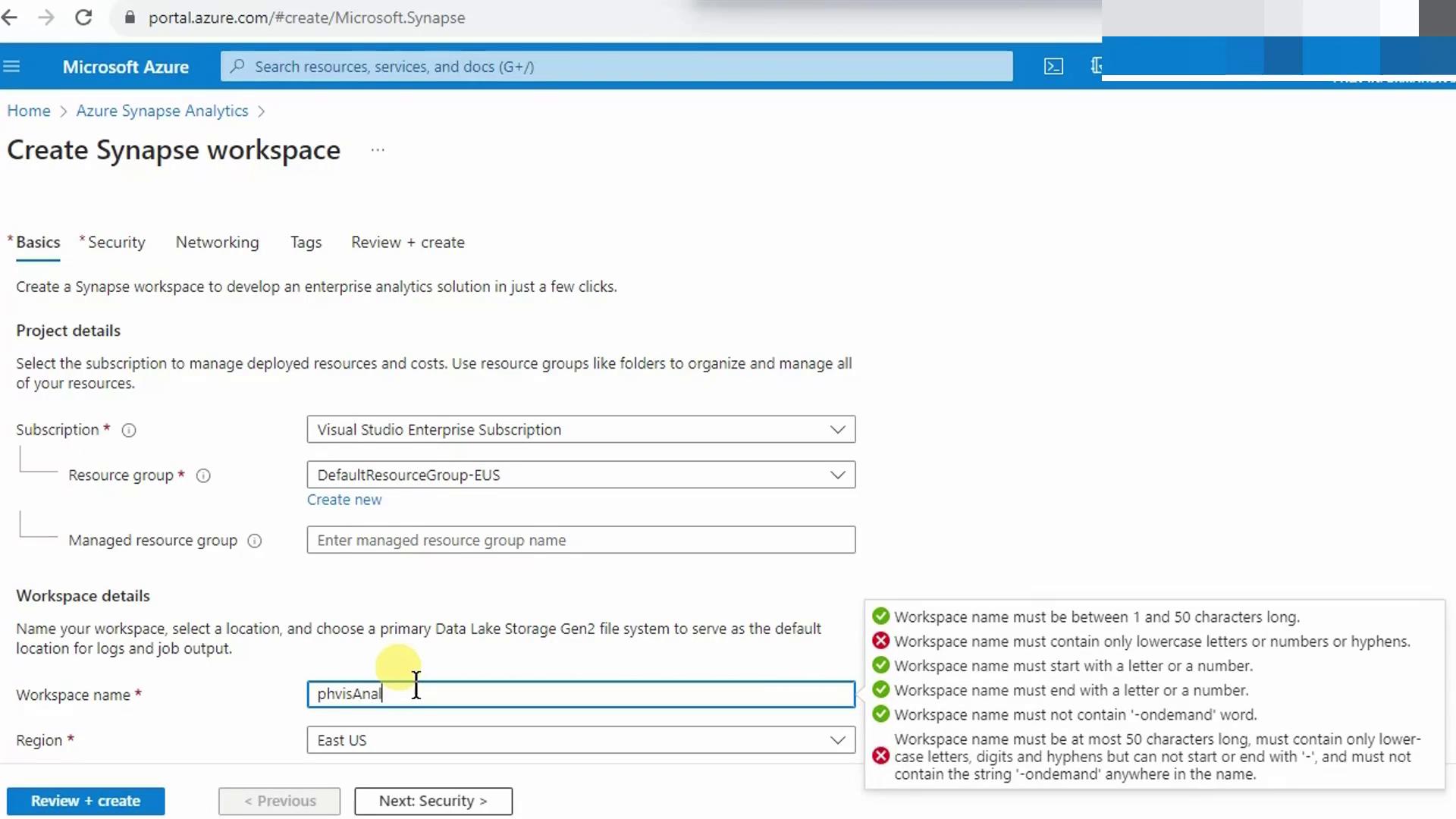
- Enter a unique workspace name (e.g.,
phvisanalysis) in lowercase and select a Region (e.g., East US). - For Data Lake Storage Gen2, either pick an existing account or click Create new to provision one with the required hierarchical namespace.
Azure Synapse requires hierarchical namespace on your storage account. Letting the wizard create it ensures this setting is enabled automatically.
- When you create storage, provide a name like
phvsynapseaccount. This hosts your Data Lake containers. - Since Synapse also leverages Azure Files, click File system and add another account such as
phvsynfiles.
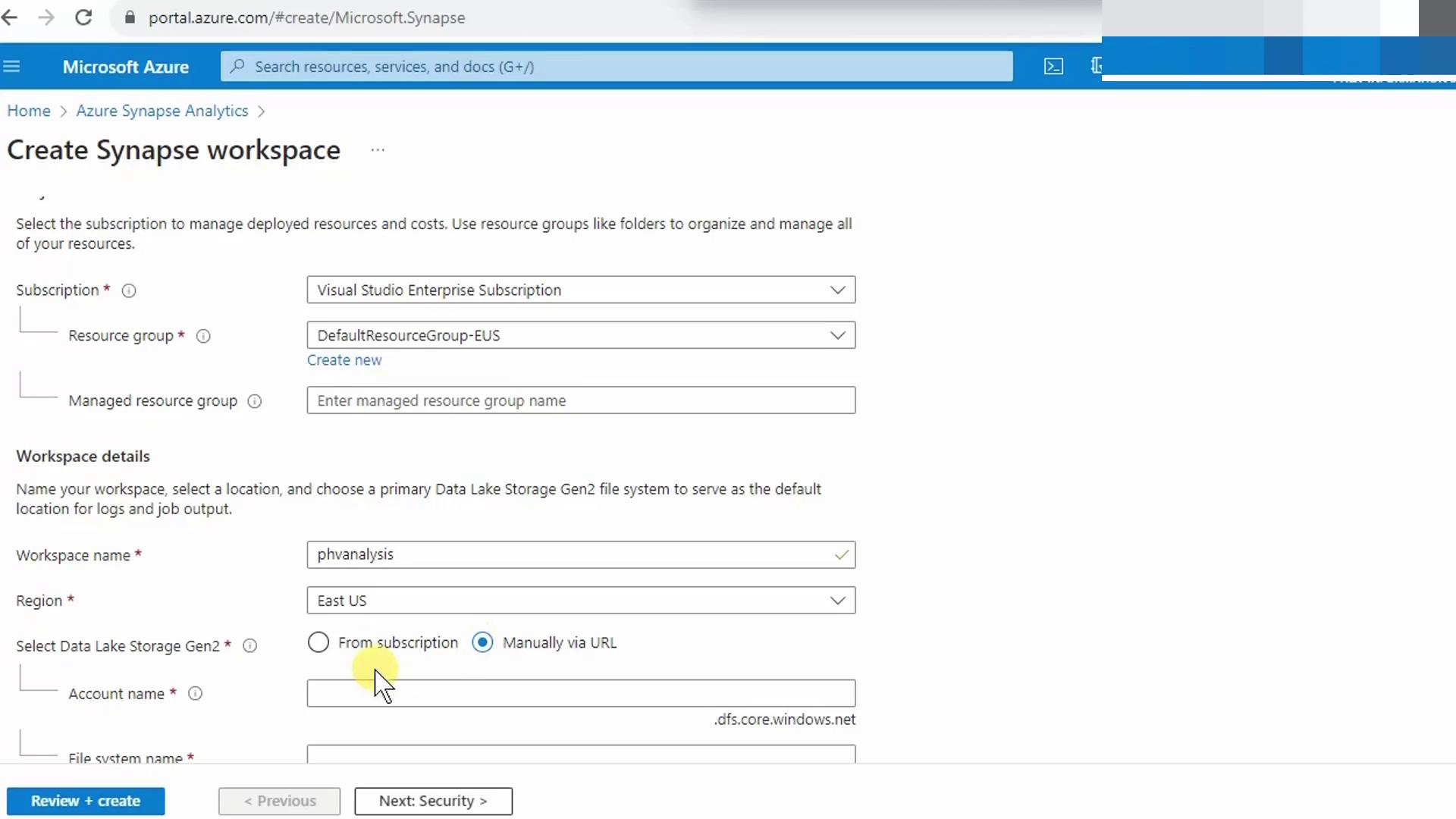
- Scroll down to review the summary where Synapse automatically links to your new Data Lake Storage Gen2 accounts.

2. Security and Authentication
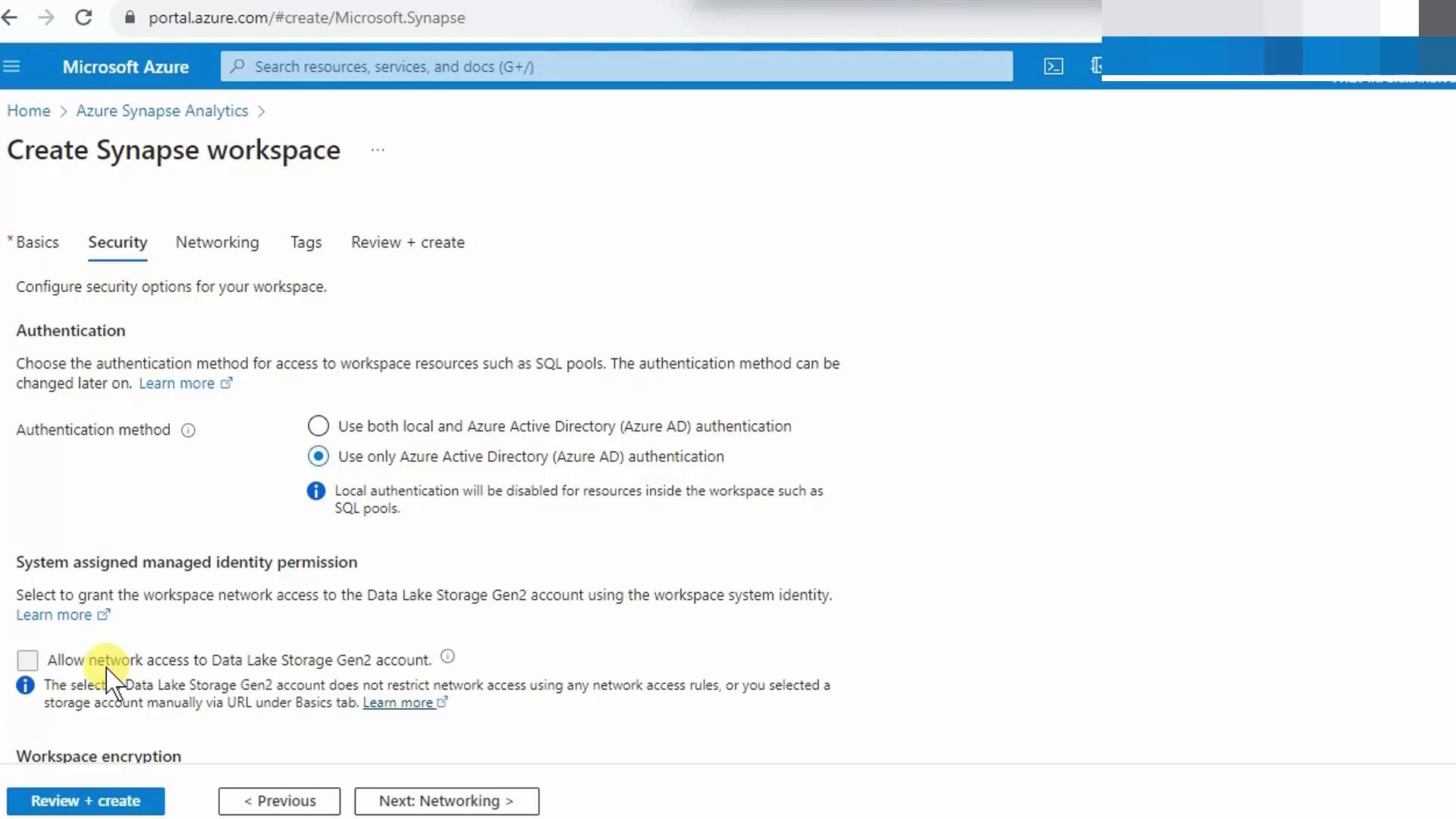
Switch to the Security tab to configure identity and network controls:- Authentication
- Enable Azure Active Directory (AAD) for centralized, secure access.
- Optionally allow local SQL authentication if needed.
- Network Access
- By default, all IP ranges are allowed.
- You can restrict to specific IPs or Virtual Network rules later.
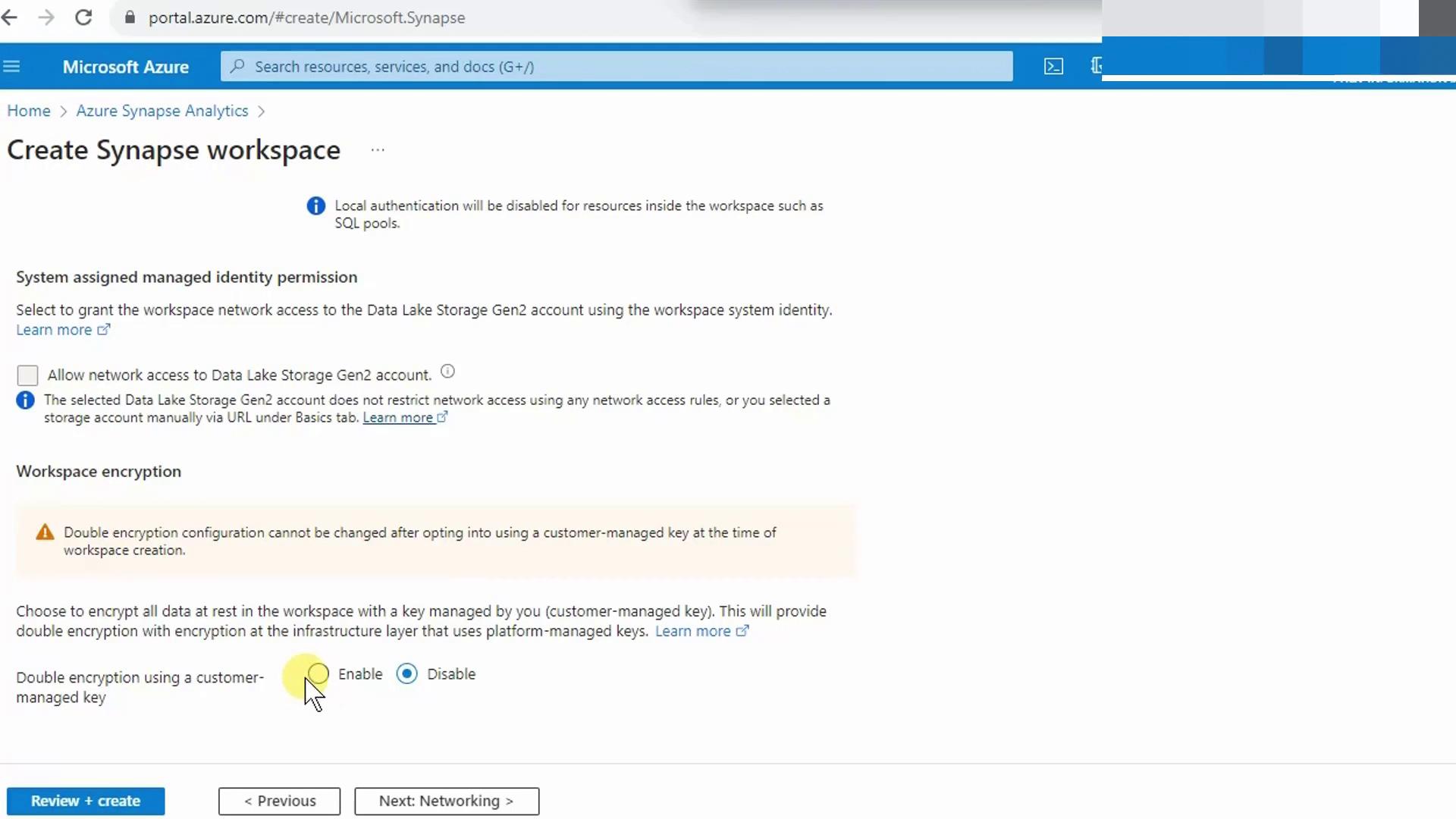
- Microsoft-managed keys are selected by default for data at rest.
- To use Customer-managed keys, click Enable, then choose your Key Vault and key.
Once the workspace is created, you cannot switch encryption between Microsoft-managed and customer-managed keys.
3. Review, Create, and Deploy
- Skip the Networking tab for now (you can integrate a Virtual Network later).
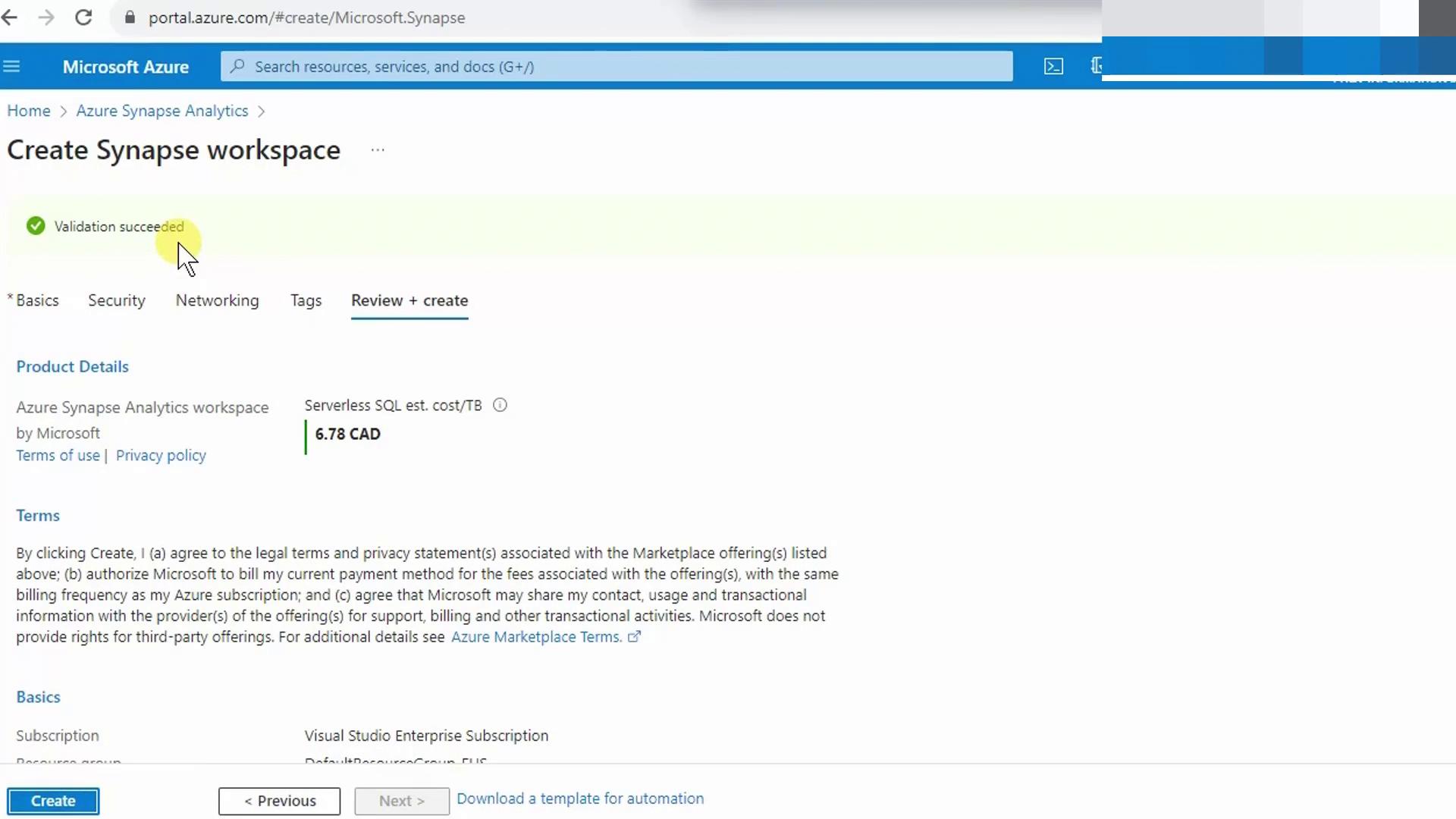
- Click Review + create.
- After validation completes successfully, select Create.
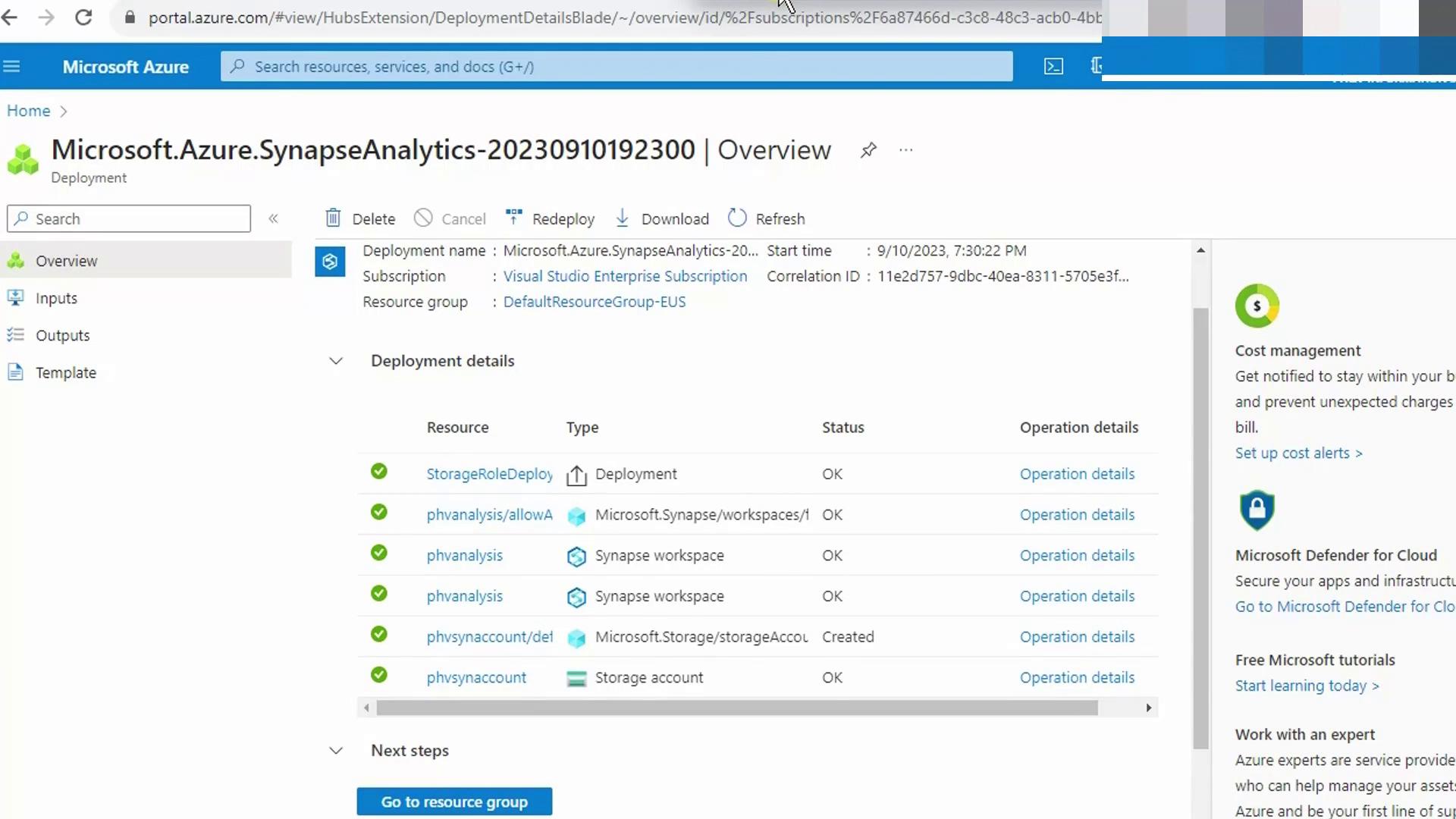
4. Exploring Your Workspace
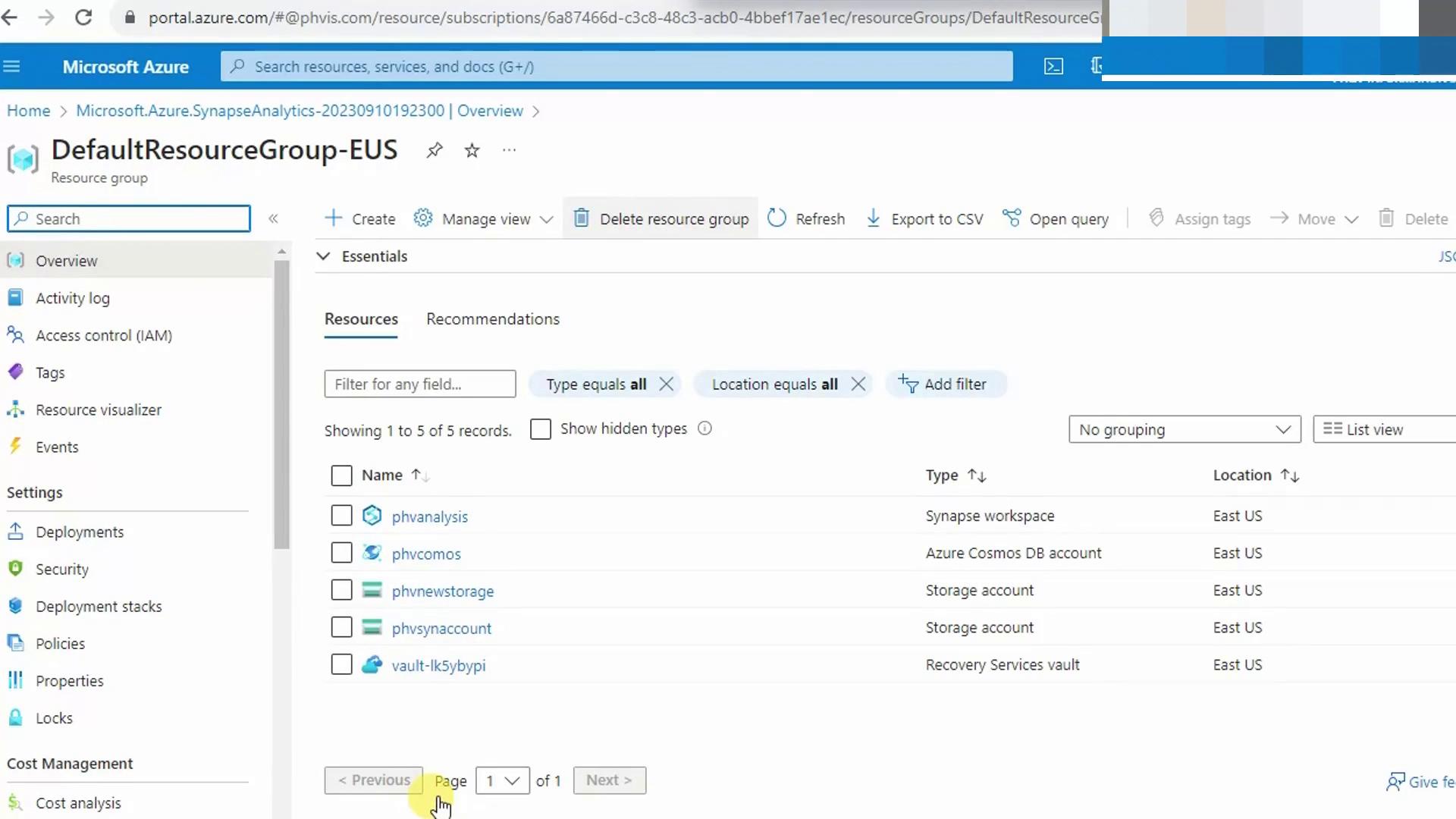
Open the managed resource group (e.g., DefaultResourceGroup-EUS):| Resource | Purpose |
|---|---|
| Synapse Workspace | Core analytics environment |
| Managed Azure Cosmos DB | Data Explorer for log and time series data |
| Storage Account: phvsynapseaccount | Data Lake Storage Gen2 |
| Storage Account: phvsynfiles | Azure Files for intermediate operations |
| Recovery Services vault | Backup and disaster recovery |
Accessing Synapse Studio
- Click your Synapse Workspace to launch Synapse Studio.
- In the Develop hub, you can create:
- SQL on-demand scripts
- Dedicated SQL pool queries
- Spark notebooks
- Data Factory pipelines
- Use the Manage hub to link additional services or update credentials.
- Monitor job runs and pipeline status in the Monitor hub.