

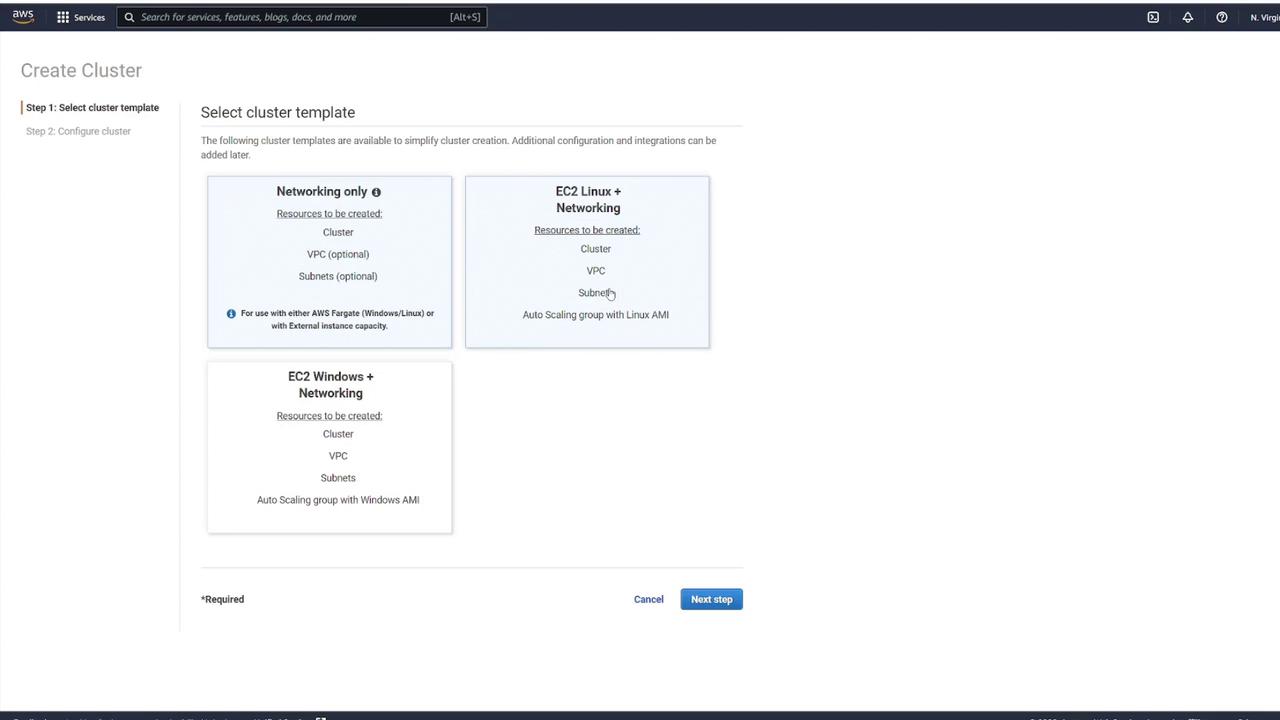
Step 1: Choose a Cluster Template
Click on the Create Cluster button. You will see three template options:- Networking only – Ideal for using Fargate.
- EC2 Linux + Networking – Use this if you plan to run EC2 instances with Linux.
- EC2 Windows + Networking – Use this if you plan to run EC2 instances with Windows.
Step 2: Configure Networking Settings
After selecting your cluster template, adjust any additional networking settings as needed. This includes configuring the VPC, CIDR block, and subnets. You may also add tags or enable CloudWatch Container Insights. Once you have reviewed the settings, click Create to continue.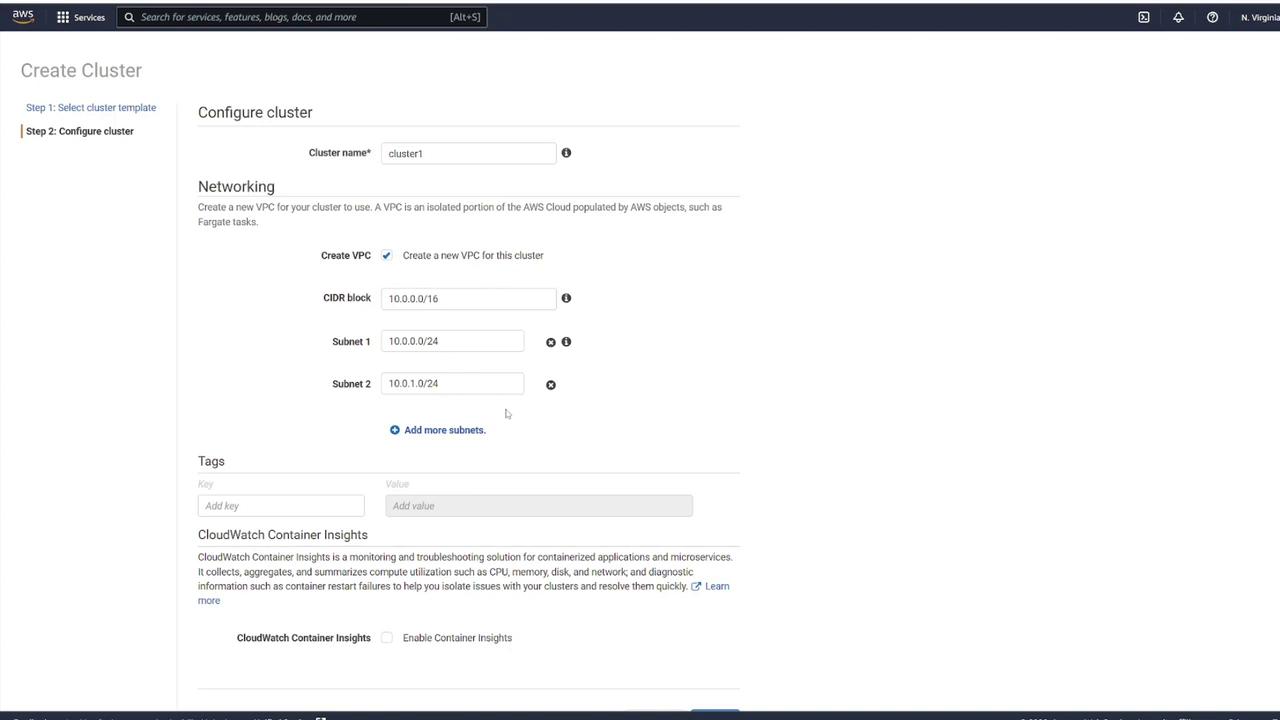
After configuring your networking settings, ensure that the VPC and subnet settings meet your organizational requirements.
Step 3: View Cluster Details
Once the cluster is created, click View Cluster to access its details. This action will take you to the cluster details page where you can verify the successful creation and review the configuration details.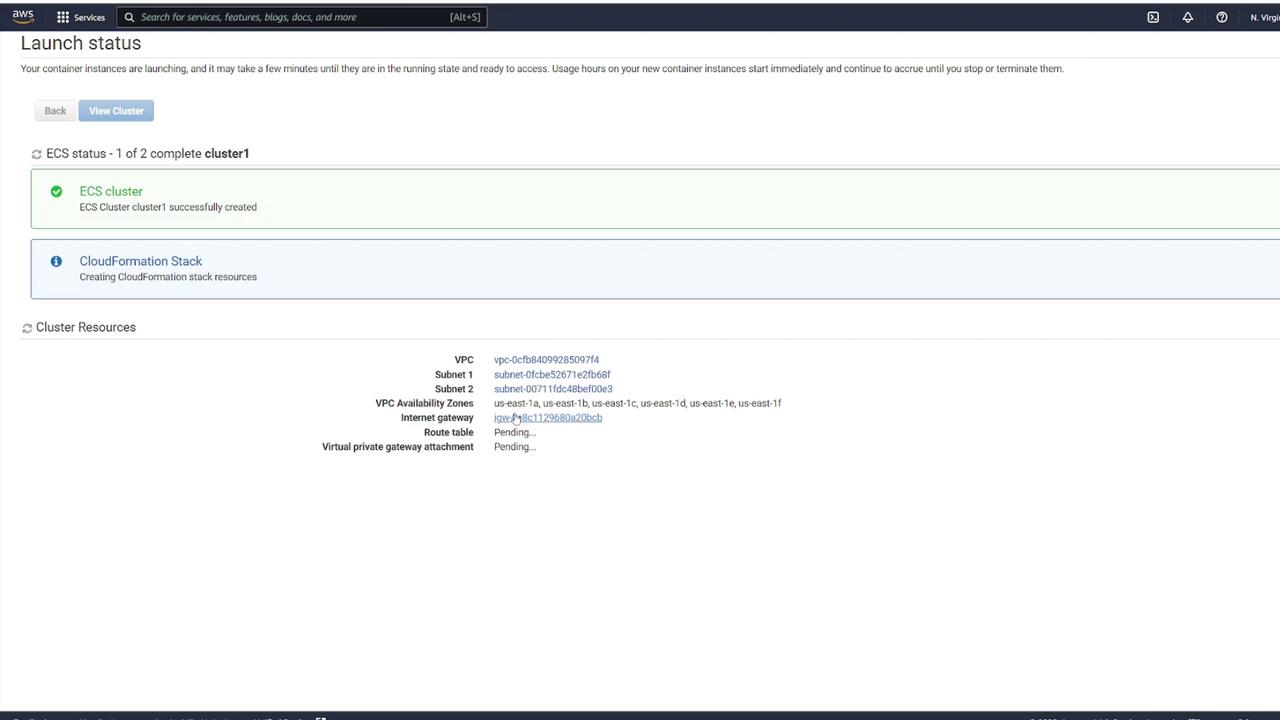
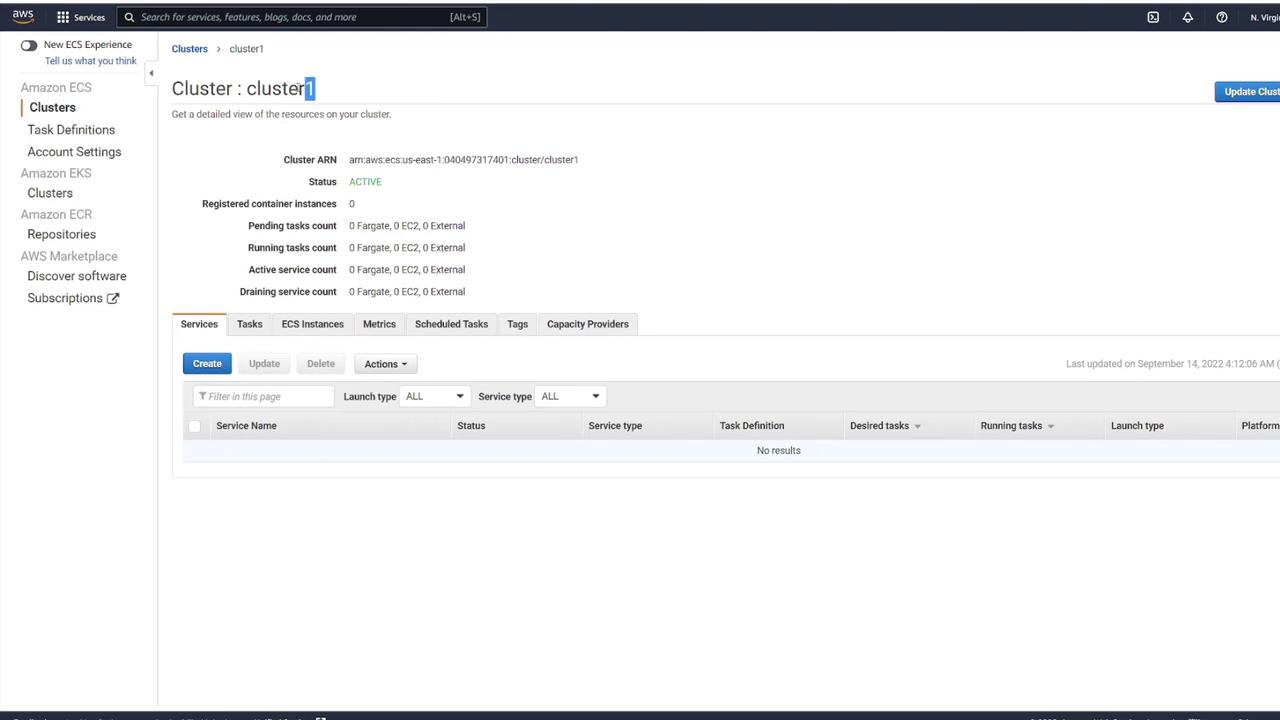
Ensure you have reviewed all configuration parameters and networking settings before finalizing your cluster creation to avoid configuration issues later.