Learn to configure AWS credentials in Spacelift for demo deployment and manage environment variables securely.
In this lesson, you’ll learn how to configure AWS credentials in Spacelift for a demo deployment. While several authentication methods are available, we begin with the simplest approach. If the AWS provider is not configured correctly, you may encounter an error similar to the following:
Copy
Ask AI
Planning failed. Terraform encountered an error while generating this plan. Error: configuring Terraform AWS Provider: no valid credential sources for Terraform AWS Provider found. Please see https://registry.terraform.io/providers/hashicorp/aws for more information about providing credentials. AWS Error: failed to refresh cached credentials: no EC2 IMDS role found, operation error ec2: DescribeInstances, request canceled, context deadline exceeded with provider["registry.terraform.io/hashicorp/aws"], on main.tf line 11, in provider "aws": 11: provider "aws" {}[1821G4J8XYZ43R5R3KGH3C] Unexpected exit code when planning changes: 1
The same methods for configuring the AWS provider in Spacelift also apply when working on your local machine or within any containerized environment.
Below is an example Terraform configuration that sets up the AWS provider and creates a Virtual Private Cloud (VPC). In your environment, you can pass your AWS Access Key ID and AWS Secret Access Key as environment variables:
Copy
Ask AI
# Configure the AWS Providerprovider "aws" { version = "~> 4.0" region = "us-east-1"}# Create a VPCresource "aws_vpc" "example" { cidr_block = "10.0.0.0/16"}
Passing Environment Variables to the Spacelift Runner
Before running Terraform, export your AWS credentials and region in your terminal:
Copy
Ask AI
export AWS_ACCESS_KEY_ID="anaccesskey"export AWS_SECRET_ACCESS_KEY="asecretkey"export AWS_REGION="us-west-2"terraform plan
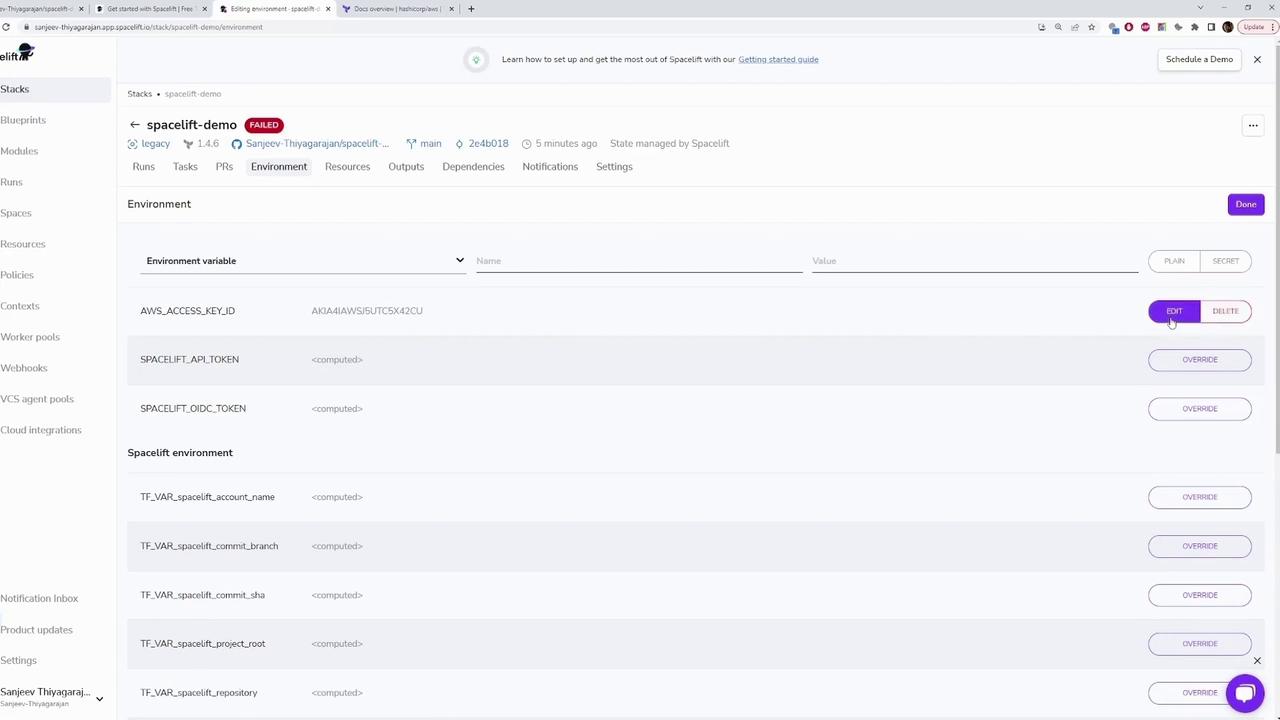
After performing these steps, navigate to your stack’s environment settings in Spacelift and select “Edit” to add or update the necessary variables. To confirm your current AWS credential configuration, run:
Copy
Ask AI
cat ~/.aws/credentials
The credentials file may also include Terraform output blocks that display resource attributes after provisioning. For instance:
Copy
Ask AI
output "instance_id" { description = "ID of the EC2 instance" value = aws_instance.app_server.id}output "instance_public_ip" { description = "Public IP address of the EC2 instance" value = aws_instance.app_server.public_ip}
After you verify and commit your changes, push them to your repository with:
Copy
Ask AI
git push
The terminal output should resemble the following, indicating a successful commit:
Copy
Ask AI
1 file changed, 2 insertions(+)C:\Users\sanje\Documents\scratch\spacelift-demo>git pushEnumerating objects: 5, done.Counting objects: 100% (5/5), done.Delta compression using up to 12 threadsCompressing objects: 100% (3/3), done.Writing objects: 100% (3/3), 304 bytes | 304.00 KiB/s, done.Total 3 (delta 2), reused 0 (delta 0), pack-reused 0remote: Resolving deltas: 100% (2/2), completed with 2 local objects.To https://github.com/Sanjeev-Thiyagarajan/spacelift-demo.git 8997C93..2e4b018 main -> main
When configuring your environment variables in Spacelift, you have two options for storing AWS credentials:
Storage Option
Visibility
Recommendation
Plain Text
Visible and editable
Suitable for non-sensitive variables (e.g., AWS region)
Secret
Hidden and not directly viewable
Essential for sensitive data like AWS Access Key ID and AWS Secret Access Key
Always store sensitive credentials as secrets in Spacelift. This ensures that your AWS credentials remain hidden and secure, protecting them from unauthorized access.
When stored as plain text, the values are visible and can be edited by anyone with access to Spacelift. Therefore, for security reasons, always mark your AWS credentials as secrets.
By following these guidelines, you can efficiently manage your AWS credentials in Spacelift while ensuring your Terraform projects are configured securely and correctly.