1. Prerequisites & Versions
Before you begin, ensure you have the following:| Requirement | Details |
|---|---|
| Lens IDE | Version 5.0 or later (we recommend 5.13+) |
| Lens Account | Sign up with email, GitHub, or Google |
| Network Access | Outbound HTTPS for Lens Spaces and ClusterConnect proxy |
Verify your Lens version via Help › About Lens in the desktop app.
2. Login to Lens Spaces
- In Lens, click Lens Login in the bottom-right corner.
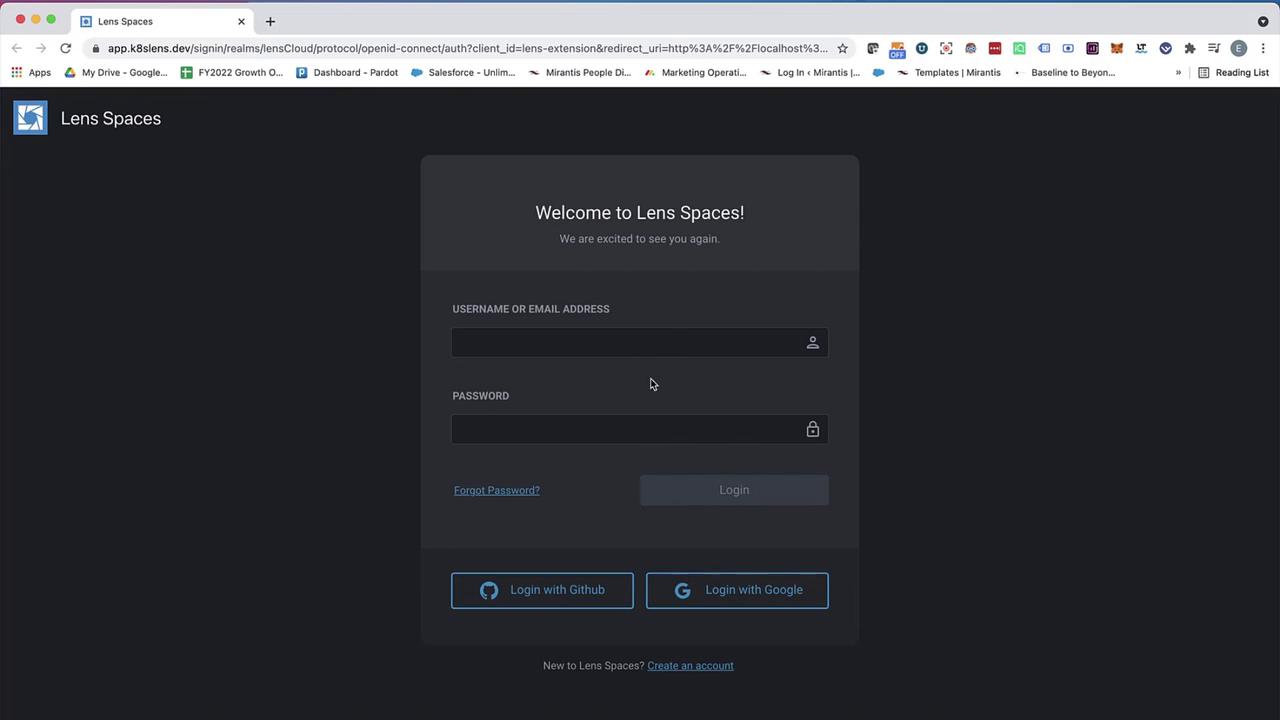
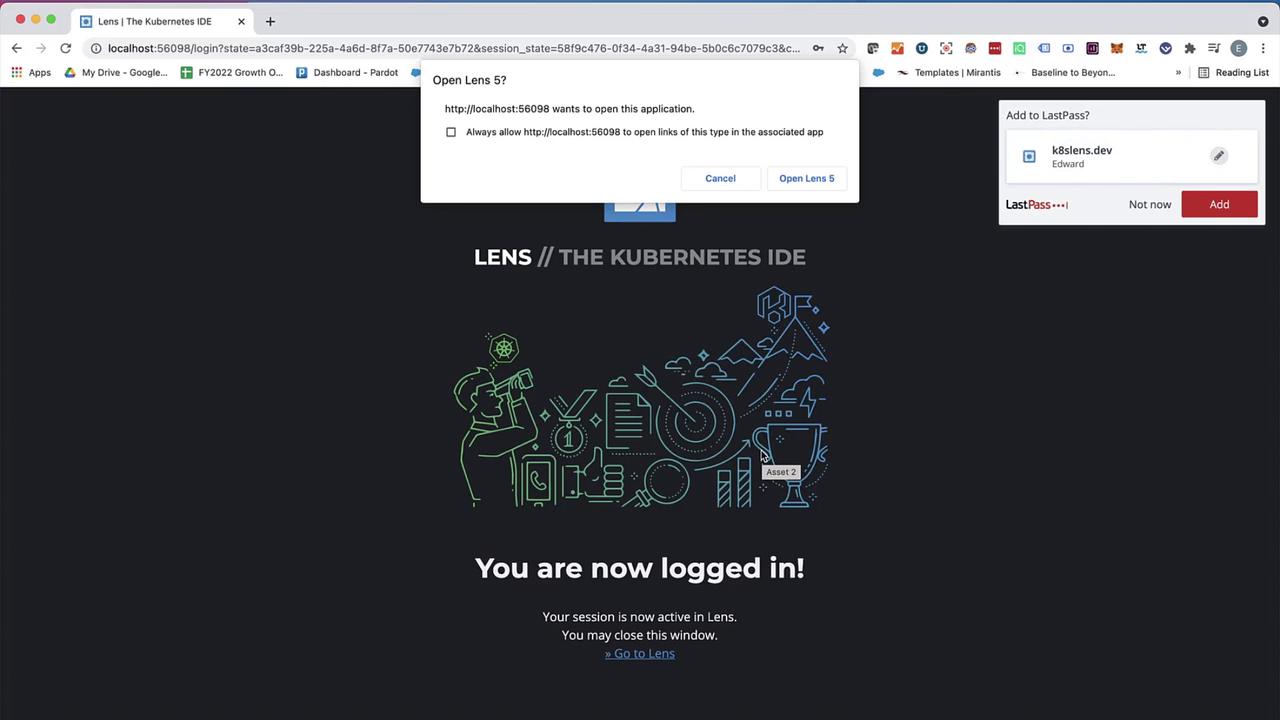
- Your browser opens the Lens Spaces sign-up page—authenticate via GitHub, Google, or email.
- Confirm the “Open Lens” prompt in your browser to return to the desktop app.
3. Explore the Cluster Catalog
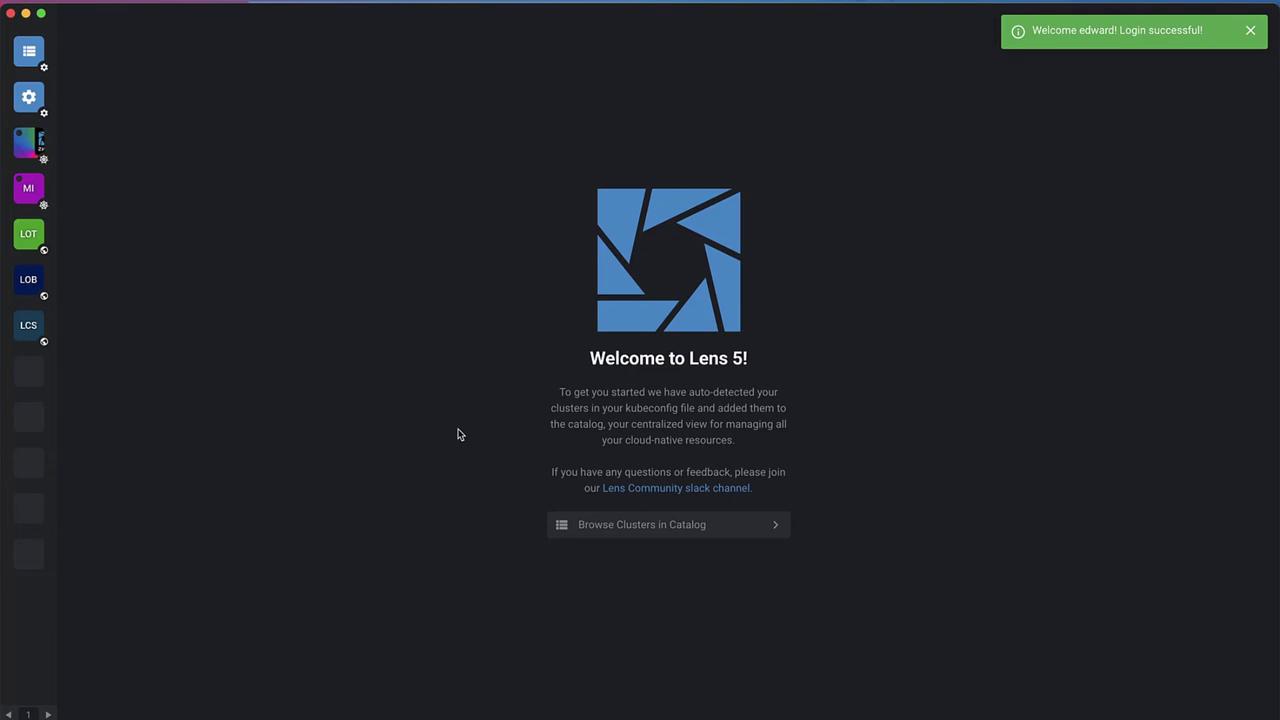
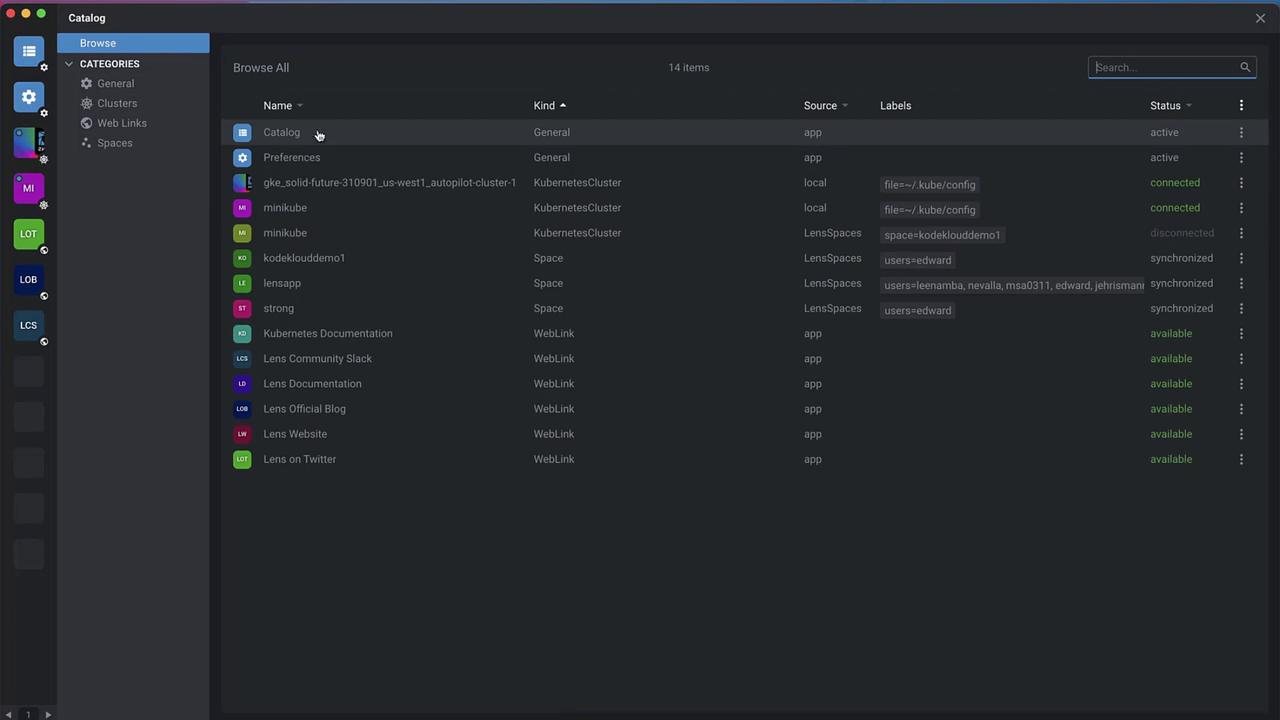
Navigate to Catalog in the sidebar to see all registered clusters. Disconnected clusters (e.g., GKE, Minikube) display until they’re launched.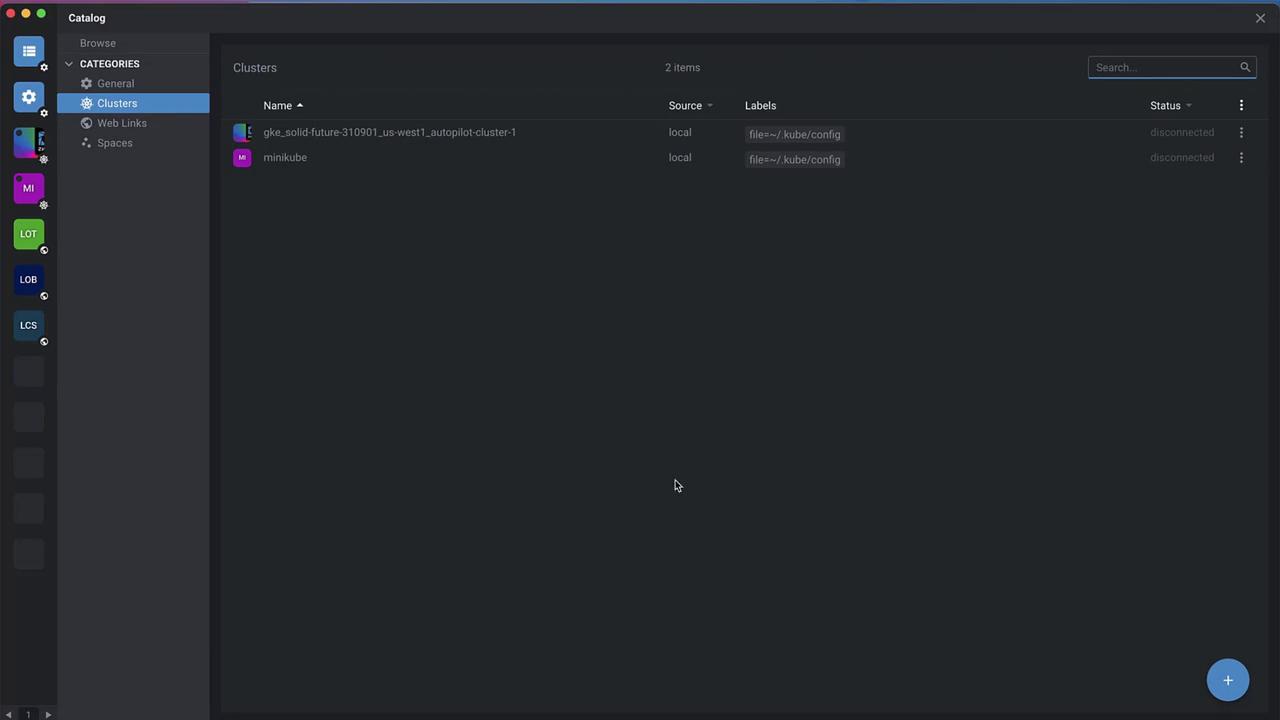
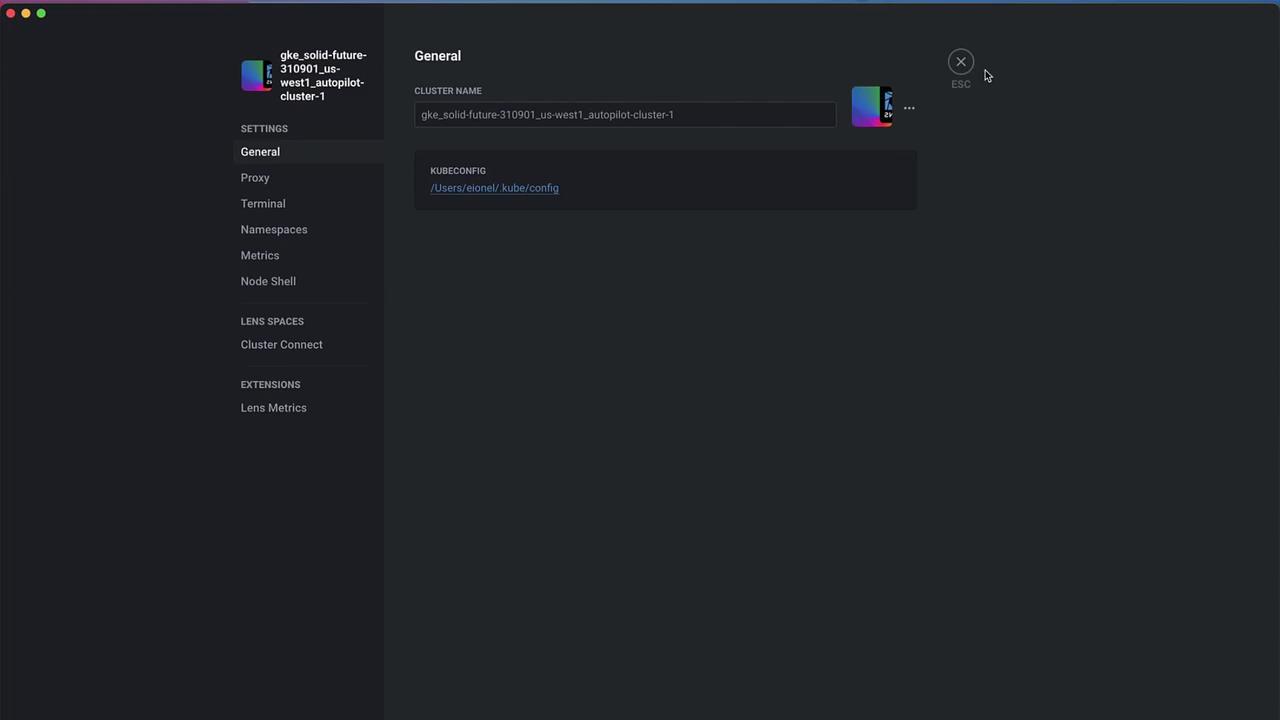
4. Create a Space
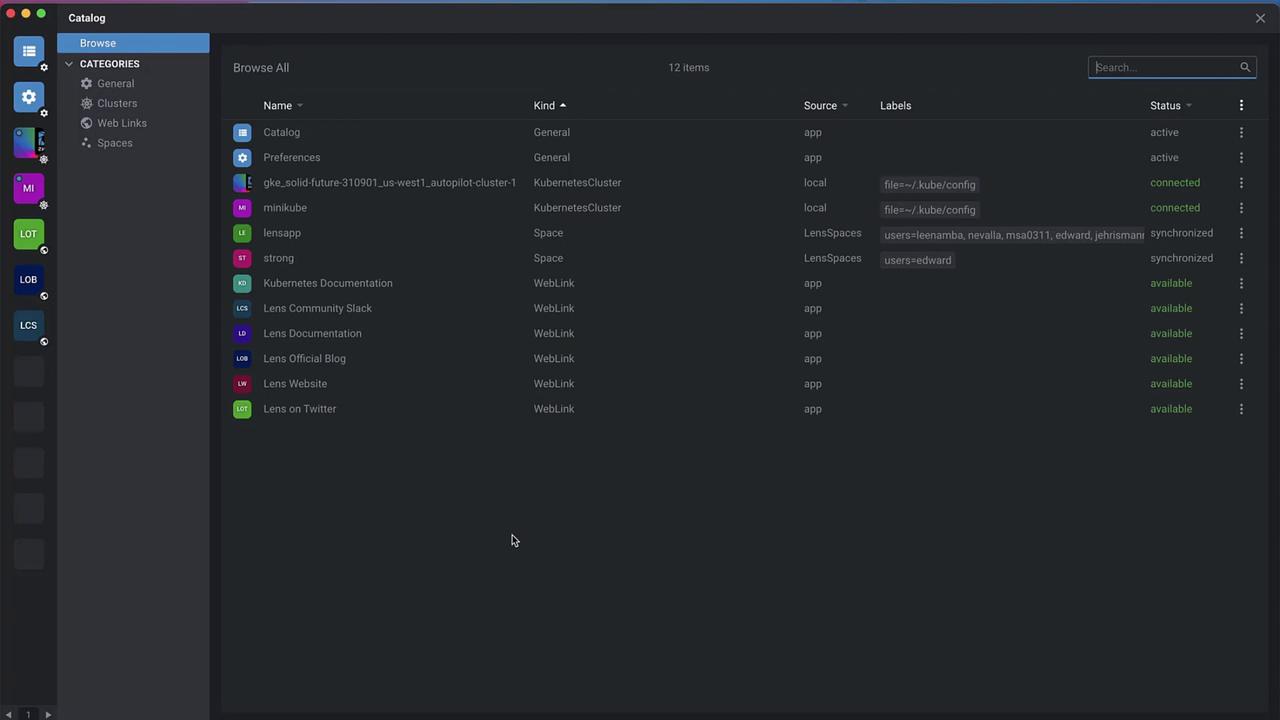
Spaces are collaborative workspaces for sharing clusters.- Go to Catalog › Spaces.
- Click the + icon (or your username › Add Space).
- Enter a unique name (e.g.,
CodeCloudDemo1) and press Enter.
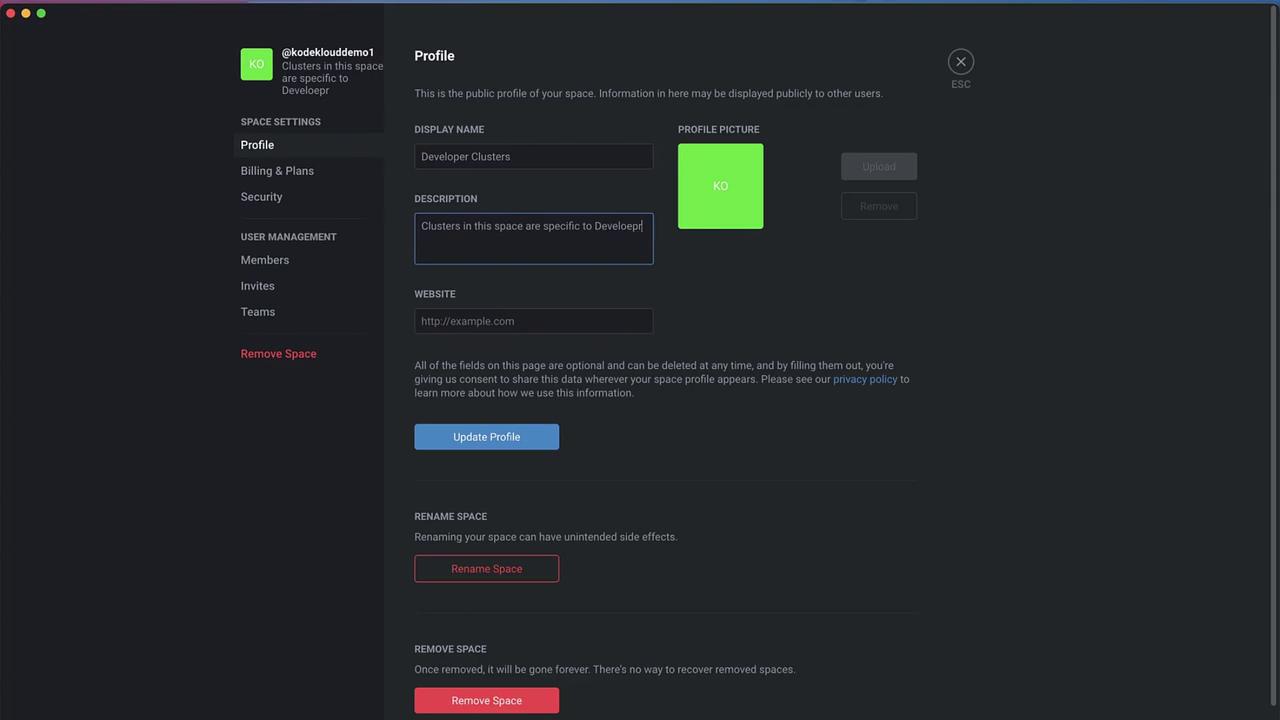
- In Space Settings, update the Display name and Description (e.g., “Developer Clusters – Shared by TeamLens”).
5. Invite Members
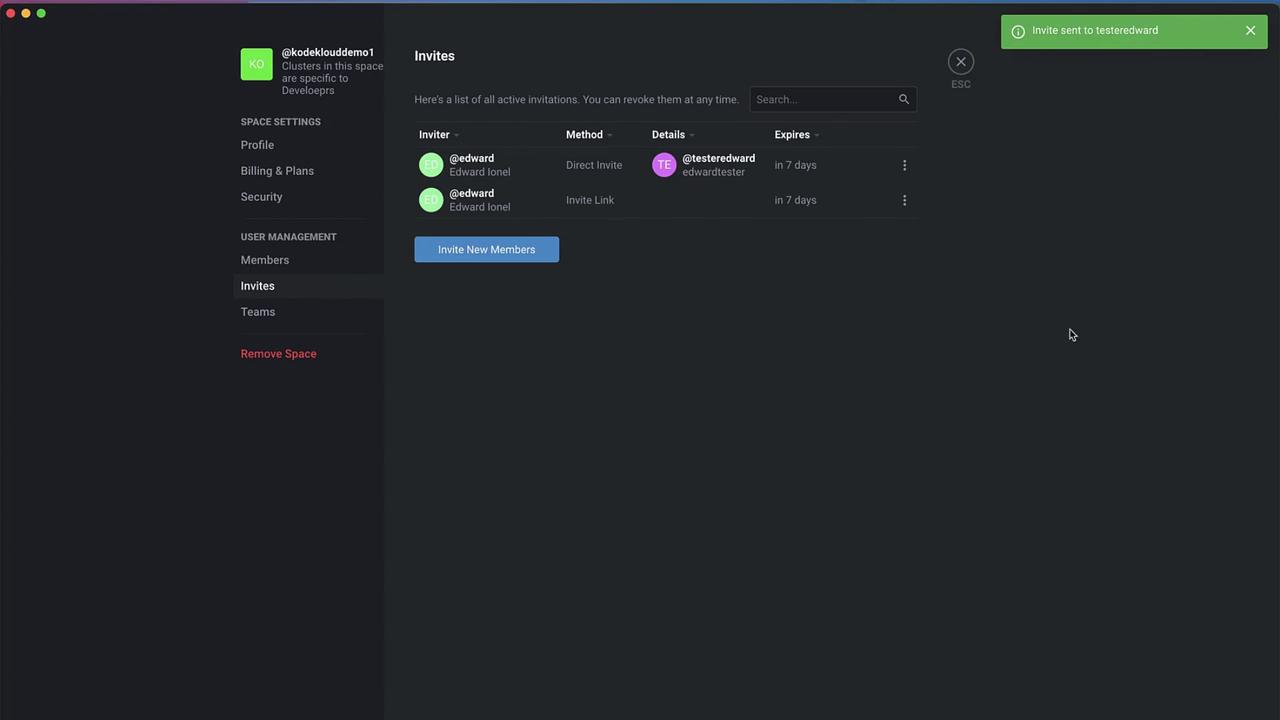
Add collaborators by username, email, or shareable link.- In Spaces › Members, click Invite.
- Enter a username or email (e.g.,
TesterEdward) and send the invite.
6. Share Your Kubernetes Cluster
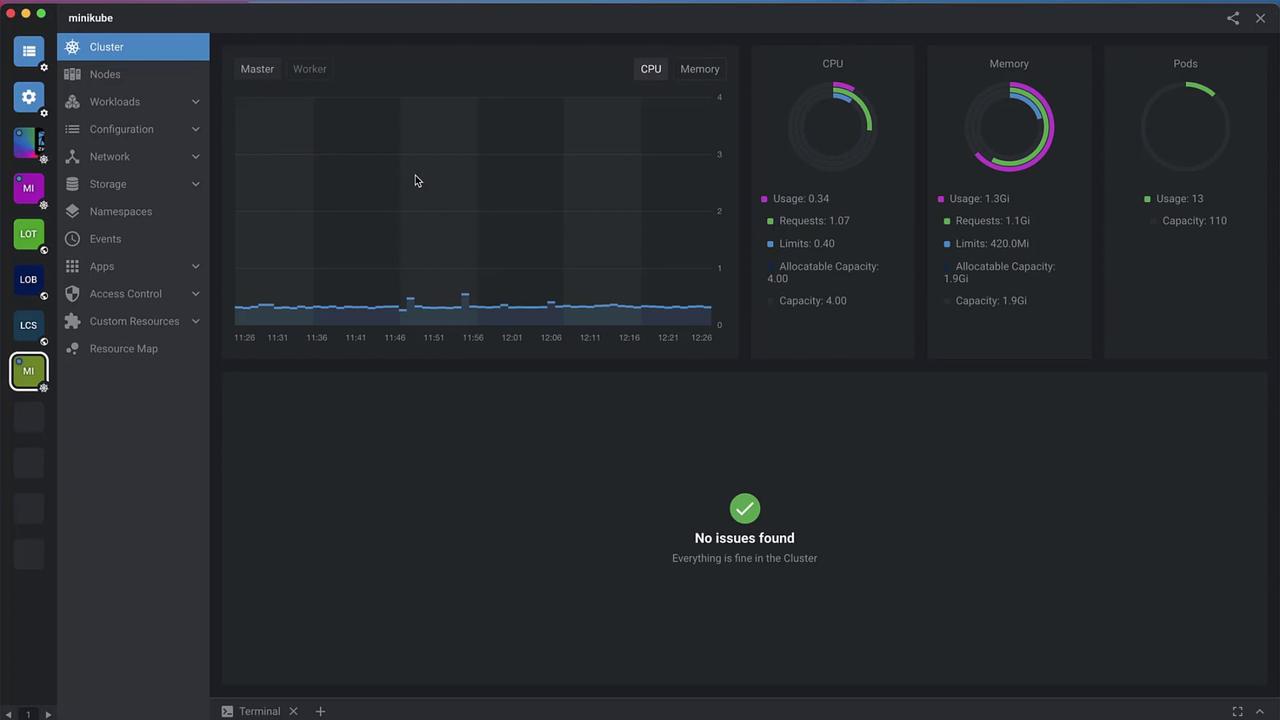
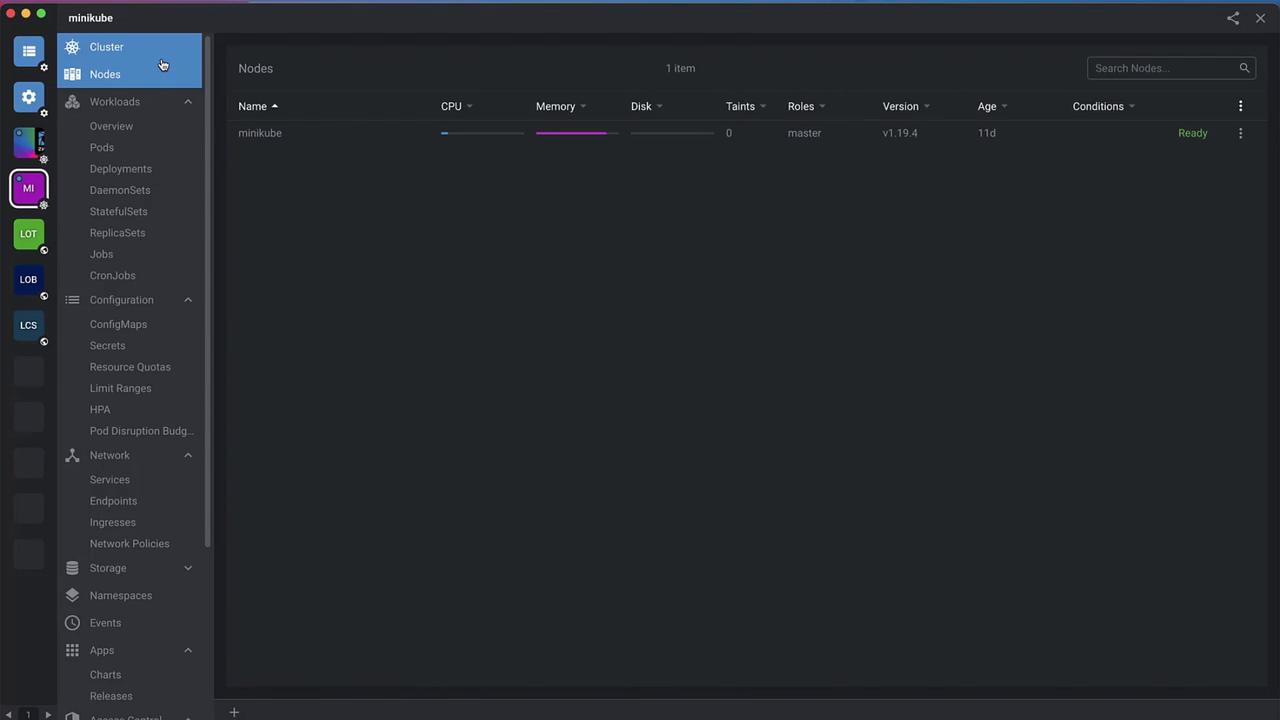
To share a cluster:- In Clusters, select your target cluster (e.g., Minikube).
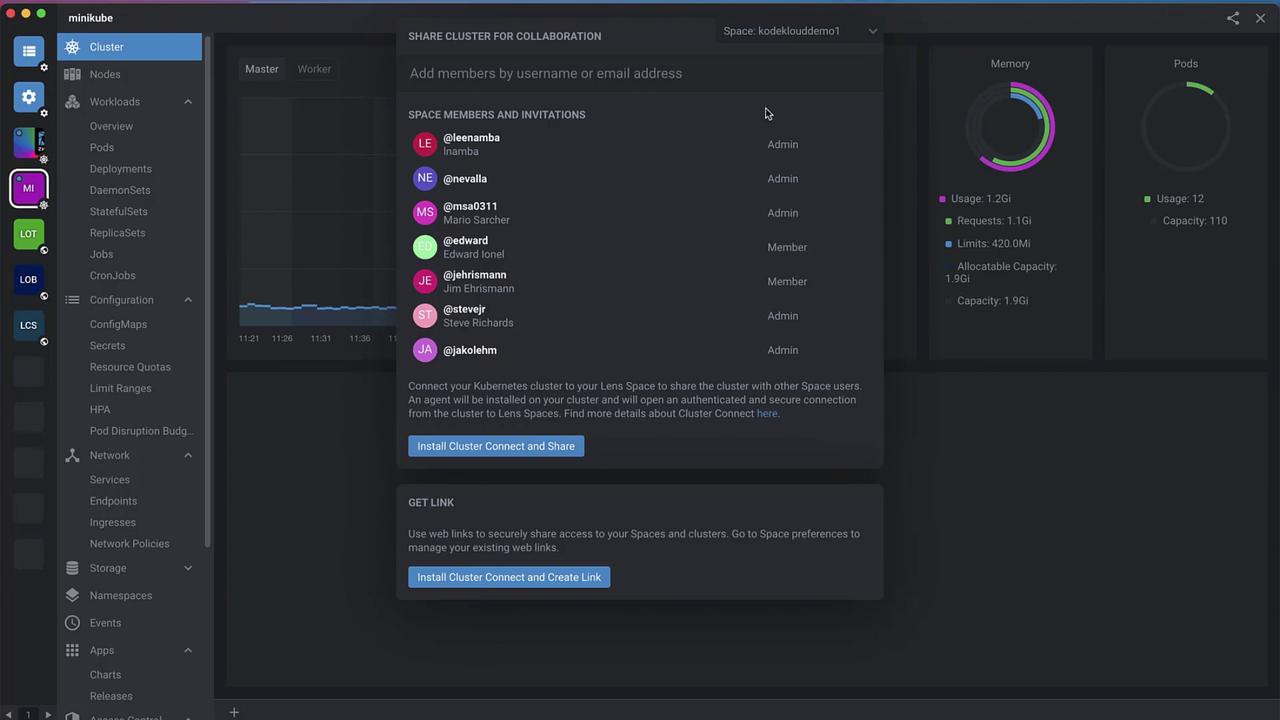
- Click the Share Cluster icon.
- Choose your space (
CodeCloudDemo1). - Install ClusterConnect when prompted.
For architecture details, see the ClusterConnect documentation.
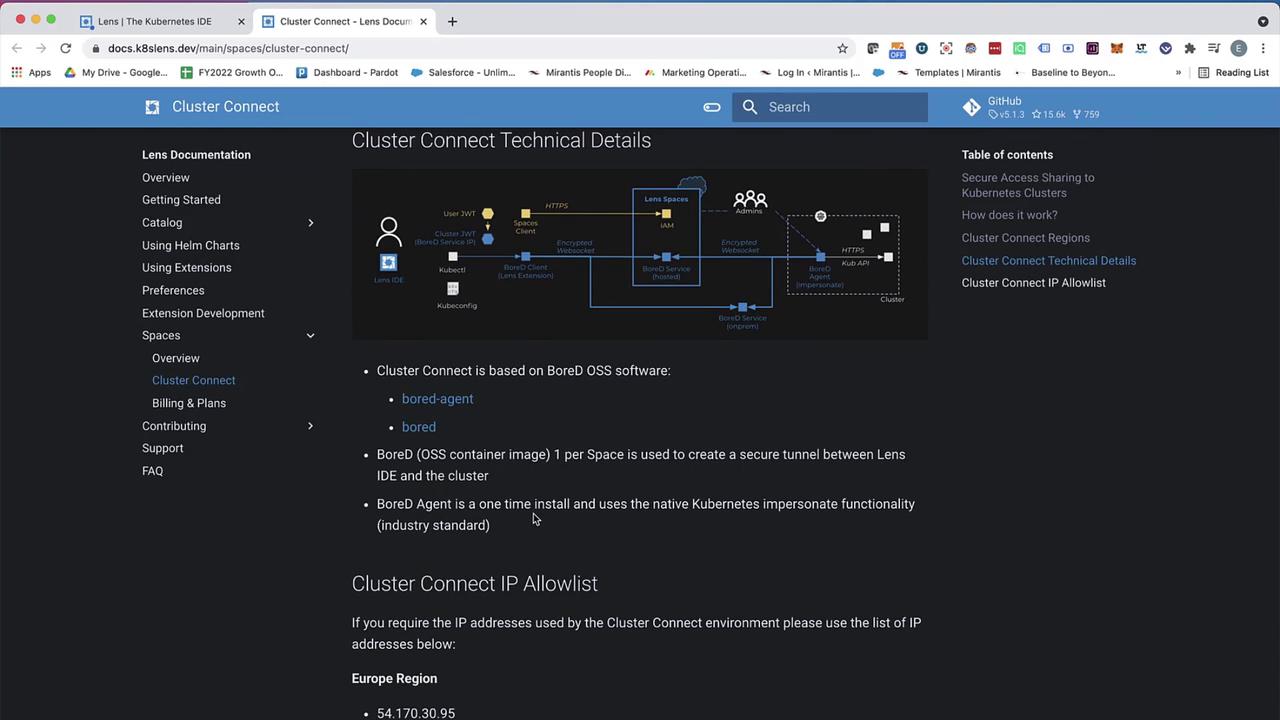
By default, shared clusters are read-only. To grant write permissions or restrict namespaces, configure teams and role bindings.
7. Configure Teams & Permissions
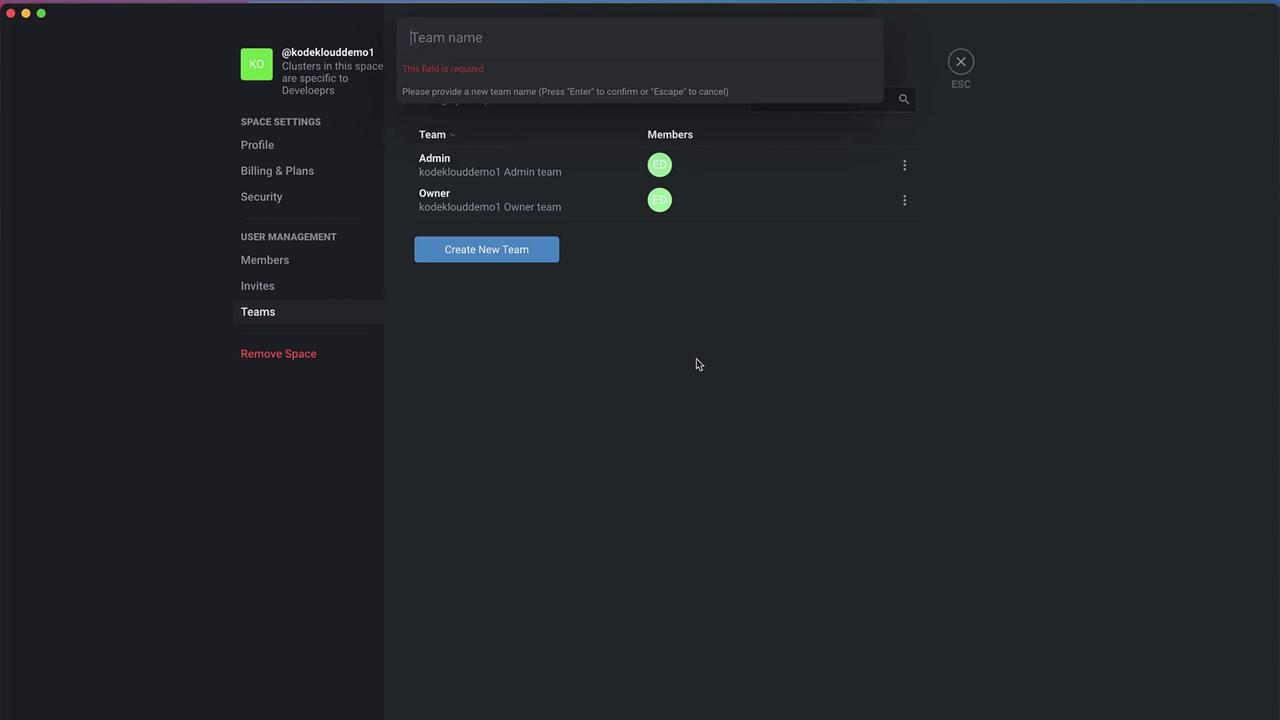
Create teams for granular access control:- Under Teams, click Add Team (e.g.,
Developers). - Assign members and define RoleBindings (e.g., restrict to the
monitoringnamespace).
8. Accepting an Invitation
As the invited user:- Log out and sign in with your invitee account (e.g.,
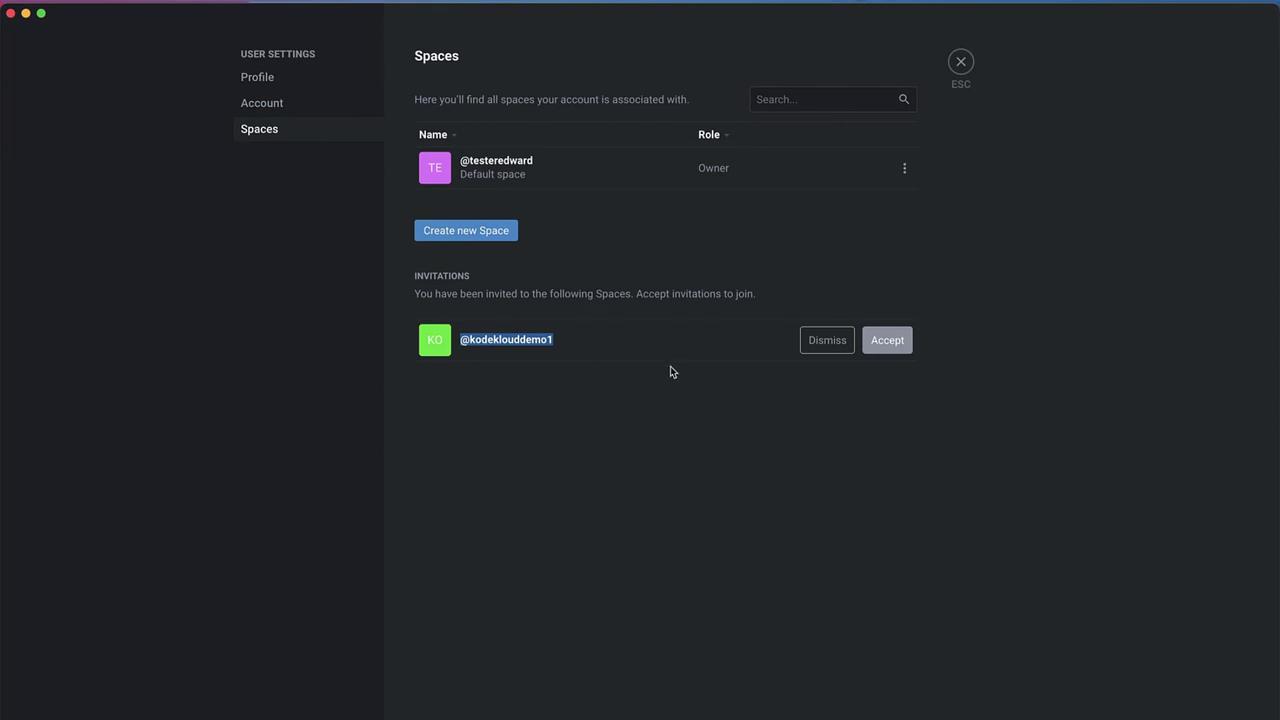
TesterEdward). - Navigate to My Profile › Spaces. The pending invitation appears.
- Click Accept.