- An AWS account with Image Builder, EC2, and IAM permissions
- An IAM role or instance profile with
ImageBuilderInstanceProfileandiam:PassRole - AWS Management Console access
1. Access EC2 Image Builder
- Sign in to the AWS Management Console.
- In the Services menu, search for EC2 Image Builder.
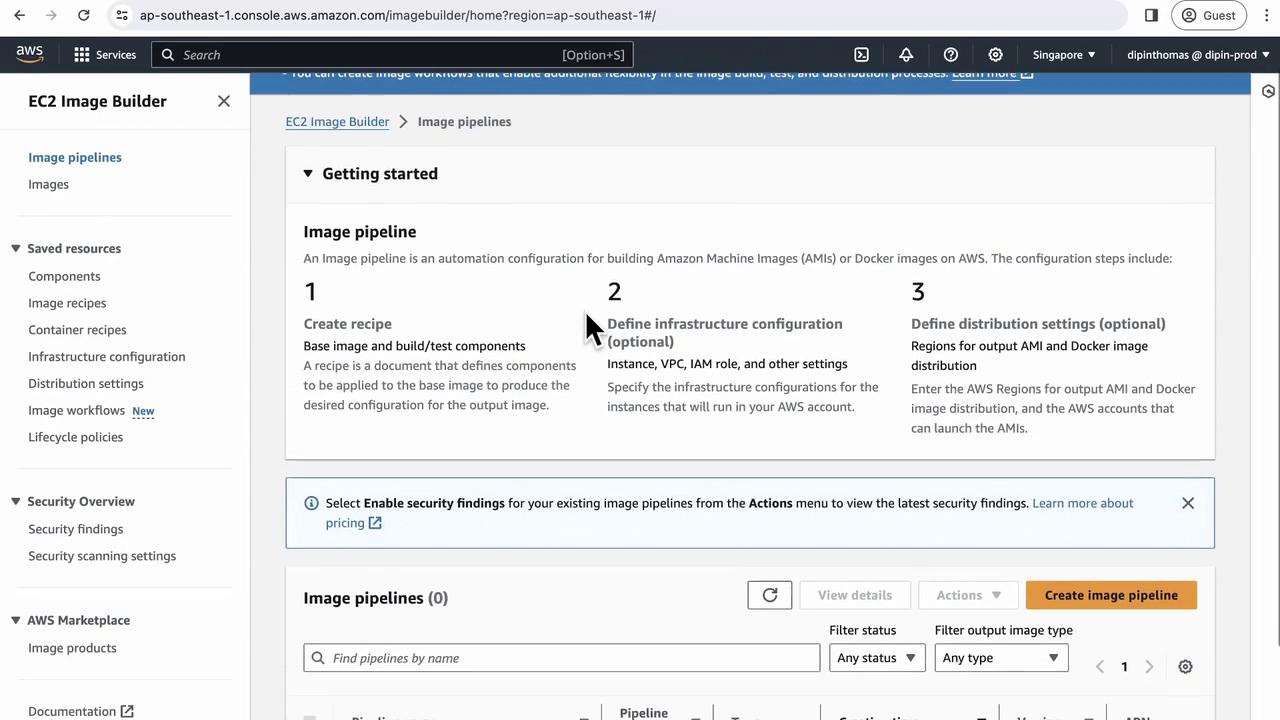
- Open the service to view the Image Builder dashboard, which highlights three main steps: Recipe, Infrastructure configuration, and Distribution.
2. Create a New Image Pipeline
- Click Create image pipeline.
- Enter a Pipeline name (e.g.,
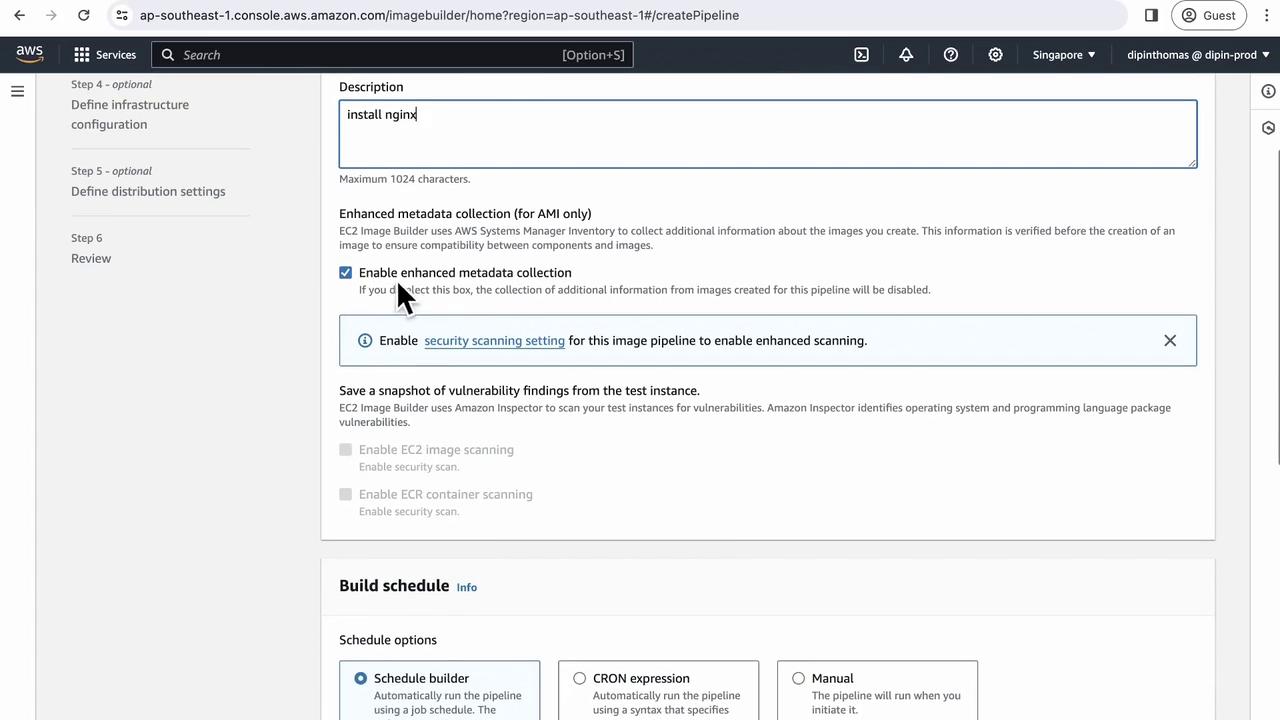
nginx-pipeline). - Add a description such as Install Nginx.
- Enable Enhanced metadata collection to capture detailed build metrics.
- Optionally, turn on security scanning for vulnerability reports.
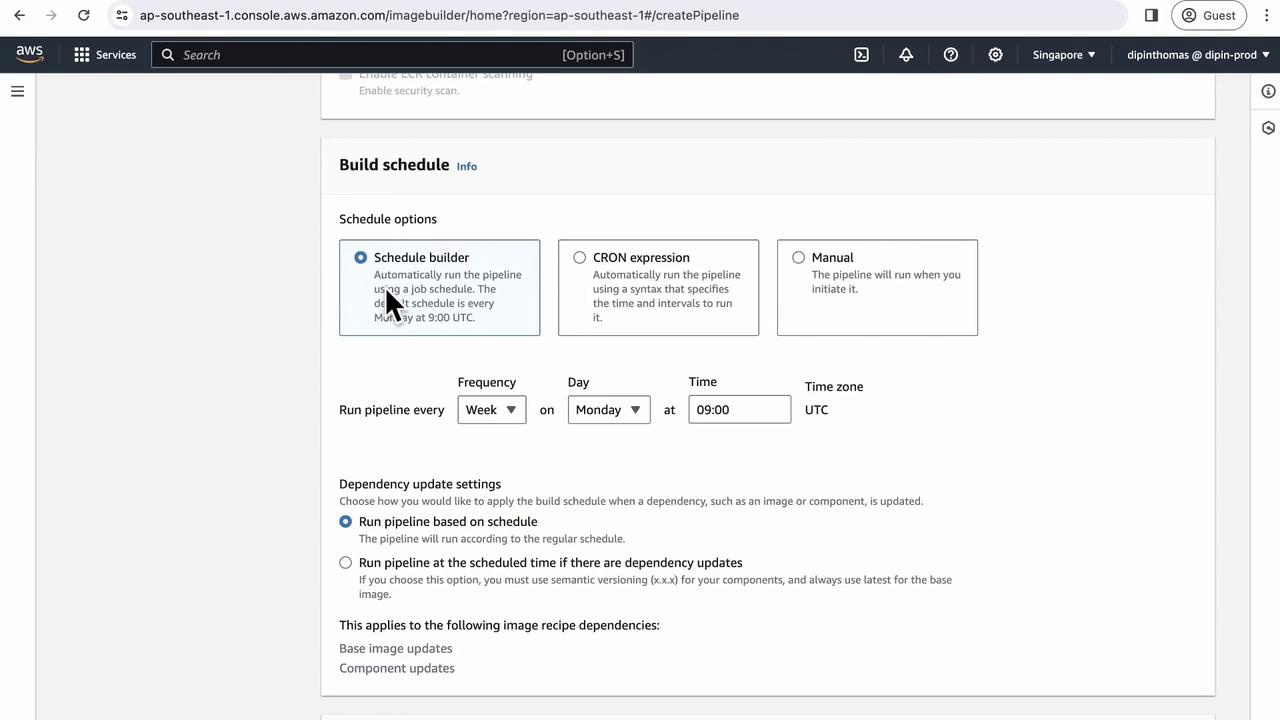
3. Schedule Your Builds
You can trigger your image builds automatically or manually.| Schedule Type | Description |
|---|---|
| Manual | Run the pipeline on demand |
| CRON | Automate builds on a time-based schedule |
4. Define Your Recipe
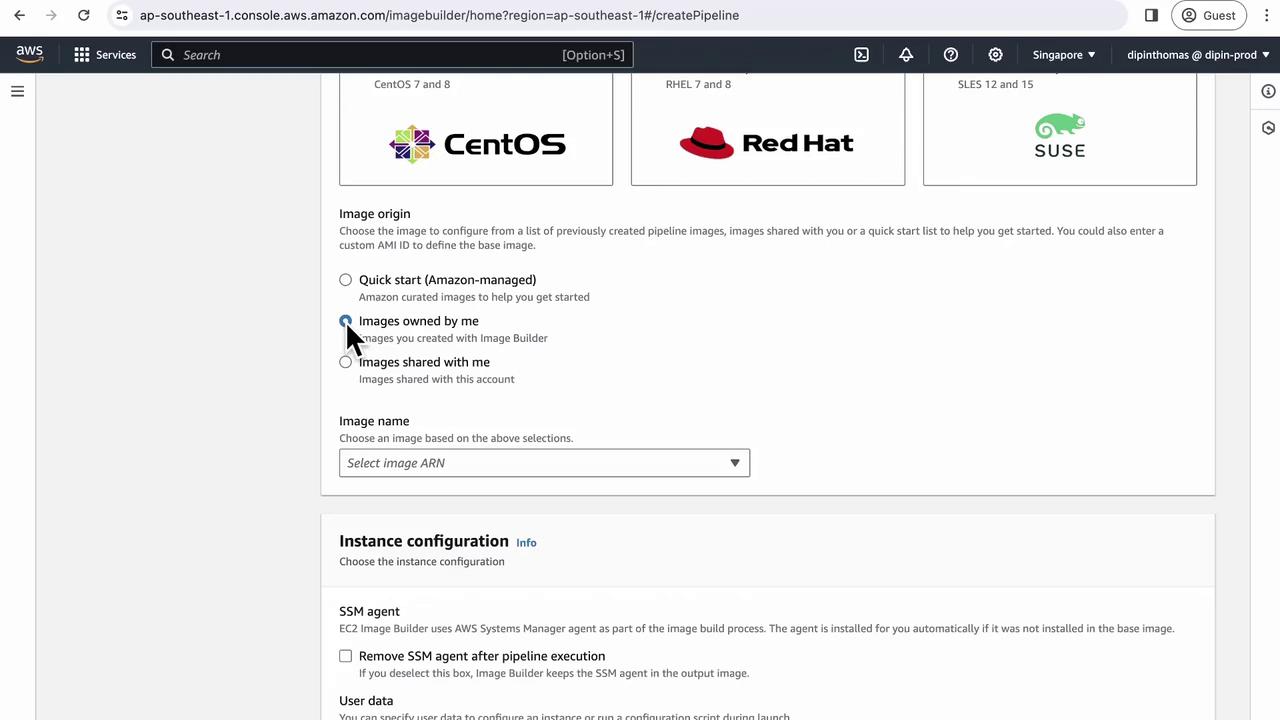
A recipe lists the components and settings for your AMI.- Click Next and choose Create new recipe.
- Select AMI as the target image type.
- Fill out the form:
| Field | Value |
|---|---|
| Name | nginx |
| Version | 1.22.0 |
| Description | Install Nginx latest |
| Base Image | Quick Start → Amazon Linux 2 (ARM64) |
- Check Remove after build to uninstall the SSM agent post-build.
- Leave the working directory at
/tmp.
Ensure the version follows semantic versioning (
x.y.z) to avoid validation errors.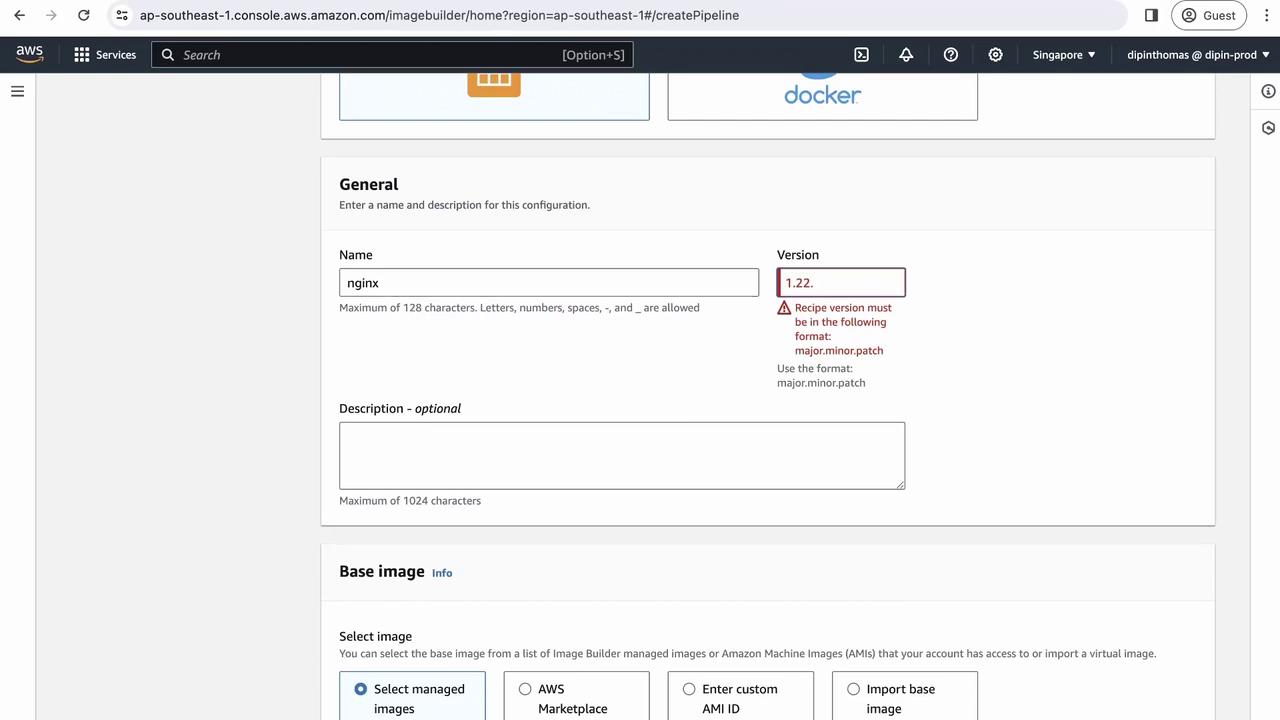
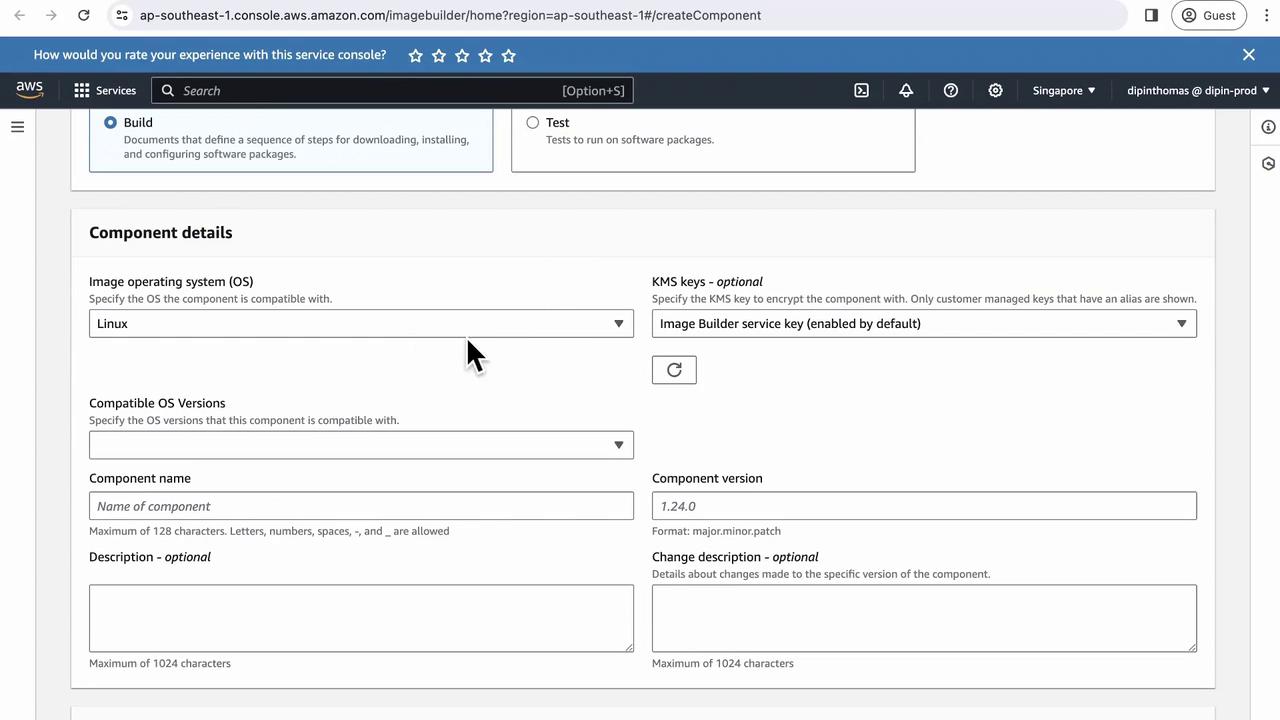
5. Create a Build Component
Components are YAML definitions that execute commands in phases.- Click Create build component.
- Choose Linux as the compatible OS.
-
Fill in component details:
- Name:
nginx - Version:
1.22.0 - Description: Install Nginx version 1.22.0
- Name:
- In the YAML editor, define the build, validate, and test phases:
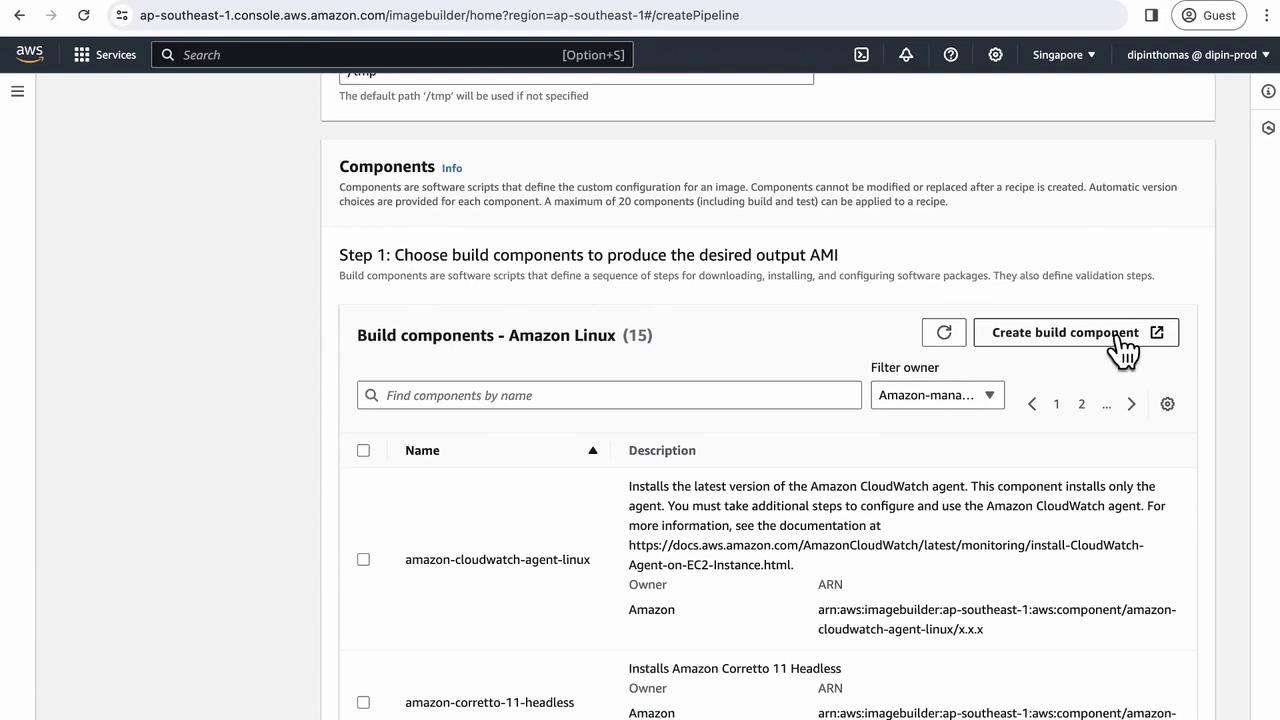
nginx component.
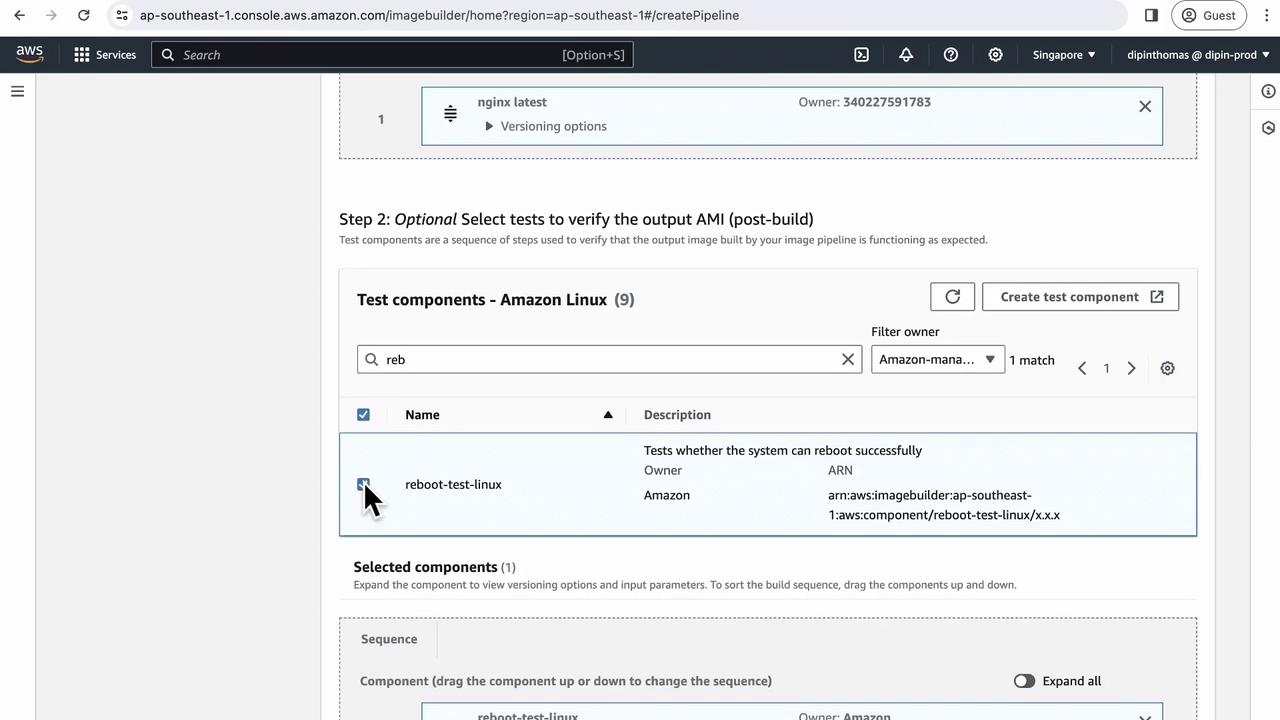
6. Add Tests
By default, Image Builder offers several tests. Select the Reboot Test to ensure the AMI boots correctly after a restart.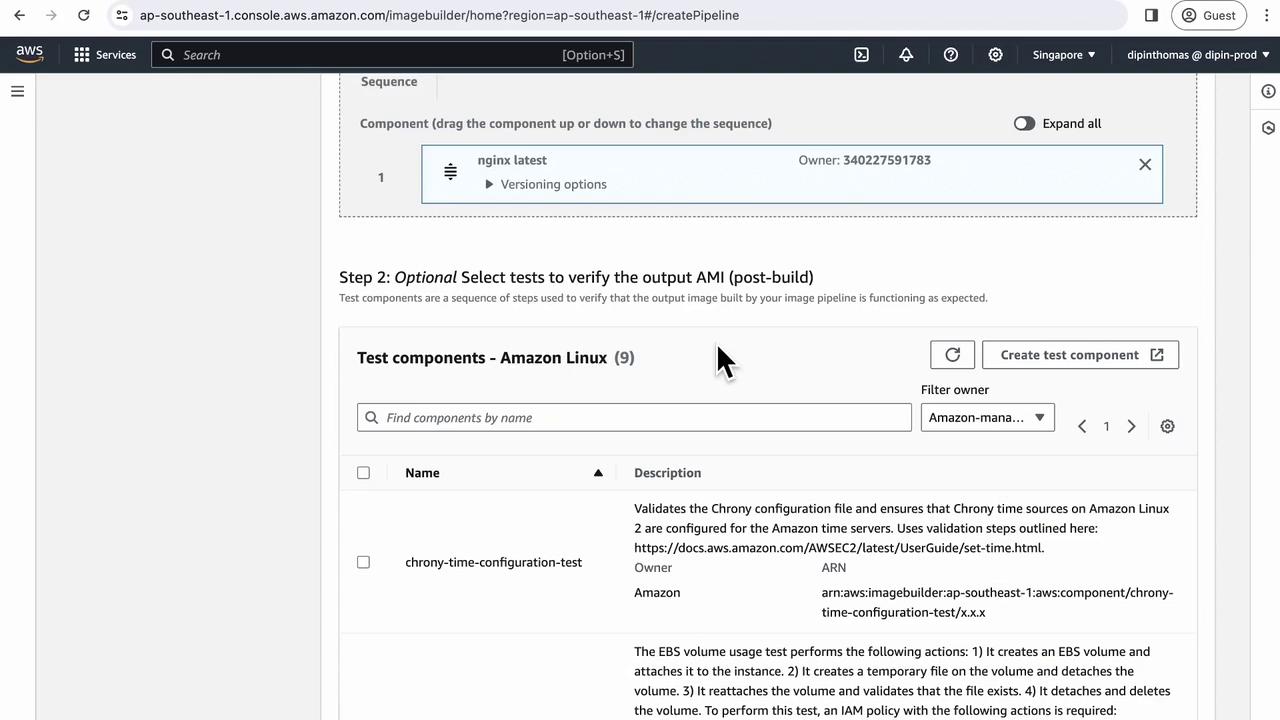
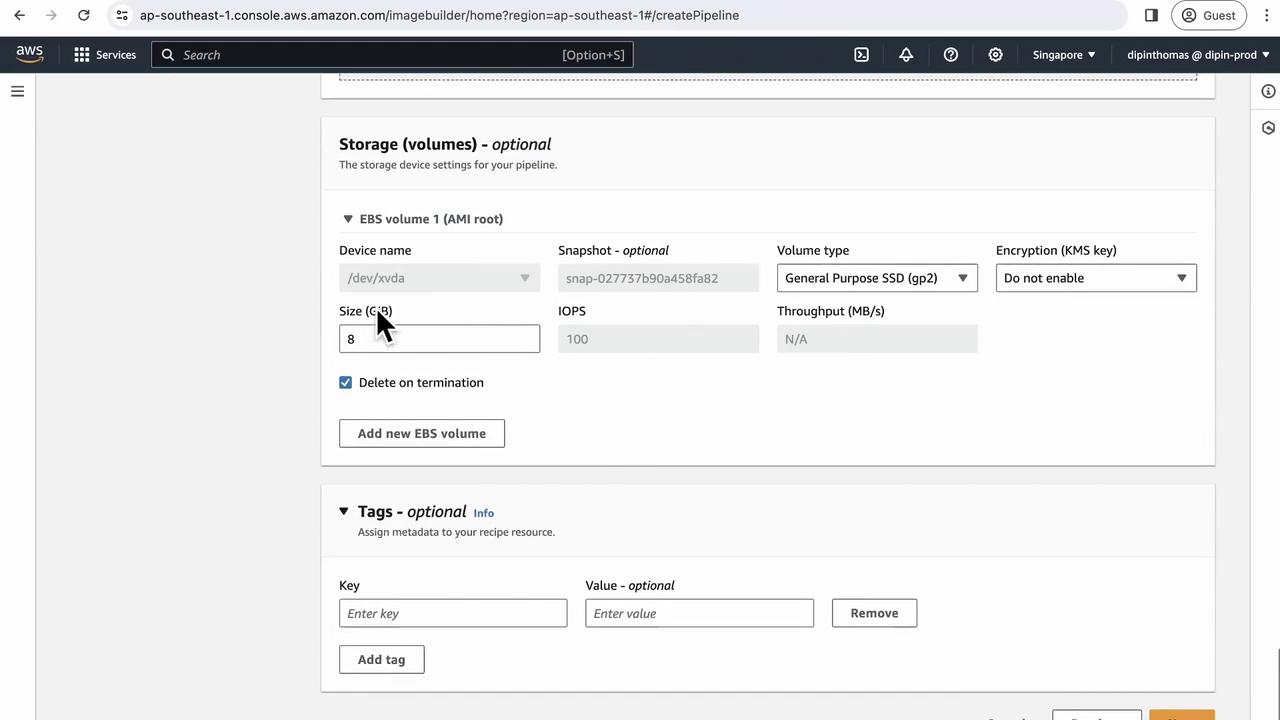
7. Configure Storage
Specify EBS settings for the build instance’s root volume:- Size: 8 GB
- Type: gp3
- IOPS: Default
- Encryption: Enable (recommended)
8. Select a Workflow
Choose Default to let Image Builder orchestrate phases automatically. Use Custom if you need to reorder or skip specific steps.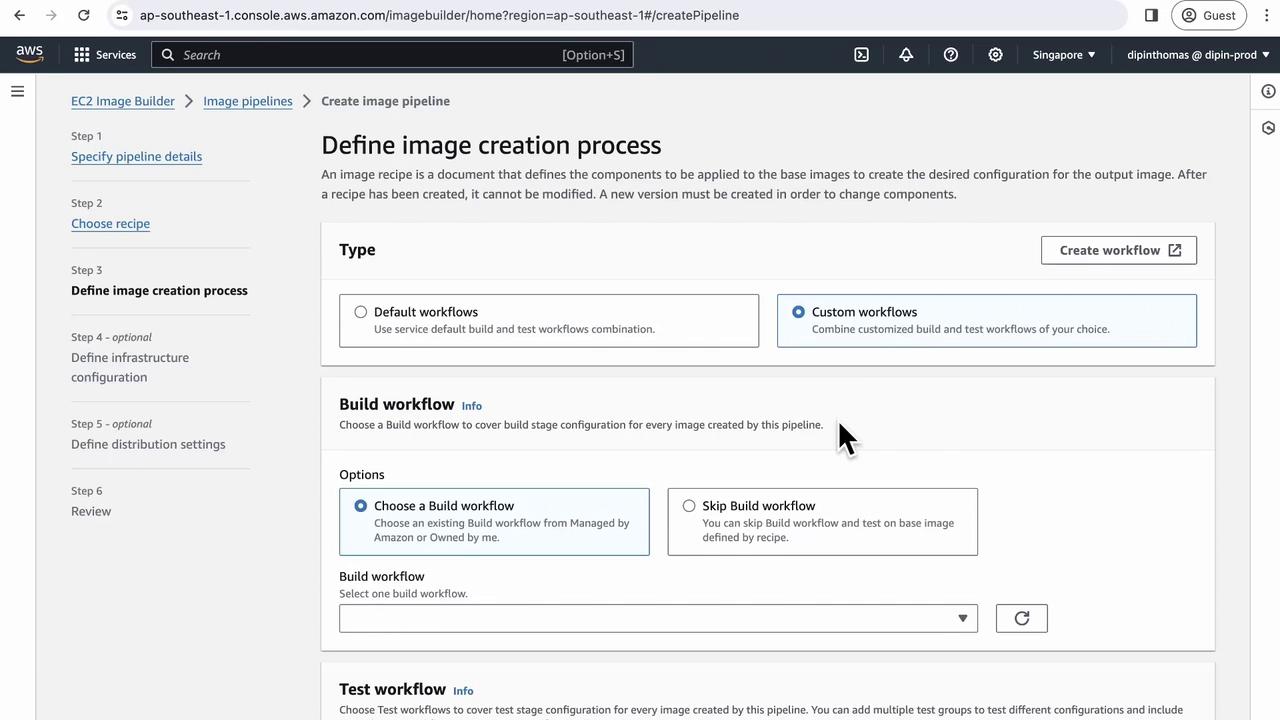
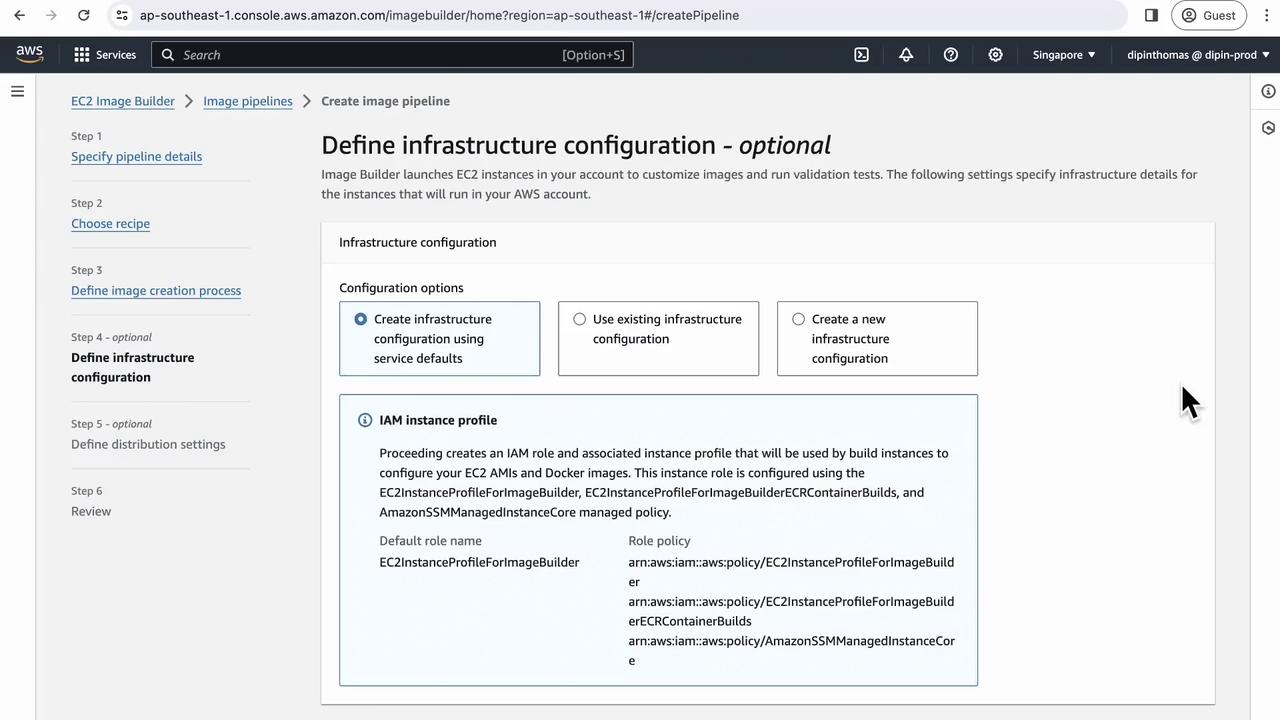
9. Infrastructure Configuration
Define the compute environment for builds:- Click Create new configuration.
- Name it (e.g.,
nginx-build-config). - Attach an IAM instance profile with
ImageBuilderInstanceProfile. - Choose an instance type, such as
t4g.mediumfor ARM64. - Optionally, add an SNS topic for notifications.
10. Distribution Settings
By default, the AMI is shared in the current account and region. Add other accounts or regions if you need cross-account or cross-region distribution.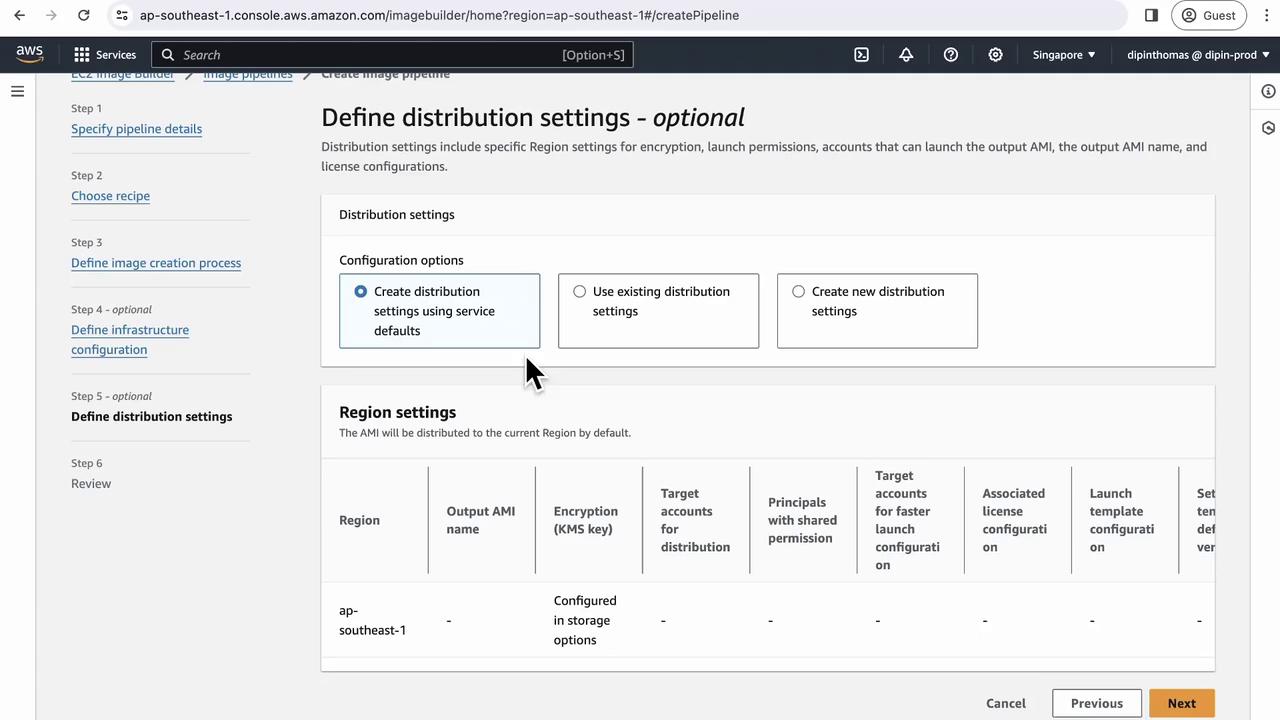
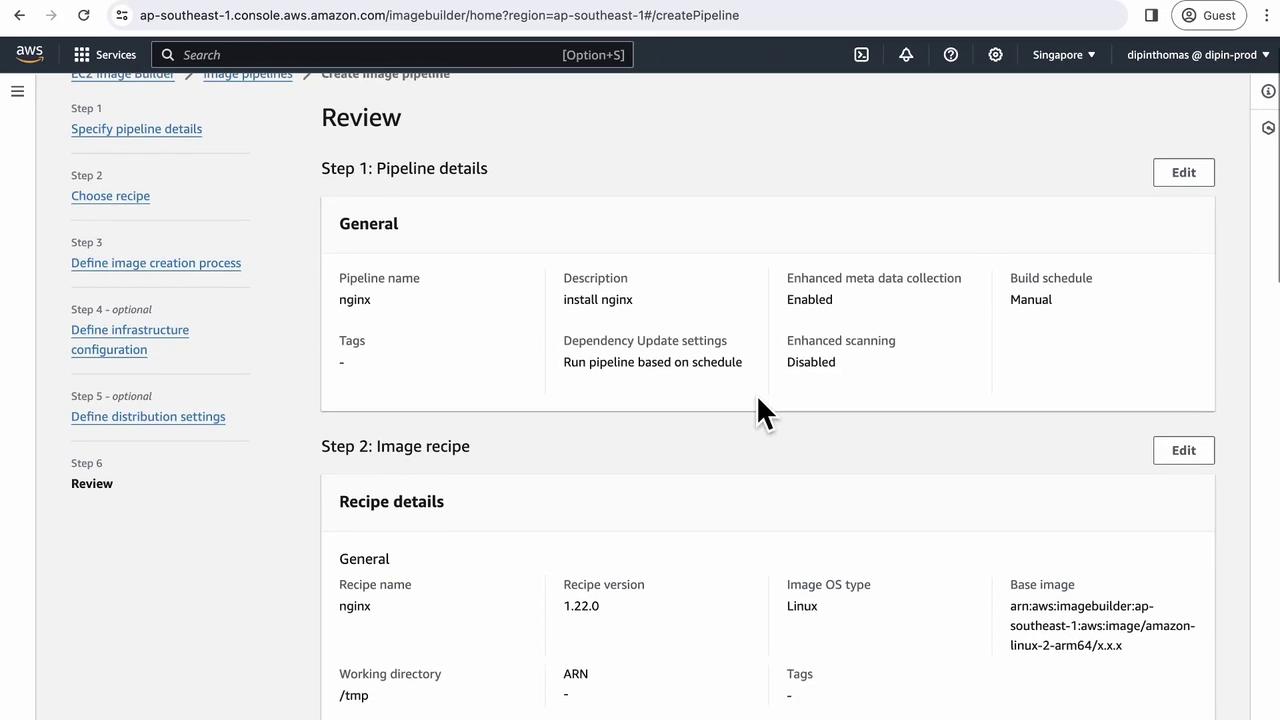
11. Review & Create
Double-check all settings:- Pipeline name and metadata
- Recipe details
- Component tests
- Storage configuration
- Workflow selection
- Infrastructure profile
- Distribution targets

12. Run the Pipeline
- Navigate to Image pipelines in the console.
- Select your newly created
nginx-pipeline. - Click Run pipeline.
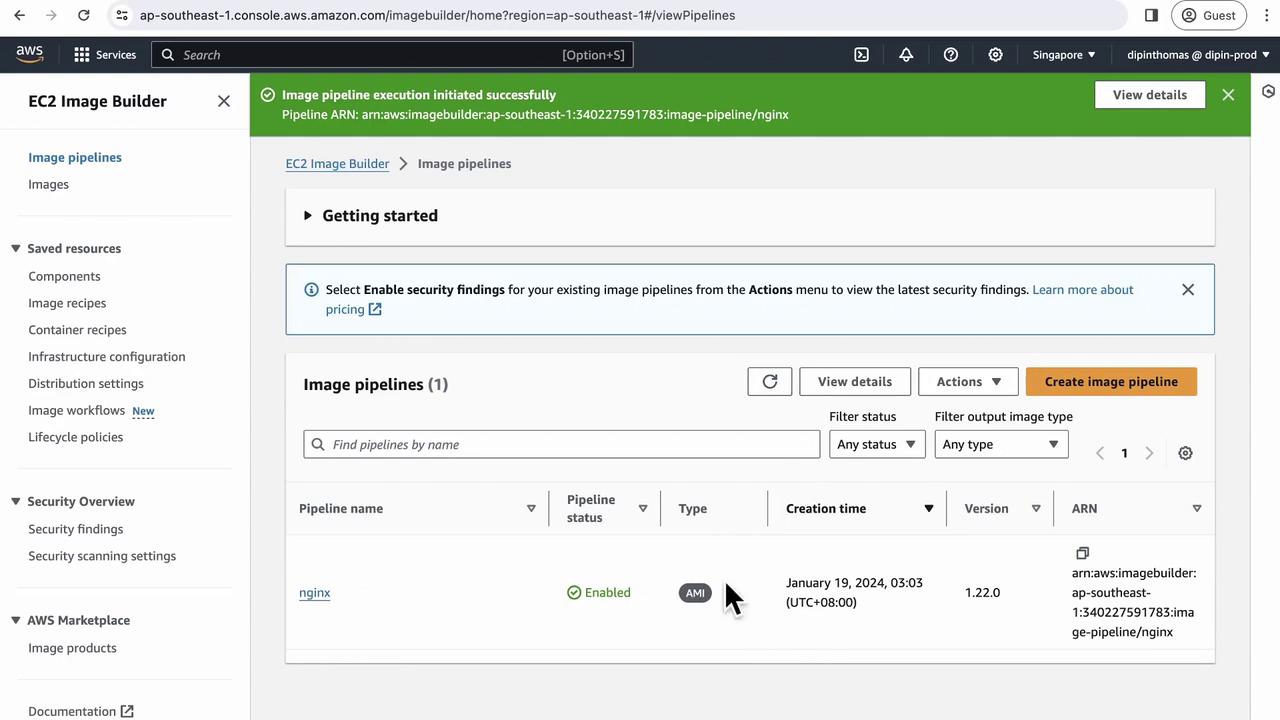
13. Monitor Build Execution
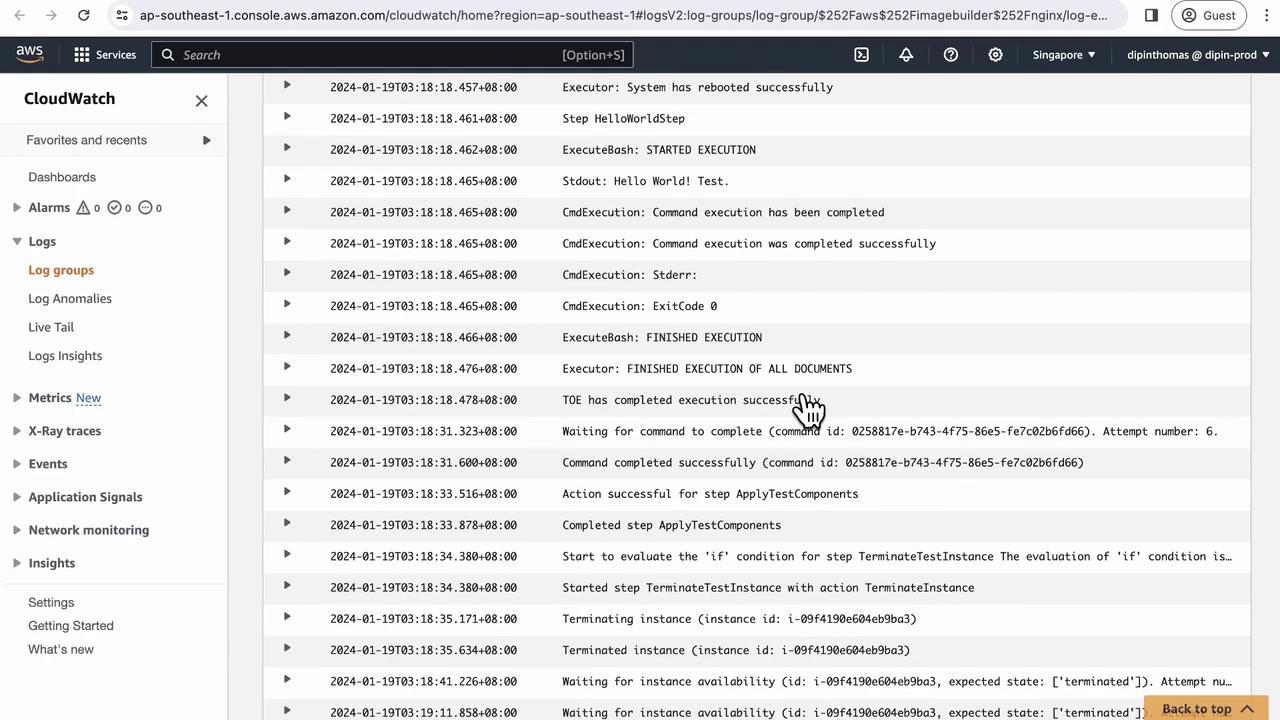
As the pipeline runs, a build instance spins up. To view logs:- Under Pipeline executions, select the active run.
- Click Log stream to open CloudWatch Logs.
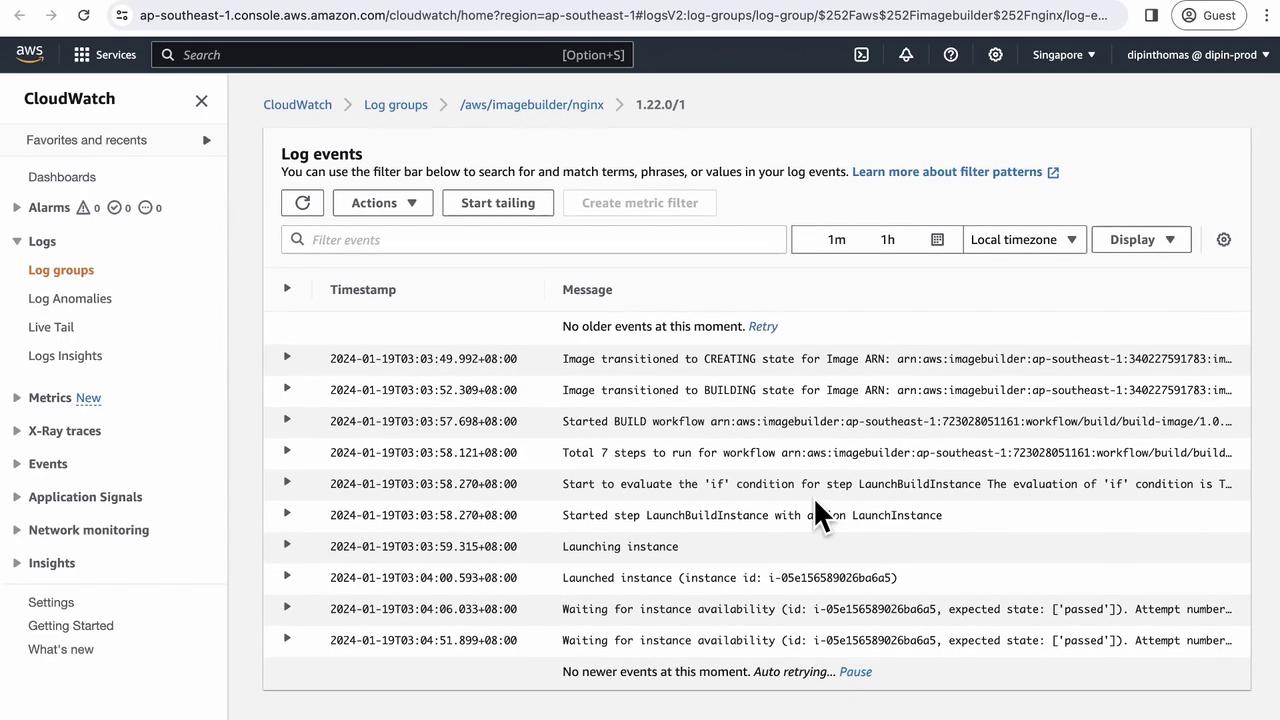
14. Verify AMI Creation
After completion, go to the EC2 AMIs console.Filter by Owned by me to confirm your new AMI and its status.
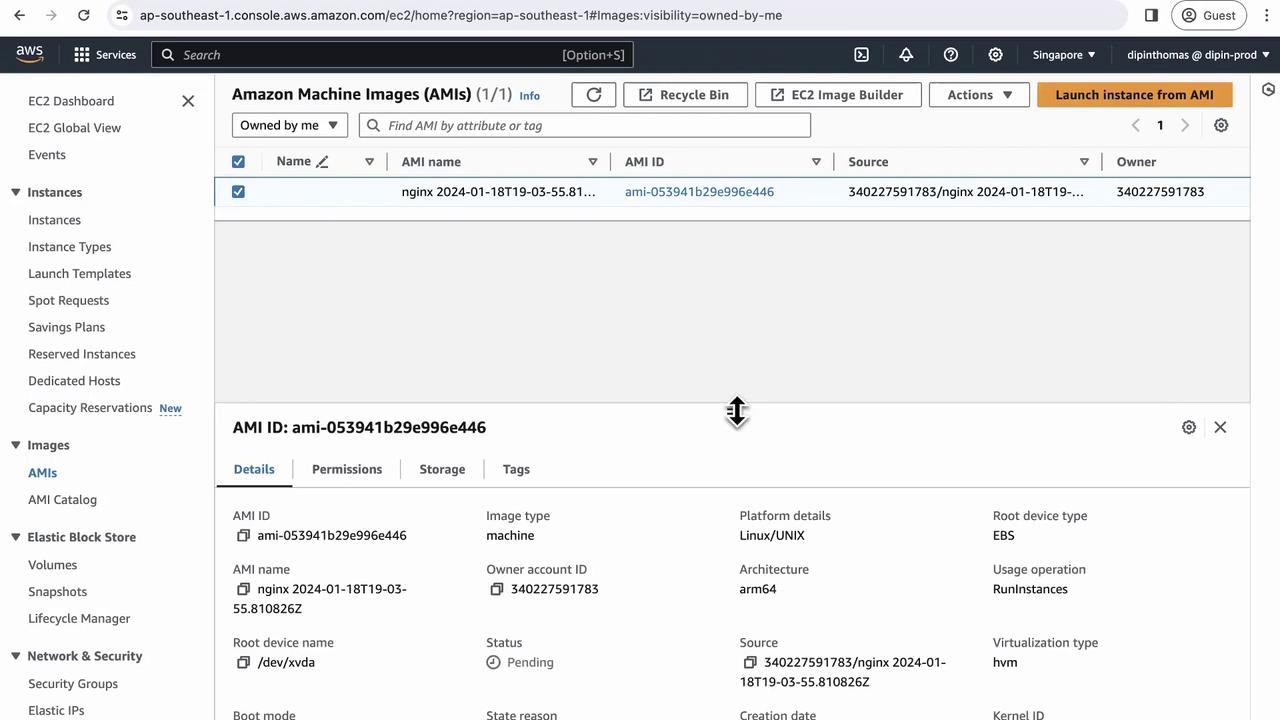
15. Test Instance Launch
Image Builder automatically launches a test instance:- It boots the AMI.
- Runs the reboot-test.
- Terminates the instance upon success.